air condition VOLKSWAGEN T-ROC 2021 Owner´s Manual
[x] Cancel search | Manufacturer: VOLKSWAGEN, Model Year: 2021, Model line: T-ROC, Model: VOLKSWAGEN T-ROC 2021Pages: 502, PDF Size: 9.42 MB
Page 3 of 502
Rear view
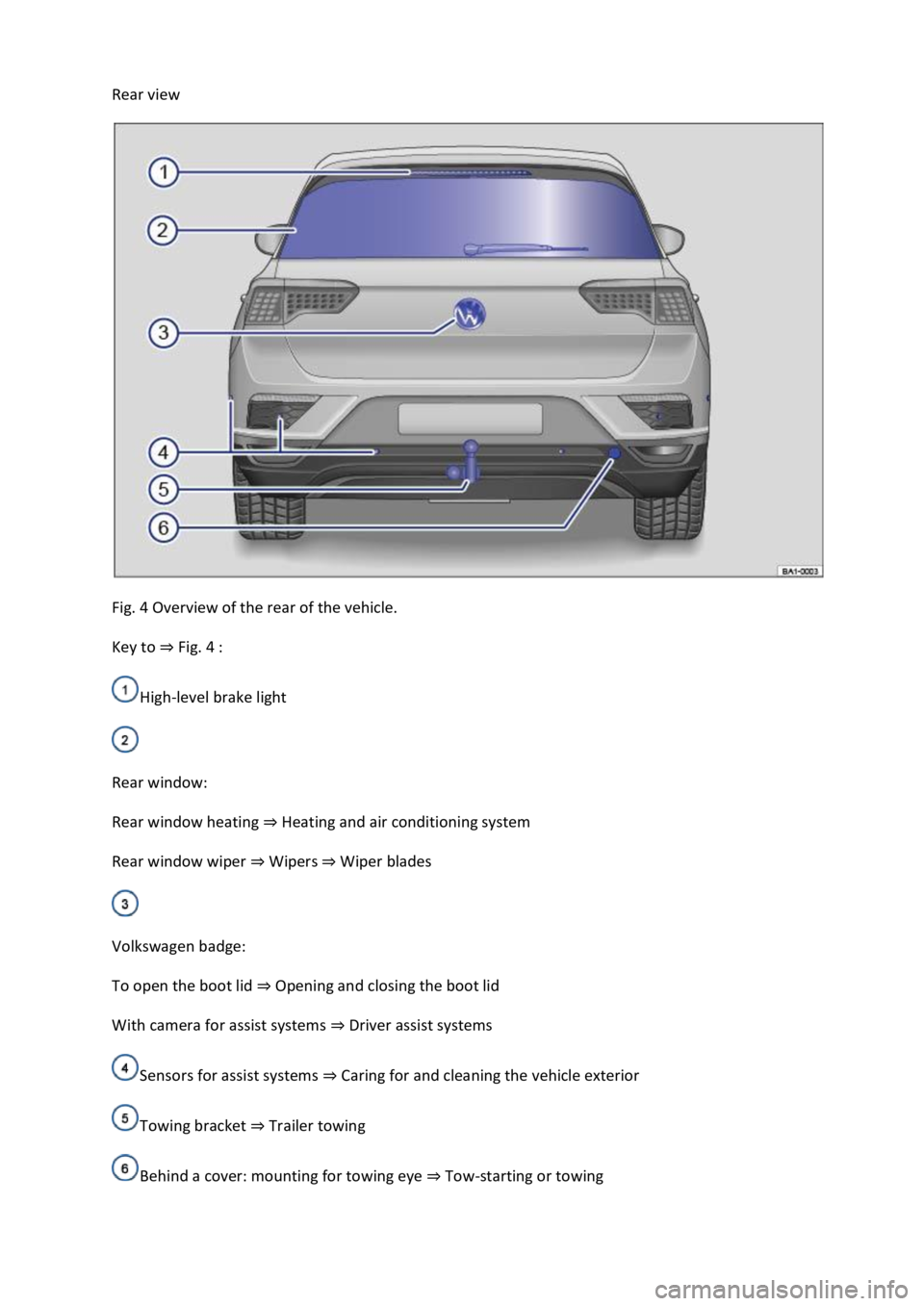
Fig. 4 Overview of the rear of the vehicle.
Key to ⇒ Fig. 4 :
High-level brake light
Rear window:
Rear window heating ⇒ Heating and air conditioning system
Rear window wiper ⇒ Wipers ⇒ Wiper blades
Volkswagen badge:
To open the boot lid ⇒ Opening and closing the boot lid
With camera for assist systems ⇒ Driver assist systems
Sensors for assist systems ⇒ Caring for and cleaning the vehicle exterior
Towing bracket ⇒ Trailer towing
Behind a cover: mounting for towing eye ⇒ Tow-starting or towing
Page 6 of 502
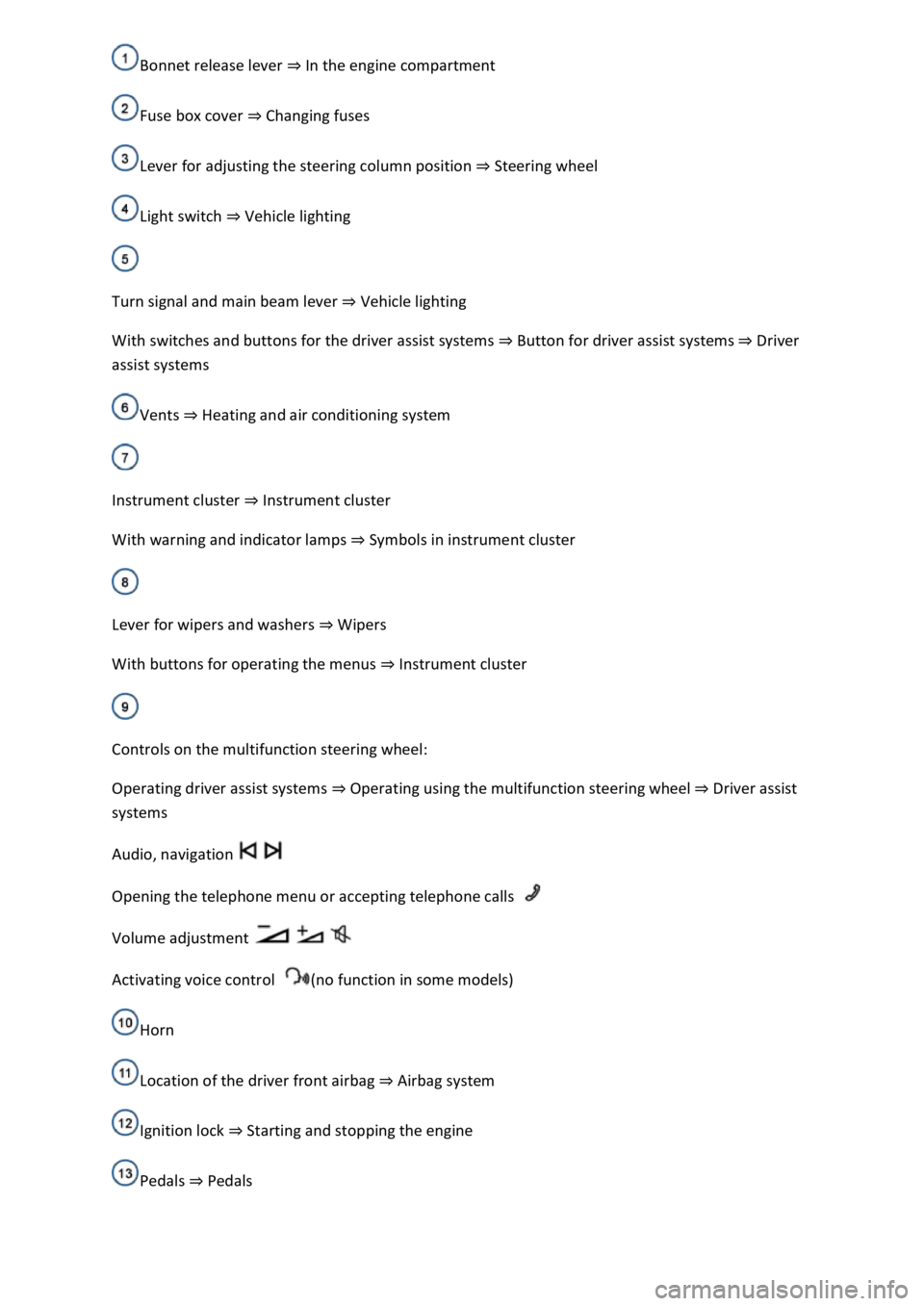
Bonnet release lever ⇒ In the engine compartment
Fuse box cover ⇒ Changing fuses
Lever for adjusting the steering column position ⇒ Steering wheel
Light switch ⇒ Vehicle lighting
Turn signal and main beam lever ⇒ Vehicle lighting
With switches and buttons for the driver assist systems ⇒ Button for driver assist systems ⇒ Driver
assist systems
Vents ⇒ Heating and air conditioning system
Instrument cluster ⇒ Instrument cluster
With warning and indicator lamps ⇒ Symbols in instrument cluster
Lever for wipers and washers ⇒ Wipers
With buttons for operating the menus ⇒ Instrument cluster
Controls on the multifunction steering wheel:
Operating driver assist systems ⇒ Operating using the multifunction steering wheel ⇒ Driver assist
systems
Audio, navigation
Opening the telephone menu or accepting telephone calls
Volume adjustment
Activating voice control (no function in some models)
Horn
Location of the driver front airbag ⇒ Airbag system
Ignition lock ⇒ Starting and stopping the engine
Pedals ⇒ Pedals
Page 7 of 502
Centre console
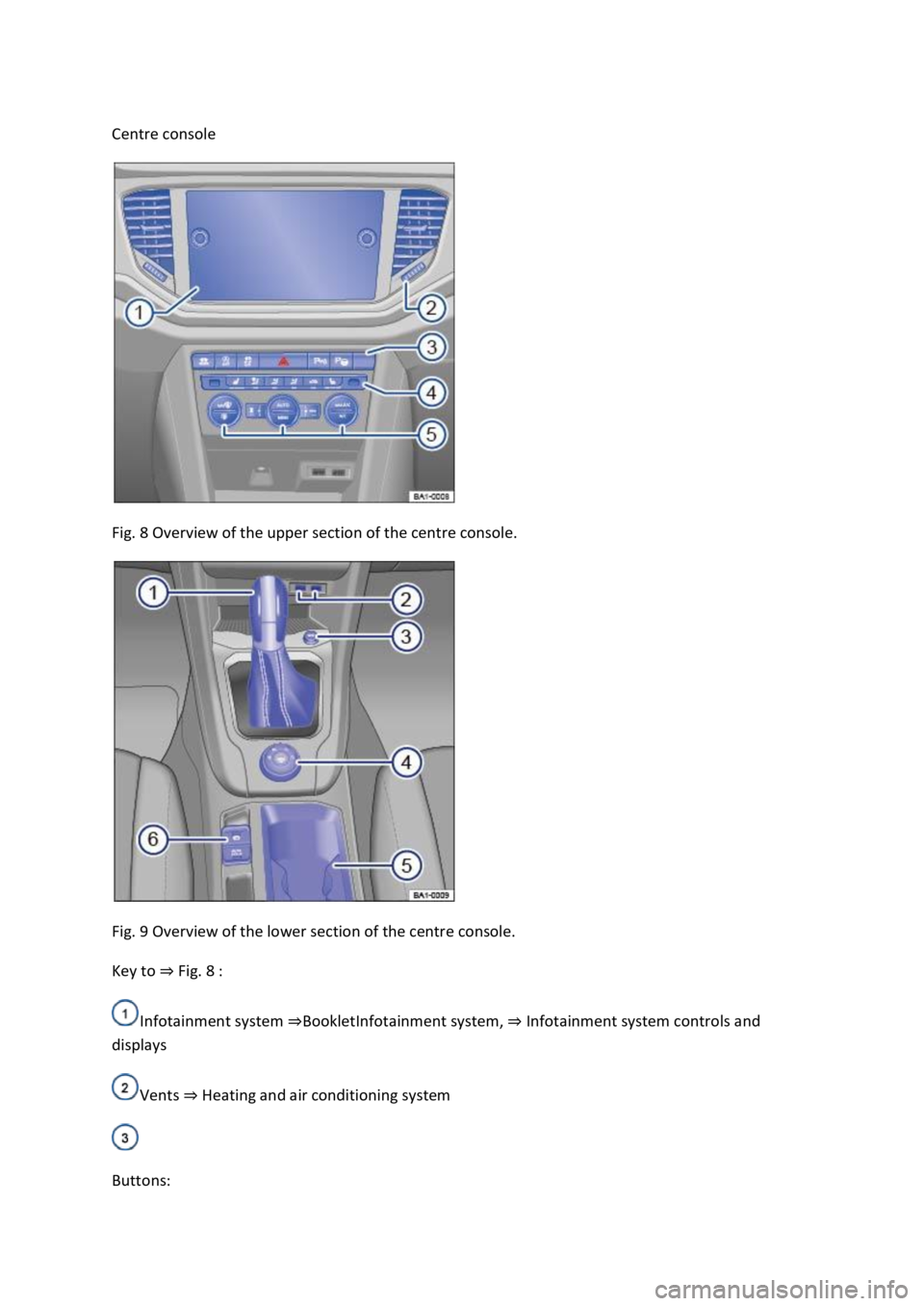
Fig. 8 Overview of the upper section of the centre console.
Fig. 9 Overview of the lower section of the centre console.
Key to ⇒ Fig. 8 :
Infotainment system ⇒BookletInfotainment system, ⇒ Infotainment system controls and
displays
Vents ⇒ Heating and air conditioning system
Buttons:
Page 8 of 502

Hazard warning lights ⇒ In an emergency
Indicator lamp for the front passenger front airbag switch-off function ⇒ Airbag system
Driver assist systems ⇒ Driver assist systems
Controls for the air conditioning system, heating and fresh air system ⇒ Heating, ventilating,
cooling
Controls for the air conditioning system, heating and fresh air system ⇒ Heating, ventilating,
cooling
Key to ⇒ Fig. 9 :
Lever:
DSG® dual clutch gearbox ⇒ DSG® dual clutch gearbox
Manual gearbox ⇒ Manual gearbox: selecting a gear
Multimedia connections ⇒BookletInfotainment system,.
Cigarette lighter or 12-volt socket ⇒ Ashtray and cigarette lighter ⇒ Electrical sockets
Control for the 4MOTION Active Control ⇒ Driving profile selection and 4MOTION Active
Control
Stowage compartment with drink holder ⇒ Stowage areas
Buttons:
Electronic parking brake ⇒ Electronic parking brake
Auto Hold function ⇒ Auto Hold function
Page 9 of 502
Front passenger side
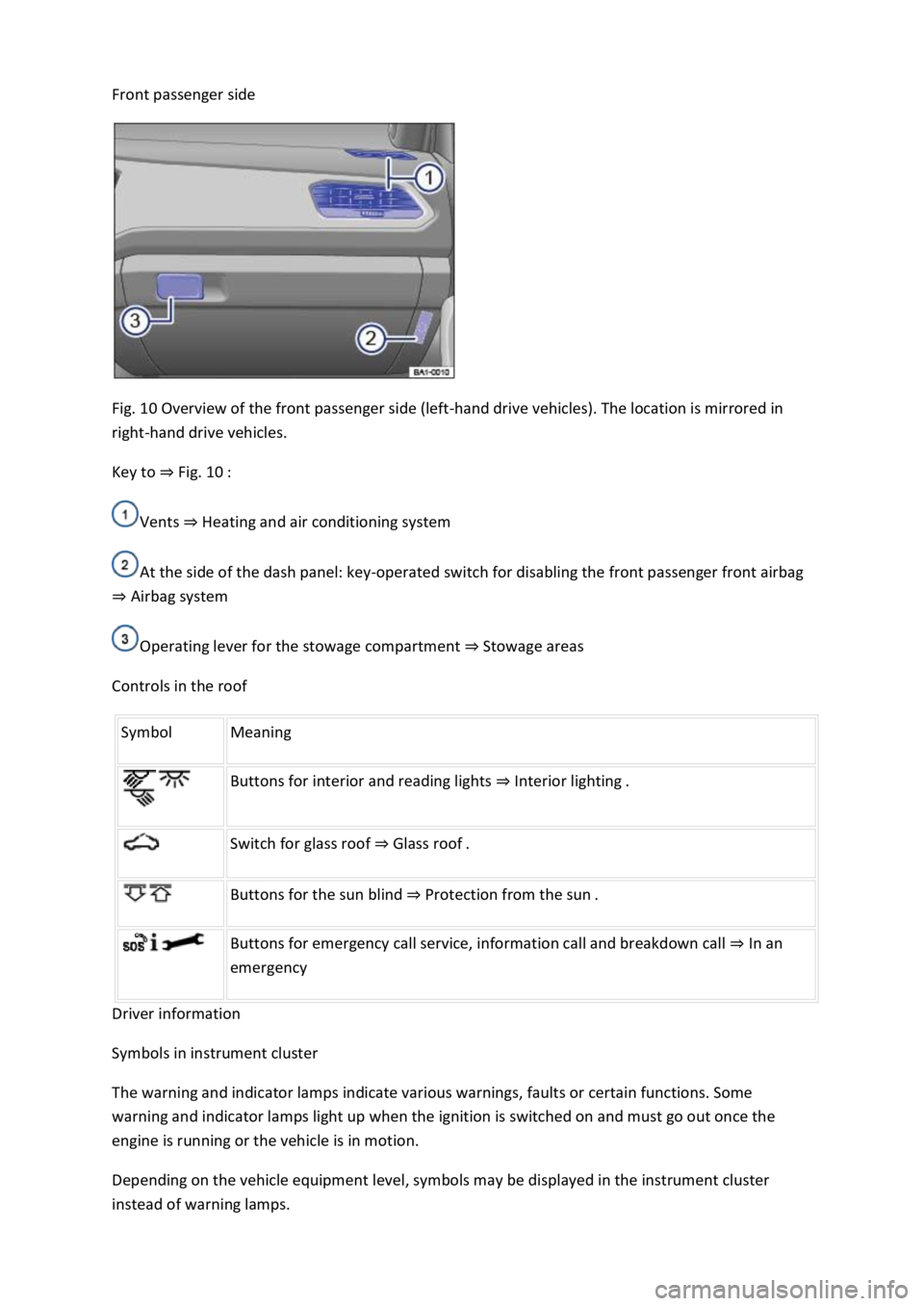
Fig. 10 Overview of the front passenger side (left-hand drive vehicles). The location is mirrored in
right-hand drive vehicles.
Key to ⇒ Fig. 10 :
Vents ⇒ Heating and air conditioning system
At the side of the dash panel: key-operated switch for disabling the front passenger front airbag
⇒ Airbag system
Operating lever for the stowage compartment ⇒ Stowage areas
Controls in the roof
Symbol Meaning
Buttons for interior and reading lights ⇒ Interior lighting .
Switch for glass roof ⇒ Glass roof .
Buttons for the sun blind ⇒ Protection from the sun .
Buttons for emergency call service, information call and breakdown call ⇒ In an
emergency
Driver information
Symbols in instrument cluster
The warning and indicator lamps indicate various warnings, faults or certain functions. Some
warning and indicator lamps light up when the ignition is switched on and must go out once the
engine is running or the vehicle is in motion.
Depending on the vehicle equipment level, symbols may be displayed in the instrument cluster
instead of warning lamps.
Page 23 of 502
The memory will be deleted if the journey is interrupted for more than two hours.
Since refuelling memory
Display and storage of the collected driving and consumption values. The memory is deleted when
the tank is refilled.
Long-term memory
The memory collects driving data for up to 19 hours and 59 minutes or 99 hours and 59 minutes of
driving time or 1,999.9 km or 9,999.9 km distance covered. The memory is deleted if one of these
maximum values1) is exceeded.
Deleting driving data memories
Select the memory that you wish to delete.
Press and hold the button on the wiper lever or the button on the multifunction
steering wheel for approximately two seconds.
Selecting displays
You can select which driving data you want to display in the vehicle settings in the Infotainment
system ⇒ Vehicle settings menu .
Average consumption display
The average fuel consumption is displayed after approx. 300 metres.
Range display
Approximate driving distance in km that the vehicle can still travel if the same driving style is
maintained.
SCR range or Range 2) display
Approximate driving distance in km that can still be travelled with the remaining quantity of AdBlue®
if the current driving style is maintained. This display appears only when the remaining range
reaches 2,400 km and cannot be cancelled.
Average speed display
The average speed is displayed after approximately 100 metres.
Convenience consumers
List of active convenience systems which can increase energy consumption, e.g. the air conditioning.
Setting the speed warning
Select the display Warning at --- km/h or Warning at --- mph.
Press the button on the windscreen wiper lever or the button on the multifunction
steering wheel to save the current speed and activate the warning.
Page 29 of 502

Partially or fully hidden traffic signs, e.g. by trees, snow, dirt or other vehicles.
Road signs that do not correspond to the standard design.
Damaged or bent traffic signs.
Variable road signs on gantries (changeable road sign display using LEDs or other light sources).
Out-of-date map material in the Infotainment system.
Stickers on vehicles that show road signs, e.g. speed restrictions on trucks.
WARNING
The intelligent technology used by the Dynamic Road Sign Display cannot overcome the laws of
physics, and functions only within the limits of the system. Do not let the extra convenience afforded
by the Dynamic Road Sign Display system tempt you into taking any risks when driving. The system is
not a substitute for the full concentration of the driver.
Always adapt your speed and driving style to suit visibility, weather, road and traffic conditions.
Poor visibility, darkness, snow, rain and fog can cause road signs not to be displayed or to be
incorrectly displayed by the system.
If the camera's field of view is dirty, covered or damaged, the function of the Dynamic Road Sign
Display system may be impaired.
WARNING
Driving recommendations and traffic symbols displayed by the Dynamic Road Sign Display system
may differ from the current traffic situation.
Not all road signs can be recognised by the system and displayed correctly.
Road signs on the road and traffic regulations have priority over the recommendations and displays
provided by the Dynamic Road Sign Display system.
NOTICE
Availability of the Dynamic Road Sign Display function is limited in waypoint mode (waypoint
navigation) of the Infotainment system.
Some settings can be saved in the user accounts of the personalisation function and can therefore
change automatically when the user account is changed ⇒ Personalisation .
Page 42 of 502

Key to ⇒ Fig. 23 :
Display areas.
Arrow buttons for changing to the lap timer.
Opening the performance monitor
Press the MENU button or function button on the Infotainment system.
Touch the Vehicle function button.
Touch the Selection function button.
Touch the Sport function button.
If you would like to switch between the performance monitor and the lap timer ⇒ Lap timer , touch
one of the arrow buttons on the left and right above the instruments ⇒ Fig. 23 ②.
Selecting instruments and setting units
The display can show a maximum of three instruments at the same time. Each instrument can be
selected for each display area ⇒ Fig. 23 ① (left, middle, right).
To change between instruments, swipe vertically over the display. The currently selected instrument
will then disappear and a new instrument will appear.
The units can be adjusted for some instruments in the Infotainment system ⇒ Vehicle settings
menu .
The following instruments can be displayed:
Charge pressure display: the charge pressure display ⇒ Fig. 23 ① (left) shows the pressure in the
charge air system between the turbocharger and engine (in the unit bar). The further to the right the
needle on the scale, the higher the engine power output.
Accelerometer (G-meter): the accelerometer (G-meter) ⇒ Fig. 23 ① (centre) shows the
acceleration value in the centre (in the unit g). The red marking in the grid-type area shows the
acceleration level and the direction of the acting force (in the opposite direction according to
physical laws). If you drive to the left, for example, the red marking will move in the right area of the
instrument (and vice versa). If you accelerate, the red marking will move down. If you brake, the red
marking will move up. The level of acceleration is indicated by the position of the red marking which
moves outwards. If the acceleration increases, the red marking will move away from the centre area.
Power display: the power display ⇒ Fig. 23 ① (right) shows the current engine power output as a
digital value and on the surrounding scale (in kW).
Coolant temperature display: the needle may move further in a clockwise direction under high
engine loads and with high outside temperatures. This is no cause for concern unless the
indicator lamp in the instrument cluster display is lit up or flashing ⇒ Coolant temperature display .
Oil temperature display: the needle is in the middle area under normal driving conditions. If the
needle is in the bottom left area, this means that the engine has not yet reached its operating
temperature. Avoid excessively high speeds and acceleration when the engine has not yet reached
Page 45 of 502
Opening the lap timer
Press the MENU button or function button, depending on the version of the Infotainment system.
Touch the Vehicle function button.
Touch the Selection function button.
Touch the Sport function button. The performance monitor is displayed.
Touch one of the arrow buttons ⇒ Fig. 23 ② in the performance monitor to change to the lap
timer.
You can change between the lap timer and performance monitor at any time using the arrow
buttons ⇒ Fig. 23 ② and ⇒ Fig. 24 .
Measuring lap times
The stopwatch measures the lap time in two areas:
The red needle and the numerical value in the centre show the running time in seconds. The smaller
display in the inner area shows minutes and hours.
The display on the right side shows the current lap time with an accuracy of 1/100 seconds. There is
no difference between the stopwatch and lap times if there are not yet any laps with split times
stored in the lap timer.
WARNING
Avoid operating the lap timer when the vehicle is in motion if possible.
Make lap timer settings and access statistics only when the vehicle is stationary.
When the vehicle is in motion, use the lap timer only in driving situations which are easy to control.
Personalisation
First read and observe the introductoryinformation and safety warnings⇒Introduction
The personalisation function allows personalised vehicle settings, such as air conditioning system,
instrument cluster or lighting settings, to be saved in a user account. Four user accounts are
available. Users are identified by the vehicle keys upon unlocking the vehicle. A user account is
assigned to each vehicle key.
Changes to the settings will be assigned to the active user account and saved upon locking the
vehicle or changing the user account.
Welcome and user account selection
When personalisation is activated, the name of the current user account appears on the instrument
cluster display for approximately ten seconds after you switch on the ignition.
During this time, you can select a user account using the buttons on the wiper lever or multifunction
steering wheel ⇒ Infotainment system controls and displays .
Page 46 of 502

When you select a user account, the saved vehicle settings are activated.
User management and settings
When the ignition is switched on, you can use the Personalisation menu in the Infotainment system
for user management and to make settings. The menu can be accessed via the vehicle settings in the
Infotainment system.
Changing the user account
You can select the user account either via the Personalisation menu or via the Vehicle status menu.
Manually assigning vehicle keys to user accounts
You can assign a vehicle key to the currently active user account. For this purpose, select Manual key
assignment.
Automatically assigning vehicle keys to user accounts
If you have selected Automatic key assignment, the following vehicle key is assigned to the user
account upon changing the user account:
Vehicles without Keyless Access: vehicle key used to unlock the vehicle.
Vehicles with Keyless Access: vehicle key that is identified first by the personalisation function
when you open the driver door.
Personalised vehicle settings
Opening and closing (single door unlocking, window convenience opening etc.)
Light and vision (daytime running lights, cornering light, lane change flash etc.)
Settings for air conditioning system
Active driver assist systems
Driving profile selection
Multifunction display and instrument cluster (selection of displays)
Infotainment system (display brightness and station sorting)
A new vehicle key will be assigned to the current user account. To assign the vehicle key to a
different user account, select the required user account and manually assign it to the vehicle key.
Safety