air condition VOLKSWAGEN TIGUAN 2017 Owner´s Manual
[x] Cancel search | Manufacturer: VOLKSWAGEN, Model Year: 2017, Model line: TIGUAN, Model: VOLKSWAGEN TIGUAN 2017Pages: 341, PDF Size: 9.14 MB
Page 5 of 341
Rear window:
- Rear window heating ⇒ Heating and air conditioning system
- Rear wiper ⇒ Wipers⇒ Wiper blades
- Window aerial ⇒ Radio reception and aerials
Tail light clusters ⇒ Lights⇒ Changing bulbs
Area for:
- Number plate lights ⇒ Changing bulbs
- Rear view camera system ⇒ Rear view camera system (Rear View)
- Boot lid release button ⇒ Opening and closing the boot lid
Tail light clusters ⇒ Lights⇒ Changing bulbs
Behind the bumper: radar sensor for assist systems ⇒ Caring for and cleaning the vehicle
exterior
Sensors for assist systems ⇒ Caring for and cleaning the vehicle exterior
Towing bracket ⇒ Trailer towing
Behind a cover: mounting for towing eye ⇒ Tow-starting or towing
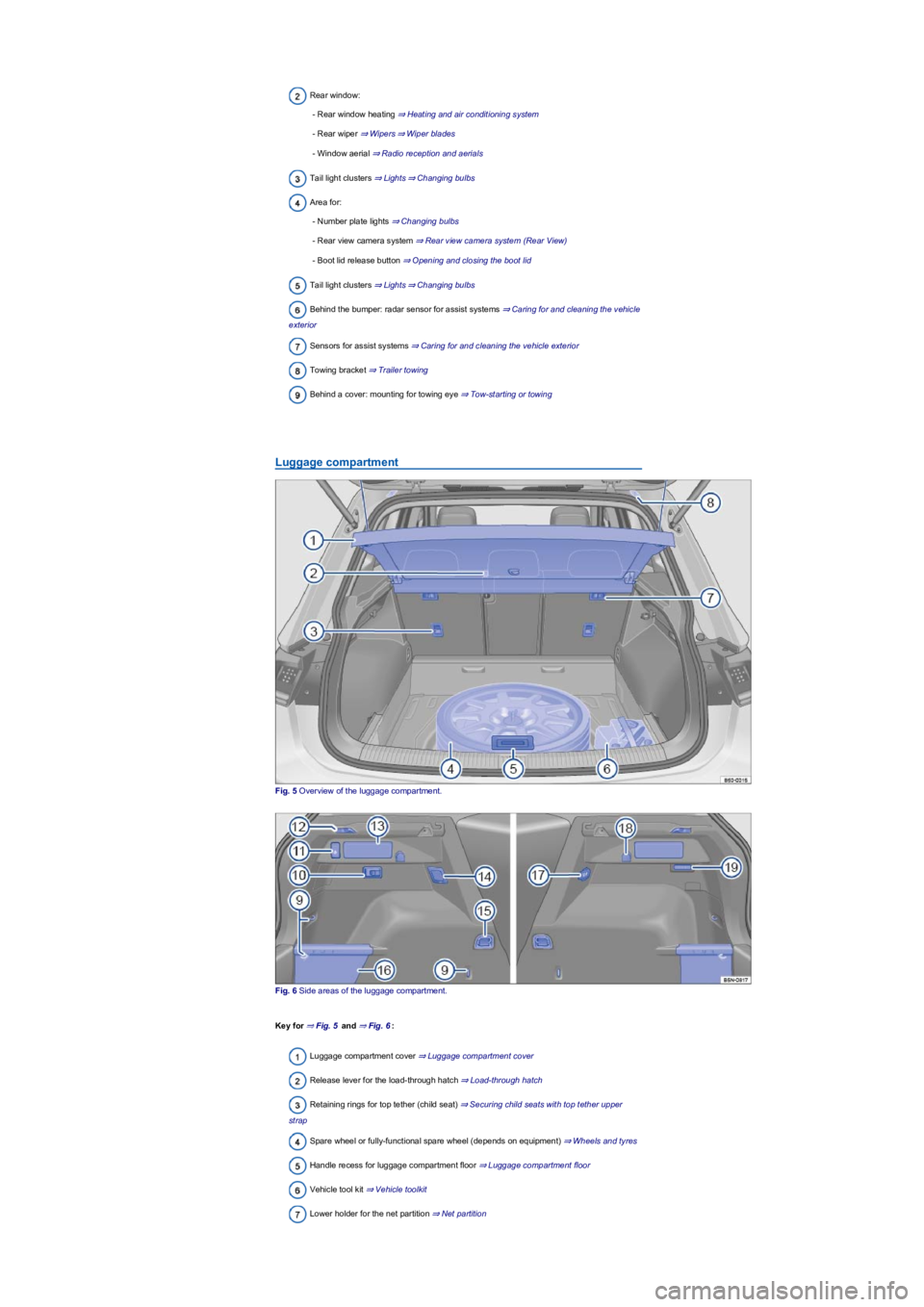
Luggage compartment
Fig. 5 Overview of the luggage compartment.
Fig. 6 Side areas of the luggage compartment.
Key for ⇒ Fig. 5 and ⇒ Fig. 6:
Luggage compartment cover ⇒ Luggage compartment cover
Release lever for the load-through hatch ⇒ Load-through hatch
Retaining rings for top tether (child seat) ⇒ Securing child seats with top tether upper
strap
Spare wheel or fully-functional spare wheel (depends on equipment) ⇒ Wheels and tyres
Handle recess for luggage compartment floor ⇒ Luggage compartment floor
Vehicle tool kit ⇒ Vehicle toolkit
Lower holder for the net partition ⇒ Net partition
Page 7 of 341
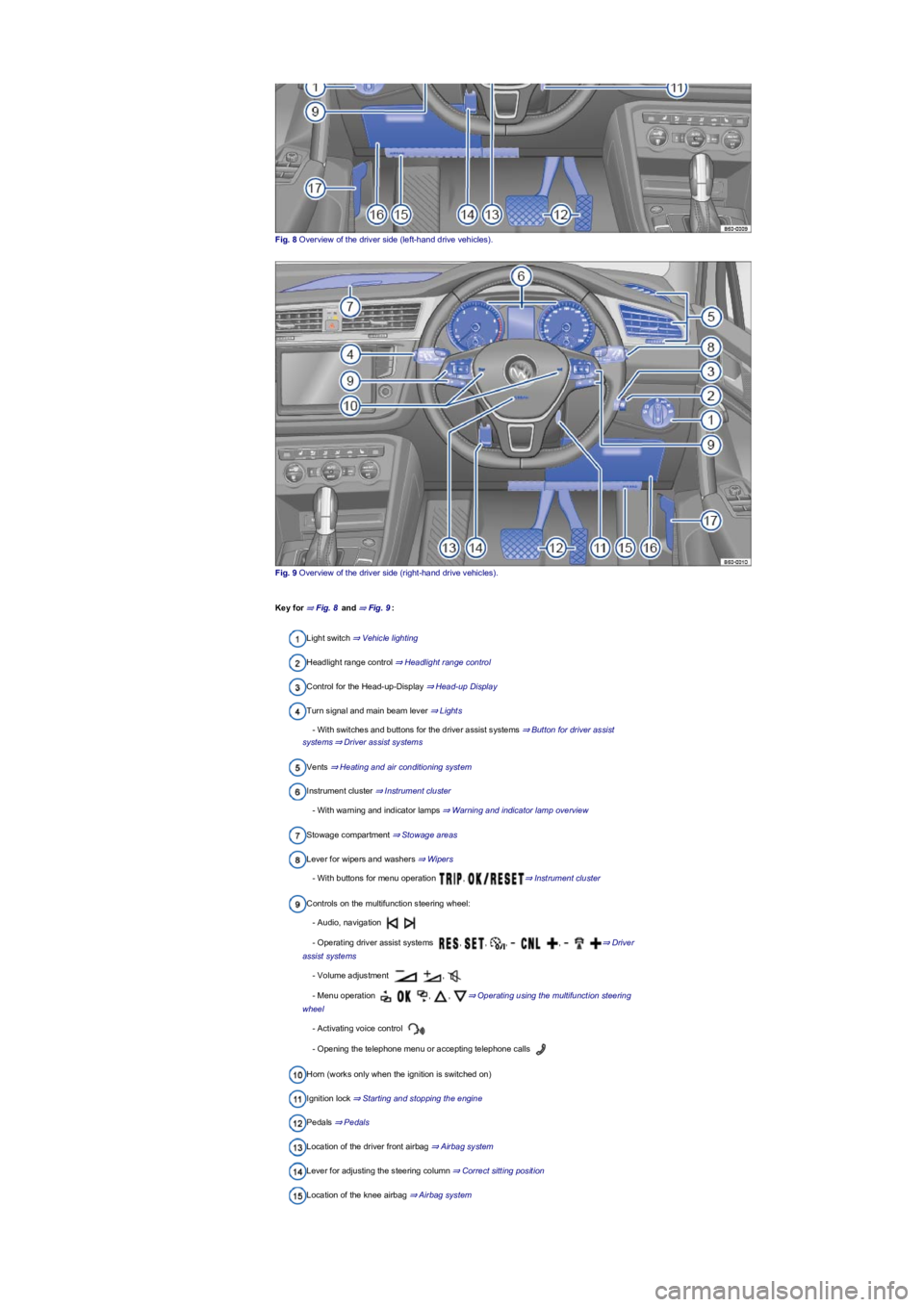
Fig. 8 Overview of the driver side (left-hand drive vehicles).
Fig. 9 Overview of the driver side (right-hand drive vehicles).
Key for ⇒ Fig. 8 and ⇒ Fig. 9:
Light switch ⇒ Vehicle lighting
Headlight range control ⇒ Headlight range control
Control for the Head-up-Display ⇒ Head-up Display
Turn signal and main beam lever ⇒ Lights
- With switches and buttons for the driver assist systems ⇒ Button for driver assist
systems⇒ Driver assist systems
Vents ⇒ Heating and air conditioning system
Instrument cluster ⇒ Instrument cluster
- With warning and indicator lamps ⇒ Warning and indicator lamp overview
Stowage compartment ⇒ Stowage areas
Lever for wipers and washers ⇒ Wipers
- With buttons for menu operation , ⇒ Instrument cluster
Controls on the multifunction steering wheel:
- Audio, navigation
- Operating driver assist systems , , , , ⇒ Driver
assist systems
- Volume adjustment ,
- Menu operation , , ⇒ Operating using the multifunction steering
wheel
- Activating voice control
- Opening the telephone menu or accepting telephone calls
Horn (works only when the ignition is switched on)
Ignition lock ⇒ Starting and stopping the engine
Pedals ⇒ Pedals
Location of the driver front airbag ⇒ Airbag system
Lever for adjusting the steering column ⇒ Correct sitting position
Location of the knee airbag ⇒ Airbag system
Page 8 of 341
Stowage compartment ⇒ Stowage areas
Release lever for the bonnet ⇒ In the engine compartment
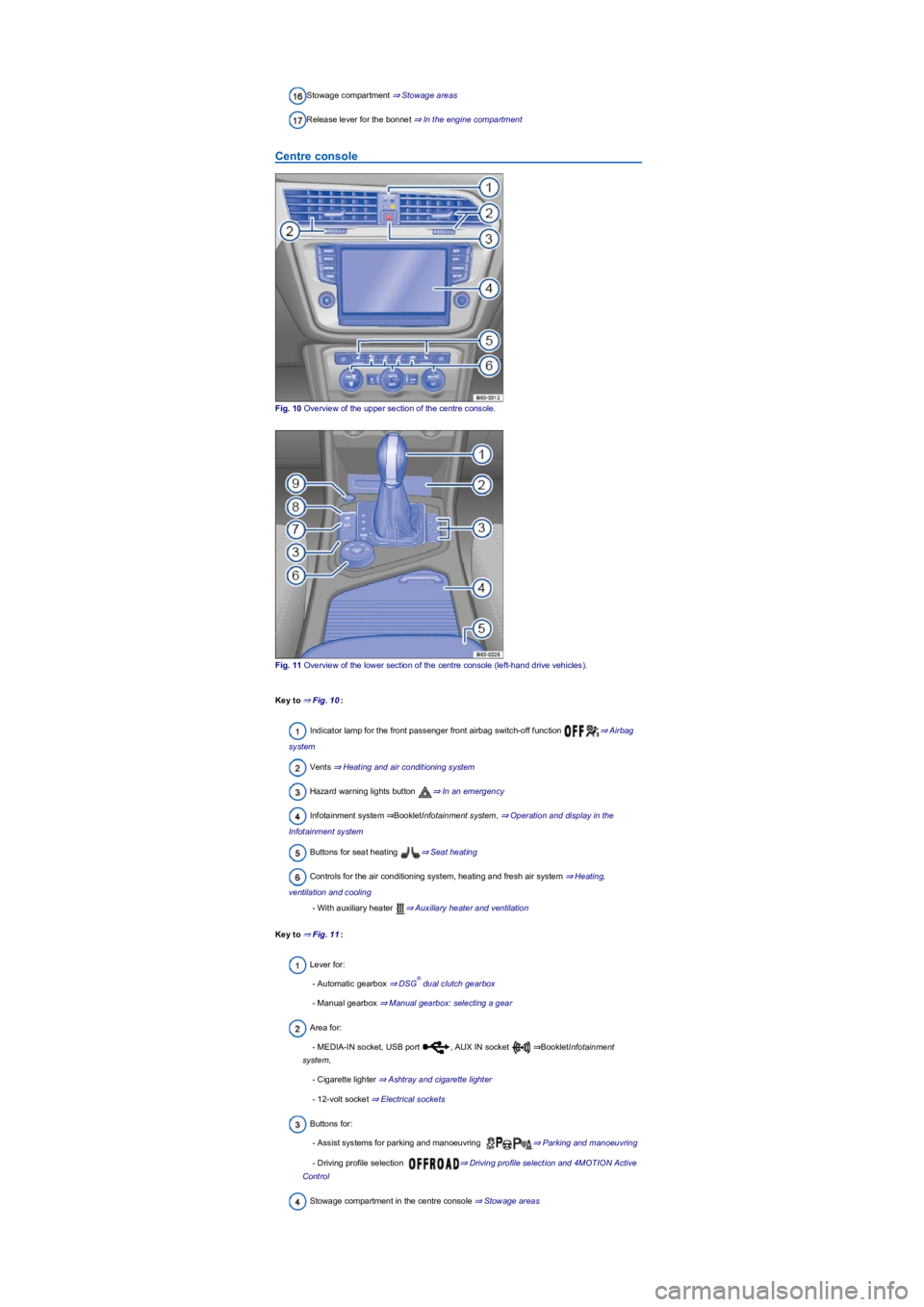
Centre console
Fig. 10 Overview of the upper section of the centre console.
Fig. 11 Overview of the lower section of the centre console (left-hand drive vehicles).
Key to ⇒ Fig. 10:
Indicator lamp for the front passenger front airbag switch-off function ⇒ Airbag
system
Vents ⇒ Heating and air conditioning system
Hazard warning lights button ⇒ In an emergency
Infotainment system ⇒BookletInfotainment system, ⇒ Operation and display in the
Infotainment system
Buttons for seat heating ⇒ Seat heating
Controls for the air conditioning system, heating and fresh air system ⇒ Heating,
ventilation and cooling
- With auxiliary heater ⇒ Auxiliary heater and ventilation
Key to ⇒ Fig. 11:
Lever for:
- Automatic gearbox ⇒ DSG dual clutch gearbox
- Manual gearbox ⇒ Manual gearbox: selecting a gear
Area for:
- MEDIA-IN socket, USB port , AUX IN socket ⇒BookletInfotainment
system,
- Cigarette lighter ⇒ Ashtray and cigarette lighter
- 12-volt socket ⇒ Electrical sockets
Buttons for:
- Assist systems for parking and manoeuvring ⇒ Parking and manoeuvring
- Driving profile selection ⇒ Driving profile selection and 4MOTION Active
Control
Stowage compartment in the centre console ⇒ Stowage areas
®
Page 9 of 341
Stowage compartment in the centre armrest ⇒ Stowage areas
Control for 4MOTION Active Control ⇒ Selecting a driving profile (4MOTION Action
Control)
Button for Auto Hold function ⇒ Auto Hold function
Electronic parking brake ⇒ Electronic parking brake
Starter button (keyless locking and starting system Keyless Access) ⇒ Starting and
stopping the engine
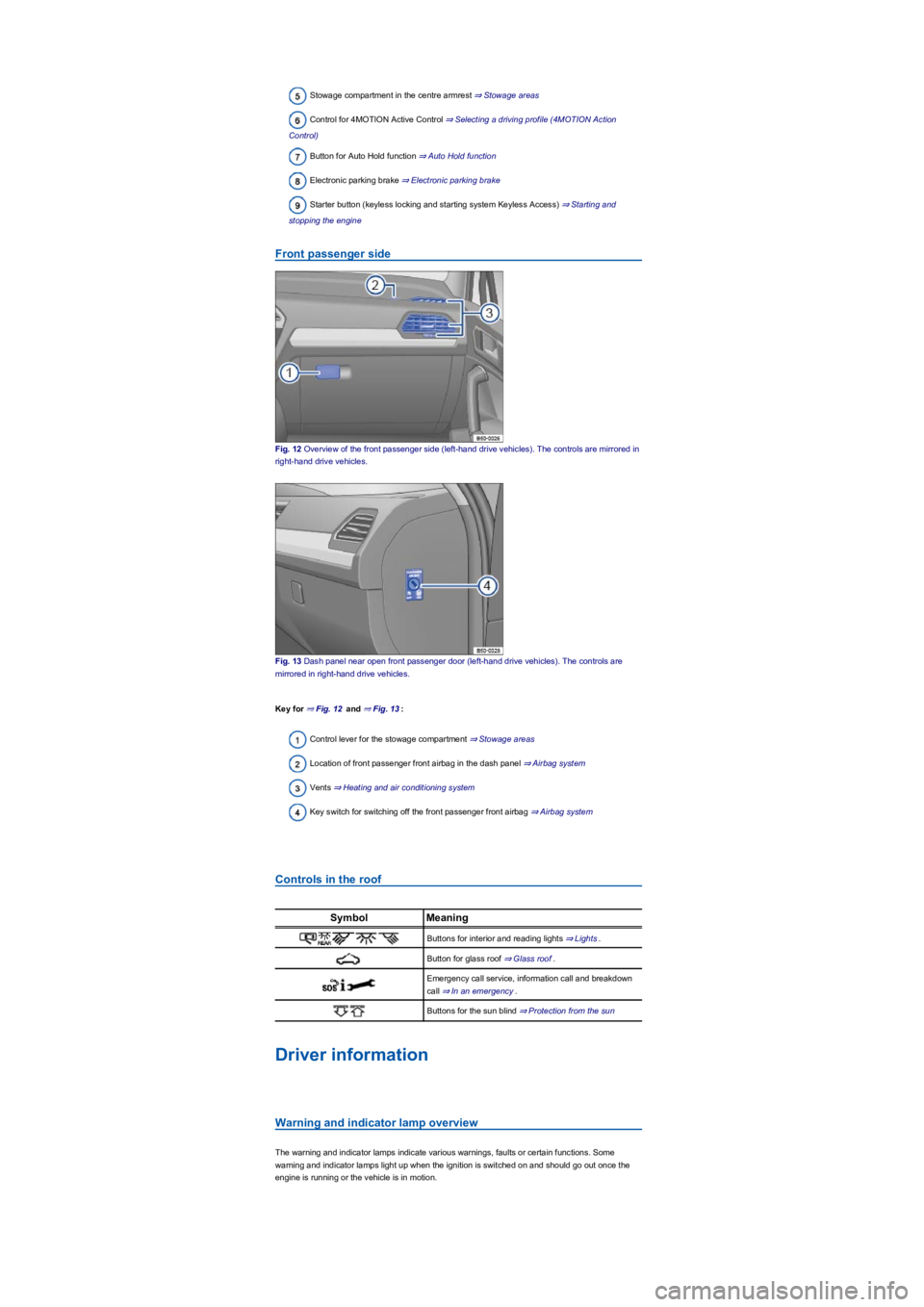
Front passenger side
Fig. 12 Overview of the front passenger side (left-hand drive vehicles). The controls are mirrored in
right-hand drive vehicles.
Fig. 13 Dash panel near open front passenger door (left-hand drive vehicles). The controls are
mirrored in right-hand drive vehicles.
Key for ⇒ Fig. 12 and ⇒ Fig. 13:
Control lever for the stowage compartment ⇒ Stowage areas
Location of front passenger front airbag in the dash panel ⇒ Airbag system
Vents ⇒ Heating and air conditioning system
Key switch for switching off the front passenger front airbag ⇒ Airbag system
Controls in the roof
SymbolMeaning
Buttons for interior and reading lights ⇒ Lights.
Button for glass roof ⇒ Glass roof.
Emergency call service, information call and breakdown
call ⇒ In an emergency.
Buttons for the sun blind ⇒ Protection from the sun
Driver information
Warning and indicator lamp overview
The warning and indicator lamps indicate various warnings, faults or certain functions. Some
warning and indicator lamps light up when the ignition is switched on and should go out once the
engine is running or the vehicle is in motion.
Page 15 of 341
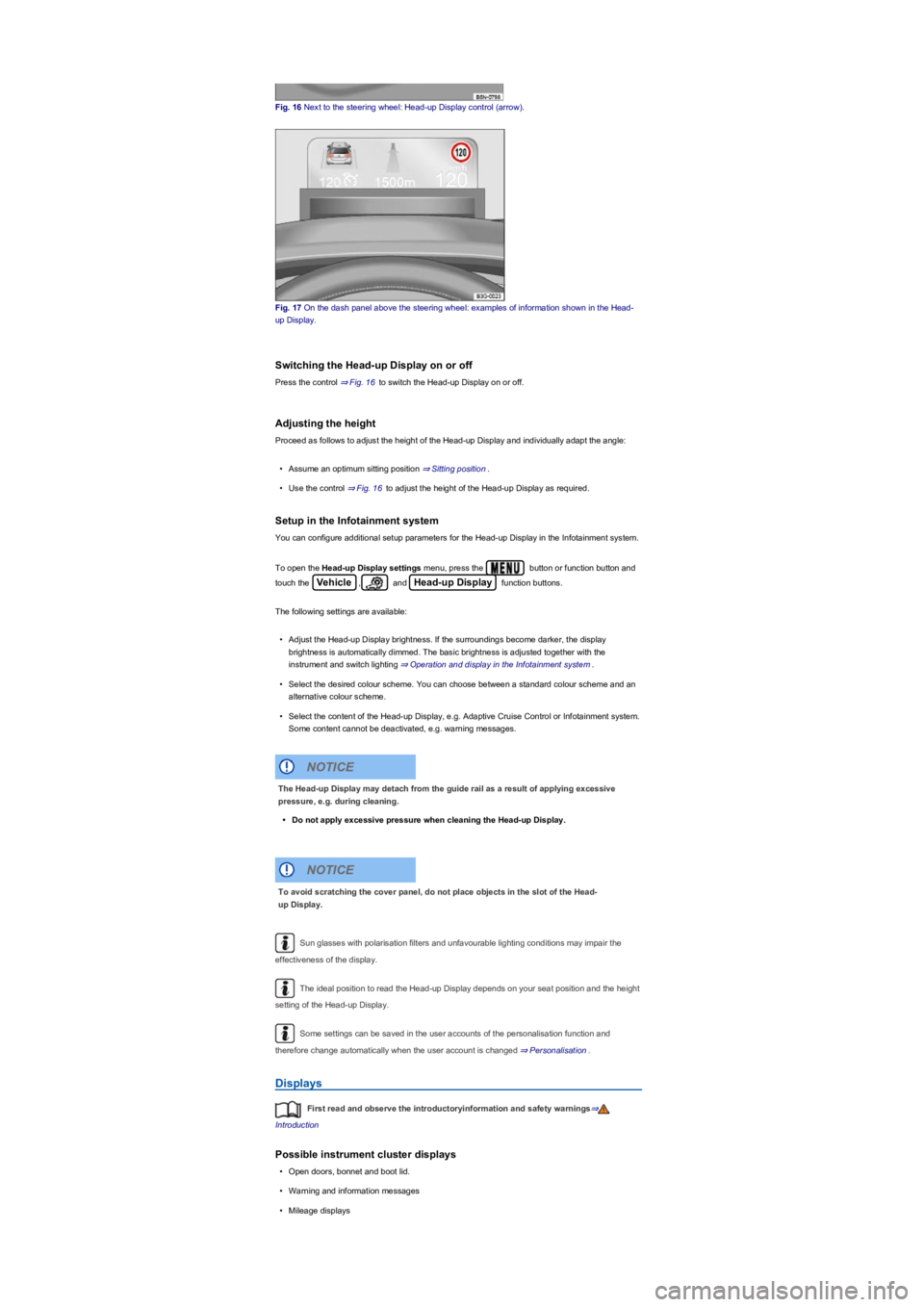
Fig. 16 Next to the steering wheel: Head-up Display control (arrow).
Fig. 17 On the dash panel above the steering wheel: examples of information shown in the Head-
up Display.
Switching the Head-up Display on or off
Press the control ⇒ Fig. 16 to switch the Head-up Display on or off.
Adjusting the height
Proceed as follows to adjust the height of the Head-up Display and individually adapt the angle:
•Assume an optimum sitting position ⇒ Sitting position.
•Use the control ⇒ Fig. 16 to adjust the height of the Head-up Display as required.
Setup in the Infotainment system
You can configure additional setup parameters for the Head-up Display in the Infotainment system.
To open the Head-up Display settings menu, press the button or function button and
touch the Vehicle, and Head-up Display function buttons.
The following settings are available:
•Adjust the Head-up Display brightness. If the surroundings become darker, the display
brightness is automatically dimmed. The basic brightness is adjusted together with the
instrument and switch lighting ⇒ Operation and display in the Infotainment system.
•Select the desired colour scheme. You can choose between a standard colour scheme and an
alternative colour scheme.
•Select the content of the Head-up Display, e.g. Adaptive Cruise Control or Infotainment system.
Some content cannot be deactivated, e.g. warning messages.
Sun glasses with polarisation filters and unfavourable lighting conditions may impair the
effectiveness of the display.
The ideal position to read the Head-up Display depends on your seat position and the height
setting of the Head-up Display.
Some settings can be saved in the user accounts of the personalisation function and
therefore change automatically when the user account is changed ⇒ Personalisation.
Displays
First read and observe the introductoryinformation and safety warnings⇒
Introduction
Possible instrument cluster displays
•Open doors, bonnet and boot lid.
•Warning and information messages
•Mileage displays
The Head-up Display may detach from the guide rail as a result of applying excessive
pressure, e.g. during cleaning.
•Do not apply excessive pressure when cleaning the Head-up Display.
NOTICE
To avoid scratching the cover panel, do not place objects in the slot of the Head-
up Display.
NOTICE
Page 22 of 341
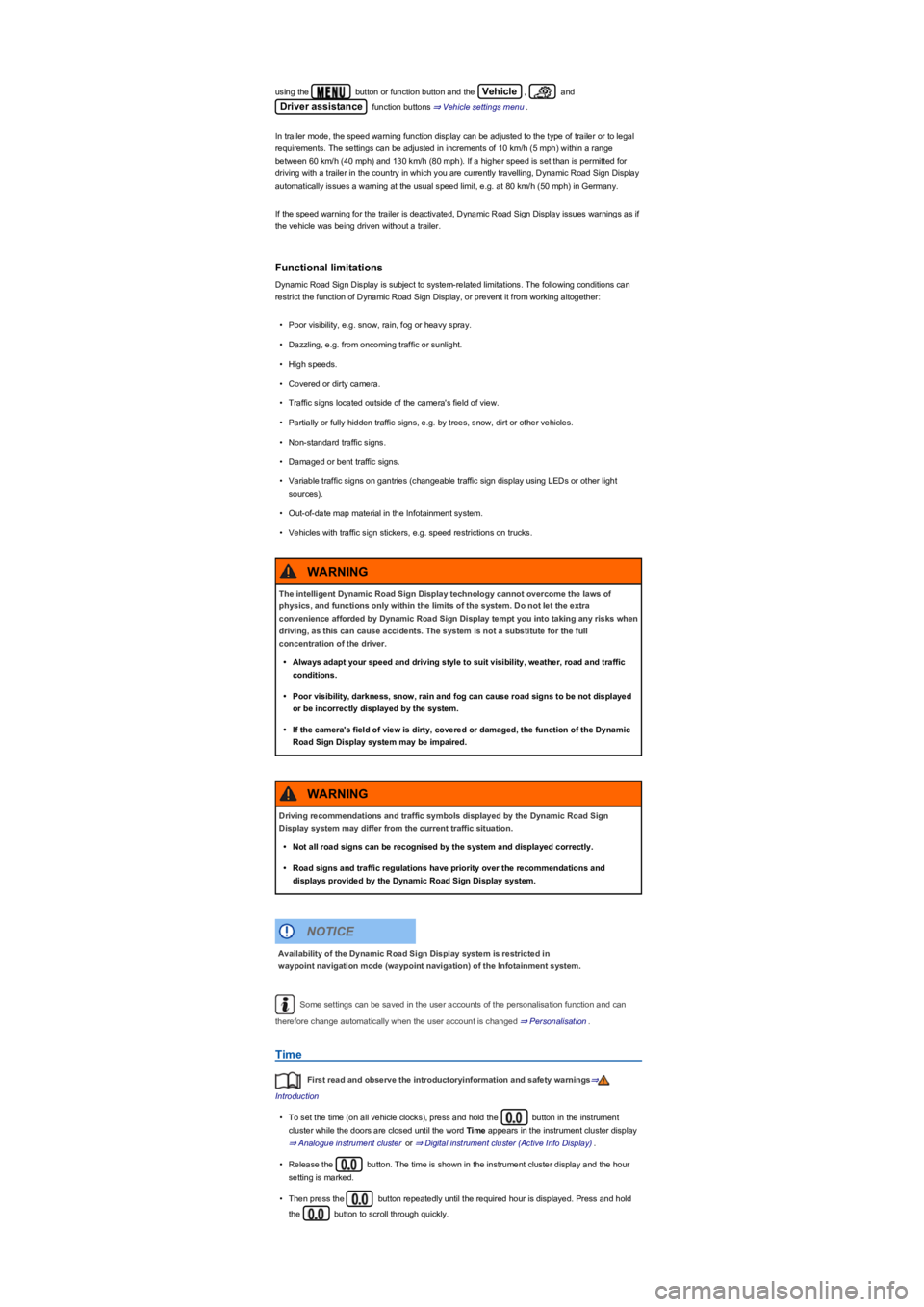
using the button or function button and the Vehicle, and
Driver assistance function buttons ⇒ Vehicle settings menu.
In trailer mode, the speed warning function display can be adjusted to the type of trailer or to legal
requirements. The settings can be adjusted in increments of 10 km/h (5 mph) within a range
between 60 km/h (40 mph) and 130 km/h (80 mph). If a higher speed is set than is permitted for
driving with a trailer in the country in which you are currently travelling, Dynamic Road Sign Display
automatically issues a warning at the usual speed limit, e.g. at 80 km/h (50 mph) in Germany.
If the speed warning for the trailer is deactivated, Dynamic Road Sign Display issues warnings as if
the vehicle was being driven without a trailer.
Functional limitations
Dynamic Road Sign Display is subject to system-related limitations. The following conditions can
restrict the function of Dynamic Road Sign Display, or prevent it from working altogether:
•Poor visibility, e.g. snow, rain, fog or heavy spray.
•Dazzling, e.g. from oncoming traffic or sunlight.
•High speeds.
•Covered or dirty camera.
•Traffic signs located outside of the camera's field of view.
•Partially or fully hidden traffic signs, e.g. by trees, snow, dirt or other vehicles.
•Non-standard traffic signs.
•Damaged or bent traffic signs.
•Variable traffic signs on gantries (changeable traffic sign display using LEDs or other light
sources).
•Out-of-date map material in the Infotainment system.
•Vehicles with traffic sign stickers, e.g. speed restrictions on trucks.
Some settings can be saved in the user accounts of the personalisation function and can
therefore change automatically when the user account is changed ⇒ Personalisation.
Time
First read and observe the introductoryinformation and safety warnings⇒
Introduction
•To set the time (on all vehicle clocks), press and hold the button in the instrument
cluster while the doors are closed until the word Time appears in the instrument cluster display
⇒ Analogue instrument cluster or ⇒ Digital instrument cluster (Active Info Display).
•Release the button. The time is shown in the instrument cluster display and the hour
setting is marked.
•Then press the button repeatedly until the required hour is displayed. Press and hold
the button to scroll through quickly.
The intelligent Dynamic Road Sign Display technology cannot overcome the laws of
physics, and functions only within the limits of the system. Do not let the extra
convenience afforded by Dynamic Road Sign Display tempt you into taking any risks when
driving, as this can cause accidents. The system is not a substitute for the full
concentration of the driver.
•Always adapt your speed and driving style to suit visibility, weather, road and traffic
conditions.
•Poor visibility, darkness, snow, rain and fog can cause road signs to be not displayed
or be incorrectly displayed by the system.
•If the camera's field of view is dirty, covered or damaged, the function of the Dynamic
Road Sign Display system may be impaired.
WARNING
Driving recommendations and traffic symbols displayed by the Dynamic Road Sign
Display system may differ from the current traffic situation.
•Not all road signs can be recognised by the system and displayed correctly.
•Road signs and traffic regulations have priority over the recommendations and
displays provided by the Dynamic Road Sign Display system.
WARNING
Availability of the Dynamic Road Sign Display system is restricted in
waypoint navigation mode (waypoint navigation) of the Infotainment system.
NOTICE
Page 31 of 341
Performance monitor
First read and observe the introductoryinformation and safety warnings⇒
Introduction
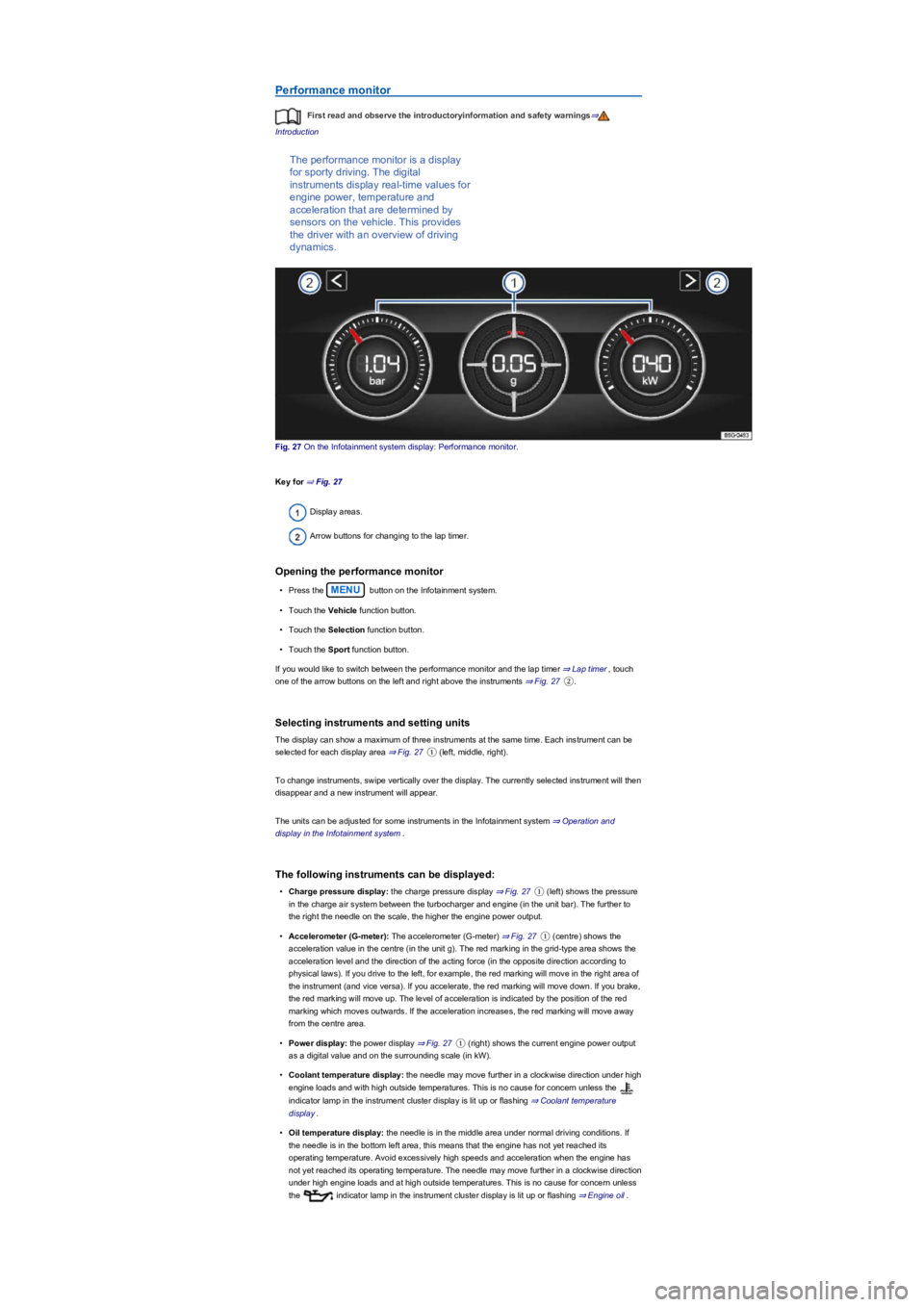
The performance monitor is a display
for sporty driving. The digital
instruments display real-time values for
engine power, temperature and
acceleration that are determined by
sensors on the vehicle. This provides
the driver with an overview of driving
dynamics.
Fig. 27 On the Infotainment system display: Performance monitor.
Key for ⇒ Fig. 27
Display areas.
Arrow buttons for changing to the lap timer.
Opening the performance monitor
•Press the MENU button on the Infotainment system.
•Touch the Vehicle function button.
•Touch the Selection function button.
•Touch the Sport function button.
If you would like to switch between the performance monitor and the lap timer ⇒ Lap timer, touch
one of the arrow buttons on the left and right above the instruments ⇒ Fig. 27②.
Selecting instruments and setting units
The display can show a maximum of three instruments at the same time. Each instrument can be
selected for each display area ⇒ Fig. 27① (left, middle, right).
To change instruments, swipe vertically over the display. The currently selected instrument will then
disappear and a new instrument will appear.
The units can be adjusted for some instruments in the Infotainment system ⇒ Operation and
display in the Infotainment system.
The following instruments can be displayed:
•Charge pressure display: the charge pressure display ⇒ Fig. 27① (left) shows the pressure
in the charge air system between the turbocharger and engine (in the unit bar). The further to
the right the needle on the scale, the higher the engine power output.
•Accelerometer (G-meter): The accelerometer (G-meter) ⇒ Fig. 27① (centre) shows the
acceleration value in the centre (in the unit g). The red marking in the grid-type area shows the
acceleration level and the direction of the acting force (in the opposite direction according to
physical laws). If you drive to the left, for example, the red marking will move in the right area of
the instrument (and vice versa). If you accelerate, the red marking will move down. If you brake,
the red marking will move up. The level of acceleration is indicated by the position of the red
marking which moves outwards. If the acceleration increases, the red marking will move away
from the centre area.
•Power display: the power display ⇒ Fig. 27① (right) shows the current engine power output
as a digital value and on the surrounding scale (in kW).
•Coolant temperature display: the needle may move further in a clockwise direction under high
engine loads and with high outside temperatures. This is no cause for concern unless the
indicator lamp in the instrument cluster display is lit up or flashing ⇒ Coolant temperature
display.
•Oil temperature display: the needle is in the middle area under normal driving conditions. If
the needle is in the bottom left area, this means that the engine has not yet reached its
operating temperature. Avoid excessively high speeds and acceleration when the engine has
not yet reached its operating temperature. The needle may move further in a clockwise direction
under high engine loads and at high outside temperatures. This is no cause for concern unless
the indicator lamp in the instrument cluster display is lit up or flashing ⇒ Engine oil.
Page 34 of 341
Personalisation
First read and observe the introductoryinformation and safety warnings⇒
Introduction
The personalisation function allows personalised vehicle settings, such as air conditioning system,
instrument cluster or lighting settings, to be saved in a user account. You have four user accounts
available. Users are identified using the vehicle key upon unlocking the vehicle. One user account
is assigned to each vehicle key.
Changes to the setup will be assigned to the active user account and saved upon locking the
vehicle or changing the user account.
Welcome and user account selection
When personalisation is activated, the name of the current user account appears on the instrument
cluster display for approximately ten seconds after you switch on the ignition.
During this time, you can select a user account using the buttons on the wiper lever or multifunction
steering wheel ⇒ Operation and display in the Infotainment system.
When you select a user account, the saved vehicle settings are activated.
User management and setup
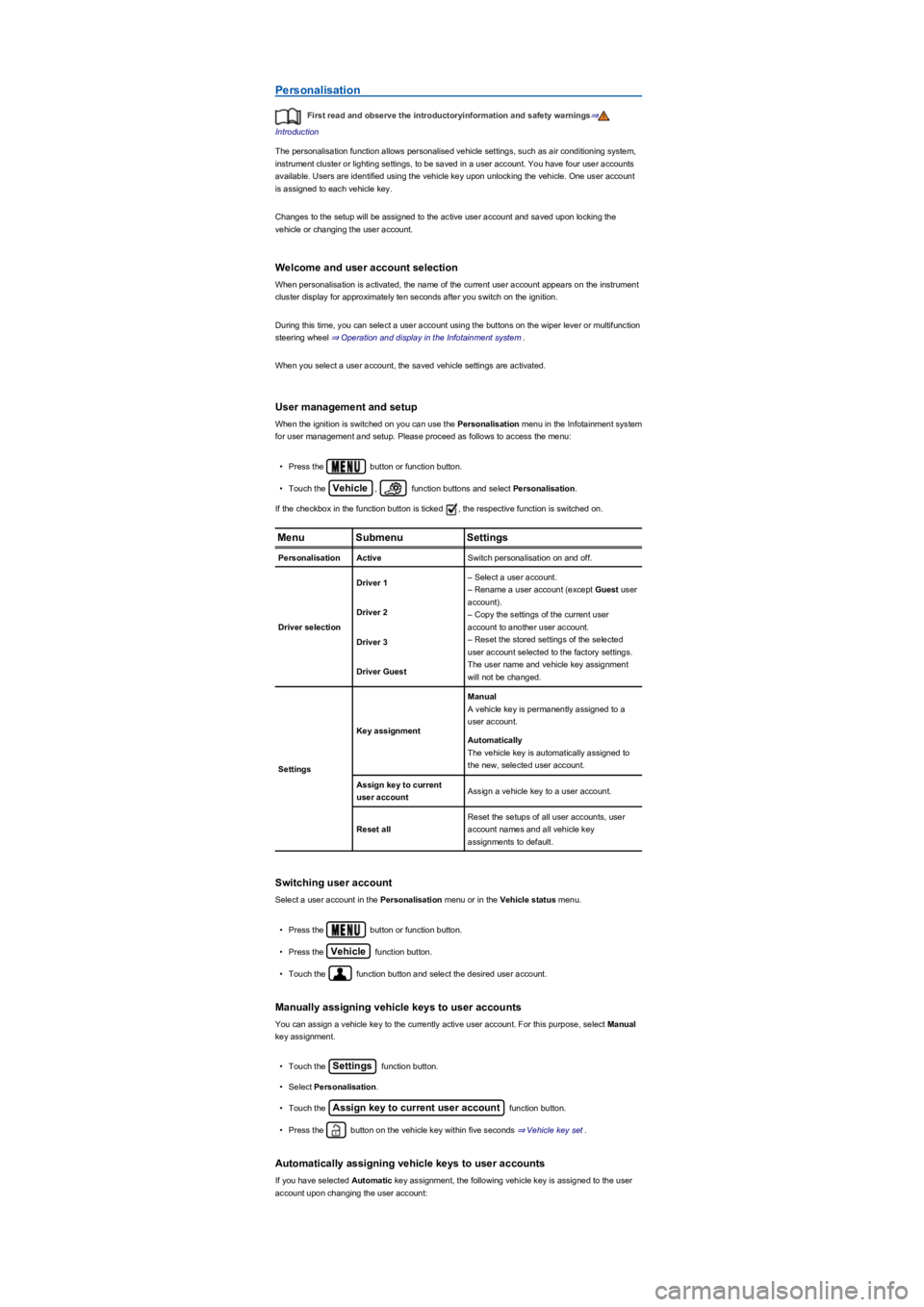
When the ignition is switched on you can use the Personalisation menu in the Infotainment system
for user management and setup. Please proceed as follows to access the menu:
•Press the button or function button.
•Touch the Vehicle, function buttons and select Personalisation.
If the checkbox in the function button is ticked , the respective function is switched on.
MenuSubmenuSettings
PersonalisationActiveSwitch personalisation on and off.
Driver selection
Driver 1– Select a user account.
– Rename a user account (except Guest user
account).
– Copy the settings of the current user
account to another user account.
– Reset the stored settings of the selected
user account selected to the factory settings.
The user name and vehicle key assignment
will not be changed.
Driver 2
Driver 3
Driver Guest
Settings
Key assignment
Manual
A vehicle key is permanently assigned to a
user account.
Automatically
The vehicle key is automatically assigned to
the new, selected user account.
Assign key to current
user accountAssign a vehicle key to a user account.
Reset all
Reset the setups of all user accounts, user
account names and all vehicle key
assignments to default.
Switching user account
Select a user account in the Personalisation menu or in the Vehicle status menu.
•Press the button or function button.
•Press the Vehicle function button.
•Touch the function button and select the desired user account.
Manually assigning vehicle keys to user accounts
You can assign a vehicle key to the currently active user account. For this purpose, select Manual
key assignment.
•Touch the Settings function button.
•Select Personalisation.
•Touch the Assign key to current user account function button.
•Press the button on the vehicle key within five seconds ⇒ Vehicle key set.
Automatically assigning vehicle keys to user accounts
If you have selected Automatic key assignment, the following vehicle key is assigned to the user
account upon changing the user account:
Page 35 of 341
Check that all lights and turn signals are working properly.
Check the tyre pressure and fuel level Wheels and tyres, Fuel types and refuelling.
Ensure that you have a good, clear view through all of the windows.
Air intake to the engine must not be obstructed, and the engine must not be covered with
any kind of insulating materials In the engine compartment.
Secure any objects and luggage in the stowage compartments, the luggage compartment
or on the roof Transporting.
Ensure that you are able to operate the pedals freely at all times.
Secure any children travelling in the vehicle in a restraint system suitable for their weight
and size Safe transport of children.
Adjust the front seats, head restraints and mirrors properly in accordance with the size of
the occupants Sitting position, Mirrors.
Wear shoes that provide good grip for your feet when using the pedals.
The floor mat in the footwell on the driver side must leave the pedal area free and must be
securely fastened.
Assume a correct sitting position before setting off and maintain this position while driving.
This also applies to all passengers Sitting position.
Fasten your seat belt correctly before setting off and keep it properly fastened throughout
the journey. This also applies to all passengers Seat belts.
Each vehicle occupant must sit in a seat of their own and must have their own seat belt.
Never drive if your driving ability is impaired, e.g. by medication, alcohol or drugs.
Do not allow yourself to be distracted from the traffic, e.g. by passengers, telephone calls,
opening menus and making adjustments to settings.
Always adapt your speed and driving style to suit visibility, weather, road and traffic
conditions.
Observe traffic regulations and speed limits.
Take regular breaks when travelling long distances – at least every two hours.
Secure animals in the vehicle using a system that is suitable for their weight and size.
Does the vehicle need any technical modifications for driving abroad, e.g. masking or
switching the headlights over?
Are the necessary tools, diagnostic equipment and spare parts available for service and
repair work?
Are there any Volkswagen dealerships in the destination country?
•Vehicles without Keyless Access: vehicle key used to unlock the vehicle.
•Vehicles with Keyless Access: vehicle key that is identified first by the personalisation function
upon opening the driver door.
Personalised vehicle setup
The vehicle equipment and functions that can be personalised include the following:
•Open and close (single door unlocking, window convenience opening etc.)
•Light and vision (daytime running lights, cornering light, convenience turn signal etc.)
•Air conditioning system (temperature settings, ventilation etc.)
•Assistance systems (Park Distance Control, ACC, Dynamic Road Sign Display etc.)
•Driver profile selection (driver profiles etc.)
•Multifunction display and instrument cluster (selection of displays)
•Infotainment system (brightness and saved stations)
•Seat setup (seat position)
A new vehicle key will be assigned to the current user account. To assign the vehicle key to
a different user account, select the user account you want and manually assign it to the vehicle key.
Safety
General notes
Checklist
Observe the following information both before and during every journey to ensure your own
safety, and the safety of all passengers and other road users ⇒:
Checklist
In some countries, special safety standards and emissions-related regulations apply that the
vehicle may not comply with. Volkswagen recommends that you visit your Volkswagen
dealership before travelling abroad to find out about any legal requirements and the
following issues at your destination:
Page 36 of 341
If fuel in the adequate quality available Fuel and emission control?
Are the correct service fluids that comply with Volkswagen specifications available in the
destination country Service fluids and consumables?
Will the navigation function in the factory-fitted Infotainment system and the navigation
data available work in the destination country?
Are special tyres necessary for travelling in the destination country?
Is a fire extinguisher prescribed in your destination country?
Which requirements must be observed regarding reflective vests?
Windscreen washer fluid level Wipers.
Engine oil level Engine oil.
Engine coolant level Engine coolant.
Brake fluid level Brake fluid.
Tyre pressure Wheels and tyres.
Checklist
Therefore, do not do any work in the engine compartment unless you know exactly how to
carry out the jobs, are aware of the general safety procedures and have the correct
equipment, service fluids and suitable tools to hand ⇒ In the engine compartment! In any
other case all work must be carried out by a qualified workshop. Make sure that the
following are checked regularly:
Vehicle lighting Lights required for the vehicle to be roadworthy:
- Turn signals
- Side lights, dipped beam headlights and main beam headlights
- Tail light cluster
- Brake lights
- Rear fog light
- Number plate light.
Servicing the vehicle is not only about vehicle maintenance – it also ensures that your
vehicle remains roadworthy and in perfect working order. You should therefore have your vehicle
serviced according to Volkswagen guidelines. Some work may have to be carried out before the
due date of the next service if the vehicle is subjected to severe operating conditions. Severe
operating conditions are, for example, regular stop and go driving or driving in areas with high
levels of dust. Further information can be obtained from your Volkswagen dealership or a qualified
workshop.
Sitting position
Introduction
This chapter contains information on the followingsubjects:
⇒ Dangers of assuming an incorrect sitting position
⇒ Correct sitting position
Driving under the influence of alcohol, drugs, medication or narcotics can cause serious
accidents and fatal injuries.
•Alcohol, drugs, medication and narcotics can severely impair perception, reaction
times and driving safety. This could cause you to lose control of the vehicle.
WARNING
Always observe current traffic regulations and speed limits, and think ahead when driving.
Correct interpretation of a driving situation can make the difference between reaching
your destination safely and having an accident with serious injuries.
WARNING
Volkswagen is not responsible for any vehicle damage caused by low-quality fuel,
inadequate servicing work or lack of Genuine Parts.
NOTICE
Observe the instructions and information relating to vehicles with N1 approval
⇒ Information about vehicles with N1 approval (light commercial vehicle).
NOTICE