lock VOLVO C70 2008 Owners Manual
[x] Cancel search | Manufacturer: VOLVO, Model Year: 2008, Model line: C70, Model: VOLVO C70 2008Pages: 246, PDF Size: 5.14 MB
Page 205 of 246

5. Close the fuse box in reverse order.
6. Pull the center pins fully out of the mounting clips, secure the upholstery with the mounting clips and press the pins
into the mounting clips again. The mounting clips then expand, holding the upholstery in position.
227 09 Maintenance and servicing
Fuses
Fuses in the engine compartment
1. Coolant fan (radiator)50A
2. Power steering 80A
3. Feed to passenger compartment fuse box 60A
4. Feed to passenger compartment fuse box 60A
5. Not in use
6. Not in use
7. ABS pump 30A
8. ABS 30A
9. Engine functions 30A
10. Climate system blower 40A
11. Headlight washers, power retractable hard top, locking storage compartments 20A
12. Feed to heated rear window 30A
13. Starter motor relay 30A
14. Trailer connector 40A
15. Power retractable hard top 30A
16. Feed to audio system 40A
17. Windshield wipers 30A
18. Feed to passenger compartment fuse box 40A
19. Not in use
20. Horn 15A
21. Not in use
22. Subwoofer 24A
ProCarManuals.com
Page 207 of 246

46. Lighting - glove compartment, instrument panel and footwells5A
47. Interior lighting5A
48. Windshield washers 15A
49. Supplemental Restrain System (SRS), Occupant Weight Sensor (OWS) 10A
50. Not in use
51. Fuel filter relay 10A
52. Transmission control module (TCM), ABS 5A
53. Power steering 10A
54. Park assist (option), Bi -Xenon® headlights (option) 10A
55. Not in use
56. Volvo Navigation System remote control (option), alarm siren control module 10A
230 09 Maintenance and servicing
Fuses
57. On-board diagnostic socket, brake light switch15A
58. Right high beam, auxiliary lights relay 7.5A
59. Left high beam 7.5A
60. Heated driver's seat (option) 15A
61. Heated passenger's seat (option) 15A
62. Not in use
63. Power window rear passenger's side 20A
64. Lock indicator lights door panels, Volvo Navigation system(option) 5A
65. Audio system 5A
66. Audio system control module (ICM), climate system 10A
67. Not in use
68. Cruise control 5A
69. Climate system, rain sensor (option), BLIS button (option) 5A
70. Not in use
71. Not in use
72. Not in use
73. Front ceiling lighting 5A
74. Fuel pump relay 15A
75. Not in use
76. Not in use
77. 12-volt socket in trunk, auxiliary equipment control module (AEM) 15A
78. Not in use
79. Back-up lights 5A
80. Not in use
81. Power window - rear driver's side 20A
82. Power window and door lock - front passenger's side door 25A
83. Power window and door lock - front driver's side door 25A
ProCarManuals.com
Page 212 of 246
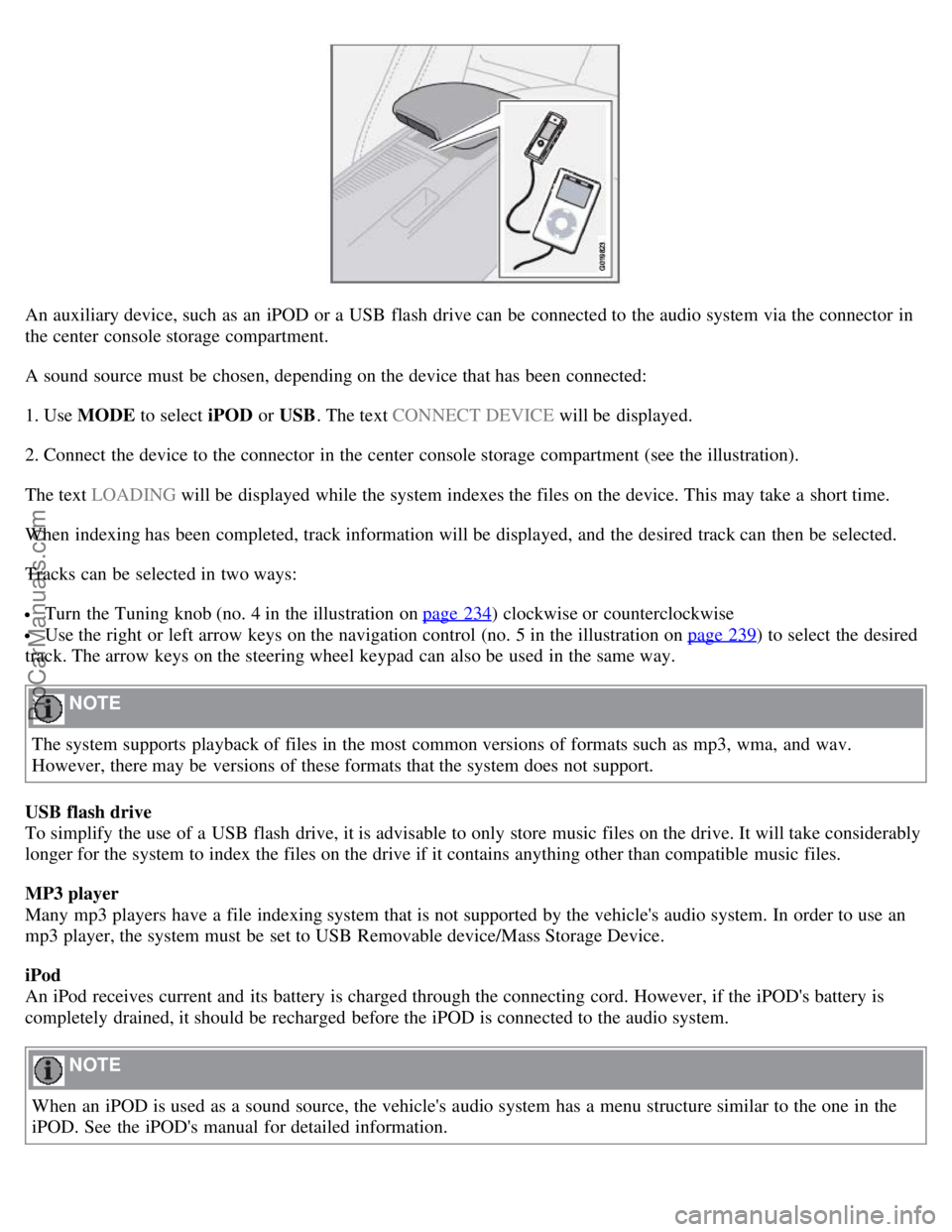
An auxiliary device, such as an iPOD or a USB flash drive can be connected to the audio system via the connector in
the center console storage compartment.
A sound source must be chosen, depending on the device that has been connected:
1. Use MODE to select iPOD or USB. The text CONNECT DEVICE will be displayed.
2. Connect the device to the connector in the center console storage compartment (see the illustration).
The text LOADING will be displayed while the system indexes the files on the device. This may take a short time.
When indexing has been completed, track information will be displayed, and the desired track can then be selected.
Tracks can be selected in two ways:
Turn the Tuning knob (no. 4 in the illustration on page 234) clockwise or counterclockwise
Use the right or left arrow keys on the navigation control (no. 5 in the illustration on page 239) to select the desired
track. The arrow keys on the steering wheel keypad can also be used in the same way.
NOTE
The system supports playback of files in the most common versions of formats such as mp3, wma, and wav.
However, there may be versions of these formats that the system does not support.
USB flash drive
To simplify the use of a USB flash drive, it is advisable to only store music files on the drive. It will take considerably
longer for the system to index the files on the drive if it contains anything other than compatible music files.
MP3 player
Many mp3 players have a file indexing system that is not supported by the vehicle's audio system. In order to use an
mp3 player, the system must be set to USB Removable device/Mass Storage Device.
iPod
An iPod receives current and its battery is charged through the connecting cord. However, if the iPOD's battery is
completely drained, it should be recharged before the iPOD is connected to the audio system.
NOTE
When an iPOD is used as a sound source, the vehicle's audio system has a menu structure similar to the one in the
iPOD. See the iPOD's manual for detailed information.
ProCarManuals.com
Page 219 of 246

Radio functions
3. Press ENTER. The radio will tune to this channel, even if it belongs to a category other than the currently selected
one.
NOTE
The numbers of skipped or locked channels will not be displayed.
If a channel is locked, the access code must be entered before the channel can be selected. See "Unlocking a
channel" on page 243
.
Scanning
SCAN automatically searches through the list of satellite channels. See page 240
for more detailed information.
Storing a channel
A total of 20 satellite channels can be stored; 10 stations each for Sirius 1 and Sirius 2. See page 239
for detailed
information on storing stations.
A long press on one of the number keys stores the currently tuned channel on that key.
A short press on a number key while the radio is in Sirius 1or 2 mode will tune to the preset satellite channel stored
on that button, regardless of the currently selected channel category.
Song Seek and Song Memory
The Song Seek and Song Memory functions provide both audio and visual notification when Sirius is broadcasting
your favorite songs. Song Seek enables you to store the name of the song for future advance notification when that
song is being played. The Song Memory feature makes it possible to view all of the current songs that are stored in
memory.
Song memory
Up to ten songs can be saved in the system's memory.
1. Press MENU .
2. Scroll to "Add song to song mem." and follow the instructions shown in the display.
If a new song is selected when the memory is full, you will be prompted to press ENTER to delete the last song on
the list.
NOTE
The remaining songs in the list will move down one position, and the newly added song will be placed at the top of
the list.
Song seek
When a satellite radio channel plays one of the songs stored in the song memory, the listener will be alerted by a text
message and an audible signal.
Press ENTER to listen to the song or EXIT to cancel.
To activate/deactivate the song seek function:
1. Press MENU
ProCarManuals.com
Page 220 of 246

2. Scroll to "Song seek"
3. Press ENTER to activate or deactivate the function.
NOTE
When the song has ended, the radio will remain tuned to the channel on which the song was played.
Radio text
The text that is displayed about the song that is currently playing can be changed. Use the AUTO button or the menu
to display the Artist, Title, Composer, or switch radio text off.
243 10 Audio
Radio functions
Advanced settings
This menu function enables you to make settings on certain Sirius satellite radio functions. To access this menu:
1. Press MENU .
2. Scroll to Sirius menu.
3. Select Advanced Sirius settings.
WARNING
Settings should be made when the vehicle is at a standstill.
The following settings can be made in the Sirius menu.
Songs can be added to the song list
Channel skip settings can be made
Channel lock settings can be made
The channel access code can be displayed or changed
Your Sirius ID can be displayed
Skip options
This function is used to remove a channel from the list of available channels.
Skip current
1. Select CHANNEL SKIP LIST and press ENTER .
2. Select a category in the list and press ENTER .
3. Skip channels in the list presented by pressing ENTER or right arrow key.
Unskip all channels
This permanently removes all channels from the skip list and makes them available for selection.
Temp. unskip all ch.
This function will temporarily unskip all channels and make them available for selection. The channels remain on the
ProCarManuals.com
Page 221 of 246

skip list and will again be skipped the next time the ignition is switched on.
Channel lock
Access to specific channels can be restricted (locked). A locked channel will not provide audio, song titles, or artist
information.
NOTE
All channels are initially unlocked.
Locking a channel:
1. Select "Sirius ID" in the menu and select LOCK OPTIONS and press ENTER .
2. Select CHANNEL LOCK LIST and press ENTER
3. Enter the channel access code and press ENTER .
4. Select a category in the list and press ENTER .
5. Lock channels in the list presented by pressing ENTER or right arrow.
The channel is now locked and a checked box will be displayed to indicate this. It will be necessary to enter the
channel access code1 in order to listen to a locked channel.
Unlocking a channel
A channel's access code1 is required to unlock a channel.
Unlock all channels
This permanently removes all channels from the locked list and makes them available for selection.
Temp. unlock all ch.
This function will temporarily unlock all channels and make them available for selection. The channels remain on the
locked list and will again be locked the next time the ignition is switched on.
244 10 Audio
Radio functions
CHANGE CODE
This function makes it possible to change the channel access code. The default code is 0000.
To change the code:
1. Select CHANGE CODE and press ENTER .
2. Enter the current code and press ENTER .
3. Enter the code and press ENTER.
4. Confirm the new code and press ENTER .
If an incorrect code is entered, the text WRONG CODE! is displayed.
ProCarManuals.com
Page 224 of 246
files. The length of time that this takes depends on the quality of the disc.
Navigating the disc and playing tracks
If a disc with audio files is in the CD player, press ENTER to display a list of folders on the disc.
Use the up and down arrows in the navigation control (see the illustration on page 234
) to move among the folders on
the disc. Audio files have the
symbol and folders containing these files have the symbol. Press ENTER to play a
selected folder or a file.
When the music file has been played, the player will continue to play the rest of the files in the current folder. When
all of the files in the folder have been played, the player will automatically go to the next folder and play the files in it.
Press the left or right arrow key on the navigation control if the entire name of the current track does not fit in the
display.
Changing tracks
Briefly press the left or right arrow keys on the MENU NAVIGATION control to skip to the previous or next
track/file.
NOTE
The TUNING dial (6) (turn clockwise to go to the next track/file, or counterclockwise to go to the previous
track/file) or the optional steering wheel keypad can also be used for this purpose.
Fast forward/back
Press and hold down the left or right arrows keys in the MENU NAVIGATION control (or the corresponding keys on
the optional steering wheel keypad) to search within a track/file or the whole disc. The search continues for as long as
the buttons are held down.
Random play
This function plays the tracks/files on a CD (or on all of the CDs if the vehicle is equipped with the optional CD
changer) in random order (shuffle).
247 10 Audio
CD player/CD changer (option)
Activating/deactivating the random function-CD player
If a normal CD is being played:
1. Press MENU followed by ENTER .
2. Select Random and press ENTER .
If a CD with audio files is being played:
1. Press MENU followed by ENTER .
2. Select Random and press ENTER .
3. Select Disc or Folder and press ENTER .
Activating/deactivating the random function-CD changer
If a normal CD is being played:
ProCarManuals.com
Page 234 of 246

260 11 Specifications
Electrical system
General information
12-volt system with voltage controlled generator. Single wire system in which the chassis and engine block are used as
conductors, grounded on the chassis.
Battery
1Models equipped with the High Performance audio system
2Models equipped with the Premium Sound audio system and/or the Volvo Navigation System
If the battery must be replaced, replace it with one with the same cold start capacity and reserve capacity as the original
(see the decal on the battery).
WARNING
PROPOSITION 65 WARNING!
Battery posts, terminals, and related accessories contain lead and lead compounds, chemicals known to the state of
California to cause cancer and reproductive harm. Wash hands after handling.
261 11 Specifications
Electrical system
Bulbs used in the car
ProCarManuals.com
Page 237 of 246

2 0 0 8
VOLVO C70
264-269 12 Index
12 volt socket 68, 108
A
Accessory installation8
Air conditioning80, 83
Air distribution86
Air vents81
Airbags
disabling the front passenger's airbag21, 22, 23
door mounted inflatable curtain25
front airbag18, 19, 20
side impact24
Alarm system126, 127
turning off alarm sensors127
Anti-lock brakes6
general information147, 148
warning light50
Approach lighting72, 113
Audio system
automatic sound control238
auxiliary connector234
CD care248
CD changer/player245, 246, 247
controls234
equalizer238
menu249
MP3 and WMA files246
radio function239
Sirius satellite radio241, 242, 243
sound settings235
steering wheel keypad235
surround sound235
USB/iPOD connector236
Automatic Locking Retractor32
Automatic sound control238
Automatic transmission144, 145
ProCarManuals.com
Page 238 of 246
Auxiliary equipment68
B
Battery
maintenance214
replacing215
specifications260
warning symbols215
Black box (vehicle event data)204
Blind Spot Information System (BLIS)159, 160, 161
Booster cushions39
Brake fluid212
Brake lights55
Brake system
general information147, 148
warning light51
Bulbs
list of261
replacing216-223
C
Capacity weight177
, 255
Catalytic converter262
CD care248
CD changer/player245, 246, 247
Central locking system112
Chains180
Changing tires184, 185
Child restraints33, 34
booster cushions39
convertible seats37, 38
infant seats35
ISOFIX lower anchors40
recalls and registration41
Child safety30, 31, 32
Climate system
air distribution86
air vents81
defroster83
Electronic Climate Control82, 83, 84
general information80
recirculation83
Clock setting71
Cold weather driving133
Collision mode (crash mode)29
Color code, paint200
ProCarManuals.com