radio VOLVO S40 2008 User Guide
[x] Cancel search | Manufacturer: VOLVO, Model Year: 2008, Model line: S40, Model: VOLVO S40 2008Pages: 239, PDF Size: 5.94 MB
Page 214 of 239
SIRIUS ID
The SIRIUS ID is required when contacting the Sirius Call Center. It is used to activate your account and when making
any account transactions. The SIRIUS ID is sometimes referred to as the Electronic Serial Number (ESN).
Selecting a channel category
1. Select Sirius radio mode as described above.
2. Press ENTER.
3. Use the up/down arrow keys to scroll through the list of categories.
4. Press ENTER or the right arrow key to select a category.
5. Use the left or right arrow keys to select a channel in the currently chosen category.
6. Press ENTER to listen to a channel.
NOTE
The category "All" is default, which enables you to scroll through the entire list of available satellite channels.
The channel categories are automatically updated several times a year. This takes approximately two minutes and
will interrupt normal broadcasting. A message will be displayed while updating is in progress. Information on
channel or feature updates is available at www.sirius.com
.
Selecting a channel
There are three ways of tuning in a channel:
Using the left and right arrow keys
By turning the tuning control
Through direct channel entry
Direct channel entry
The Sirius satellite channels are numbered consecutively throughout all of the categories. To access a channel directly:
1. Press MENU and scroll to "Direct channel entry."
2. Use the numerical keypad to enter the channel's number.
3. Press ENTER . The radio will tune to this channel, even if it belongs to a category other than the currently selected
one.
238 10 Audio
Sirius satellite radio (option or retailer-installed accessory)
NOTE
The numbers of skipped or locked channels will not be displayed.
If a channel is locked, the access code must be entered before the channel can be selected. See "Unlocking a
channel" on page 239
.
Scanning
ProCarManuals.com
Page 215 of 239
NOTE
SCAN automatically searches through the list of satellite channels. See page 236
for more detailed information.
Storing a channel
A long press on one of the number keys stores the currently tuned channel on that key.
A short press on a number key while the radio is in Sirius 1 or 2 mode will tune to the preset satellite channel stored
on that button, regardless of the currently selected channel category.
Song Seek and Song Memory
The Song Seek and Song Memory functions provide both audio and visual notification when Sirius is broadcasting
your favorite songs. Song Seek enables you to store the name of the song for future advance notification when that
song is being played. The Song Memory feature makes it possible to view all of the current songs that are stored in
memory.
Song memory
Up to ten songs can be saved in the system's memory.
1. Press MENU .
2. Scroll to " ADD SONG TO SONG MEM. " and follow the instructions shown in the display.
If a new song is selected when the memory is full, you will be prompted to press ENTER to delete the last song on
the list.
NOTE
The remaining songs in the list will move down one position, and the newly added song will be placed at the top of
the list.
Song seek
When a satellite radio channel plays one of the songs stored in the song memory, the listener will be alerted by a text
message and an audible signal.
Press ENTER to listen to the song or EXIT to cancel.
To activate/deactivate the song seek function:
1. Press MENU
2. Scroll to " SONG SEEK"
3. Press ENTER to activate or deactivate the function.
NOTE
When the song has ended, the radio will remain tuned to the channel on which the song was played.
Radio text
The text that is displayed about the song that is currently playing can be changed. Use the AUTO button or the menu
to display the ARTIST, TITLE, COMPOSER , or switch RADIO TEXT OFF.
ProCarManuals.com
Page 216 of 239
239 10 Audio
Sirius satellite radio (option or retailer-installed accessory)
Advanced settings
This menu function enables you to make settings on certain Sirius satellite radio functions. To access this menu:
1. Press MENU.
2. Scroll to Sirius menu.
3. Select ADVANCED SIRIUS SETTINGS .
WARNING
Settings should be made when the vehicle is at a standstill.
The following settings can be made in the Sirius menu.
Songs can be added to the song list
Channel skip settings can be made
Channel lock settings can be made
The channel access code can be displayed or changed
Your Sirius ID can be displayed
Skip options
This function is used to remove a channel from the list of available channels.
Skip current
1. Select CHANNEL SKIP LIST and press ENTER.
2. Select a category in the list and press ENTER .
3. Skip channels in the list presented by pressing ENTER or right arrow key.
Unskip all channels
This permanently removes all channels from the skip list and makes them available for selection.
Temp. unskip all ch.
This function will temporarily unskip all channels and make them available for selection. The channels remain on the
skip list and will again be skipped the next time the ignition is switched on.
Channel lock
Access to specific channels can be restricted (locked). A locked channel will not provide audio, song titles, or artist
information.
NOTE
All channels are initially unlocked.
Locking a channel:
ProCarManuals.com
Page 217 of 239
1. Select "SIRIUS ID " in the menu and select LOCK OPTIONS and press ENTER.
2. Select CHANNEL LOCK LIST and press ENTER
3. Enter the channel access code and press ENTER .
4. Select a category in the list and press ENTER .
5. Lock channels in the list presented by pressing ENTER or right arrow.
The channel is now locked and a checked box will be displayed to indicate this. It will be necessary to enter the
channel access code1 in order to listen to a locked channel.
Unlocking a channel:
A channel's access code1 is required to unlock a channel.
Unlock all channels
This permanently removes all channels from the locked list and makes them available for selection.
Temp. unlock all ch.
This function will temporarily unlock all channels and make them available for selection. The channels remain on the
locked list and will again be locked the next time the ignition is switched on.
240 10 Audio
Sirius satellite radio (option or retailer-installed accessory)
CHANGE CODE
This function makes it possible to change the channel access code. The default code is 0000.
To change the code:
1. Select CHANGE CODE and press ENTER.
2. Enter the current code and press ENTER .
3. Enter the code and press ENTER .
4. Confirm the new code and press ENTER .
If an incorrect code is entered, the text WRONG CODE! is displayed.
If you have forgotten the access code:
1. Select " SIRIUS ID " in the Sirius settings menu and press ENTER .
2. Press and hold the ENTER button for 2 seconds.
3. The current code will be displayed.
Your Volvo retailer can also provide you with assistance.
SIRIUS ID
This function displays the 12-digit Sirius activation ID.
ProCarManuals.com
Page 222 of 239
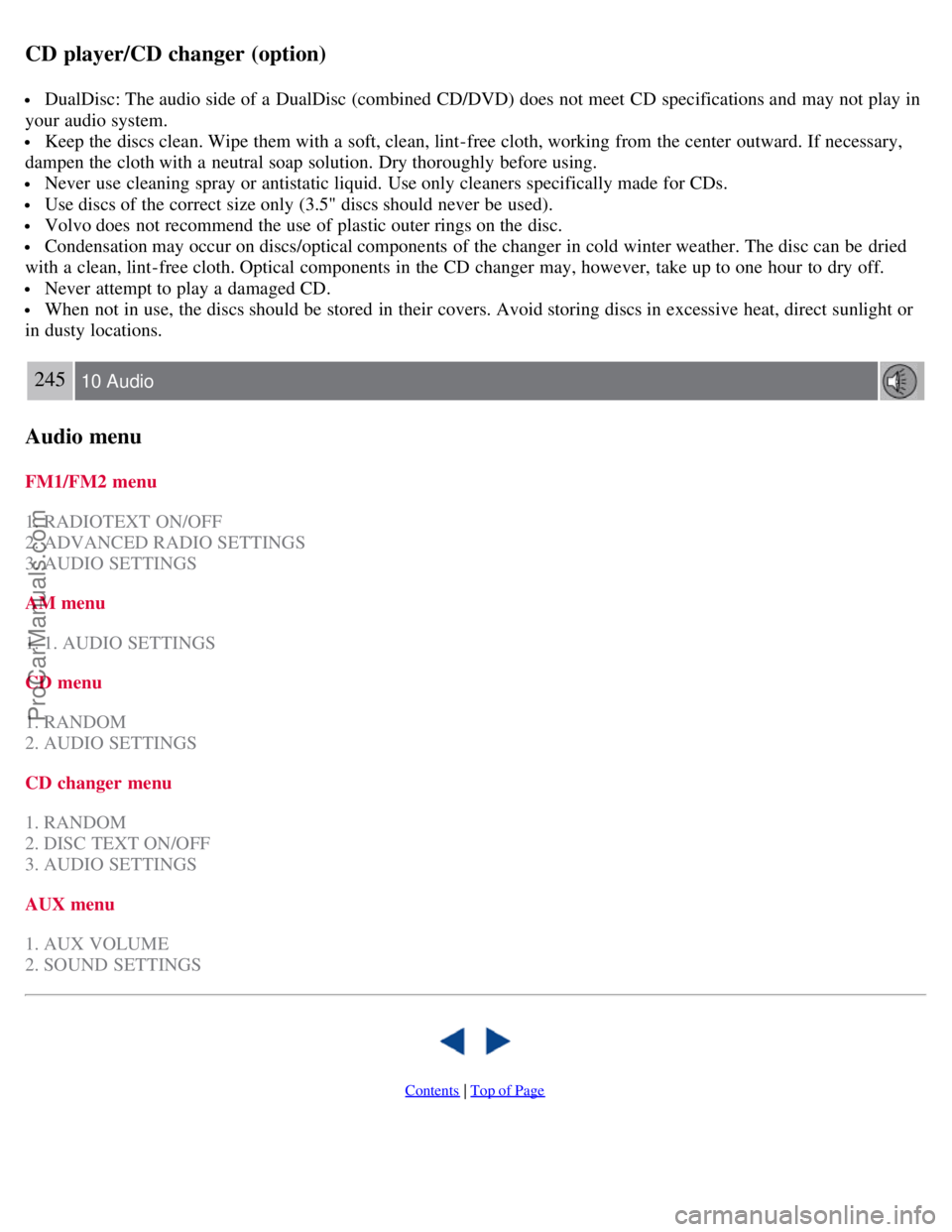
CD player/CD changer (option)
DualDisc: The audio side of a DualDisc (combined CD/DVD) does not meet CD specifications and may not play in
your audio system.
Keep the discs clean. Wipe them with a soft, clean, lint-free cloth, working from the center outward. If necessary,
dampen the cloth with a neutral soap solution. Dry thoroughly before using.
Never use cleaning spray or antistatic liquid. Use only cleaners specifically made for CDs.
Use discs of the correct size only (3.5" discs should never be used).
Volvo does not recommend the use of plastic outer rings on the disc.
Condensation may occur on discs/optical components of the changer in cold winter weather. The disc can be dried
with a clean, lint-free cloth. Optical components in the CD changer may, however, take up to one hour to dry off.
Never attempt to play a damaged CD.
When not in use, the discs should be stored in their covers. Avoid storing discs in excessive heat, direct sunlight or
in dusty locations.
245 10 Audio
Audio menu
FM1/FM2 menu
1. RADIOTEXT ON/OFF
2. ADVANCED RADIO SETTINGS
3. AUDIO SETTINGS
AM menu
1. 1. AUDIO SETTINGS
CD menu
1. RANDOM
2. AUDIO SETTINGS
CD changer menu
1. RANDOM
2. DISC TEXT ON/OFF
3. AUDIO SETTINGS
AUX menu
1. AUX VOLUME
2. SOUND SETTINGS
Contents | Top of Page
ProCarManuals.com
Page 232 of 239
2 0 0 8
VOLVO S40
260-265 12 Index
12-volt socket 58
A
ABS6
, 147
malfunction of the ABS system53
Accessory Installation- Important Warning8
Active Bi -Xenon® headlights59
Active yaw control - AYC149
Air conditioning86
Air distribution95, 251
Air vents88
Airbag system17
Alarm124
All Wheel Drive146
Antifreeze206
Anti-lock Brake System (ABS)6
Approach lighting78, 113
Audio system
CD player242
menu settings245
radio functions235
Sirius satellite radio237
system introduction230
USB/iPOD connector232
Autolock78
Automatic sound control234
Automatic transmission - Geartronic141
Autostart136
AUX (audio system)230
AUX menu245
Auxiliary equipment58
AWD146
B
Backrests, rear seat108
Battery
avoiding drain130
ProCarManuals.com
Page 237 of 239
Power front seats99
Power moonroof75
Power steering fluid207
Power windows71
PROPOSITION 65 WARNING209, 256
R
Radio functions235
Radio text236
Radio, Sirius satellite237
Rain sensor (option)68
Reading lights, rear101
Rear fog light53
Rear seat backrests, folding down108
Rear seat head restraints107
Rearview mirror73
Rearview mirror with compass (option)73
Recalls, child restraints43
Refueling132, 134
Registering child restraints43
Remote control
battery replacement114
central locking system112
functions113
Removing a wheel184
Replacing fuses220
Reporting safety defects
Canada13
USA12
Rotating tires183
S
Safety defects, reporting
Canada13
USA12
Safety locks, child123
Satellite radio237
Seat belt14
maintenance16
reminder16, 54
Service locking116
Shiftlock6
Shiftlock override145
Side impact protection (SIPS) airbags24
Side marker light, replacing215
Sirius satellite radio237
ProCarManuals.com