display VOLVO S60 2014 Owner´s Manual
[x] Cancel search | Manufacturer: VOLVO, Model Year: 2014, Model line: S60, Model: VOLVO S60 2014Pages: 386, PDF Size: 11.24 MB
Page 181 of 386

04 Driver support
Park assist*
04
* Option/accessory, for more information, see Introduction.179
Signals from the park assist system
View in the display (warning for objects front left/ right rear)
Visual indicatorThe audio system’s display gives an overview of the vehicle’s position in relation to adetected object. The marked sectors in the display indicate that one or more of the sensors has detectedan object. The closer the car symbol comesto a sector, the closer the vehicle is to theobject. If the infotainment system is switched off, the park assist system will not be able to providea visual indicator. An audible signal will stillbe provided.
Audible signalThe Park Assist system uses an intermittenttone that pulses faster as you come close toan object, and becomes constant when youare within approximately 1 ft (30 cm) of anobject in front of or behind the vehicle. Ifthere are objects within this distance bothbehind and in front of the vehicle, the tonealternates between front and rear speakers.
NOTE
The level of the audible signal can be low- ered/raised with the infotainment volumecontrol. The level can also be set in the MYCAR menu system. See page 197 for adescription of the menu system.
If the volume of another source from the audio system is high, this will be automati-cally lowered.
Rear park assist
The distance monitored behind the vehicle is approximately 5 ft (1.5 m). The audible signalcomes from the rear speakers. The system must be deactivated when towing a trailer, carrying bicycles in a rear-mountedcarrier, etc, which could trigger the rear parkassist system's sensors.
Page 182 of 386

04 Driver support
Park assist*
04
180* Option/accessory, for more information, see Introduction.
NOTE
• Rear park assist is deactivated auto- matically when towing a trailer if Volvogenuine trailer wiring is used. If a non-Volvo trailer hitch is being used, it maybe necessary to switch off the systemmanually, see page 178.
• The system will not detect highobjects, such as a loading dock, etc.
• Objects such as chains, thin shinypoles or low objects may temporarilynot be detected by the system. Thismay result in the pulsing tone unex-pectedly stopping instead of changingto a constant tone as the vehicleapproaches the object. In such cases,use caution when backing up or stopthe vehicle to help avoid damage.
Front park assist
The distance monitored in front of the vehicle is approximately 2.5 ft (0.8 m). The audiblesignal comes from the audio system's frontspeakers. It may not be possible to combine auxiliary headlights and front park assist since theselights could trigger the system's sensors.
NOTE
Front park assist is deactivated when the parking brake is applied and or when thegear selector is in the
P position.
Faults in the system
If the information symbol illuminates andPark assist syst Service required is shown
on the information display, this indicates that the system is not functioning properly andhas been disengaged. Consult a trained andqualified Volvo service technician.
CAUTION
In certain circumstances, the park assist system may give unexpected warning sig-nals that can be caused by external soundsources that use the same ultrasound fre-quencies as the system. This may includesuch things as the horns of other vehicles,wet tires on asphalt, pneumatic brakes,motorcycle exhaust pipes, etc. This doesnot indicate a fault in the system.
Page 184 of 386
04 Driver support
Rear Park Assist Camera (PAC)*
04
182* Option/accessory, for more information, see Introduction.
Introduction
The Park Assist Camera uses the display in the center console to show the area behindthe car while you are backing up. PAC also shows guiding lines in the on- screen image to indicate the direction that thevehicle will take as it moves rearward, whichhelps simplify parallel parking, backing into atight space or when attaching a trailer to thevehicle.
NOTE
A trailer hitch whose wiring is integrated with the vehicle's electrical system will beincluded in the measurement of the availa-ble space behind the vehicle.
WARNING
• PAC is designed to be a supplemen- tary aid when parking the vehicle. It isnot, however, intended to replace thedriver’s attention and judgment.
• The camera has blind spots where itcannot detect objects or peoplebehind the vehicle.
• Pay particular attention to people oranimals that are close to the vehicle.
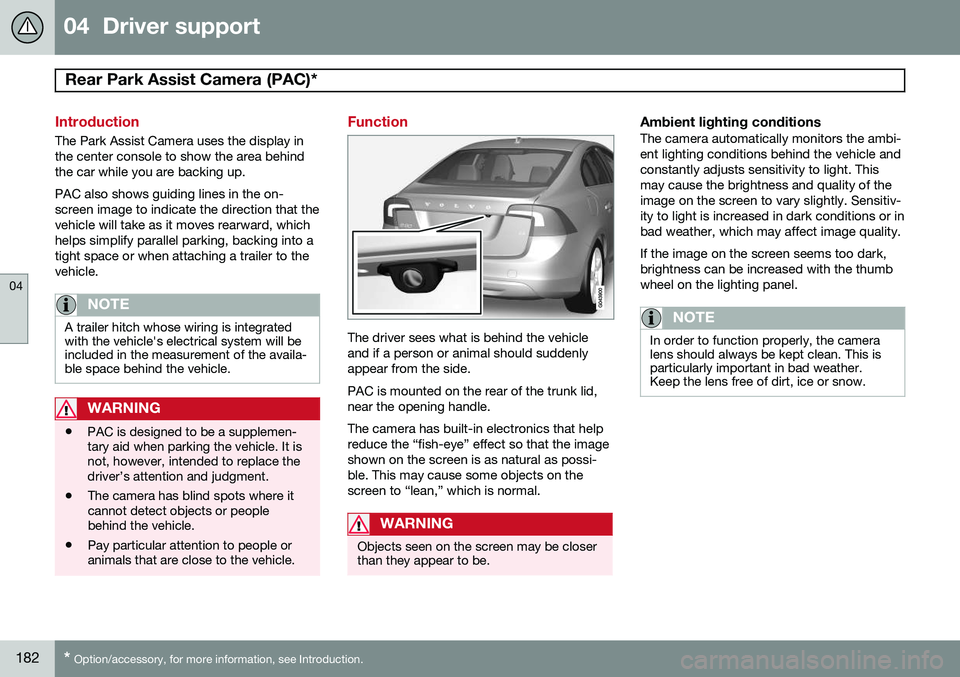
Function
The driver sees what is behind the vehicle and if a person or animal should suddenlyappear from the side. PAC is mounted on the rear of the trunk lid, near the opening handle. The camera has built-in electronics that help reduce the “fish-eye” effect so that the imageshown on the screen is as natural as possi-ble. This may cause some objects on thescreen to “lean,” which is normal.
WARNING
Objects seen on the screen may be closer than they appear to be.
Ambient lighting conditionsThe camera automatically monitors the ambi- ent lighting conditions behind the vehicle andconstantly adjusts sensitivity to light. Thismay cause the brightness and quality of theimage on the screen to vary slightly. Sensitiv-ity to light is increased in dark conditions or inbad weather, which may affect image quality. If the image on the screen seems too dark, brightness can be increased with the thumbwheel on the lighting panel.
NOTE
In order to function properly, the camera lens should always be kept clean. This isparticularly important in bad weather.Keep the lens free of dirt, ice or snow.
Page 185 of 386

04 Driver support
Rear Park Assist Camera (PAC)*
04
* Option/accessory, for more information, see Introduction.183
Using PAC
Activation
PAC is activated when the gear selector is moved to R if the system is selected in the
MY CAR menu system or by pressing the
CAM button in the center console. See page
197 for a description of the menu system. If the Volvo Navigation System (VNS) is in use, PAC will automatically override the navi-gation system to show the camera's imageon the screen instead of navigation informa-tion, for as long as reverse gear is selected.
ZoomThe camera can be useful when attaching atrailer. Press CAM to zoom in on the trailer
hitch (and press this button again to return tothe normal camera view). With the camera zoomed in on the trailerhitch, a guiding line showing the hitch's pathtoward the trailer will be projected. This fea-ture can be activated in the
MY CAR menu.
See page 197 for a description of the menusystem. The guiding lines for the wheels (seethe following section "Guiding lines") and forthe trailer hitch cannot be displayed at thesame time. If the camera shows an enlarged (zoomed) image, turn TUNE counterclockwise, or press
EXIT , CAM or OK to return to a normal view.
DeactivationMove the gear selector from R to another
position. There is a slight delay in the PACsystem, which means that the view frombehind the vehicle will remain on the screenfor approximately 15 seconds after the gearselector has been moved from the R position
or until the vehicle reaches a forward speedof 6 mph (10 km/h). The screen will thenrevert to the mode that it was in before R was
selected and will, for example, display navi-gation system information.
NOTE
If any button on the center console control panel is pressed, the camera image willdisappear from the display. Pressing CAM
will return the camera image to the display.
Guiding lines
The lines on the screen are projected as if they were a path on the ground behind thevehicle and are affected by the way in whichthe steering wheel is turned. This enables thedriver to see path the vehicle will take, even ifhe/she turns the steering wheel while backingup.
NOTE
When backing up with a trailer, the guiding lines show the path that the vehicle will
take, not the trailer.
Page 186 of 386

04 Driver support
Rear Park Assist Camera (PAC)*
04
184* Option/accessory, for more information, see Introduction.
WARNING
Keep in mind that the image on the screen only shows the area behind the vehicle.The driver must always watch for people,animals, other vehicles, etc., near the sidesof the vehicle when turning while backingup.
Marker lines
The PAC system's lines
Marker line for a 1-foot (30-centimeter) zone behind the vehicle
Marker line for the clear back-up zone
"Wheel tracks"
The solid line (1) indicates a zone within 1 ft (30 centimeters) of the rear bumper. The dashed line (2) indicates the clear zone ofapproximately 5 feet (1.5 m) behind thebumper. These lines also indicate the out-most limits that any object (door mirrors, cor-ners of the body, etc.) extends out from thevehicle, even when it turns. The "wheel tracks" (3) between the side marker lines show where the wheels will rolland can extend up to approximately 10.5 ft(3.2 m) behind the bumper if there are noobjects in the way.
Vehicles equipped with Park Assist
Colored fields (4-one per sensor) indicate dis- tance If the vehicle is equipped with the optional Park Assist system, the distance to an objectwill be indicated more exactly and colored
markers in the display indicate which of thesensor(s) has detected the object. The markers change color (from yellow to orange to red) as the vehicle comes closer tothe object.
Marker (color)Distance to object
Yellowmore than 5 ft (1.5 m)
Orange5–1 ft (0.3–1.5 m)
Red0–1 ft (0–0.3 m)
SettingsPress
OK/MENU when a normal camera view
is displayed and make the desired settings.
Parking camera settings
• Mark Guide lines to display the sidelines
while backing up.
• Mark
Distance bars to display the inter-
secting lines while backing up.
Activating the system
• Mark Automatic activation of rear
camera to activate PAC each time
reverse gear is selected.
• Mark
Off to turn off PAC completely.
Summary
•The camera is activated when the gear selector is moved to
R (this can be
Page 187 of 386

04 Driver support
Rear Park Assist Camera (PAC)*
04
* Option/accessory, for more information, see Introduction.185
changed in the
MY CAR menu) and the
image is shown on the center console display.
• When backing up, two solid lines are pro-jected on the screen to show the paththat the vehicle's rear wheels will take.These lines are affected by movements ofthe steering wheel. The vehicle's approxi-mate outer dimension are shown by twodashed lines.
• The graphic lines will not be displayedwhen backing up with a trailer that is con-nected to the vehicle's electrical system.
• Objects on the ground that are closerthan 1 ft (30 centimeters) cannot bedetected by the camera.
• The camera is active for approx.5 seconds after the gear selector ismoved to
R or until the vehicle's speed
exceeds 6 mph (10 km/h).
• The optional Park Assist sensors and theparking camera work together and infor-mation from the sensors is shown graphi-cally on the display.
• The graphic lines shown on the screenwhen the vehicle backs up can be disa-bled in the settings menu.
• Manual zoom can be selected in the
MY
CAR menu.
• The system can be switched off by press-ing
CAM . By default, the system is acti- vated when the gear selector is moved toR
. This setting can be changed in the MY
CAR menu.
• If there are two cameras installed on thevehicle*, to switch between cameras, turnTUNE
(at least one of the cameras has to
be active), press CAM repeatedly or use
the center console controls. If the frontcamera is on, it overrides the optionalpark assist system's visual indicator butthere will still be an audible signal.
Limitations
Even if a fairly small section of the screen image appears to be obstructed, this maymean that a relatively large area behind thevehicle is hidden and objects there may notbe detected until they are very near the vehi-cle.
NOTE
Bicycle carriers or other accessories mounted on the trunk may obstruct thecamera's field of view.
Keep in mind
• Keep the camera's lens free of dirt, ice and snow. Remove ice and snow care-fully to avoid scratching the lens.
• Clean the lens regularly with warm waterand a suitable car washing detergent.
Page 192 of 386
04 Driver support
Blind Spot Information System (BLIS)*
04
190* Option/accessory, for more information, see Introduction.
Messages
If BLIS/CTA are not functioning normally, a symbol will illuminate in the instrument paneland a text message will be displayed. Followany instructions that may be provided. These messages include:
MessageSystem status
CTA OFFCTA has been switched off manually. BLIS remainsactive.
BLIS and CTA OFFTrailerattachedBLIS and CTA are tempo- rarily deactivated becausea trailer's wiring has beenconnected to the vehicle'selectrical system.
BLIS and CTA Serv-ice requiredBLIS and CTA are not functioning normally.
• If this message recurs, the systems should beinspected by a trainedand qualified Volvoservice technician.
Messages can be erased by pressing the
OK
button on the left steering wheel lever.
Page 196 of 386

05 Comfort and driving pleasure
Volvo Sensus
05
194* Option/accessory, for more information, see Introduction.
Introduction
Center console control panel
Volvo Navigation System (VNS)* – NAV:
see the separate VNS manual for operat- ing instructions.
Infotainment ( RADIO, MEDIA , TEL ): see
page 226 .
Vehicle-related settings - MY CAR: see
page 197.
Park assist camera - CAM*: see
page 182.
Climate system: see page 203.
Volvo Sensus is the operating system in your vehicle providing a coordinated interface for anumber of functions such as the individual-ized settings that can be made in the MY
CAR menus, the climate and infotainment systems as well as other options such as thepark assist camera(s), etc. Volvo Sensus uses the screen in the center instrument panel to display information andselections are made using this panel’s con-trols and buttons. Certain features can alsobe controlled using the steering wheel key-pad. Press
MY CAR to present all of the available
settings related to driving and/or controlling the vehicle, such as City Safety, setting theclock, lock settings, etc. Press RADIO , MEDIA , TEL , NAV * and CAM*
to change a source and to activated systems or functions such as AM, FM1, CD, DVD,Bluetooth, navigation* and the park assistcamera *. See the respective sections in this manual for more detailed information about your vehi-cle's various features and functions.
Page 197 of 386
05 Comfort and driving pleasure
Menus and messages
05
* Option/accessory, for more information, see Introduction.195
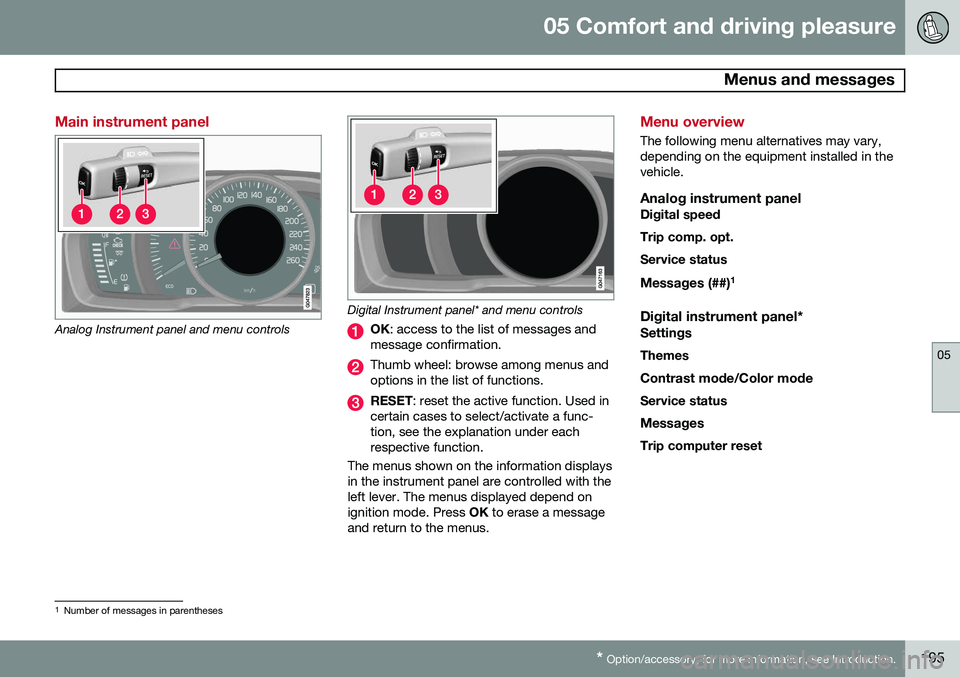
Main instrument panel
Analog Instrument panel and menu controls
Digital Instrument panel* and menu controls
OK : access to the list of messages and
message confirmation.
Thumb wheel: browse among menus and options in the list of functions.
RESET : reset the active function. Used in
certain cases to select/activate a func- tion, see the explanation under eachrespective function.
The menus shown on the information displaysin the instrument panel are controlled with theleft lever. The menus displayed depend onignition mode. Press OK to erase a message
and return to the menus.
Menu overview
The following menu alternatives may vary, depending on the equipment installed in thevehicle.
Analog instrument panelDigital speed Trip comp. opt.Service status
Messages (##) 1
Digital instrument panel*
Settings
Themes
Contrast mode /Color mode
Service status
Messages Trip computer reset
1 Number of messages in parentheses
Page 200 of 386
05 Comfort and driving pleasure
The MY CAR menus
05
198
wheel to make a selection or store a func- tion in the system's memory.
EXIT.
PathsThe current menu level is displayed at the upper right of the center console display.Menu paths are displayed as follows, forexample:
SettingsCar settingsLock settings
Doors unlockDriver door, then all
The following is an example of how to set a function in the menu system:
1. Press the MY CAR button on the center
console control panel.
2. Navigate to a menu, for example
Settings using the thumb wheel (1) and
press it to open a submenu.
3. Navigate to the desired submenu such as
Car settings.
4. Navigate to
Lock settings and press the
thumb wheel to open a new submenu.
5. Navigate to
Doors unlock and press the
thumb wheel to open a submenu with alternatives that can be selected. 6. Use the thumb wheel to move to the
desired choice and press the thumbwheel to put an X in the box.
7. Finish by exiting the menu system either one step at a time with short presses onEXIT (2) or press and hold this button to
return to the main menu.
The OK/MENU (2), EXIT (4) and control (3) in
the center console can be used in the sameway.
MY CAR
When the MY CAR symbol has been
selected, the following menu alternatives are displayed.
•My S60
•Trip statistics
•Support systems
•Settings
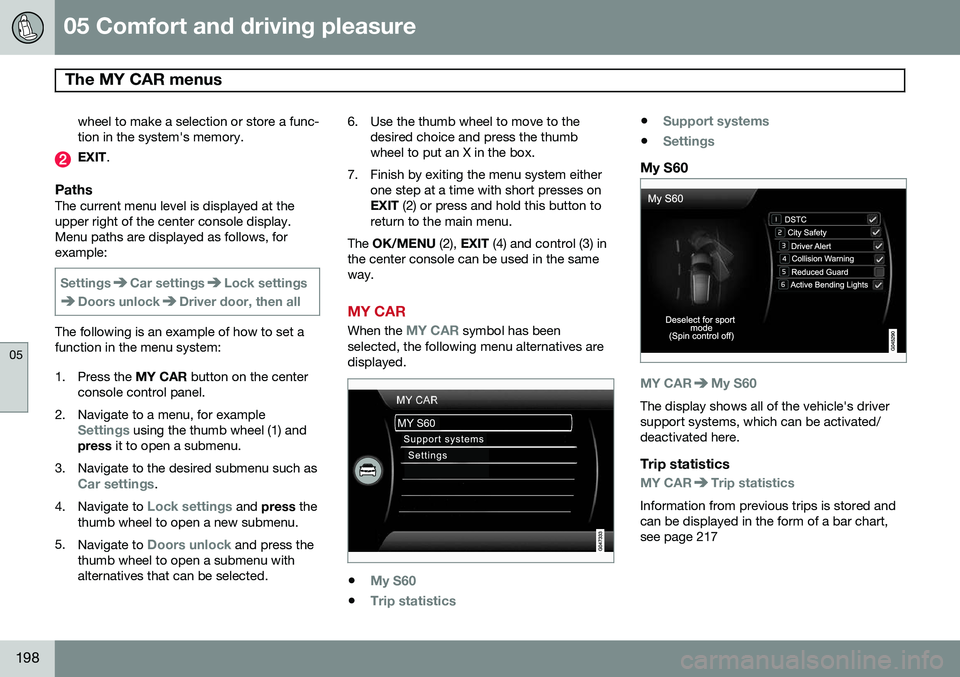
My S60
MY CARMy S60
The display shows all of the vehicle's driver support systems, which can be activated/deactivated here.
Trip statistics
MY CARTrip statistics
Information from previous trips is stored and can be displayed in the form of a bar chart,see page 217