AUX VOLVO S60 2015 Owner´s Manual
[x] Cancel search | Manufacturer: VOLVO, Model Year: 2015, Model line: S60, Model: VOLVO S60 2015Pages: 406, PDF Size: 11.26 MB
Page 247 of 406
06 Infotainment
Introduction
06
}}
245
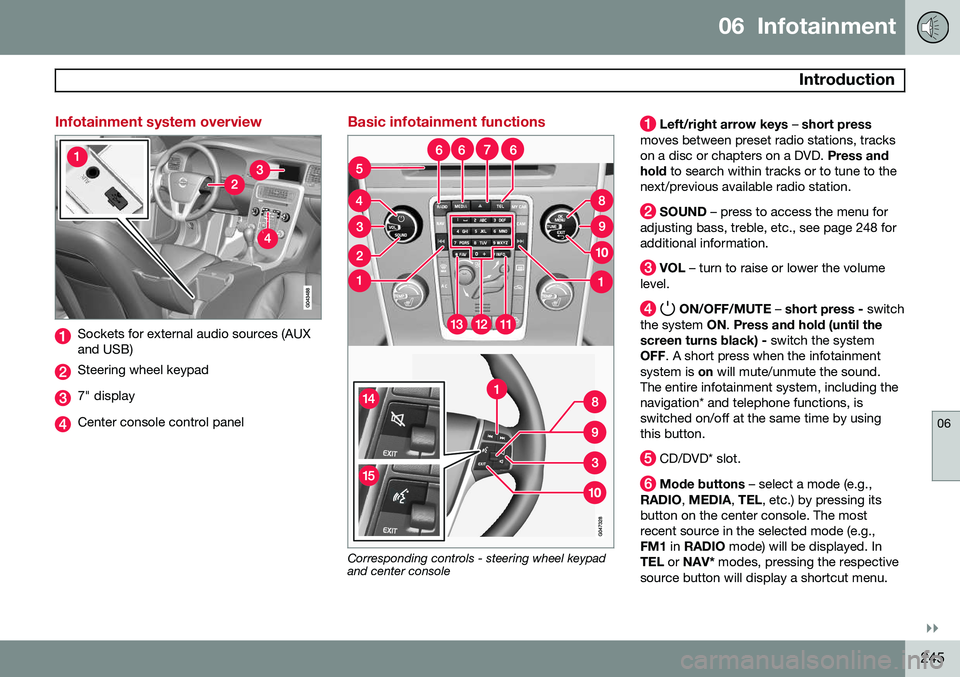
Infotainment system overview
Sockets for external audio sources (AUX and USB)
Steering wheel keypad
7" display
Center console control panel
Basic infotainment functions
Corresponding controls - steering wheel keypad and center console
Left/right arrow keys – short press
moves between preset radio stations, tracks on a disc or chapters on a DVD. Press and
hold to search within tracks or to tune to the
next/previous available radio station.
SOUND – press to access the menu for
adjusting bass, treble, etc., see page 248 for additional information.
VOL – turn to raise or lower the volume
level.
ON/OFF/MUTE – short press - switch
the system ON. Press and hold (until the
screen turns black) - switch the system
OFF . A short press when the infotainment
system is on will mute/unmute the sound.
The entire infotainment system, including the navigation* and telephone functions, isswitched on/off at the same time by usingthis button.
CD/DVD* slot.
Mode buttons – select a mode (e.g.,
RADIO , MEDIA , TEL , etc.) by pressing its
button on the center console. The most recent source in the selected mode (e.g.,FM1 in RADIO mode) will be displayed. In
TEL or NAV* modes, pressing the respective
source button will display a shortcut menu.
Page 250 of 406
06 Infotainment
Introduction
06
248* Option/accessory, for more information, see Introduction.
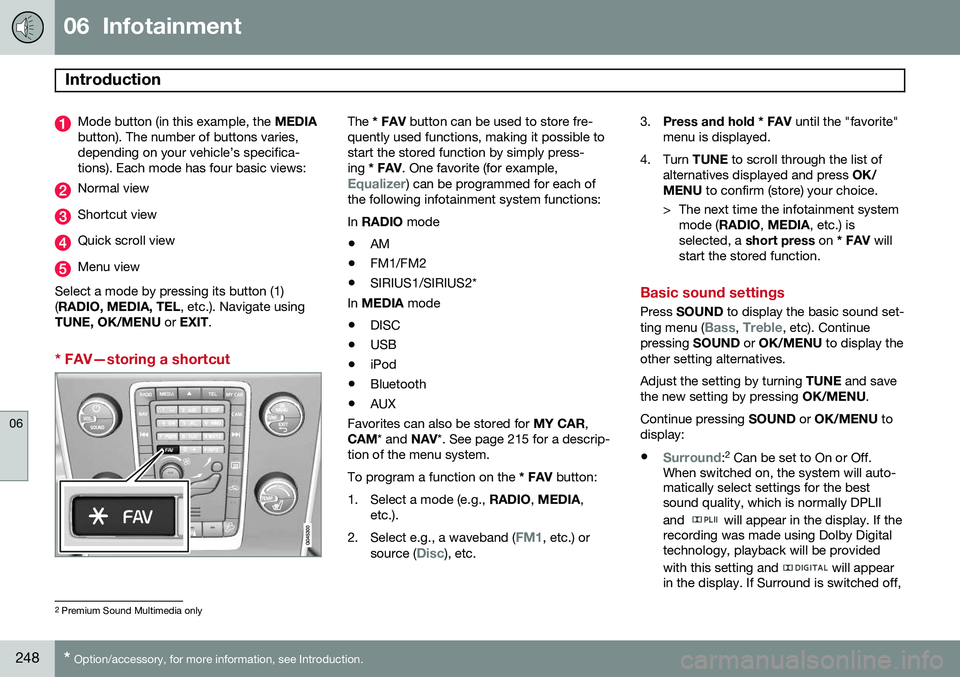
Mode button (in this example, the MEDIA
button). The number of buttons varies, depending on your vehicle’s specifica-tions). Each mode has four basic views:
Normal view
Shortcut view
Quick scroll view
Menu view
Select a mode by pressing its button (1) ( RADIO, MEDIA, TEL , etc.). Navigate using
TUNE, OK/MENU or EXIT .
* FAV—storing a shortcut
The * FAV button can be used to store fre-
quently used functions, making it possible to start the stored function by simply press-ing * FAV . One favorite (for example,
Equalizer) can be programmed for each of
the following infotainment system functions: In RADIO mode
• AM
• FM1/FM2
• SIRIUS1/SIRIUS2*
In MEDIA mode
• DISC
• USB
• iPod
• Bluetooth
• AUX
Favorites can also be stored for MY CAR,
CAM * and NAV*. See page 215 for a descrip-
tion of the menu system.To program a function on the * FAV button:
1. Select a mode (e.g., RADIO, MEDIA ,
etc.).
2. Select e.g., a waveband (
FM1, etc.) or
source (Disc), etc. 3.
Press and hold * FAV until the "favorite"
menu is displayed.
4. Turn TUNE to scroll through the list of
alternatives displayed and press OK/
MENU to confirm (store) your choice.
> The next time the infotainment system mode ( RADIO , MEDIA , etc.) is
selected, a short press on * FAV will
start the stored function.
Basic sound settings
Press SOUND to display the basic sound set-
ting menu (Bass, Treble, etc). Continue
pressing SOUND or OK/MENU to display the
other setting alternatives. Adjust the setting by turning TUNE and save
the new setting by pressing OK/MENU.
Continue pressing SOUND or OK/MENU to
display: •
Surround: 2
Can be set to On or Off.
When switched on, the system will auto- matically select settings for the bestsound quality, which is normally DPLII and
will appear in the display. If the
recording was made using Dolby Digital technology, playback will be provided with this setting and
will appear
in the display. If Surround is switched off,
2 Premium Sound Multimedia only
Page 251 of 406
06 Infotainment
Introduction
06
}}
249
audio will be provided using 3 channel stereo.
•
Bass: Bass level.
•
Treble: Treble level.
•
Fader: Balance between the front and
rear speakers.
•
Balance: Balance between the right and
left speakers.
•
DPL II centre level/3 channel centre
level2 : Volume for the center speaker.
•
DPL II surround level2 /3
: Surround level.
Advanced sound settings
EqualizerSound levels for different frequencies can be adjusted separately using this feature. To do so:1. Press OK/MENU to access
Audio
settings and select Equalizer
2. Turn TUNE to select one of the frequen-
cies and press OK/MENU. 3. Turn
TUNE to adjust the sound setting
and confirm the change by pressing OK/
MENU . Do the same for the other fre-
quencies.
4. When you have finished making your set- tings, press EXIT to save and return to
normal view.
For general information regarding menu navi- gation, see page 247 and menu overview seepage 250.
Sound stage 4The sound experience can be optimized forthe driver's seat, both front seats or the rearseat. If the front and rear seats are occupied, the sound stage setting
Front seats is rec-
ommended. Select one of the options under
Audio settingsSound stage.
Audio volume and automatic volume
control
The infotainment system compensates for disrupting noises in the passenger compart-ment by increasing the volume according tothe speed of the vehicle. The level of soundcompensation can be set at low, medium,high or off. Select the level under
Audio
settings
Volume compensation.
External audio source volumeIf an external device such as an MP3 player or an iPod ®
is connected to the AUX socket,
the device's volume may be different than the volume of the internal sound sources such asthe disc player or the radio. If the externalsound source's volume is too high, the qualityof the sound may be impaired. To help pre-vent this, adjust the input volume of the exter-nal audio source:
NOTE
Sound quality may be affected if the MP3 player is being charged while the system isin AUX mode. To help prevent this, avoidcharging the MP3 player in a 12-voltsocket while it is being played.
1. Press MEDIA and turn TUNE to AUX.
Press OK/MENU or the thumb wheel on
the steering wheel keypad.
2. Press OK/MENU and turn TUNE to
AUX
input volume. Confirm by pressing OK/
MENU .
3. Turn TUNE to adjust the volume.
2
Premium Sound Multimedia only
3 Only when Surround is on.
4
Premium Sound Multimedia only
Page 253 of 406
06 Infotainment
Introduction
06
}}
251
Advanced SIRIUS settings
Skip optionsChannel skip list
Lock options Channel lock list Unlock all channelsTemporarily unlock all channels Change code
Audio settings 6
MEDIA menus
Main CD Audio menuDisc menu
Random Scan
Audio settings 6
Main CD/DVD 9
Data menuDisc menu
Play/Pause StopRandomRepeat folderChange subtitlesChange audio trackScan
Audio settings 6
Main DVD9
Video menuDVD Video Menu
DVD disc menuPlay/Pause/ContinueStopSubtitlesAudio tracksAdvanced settingsAngleDivX® VOD code
Audio settings 6
Main iPod menuiPod menu
RandomScan
Audio settings 6
Main USB menuUSB menu
Play/Pause
StopRandomRepeat folderSelect USB deviceChange subtitlesChange audio trackScan
Audio settings 6
Main AUX menuAUX menu
AUX input volume
Audio settings 6
6
The audio settings are the same for all infotainment system modes9
The media player can only play DVDs in models equipped with the optional navigation system. Images are only displayed when the vehicle is not in motion.
Page 269 of 406
06 Infotainment
AUX/USB sockets
06
}}
267
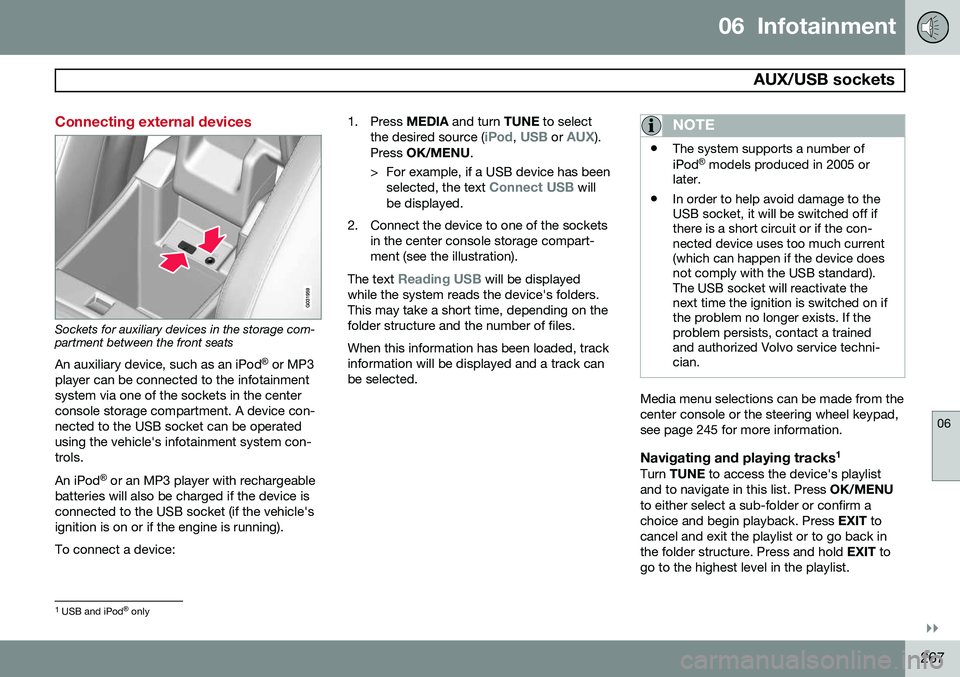
Connecting external devices
Sockets for auxiliary devices in the storage com- partment between the front seatsAn auxiliary device, such as an iPod ®
or MP3
player can be connected to the infotainment system via one of the sockets in the centerconsole storage compartment. A device con-nected to the USB socket can be operatedusing the vehicle's infotainment system con-trols. An iPod ®
or an MP3 player with rechargeable
batteries will also be charged if the device is connected to the USB socket (if the vehicle'signition is on or if the engine is running). To connect a device: 1. Press
MEDIA and turn TUNE to select
the desired source (
iPod, USB or AUX).
Press OK/MENU .
> For example, if a USB device has been selected, the text
Connect USB will
be displayed.
2. Connect the device to one of the sockets in the center console storage compart- ment (see the illustration).
The text
Reading USB will be displayed
while the system reads the device's folders. This may take a short time, depending on thefolder structure and the number of files. When this information has been loaded, track information will be displayed and a track canbe selected.
NOTE
• The system supports a number of iPod ®
models produced in 2005 or
later.
• In order to help avoid damage to the USB socket, it will be switched off ifthere is a short circuit or if the con-nected device uses too much current(which can happen if the device doesnot comply with the USB standard).The USB socket will reactivate thenext time the ignition is switched on ifthe problem no longer exists. If theproblem persists, contact a trainedand authorized Volvo service techni-cian.
Media menu selections can be made from the center console or the steering wheel keypad,see page 245 for more information.
Navigating and playing tracks 1Turn
TUNE to access the device's playlist
and to navigate in this list. Press OK/MENU
to either select a sub-folder or confirm achoice and begin playback. Press EXIT to
cancel and exit the playlist or to go back inthe folder structure. Press and hold EXIT to
go to the highest level in the playlist.
1 USB and iPod ®
only
Page 270 of 406
06 Infotainment
AUX/USB sockets
06
268
The / buttons on the center console
or steering wheel keypad can also be used to change tracks/files. The following symbols are used in the dis- play: •
- audio files
•
- video files
•
- folders
When a file has been played, the player will continue to play the rest of the files (of thesame type) in the current folder. When all ofthe files in the folder have been played, the player will automatically go to the next folder 1
(unless
Repeat folder is activated) and play
the files in it. The system automatically detects and changes settings if a device containing onlyaudio or only video files is connected to theUSB socket and will play these files. How-ever, the system will not change settings ifthe device contains both audio and video filesand will continue to play the current type offile.
Fast forward/reverse 1For information, see page 263.
Scan1For information, see page 263.
Random
1For information, see page 264.
Search1The keypad in the center console can beused to search for a file in the currentlyselected folder. Start the search by either turning
TUNE (to
access the folders) or by pressing one of the character keys to enter a letter/number. Pos-sible search results will be displayed as char-acters are entered. Play the file by pressing OK/MENU.
Repeat2This function makes it possible to play files in a folder repeatedly. When the last file hasbeen played, the first file will begin again. Forinformation, see page 264.
PauseWhen the infotainment system volume isturned off completely or the sound is muted,the player will pause. It will resume playingwhen the volume is turned up again or if the sound is unmuted.
Pause is also available via
the menu system, select
Play/Pause.
External sound sources
USB flash driveTo simplify the use of a USB flash drive, it is advisable to only store music files on thedrive. It will take considerably longer for thesystem to index the files on the drive if it con-tains anything other than compatible musicfiles.
NOTE
• The system supports removable media that uses the USB 2.0 standard andthe FAT32 file system. It can index upto 1,000 folders and a maximum of254 sub-folders/files for each folder.However, the highest folder level cansupport up to 1,000 sub-folders/files.
• When using a longer type of USBdevice, connecting it with a USBadapter cable will help reducemechanical wear on the USB socketand on the device.
1
USB and iPod ®
only2 USB only
Page 271 of 406
06 Infotainment
AUX/USB sockets
06
269
USB hubA USB hub can be connected to the USB socket, making it possible to connect severalUSB devices at the same time. To select one of the devices, go to the menu
USB menuSelect USB device.
MP3 playerMany MP3 players have a file indexing sys- tem that is not supported by the vehicle'sinfotainment system. In order to use an MP3 player, the system must be set to
USB
Removable device/Mass Storage Device.
iPod®
An iPod ®
receives current and its battery is
charged through the USB cable. The system will only play audio files from an iPod ®
.
NOTE
When an iPod ®
is used as a sound source,
the vehicle's infotainment system has a menu structure similar to the one in the iPod ®
. See the iPod's manual for detailed
information.
Compatible file formats via the USB socket
The following audio and video files are sup- ported by the system when playing a deviceconnected to the USB socket.
Audio formatsmp3, wma, aac, m4a
Video formatsdivx, avi, asf
Page 292 of 406
07 During your trip
Driving recommendations
07
290
WARNING
The cooling fan may start or continue to operate (for up to 6 minutes) after theengine has been switched off.
•Remove any auxiliary lights from in front of the grille when driving in hot weatherconditions.
• Do not exceed engine speeds of4500 rpm if driving with a trailer in hillyterrain. The oil temperature could becometoo high.
Conserving electrical currentKeep the following in mind to help minimize battery drain:
• When the engine is not running, avoid using ignition mode
II. Many electrical
systems (the audio system, the optionalnavigation system, power windows, etc)will function in ignition modes 0 and I.
These modes reduce drain on the battery.
• Please keep in mind that using systems,accessories, etc., that consume a greatdeal of current when the engine is notrunning could result in the battery beingcompletely drained. Driving or having theengine running for approximately15 minutes will help keep the batterycharged.
Before a long distance tripIt is always worthwhile to have your vehicle checked by a trained and qualified Volvoservice technician before driving long dis-tances. Your retailer will also be able to sup-ply you with bulbs, fuses, spark plugs andwiper blades for your use in the event thatproblems occur. As a minimum, the following items should be checked before any long trip:
• Check that engine runs smoothly and that fuel consumption is normal.
• Check for fuel, oil, and fluid leakage
• Have the transmission oil level checked.
• Check condition of drive belts.
• Check state of the battery's charge.
• Examine tires carefully (the spare tire aswell), and replace those that are worn.Check tire pressures.
• The brakes, front wheel alignment, andsteering gear should be checked by atrained and qualified Volvo service techni-cian only.
• Check all lights, including high beams.
• Reflective warning triangles are legallyrequired in some states/provinces.
• Have a word with a trained and qualifiedVolvo service technician if you intend to drive in countries where it may be difficultto obtain the correct fuel.
• Consider your destination. If you will bedriving through an area where snow or iceare likely to occur, consider snow tires.
Cold weather precautionsIf you wish to check your vehicle before the approach of cold weather, the followingadvice is worth noting:
• Make sure that the engine coolant con- tains 50 percent antifreeze. Any othermixture will reduce freeze protection. Thisgives protection against freezing down to–31 °F (–35 °C). The use of "recycled"antifreeze is not approved by Volvo. Dif-ferent types of antifreeze must not bemixed.
• Volvo recommends using only genuineVolvo antifreeze in your vehicle's radiator.
• Try to keep the fuel tank well filled – thishelps prevent the formation of condensa-tion in the tank. In addition, in extremelycold weather conditions it is worthwhileto add fuel line de-icer before refueling.
• The viscosity of the engine oil is impor-tant. Oil with low viscosity (thinner oil)improves cold-weather starting as well asdecreasing fuel consumption while theengine is warming up. Full synthetic
Page 366 of 406
09 Maintenance and specifications
Fuses 09
364* Option/accessory, for more information, see Introduction.
PosFunctionA
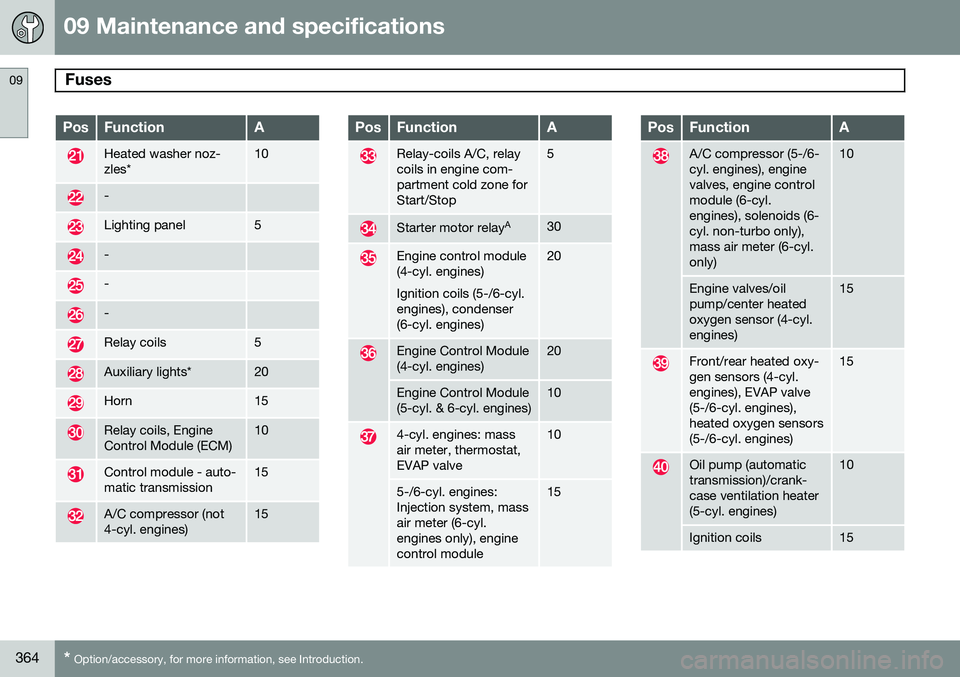
Heated washer noz- zles*10
-
Lighting panel5
-
-
-
Relay coils5
Auxiliary lights*20
Horn15
Relay coils, Engine Control Module (ECM)10
Control module - auto- matic transmission15
A/C compressor (not 4-cyl. engines)15
PosFunctionA
Relay-coils A/C, relay coils in engine com-partment cold zone forStart/Stop5
Starter motor relay A30
Engine control module (4-cyl. engines) Ignition coils (5-/6-cyl. engines), condenser(6-cyl. engines)20
Engine Control Module (4-cyl. engines)20
Engine Control Module (5-cyl. & 6-cyl. engines)10
4-cyl. engines: mass air meter, thermostat,EVAP valve10
5-/6-cyl. engines: Injection system, massair meter (6-cyl.engines only), enginecontrol module15
PosFunctionA
A/C compressor (5-/6- cyl. engines), enginevalves, engine controlmodule (6-cyl.engines), solenoids (6-cyl. non-turbo only),mass air meter (6-cyl.only)10
Engine valves/oil pump/center heatedoxygen sensor (4-cyl.engines)15
Front/rear heated oxy- gen sensors (4-cyl.engines), EVAP valve(5-/6-cyl. engines),heated oxygen sensors(5-/6-cyl. engines)15
Oil pump (automatic transmission)/crank-case ventilation heater(5-cyl. engines)10
Ignition coils15
Page 373 of 406
09 Maintenance and specifications
Fuses09
371
PosFunctionA
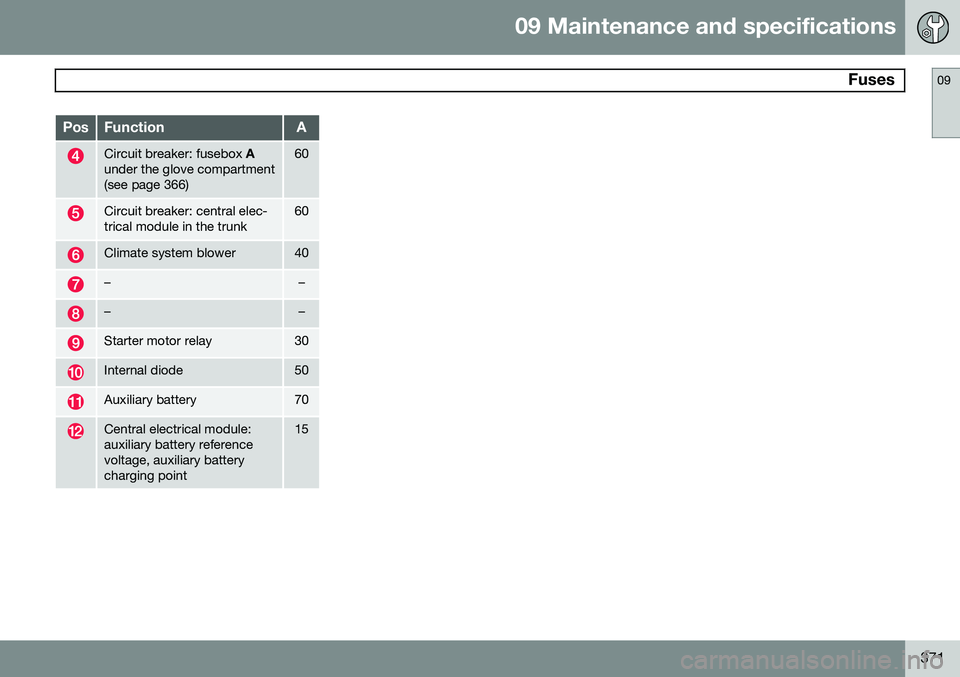
Circuit breaker: fusebox A
under the glove compartment (see page 366)60
Circuit breaker: central elec- trical module in the trunk60
Climate system blower40
––
––
Starter motor relay30
Internal diode50
Auxiliary battery70
Central electrical module: auxiliary battery referencevoltage, auxiliary batterycharging point15