center console VOLVO S60 2015 Owner´s Manual
[x] Cancel search | Manufacturer: VOLVO, Model Year: 2015, Model line: S60, Model: VOLVO S60 2015Pages: 406, PDF Size: 11.26 MB
Page 248 of 406
06 Infotainment
Introduction
06
246* Option/accessory, for more information, see Introduction.
Eject a disc.
OK/MENU – press the thumb wheel on
the steering wheel keypad or this button on the center console to confirm a menu selec-tion or accept an incoming phone call. FromRADIO or MEDIA mode's main view, press-
ing this button displays a menu for theselected source. Arrows at the right of thescreen indicate submenus.
TUNE – turn the thumb wheel on the
steering wheel keypad or this button on the center console to scroll among tracks/folders,radio stations, phone contacts or to navigateamong the alternatives shown on the screen.
EXIT – short press - go upward in the
menu system, cancel a current function, reject an incoming phone call or erase char-acters that have been entered on the screen.Press and hold - to go to the mode's main
view. From a mode’s main view, pressing andholding EXIT takes you to the infotainment
system's main view, which enables you toaccess the same modes as by pressing therespective mode keys on the center console.
# INFO – if more information is available
than is currently displayed on the screen, press # INFO to display the remaining infor-
mation.
Keypad for entering text/numbers, storing
radio stations, etc.
* FAV – this button can be used to store a
shortcut to a commonly used function in AM/FM/SIRIUS/DISC, etc. See the section " *
FAV —storing a shortcut" on page 248 for
information on using this button.
MUTE (models without the navigation sys-
tem*) – press to mute/unmute infotainment system sound.
Voice control (models with the navigation
system*) – press to activate voice commands (for Bluetooth ®
-connected cell phones and
the navigation system*).
Page 255 of 406
06 Infotainment
Radio
06
}}
* Option/accessory, for more information, see Introduction.253
General functions
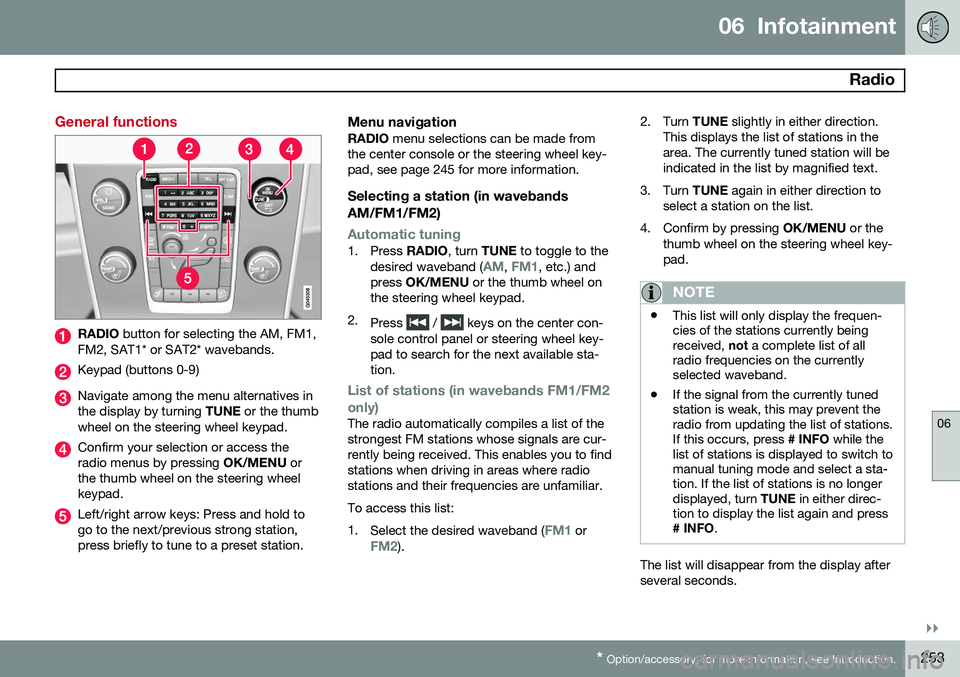
RADIO button for selecting the AM, FM1,
FM2, SAT1* or SAT2* wavebands.
Keypad (buttons 0-9)
Navigate among the menu alternatives in the display by turning TUNE or the thumb
wheel on the steering wheel keypad.
Confirm your selection or access the radio menus by pressing OK/MENU or
the thumb wheel on the steering wheelkeypad.
Left/right arrow keys: Press and hold to go to the next/previous strong station,press briefly to tune to a preset station.
Menu navigationRADIO menu selections can be made from
the center console or the steering wheel key-pad, see page 245 for more information.
Selecting a station (in wavebands AM/FM1/FM2)
Automatic tuning1. Press RADIO, turn TUNE to toggle to the
desired waveband (AM, FM1, etc.) and
press OK/MENU or the thumb wheel on
the steering wheel keypad.
2. Press
/ keys on the center con-
sole control panel or steering wheel key- pad to search for the next available sta-tion.
List of stations (in wavebands FM1/FM2 only)
The radio automatically compiles a list of the strongest FM stations whose signals are cur-rently being received. This enables you to findstations when driving in areas where radiostations and their frequencies are unfamiliar. To access this list:1. Select the desired waveband (
FM1 orFM2). 2. Turn
TUNE slightly in either direction.
This displays the list of stations in the area. The currently tuned station will beindicated in the list by magnified text.
3. Turn TUNE again in either direction to
select a station on the list.
4. Confirm by pressing OK/MENU or the
thumb wheel on the steering wheel key-pad.
NOTE
• This list will only display the frequen- cies of the stations currently beingreceived,
not a complete list of all
radio frequencies on the currentlyselected waveband.
• If the signal from the currently tunedstation is weak, this may prevent theradio from updating the list of stations.If this occurs, press
# INFO while the
list of stations is displayed to switch tomanual tuning mode and select a sta-tion. If the list of stations is no longerdisplayed, turn TUNE in either direc-
tion to display the list again and press
# INFO .
The list will disappear from the display after several seconds.
Page 256 of 406

06 Infotainment
Radio
06
254
If the station list is no longer displayed, turn TUNE in either direction and press
on
the keypad on the center console to switch to manual tuning (or to switch back from manualtuning to the "list of stations" function).
Manual tuningBy default, the list of stations of the strongest stations in the area will be displayed whenyou turn TUNE (see the preceding section,
"List of stations"). While the list of stations is displayed, press
on the center console
keypad to switch to manual tuning, which enables you to select a frequency from thecomplete list of all radio frequencies availa-
ble on the currently selected waveband. Inother words, in manual tuning mode, turningTUNE one step will change from e.g., 93.3 to
93.5, etc.). To manually tune a station:
1. Press RADIO. Turn TUNE to scroll to the
desired waveband (
AM, FM1, etc.) and
press OK/MENU or the thumb wheel on
the steering wheel keypad to confirm.
2. Turn TUNE or the thumb wheel to select
a frequency.
NOTE
The radio is initially set to automatically search for stations in the area in which youare driving (see the preceding section,"List of stations"). However, if you have switched to manual tuning (by pressing # INFO on the keypad
on the center console while the list of sta-tions is displayed), the radio will remain inmanual tuning mode the next time it isswitched on. To switch back to "list of sta-tions" mode, turn TUNE one step (to dis-
play the full list of stations) and press #
INFO .
Please note that if you press # INFO when
the list of stations is not displayed, this willactivate the INFO function.
Storing preset stationsTen preset stations can be stored for each waveband (AM, FM1, etc.).
Stored preset stations are selected using the buttons on the keypad on the center console.
Manually storing preset stations1. Tune to a station (see "Selecting a sta- tion" on page 253). 2. Press and hold one of the number key
buttons.
> The sound will be muted for severalseconds and when it returns, the sta- tion has been stored on the numberkey button used.
A list of preset stations can be displayed. Thisfunction can be activated/deactivated in AM/FM mode in
FM menuShow presets
or in AM menuShow presets
ScanThe function automatically searches the cur- rent waveband for radio stations. When a sta-tion is found, it is played for several secondsbefore scanning is resumed. While the stationis playing it can be stored as a preset in theusual way (see "Manually storing preset sta-tions").
–To start scanning in AM/FM mode, go to
FM menuScan or in AM menuScan.
Stop station scanning by pressing EXIT.
NOTE
Storing a station interrupts the SCAN func- tion.
Page 258 of 406
06 Infotainment
Radio
06
256
strength), the receiver will determine which signal to receive.
Limitations
•Main channel vs. sub-channels (FM only)
: The main channel is the only chan-
nel that can receive in hybrid mode (both digital and analogue). If a frequency hassub-channels, they are broadcast in digi-tal mode only. The main FM channel willbe displayed as, for example, 93.9 WNYC(Volvo uses the symbol ">" to indicatethere are sub-channels available) Thesub-FM channels will be displayed as93.9 – 2 WNYC, 93.9 - 3 WNYC, etc.
• Reception coverage area
: Due to cur-
rent IBOC transmitter power limitations,the reception coverage area in digitalmode is somewhat more limited than thestation's analogue coverage area. Pleasebe aware that as with any radio broadcasttechnology, terrain, time of day, foliagelevel and building location can have posi-tive or negative effects on radio recep-tion.
• Analogue to digital/digital to analogue blending
: Analogue to digital blending
will occur as the signal strength reaches a preset threshold in the receiver. This willbe noticeable in fringe areas (areas withweak reception) and is normal.
NOTE
There may be a noticeable difference in sound quality when a change from ana-logue to digital or digital to analogueoccurs, such as:
• Volume increase or decrease
• Equalizer settings, i.e., Bass/ Mid- range/Treble cut or boost
• Time alignment (Digital program mate-rial in extreme cases can be as muchas 8 seconds behind the analogue).This will noticeable as a "stuttering"effect.
The above items are dependant on the broadcaster's equipment settings and do not indicate a fault in the vehicle's radio receiver or antenna systems .
Switching HD on or offThe factory setting for HD radio is off. If acti-
vated when driving through areas with weak HD signals (fringe areas), you may experiencethat the radio repeatedly switches betweenanalogue/digital and digital/analogue recep-tion. If this happens, it may be desirable toswitch HD off. To do so: 1. Be sure the infotainment system is
switched on and in one of the AM or FM modes.
2. Press OK/MENU in the center console
control panel.
3. Turn TUNE and move the marker to
HD
Radio.
4. Press OK/MENU to turn HD off (the X will
disappear from the box on the display screen).
This will disable the radio's capability to receive digital broadcasts but it will continueto function as a conventional (analogue)AM/FM receiver. Please note that when HD isswitched off, it will not be possible to tune tosub-channels (see the following section for amore detailed explanation of sub-channels). Repeat steps 2-4 above to reactivate HD (an X will appear in the box on the displayscreen). Please note that this will only switchHD on or off for the selected waveband (AM,FM1, etc.).
Page 259 of 406
06 Infotainment
Radio
06
}}
* Option/accessory, for more information, see Introduction.257
Sub-channels
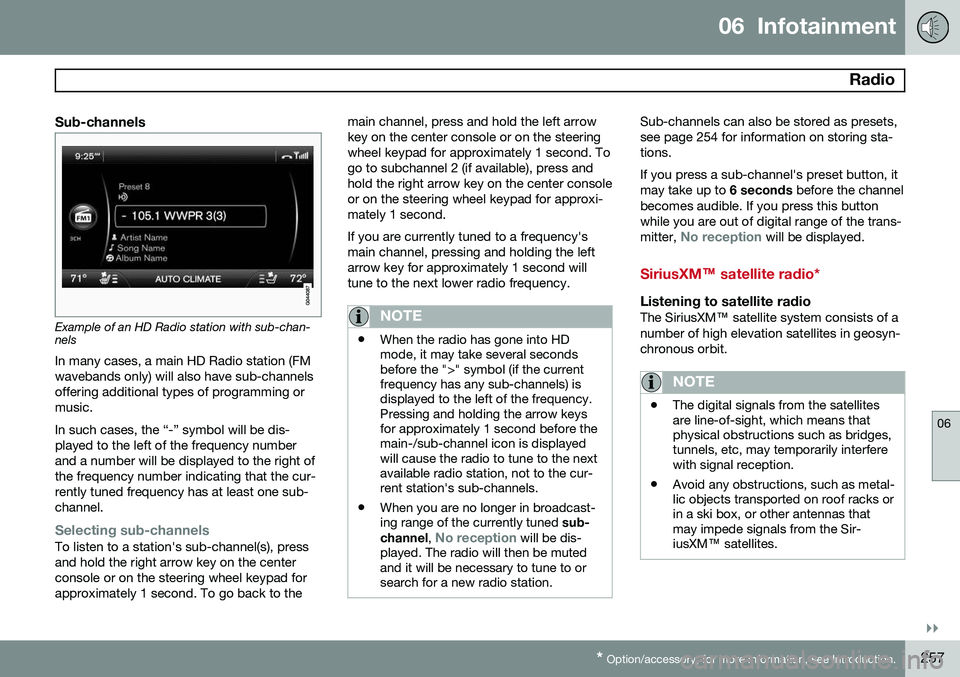
Example of an HD Radio station with sub-chan- nels
In many cases, a main HD Radio station (FM wavebands only) will also have sub-channelsoffering additional types of programming ormusic. In such cases, the “-” symbol will be dis- played to the left of the frequency numberand a number will be displayed to the right ofthe frequency number indicating that the cur-rently tuned frequency has at least one sub-channel.
Selecting sub-channelsTo listen to a station's sub-channel(s), press and hold the right arrow key on the centerconsole or on the steering wheel keypad forapproximately 1 second. To go back to the main channel, press and hold the left arrowkey on the center console or on the steeringwheel keypad for approximately 1 second. Togo to subchannel 2 (if available), press andhold the right arrow key on the center consoleor on the steering wheel keypad for approxi-mately 1 second. If you are currently tuned to a frequency's main channel, pressing and holding the leftarrow key for approximately 1 second willtune to the next lower radio frequency.
NOTE
•
When the radio has gone into HD mode, it may take several secondsbefore the ">" symbol (if the currentfrequency has any sub-channels) isdisplayed to the left of the frequency.Pressing and holding the arrow keysfor approximately 1 second before themain-/sub-channel icon is displayedwill cause the radio to tune to the nextavailable radio station, not to the cur-rent station's sub-channels.
• When you are no longer in broadcast-ing range of the currently tuned
sub-
channel ,
No reception will be dis-
played. The radio will then be muted and it will be necessary to tune to orsearch for a new radio station.
Sub-channels can also be stored as presets, see page 254 for information on storing sta-tions. If you press a sub-channel's preset button, it may take up to 6 seconds before the channel
becomes audible. If you press this buttonwhile you are out of digital range of the trans- mitter,
No reception will be displayed.
SiriusXM™ satellite radio*
Listening to satellite radioThe SiriusXM ™ satellite system consists of a
number of high elevation satellites in geosyn- chronous orbit.
NOTE
• The digital signals from the satellites are line-of-sight, which means thatphysical obstructions such as bridges,tunnels, etc, may temporarily interferewith signal reception.
• Avoid any obstructions, such as metal-lic objects transported on roof racks orin a ski box, or other antennas thatmay impede signals from the Sir-iusXM
™ satellites.
Page 264 of 406
06 Infotainment
Media player
06
262
CD/DVD1
functions
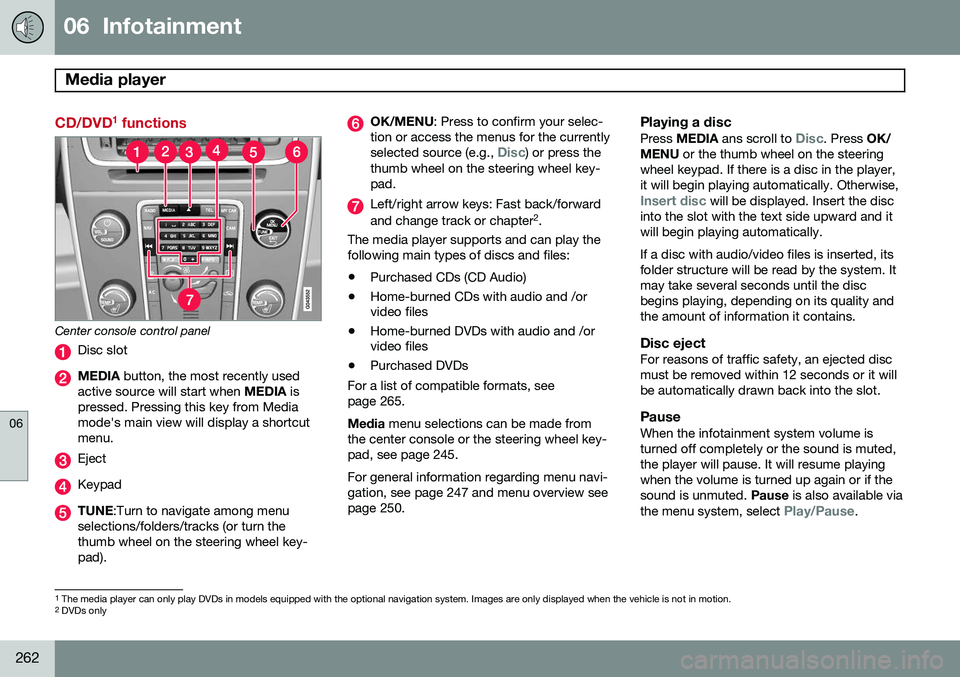
Center console control panel
Disc slot
MEDIA button, the most recently used
active source will start when MEDIA is
pressed. Pressing this key from Media mode's main view will display a shortcutmenu.
Eject
Keypad
TUNE :Turn to navigate among menu
selections/folders/tracks (or turn the thumb wheel on the steering wheel key-pad).
OK/MENU : Press to confirm your selec-
tion or access the menus for the currently selected source (e.g.,
Disc) or press the
thumb wheel on the steering wheel key- pad.
Left/right arrow keys: Fast back/forward and change track or chapter 2
.
The media player supports and can play the following main types of discs and files:
• Purchased CDs (CD Audio)
• Home-burned CDs with audio and /or video files
• Home-burned DVDs with audio and /orvideo files
• Purchased DVDs
For a list of compatible formats, see page 265. Media menu selections can be made from
the center console or the steering wheel key- pad, see page 245. For general information regarding menu navi- gation, see page 247 and menu overview seepage 250.
Playing a disc
Press MEDIA ans scroll to Disc. Press OK/
MENU or the thumb wheel on the steering
wheel keypad. If there is a disc in the player, it will begin playing automatically. Otherwise,
Insert disc will be displayed. Insert the disc
into the slot with the text side upward and it will begin playing automatically. If a disc with audio/video files is inserted, its folder structure will be read by the system. Itmay take several seconds until the discbegins playing, depending on its quality andthe amount of information it contains.
Disc ejectFor reasons of traffic safety, an ejected discmust be removed within 12 seconds or it willbe automatically drawn back into the slot.
PauseWhen the infotainment system volume isturned off completely or the sound is muted,the player will pause. It will resume playingwhen the volume is turned up again or if thesound is unmuted. Pause is also available via
the menu system, select
Play/Pause.
1 The media player can only play DVDs in models equipped with the optional navigation system. Images are only displayed when the vehicle is not in motion.
2 DVDs only
Page 265 of 406
06 Infotainment
Media player
06
}}
* Option/accessory, for more information, see Introduction.263
Navigating a disc and playing tracks
CD audio discsTurn TUNE to access the disc's playlist and
to navigate in this list. Press OK/MENU to
confirm a choice and begin listening. Press EXIT to cancel. Press and hold EXIT to return
to the playlist's root level. The
/ buttons on the center console
or steering wheel keypad can also be used to change tracks.
Home-burned CD/DVD audio/video filesTurn TUNE to access the disc's playlist and
to navigate in this list. Press OK/MENU to
confirm a choice and begin listening. Use EXIT to stop or to go back in the disc's folder
structure. Press and hold EXIT to return to
the playlist's root level. The
/ buttons on the center console
or steering wheel keypad* can also be used to change audio/video files. The following symbols are used in the dis- play: •
- audio files
•
- video files
•
- folders When a file has been played, the player will continue to play the rest of the files (of thesame type) in the current folder. When all ofthe files in the folder have been played, theplayer will automatically go to the next folder and play the files in it (unless
Repeat folderis activated). The system automatically detects and changes settings if a disc containing onlyaudio or only video files is inserted in theplayer and will play these files. However, thesystem will not change settings if a disc con-taining both audio and video files is insertedand the player will continue to play the cur-rent type of file.
NOTE
Video images will only be visible when the vehicle is not moving. When the vehicle istraveling faster than approximately 4 mph (6 km/h),
No visual media available
while driving will be displayed. Sound
from the film will still be audible and video images will be shown again when the vehi-cle stops.
NOTE
Some copy protected audio files or home- burned audio files may not be read by theplayer.
DVD videosFor information, see page 262.
Fast forward/reverse
Press and hold the / buttons to fast
forward/reverse. This is done at one speed for audio files but several speeds can be chosen for video files. Press the
/ but-
tons several times to increase the speed. Release the button to return to normal view-ing speed.
Scan 3This function plays the first ten seconds ofeach track/audio file. To start scanning:
1. Press
OK/MENU .
2. Scroll to
Scan.
> The first ten seconds of each track/ audio file will be played.
3. Stop scanning by pressing EXIT. The cur-
rent track/audio file will continue playing.
3 Not video DVDs
Page 266 of 406
06 Infotainment
Media player
06
264
Random3This function plays the tracks in random order (shuffle). The random tracks/sound files canbe scrolled through in the normal way. To lis-ten to tracks in random order:
1. Press
OK/MENU ,
2. Scroll to
Random
3. Press OK/MENU to activate/deactivate
the random play function.
Press the
/ buttons on the center
console or steering wheel keypad to change tracks/audio files.
Repeat folder 4This function makes it possible to play files ina folder repeatedly. When the last file hasbeen played, the first file will begin again. Toactivate:
1. Press
OK/MENU .
2. Turn TUNE to
Repeat folder.
3. Press OK/MENU to activate/deactivate
the function.
Playing video DVDs
PlayWhen playing a video DVD, a disc menu may appear on the display, giving you access toextra functions and settings such as choice ofsubtitle and language, scene selection, etc.
NOTE
Video images will only be visible when the vehicle is not moving. When the vehicle istraveling faster than approximately 4 mph (6 km/h),
No visual media available
while driving will be displayed. Sound
from the film will still be audible and video images will be shown again when the vehi-cle stops.
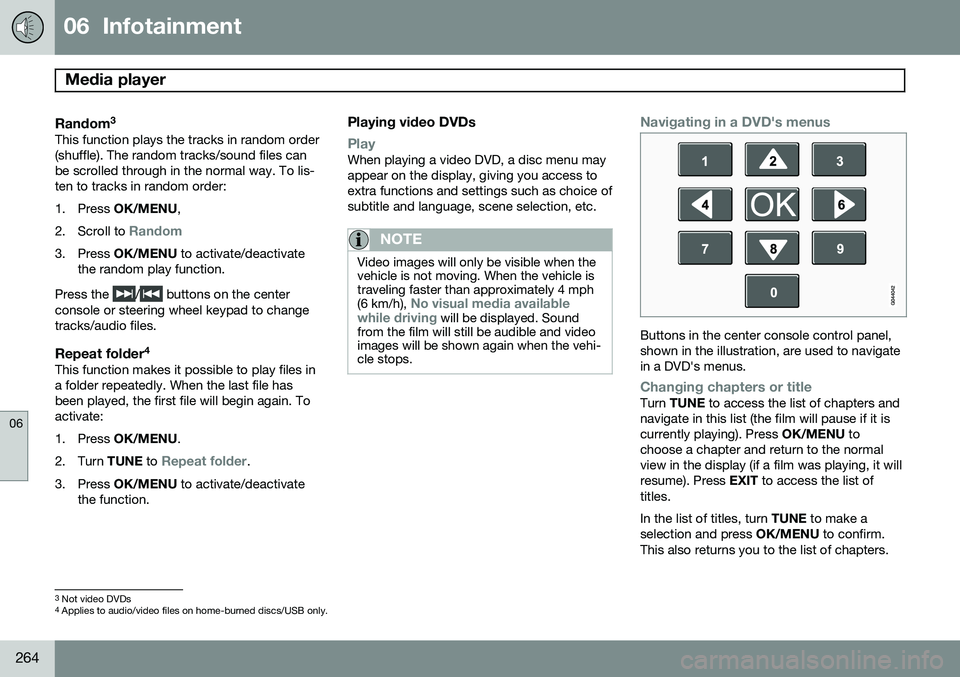
Navigating in a DVD's menus
Buttons in the center console control panel, shown in the illustration, are used to navigatein a DVD's menus.
Changing chapters or titleTurn TUNE to access the list of chapters and
navigate in this list (the film will pause if it is currently playing). Press OK/MENU to
choose a chapter and return to the normalview in the display (if a film was playing, it willresume). Press EXIT to access the list of
titles. In the list of titles, turn TUNE to make a
selection and press OK/MENU to confirm.
This also returns you to the list of chapters.
3 Not video DVDs
4 Applies to audio/video files on home-burned discs/USB only.
Page 267 of 406
06 Infotainment
Media player
06
}}
265
Press
EXIT to cancel and return to the normal
view (without having made a selection). It is also possible to change chapters by pressing
/ on the center console
control panel or on the steering wheel key- pad.
Advanced settings
AngleIf the DVD supports this function, it is possi- ble to select a camera angle for a certainscene. This can be done in DVD mode under
DVD
disc menu
Advanced settingsAngle.
DivX® Video On Demand
The media player can be registered to play DivX VOD files from home-burned discs orUSB. The registration code can be found bypressing the MY CAR button, and going to
SettingsInformationDivX® VOD
code. See page 215 for more information
about the menu system.
DivX Certified ®
to play DivX ®
video. DivX ®
,
DivX Certified ®
and associated logos are
registered trademarks of DivX, Inc. and are used under license. ABOUT DIVX VIDEO: DivX ®
is a digital video format created by
DivX, Inc. This is an official DivX Certified device that plays DivX video. Visitwww.divx.com for more information and
software tools to convert your files into DivXvideo. ABOUT DIVX VIDEO-ON-DEMAND: This DivX Certified ®
device must be registered in order
to play DivX Video-on-Demand (VOD) content. To generate the registration code,locate the DivX VOD section in the devicesetup menu. Go to http://vod.divx.com with
this code to complete the registrationprocess and learn more about DivX VOD.Covered by one or more of the following U.S.Patents: 7,295,673; 7,460,668; 7,515,710;7,519,274. See also www.divx.com/vod for more infor-mation.
Screen settingsScreen settings can be made (when the vehi-cle is not moving) for:
• Brightness
• Contrast
1. Press OK/MENU and choose
Image
settings and confirm by pressing OK/
MENU .
2. Turn TUNE to the desired setting and
press OK/MENU .
3. Change the setting by turning TUNE and
confirm the change by pressing OK/
MENU .
Press OK/MENU or EXIT to return to the
screen settings list. To return to the factory settings, select
Reset .
Compatible formatsThe media player can play a number of differ- ent types of files and disc formats, and iscompatible with the formats listed in the fol-lowing table.
Page 269 of 406
06 Infotainment
AUX/USB sockets
06
}}
267
Connecting external devices
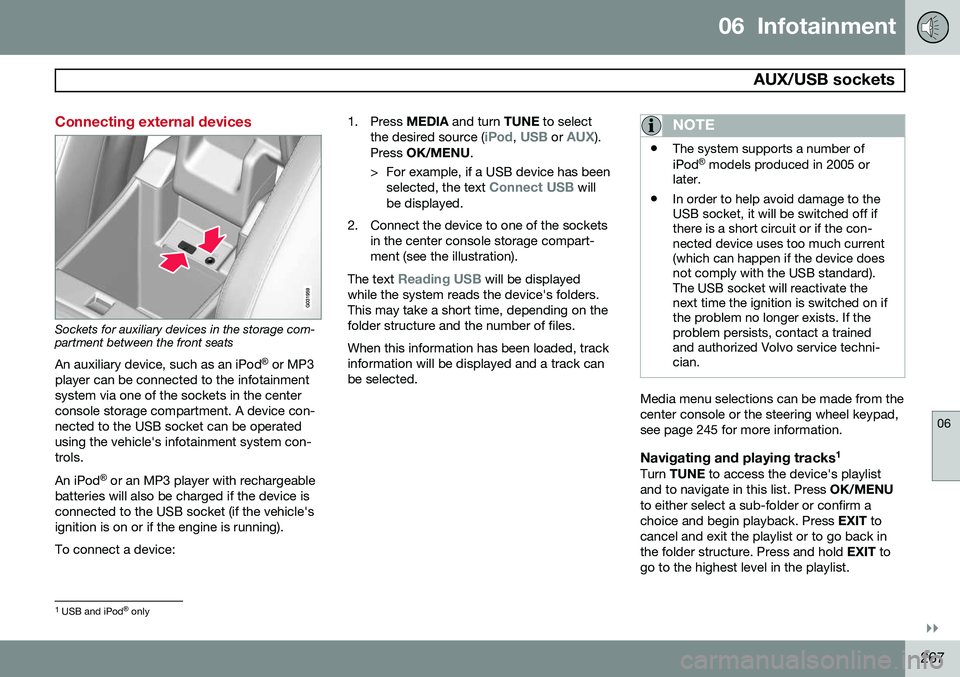
Sockets for auxiliary devices in the storage com- partment between the front seatsAn auxiliary device, such as an iPod ®
or MP3
player can be connected to the infotainment system via one of the sockets in the centerconsole storage compartment. A device con-nected to the USB socket can be operatedusing the vehicle's infotainment system con-trols. An iPod ®
or an MP3 player with rechargeable
batteries will also be charged if the device is connected to the USB socket (if the vehicle'signition is on or if the engine is running). To connect a device: 1. Press
MEDIA and turn TUNE to select
the desired source (
iPod, USB or AUX).
Press OK/MENU .
> For example, if a USB device has been selected, the text
Connect USB will
be displayed.
2. Connect the device to one of the sockets in the center console storage compart- ment (see the illustration).
The text
Reading USB will be displayed
while the system reads the device's folders. This may take a short time, depending on thefolder structure and the number of files. When this information has been loaded, track information will be displayed and a track canbe selected.
NOTE
• The system supports a number of iPod ®
models produced in 2005 or
later.
• In order to help avoid damage to the USB socket, it will be switched off ifthere is a short circuit or if the con-nected device uses too much current(which can happen if the device doesnot comply with the USB standard).The USB socket will reactivate thenext time the ignition is switched on ifthe problem no longer exists. If theproblem persists, contact a trainedand authorized Volvo service techni-cian.
Media menu selections can be made from the center console or the steering wheel keypad,see page 245 for more information.
Navigating and playing tracks 1Turn
TUNE to access the device's playlist
and to navigate in this list. Press OK/MENU
to either select a sub-folder or confirm achoice and begin playback. Press EXIT to
cancel and exit the playlist or to go back inthe folder structure. Press and hold EXIT to
go to the highest level in the playlist.
1 USB and iPod ®
only