wheel VOLVO S60 2015 Owner´s Manual
[x] Cancel search | Manufacturer: VOLVO, Model Year: 2015, Model line: S60, Model: VOLVO S60 2015Pages: 406, PDF Size: 11.26 MB
Page 214 of 406
05 Comfort and driving pleasure
Volvo Sensus
05
212* Option/accessory, for more information, see Introduction.
Introduction
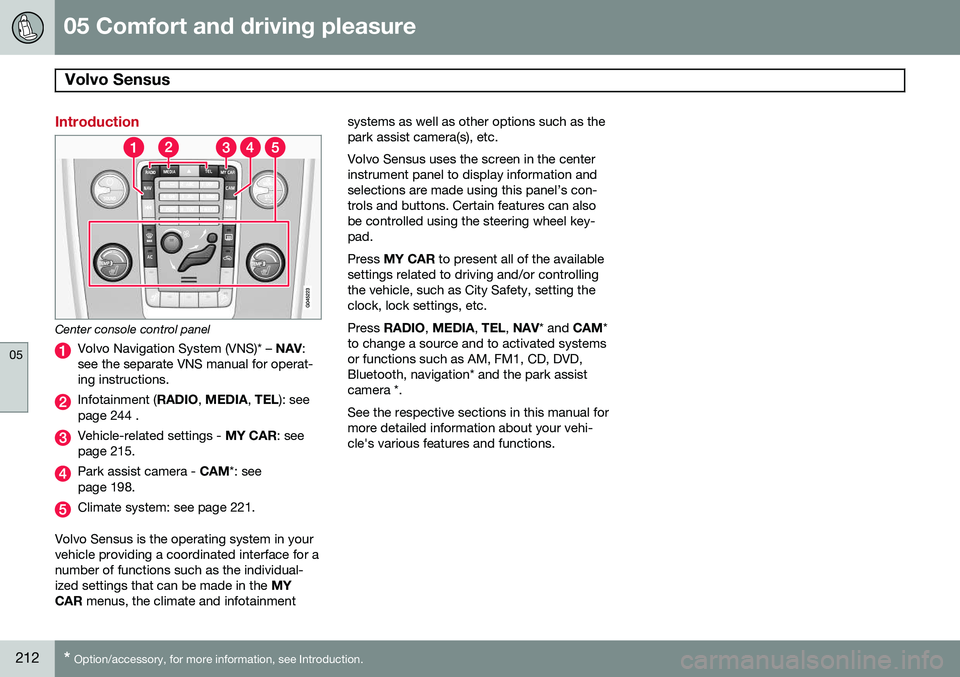
Center console control panel
Volvo Navigation System (VNS)* – NAV:
see the separate VNS manual for operat- ing instructions.
Infotainment ( RADIO, MEDIA , TEL ): see
page 244 .
Vehicle-related settings - MY CAR: see
page 215.
Park assist camera - CAM*: see
page 198.
Climate system: see page 221.
Volvo Sensus is the operating system in your vehicle providing a coordinated interface for anumber of functions such as the individual-ized settings that can be made in the MY
CAR menus, the climate and infotainment systems as well as other options such as thepark assist camera(s), etc. Volvo Sensus uses the screen in the center instrument panel to display information andselections are made using this panel’s con-trols and buttons. Certain features can alsobe controlled using the steering wheel key-pad. Press
MY CAR to present all of the available
settings related to driving and/or controlling the vehicle, such as City Safety, setting theclock, lock settings, etc. Press RADIO , MEDIA , TEL , NAV * and CAM*
to change a source and to activated systems or functions such as AM, FM1, CD, DVD,Bluetooth, navigation* and the park assistcamera *. See the respective sections in this manual for more detailed information about your vehi-cle's various features and functions.
Page 215 of 406
05 Comfort and driving pleasure
Menus and messages
05
}}
* Option/accessory, for more information, see Introduction.213
Main instrument panel
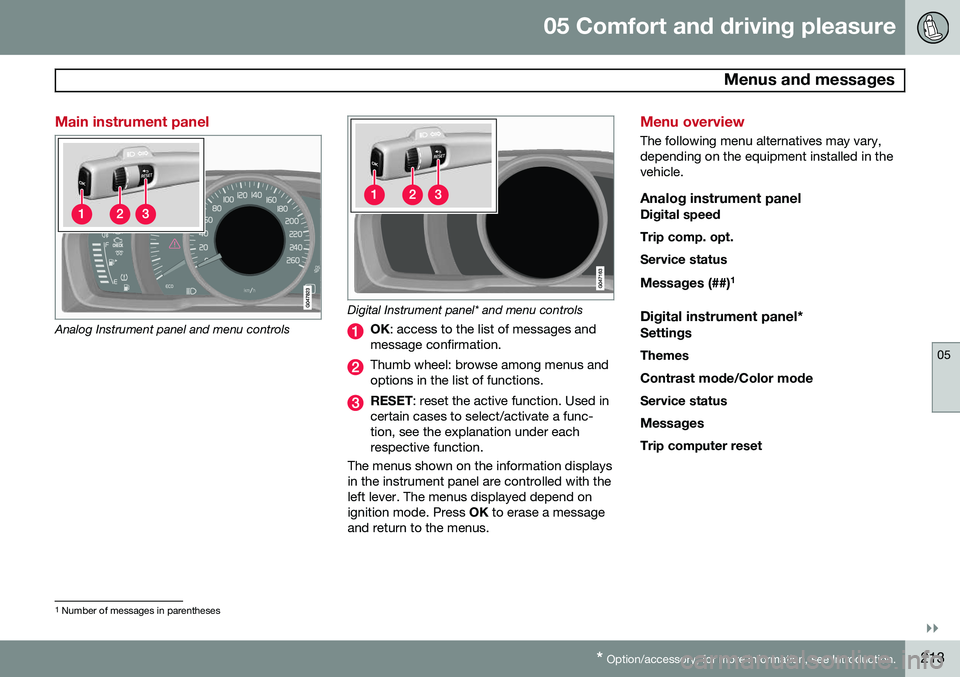
Analog Instrument panel and menu controls
Digital Instrument panel* and menu controls
OK : access to the list of messages and
message confirmation.
Thumb wheel: browse among menus and options in the list of functions.
RESET : reset the active function. Used in
certain cases to select/activate a func- tion, see the explanation under eachrespective function.
The menus shown on the information displaysin the instrument panel are controlled with theleft lever. The menus displayed depend onignition mode. Press OK to erase a message
and return to the menus.
Menu overview
The following menu alternatives may vary, depending on the equipment installed in thevehicle.
Analog instrument panelDigital speed Trip comp. opt.Service status
Messages (##) 1
Digital instrument panel*
Settings
Themes
Contrast mode /Color mode
Service status
Messages Trip computer reset
1 Number of messages in parentheses
Page 217 of 406
05 Comfort and driving pleasure
The MY CAR menus
05
}}
215
Introduction
The menu system provides access to menus for operating many of the vehi-cle's functions, such as setting the
clock, door mirrors, locks, etc.
Navigating in the menus is done using the buttons on the center console control panelor with the right-side steering wheel keypad. Some of the features mentioned in this sec- tion are optional.
Operation
Center console controls
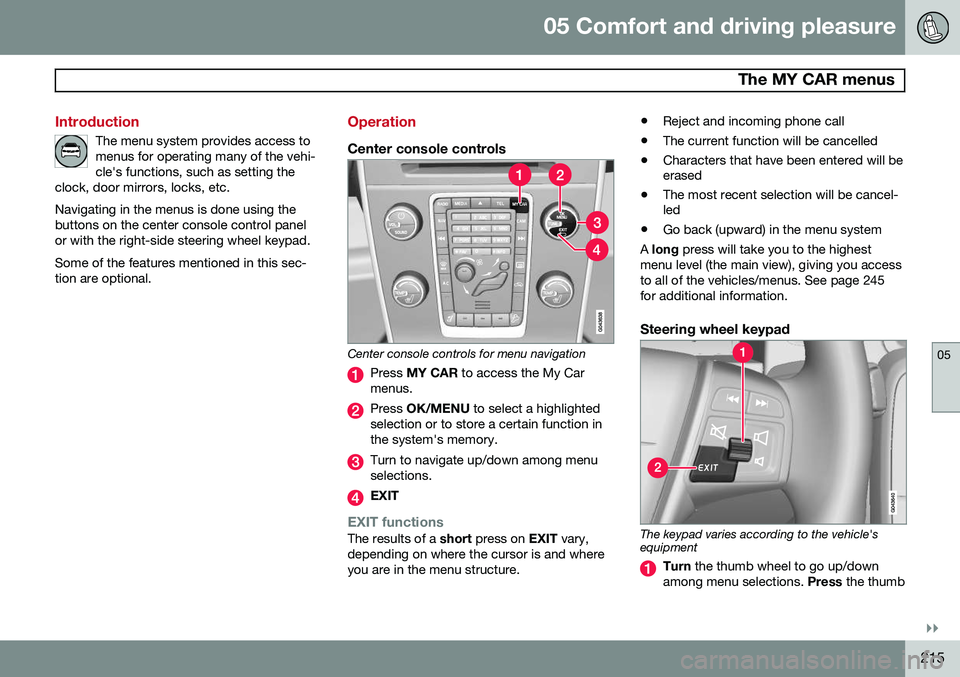
Center console controls for menu navigation
Press MY CAR to access the My Car
menus.
Press OK/MENU to select a highlighted
selection or to store a certain function in the system's memory.
Turn to navigate up/down among menu selections.
EXIT
EXIT functionsThe results of a short press on EXIT vary,
depending on where the cursor is and where you are in the menu structure. •
Reject and incoming phone call
• The current function will be cancelled
• Characters that have been entered will be erased
• The most recent selection will be cancel-led
• Go back (upward) in the menu system
A long press will take you to the highest
menu level (the main view), giving you access to all of the vehicles/menus. See page 245for additional information.
Steering wheel keypad
The keypad varies according to the vehicle's equipment
Turn the thumb wheel to go up/down
among menu selections. Press the thumb
Page 218 of 406
05 Comfort and driving pleasure
The MY CAR menus
05
216
wheel to make a selection or store a func tion in the system's memory.
EXIT.
MY CAR menu pathsThe current menu level is displayed at the upper right of the center console display.Menu paths are displayed as follows, forexample:
SettingsCar settingsLock settings
Doors unlockDriver door, then all
The following is an example of how to set a function in the menu system:
1. Press the MY CAR button on the center
console control panel.
2. Navigate to a menu, for example
Settings using the thumb wheel (1) and
press it to open a submenu.
3. Navigate to the desired submenu such as
Car settings.
4. Navigate to
Lock settings and press the
thumb wheel to open a new submenu. 5.
Navigate to
Doors unlock and press the
thumb wheel to open a submenu with alternatives that can be selected.
6. Use the thumb wheel to move to the desired choice and press the thumbwheel to put an X in the box.
7. Finish by exiting the menu system either one step at a time with short presses onEXIT (2) or press and hold this button to
return to the main menu.
The OK/MENU (2), EXIT (4) and control (3) in
the center console can be used in the sameway.
MY CAR
When the MY CAR button has been pressed,
the following menu alternatives are displayed.
•
My S60
•DRIVe1
•
Support systems
•Settings
My S60
MY CARMy S60
The display shows all of the driver support systems installed in the vehicle, which can beactivated/deactivated here.
DRIVe 1This selectoin describes Volvo's DRIVe con-cept and displays the following headers:
•
Start/Stop
Information on the Start/ Stop feature (see page 135).
•
Eco driving guide
Provides information about driving eco- nomically.
Driver support systems
MY CARSupport systems
The screen shows the current status (set- tings) for the vehicle's driver support sys-tems.
Settings
MY CARSettings
1 Vehicles equipped with the optional Start/Stop function
Page 219 of 406
05 Comfort and driving pleasure
The MY CAR menus
05
}}
217
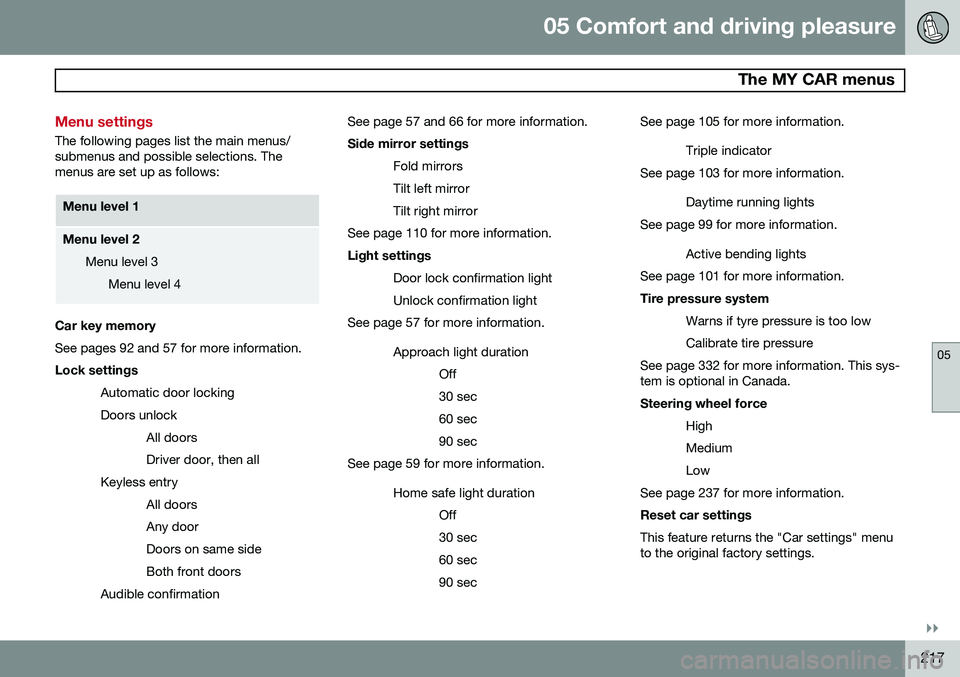
Menu settings
The following pages list the main menus/ submenus and possible selections. Themenus are set up as follows:
Menu level 1
Menu level 2Menu level 3Menu level 4
Car key memory See pages 92 and 57 for more information. Lock settings
Automatic door locking Doors unlockAll doorsDriver door, then all
Keyless entry All doorsAny doorDoors on same sideBoth front doors
Audible confirmation See page 57 and 66 for more information. Side mirror settings
Fold mirrors Tilt left mirrorTilt right mirror
See page 110 for more information. Light settings
Door lock confirmation light Unlock confirmation light
See page 57 for more information.
Approach light durationOff30 sec60 sec90 sec
See page 59 for more information.
Home safe light durationOff30 sec60 sec90 sec See page 105 for more information.
Triple indicator
See page 103 for more information.
Daytime running lights
See page 99 for more information.
Active bending lights
See page 101 for more information. Tire pressure system
Warns if tyre pressure is too low Calibrate tire pressure
See page 332 for more information. This sys- tem is optional in Canada. Steering wheel force
High MediumLow
See page 237 for more information. Reset car settings This feature returns the "Car settings" menu to the original factory settings.
Page 221 of 406
05 Comfort and driving pleasure
The MY CAR menus
05
}}
219
Rear park assist volume Phone ringing volume
Reset system options This feature returns the "System options" menu to the original factory settings.
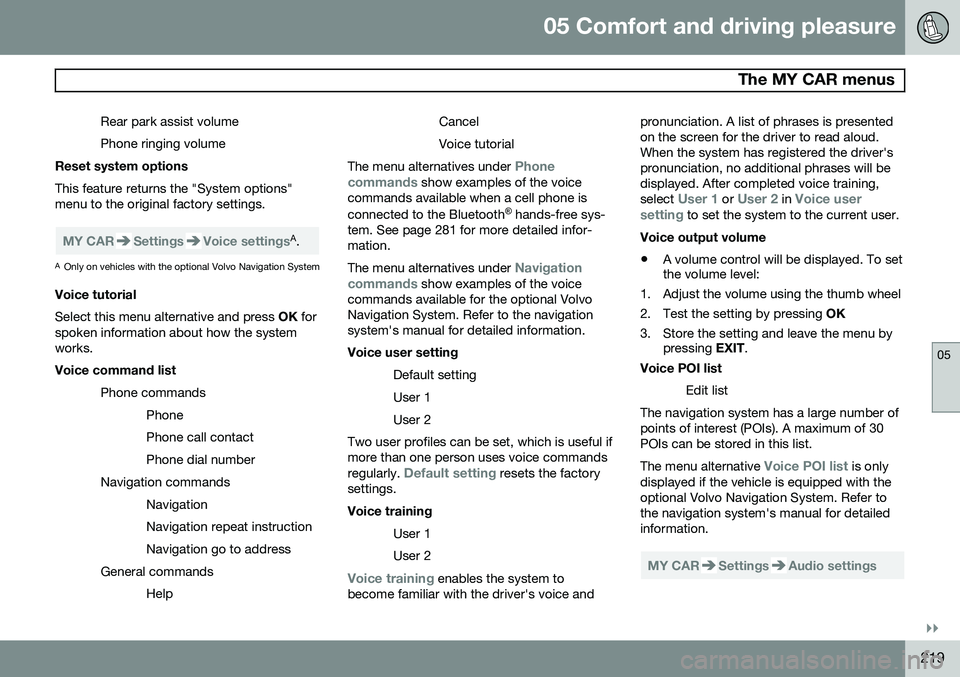
MY CARSettingsVoice settingsA .
A Only on vehicles with the optional Volvo Navigation System
Voice tutorial Select this menu alternative and press OK for
spoken information about how the system works. Voice command list
Phone commandsPhone Phone call contactPhone dial number
Navigation commands NavigationNavigation repeat instructionNavigation go to address
General commands Help CancelVoice tutorial
The menu alternatives under
Phone
commands show examples of the voice
commands available when a cell phone is connected to the Bluetooth ®
hands-free sys-
tem. See page 281 for more detailed infor- mation. The menu alternatives under
Navigation
commands show examples of the voice
commands available for the optional Volvo Navigation System. Refer to the navigationsystem's manual for detailed information. Voice user setting
Default setting User 1User 2
Two user profiles can be set, which is useful if more than one person uses voice commands regularly.
Default setting resets the factory
settings. Voice training
User 1 User 2
Voice training enables the system to
become familiar with the driver's voice and pronunciation. A list of phrases is presented on the screen for the driver to read aloud.When the system has registered the driver'spronunciation, no additional phrases will bedisplayed. After completed voice training, select
User 1 or User 2 in Voice user
setting to set the system to the current user.
Voice output volume
• A volume control will be displayed. To set the volume level:
1. Adjust the volume using the thumb wheel
2. Test the setting by pressing OK
3. Store the setting and leave the menu by pressing EXIT.
Voice POI list
Edit list
The navigation system has a large number of points of interest (POIs). A maximum of 30POIs can be stored in this list. The menu alternative
Voice POI list is only
displayed if the vehicle is equipped with the optional Volvo Navigation System. Refer tothe navigation system's manual for detailedinformation.
MY CARSettingsAudio settings
Page 232 of 406
05 Comfort and driving pleasure
Trip computer
05
230
Introduction
The content and appearance of the trip com- puter varies depending on whether the vehi-cle is equipped with an analog or digital
instrument panel. The instrument panel illuminates as soon as the vehicle is unlocked and trip computer set-tings can be made. If none of the trip com-puter's controls are used within 30 secondsafter the driver's door has been opened, theinstrument panel lighting will go out and thetrip computer cannot be used again until: • the ignition is put in mode II1
• the engine is started
NOTE
If a warning message appears while you are using the trip computer, this messagemust be acknowledged in order to returnto the trip computer function. Acknowl-edge a message by pressing
OK.
Trip computer in models with an analog instrument panel
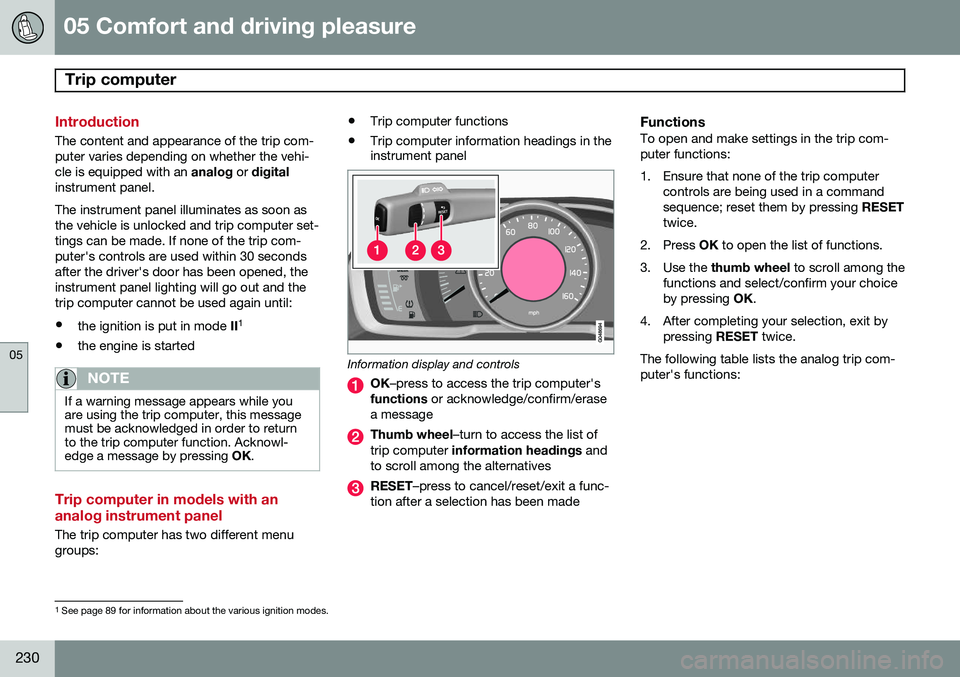
The trip computer has two different menu groups: •
Trip computer functions
• Trip computer information headings in the instrument panel
Information display and controls
OK
–press to access the trip computer's
functions or acknowledge/confirm/erase
a message
Thumb wheel –turn to access the list of
trip computer information headings and
to scroll among the alternatives
RESET –press to cancel/reset/exit a func-
tion after a selection has been made
FunctionsTo open and make settings in the trip com- puter functions:
1. Ensure that none of the trip computer controls are being used in a command sequence; reset them by pressing RESET
twice.
2. Press OK to open the list of functions.
3. Use the thumb wheel to scroll among the
functions and select/confirm your choiceby pressing OK.
4. After completing your selection, exit by pressing RESET twice.
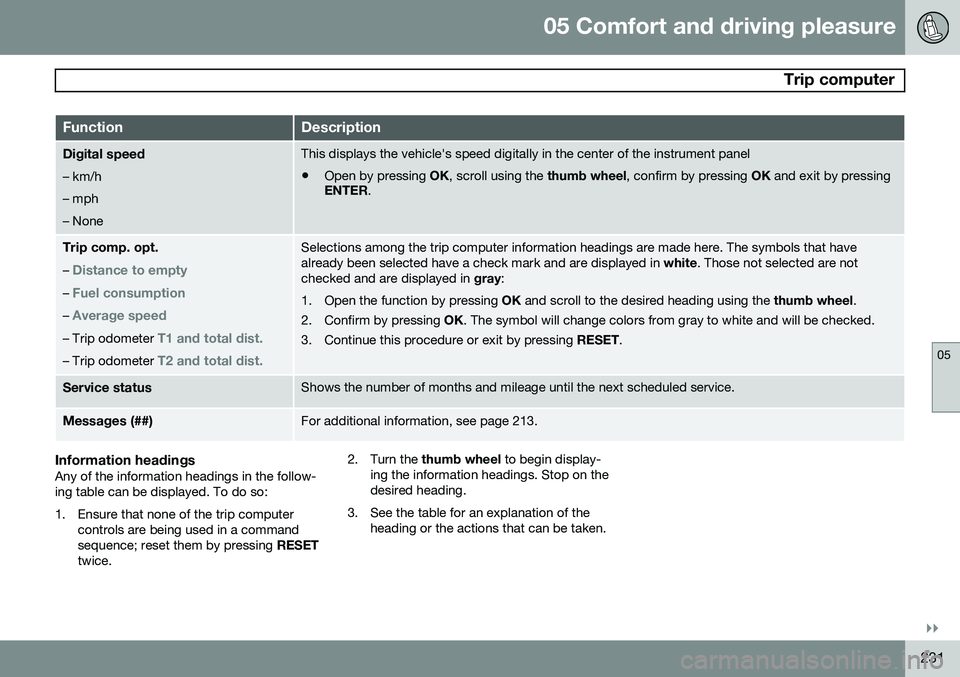
The following table lists the analog trip com-puter's functions:
1 See page 89 for information about the various ignition modes.
Page 233 of 406
05 Comfort and driving pleasure
Trip computer
05
}}
231
FunctionDescription
Digital speed – km/h – mph– NoneThis displays the vehicle's speed digitally in the center of the instrument panel
• Open by pressing
OK, scroll using the thumb wheel, confirm by pressing OK and exit by pressing
ENTER .
Trip comp. opt.
–
Distance to empty
– Fuel consumption
– Average speed
– Trip odometer T1 and total dist.
– Trip odometer T2 and total dist.
Selections among the trip computer information headings are made here. The symbols that have already been selected have a check mark and are displayed in white. Those not selected are not
checked and are displayed in gray:
1. Open the function by pressing OK and scroll to the desired heading using the thumb wheel.
2. Confirm by pressing OK. The symbol will change colors from gray to white and will be checked.
3. Continue this procedure or exit by pressing RESET.
Service statusShows the number of months and mileage until the next scheduled service.
Messages (##)For additional information, see page 213.
Information headingsAny of the information headings in the follow- ing table can be displayed. To do so:
1. Ensure that none of the trip computer
controls are being used in a command sequence; reset them by pressing RESET
twice. 2. Turn the
thumb wheel to begin display-
ing the information headings. Stop on thedesired heading.
3. See the table for an explanation of the heading or the actions that can be taken.
Page 234 of 406
05 Comfort and driving pleasure
Trip computer
05
232
Information headings in the instrument panelDescription
Trip odometer T1 and total dist.•Press and hold
RESET to reset trip odometer T1.
Trip odometer T2 and total dist.•Press and hold
RESET to reset trip odometer T2.
Distance to emptySee Distance to empty on page 234.
Fuel consumptionCurrent fuel consumption.
Average speedPress and hold RESET to reset Average speed.
-No information will be displayed. This also indicates the beginning/end of the list of infor- mation headings.
Scroll among the trip computer information headings at any time by turning the thumb
wheel until the desired heading is displayed.
Trip computer in models with a digital instrument panel
The trip computer has two different menu groups:
• Trip computer functions
• Trip computer information headings in the instrument panel
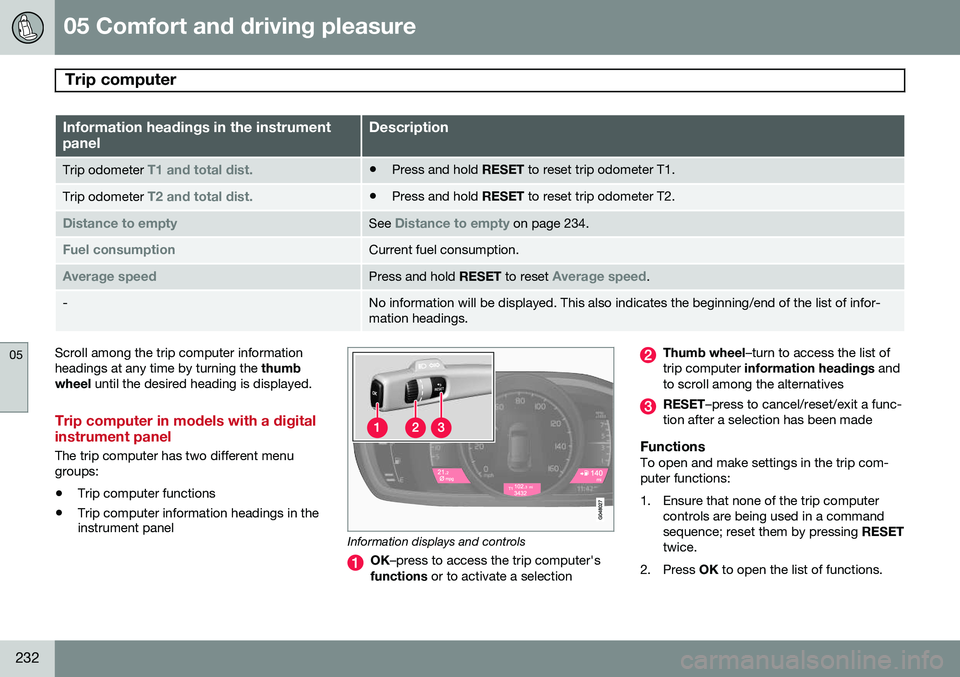
Information displays and controls
OK
–press to access the trip computer's
functions or to activate a selection
Thumb wheel –turn to access the list of
trip computer information headings and
to scroll among the alternatives
RESET –press to cancel/reset/exit a func-
tion after a selection has been made
FunctionsTo open and make settings in the trip com- puter functions:
1. Ensure that none of the trip computer controls are being used in a command sequence; reset them by pressing RESET
twice.
2. Press OK to open the list of functions.
Page 235 of 406
05 Comfort and driving pleasure
Trip computer
05
}}
* Option/accessory, for more information, see Introduction.233
3. Use the
thumb wheel to scroll among the
functions and select/confirm your choice by pressing OK. 4. After completing your selection, exit by
pressing RESET twice. The following table lists the digital trip com-puter's functions:
FunctionDescription
Trip computer reset
– Average fuel consumption – Average speedNOTE: This function does not reset the trip odometers, see page 235 for a description of how
this is done.
MessagesFor additional information, see page 213.
ThemesSet the way in which information is displayed in the instrument panel, see page 80.
Settings *Select Auto On or Off.
Contrast mode /Color modeAdjust the instrument panel's contrast and color.
Service statusShows the number of months and mileage until the next scheduled service.
Information headingsThree trip computer headings can be dis- played at the same time; one in each of thedisplays (see the previous illustration). One ofthe combinations of information headings inthe following table can be displayed. To doso: 1. Ensure that none of the trip computer
controls are being used in a commandsequence; reset them by pressing RESET
twice.
2. Turn the thumb wheel to begin display-
ing the combinations of information head-ings. Stop on the desired combination. 3. See the table for an explanation of the
heading or the actions that can be taken.
Scroll among the combinations of trip com-puter information headings at any time byturning the thumb wheel until the desired
combination is displayed.