trip computer VOLVO S60 2016 Owner´s Manual
[x] Cancel search | Manufacturer: VOLVO, Model Year: 2016, Model line: S60, Model: VOLVO S60 2016Pages: 392, PDF Size: 10.04 MB
Page 113 of 392
03 Instruments and controls
03
}}
111
FunctionDescription
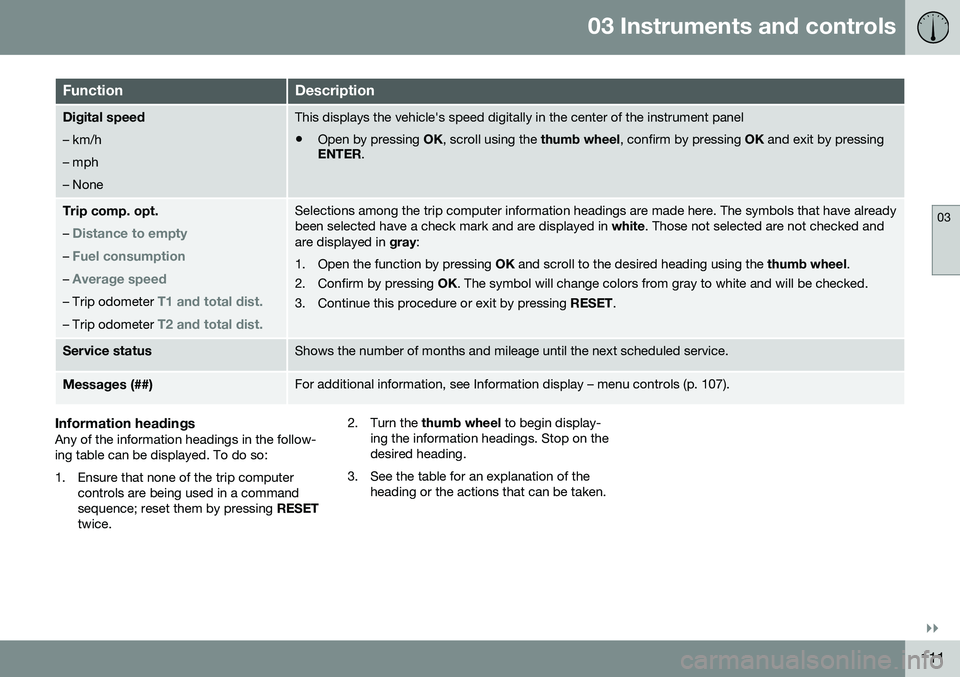
Digital speed – km/h – mph– NoneThis displays the vehicle's speed digitally in the center of the instrument panel
• Open by pressing
OK, scroll using the thumb wheel, confirm by pressing OK and exit by pressing
ENTER .
Trip comp. opt.
–
Distance to empty
– Fuel consumption
– Average speed
– Trip odometer T1 and total dist.
– Trip odometer T2 and total dist.
Selections among the trip computer information headings are made here. The symbols that have already been selected have a check mark and are displayed in white. Those not selected are not checked and
are displayed in gray:
1. Open the function by pressing OK and scroll to the desired heading using the thumb wheel.
2. Confirm by pressing OK. The symbol will change colors from gray to white and will be checked.
3. Continue this procedure or exit by pressing RESET.
Service statusShows the number of months and mileage until the next scheduled service.
Messages (##)For additional information, see Information display – menu controls (p. 107).
Information headingsAny of the information headings in the follow- ing table can be displayed. To do so:
1. Ensure that none of the trip computer
controls are being used in a command sequence; reset them by pressing RESET
twice. 2. Turn the
thumb wheel to begin display-
ing the information headings. Stop on thedesired heading.
3. See the table for an explanation of the heading or the actions that can be taken.
Page 114 of 392
||
03 Instruments and controls
03
112
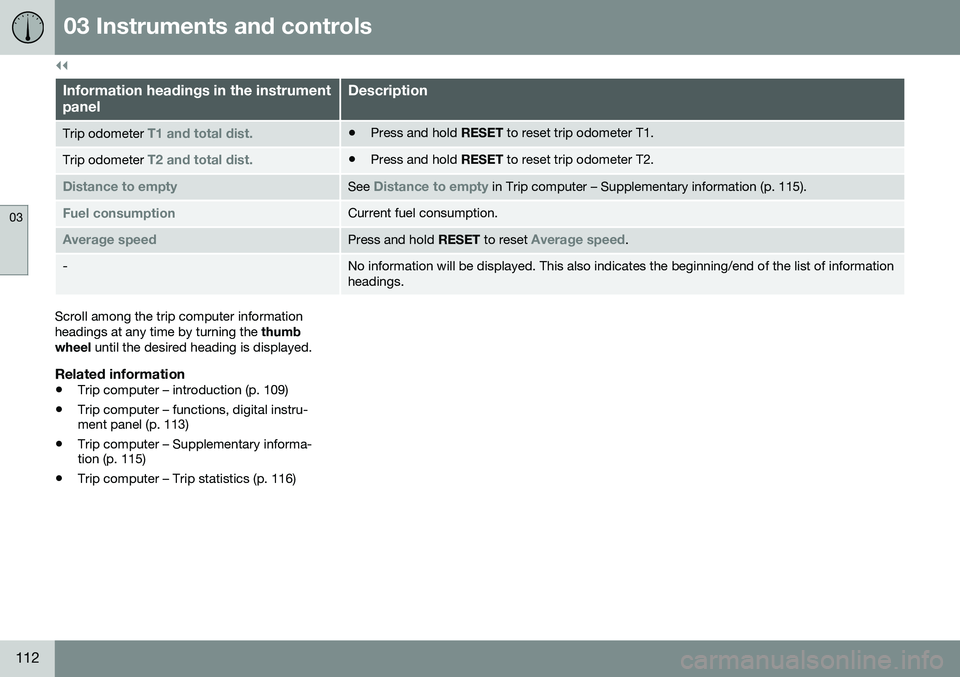
Information headings in the instrument panelDescription
Trip odometer T1 and total dist.•Press and hold
RESET to reset trip odometer T1.
Trip odometer T2 and total dist.•Press and hold
RESET to reset trip odometer T2.
Distance to emptySee Distance to empty in Trip computer – Supplementary information (p. 115).
Fuel consumptionCurrent fuel consumption.
Average speedPress and hold RESET to reset Average speed.
-No information will be displayed. This also indicates the beginning/end of the list of information headings.
Scroll among the trip computer information headings at any time by turning the thumb
wheel until the desired heading is displayed.
Related information
•Trip computer – introduction (p. 109)
• Trip computer – functions, digital instru- ment panel (p. 113)
• Trip computer – Supplementary informa-tion (p. 115)
• Trip computer – Trip statistics (p. 116)
Page 115 of 392
03 Instruments and controls
03
}}
* Option/accessory, for more information, see Introduction.113
Trip computer – functions, digital instrument panel
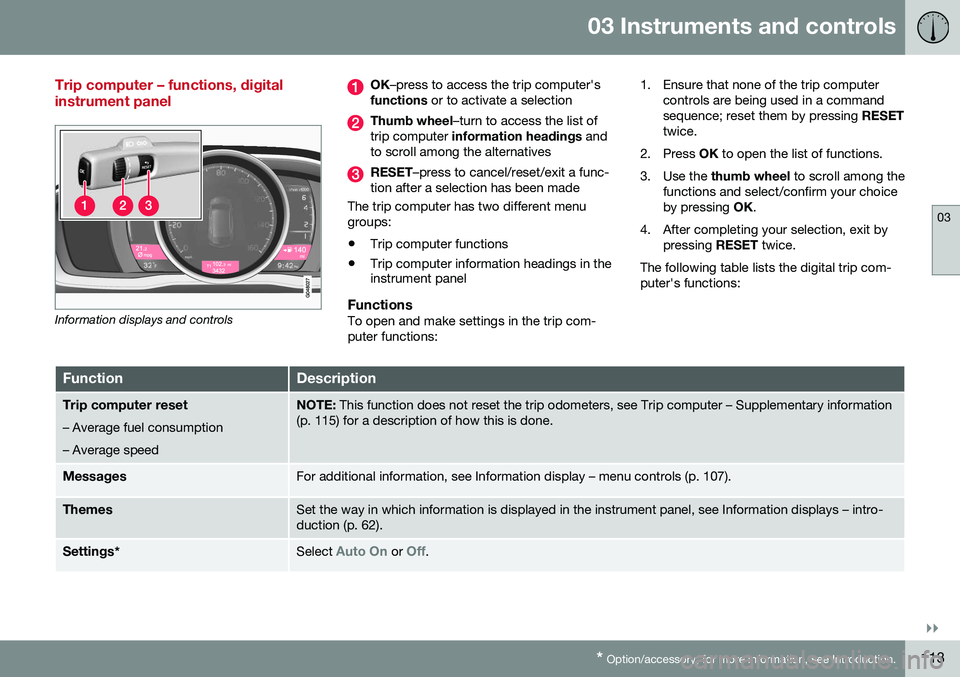
Information displays and controls
OK –press to access the trip computer's
functions or to activate a selection
Thumb wheel –turn to access the list of
trip computer information headings and
to scroll among the alternatives
RESET –press to cancel/reset/exit a func-
tion after a selection has been made
The trip computer has two different menu groups:
• Trip computer functions
• Trip computer information headings in the instrument panel
FunctionsTo open and make settings in the trip com- puter functions: 1. Ensure that none of the trip computer
controls are being used in a commandsequence; reset them by pressing RESET
twice.
2. Press OK to open the list of functions.
3. Use the thumb wheel to scroll among the
functions and select/confirm your choiceby pressing OK.
4. After completing your selection, exit by pressing RESET twice.
The following table lists the digital trip com-puter's functions:
FunctionDescription
Trip computer reset
– Average fuel consumption – Average speedNOTE: This function does not reset the trip odometers, see Trip computer – Supplementary information
(p. 115) for a description of how this is done.
MessagesFor additional information, see Information display – menu controls (p. 107).
ThemesSet the way in which information is displayed in the instrument panel, see Information displays – intro- duction (p. 62).
Settings *Select Auto On or Off.
Page 116 of 392
||
03 Instruments and controls
03
114
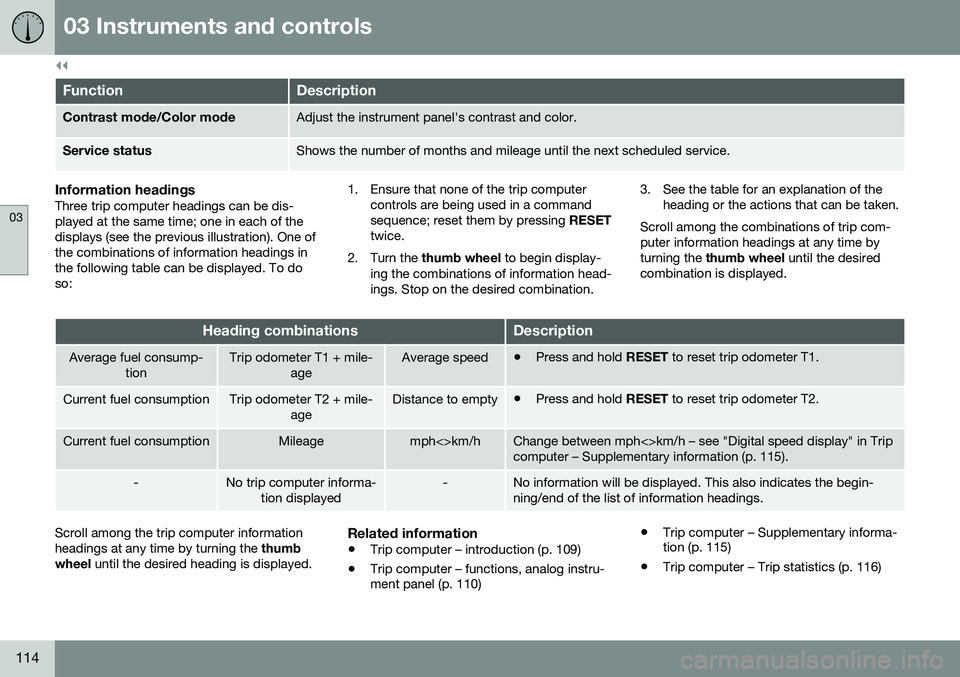
FunctionDescription
Contrast mode/Color modeAdjust the instrument panel's contrast and color.
Service statusShows the number of months and mileage until the next scheduled service.
Information headingsThree trip computer headings can be dis- played at the same time; one in each of thedisplays (see the previous illustration). One ofthe combinations of information headings inthe following table can be displayed. To doso: 1. Ensure that none of the trip computer
controls are being used in a commandsequence; reset them by pressing RESET
twice.
2. Turn the thumb wheel to begin display-
ing the combinations of information head-ings. Stop on the desired combination. 3. See the table for an explanation of the
heading or the actions that can be taken.
Scroll among the combinations of trip com-puter information headings at any time byturning the thumb wheel until the desired
combination is displayed.
Heading combinationsDescription
Average fuel consump- tionTrip odometer T1 + mile- ageAverage speed•Press and hold
RESET to reset trip odometer T1.
Current fuel consumptionTrip odometer T2 + mile-
ageDistance to empty•Press and hold
RESET to reset trip odometer T2.
Current fuel consumptionMileagemph<>km/hChange between mph<>km/h – see "Digital speed display" in Trip computer – Supplementary information (p. 115).
-No trip computer informa-
tion displayed-No information will be displayed. This also indicates the begin- ning/end of the list of information headings.
Scroll among the trip computer information headings at any time by turning the thumb
wheel until the desired heading is displayed.Related information
•Trip computer – introduction (p. 109)
• Trip computer – functions, analog instru- ment panel (p. 110) •
Trip computer – Supplementary informa-tion (p. 115)
• Trip computer – Trip statistics (p. 116)
Page 117 of 392
03 Instruments and controls
03
* Option/accessory, for more information, see Introduction.115
Trip computer – Supplementary information
General information for both Analog and Digi- tal trip computer functions.
Average fuel consumptionFuel consumption since the last time thisfunction was reset.
Average speedThe vehicle's average speed since the lasttime this function was reset.
Current fuel consumptionCurrent fuel consumption is calculatedapproximately once a second. When the vehi-cle is moving at low speed, fuel consumptionis displayed per unit of time. At higherspeeds, it is displayed in terms of distance. Miles or kilometers can be displayed, see the heading "Changing units".
Distance to emptyThis function shows the approximate dis-tance that can be driven on the fuel remaining in the tank. When
Distance to empty shows
"----", there is very little useable fuel remain- ing in that tank; refuel as soon as possible.The calculation is based on average fuel con-sumption during the last 20 miles (30 km) ofdriving and the amount of fuel remaining inthe tank (the accuracy of this figure may varyif your driving style changes). An economical driving style will generally increase this dis-tance. See Economical driving (p. 277) for informa- tion about driving economically.
Digital speed display*Speed is expressed in the unit not used bythe instrument panel's speedometer e.g., ifthe normal speedometer is in mph, the tripcomputer will display in the speed in km/hand vice versa.
Resetting an analog instrument panel
Trip odometer(s) and average speed1. Display trip odometer T1 or T1, or Aver-
age speed.
2. Press and hold RESET until selected
function is reset.
Each trip computer heading must be reset individually.
Resetting a digital instrument panel
Trip odometer1. Turn the thumb wheel to select the com-
bination of headings containing the trip odometer to be reset.
2. Press and hold RESET until selected trip
odometer is reset.
Average speed and fuel consumption1. Select Trip computer reset and press
OK . 2. Select one of the following alternatives
using the thumb wheel and press OK:
• mpg
• mph
• Reset both
3. Finish by pressing RESET.
Changing unitsTo change the unit (miles/km) used to meas- ure distance and speed, go to
MY CAR
SettingsSystem optionsDistance
and fuel units.
NOTE
In addition to changing units in the trip computer, this also changes the units usedin the Volvo Navigation System (VNS)*.
Related information
• Trip computer – introduction (p. 109)
• Trip computer – functions, analog instru- ment panel (p. 110)
• Trip computer – functions, digital instru-ment panel (p. 113)
• Trip computer – Trip statistics (p. 116)
Page 118 of 392
03 Instruments and controls
03
116* Option/accessory, for more information, see Introduction.
Trip computer – Trip statistics
Trip information from previous trips regarding average fuel consumption and average speedis stored and can be displayed in the form ofa bar chart.
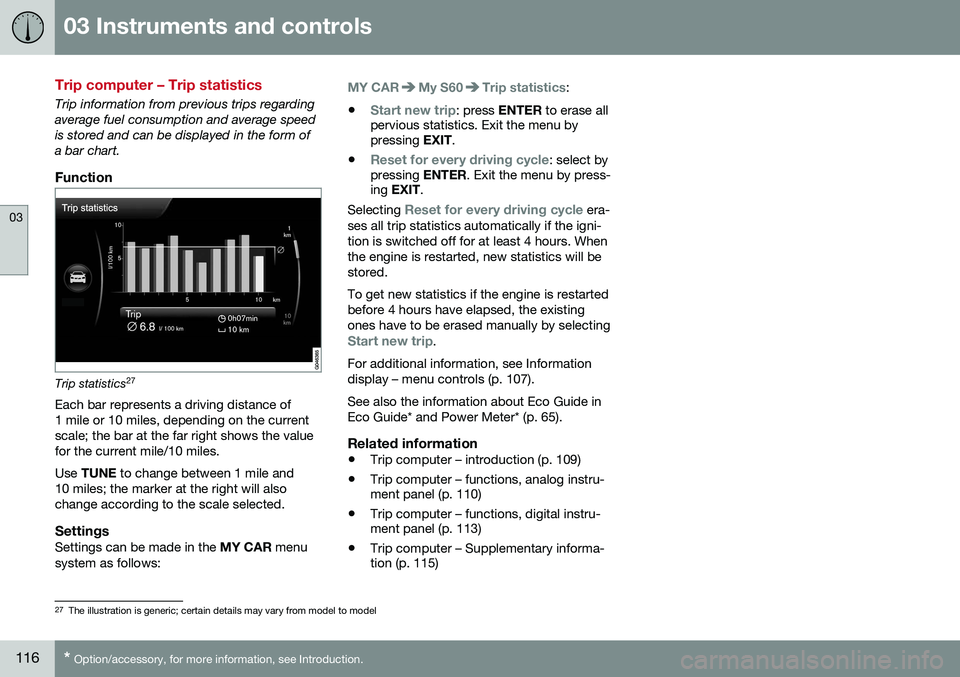
Function
Trip statistics 27
Each bar represents a driving distance of 1 mile or 10 miles, depending on the currentscale; the bar at the far right shows the valuefor the current mile/10 miles. Use TUNE to change between 1 mile and
10 miles; the marker at the right will also change according to the scale selected.
SettingsSettings can be made in the MY CAR menu
system as follows:
MY CARMy S60Trip statistics:
•
Start new trip: press ENTER to erase all
pervious statistics. Exit the menu by pressing EXIT.
•
Reset for every driving cycle: select by
pressing ENTER. Exit the menu by press-
ing EXIT .
Selecting
Reset for every driving cycle era-
ses all trip statistics automatically if the igni- tion is switched off for at least 4 hours. Whenthe engine is restarted, new statistics will bestored. To get new statistics if the engine is restarted before 4 hours have elapsed, the existingones have to be erased manually by selecting
Start new trip.
For additional information, see Information display – menu controls (p. 107). See also the information about Eco Guide in Eco Guide* and Power Meter* (p. 65).
Related information
• Trip computer – introduction (p. 109)
• Trip computer – functions, analog instru- ment panel (p. 110)
• Trip computer – functions, digital instru-ment panel (p. 113)
• Trip computer – Supplementary informa-tion (p. 115)
27
The illustration is generic; certain details may vary from model to model
Page 280 of 392
||
08 Starting and driving
08
278* Option/accessory, for more information, see Introduction.
•
Using the transmission's Sport mode 14
may increase fuel consumption some- what. Use the transmission's Drive ( D)
position as often as possible. For addi-tional information about Sport mode, seeTransmission – Geartronic (p. 252).
• Using the engine's optional Eco func- tion15
can help improve fuel economy. For
additional information, see ECO* (p. 260).
• Do not exceed posted speed limits.
• Avoid carrying unnecessary items (extra load) in the vehicle.
• Maintain correct tire pressure. Check tirepressure regularly (when tires are cold).
• Remove snow tires when threat of snowor ice has ended.
• Note that roof racks, ski racks, etc,increase air resistance and also fuel con-sumption.
• At highway driving speeds, fuel consump-tion will be lower with the air conditioningon and the windows closed than with theair conditioning off and the windowsopen.
• Using the onboard trip computer's fuelconsumption modes can help you learnhow to drive more economically.
Other factors that decrease gas mileage are: •
Dirty air cleaner
• Dirty engine oil and clogged oil filter
• Dragging brakes
• Incorrect front end alignment
Some of the above mentioned items and oth-ers are checked at the standard maintenanceintervals.
WARNING
Driving with the trunk open: Driving with
the trunk open could lead to poisonous exhaust gases entering the passengercompartment. If the trunk must be keptopen for any reason, proceed as follows:
• Close the windows
• Set the ventilation system control to air flow to floor, windshield and side win-dows and the blower control to itshighest setting.
Handling and roadholdingAt the specified curb weight your vehicle has a tendency to understeer, which means thatthe steering wheel has to be turned morethan might seem appropriate for the curva-ture of a bend. This ensures good stabilityand reduces the risk of rear wheel skid.Remember that these properties can alterwith the vehicle load. The heavier the load in the trunk, the less the tendency to under-steer. •
Vehicle load, tire design and inflation pressure all affect vehicle handling.Therefore, check that the tires are inflatedto the recommended pressure accordingto the vehicle load. Loads should be dis-tributed so that capacity weight or maxi-mum permissible axle loads are notexceeded.
• At the specified curb weight your vehiclehas a tendency to understeer, whichmeans that the steering wheel has to beturned more than might seem appropriatefor the curvature of a bend. This ensuresgood stability and reduces the risk of rearwheel skid. Remember that these proper-ties can alter with the vehicle load. Theheavier the load in the trunk, the less thetendency to understeer.
Related information
• Climate – general information (p. 118)
14
Certain models only.
15 Available on certain 4-cyl. engines
Page 323 of 392
10 Maintenance and servicing
10
}}
* Option/accessory, for more information, see Introduction.321
Onboard Diagnostic System
OBD II is part of your vehicle's computerized engine management system. It stores diag-nostic information about your vehicle's emis-sion controls. It can light the Check Enginelight (MIL) if it detects an emission control"fault." A "fault" is a component or systemthat is not performing within an expectedrange. A fault may be permanent or tempo-rary. OBD II will store a message about anyfault.
Emission inspection readiness
How do states use OBD II for emission inspections?
Many states connect a computer directly to a vehicle's OBD II system. The inspector canthen read "faults." In some states, this type ofinspection has replaced the tailpipe emissiontest.
How can my vehicle fail OBD II emission
inspection?
Your vehicle can fail OBD II emission inspec- tion for any of the following reasons.
• If your Check Engine (MIL) light is lit, your vehicle may fail inspection.
• If your vehicle's Check Engine light waslit, but went out without any action onyour part, OBD II will still have a recordedfault. Your vehicle may pass or fail,depending on the inspection practices inyour area. •
If you had recent service that requireddisconnecting the battery, OBD II diag-nostic information may be incompleteand "not ready" for inspection. A vehiclethat is not ready may fail inspection.
How can I prepare for my next OBD II
emission inspection?
• If your Check Engine (MIL) light is lit – or was lit but went out without service, haveyour vehicle diagnosed and, if necessary,serviced by a qualified Volvo technician.
• If you recently had service for a lit CheckEngine light, or if you had service thatrequired disconnecting the battery, aperiod of driving is necessary to bring theOBD II system to "ready" for inspection.Two half-hour trips of mixed stop-and-go/highway driving are typically neededto allow OBD II to reach readiness. YourVolvo retailer can provide you with moreinformation on planning a trip.
• Maintain your vehicle in accordance withyour vehicle's maintenance schedule.
Booking service and repairs
Connected Service Booking (CSB) makes set- ting up a time for service, maintenance and/orrepairs directly from the vehicle quick andconvenient.
Prerequisites
• The owner (primary driver) must have a valid Volvo ID. See Volvo ID (p. 21) foradditional information.
• The vehicle must be connected to the Internet using a paired Bluetooth ®
cell
phone. See your Sensus Infotainment supplement for information on pairing acell phone. On models equipped withVolvo On Call (VOC)*, you can connect tothe Internet using your separate VOCdata plan. Refer to your separate VolvoOn Call manual.
• By default, the retailer where you pur-chased your vehicle will be your preferred(primary) retailer/Volvo authorized work-shop who will perform service and repairson your vehicle. To change the preferredretailer, go to Dealer Locator atvolvocars.com and select a retailer, clickon Service Scheduler and book anappointment at the new preferred retailer.
• In order to be guided through the on-screen steps, the menu alternative
Display notifications must be activated.
CSB menu accessOnce the prerequisites have been estab- lished, all CSB-related menus can be
Page 388 of 392
12 Index
12
386
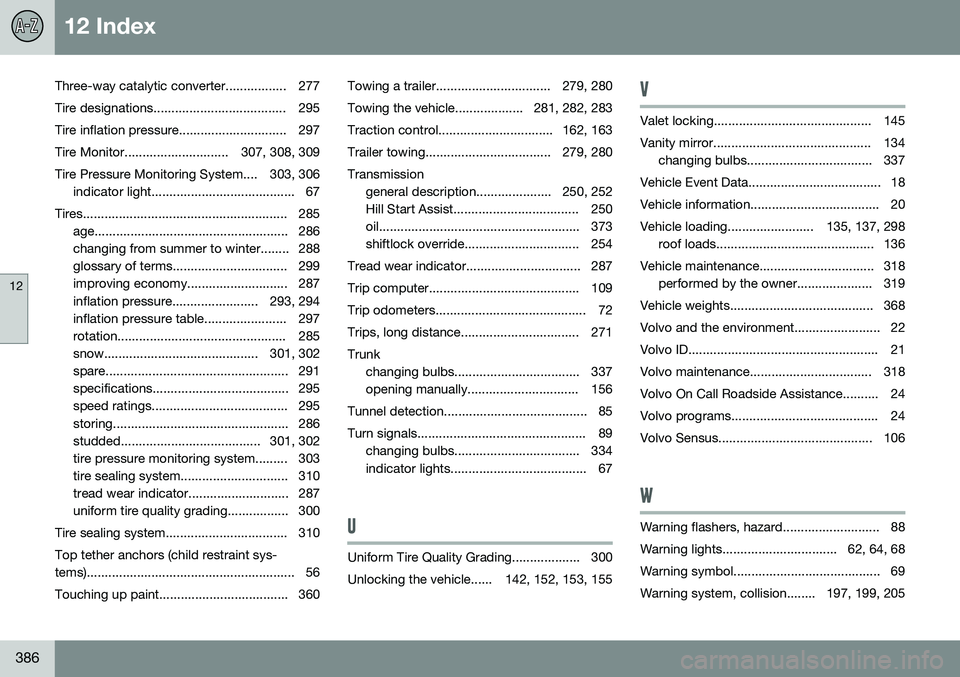
Three-way catalytic converter................. 277Tire designations..................................... 295
Tire inflation pressure.............................. 297
Tire Monitor............................. 307, 308, 309
Tire Pressure Monitoring System.... 303, 306 indicator light........................................ 67
Tires......................................................... 285 age...................................................... 286
changing from summer to winter........ 288
glossary of terms................................ 299
improving economy............................ 287
inflation pressure........................ 293, 294
inflation pressure table....................... 297
rotation............................................... 285
snow........................................... 301, 302
spare................................................... 291
specifications...................................... 295
speed ratings...................................... 295
storing................................................. 286
studded....................................... 301, 302
tire pressure monitoring system......... 303
tire sealing system.............................. 310
tread wear indicator............................ 287
uniform tire quality grading................. 300
Tire sealing system.................................. 310 Top tether anchors (child restraint sys-
tems).......................................................... 56
Touching up paint.................................... 360 Towing a trailer................................ 279, 280
Towing the vehicle................... 281, 282, 283
Traction control................................ 162, 163
Trailer towing................................... 279, 280Transmission
general description..................... 250, 252
Hill Start Assist................................... 250
oil........................................................ 373
shiftlock override................................ 254
Tread wear indicator................................ 287
Trip computer.......................................... 109
Trip odometers.......................................... 72
Trips, long distance................................. 271Trunk changing bulbs................................... 337
opening manually............................... 156
Tunnel detection........................................ 85
Turn signals............................................... 89 changing bulbs................................... 334
indicator lights...................................... 67
U
Uniform Tire Quality Grading................... 300
Unlocking the vehicle...... 142, 152, 153, 155
V
Valet locking............................................ 145
Vanity mirror............................................ 134changing bulbs................................... 337
Vehicle Event Data..................................... 18
Vehicle information.................................... 20
Vehicle loading........................ 135, 137, 298 roof loads............................................ 136
Vehicle maintenance................................ 318 performed by the owner..................... 319
Vehicle weights........................................ 368
Volvo and the environment........................ 22
Volvo ID..................................................... 21
Volvo maintenance.................................. 318
Volvo On Call Roadside Assistance.......... 24
Volvo programs......................................... 24
Volvo Sensus........................................... 106
W
Warning flashers, hazard........................... 88
Warning lights................................ 62, 64, 68
Warning symbol......................................... 69
Warning system, collision........ 197, 199, 205