wheel VOLVO S60 INSCRIPTION 2018 Owner´s Manual
[x] Cancel search | Manufacturer: VOLVO, Model Year: 2018, Model line: S60 INSCRIPTION, Model: VOLVO S60 INSCRIPTION 2018Pages: 396, PDF Size: 9.39 MB
Page 94 of 396
INSTRUMENTS AND CONTROLS
92
Rear interior lighting
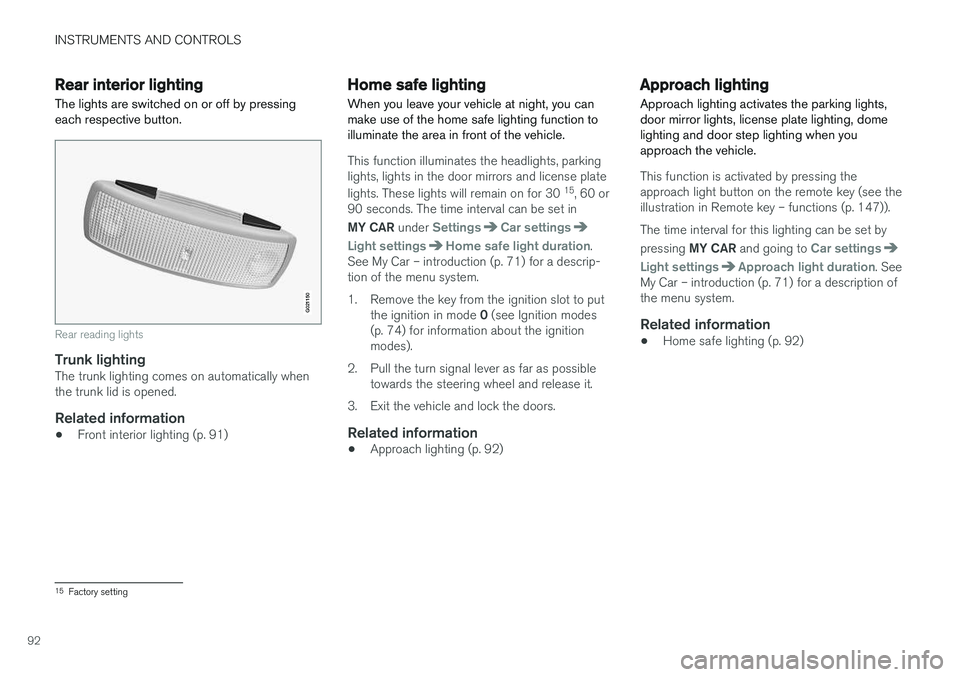
The lights are switched on or off by pressing each respective button.
G021150
Rear reading lights
Trunk lightingThe trunk lighting comes on automatically when the trunk lid is opened.
Related information
• Front interior lighting (p. 91)
Home safe lighting
When you leave your vehicle at night, you can make use of the home safe lighting function toilluminate the area in front of the vehicle.
This function illuminates the headlights, parking lights, lights in the door mirrors and license plate lights. These lights will remain on for 30 15
, 60 or
90 seconds. The time interval can be set in MY CAR under
SettingsCar settings
Light settingsHome safe light duration.
See My Car – introduction (p. 71) for a descrip- tion of the menu system.
1. Remove the key from the ignition slot to put
the ignition in mode 0 (see Ignition modes
(p. 74) for information about the ignition modes).
2. Pull the turn signal lever as far as possible towards the steering wheel and release it.
3. Exit the vehicle and lock the doors.
Related information
• Approach lighting (p. 92)
Approach lighting
Approach lighting activates the parking lights, door mirror lights, license plate lighting, domelighting and door step lighting when youapproach the vehicle.
This function is activated by pressing the approach light button on the remote key (see theillustration in Remote key – functions (p. 147)). The time interval for this lighting can be set by pressing MY CAR and going to
Car settings
Light settingsApproach light duration. See
My Car – introduction (p. 71) for a description of the menu system.
Related information
• Home safe lighting (p. 92)
15
Factory setting
Page 95 of 396
INSTRUMENTS AND CONTROLS
* Option/accessory.93
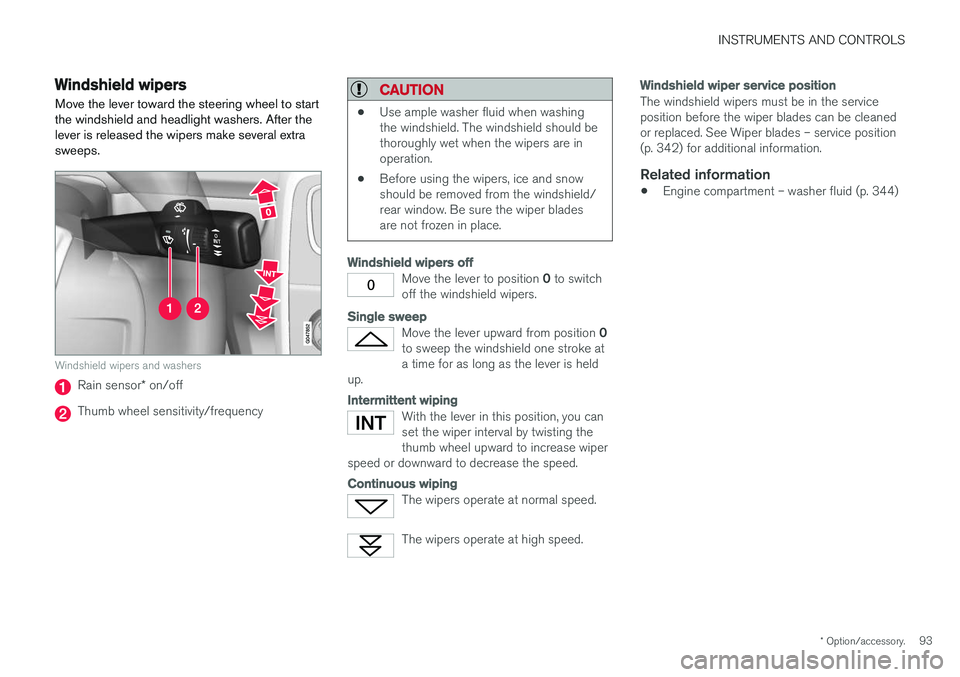
Windshield wipers Move the lever toward the steering wheel to start the windshield and headlight washers. After thelever is released the wipers make several extrasweeps.
Windshield wipers and washers
Rain sensor* on/off
Thumb wheel sensitivity/frequency
CAUTION
• Use ample washer fluid when washing the windshield. The windshield should bethoroughly wet when the wipers are inoperation.
• Before using the wipers, ice and snowshould be removed from the windshield/rear window. Be sure the wiper bladesare not frozen in place.
Windshield wipers off
Move the lever to position
0 to switch
off the windshield wipers.
Single sweep
Move the lever upward from position 0
to sweep the windshield one stroke at a time for as long as the lever is held
up.
Intermittent wiping
With the lever in this position, you can set the wiper interval by twisting thethumb wheel upward to increase wiper
speed or downward to decrease the speed.
Continuous wiping
The wipers operate at normal speed.
The wipers operate at high speed.
Windshield wiper service position
The windshield wipers must be in the service position before the wiper blades can be cleanedor replaced. See Wiper blades – service position(p. 342) for additional information.
Related information
• Engine compartment – washer fluid (p. 344)
Page 96 of 396
INSTRUMENTS AND CONTROLS
* Option/accessory.
94
Rain sensor *
The rain sensor automatically regulates wiper speed according to the amount of water on thewindshield.
The sensitivity of the rain sensor can be adjusted moving the thumb wheel up (the wipers willsweep the windshield more frequently) or down(the wipers will sweep the windshield less fre-quently).
NOTE
The wipers will make an extra sweep each time the thumb wheel is adjusted upward.
When the rain sensor is activated, the symbol
will illuminate in the instrument panel.
Activating and setting the sensitivity
When activating the rain sensor, the vehicle must be running or in ignition mode II and the wind-
shield wiper lever must be in position 0 or in the
single sweep position. Activate the rain sensor by pressing the button
. The windshield wipers will make one
sweep. Press the lever up for the wipers to make an extra sweep. The rain sensor returns to activemode when the stalk is released back to position 0 .
Deactivating
Deactivate the rain sensor by pressing the button
or press the lever down to another wiper
position. The rain sensor is automatically deactivated when the key is removed from the ignition slot or fiveminutes after the ignition has been switched off.
CAUTION
The rain sensor should be deactivated when washing the car in an automatic car wash, etc.If the rain sensor function is left on, the wip-ers will start inadvertently in the car wash andcould be damaged.
Windshield washer
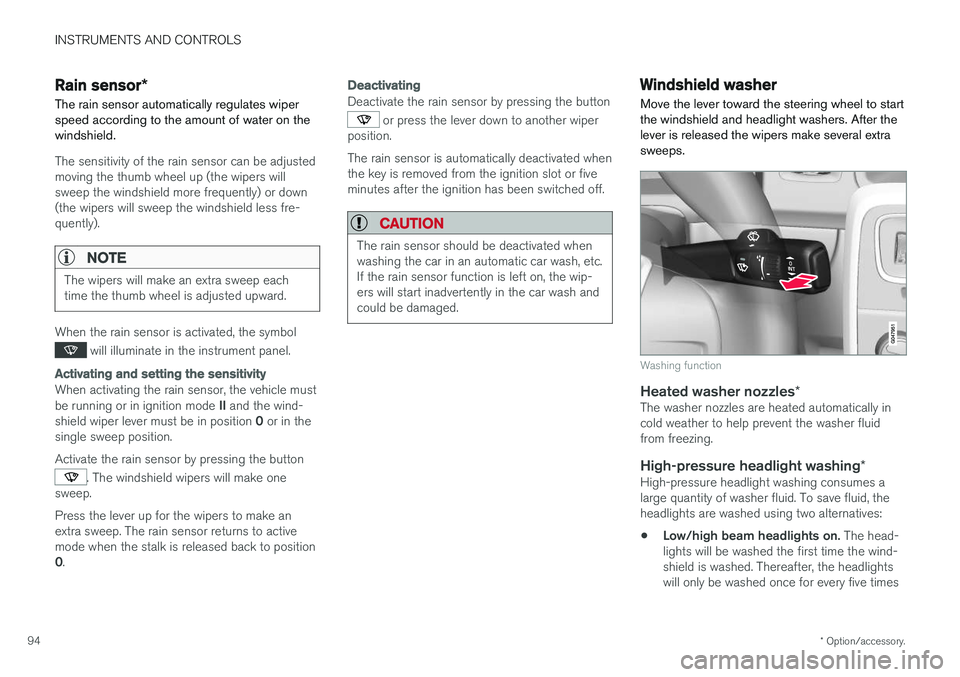
Move the lever toward the steering wheel to start the windshield and headlight washers. After thelever is released the wipers make several extrasweeps.
Washing function
Heated washer nozzles *The washer nozzles are heated automatically in cold weather to help prevent the washer fluidfrom freezing.
High-pressure headlight washing *High-pressure headlight washing consumes alarge quantity of washer fluid. To save fluid, theheadlights are washed using two alternatives:
• Low/high beam headlights on.
The head-
lights will be washed the first time the wind-shield is washed. Thereafter, the headlightswill only be washed once for every five times
Page 110 of 396
||
INSTRUMENTS AND CONTROLS
* Option/accessory.
108
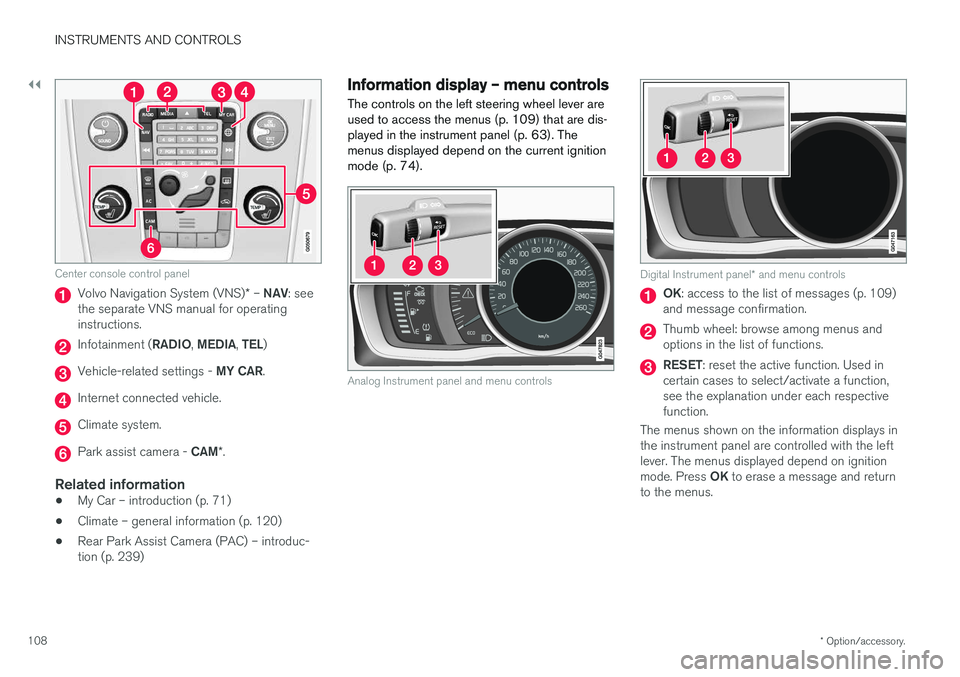
Center console control panel
Volvo Navigation System (VNS) * – NAV : see
the separate VNS manual for operating instructions.
Infotainment ( RADIO, MEDIA , TEL )
Vehicle-related settings - MY CAR.
Internet connected vehicle.
Climate system.
Park assist camera - CAM*.
Related information
• My Car – introduction (p. 71)
• Climate – general information (p. 120)
• Rear Park Assist Camera (PAC) – introduc- tion (p. 239)
Information display – menu controls
The controls on the left steering wheel lever are used to access the menus (p. 109) that are dis-played in the instrument panel (p. 63). Themenus displayed depend on the current ignitionmode (p. 74).
Analog Instrument panel and menu controls
Digital Instrument panel * and menu controls
OK : access to the list of messages (p. 109)
and message confirmation.
Thumb wheel: browse among menus and options in the list of functions.
RESET : reset the active function. Used in
certain cases to select/activate a function, see the explanation under each respectivefunction.
The menus shown on the information displays inthe instrument panel are controlled with the leftlever. The menus displayed depend on ignition mode. Press OK to erase a message and return
to the menus.
Page 111 of 396
INSTRUMENTS AND CONTROLS
}}
* Option/accessory.109
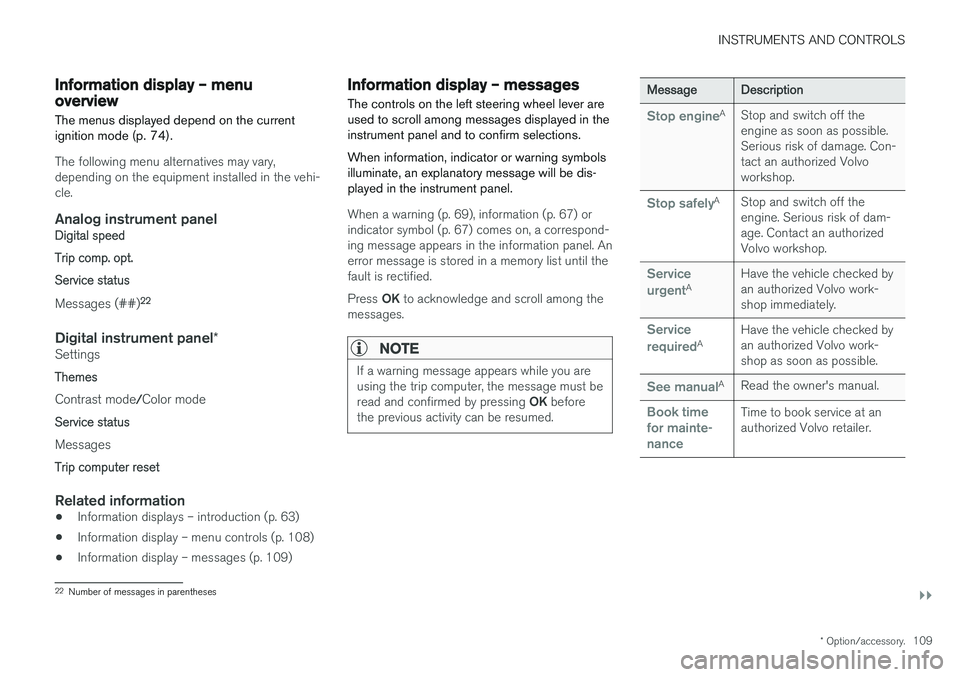
Information display – menu overview
The menus displayed depend on the current ignition mode (p. 74).
The following menu alternatives may vary, depending on the equipment installed in the vehi-cle.
Analog instrument panelDigital speed Trip comp. opt.Service status
Messages (##) 22
Digital instrument panel
*Settings
Themes
Contrast mode /Color mode
Service status
Messages
Trip computer reset
Related information
• Information displays – introduction (p. 63)
• Information display – menu controls (p. 108)
• Information display – messages (p. 109)
Information display – messages
The controls on the left steering wheel lever are used to scroll among messages displayed in theinstrument panel and to confirm selections. When information, indicator or warning symbols illuminate, an explanatory message will be dis-played in the instrument panel.
When a warning (p. 69), information (p. 67) or indicator symbol (p. 67) comes on, a correspond-ing message appears in the information panel. Anerror message is stored in a memory list until thefault is rectified. Press OK to acknowledge and scroll among the
messages.
NOTE
If a warning message appears while you are using the trip computer, the message must be read and confirmed by pressing OK before
the previous activity can be resumed.
Message Description
Stop engineA
Stop and switch off the engine as soon as possible.Serious risk of damage. Con-tact an authorized Volvoworkshop.
Stop safelyA Stop and switch off the engine. Serious risk of dam-age. Contact an authorizedVolvo workshop.
Service urgentA Have the vehicle checked by an authorized Volvo work-shop immediately.
Service requiredA
Have the vehicle checked by an authorized Volvo work-shop as soon as possible.
See manualA
Read the owner's manual.
Book time for mainte-nanceTime to book service at an authorized Volvo retailer.
22Number of messages in parentheses
Page 114 of 396
INSTRUMENTS AND CONTROLS
112
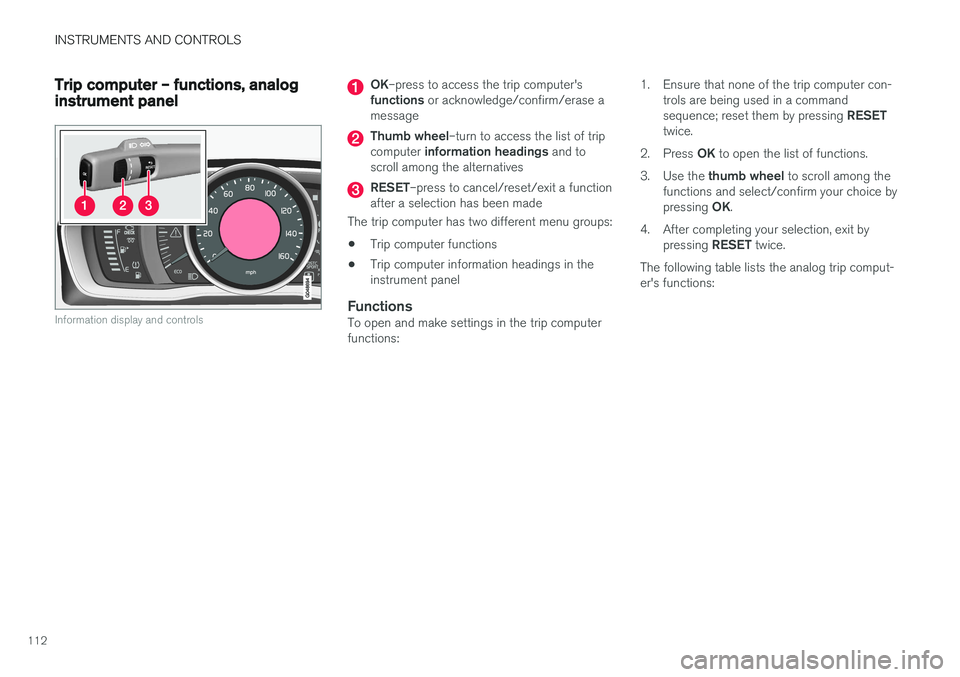
Trip computer – functions, analog instrument panel
Information display and controls
OK–press to access the trip computer's
functions or acknowledge/confirm/erase a
message
Thumb wheel –turn to access the list of trip
computer information headings and to
scroll among the alternatives
RESET –press to cancel/reset/exit a function
after a selection has been made
The trip computer has two different menu groups: • Trip computer functions
• Trip computer information headings in the instrument panel
FunctionsTo open and make settings in the trip computerfunctions: 1. Ensure that none of the trip computer con-
trols are being used in a command sequence; reset them by pressing RESET
twice.
2. Press OK to open the list of functions.
3. Use the thumb wheel to scroll among the
functions and select/confirm your choice bypressing OK.
4. After completing your selection, exit by pressing RESET twice.
The following table lists the analog trip comput- er's functions:
Page 115 of 396
INSTRUMENTS AND CONTROLS
}}
113
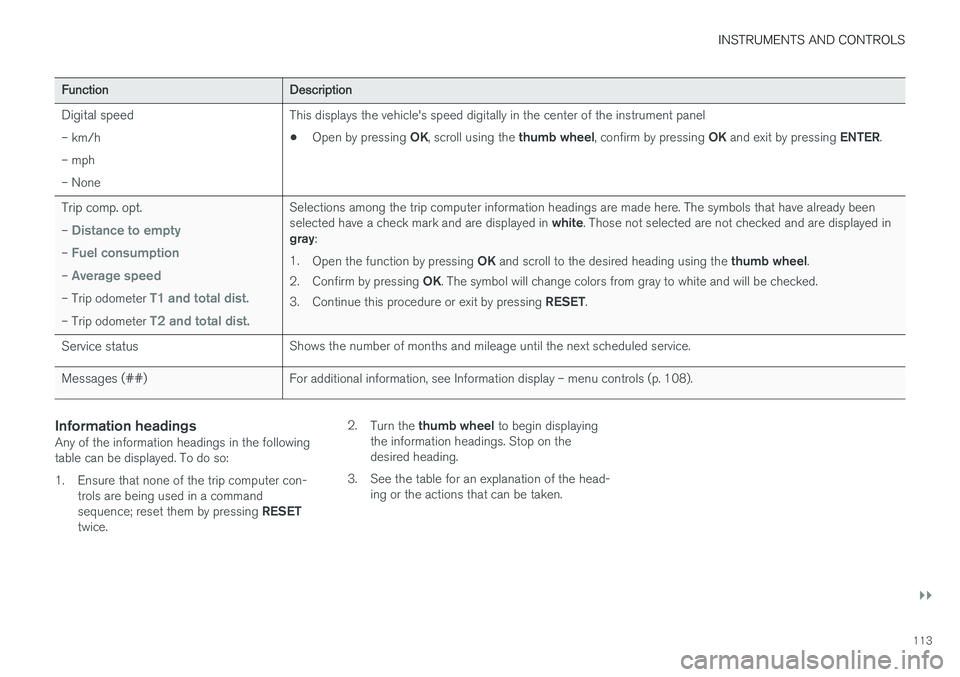
FunctionDescription
Digital speed – km/h – mph– None This displays the vehicle's speed digitally in the center of the instrument panel •
Open by pressing
OK, scroll using the thumb wheel, confirm by pressing OK and exit by pressing ENTER.
Trip comp. opt. –
Distance to empty
– Fuel consumption
– Average speed
– Trip odometer T1 and total dist.
– Trip odometer T2 and total dist.
Selections among the trip computer information headings are made here. The symbols that have already been selected have a check mark and are displayed in white. Those not selected are not checked and are displayed in
gray :
1. Open the function by pressing OK and scroll to the desired heading using the thumb wheel.
2. Confirm by pressing OK. The symbol will change colors from gray to white and will be checked.
3. Continue this procedure or exit by pressing RESET.
Service status Shows the number of months and mileage until the next scheduled service.
Messages (##) For additional information, see Information display – menu controls (p. 108).
Information headingsAny of the information headings in the following table can be displayed. To do so:
1. Ensure that none of the trip computer con-
trols are being used in a command sequence; reset them by pressing RESET
twice. 2.
Turn the thumb wheel to begin displaying
the information headings. Stop on the desired heading.
3. See the table for an explanation of the head- ing or the actions that can be taken.
Page 116 of 396
||
INSTRUMENTS AND CONTROLS
114
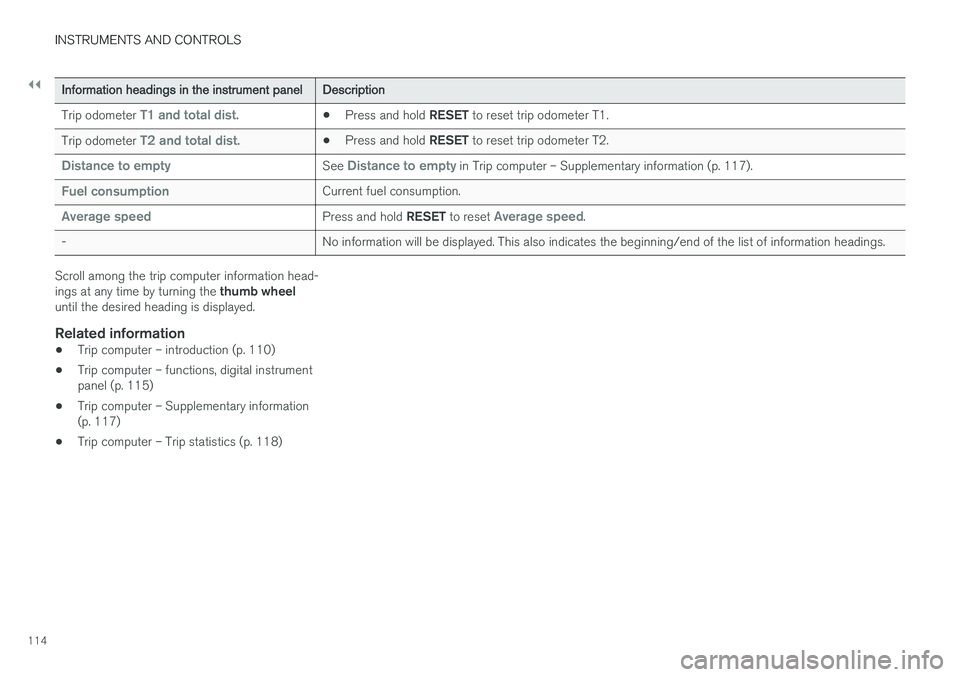
Information headings in the instrument panelDescription
Trip odometer
T1 and total dist.• Press and hold
RESET to reset trip odometer T1.
Trip odometer
T2 and total dist.• Press and hold
RESET to reset trip odometer T2.
Distance to emptySee Distance to empty in Trip computer – Supplementary information (p. 117).
Fuel consumptionCurrent fuel consumption.
Average speedPress and hold RESET to reset Average speed.
- No information will be displayed. This also indicates the beginning/end of the list of information headings.
Scroll among the trip computer information head- ings at any time by turning the thumb wheel
until the desired heading is displayed.
Related information
• Trip computer – introduction (p. 110)
• Trip computer – functions, digital instrument panel (p. 115)
• Trip computer – Supplementary information(p. 117)
• Trip computer – Trip statistics (p. 118)
Page 117 of 396
INSTRUMENTS AND CONTROLS
}}
* Option/accessory.115
Trip computer – functions, digital instrument panel
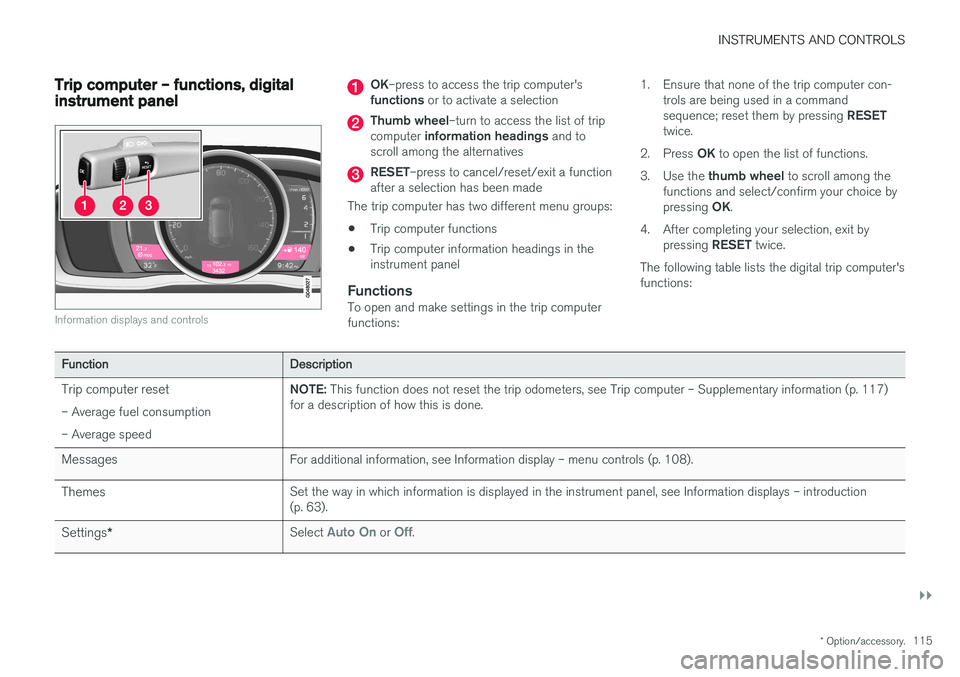
Information displays and controls
OK–press to access the trip computer's
functions or to activate a selection
Thumb wheel –turn to access the list of trip
computer information headings and to
scroll among the alternatives
RESET –press to cancel/reset/exit a function
after a selection has been made
The trip computer has two different menu groups: • Trip computer functions
• Trip computer information headings in the instrument panel
FunctionsTo open and make settings in the trip computerfunctions: 1. Ensure that none of the trip computer con-
trols are being used in a command sequence; reset them by pressing RESET
twice.
2. Press OK to open the list of functions.
3. Use the thumb wheel to scroll among the
functions and select/confirm your choice bypressing OK.
4. After completing your selection, exit by pressing RESET twice.
The following table lists the digital trip computer's functions:
Function Description
Trip computer reset – Average fuel consumption – Average speed NOTE:
This function does not reset the trip odometers, see Trip computer – Supplementary information (p. 117)
for a description of how this is done.
Messages For additional information, see Information display – menu controls (p. 108).
Themes Set the way in which information is displayed in the instrument panel, see Information displays – introduction (p. 63).
Settings * Select
Auto On or Off.
Page 118 of 396
||
INSTRUMENTS AND CONTROLS
116
FunctionDescription
Contrast mode /Color mode Adjust the instrument panel's contrast and color.
Service status Shows the number of months and mileage until the next scheduled service.
Information headingsThree trip computer headings can be displayed at the same time; one in each of the displays (seethe previous illustration). One of the combinationsof information headings in the following table canbe displayed. To do so: 1. Ensure that none of the trip computer con-
trols are being used in a command sequence; reset them by pressing RESET
twice.
2. Turn the thumb wheel to begin displaying
the combinations of information headings. Stop on the desired combination. 3. See the table for an explanation of the head-
ing or the actions that can be taken.
Scroll among the combinations of trip computerinformation headings at any time by turning the thumb wheel until the desired combination is
displayed.
Heading combinations Description
Average fuel consumption Trip odometer T1 + mileage Average speed •Press and hold
RESET to reset trip odometer T1.
Current fuel consumption Trip odometer T2 + mileage Distance to empty •Press and hold
RESET to reset trip odometer T2.
Current fuel consumption Mileage mph<>km/h Change between mph<>km/h – see "Digital speed display" in Trip com- puter – Supplementary information (p. 117).
- No trip computer information displayed - No information will be displayed. This also indicates the beginning/end
of the list of information headings.
Scroll among the trip computer information head- ings at any time by turning the thumb wheel
until the desired heading is displayed.Related information
• Trip computer – introduction (p. 110)
• Trip computer – functions, analog instrument panel (p. 112) •
Trip computer – Supplementary information(p. 117)
• Trip computer – Trip statistics (p. 118)