ad blue VOLVO S60 TWIN ENGINE 2020 Owner's Guide
[x] Cancel search | Manufacturer: VOLVO, Model Year: 2020, Model line: S60 TWIN ENGINE, Model: VOLVO S60 TWIN ENGINE 2020Pages: 657, PDF Size: 13.6 MB
Page 498 of 657
AUDIO, MEDIA AND INTERNET
* Option/accessory.
496
Internet-connected vehicle *
When the vehicle is connected to the Inter- net, it is possible to use web radio and musicservices via apps, download software andcontact retailers from the vehicle.
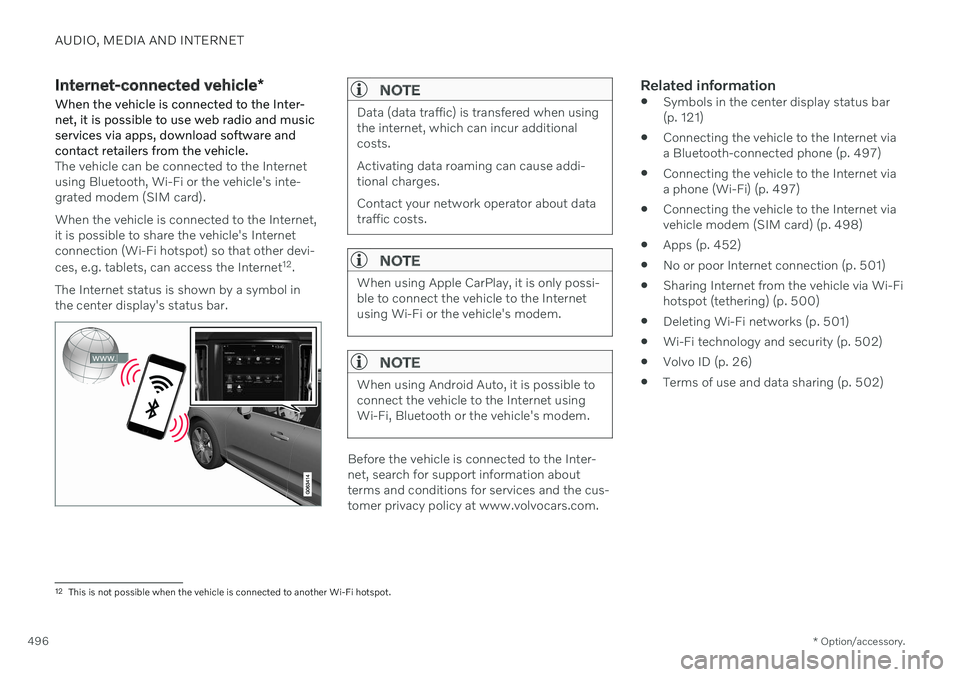
The vehicle can be connected to the Internet using Bluetooth, Wi-Fi or the vehicle's inte-grated modem (SIM card). When the vehicle is connected to the Internet, it is possible to share the vehicle's Internetconnection (Wi-Fi hotspot) so that other devi- ces, e.g. tablets, can access the Internet 12
.
The Internet status is shown by a symbol in the center display's status bar.
NOTE
Data (data traffic) is transfered when using the internet, which can incur additionalcosts. Activating data roaming can cause addi- tional charges. Contact your network operator about data traffic costs.
NOTE
When using Apple CarPlay, it is only possi- ble to connect the vehicle to the Internetusing Wi-Fi or the vehicle's modem.
NOTE
When using Android Auto, it is possible to connect the vehicle to the Internet usingWi-Fi, Bluetooth or the vehicle's modem.
Before the vehicle is connected to the Inter- net, search for support information aboutterms and conditions for services and the cus-tomer privacy policy at www.volvocars.com.
Related information
Symbols in the center display status bar(p. 121)
Connecting the vehicle to the Internet viaa Bluetooth-connected phone (p. 497)
Connecting the vehicle to the Internet viaa phone (Wi-Fi) (p. 497)
Connecting the vehicle to the Internet viavehicle modem (SIM card) (p. 498)
Apps (p. 452)
No or poor Internet connection (p. 501)
Sharing Internet from the vehicle via Wi-Fihotspot (tethering) (p. 500)
Deleting Wi-Fi networks (p. 501)
Wi-Fi technology and security (p. 502)
Volvo ID (p. 26)
Terms of use and data sharing (p. 502)
12
This is not possible when the vehicle is connected to another Wi-Fi hotspot.
Page 499 of 657
AUDIO, MEDIA AND INTERNET
}}
* Option/accessory.497
Connecting the vehicle to the Internet via a Bluetooth-connectedphone
Establish an Internet connection using
Bluetooth and tethering from a phone andget access to multiple connected services inyour vehicle.
1. To connect the vehicle to the Internet via a Bluetooth-connected phone, the phone must first be paired with the vehicle viaBluetooth.
2. Make sure that the phone supports Inter- net sharing (tethering) and that the func-tion is activated. In an iPhone, the functionis called "personal hotspot". In Androidphones, the function can have differentnames, but is often called "hotspot". ForiPhone phones, the "personal hotspot"menu page must also be open until theInternet connection has been made.
3. If the phone has been connected via Blue- tooth previously, tap
Settings in the cen-
ter display's Top view.
4. Tap
CommunicationBluetooth
Devices.
5. Mark the window for
Bluetooth Internet
connection under the heading Internet
connection. 6. If a different connection is being used,
confirm the connection change.
> Your vehicle is now connected to theInternet via your Bluetooth-connected phone.
NOTE
The cellular phone and network operator must support tethering (sharing of Internetconnection) and the subscription mustinclude data traffic.
NOTE
When using Apple CarPlay, it is only possi- ble to connect the vehicle to the Internetusing Wi-Fi or the vehicle's modem.
Related information
Internet-connected vehicle
* (p. 496)
Connecting the vehicle to the Internet via vehicle modem (SIM card) (p. 498)
Connecting a phone to the car via Blue-tooth for the first time (p. 488)
Connecting the vehicle to the Internet viaa phone (Wi-Fi) (p. 497)
Apple ®
CarPlay ®
* (p. 480)
No or poor Internet connection (p. 501)
Settings for Bluetooth devices (p. 495)
Connecting the vehicle to the Internet via a phone (Wi-Fi) Establish an Internet connection using Wi-Fi through Internet sharing (tethering) from aphone and get access to the connected servi-ces in your vehicle.
1. Make sure that the phone supports Inter-
net sharing (tethering) and that the func- tion is activated. In an iPhone, the functionis called "personal hotspot". In Androidphones, the function can have differentnames, but is often called "hotspot". ForiPhone phones, the "personal hotspot"menu page must also be open until theInternet connection has been made.
2. Tap
Settings in the Top view.
3. Proceed to
CommunicationWi-Fi.
4. Activate/deactivate by tapping to check/ uncheck the Wi-Fi box.
5. If a different connection is being used, confirm the connection change.
6. Tap the name of the network you would like to connect.
7. Enter the network password. > The vehicle will connect to the network.
Please note that certain cellular phones will disable Internet sharing (tethering) when theconnection to the vehicle has been broken,e.g. when the phone has been removed from
Page 569 of 657
MAINTENANCE AND SERVICE
}}
* Option/accessory.567
Vehicle status The vehicle's general status can be displayed in the center display along with the option to schedule service3
.
The Car Status app is started
from the center display's App view and has four tabs:
Messages - status messages
Status – checking engine oil level and
AdBlue level 4
TPMS - tire inflation pressure check
Appointments - appointment information
and vehicle information 3
.
Related information
Handling messages saved from the instru- ment panel (p. 105)
Checking and filling engine oil (p. 575)
Tire pressure monitoring system
* (p. 527)
Scheduling service and repairs (p. 567)
Sending vehicle information to the work-shop (p. 568)
Navigating in the center display's views(p. 112)
Scheduling service and repairs 5
This service offers a way to send a booking request for service and workshop appoint-ments directly from the vehicle.
When it is time for service, and in certain cases if the vehicle requires repairs, a mes-sage will be displayed in the instrument paneland at the top of the center display. The timefor service is determined by how much timehas elapsed, the number of hours the enginehas run, or the distance driven since the lastservice.
To use the service
Create a Volvo ID and register it to thevehicle.
To send and receive appointment informa-tion, the vehicle must be connected to the Internet 6
.
Book serviceBook a service request when desired or when a message is displayed indicating that serviceor repairs are needed. 1. Open the
Car Status app from App view
in the center display.
2. Tap
Appointments. 3.
Tap
Request appointment.
4. Check that your
Volvo ID is correct.
5. Make sure your preferred
Workshop is
correct.
6. In the
Tap to write information to the
workshop field, you can provide details
on what you would like performed during the visit or other important information toyour workshop.
7. Tap
Send appointment request.
> You will receive an appointment sug- gestion by email within a couple of days 7
.
On some markets, the message in the instrument panel indicating that thevehicle requires service will go out oncethe appointment request has been sent.
8. Tap
Cancel request if you would like to
cancel your request.
The appointment request contains information about your vehicle that helps the workshopplan for your visit. The retailer will send you a digital appointment suggestion. You also have information aboutyour retailer available in the vehicle so that youcan contact your workshop.
3 Certain markets only.
4 AdBlue Diesel models only.
5 Certain markets only.
Page 623 of 657

MAINTENANCE AND SERVICE
}}
* Option/accessory.621
The wiper blades will also move out of the service position if:
The windshield wipers are turned on.
The windshield washers are turned on.
The rain sensor is activated.
The vehicle begins moving.
CAUTION
If the wiper arms in service position are raised from the windshield, they must befolded back against the windscreen beforeactivating wiping, washing or rain sensoras well as before departure. This is to pre-vent scratching the paint on the hood.
Related information
Using the rain sensor (p. 178)
Using the windshield and headlight wash- ers (p. 179)
Using the rain sensor's memory function(p. 179)
Filling washer fluid (p. 621)
Replacing windshield wiper blades(p. 619)
Using the windshield wipers (p. 177)
Wiper blades and washer fluid (p. 177)
Filling washer fluid Washer fluid is used to help keep the head- lights and windshield clean. Washer fluidcontaining anti-freeze should be used in verycold weather (below-freezing temperatures).
Fill washer fluid into the reservoir with the blue cover. The reservoir is used for both the windshield washer and the headlight washer
*
NOTE
When there is approximately 1 liter (1 qt) of washer fluid remaining, the message
Washer fluid Level low, refill and the
symbol will be displayed in the
instrument panel.
Recommended grade: Washer fluid recom-
mended by Volvo, with frost protection during cold weather and temperatures below the freezing point.
CAUTION
Use Volvo's original washer fluid or an equivalent fluid with the recommended pHvalue between 6 and 8, diluted as recom-mended, e.g. in a 1:1 solution with pH-neu-tral water.
CAUTION
Use washer fluid with anti-freeze when temperatures are below the freezing pointto help keep the pump, reservoir and hosesfrom freezing.
Volume:
Vehicles
with headlight washing: 5.5 liters
(5.8 qts).
Vehicles
without headlight washing: 3.5
liters (3.7 qts).
Related information
Using the rain sensor (p. 178)
Using the windshield and headlight wash- ers (p. 179)
Using the rain sensor's memory function(p. 179)
Page 640 of 657

INDEX
638Automatic locking 254
Automatic relocking 234, 247
Automatic transmission 406, 407
kickdown 411
oil 633
Trailer 436
Auxiliary heater 227
B
Backrest front seat, adjusting 182, 183, 186, 187 , 188, 189
rear seat, folding 192
Battery Hybrid 583
jump-start 434
Maintenance 579
recycling 584
start 579
symbols on the battery 584
BLIS 321 activating/deactivating 322
limitations 323
Symbols and messages 324
Blower
adjusting 216
air distribution 204
air vents 204
Bluetooth connect 477
connecting vehicle to Internet 497
phone 487
settings 495
Book service and repair 567
Booster cushions 72 Brake assist after collision 406
Brake energy 397, 412Brake fluid grade 633
Brake functions 397
Brake position 407
Brakes 397 anti-lock brakes, ABS 397
automatic when stationary 404
Brake Assist System, BAS 399
brake lights 159
brake system 397
emergency brake lights 159
Maintenance 400
on salted roads 400on wet roads 399
parking brake 400
brake system fluid 633
C
Camera sensor
see Camera 300
Camera unit 300 limitations 301
maintenance and cleaning 305
Capacity weight 546, 629
Cargo compartment 557 attachment points 560
Car wash 610, 611, 613, 614, 615, 616
Catalytic converter 432 recovery 440
CD player 475
Cell phone, see Phone 488
Center console 551 Center display change appearance 128
cleaning 605
climate controls 209
Function view 119
keyboard 123
Page 642 of 657

INDEX
640Compass 446, 447
calibration 447
Condensation in headlights 611, 613, 614, 615
Connecting vehicle to Internet No connection or poor connection 501
via a mobile device (WiFi) 497
via cellular phone (Bluetooth) 497
via vehicle's modem 498
Connect phone 488
Contact information 26
Convertible seats 69
coolant 633 filling 576
Cooling system overheating 433
Cornering assistance 294 activating/deactivating 295
limitations 295
Cornering illumination 158
Corner Traction Control 261
Corrosion protection 616
Crash, see Collision 42
Crash event data 33
Cross Traffic Alert 325 activating/deactivating 326
limitations 326
messages 328
Cruise control 267 activating 268
manage speed 290
standby mode 269
turn off 269
Curb weight 629
Customer Privacy Policy 35
CZIP (Clean Zone Interior Package) 201
D
Data recording 33 transferring between vehicle and
workshop 565
Data sharing 502, 503
Daytime running lights 153 Decals location 624
Defrosting 214 Detecting obstacles City Safety 310
Dimensions 627
Dipstick, electronic 575
Direction of rotation 520 Display driver information 80
Display lighting 162
Distance Alert 265 activating/deactivating 266
limitations 266
Set time interval 291
DivX ®
476
Door mirrors 170 compass 446, 447
dimming 170
outer 170
power folding 171
resetting 171
store position 184, 185
Download Center 565 use 566
Driveline transmission 406
Drive mode 413 changing 417
driver support 293
Driver Alert Control 334 activating/deactivating 335
limitations 336
rest stop guidance 335