ECO mode VOLVO S80 2008 User Guide
[x] Cancel search | Manufacturer: VOLVO, Model Year: 2008, Model line: S80, Model: VOLVO S80 2008Pages: 275, PDF Size: 7.17 MB
Page 91 of 275
Drivers side front reading light, on/off
Passenger's side front reading light, on/ off
Overhead courtesy lighting.
The lighting in the front part of the passenger compartment is controlled with the buttons
and in the roof console.
Switch
has three positions for all passenger compartment lighting:
Off - right side depressed, automatic lighting off.
Neutral position.
On - left side depressed, passenger compartment lighting on.
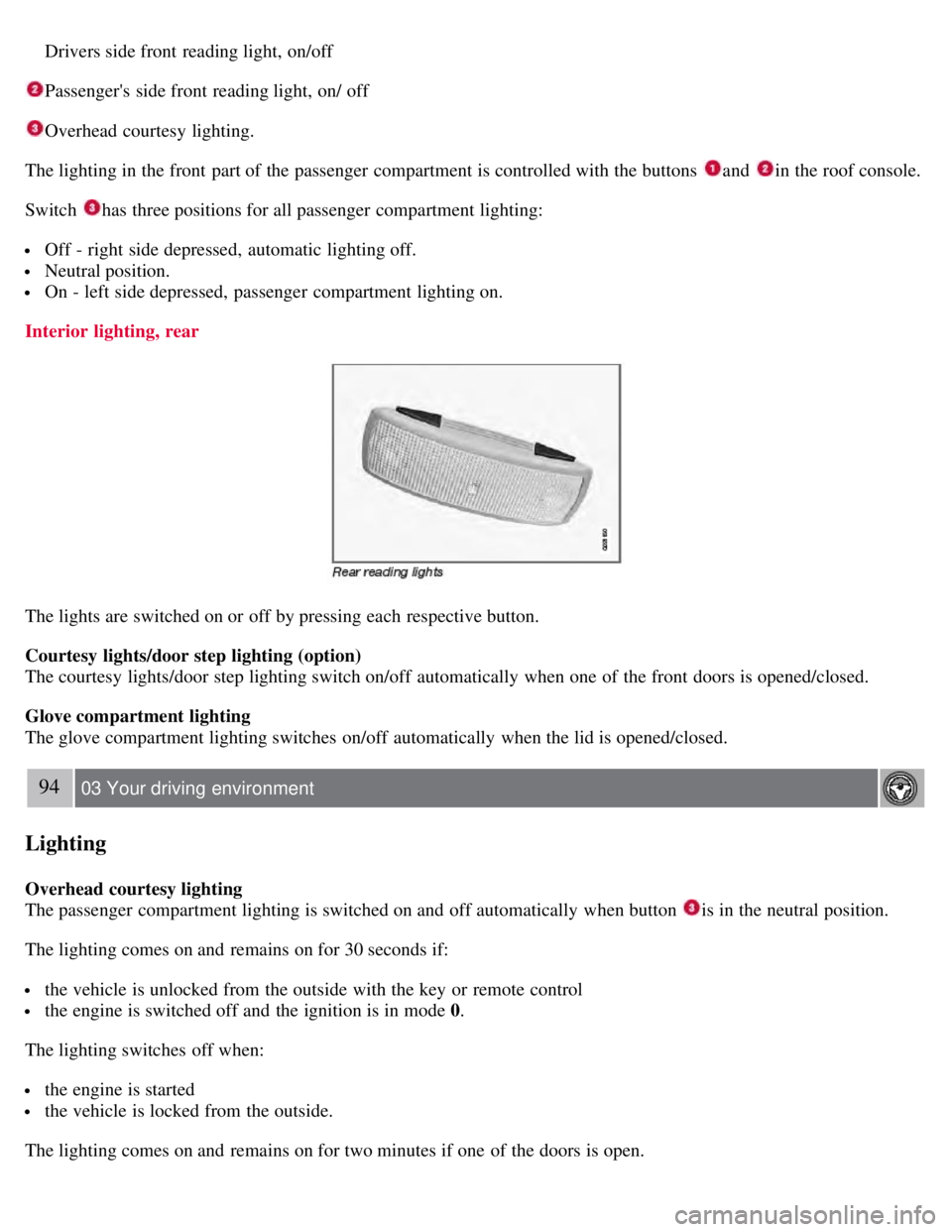
Interior lighting, rear
The lights are switched on or off by pressing each respective button.
Courtesy lights/door step lighting (option)
The courtesy lights/door step lighting switch on/off automatically when one of the front doors is opened/closed.
Glove compartment lighting
The glove compartment lighting switches on/off automatically when the lid is opened/closed.
94 03 Your driving environment
Lighting
Overhead courtesy lighting
The passenger compartment lighting is switched on and off automatically when button
is in the neutral position.
The lighting comes on and remains on for 30 seconds if:
the vehicle is unlocked from the outside with the key or remote control
the engine is switched off and the ignition is in mode 0.
The lighting switches off when:
the engine is started
the vehicle is locked from the outside.
The lighting comes on and remains on for two minutes if one of the doors is open.
Page 96 of 275
Operating
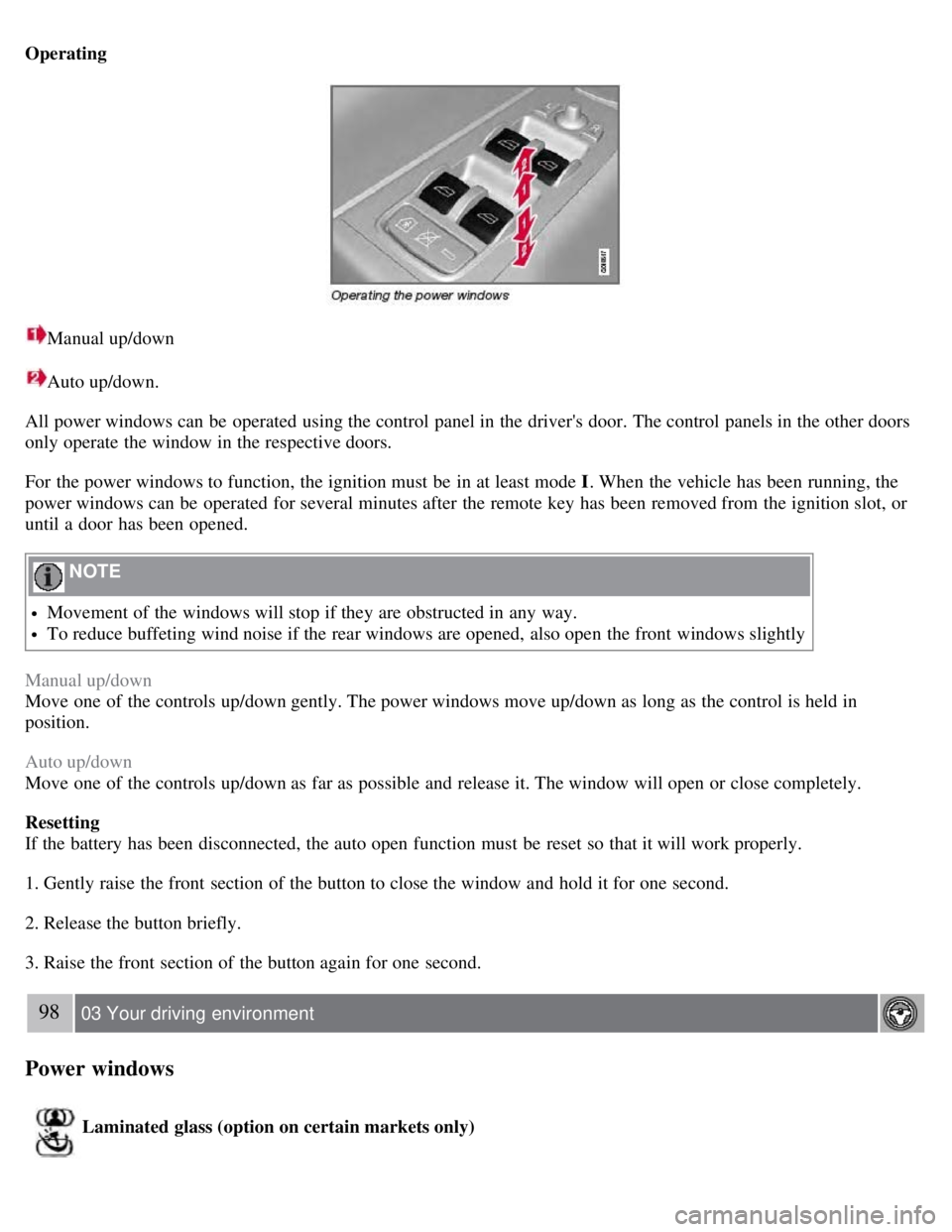
Manual up/down
Auto up/down.
All power windows can be operated using the control panel in the driver's door. The control panels in the other doors
only operate the window in the respective doors.
For the power windows to function, the ignition must be in at least mode I . When the vehicle has been running, the
power windows can be operated for several minutes after the remote key has been removed from the ignition slot, or
until a door has been opened.
NOTE
Movement of the windows will stop if they are obstructed in any way.
To reduce buffeting wind noise if the rear windows are opened, also open the front windows slightly
Manual up/down
Move one of the controls up/down gently. The power windows move up/down as long as the control is held in
position.
Auto up/down
Move one of the controls up/down as far as possible and release it. The window will open or close completely.
Resetting
If the battery has been disconnected, the auto open function must be reset so that it will work properly.
1. Gently raise the front section of the button to close the window and hold it for one second.
2. Release the button briefly.
3. Raise the front section of the button again for one second.
98 03 Your driving environment
Power windows
Laminated glass (option on certain markets only)
Page 104 of 275
training quicker and easier):
1. Locate the training button on the garage door opener motor head unit. Exact location and color of the button may
vary by garage door opener brand. If there is difficulty locating the training button, reference the garage door opener
owner's manual or please visit our Web site at www.homelink.com
.
2. Press the training button on the garage door opener motor head unit (which activates the "training light").
NOTE
Following step 2, there are 30 seconds in which to initiate step 3.
3. Firmly press and release the programmed HomeLink® button. Press and release the HomeLink button a second time
to complete the training process. (Some garage door openers may require
106 03 Your driving environment
HomeLink® Universal Transceiver
you to do this procedure a third time to complete the training.)
The garage door opener should now recognize the HomeLink Wireless Control System. The remaining two buttons
may now be trained if this has not previously been done. Refer to the Programming portion of this text. The
HomeLink Wireless Control System (once programmed) or the original handheld transmitter may be used to activate
the garage door. In the event that there are still difficulties in programming the HomeLink Wireless Control System,
please visit our Web site, www.homelink.com
.
Reprogramming a Single HomeLink Button
To program a device to HomeLink using a HomeLink button previously trained, follow these steps:
1. Press and hold the desired HomeLink button. Do NOT release until step 4 has been completed.
2. When the indicator light begins to flash slowly ( after 20 seconds), position the handheld transmitter 1 to 3 inches
away from the HomeLink surface.
3. Press and hold the handheld transmitter button. The HomeLink indicator light will flash, first slowly and then
rapidly.
4. When the indicator light begins to flash rapidly, release both buttons.
The previous device has now been erased and the new device can be activated by pushing the HomeLink button that
has just been programmed. This procedure will not affect any other programmed HomeLink.
Erasing Channels
Individual buttons cannot be erased. However, to erase all three programmed buttons:
1. Press and hold the two outside buttons until the indicator light begins to flash (after 20 seconds).
2. Release both buttons.
The HomeLink® Wireless Control System is now in the training (learning) mode and can be programmed at any time
following steps 2 through 4 in the Programming section.
Page 133 of 275
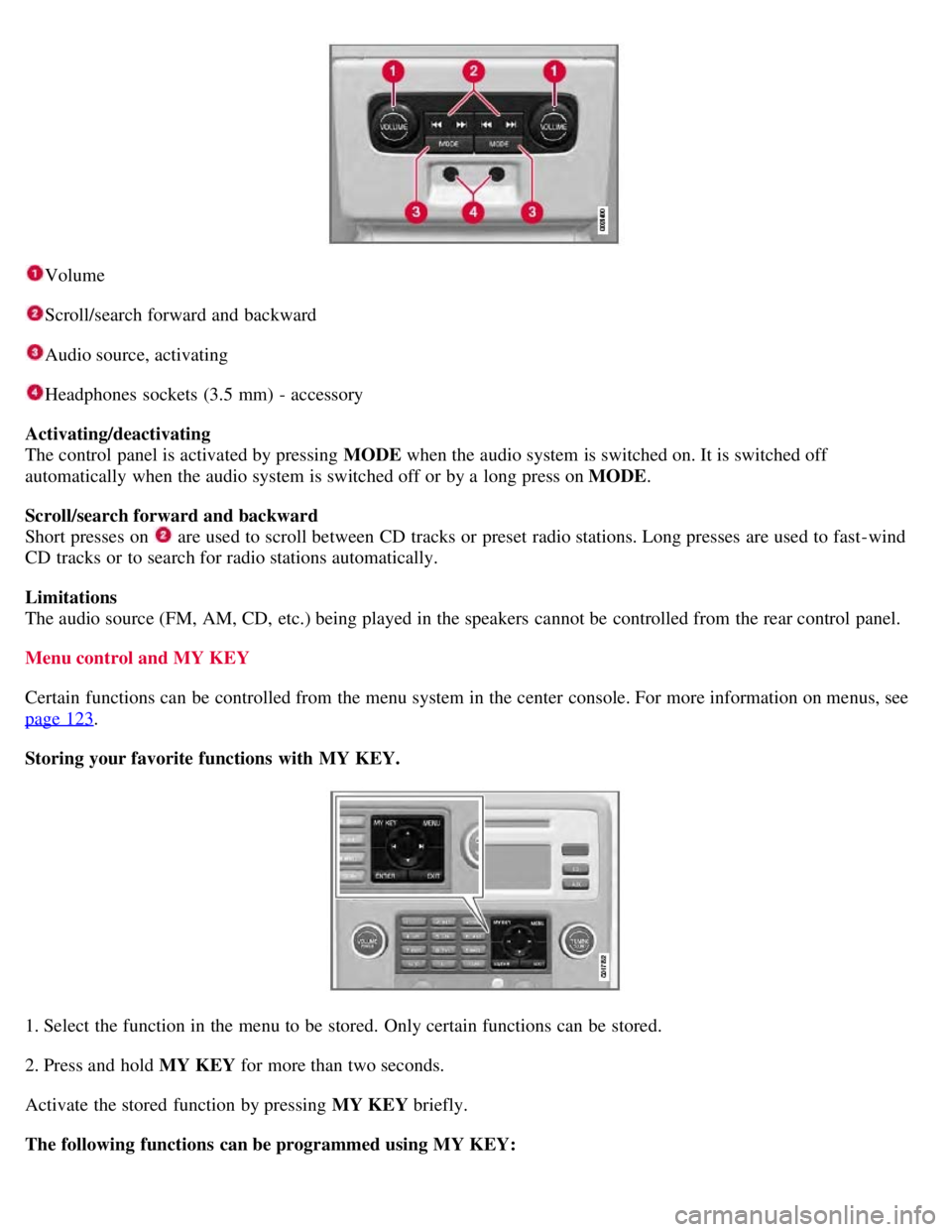
Volume
Scroll/search forward and backward
Audio source, activating
Headphones sockets (3.5 mm) - accessory
Activating/deactivating
The control panel is activated by pressing MODE when the audio system is switched on. It is switched off
automatically when the audio system is switched off or by a long press on MODE .
Scroll/search forward and backward
Short presses on
are used to scroll between CD tracks or preset radio stations. Long presses are used to fast -wind
CD tracks or to search for radio stations automatically.
Limitations
The audio source (FM, AM, CD, etc.) being played in the speakers cannot be controlled from the rear control panel.
Menu control and MY KEY
Certain functions can be controlled from the menu system in the center console. For more information on menus, see
page 123
.
Storing your favorite functions with MY KEY.
1. Select the function in the menu to be stored. Only certain functions can be stored.
2. Press and hold MY KEY for more than two seconds.
Activate the stored function by pressing MY KEY briefly.
The following functions can be programmed using MY KEY:
Page 137 of 275
Playing a CD (CD changer)
If a CD position with a music CD is already selected when CD is pressed, it will be played automatically. Otherwise
select a disc with the number buttons 1-6 or
/on the navigation button.
Insert a CD (CD changer)
1. Select an empty position with the number buttons 1-6 or
/ on the navigation button.
An empty position is marked on the display. The text Insert disc shows that a new disc can be inserted. The CD
changer can hold up to six CDs.
2. Insert a CD in the CD changer slot.
Disc eject
For reasons of traffic safety, an ejected CD must be removed within 12 seconds or it will be automatically drawn back
into the slot and the CD player will enter pause mode. Press the CD button to restart the disc.
Eject individual discs by pressing the eject button.
139 04 Comfort and driving pleasure
Audio system
Eject all discs with a long press on the eject button. The entire magazine is emptied disc by disc.
NOTE
The Eject all function can only be used while the vehicle is at a standstill and will be cancelled if the vehicle begins
to move.
Pause
When the audio system volume is turned off completely, the CD player will pause and will resume playing when the
volume is turned up again.
Sound files
In addition to playing normal music CDs, the CD player/changer can also play discs containing files in mp3 or wma
format.
NOTE
Some copy protected sound files may not be read by the player.
When a CD containing sound files is inserted into the player the disc's directory structure is scanned before the CD
begins playing. The length of time that this takes depends on the quality of the disc.
Navigating the disc and playing tracks
If a disc containing sound files is inside the CD player, press ENTER to display the disc's directory structure. The
directory structure is navigated in the same way as the audio system's menu structure. Sound files have the
symbol
and directories have the
symbol. Press ENTER to play a selected folder or a file.
When the music file has been played, the player will continue to play the rest of the files in the current folder. When
all of the files in the folder have been played, the player will automatically go to the next folder and play the files in it.
Page 138 of 275
Fast-forward/change CD tracks and sound files
Short presses
/ on the navigation button are used to scroll between CD tracks/sound files. Long presses are used
to search within CD tracks/sound files. TUNING (or the steering wheel keypad) can also be used for this purpose.
Scan CD
This function plays the first ten seconds of each CD track/sound file. Press SCAN to activate. Interrupt with EXIT or
SCAN to continue playing the current CD track/sound file.
Random
This function plays the tracks in random order (shuffle). The random CD tracks/sound files can be scrolled through in
the normal way.
NOTE
It is only possible to scroll between random CD tracks on the current disc.
Different messages are displayed depending on which random function has been selected:
RANDOM means that the tracks from only one music CD are played
RND ALL means that all tracks on all music CDs in the optional CD changer are played.
RANDOM FOLDER means that the sound files in a directory on the current CD are played.
CD player
If a normal music CD is being played, activate/deactivate under Random .
If a disc with sound files is being played, activate/deactivate under Random
Folder .
140 04 Comfort and driving pleasure
Audio system
CD changer
If a normal music CD is being played under Random
Single disc or Random All discs. The option All discs only
applies to the music CDs in the changer.
If a CD with sound files is being played, activate/deactivate instead under Random
Folder . If you select another CD
the function is deactivated.
Disc text
If title information is stored on a music CD it can be shown on the display
1. Activate/deactivate in CD mode under CD
settings
Disc text.
1Only applies to the CD changer.
141 04 Comfort and driving pleasure
Audio system
Radio functions
Page 140 of 275
Once Autostoring... disappears from the display, the stations are stored. The radio continues in Auto mode and Auto
appears on the display. The automatically stored presets can now be selected using the preset buttons. Automatic
preset storage can be cancelled using EXIT .
Auto mode is cancelled by pressing for example AUTO or FM.
Returning to Auto mode provides access to the autostored presets:
1. Press AUTO .
Auto appears on the display.
2. Press a preset button.
Scan
The function automatically searches the current wave band for strong stations. When a station is found, it is played for
approx. eight seconds before scanning is resumed. While the station is playing it can be stored as a preset as usual.
1. Select a wave band using AM or FM.
2. Press SCAN .
SCAN appears on the display. Close using SCAN or EXIT.
142 04 Comfort and driving pleasure
Audio system
Radio text
Some stations transmit information on program content, artists, etc. This information can be shown on the display.
Activate/deactivate in FM mode under Radio text.
143 04 Comfort and driving pleasure
Audio system
Sirius satellite radio (option)
Listening to satellite radio
The Sirius satellite system consists of a number of high elevation satellites in geosynchronous orbit.
NOTE
The digital signals from the Sirius satellites are line-of-sight, which means that physical obstructions such as
bridges, tunnels, etc, may temporarily interfere with signal reception.
Avoid any obstructions, such as metallic objects transported on roof racks or in a ski box, or other antennas that
may impede signals from the SIRIUS satellites.
Selecting Sirius radio mode
1. Press Power to switch on the audio system (see pages 137
and 141 for information on the standard audio and radio
functions).
Page 145 of 275
If you have forgotten the access code:
1. Select SIRIUS ID in the Sirius settings menu and press ENTER .
2. Press and hold the ENTER button for 2 seconds.
3. The current code will be displayed.
Your Volvo retailer can also provide you with assistance.
SIRIUS ID
This function displays the 12-digit Sirius activation ID.
147 04 Comfort and driving pleasure
Trip computer
Introduction
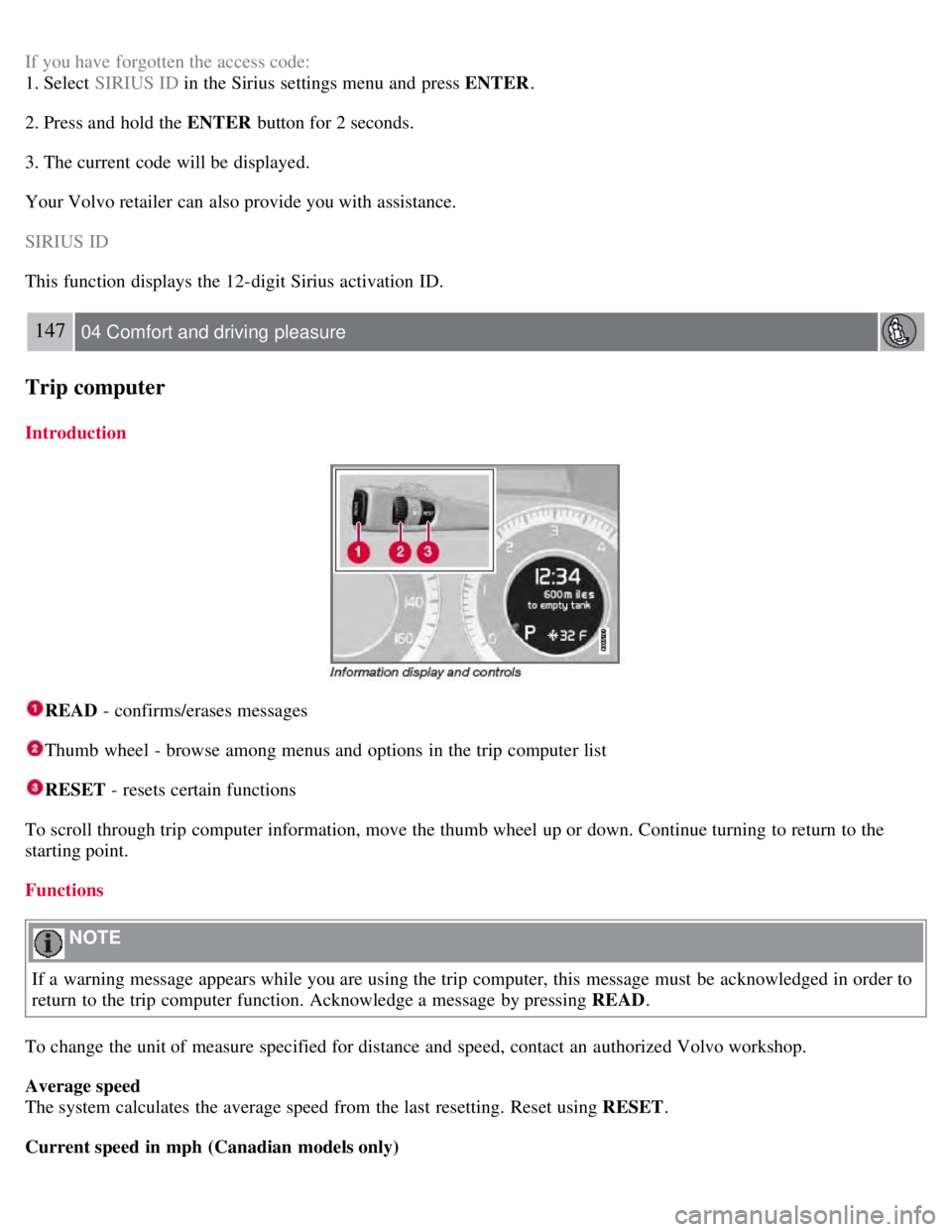
READ - confirms/erases messages
Thumb wheel - browse among menus and options in the trip computer list
RESET - resets certain functions
To scroll through trip computer information, move the thumb wheel up or down. Continue turning to return to the
starting point.
Functions
NOTE
If a warning message appears while you are using the trip computer, this message must be acknowledged in order to
return to the trip computer function. Acknowledge a message by pressing READ .
To change the unit of measure specified for distance and speed, contact an authorized Volvo workshop.
Average speed
The system calculates the average speed from the last resetting. Reset using RESET .
Current speed in mph (Canadian models only)
Page 146 of 275
This function provides the driver with an instantaneous conversion of the car's current speed from km/h to mph.
Current speed in km/h (U.S. models only)
This function provides the driver with an instantaneous conversion of the car's current speed from mph to km/h.
Current fuel consumption (Instantaneous)
Current fuel consumption is calculated every second. The information on the display is updated every few seconds.
When the vehicle is stationary, "----" appears on the display.
Average fuel consumption
The average fuel consumption since the last reset. Reset using RESET.
Driving distance on current fuel reserve
The calculation is based on the average fuel consumption over the last 20 miles ( 30 km) and the remaining usable fuel
in the tank. This shows the approximate distance that can be driven with the fuel quantity remaining in the tank. When
the driving distance on the current fuel reserve is less than 12 miles ( 20 km), " ---- miles to empty tank" is shown on
the display.
NOTE
The actual distance that can be driven on the usable fuel remaining in the tank may be influenced by a change in
driving style.
148 04 Comfort and driving pleasure
Trip computer
Resetting
1. Select Average speed or Average fuel consumption .
2. Press and hold RESET for approx. 1 second to reset the selected function. If RESET is kept depressed for at 3 three
seconds, Average speed and Average fuel consumption are reset simultaneously.
149 04 Comfort and driving pleasure
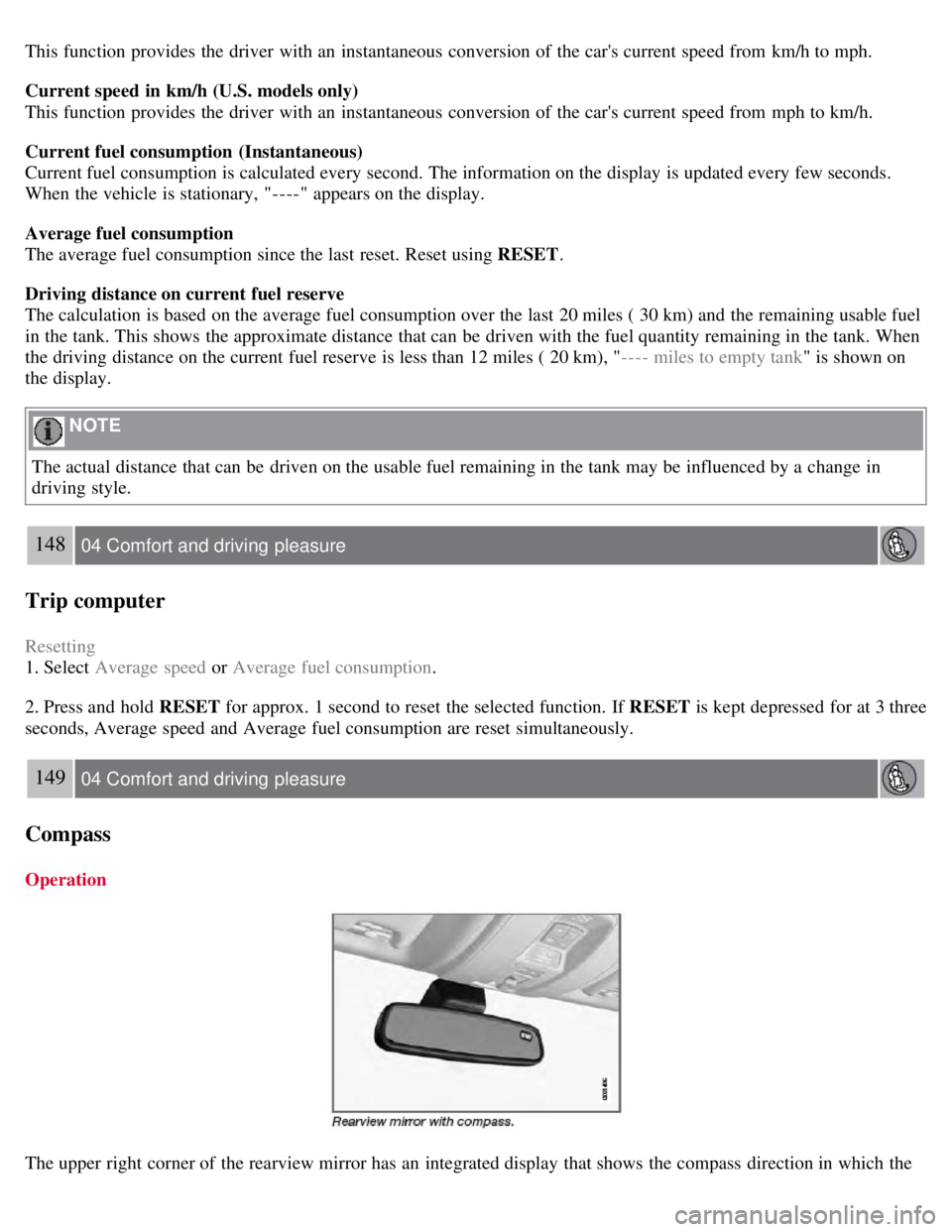
Compass
Operation
The upper right corner of the rearview mirror has an integrated display that shows the compass direction in which the
Page 147 of 275
vehicle is pointing. Eight different directions are shown with the abbreviations: N (north), NE (north east), E (east), SE
(southeast), S (south), SW (southwest), W (west) and NW (northwest).
The compass is displayed automatically when the vehicle is started or in ignition mode II . To switch the compass
on/off use a pen or similar object and press in the button on the rear side of the mirror.
Calibration
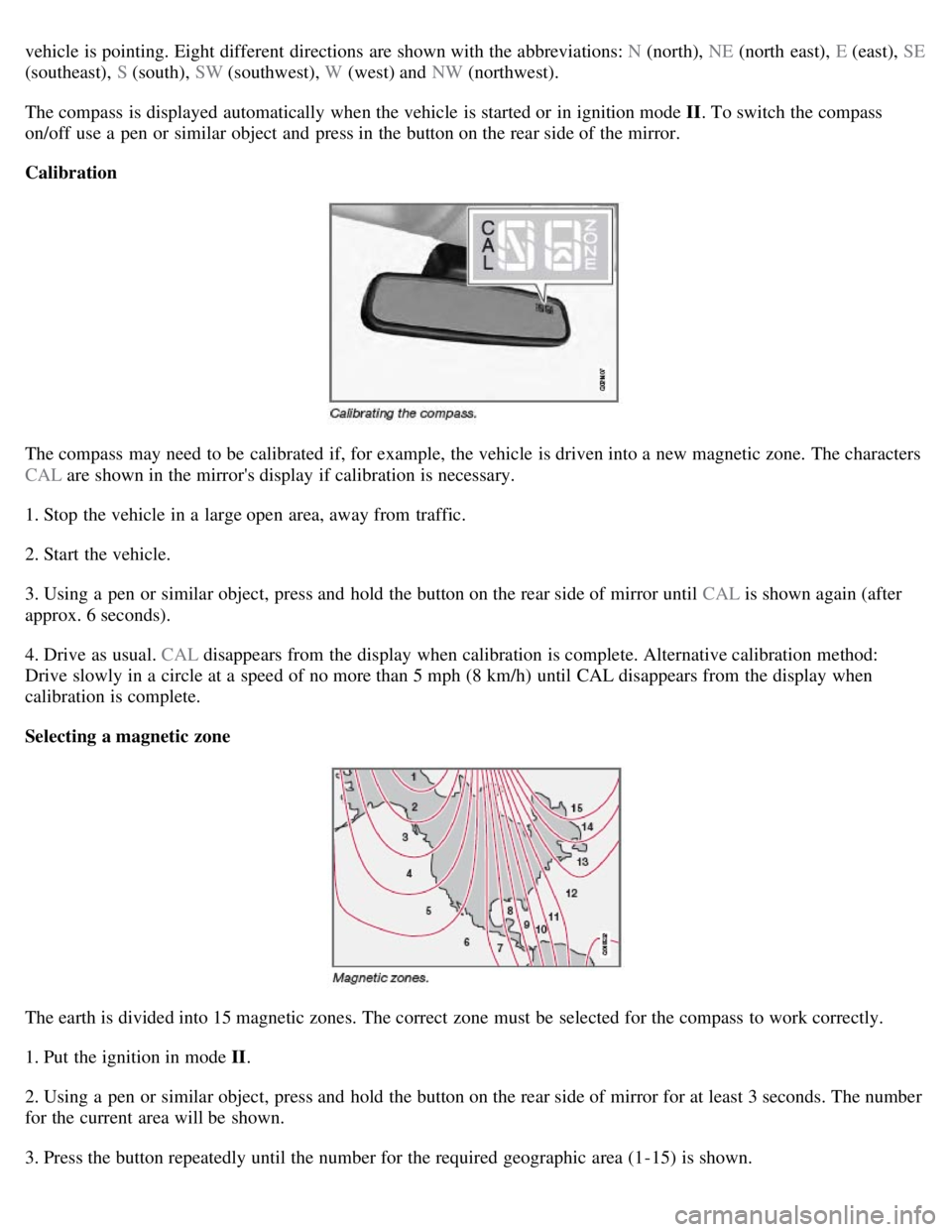
The compass may need to be calibrated if, for example, the vehicle is driven into a new magnetic zone. The characters
CAL are shown in the mirror's display if calibration is necessary.
1. Stop the vehicle in a large open area, away from traffic.
2. Start the vehicle.
3. Using a pen or similar object, press and hold the button on the rear side of mirror until CAL is shown again (after
approx. 6 seconds).
4. Drive as usual. CAL disappears from the display when calibration is complete. Alternative calibration method:
Drive slowly in a circle at a speed of no more than 5 mph (8 km/h) until CAL disappears from the display when
calibration is complete.
Selecting a magnetic zone
The earth is divided into 15 magnetic zones. The correct zone must be selected for the compass to work correctly.
1. Put the ignition in mode II .
2. Using a pen or similar object, press and hold the button on the rear side of mirror for at least 3 seconds. The number
for the current area will be shown.
3. Press the button repeatedly until the number for the required geographic area (1-15) is shown.