reset VOLVO S80 2008 User Guide
[x] Cancel search | Manufacturer: VOLVO, Model Year: 2008, Model line: S80, Model: VOLVO S80 2008Pages: 275, PDF Size: 7.17 MB
Page 132 of 275
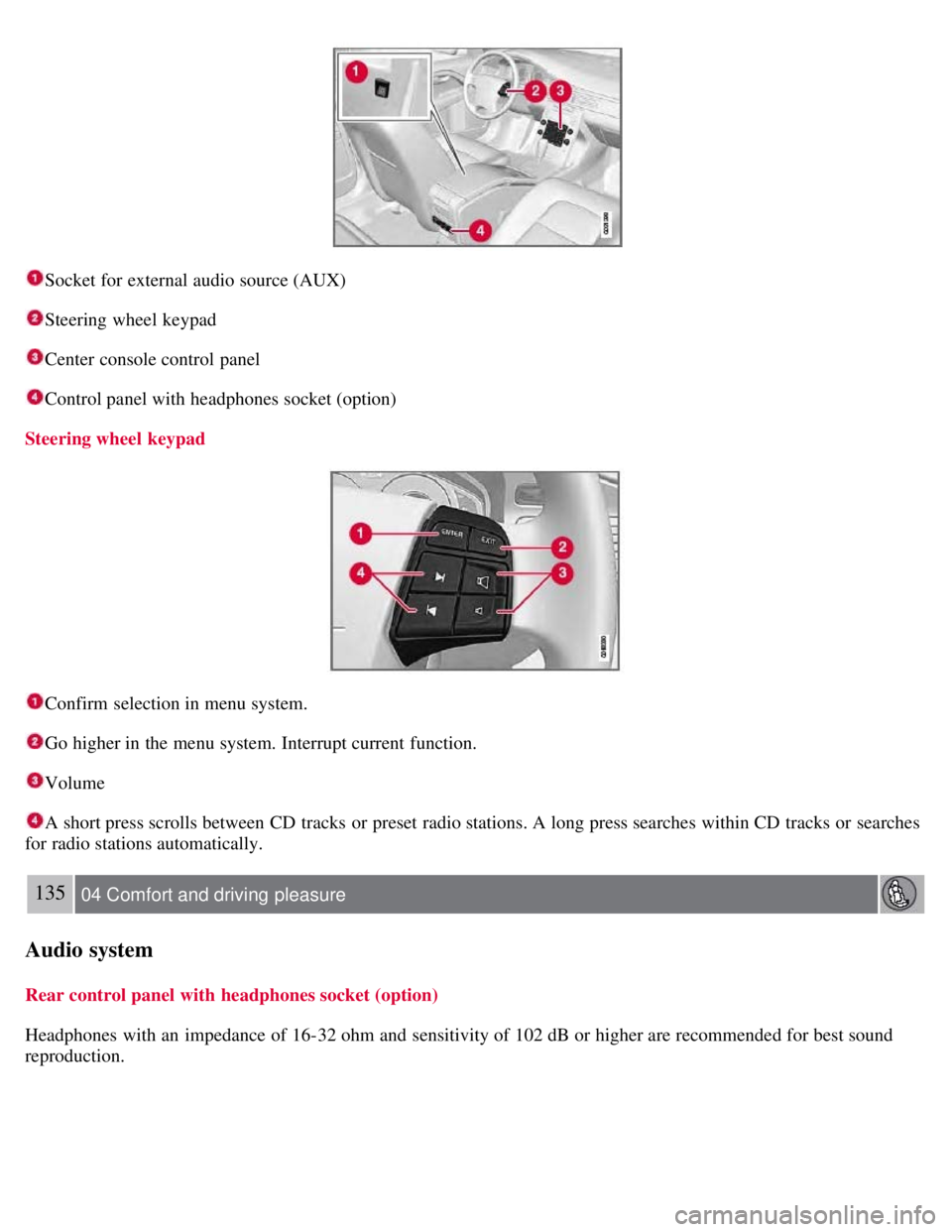
Socket for external audio source (AUX)
Steering wheel keypad
Center console control panel
Control panel with headphones socket (option)
Steering wheel keypad
Confirm selection in menu system.
Go higher in the menu system. Interrupt current function.
Volume
A short press scrolls between CD tracks or preset radio stations. A long press searches within CD tracks or searches
for radio stations automatically.
135 04 Comfort and driving pleasure
Audio system
Rear control panel with headphones socket (option)
Headphones with an impedance of 16-32 ohm and sensitivity of 102 dB or higher are recommended for best sound
reproduction.
Page 133 of 275
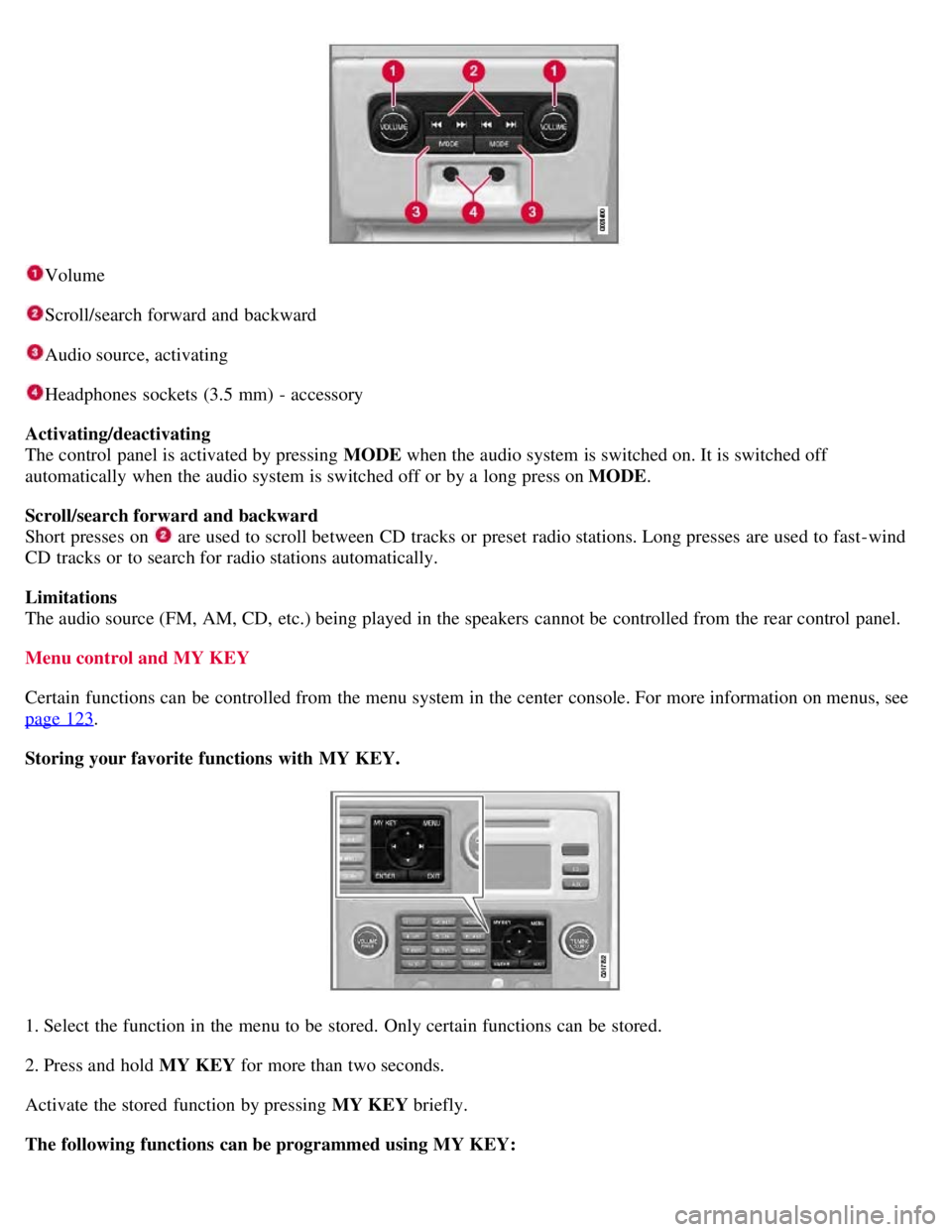
Volume
Scroll/search forward and backward
Audio source, activating
Headphones sockets (3.5 mm) - accessory
Activating/deactivating
The control panel is activated by pressing MODE when the audio system is switched on. It is switched off
automatically when the audio system is switched off or by a long press on MODE .
Scroll/search forward and backward
Short presses on
are used to scroll between CD tracks or preset radio stations. Long presses are used to fast -wind
CD tracks or to search for radio stations automatically.
Limitations
The audio source (FM, AM, CD, etc.) being played in the speakers cannot be controlled from the rear control panel.
Menu control and MY KEY
Certain functions can be controlled from the menu system in the center console. For more information on menus, see
page 123
.
Storing your favorite functions with MY KEY.
1. Select the function in the menu to be stored. Only certain functions can be stored.
2. Press and hold MY KEY for more than two seconds.
Activate the stored function by pressing MY KEY briefly.
The following functions can be programmed using MY KEY:
Page 139 of 275
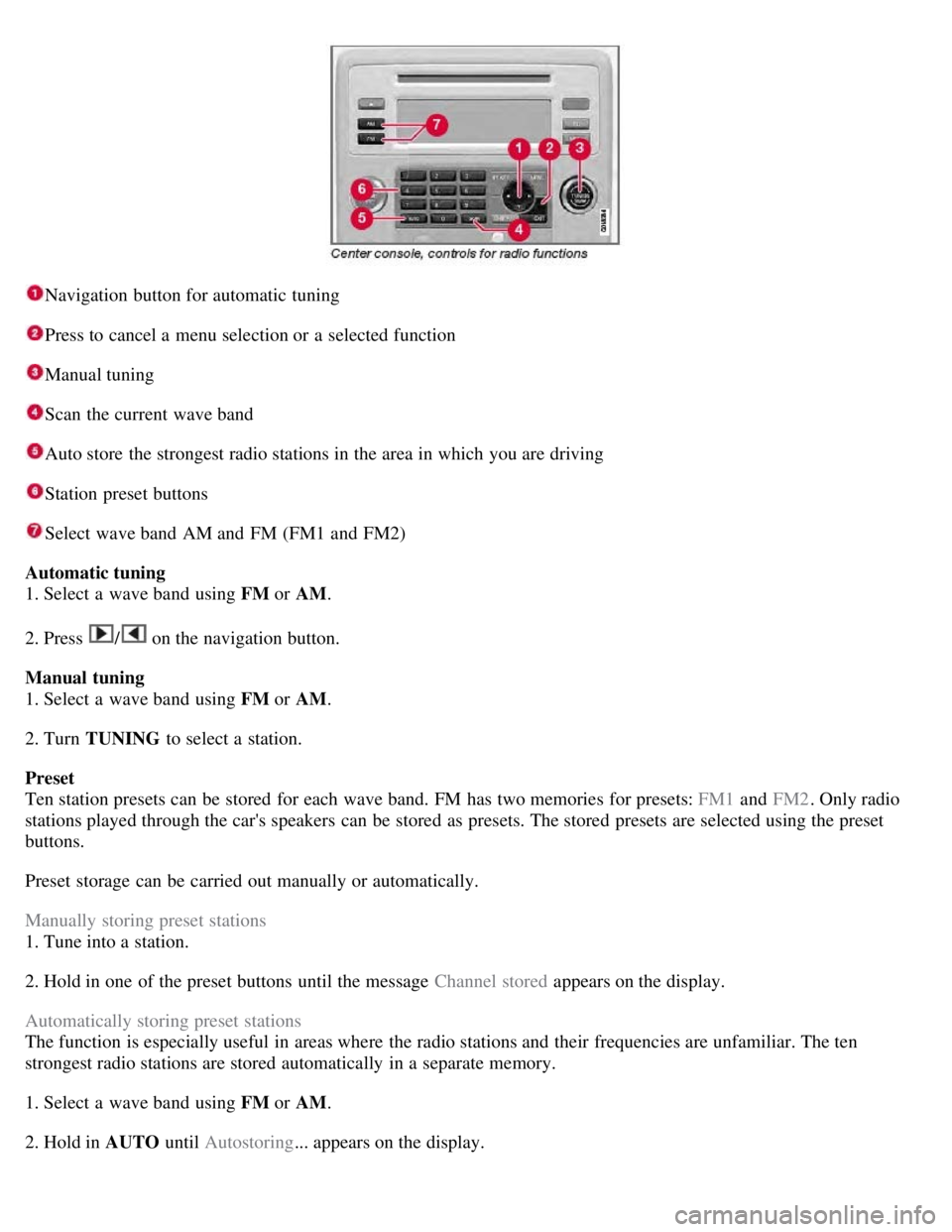
Navigation button for automatic tuning
Press to cancel a menu selection or a selected function
Manual tuning
Scan the current wave band
Auto store the strongest radio stations in the area in which you are driving
Station preset buttons
Select wave band AM and FM (FM1 and FM2)
Automatic tuning
1. Select a wave band using FM or AM.
2. Press
/ on the navigation button.
Manual tuning
1. Select a wave band using FM or AM.
2. Turn TUNING to select a station.
Preset
Ten station presets can be stored for each wave band. FM has two memories for presets: FM1 and FM2. Only radio
stations played through the car's speakers can be stored as presets. The stored presets are selected using the preset
buttons.
Preset storage can be carried out manually or automatically.
Manually storing preset stations
1. Tune into a station.
2. Hold in one of the preset buttons until the message Channel stored appears on the display.
Automatically storing preset stations
The function is especially useful in areas where the radio stations and their frequencies are unfamiliar. The ten
strongest radio stations are stored automatically in a separate memory.
1. Select a wave band using FM or AM.
2. Hold in AUTO until Autostoring... appears on the display.
Page 140 of 275
Once Autostoring... disappears from the display, the stations are stored. The radio continues in Auto mode and Auto
appears on the display. The automatically stored presets can now be selected using the preset buttons. Automatic
preset storage can be cancelled using EXIT .
Auto mode is cancelled by pressing for example AUTO or FM.
Returning to Auto mode provides access to the autostored presets:
1. Press AUTO .
Auto appears on the display.
2. Press a preset button.
Scan
The function automatically searches the current wave band for strong stations. When a station is found, it is played for
approx. eight seconds before scanning is resumed. While the station is playing it can be stored as a preset as usual.
1. Select a wave band using AM or FM.
2. Press SCAN .
SCAN appears on the display. Close using SCAN or EXIT.
142 04 Comfort and driving pleasure
Audio system
Radio text
Some stations transmit information on program content, artists, etc. This information can be shown on the display.
Activate/deactivate in FM mode under Radio text.
143 04 Comfort and driving pleasure
Audio system
Sirius satellite radio (option)
Listening to satellite radio
The Sirius satellite system consists of a number of high elevation satellites in geosynchronous orbit.
NOTE
The digital signals from the Sirius satellites are line-of-sight, which means that physical obstructions such as
bridges, tunnels, etc, may temporarily interfere with signal reception.
Avoid any obstructions, such as metallic objects transported on roof racks or in a ski box, or other antennas that
may impede signals from the SIRIUS satellites.
Selecting Sirius radio mode
1. Press Power to switch on the audio system (see pages 137
and 141 for information on the standard audio and radio
functions).
Page 142 of 275
Direct channel entry
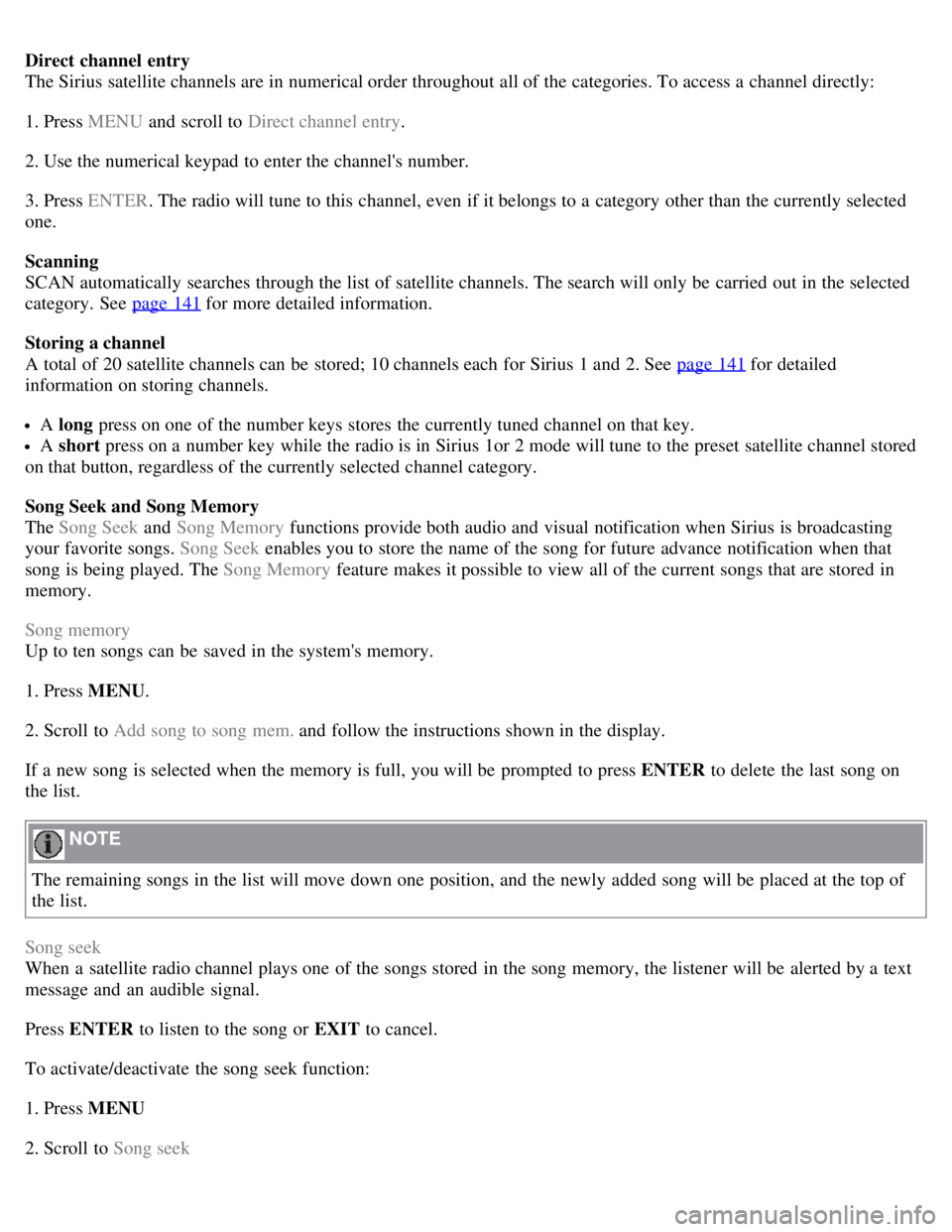
The Sirius satellite channels are in numerical order throughout all of the categories. To access a channel directly:
1. Press MENU and scroll to Direct channel entry .
2. Use the numerical keypad to enter the channel's number.
3. Press ENTER . The radio will tune to this channel, even if it belongs to a category other than the currently selected
one.
Scanning
SCAN automatically searches through the list of satellite channels. The search will only be carried out in the selected
category. See page 141
for more detailed information.
Storing a channel
A total of 20 satellite channels can be stored; 10 channels each for Sirius 1 and 2. See page 141
for detailed
information on storing channels.
A long press on one of the number keys stores the currently tuned channel on that key.
A short press on a number key while the radio is in Sirius 1or 2 mode will tune to the preset satellite channel stored
on that button, regardless of the currently selected channel category.
Song Seek and Song Memory
The Song Seek and Song Memory functions provide both audio and visual notification when Sirius is broadcasting
your favorite songs. Song Seek enables you to store the name of the song for future advance notification when that
song is being played. The Song Memory feature makes it possible to view all of the current songs that are stored in
memory.
Song memory
Up to ten songs can be saved in the system's memory.
1. Press MENU .
2. Scroll to Add song to song mem. and follow the instructions shown in the display.
If a new song is selected when the memory is full, you will be prompted to press ENTER to delete the last song on
the list.
NOTE
The remaining songs in the list will move down one position, and the newly added song will be placed at the top of
the list.
Song seek
When a satellite radio channel plays one of the songs stored in the song memory, the listener will be alerted by a text
message and an audible signal.
Press ENTER to listen to the song or EXIT to cancel.
To activate/deactivate the song seek function:
1. Press MENU
2. Scroll to Song seek
Page 145 of 275
If you have forgotten the access code:
1. Select SIRIUS ID in the Sirius settings menu and press ENTER .
2. Press and hold the ENTER button for 2 seconds.
3. The current code will be displayed.
Your Volvo retailer can also provide you with assistance.
SIRIUS ID
This function displays the 12-digit Sirius activation ID.
147 04 Comfort and driving pleasure
Trip computer
Introduction
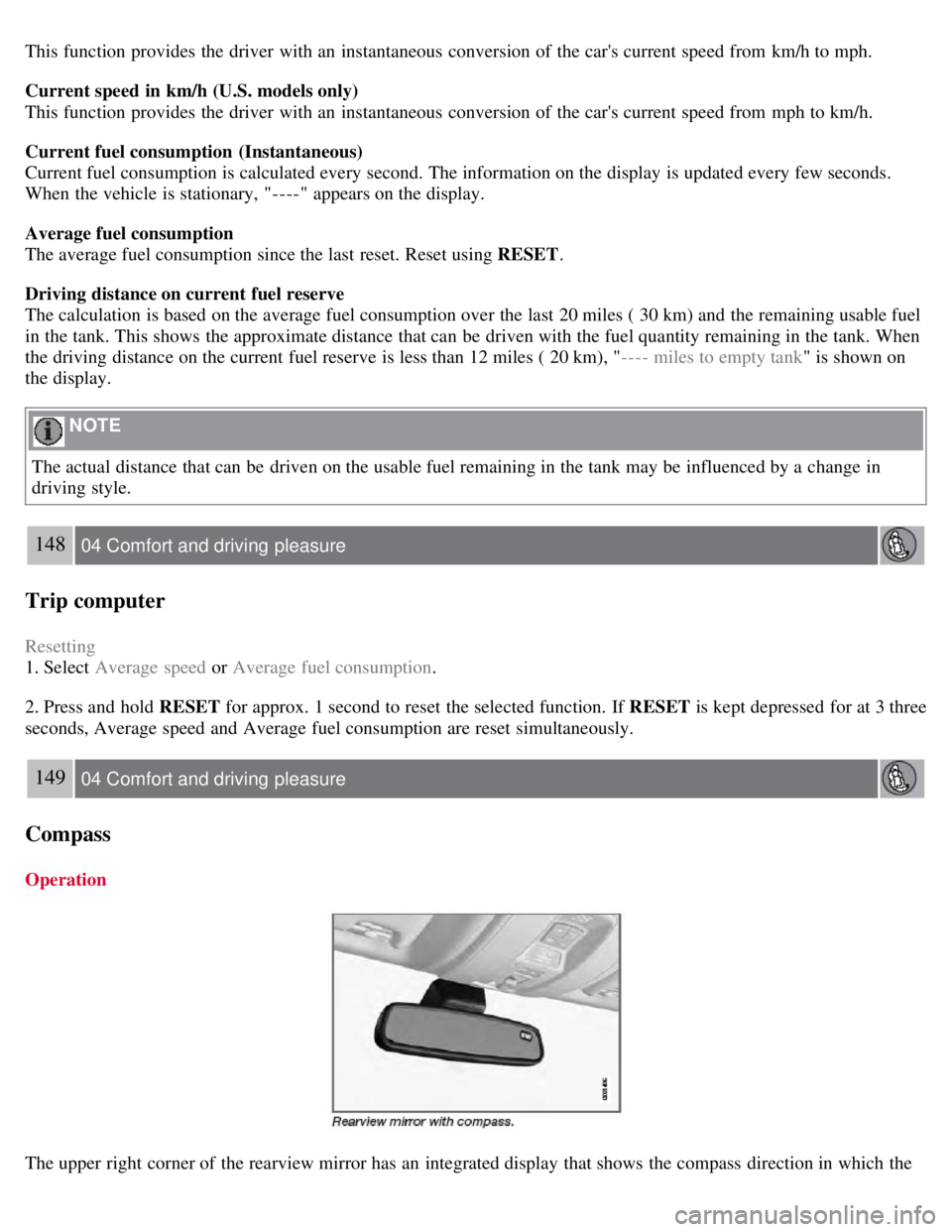
READ - confirms/erases messages
Thumb wheel - browse among menus and options in the trip computer list
RESET - resets certain functions
To scroll through trip computer information, move the thumb wheel up or down. Continue turning to return to the
starting point.
Functions
NOTE
If a warning message appears while you are using the trip computer, this message must be acknowledged in order to
return to the trip computer function. Acknowledge a message by pressing READ .
To change the unit of measure specified for distance and speed, contact an authorized Volvo workshop.
Average speed
The system calculates the average speed from the last resetting. Reset using RESET .
Current speed in mph (Canadian models only)
Page 146 of 275
This function provides the driver with an instantaneous conversion of the car's current speed from km/h to mph.
Current speed in km/h (U.S. models only)
This function provides the driver with an instantaneous conversion of the car's current speed from mph to km/h.
Current fuel consumption (Instantaneous)
Current fuel consumption is calculated every second. The information on the display is updated every few seconds.
When the vehicle is stationary, "----" appears on the display.
Average fuel consumption
The average fuel consumption since the last reset. Reset using RESET.
Driving distance on current fuel reserve
The calculation is based on the average fuel consumption over the last 20 miles ( 30 km) and the remaining usable fuel
in the tank. This shows the approximate distance that can be driven with the fuel quantity remaining in the tank. When
the driving distance on the current fuel reserve is less than 12 miles ( 20 km), " ---- miles to empty tank" is shown on
the display.
NOTE
The actual distance that can be driven on the usable fuel remaining in the tank may be influenced by a change in
driving style.
148 04 Comfort and driving pleasure
Trip computer
Resetting
1. Select Average speed or Average fuel consumption .
2. Press and hold RESET for approx. 1 second to reset the selected function. If RESET is kept depressed for at 3 three
seconds, Average speed and Average fuel consumption are reset simultaneously.
149 04 Comfort and driving pleasure
Compass
Operation
The upper right corner of the rearview mirror has an integrated display that shows the compass direction in which the
Page 149 of 275
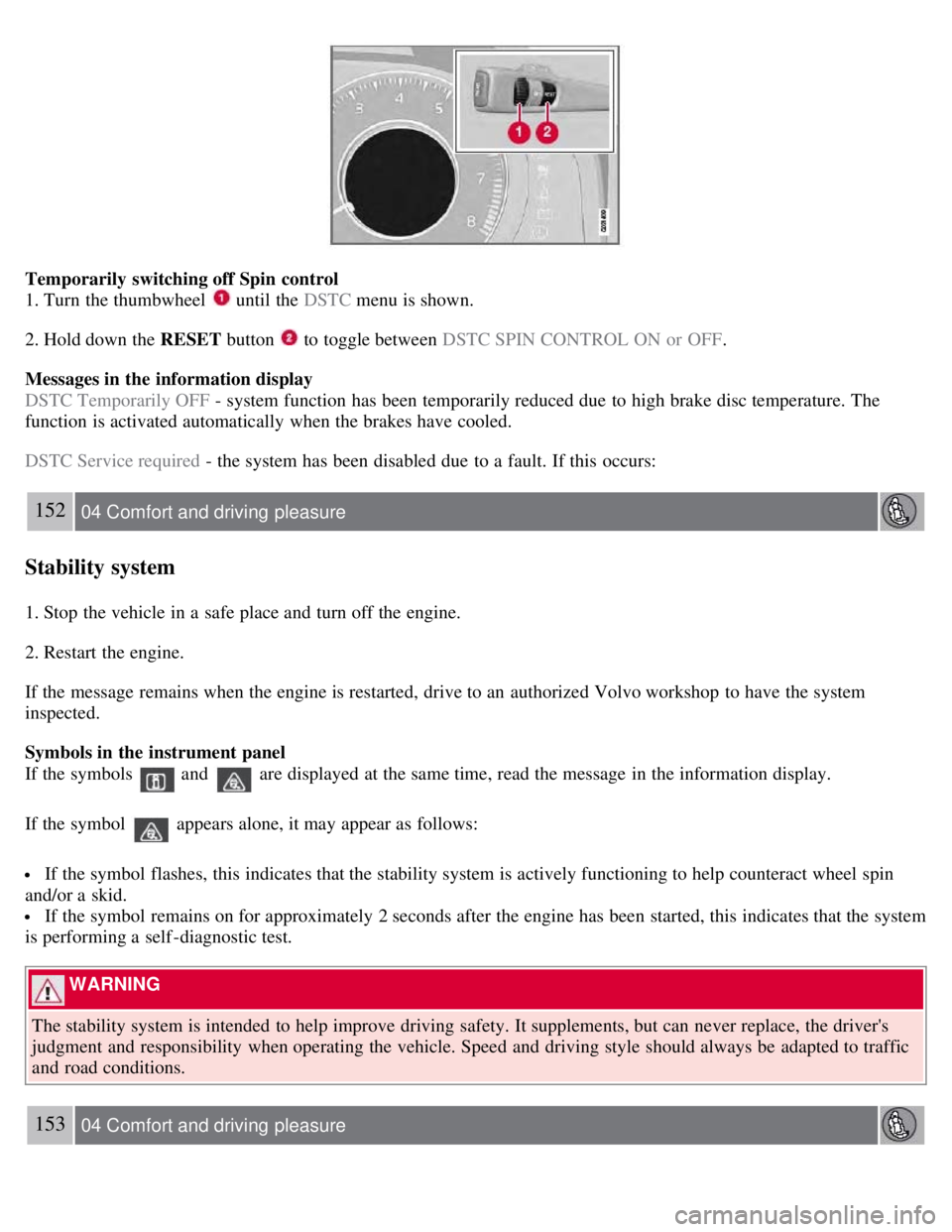
Temporarily switching off Spin control
1. Turn the thumbwheel
until the DSTC menu is shown.
2. Hold down the RESET button
to toggle between DSTC SPIN CONTROL ON or OFF .
Messages in the information display
DSTC Temporarily OFF - system function has been temporarily reduced due to high brake disc temperature. The
function is activated automatically when the brakes have cooled.
DSTC Service required - the system has been disabled due to a fault. If this occurs:
152 04 Comfort and driving pleasure
Stability system
1. Stop the vehicle in a safe place and turn off the engine.
2. Restart the engine.
If the message remains when the engine is restarted, drive to an authorized Volvo workshop to have the system
inspected.
Symbols in the instrument panel
If the symbols
and are displayed at the same time, read the message in the information display.
If the symbol
appears alone, it may appear as follows:
If the symbol flashes, this indicates that the stability system is actively functioning to help counteract wheel spin
and/or a skid.
If the symbol remains on for approximately 2 seconds after the engine has been started, this indicates that the system
is performing a self -diagnostic test.
WARNING
The stability system is intended to help improve driving safety. It supplements, but can never replace, the driver's
judgment and responsibility when operating the vehicle. Speed and driving style should always be adapted to traffic
and road conditions.
153 04 Comfort and driving pleasure
Page 152 of 275
Adjusting the set speed
After a speed has been set, it can be increased or decreased by using the
or buttons.
Press and hold down or until the vehicle reaches the desired speed. This will become the set speed when the
button is released.
Press or for approximately a half second and release the button to increase or decrease vehicle speed by
approximately 1 mph (1.6 km/h).
NOTE
A temporary increase in speed by pressing the accelerator pedal, for less than 1 minute (e.g. when passing another
car), does not affect the current cruise control setting. The vehicle will automatically return to the previously set
speed when the accelerator pedal is released.
If one of the cruise control buttons is kept depressed for more than approx. 1 minute cruise control is disengaged.
The engine must then be switched off in order to reset cruise control.
Automatic deactivation
Cruise control is automatically deactivated temporarily if one of the following occurs:
If the speed drops below approximately 20 mph (30 km/h).
When the brake pedal is depressed.
If the gear selector is moved to position N.
During wheel spin or wheel lock-up.
If the vehicle's speed is increased by using the accelerator pedal for more than 1 minute.
The currently set speed will be saved in the system's memory.
155 04 Comfort and driving pleasure
Cruise control
Temporary deactivation
The driver can temporarily deactivate cruise control by pressing 0. The saved speed is shown in brackets in the
information display.
Resume set speed
If cruise control has been deactivated temporarily, it can be reactivated by pressing
. The vehicle's speed returns to
the most recently set speed.
WARNING
There may be a significant increase in speed after the
button has been pressed.
Deactivation
Cruise control is disengaged with CRUISE , by putting the gear selector in Neutral, or by switching off the engine. The
set speed is cleared.
WARNING
Cruise control should not be used in heavy traffic or when driving on wet or slippery roads. Cruise control may not
Page 156 of 275
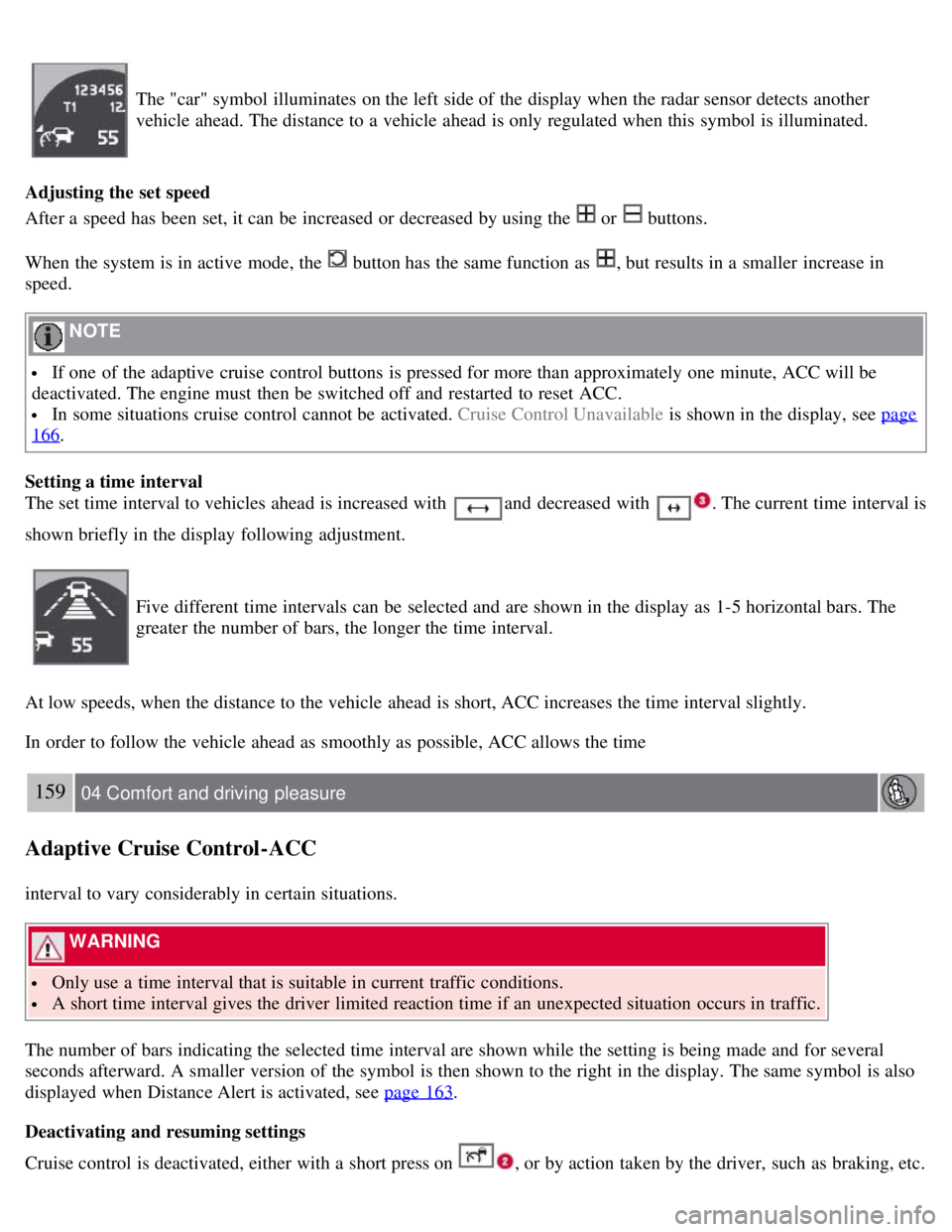
The "car" symbol illuminates on the left side of the display when the radar sensor detects another
vehicle ahead. The distance to a vehicle ahead is only regulated when this symbol is illuminated.
Adjusting the set speed
After a speed has been set, it can be increased or decreased by using the
or buttons.
When the system is in active mode, the
button has the same function as , but results in a smaller increase in
speed.
NOTE
If one of the adaptive cruise control buttons is pressed for more than approximately one minute, ACC will be
deactivated. The engine must then be switched off and restarted to reset ACC.
In some situations cruise control cannot be activated. Cruise Control Unavailable is shown in the display, see page
166.
Setting a time interval
The set time interval to vehicles ahead is increased with
and decreased with . The current time interval is
shown briefly in the display following adjustment.
Five different time intervals can be selected and are shown in the display as 1-5 horizontal bars. The
greater the number of bars, the longer the time interval.
At low speeds, when the distance to the vehicle ahead is short, ACC increases the time interval slightly.
In order to follow the vehicle ahead as smoothly as possible, ACC allows the time
159 04 Comfort and driving pleasure
Adaptive Cruise Control-ACC
interval to vary considerably in certain situations.
WARNING
Only use a time interval that is suitable in current traffic conditions.
A short time interval gives the driver limited reaction time if an unexpected situation occurs in traffic.
The number of bars indicating the selected time interval are shown while the setting is being made and for several
seconds afterward. A smaller version of the symbol is then shown to the right in the display. The same symbol is also
displayed when Distance Alert is activated, see page 163
.
Deactivating and resuming settings
Cruise control is deactivated, either with a short press on , or by action taken by the driver, such as braking, etc.