warning VOLVO S80 2014 Owner´s Manual
[x] Cancel search | Manufacturer: VOLVO, Model Year: 2014, Model line: S80, Model: VOLVO S80 2014Pages: 380, PDF Size: 10.83 MB
Page 182 of 380
04 Driver support
Rear Park Assist Camera (PAC)*
04
180* Option/accessory, for more information, see Introduction.
Introduction
The Park Assist Camera uses the display in the center console to show the area behindthe car while you are backing up. PAC also shows guiding lines in the on- screen image to indicate the direction that thevehicle will take as it moves rearward, whichhelps simplify parallel parking, backing into atight space or when attaching a trailer to thevehicle.
NOTE
A trailer hitch whose wiring is integrated with the vehicle's electrical system will beincluded in the measurement of the availa-ble space behind the vehicle.
WARNING
• PAC is designed to be a supplemen- tary aid when parking the vehicle. It isnot, however, intended to replace thedriver’s attention and judgment.
• The camera has blind spots where itcannot detect objects or peoplebehind the vehicle.
• Pay particular attention to people oranimals that are close to the vehicle.
Function
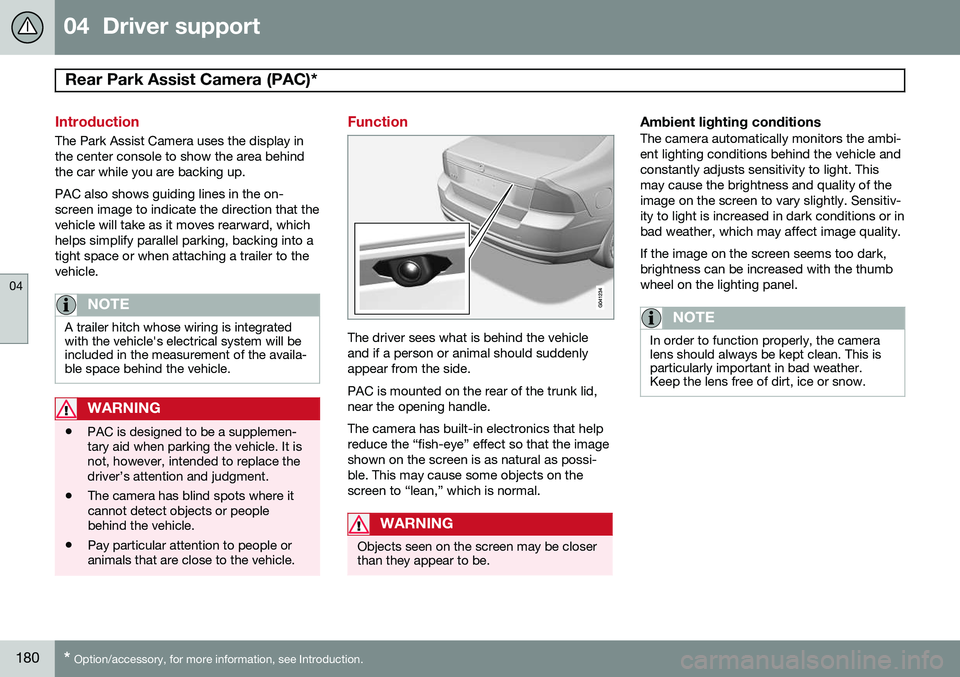
The driver sees what is behind the vehicle and if a person or animal should suddenlyappear from the side. PAC is mounted on the rear of the trunk lid, near the opening handle. The camera has built-in electronics that help reduce the “fish-eye” effect so that the imageshown on the screen is as natural as possi-ble. This may cause some objects on thescreen to “lean,” which is normal.
WARNING
Objects seen on the screen may be closer than they appear to be.
Ambient lighting conditionsThe camera automatically monitors the ambi- ent lighting conditions behind the vehicle andconstantly adjusts sensitivity to light. Thismay cause the brightness and quality of theimage on the screen to vary slightly. Sensitiv-ity to light is increased in dark conditions or inbad weather, which may affect image quality. If the image on the screen seems too dark, brightness can be increased with the thumbwheel on the lighting panel.
NOTE
In order to function properly, the camera lens should always be kept clean. This isparticularly important in bad weather.Keep the lens free of dirt, ice or snow.
Page 183 of 380
04 Driver support
Rear Park Assist Camera (PAC)*
04
* Option/accessory, for more information, see Introduction.181
Using PAC
Activation
PAC is activated when the gear selector is moved to R if the system is selected in the
MY CAR menu system or by pressing the
CAM button in the center console. See page
193 for a description of the menu system. If the Volvo Navigation System (VNS) is in use, PAC will automatically override the navi-gation system to show the camera's imageon the screen instead of navigation informa-tion, for as long as reverse gear is selected.
DeactivationMove the gear selector from R to another
position. There is a slight delay in the PACsystem, which means that the view from behind the vehicle will remain on the screenfor approximately 15 seconds after the gearselector has been moved from the
R position
or until the vehicle reaches a forward speedof 6 mph (10 km/h). The screen will thenrevert to the mode that it was in before R was
selected and will, for example, display navi-gation system information.
NOTE
If any button on the center console control panel is pressed, the camera image willdisappear from the display. Pressing CAM
will return the camera image to the display.
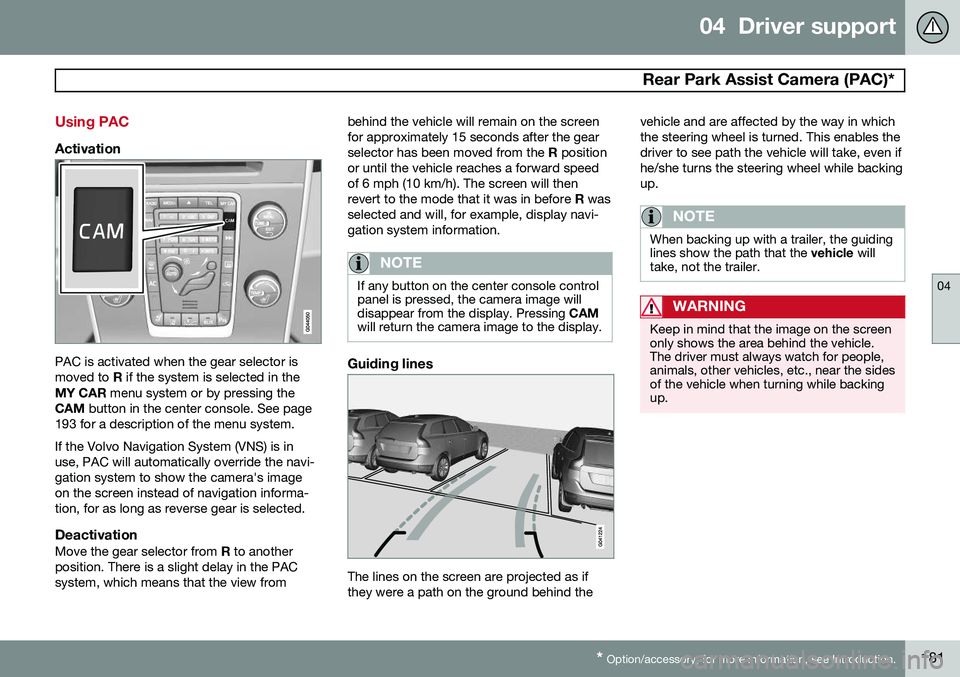
Guiding lines
The lines on the screen are projected as if they were a path on the ground behind the vehicle and are affected by the way in whichthe steering wheel is turned. This enables thedriver to see path the vehicle will take, even ifhe/she turns the steering wheel while backingup.
NOTE
When backing up with a trailer, the guiding lines show the path that the
vehicle will
take, not the trailer.
WARNING
Keep in mind that the image on the screen only shows the area behind the vehicle.The driver must always watch for people,animals, other vehicles, etc., near the sidesof the vehicle when turning while backingup.
Page 186 of 380
04 Driver support
Blind Spot Information System (BLIS)*
04
184* Option/accessory, for more information, see Introduction.
Introduction
G021426
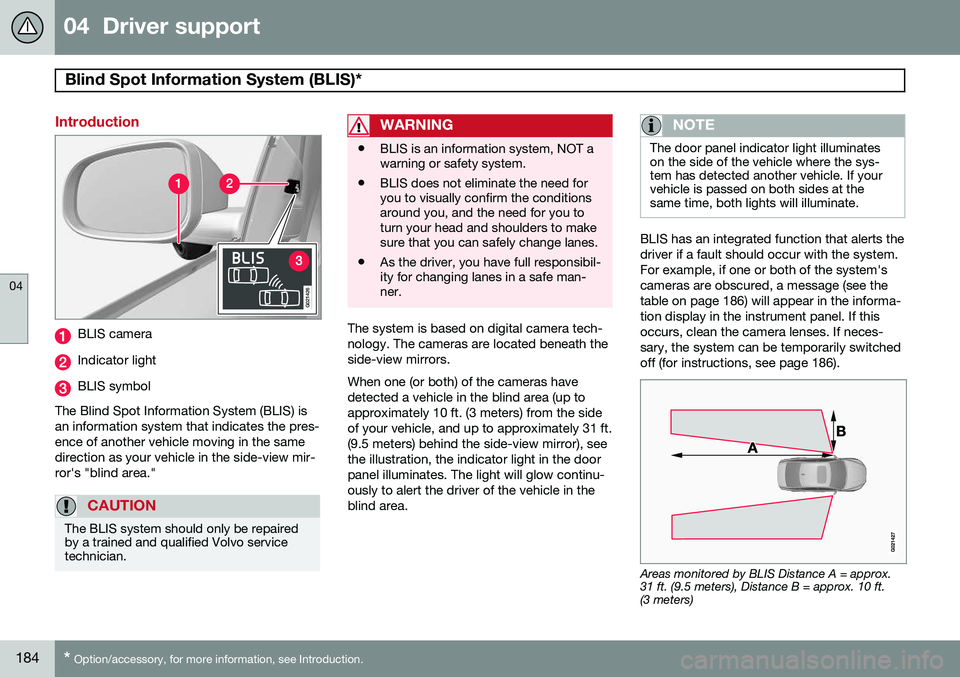
BLIS camera
Indicator light
BLIS symbol
The Blind Spot Information System (BLIS) is an information system that indicates the pres-ence of another vehicle moving in the samedirection as your vehicle in the side-view mir-ror's "blind area."
CAUTION
The BLIS system should only be repaired by a trained and qualified Volvo servicetechnician.
WARNING
• BLIS is an information system, NOT a warning or safety system.
• BLIS does not eliminate the need foryou to visually confirm the conditionsaround you, and the need for you toturn your head and shoulders to makesure that you can safely change lanes.
• As the driver, you have full responsibil-ity for changing lanes in a safe man-ner.
The system is based on digital camera tech- nology. The cameras are located beneath theside-view mirrors. When one (or both) of the cameras have detected a vehicle in the blind area (up toapproximately 10 ft. (3 meters) from the sideof your vehicle, and up to approximately 31 ft.(9.5 meters) behind the side-view mirror), seethe illustration, the indicator light in the doorpanel illuminates. The light will glow continu-ously to alert the driver of the vehicle in theblind area.
NOTE
The door panel indicator light illuminates on the side of the vehicle where the sys-tem has detected another vehicle. If yourvehicle is passed on both sides at thesame time, both lights will illuminate.
BLIS has an integrated function that alerts the driver if a fault should occur with the system.For example, if one or both of the system'scameras are obscured, a message (see thetable on page 186) will appear in the informa-tion display in the instrument panel. If thisoccurs, clean the camera lenses. If neces-sary, the system can be temporarily switchedoff (for instructions, see page 186).
Areas monitored by BLIS Distance A = approx. 31 ft. (9.5 meters), Distance B = approx. 10 ft.(3 meters)
Page 187 of 380
04 Driver support
Blind Spot Information System (BLIS)*
04
* Option/accessory, for more information, see Introduction.185
When does BLIS function
The system functions when your vehicle is moving at speeds above 6 mph (10 km/h).
When you pass another vehicle:The system reacts when you pass another vehicle at a speed of up to 6 mph (10 km/h)faster than that vehicle.
When you are passed by another
vehicle:
The system reacts if your vehicle is passed by another vehicle at a speed of up to 43 mph(70 km/h) faster than your vehicle.
WARNING
• BLIS does not function in sharp curves.
• BLIS does not function when yourvehicle is backing up.
• If you are towing a wide trailer, thismay prevent the BLIS cameras fromdetecting other vehicles in adjacentlanes.
How BLIS functions in daylight and darkness
DaylightBLIS reacts to the
shape of surrounding vehi-
cles. The system is designed to help detect motor vehicles such as cars, trucks, buses, motorcycles, etc.
DarknessBLIS reacts to the
headlights of surrounding
vehicles. In order to be detected by BLIS, a vehicle in the blind area must have its head-lights on. This means, for example, that thesystem will not detect a trailer without head-lights that is being towed behind a car ortruck.
WARNING
• BLIS does not react to cyclists or mopeds.
• BLIS does not react to vehicles thatare standing still.
• The BLIS cameras have the same limi-tation as the human eye. In otherwords, their "vision is impaired" byadverse weather conditions such asheavy snowfall, intense light directlyinto the camera, dense fog, etc.
LimitationsIn certain situations, the BLIS indicator light(s) may illuminate even when there are no othervehicles in the area monitored by the system.
NOTE
If the BLIS indicator lights illuminate occa- sionally even when there are no other vehi-cles in the blind area, this does not indi-cate a fault in the system. In the event of a fault,
Blind spot syst.
Service required will be displayed.
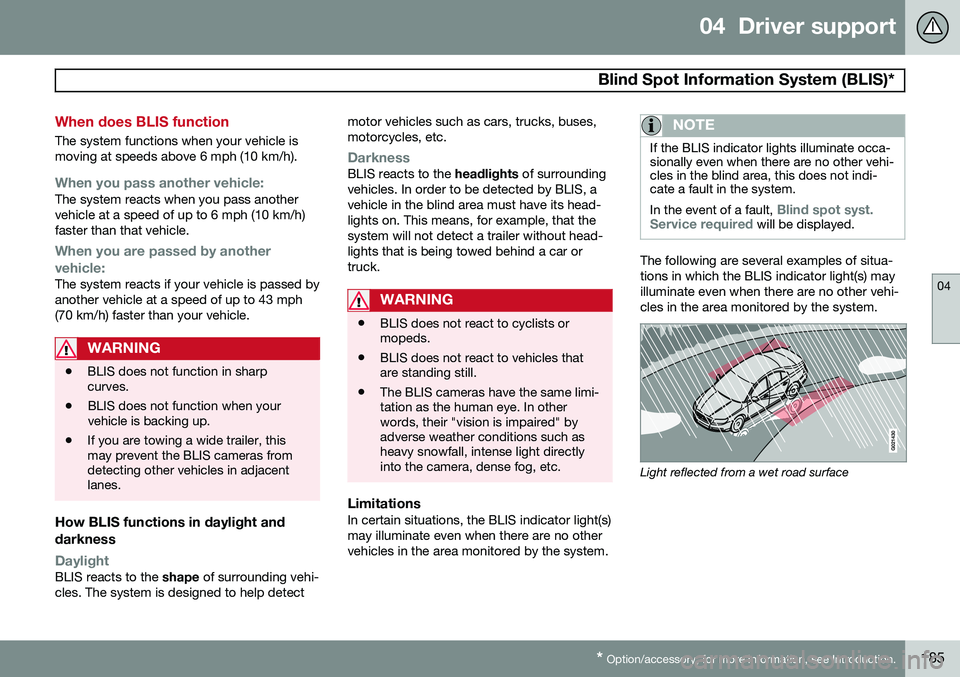
The following are several examples of situa- tions in which the BLIS indicator light(s) mayilluminate even when there are no other vehi-cles in the area monitored by the system.
Light reflected from a wet road surface
Page 194 of 380
05 Comfort and driving pleasure
Menus and messages
05
192
Messages
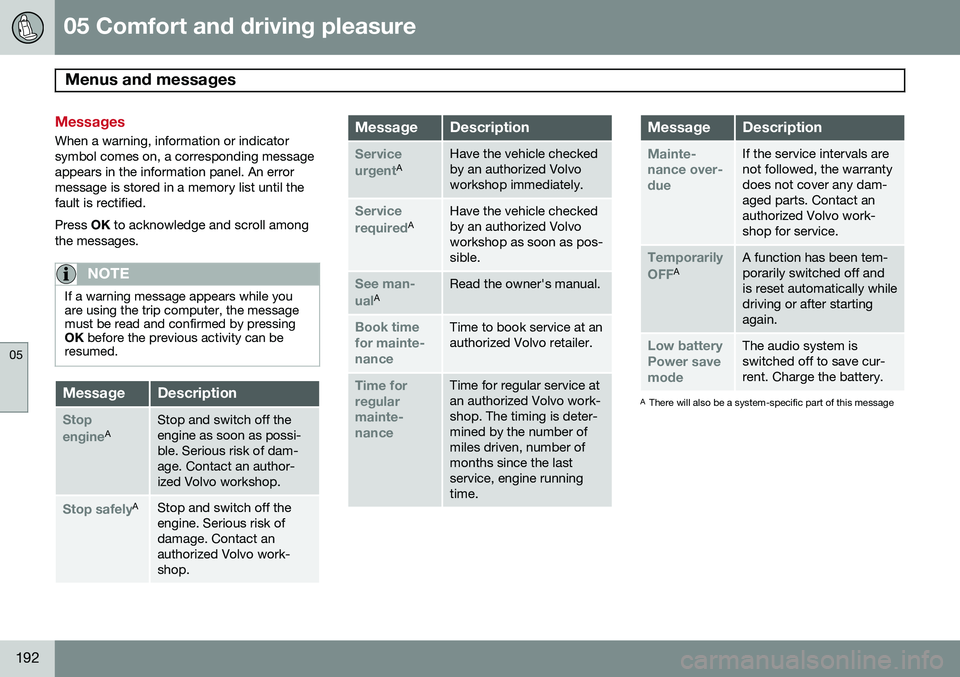
When a warning, information or indicator symbol comes on, a corresponding messageappears in the information panel. An errormessage is stored in a memory list until thefault is rectified. Press OK to acknowledge and scroll among
the messages.
NOTE
If a warning message appears while you are using the trip computer, the messagemust be read and confirmed by pressingOK before the previous activity can be
resumed.
MessageDescription
Stop engineAStop and switch off the engine as soon as possi-ble. Serious risk of dam-age. Contact an author-ized Volvo workshop.
Stop safelyAStop and switch off the engine. Serious risk ofdamage. Contact anauthorized Volvo work-shop.
MessageDescription
Service urgentAHave the vehicle checked by an authorized Volvoworkshop immediately.
Service requiredAHave the vehicle checked by an authorized Volvoworkshop as soon as pos-sible.
See man- ualARead the owner's manual.
Book time for mainte-nanceTime to book service at an authorized Volvo retailer.
Time for regularmainte-nanceTime for regular service at an authorized Volvo work-shop. The timing is deter-mined by the number ofmiles driven, number ofmonths since the lastservice, engine runningtime.
MessageDescription
Mainte- nance over-dueIf the service intervals are not followed, the warrantydoes not cover any dam-aged parts. Contact anauthorized Volvo work-shop for service.
Temporarily OFFAA function has been tem- porarily switched off andis reset automatically whiledriving or after startingagain.
Low battery Power savemodeThe audio system is switched off to save cur-rent. Charge the battery.
A There will also be a system-specific part of this message
Page 198 of 380
05 Comfort and driving pleasure
The MY CAR menus
05
196
Medium Low
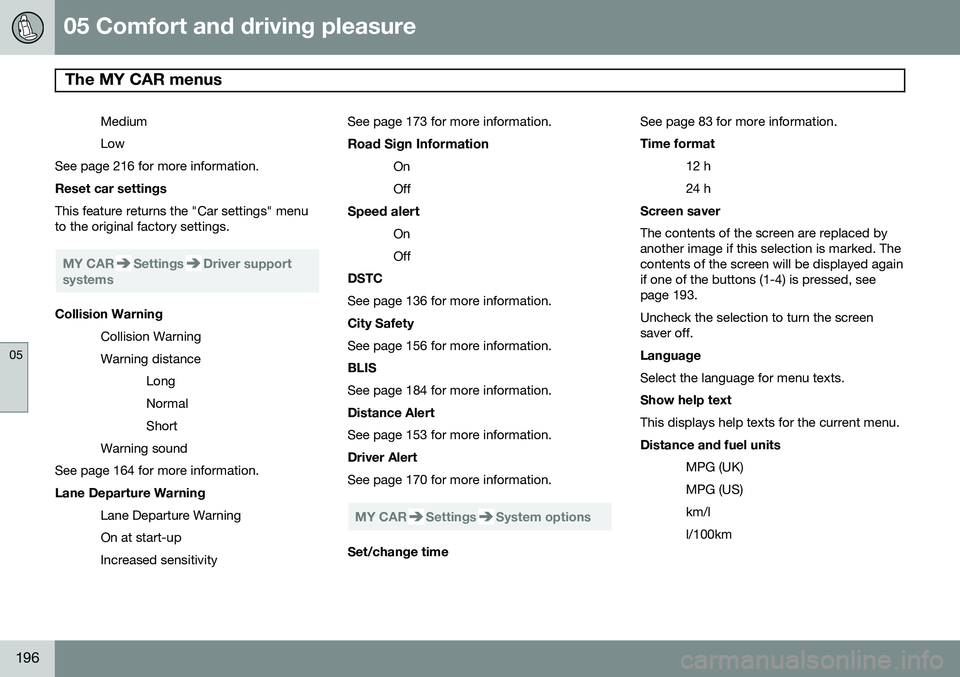
See page 216 for more information. Reset car settings This feature returns the "Car settings" menu to the original factory settings.
MY CARSettingsDriver support
systems
Collision Warning
Collision Warning Warning distanceLongNormalShort
Warning sound
See page 164 for more information. Lane Departure Warning
Lane Departure Warning On at start-upIncreased sensitivity See page 173 for more information.
Road Sign Information OnOff
Speed alert OnOff
DSTC See page 136 for more information. City Safety See page 156 for more information. BLIS See page 184 for more information. Distance Alert See page 153 for more information. Driver Alert See page 170 for more information.
MY CARSettingsSystem options
Set/change time See page 83 for more information. Time format
12 h 24 h
Screen saver The contents of the screen are replaced by another image if this selection is marked. Thecontents of the screen will be displayed againif one of the buttons (1-4) is pressed, seepage 193. Uncheck the selection to turn the screen saver off. Language Select the language for menu texts. Show help text This displays help texts for the current menu. Distance and fuel units
MPG (UK) MPG (US)km/ll/100km
Page 211 of 380
05 Comfort and driving pleasure
Trip computer
05
209
Introduction
The content and appearance of the trip com- puter varies depending on whether the vehi-cle is equipped with an analog or digital
instrument panel. The instrument panel illuminates as soon as the vehicle is unlocked and trip computer set-tings can be made. If none of the trip com-puter's controls are used within 30 secondsafter the driver's door has been opened, theinstrument panel lighting will go out and thetrip computer cannot be used again until: • the ignition is put in mode II1
• the engine is started
NOTE
If a warning message appears while you are using the trip computer, this messagemust be acknowledged in order to returnto the trip computer function. Acknowl-edge a message by pressing
OK.
Trip computer in models with an analog instrument panel
The trip computer has two different menu groups: •
Trip computer functions
• Trip computer information headings in the instrument panel
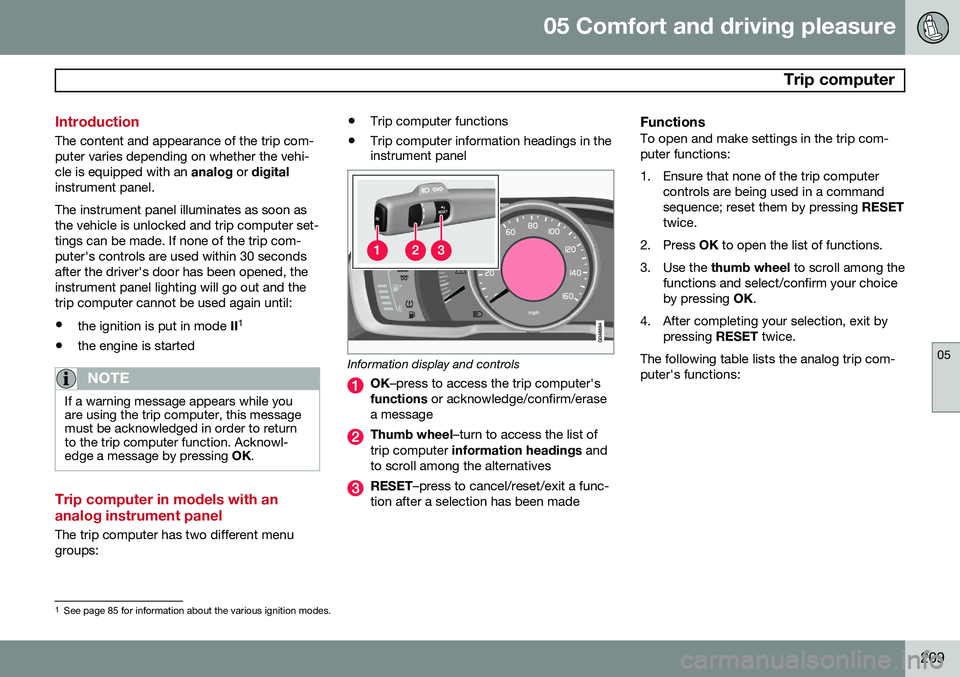
Information display and controls
OK
–press to access the trip computer's
functions or acknowledge/confirm/erase
a message
Thumb wheel –turn to access the list of
trip computer information headings and
to scroll among the alternatives
RESET –press to cancel/reset/exit a func-
tion after a selection has been made
FunctionsTo open and make settings in the trip com- puter functions:
1. Ensure that none of the trip computer controls are being used in a command sequence; reset them by pressing RESET
twice.
2. Press OK to open the list of functions.
3. Use the thumb wheel to scroll among the
functions and select/confirm your choiceby pressing OK.
4. After completing your selection, exit by pressing RESET twice.
The following table lists the analog trip com-puter's functions:
1 See page 85 for information about the various ignition modes.
Page 221 of 380
05 Comfort and driving pleasure
Passenger compartment convenience
05
219
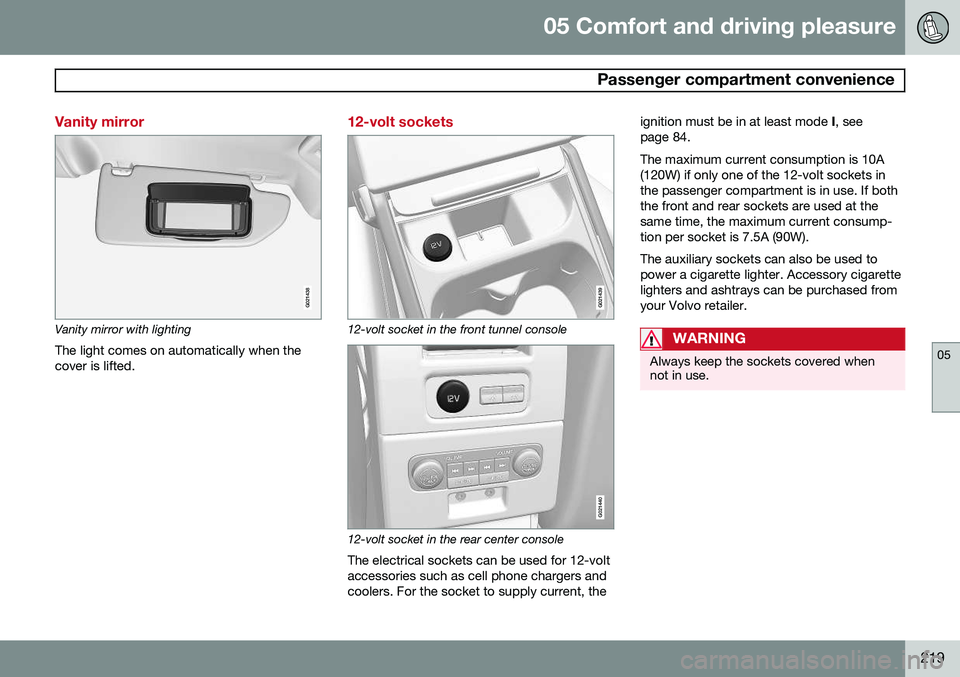
Vanity mirror
G021438
Vanity mirror with lightingThe light comes on automatically when the cover is lifted.
12-volt sockets
G021439
12-volt socket in the front tunnel console
G021440
12-volt socket in the rear center console
The electrical sockets can be used for 12-volt accessories such as cell phone chargers andcoolers. For the socket to supply current, the ignition must be in at least mode
I, see
page 84. The maximum current consumption is 10A (120W) if only one of the 12-volt sockets inthe passenger compartment is in use. If boththe front and rear sockets are used at thesame time, the maximum current consump-tion per socket is 7.5A (90W). The auxiliary sockets can also be used to power a cigarette lighter. Accessory cigarettelighters and ashtrays can be purchased fromyour Volvo retailer.
WARNING
Always keep the sockets covered when not in use.
Page 243 of 380
06 Infotainment
Radio
06
241
WARNING
Settings should be made when the vehicle is at a standstill.
The following settings can be made in the satellite menus: •Channel skip settings can be made
• Channel lock settings can be made
• The channel access code can be dis- played or changed (see also "Locking achannel" on page 241)
• Your SiriusXM
™ ID can be displayed
• Reset SiriusXM
™ settings
Skip optionsThis function is used to remove a channel from the list of available channels.
Skipping a channel1. Press OK/MENU .
2. Scroll to the
Advanced settings menu.
3. Press OK/MENU to enter the
Skip
options menu.
4. Press OK/MENU to enter
Channel skip
list. 5.
Press OK/MENU to select
All categoriesor turn TUNE to scroll to a category and
press OK/MENU to select it.
6. Press OK/MENU to select
Skip all
channels in the category or turn TUNE
to scroll to a channel and press OK/
MENU to select or deselect it. Multiple
channels can be selected.
Unskip all channelsThis removes all channels from the skip list and makes them available for selection.
Temporary unskip all channelsThis function will temporarily unskip all chan- nels and make them available for selection.The channels remain on the skip list and willagain be skipped the next time the ignition isswitched on.
Channel lockAccess to specific channels can be restricted(locked). A locked channel will not provideaudio, song titles, or artist information.
NOTE
All channels are initially unlocked.
Locking a channel1. Press OK/MENU .
2. Scroll to the
Advanced settings menu.
3. Press OK/MENU and turn TUNE to scroll
to the
Lock options menu and press
OK/MENU .
4. Use the keypad in the central control panel to enter the channel access code 2
and press OK/MENU .
5. Press OK/MENU to enter the
Channel
lock list.
6. Press OK/MENU to select
All categoriesor turn TUNE to scroll to a category and
press OK/MENU to select it.
7. Press OK/MENU to select
Lock all
channels in the category or turn TUNE
to scroll to a channel and press OK/
MENU to select it. Multiple channels can
be selected.
The selected channel is now locked and a checked box will be displayed to indicatethis. It will be necessary to enter the channel access code 2
in order to listen to a locked
channel.
2 The default code is 0000. If you have changed the code and forgotten it, see the section "If you have forgotten the access code."
Page 255 of 380
06 Infotainment
Bluetooth®
hands-free connection
06
253
Introduction
This feature makes it possible to set up a wireless connection between a Bluetooth ®
-
enabled cell phone or other device and the vehicle’s infotainment system. This enablesthe infotainment system to function as ahands-free connection and allows you toremote-control a number of the phone’s func-tions. The microphone used by this system islocated near the driver's side sun visor (2).The buttons and other controls on the cellphone can always be used regardless ofwhether or not the phone is connected to thehands-free system.
NOTE
Not all cell phones are fully compatible with the hands-free system. A list of com-patible phones is available at your Volvoretailer or at www.volvocars.us
WARNING
Never use the hands-free feature or any other device in your vehicle in a way thatdistracts you from the task of drivingsafely. Distraction can lead to a seriousaccident.
Compliance
FCC/IC common sentenceThis device complies with Part 15 of FCC Rules and RSS-Gen of IC Rules and IndustryCanada license-exempt RSS standard(s).Operation is subject to the following two con-ditions: (1) this device may not cause interfer-ence, and (2) this device must accept anyinterference, including interference that maycause undesired operation of this device. USA: FCC ID A269ZUA134USA: FCC ID A269ZUA135FCC WARNINGChanges or modifications not expressly approved by the party responsible for compli-ance could void the user’s authority to oper-ate the equipment.
IC RSS-GenThis equipment complies with FCC/IC radia- tion exposure limits set forth for an uncontrol-led environment and meets the FCC radio fre-quency (RF) Exposure Guidelines in Supple-ment C to OET65 and RSS-102 of the ICradio frequency (RF) Exposure rules. Thisequipment has very low levels of RF energythat it deemed to comply without maximumpermissive exposure evaluation (MPE). But itis desirable that it should be installed andoperated keeping the radiator at least 8 in. (20 cm) or more away from person’s body(excluding extremities: hands, wrists, feet andankles). Canada: IC 700BIAM2103Canada: IC 700BIAM2104
Menu navigationTEL
menu selections can be made from the
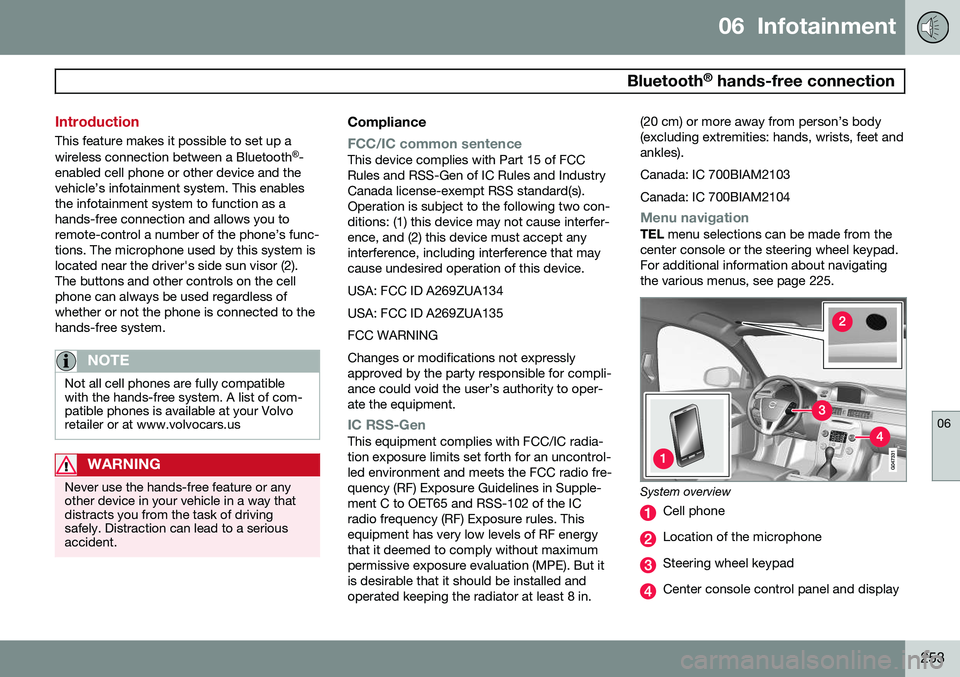
center console or the steering wheel keypad. For additional information about navigatingthe various menus, see page 225.
System overview
Cell phone
Location of the microphone
Steering wheel keypad
Center console control panel and display