radio VOLVO S80 2014 Owner´s Manual
[x] Cancel search | Manufacturer: VOLVO, Model Year: 2014, Model line: S80, Model: VOLVO S80 2014Pages: 380, PDF Size: 10.83 MB
Page 242 of 380
06 Infotainment
Radio
06
240
Scanning
Scan automatically searches through the list
of satellite channels. The search will only be carried out in the selected category, seepage 235 for more detailed information on thescan function.
Storing a channelA total of 20 satellite channels can be stored; 10 channels each for SAT1 and SAT2, see
page 235 for detailed information on storing channels.
• A
long press on one of the number keys
stores the currently tuned channel on that key.
• A
short press on a number key while the
radio is in
SAT1 or SAT2 mode will tune
to the preset satellite channel stored on that button, regardless of the currentlyselected channel category.
Searching for and storing songs
The Song Seek function provides notification
when SiriusXM ™ is broadcasting the songs
selected in song memory.
Song memoryenables you to store the name of the song for future advance notification when that song isbeing played.
Song seekWhen a satellite radio channel plays one of the songs stored in the song memory while the Song seek feature is activated, the lis-tener will be alerted by a text message and anaudible signal. Press
OK/MENU to listen to the song or EXIT
to cancel.To activate/deactivate the song seek func- tion:
1. Press OK/MENU .
2. Turn TUNE to scroll to
Song memoryand press OK/MENU .
3. Turn TUNE to scroll to
Song Seek and
press OK/MENU to activate or deactivate
the function.
NOTE
When the song has ended, the radio will remain tuned to the channel on which thesong was played.
Song memoryUp to ten songs can be saved in the system's memory. To add the currently playing song to the list:
1. Press OK/MENU .
2. Scroll to
Song memory and press OK/
MENU . 3.
Scroll to
Add current song to song
memory and press OK/MENU.
If a new song is selected when the memory is full, you will be prompted to delete a songfrom the list. To do so:
1. Press OK/MENU .
2. Turn TUNE to scroll through the list of
songs. Select a song and press OK/
MENU to delete it from the list.
Radio textThis text provides information about the song that is currently playing. To turn this featureon or off, press OK/MENU and scroll to
Show radio text and press OK/MENU to
toggle between on or off.
Advanced SiriusXM™ settings
This menu function enables you to make set- tings on certain SiriusXM ™ satellite radio
functions. To access this menu:
1. Press OK/MENU .
2. Scroll to the
Advanced settings menu
and press OK/MENU .
Page 243 of 380
06 Infotainment
Radio
06
241
WARNING
Settings should be made when the vehicle is at a standstill.
The following settings can be made in the satellite menus: •Channel skip settings can be made
• Channel lock settings can be made
• The channel access code can be dis- played or changed (see also "Locking achannel" on page 241)
• Your SiriusXM
™ ID can be displayed
• Reset SiriusXM
™ settings
Skip optionsThis function is used to remove a channel from the list of available channels.
Skipping a channel1. Press OK/MENU .
2. Scroll to the
Advanced settings menu.
3. Press OK/MENU to enter the
Skip
options menu.
4. Press OK/MENU to enter
Channel skip
list. 5.
Press OK/MENU to select
All categoriesor turn TUNE to scroll to a category and
press OK/MENU to select it.
6. Press OK/MENU to select
Skip all
channels in the category or turn TUNE
to scroll to a channel and press OK/
MENU to select or deselect it. Multiple
channels can be selected.
Unskip all channelsThis removes all channels from the skip list and makes them available for selection.
Temporary unskip all channelsThis function will temporarily unskip all chan- nels and make them available for selection.The channels remain on the skip list and willagain be skipped the next time the ignition isswitched on.
Channel lockAccess to specific channels can be restricted(locked). A locked channel will not provideaudio, song titles, or artist information.
NOTE
All channels are initially unlocked.
Locking a channel1. Press OK/MENU .
2. Scroll to the
Advanced settings menu.
3. Press OK/MENU and turn TUNE to scroll
to the
Lock options menu and press
OK/MENU .
4. Use the keypad in the central control panel to enter the channel access code 2
and press OK/MENU .
5. Press OK/MENU to enter the
Channel
lock list.
6. Press OK/MENU to select
All categoriesor turn TUNE to scroll to a category and
press OK/MENU to select it.
7. Press OK/MENU to select
Lock all
channels in the category or turn TUNE
to scroll to a channel and press OK/
MENU to select it. Multiple channels can
be selected.
The selected channel is now locked and a checked box will be displayed to indicatethis. It will be necessary to enter the channel access code 2
in order to listen to a locked
channel.
2 The default code is 0000. If you have changed the code and forgotten it, see the section "If you have forgotten the access code."
Page 244 of 380
06 Infotainment
Radio
06
242
Unlocking a channel
A channel's access code2
is required to
unlock a channel.
Unlock all channelsThis permanently removes all channels from the locked list and makes them available forselection.
Temporarily unlock all channelsThis function will temporarily unlock all chan- nels and make them available for selection.The channels remain on the locked list andwill again be locked the next time the ignitionis switched on.
CHANGE CODEThis function makes it possible to change the channel access code. The default code is0000. To change the code:1. Select
Change code in the Lock
options menu and press OK/MENU.
2. Enter the new code and press OK/
MENU .
3. Confirm the new code and press OK/
MENU .
If an incorrect code is entered, the text
Incorrect code is displayed. If you have forgotten the access code: 1.
Select
SIRIUS ID in the Advanced
settings menu and press OK/MENU.
2. Press and hold the OK/MENU button for
several seconds.
3. The current code will be displayed. Your Volvo retailer can also provide you with assistance.
SiriusXM™ ID
This function displays the 12-digit SiriusXM ™
activation ID.
2 The default code is 0000. If you have changed the code and forgotten it, see the section "If you have forgotten the access code."
Page 255 of 380
06 Infotainment
Bluetooth®
hands-free connection
06
253
Introduction
This feature makes it possible to set up a wireless connection between a Bluetooth ®
-
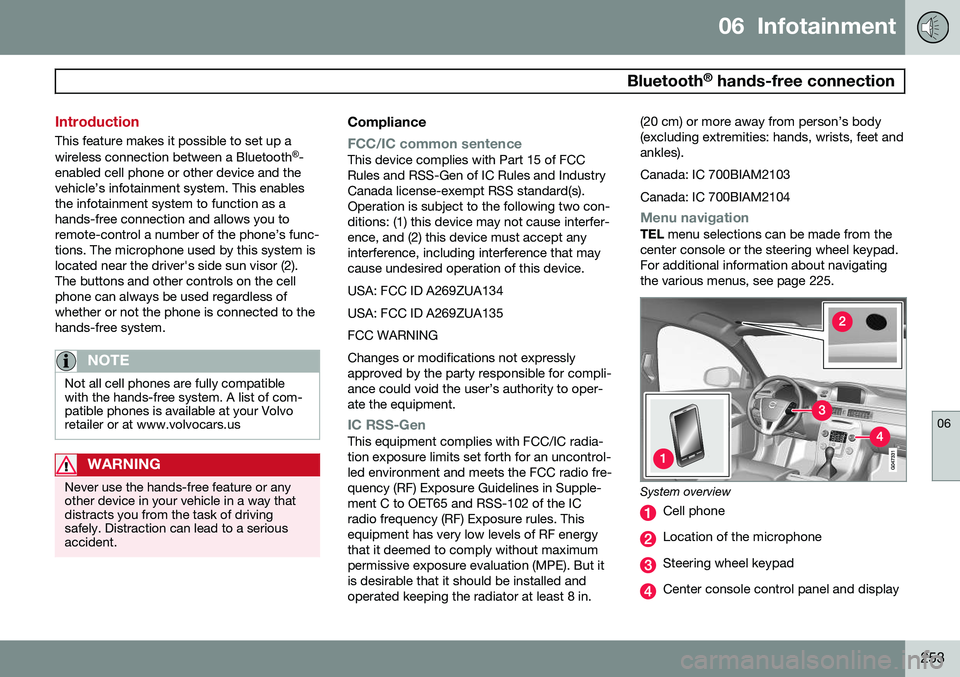
enabled cell phone or other device and the vehicle’s infotainment system. This enablesthe infotainment system to function as ahands-free connection and allows you toremote-control a number of the phone’s func-tions. The microphone used by this system islocated near the driver's side sun visor (2).The buttons and other controls on the cellphone can always be used regardless ofwhether or not the phone is connected to thehands-free system.
NOTE
Not all cell phones are fully compatible with the hands-free system. A list of com-patible phones is available at your Volvoretailer or at www.volvocars.us
WARNING
Never use the hands-free feature or any other device in your vehicle in a way thatdistracts you from the task of drivingsafely. Distraction can lead to a seriousaccident.
Compliance
FCC/IC common sentenceThis device complies with Part 15 of FCC Rules and RSS-Gen of IC Rules and IndustryCanada license-exempt RSS standard(s).Operation is subject to the following two con-ditions: (1) this device may not cause interfer-ence, and (2) this device must accept anyinterference, including interference that maycause undesired operation of this device. USA: FCC ID A269ZUA134USA: FCC ID A269ZUA135FCC WARNINGChanges or modifications not expressly approved by the party responsible for compli-ance could void the user’s authority to oper-ate the equipment.
IC RSS-GenThis equipment complies with FCC/IC radia- tion exposure limits set forth for an uncontrol-led environment and meets the FCC radio fre-quency (RF) Exposure Guidelines in Supple-ment C to OET65 and RSS-102 of the ICradio frequency (RF) Exposure rules. Thisequipment has very low levels of RF energythat it deemed to comply without maximumpermissive exposure evaluation (MPE). But itis desirable that it should be installed andoperated keeping the radiator at least 8 in. (20 cm) or more away from person’s body(excluding extremities: hands, wrists, feet andankles). Canada: IC 700BIAM2103Canada: IC 700BIAM2104
Menu navigationTEL
menu selections can be made from the
center console or the steering wheel keypad. For additional information about navigatingthe various menus, see page 225.
System overview
Cell phone
Location of the microphone
Steering wheel keypad
Center console control panel and display
Page 258 of 380
06 Infotainment
Bluetooth®
hands-free connection
06
256
Making a call1. Ensure that is shown at the top of
the center console display and that the hands-free function is in telephone mode.
2. Dial the desired phone number using the center console keypad or use the speeddial function (see page 260). In normalview (see page see page 225 for informa-tion about the various display views), it isalso possible to turn TUNE clockwise to
access the phone book and then counter-clockwise for the call list. See page 261for more information about the phonebook.
3. Press the thumb wheel or OK/MENU.
End or reject a call by pressing EXIT.
Disconnecting the cell phoneThe cell phone is automatically disconnectedfrom the infotainment system if it is movedout of range. The cell phone can be manually disconnected from the hands-free system by pressing andholding TEL or in phone mode, going to
Phone menuDisconnect phone. See also
page 257 for more information about con- nections. The hands-free system is also deactivatedwhen the ignition is switched off (or if thedriver’s door is opened). When the cell phone is disconnected from the hands-free system, a call in progress can becontinued using the cell phone’s own speakerand microphone. Even if the cell phone has been disconnected manually, some phones may reconnect auto-matically, for example when a new call is initi-ated.
Removing a paired deviceA paired phone or device can be removedfrom the list. To do so:
1. Press
TEL.
2. Select
Phone menuRemove
Bluetooth device.
Handling calls
Incoming calls–Press OK/MENU (or the thumb wheel on
the steering wheel keypad) to answer a call, even if the infotainment system is currently in another mode (e.g.,
RADIO orMEDIA).
Press EXIT to reject a call.
Auto answerThis function means that incoming calls will be answered automatically. Activate or deac-tivate the function in the menu system under
Phone menuCall optionsAuto
answer.
Call settingsWhile a call is in progress, press OK/MENU
or the thumb wheel on the steering wheel keypad to access the following functions:
•
Mute: mute the infotainment system’s
microphone.
•
Mobile phone: transfer the call from
hands-free to the cell phone. On certain cell phones, the connection will be bro-ken, which is normal. The hands-freefunction will ask if you would like toreconnect.
•
Dial number: dial a third party during an
ongoing call using the keypad (the current call will be put on hold).
Call listsCall lists are copied to the hands-free func- tion each time a cell phone is connected andthe lists are updated while the phone is con-nected. In normal view, turn TUNE counter-
clockwise to see the
All calls list.
Page 259 of 380
06 Infotainment
Bluetooth®
hands-free connection
06
257
In phone mode, the various call lists can be displayed in
Phone menuCall lists:
•
All calls
•Missed calls
•Answered calls
•Dialled calls (certain cell phones show
this list in reverse order)
•
Call duration
If no number has been stored, this menu can be accessed by pressing and holding 1.
Voice mailIn normal view, a speed dial number for voicemail can be programmed and accessed bypressing and holding 1.
The number for voice mail can be changed in phone mode in
Phone menuCall options
Voicemail numberChange number.
Sound settings
Call volumeCall volume can be only be adjusted during a call. Use the buttons in the steering wheelkeypad or the infotainment system’s VOL
control.
Infotainment system volumeIf no phone call is in progress, volume for theinfotainment system can be adjusted in thenormal way with the infotainment system'sVOL control or from the steering wheel key-
pad. Infotainment system sound can be automati- cally muted when a phone call is received in
Phone menuPhone settingsSounds
and volume
Mute radio/media.
Ringing volume
In phone mode, go to Phone menuPhone
settings
Sounds and volumeRing
volume and adjust the volume by turning
VOL . Save the setting by pressing EXIT.
Ringing tonesThe hands-free system’s integrated ringing tones can be selected in
Phone menu
Phone settingsSounds and volume
Ring signalsRing signal 1, etc.
NOTE
The connected cell phone’s ring tone may not be switched off when one of thehands-free system's ringing tones is used.
If you prefer to use the connected cell phone’s ring tone 2
, go to
Phone menu
Phone settingsSounds and volume
Ring signalsMobile phone ring signal.
Phone book
The hands-free system uses two phone books (one with the cell phone's list of con-tacts and one with contacts saved directly inthe infotainment system), which are com-bined to form one phone book.
• The infotainment system downloads the phone book from a connected cell phone.This phone book will only be displayedwhen this cell phone is connected to thehands-free system.
• The infotainment system also has an inte-grated phone book made up of contactsthat have been saved in the system,regardless of which cell phone is currently
2
Not supported by all cell phones.
Page 265 of 380
06 Infotainment
Cell phone voice control*
06
* Option/accessory, for more information, see Introduction.263
Getting started
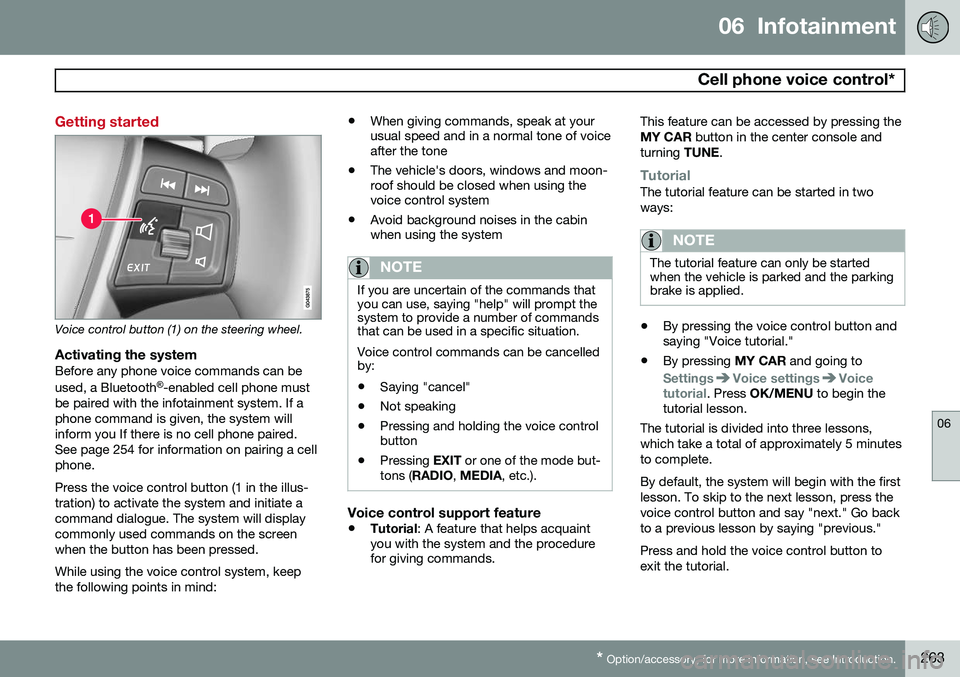
Voice control button (1) on the steering wheel.
Activating the systemBefore any phone voice commands can be used, a Bluetooth ®
-enabled cell phone must
be paired with the infotainment system. If a phone command is given, the system willinform you If there is no cell phone paired.See page 254 for information on pairing a cellphone. Press the voice control button (1 in the illus- tration) to activate the system and initiate acommand dialogue. The system will displaycommonly used commands on the screenwhen the button has been pressed. While using the voice control system, keep the following points in mind: •
When giving commands, speak at your usual speed and in a normal tone of voiceafter the tone
• The vehicle's doors, windows and moon-roof should be closed when using thevoice control system
• Avoid background noises in the cabinwhen using the system
NOTE
If you are uncertain of the commands that you can use, saying "help" will prompt thesystem to provide a number of commandsthat can be used in a specific situation. Voice control commands can be cancelled by:
• Saying "cancel"
• Not speaking
• Pressing and holding the voice control button
• Pressing
EXIT or one of the mode but-
tons ( RADIO , MEDIA , etc.).
Voice control support feature
•Tutorial
: A feature that helps acquaint
you with the system and the procedure for giving commands. This feature can be accessed by pressing the MY CAR
button in the center console and
turning TUNE.
TutorialThe tutorial feature can be started in two ways:
NOTE
The tutorial feature can only be started when the vehicle is parked and the parkingbrake is applied.
•By pressing the voice control button and saying "Voice tutorial."
• By pressing
MY CAR and going to
SettingsVoice settingsVoice
tutorial. Press OK/MENU to begin the
tutorial lesson.
The tutorial is divided into three lessons, which take a total of approximately 5 minutesto complete. By default, the system will begin with the first lesson. To skip to the next lesson, press thevoice control button and say "next." Go backto a previous lesson by saying "previous." Press and hold the voice control button to exit the tutorial.
Page 346 of 380
09 Maintenance and specifications
Fuses 09
344* Option/accessory, for more information, see Introduction.
PosFunctionA
Keyless drive*20
Power driver's seat*20
Power front passenger's seat*20
-
Infotainment control module5
Infotainment system, Sir- iusXM ™ satellite radio*10
Infotainment system15
Bluetooth hands-free system5
Rear Seat Entertainment sys- tem (RSE)*7.5
Power moonroof* Courtesy lighting, climate sys- tem sensor5
12-volt sockets15
Heated rear seat* (passeng- er's side)15
Heated rear seat* (driver's side)15
PosFunctionA
-
Heated front passenger's seat*15
Heated driver's seat*15
Park assist*, trailer hitch con- trol module*, park assist cam-era*5
All Wheel Drive* control mod- ule5
Active chassis system*10
Positions: fuse box B
PosFunctionA
-
-
Front courtesy lighting, driv- er's door power window con-trols, power seat(s)*, Home- LInk ®
Wireless Control Sys-
tem*7.5
Instrument panel5
PosFunctionA
Adaptive cruise control/colli- sion warning*10
Courtesy lighting, rain sensor*7.5
Steering wheel module7.5
Cental locking: fuel filler door10
-
Windshield washers15
Trunk open10
Electrical folding rear seat outboard head restraints*10
Fuel pump20
Climate system control panel5
-
Alarm, On-board diagnostic system5
-
Airbag system, occupant weight sensor10
Page 368 of 380
10 Specifications
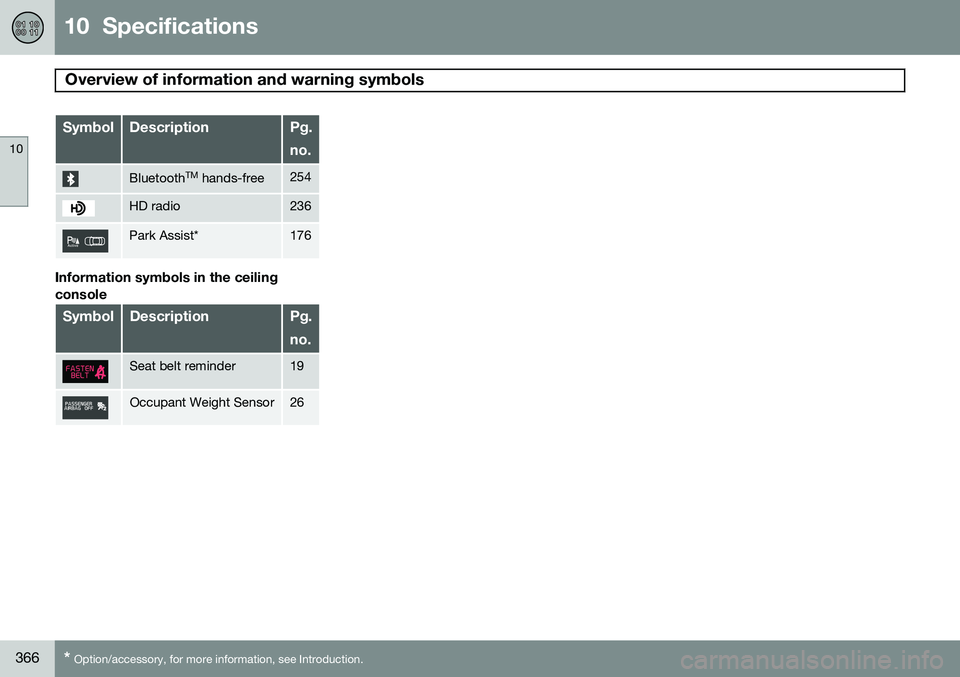
Overview of information and warning symbols
10
366* Option/accessory, for more information, see Introduction.
SymbolDescriptionPg. no.
Bluetooth TM
hands-free254
HD radio236
Park Assist*176
Information symbols in the ceiling console
SymbolDescriptionPg. no.
Seat belt reminder19
Occupant Weight Sensor26
Page 370 of 380
11 Index
11
368
1, 2, 3 ...
12-volt sockets........................................ 219
A
ABS (anti-lock brake system).................. 128
Accessory installation warning.................. 13
Active chassis system............................. 216
Active high beams..................................... 95Active yaw control................................... 136
Adaptive brake lights............................... 127
Adaptive cruise control.................... 142, 144 queue assist........................................ 147
Airbags disconnecting the front passenger’s
side................................................. 26, 27
front...................................................... 22
inflatable curtain................................... 32
side impact........................................... 30
Air conditioning........................................ 204
Air distribution.......................................... 200
Air distribution table................................. 207
Air vents................................................... 201 All Wheel Drive......................................... 124
Ambient temperature sensor..................... 82
Anti-freeze....................................... 270, 324Anti-lock brake system
warning light................................... 77, 79
Anti-lock Brake System (ABS)................. 128
Approach lighting.............................. 57, 101Audio system AUX/USB sockets............................... 248 Bluetooth ®
devices............................. 251
Bluetooth ®
hands-free system........... 253
Bluetooth streaming audio................. 251
getting started.................................... 225
HD digital radio................................... 236
introduction......................................... 224
media player....................................... 243
overview.............................................. 224
radio functions.................................... 234SiriusXM ™ satellite radio.................... 238
sound settings.................................... 229
steering wheel keypad........................ 225
voice control....................................... 262
Auto-dim rearview mirror......................... 107
Automatic locking retractor....................... 38 Automatic transmission
Geartronic........................................... 122
general description..................... 121, 122
oil........................................................ 362
shiftlock override................................ 124
Axle weight.............................................. 297
B
Battery changing..................................... 336, 337
maintenance....................................... 336
remote key, replacing........................... 61
specifications...................................... 363
warning symbols................................. 335
Blind Spot Information System (BLIS) 184, 185, 186
Bluetooth cell phone connection............. 253
Booster cushions....................................... 46
Brake lights.............................................. 127Brake system ABS..................................................... 128
Brake pad inspection.......................... 127
checking fluid level............................. 324
emergency brake assistance.............. 128
fluid..................................................... 362
general information............................. 127