turn signal VOLVO S80 2014 Owner´s Manual
[x] Cancel search | Manufacturer: VOLVO, Model Year: 2014, Model line: S80, Model: VOLVO S80 2014Pages: 380, PDF Size: 10.83 MB
Page 162 of 380
04 Driver support
City Safety™
04
160
Maximum pulse energy2.64 μJ
Maximum average output45 mW
Pulse length33 ns
Divergence (horizontal × verti- cal)28° × 12°
NOTE
The function of aftermarket laser detectors may be affected by City Safety's laser sen-sor.
WARNING
The laser sensor emits light when the igni- tion is in mode II or higher, even if City
Safety™ has been switched off.
WARNING
Eye injury may occur if any of the following points are not followed: • It is essential that all pertinent instruc- tions be followed when handling laserinstruments. Testing, repairing, remov-ing, adjusting and/or replacing anycomponents in the laser sensor mayonly be done by a trained and qualifiedVolvo service technician.
• Do not remove the laser sensor(including removal of the lenses). Alaser sensor that has been removedbelongs to laser class 3B according tostandard IEC 60825-1. Devices in laserclass 3B present a risk of injury to theeyes.
• The laser sensor’s connector must bedisconnected before the sensor isremoved from the windshield.
• The laser sensor must be mounted inplace on the windshield before con-necting the sensor’s connector.
• Do not view the laser sensor (whichemits spreading, invisible laser beams)with optical instruments from a dis-tance of less than 4 inches (100 mm).
Symbols and messages in the display
When City Safety™ automatically applies the brakes, one or more of the symbols in themain instrument panel may illuminate and itsassociated message will be displayed. A text message can be erased by pressing briefly on the
OK button on the turn signal
lever.
Page 165 of 380
04 Driver support
Collision warning with Full Auto-brake and Pedestrian Detection*
04
* Option/accessory, for more information, see Introduction.163
WARNING
• Collision Warning will not provide a warning or brake the vehicle forpedestrians in darkness or in tunnels,even if there is street lighting in thearea.
• The auto-brake function can help pre-vent a collision or reduce the speed atimpact but the driver should alwaysapply the brakes for the best possiblebraking effect, even if auto-brake isactively applying the brakes.
• Never wait for a collision warning. Thissystem is designed to be a supple-mentary driving aid. It is not, however,intended to replace the driver's atten-tion and judgement. The driver isresponsible for maintaining a safe dis-tance and speed, even when the colli-sion warning system is in use.
• Maintenance of the Collision Warningsystem's components must only beperformed by a trained and qualifiedVolvo technician.
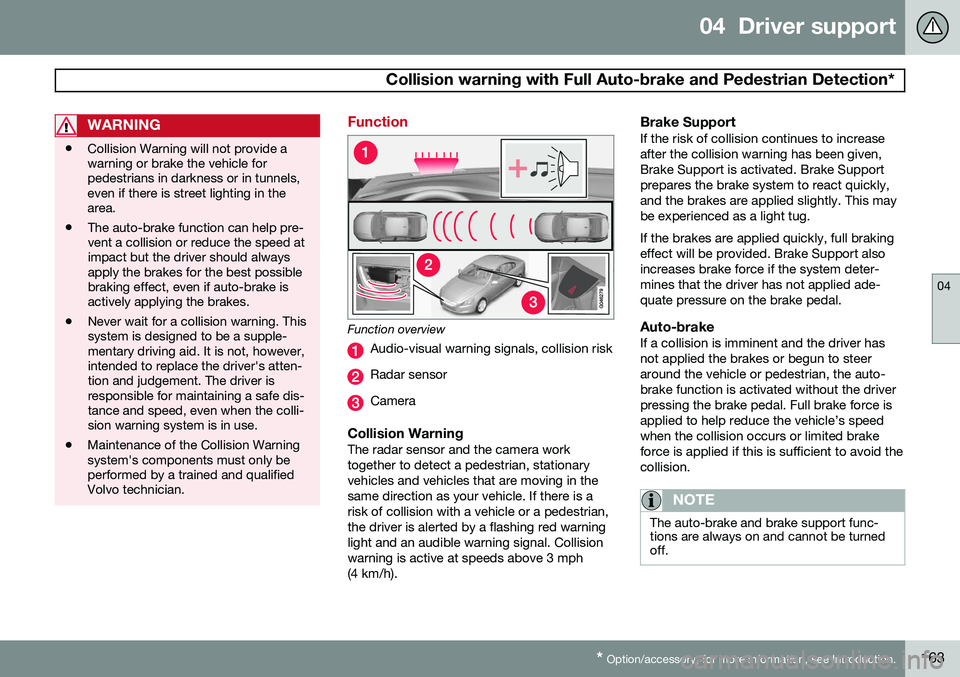
Function
Function overview
Audio-visual warning signals, collision risk
Radar sensor
Camera
Collision WarningThe radar sensor and the camera work together to detect a pedestrian, stationaryvehicles and vehicles that are moving in thesame direction as your vehicle. If there is arisk of collision with a vehicle or a pedestrian,the driver is alerted by a flashing red warninglight and an audible warning signal. Collisionwarning is active at speeds above 3 mph(4 km/h).
Brake SupportIf the risk of collision continues to increaseafter the collision warning has been given,Brake Support is activated. Brake Supportprepares the brake system to react quickly,and the brakes are applied slightly. This maybe experienced as a light tug. If the brakes are applied quickly, full braking effect will be provided. Brake Support alsoincreases brake force if the system deter-mines that the driver has not applied ade-quate pressure on the brake pedal.
Auto-brakeIf a collision is imminent and the driver hasnot applied the brakes or begun to steeraround the vehicle or pedestrian, the auto-brake function is activated without the driverpressing the brake pedal. Full brake force isapplied to help reduce the vehicle’s speedwhen the collision occurs or limited brakeforce is applied if this is sufficient to avoid thecollision.
NOTE
The auto-brake and brake support func- tions are always on and cannot be turnedoff.
Page 176 of 380
04 Driver support
Driver Alert System*
04
174* Option/accessory, for more information, see Introduction.
WARNING
The driver will only be warned once for each time the wheels cross a marker line.No alarm will be given if a marker line isbetween the wheels.
Limitations
The camera used by LDW has the same limi- tations as the human eye. See page166 for
more information about the camera's limita-tions.
NOTE
No warning signal will be given in the cer-
tain situations, such as:
• If the turn signal is being used
• The driver’s foot is on the brake pedal 1
• The accelerator pedal is pressed quickly 1
• If the steering wheel is moved quickly 1
• In sharp turns that cause the vehicle’s body to sway
Settings
Settings for Lane Departure Warning can be made in the menu system by pressing
My
Car . Go to
SettingsCar settings
Driver support systemsLane Departure
Warning.
There are two alternatives:
On at start-up: This selection switches LDW
on each time the engine is started. Otherwise, the system will be in the mode that it was inwhen the engine was switched off.
Increased sensitivity: This selection increa-
ses the function’s sensitivity. Warnings will be given at an earlier stage and fewer limitationsapply. When this setting is being used, thesystem only needs to monitor lane markerlines on one side of the vehicle to change sta- tus to
Lane Depart Warn Available.
1 When Increased sensitivity has been selected, a warning will be issued if a side marker line is crossed in this situation.
Page 185 of 380
04 Driver support
Rear Park Assist Camera (PAC)*
04
* Option/accessory, for more information, see Introduction.183
These lines are affected by movements of the steering wheel. The vehicle's approxi-mate outer dimension are shown by twodashed lines.
• The graphic lines will not be displayedwhen backing up with a trailer that is con-nected to the vehicle's electrical system.
• Objects on the ground that are closerthan 1 ft (30 centimeters) cannot bedetected by the camera.
• The camera is active for approx.5 seconds after the gear selector ismoved to
R or until the vehicle's speed
exceeds 6 mph (10 km/h).
• The optional Park Assist sensors and theparking camera work together and infor-mation from the sensors is shown graphi-cally on the display.
• The graphic lines shown on the screenwhen the vehicle backs up can be disa-bled in the settings menu.
• The system can be switched off by press-ing
CAM . By default, the system is acti-
vated when the gear selector is moved toR . This setting can be changed in the MY
CAR menu.
• If there are two cameras installed on thevehicle*, to switch between cameras, turnTUNE
(at least one of the cameras has to
be active), press CAM repeatedly or use
the center console controls. If the front camera is on, it overrides the optionalpark assist system's visual indicator butthere will still be an audible signal.
Limitations
Even if a fairly small section of the screen image appears to be obstructed, this maymean that a relatively large area behind thevehicle is hidden and objects there may notbe detected until they are very near the vehi-cle.
NOTE
Bicycle carriers or other accessories mounted on the trunk may obstruct thecamera's field of view.
Keep in mind
•
Keep the camera's lens free of dirt, ice and snow. Remove ice and snow care-fully to avoid scratching the lens.
• Clean the lens regularly with warm waterand a suitable car washing detergent.
Page 236 of 380
06 Infotainment
Radio
06
234* Option/accessory, for more information, see Introduction.
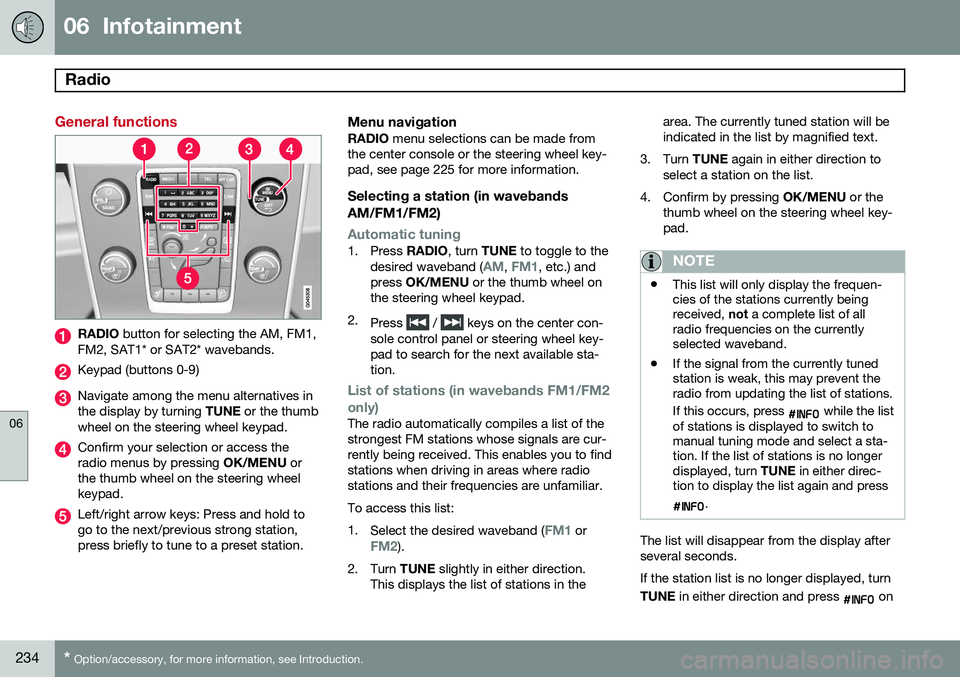
General functions
RADIO button for selecting the AM, FM1,
FM2, SAT1* or SAT2* wavebands.
Keypad (buttons 0-9)
Navigate among the menu alternatives in the display by turning TUNE or the thumb
wheel on the steering wheel keypad.
Confirm your selection or access the radio menus by pressing OK/MENU or
the thumb wheel on the steering wheelkeypad.
Left/right arrow keys: Press and hold to go to the next/previous strong station,press briefly to tune to a preset station.
Menu navigationRADIO menu selections can be made from
the center console or the steering wheel key-pad, see page 225 for more information.
Selecting a station (in wavebands AM/FM1/FM2)
Automatic tuning1. Press RADIO, turn TUNE to toggle to the
desired waveband (AM, FM1, etc.) and
press OK/MENU or the thumb wheel on
the steering wheel keypad.
2. Press
/ keys on the center con-
sole control panel or steering wheel key- pad to search for the next available sta-tion.
List of stations (in wavebands FM1/FM2 only)
The radio automatically compiles a list of the strongest FM stations whose signals are cur-rently being received. This enables you to findstations when driving in areas where radiostations and their frequencies are unfamiliar. To access this list:1. Select the desired waveband (
FM1 orFM2).
2. Turn TUNE slightly in either direction.
This displays the list of stations in the area. The currently tuned station will be indicated in the list by magnified text.
3. Turn TUNE again in either direction to
select a station on the list.
4. Confirm by pressing OK/MENU or the
thumb wheel on the steering wheel key-pad.
NOTE
• This list will only display the frequen- cies of the stations currently beingreceived,
not a complete list of all
radio frequencies on the currentlyselected waveband.
• If the signal from the currently tunedstation is weak, this may prevent theradio from updating the list of stations. If this occurs, press
while the list
of stations is displayed to switch to manual tuning mode and select a sta-tion. If the list of stations is no longerdisplayed, turn TUNE in either direc-
tion to display the list again and press
.
The list will disappear from the display after several seconds. If the station list is no longer displayed, turn TUNE in either direction and press
on
Page 239 of 380
06 Infotainment
Radio
06
237
strength), the receiver will determine which signal to receive.
Limitations
•
Main channel vs. sub-channels (FM only)
: The main channel is the only chan-
nel that can receive in hybrid mode (both digital and analogue). If a frequency hassub-channels, they are broadcast in digi-tal mode only. The main FM channel willbe displayed as, for example, 93.9 WNYC(Volvo uses the symbol ">" to indicatethere are sub-channels available) Thesub-FM channels will be displayed as93.9 – 2 WNYC, 93.9 - 3 WNYC, etc.
• Reception coverage area
: Due to cur-
rent IBOC transmitter power limitations,the reception coverage area in digitalmode is somewhat more limited than thestation's analogue coverage area. Pleasebe aware that as with any radio broadcasttechnology, terrain, time of day, foliagelevel and building location can have posi-tive or negative effects on radio recep-tion.
• Analogue to digital/digital to analogue blending
: Analogue to digital blending
will occur as the signal strength reaches a preset threshold in the receiver. This willbe noticeable in fringe areas (areas withweak reception) and is normal.
NOTE
There may be a noticeable difference in sound quality when a change from ana-logue to digital or digital to analogueoccurs, such as:
• Volume increase or decrease
• Equalizer settings, i.e., Bass/ Mid- range/Treble cut or boost
• Time alignment (Digital program mate-rial in extreme cases can be as muchas 8 seconds behind the analogue).This will noticeable as a "stuttering"effect.
The above items are dependant on the broadcaster's equipment settings and do not indicate a fault in the vehicle's radio receiver or antenna systems .
Switching HD on or offThe factory setting for HD radio is off. If acti-
vated when driving through areas with weak HD signals (fringe areas), you may experiencethat the radio repeatedly switches betweenanalogue/digital and digital/analogue recep-tion. If this happens, it may be desirable toswitch HD off. To do so: 1. Be sure the infotainment system is
switched on and in one of the AM or FM modes.
2. Press OK/MENU in the center console
control panel.
3. Turn TUNE and move the marker to
HD
Radio.
4. Press OK/MENU to turn HD off (the X will
disappear from the box on the display screen).
This will disable the radio's capability to receive digital broadcasts but it will continueto function as a conventional (analogue)AM/FM receiver. Please note that when HD isswitched off, it will not be possible to tune tosub-channels (see the following section for amore detailed explanation of sub-channels). Repeat steps 2-4 above to reactivate HD (an X will appear in the box on the displayscreen). Please note that this will only switchHD on or off for the selected waveband (AM,FM1, etc.).
Page 242 of 380
06 Infotainment
Radio
06
240
Scanning
Scan automatically searches through the list
of satellite channels. The search will only be carried out in the selected category, seepage 235 for more detailed information on thescan function.
Storing a channelA total of 20 satellite channels can be stored; 10 channels each for SAT1 and SAT2, see
page 235 for detailed information on storing channels.
• A
long press on one of the number keys
stores the currently tuned channel on that key.
• A
short press on a number key while the
radio is in
SAT1 or SAT2 mode will tune
to the preset satellite channel stored on that button, regardless of the currentlyselected channel category.
Searching for and storing songs
The Song Seek function provides notification
when SiriusXM ™ is broadcasting the songs
selected in song memory.
Song memoryenables you to store the name of the song for future advance notification when that song isbeing played.
Song seekWhen a satellite radio channel plays one of the songs stored in the song memory while the Song seek feature is activated, the lis-tener will be alerted by a text message and anaudible signal. Press
OK/MENU to listen to the song or EXIT
to cancel.To activate/deactivate the song seek func- tion:
1. Press OK/MENU .
2. Turn TUNE to scroll to
Song memoryand press OK/MENU .
3. Turn TUNE to scroll to
Song Seek and
press OK/MENU to activate or deactivate
the function.
NOTE
When the song has ended, the radio will remain tuned to the channel on which thesong was played.
Song memoryUp to ten songs can be saved in the system's memory. To add the currently playing song to the list:
1. Press OK/MENU .
2. Scroll to
Song memory and press OK/
MENU . 3.
Scroll to
Add current song to song
memory and press OK/MENU.
If a new song is selected when the memory is full, you will be prompted to delete a songfrom the list. To do so:
1. Press OK/MENU .
2. Turn TUNE to scroll through the list of
songs. Select a song and press OK/
MENU to delete it from the list.
Radio textThis text provides information about the song that is currently playing. To turn this featureon or off, press OK/MENU and scroll to
Show radio text and press OK/MENU to
toggle between on or off.
Advanced SiriusXM™ settings
This menu function enables you to make set- tings on certain SiriusXM ™ satellite radio
functions. To access this menu:
1. Press OK/MENU .
2. Scroll to the
Advanced settings menu
and press OK/MENU .
Page 259 of 380
06 Infotainment
Bluetooth®
hands-free connection
06
257
In phone mode, the various call lists can be displayed in
Phone menuCall lists:
•
All calls
•Missed calls
•Answered calls
•Dialled calls (certain cell phones show
this list in reverse order)
•
Call duration
If no number has been stored, this menu can be accessed by pressing and holding 1.
Voice mailIn normal view, a speed dial number for voicemail can be programmed and accessed bypressing and holding 1.
The number for voice mail can be changed in phone mode in
Phone menuCall options
Voicemail numberChange number.
Sound settings
Call volumeCall volume can be only be adjusted during a call. Use the buttons in the steering wheelkeypad or the infotainment system’s VOL
control.
Infotainment system volumeIf no phone call is in progress, volume for theinfotainment system can be adjusted in thenormal way with the infotainment system'sVOL control or from the steering wheel key-
pad. Infotainment system sound can be automati- cally muted when a phone call is received in
Phone menuPhone settingsSounds
and volume
Mute radio/media.
Ringing volume
In phone mode, go to Phone menuPhone
settings
Sounds and volumeRing
volume and adjust the volume by turning
VOL . Save the setting by pressing EXIT.
Ringing tonesThe hands-free system’s integrated ringing tones can be selected in
Phone menu
Phone settingsSounds and volume
Ring signalsRing signal 1, etc.
NOTE
The connected cell phone’s ring tone may not be switched off when one of thehands-free system's ringing tones is used.
If you prefer to use the connected cell phone’s ring tone 2
, go to
Phone menu
Phone settingsSounds and volume
Ring signalsMobile phone ring signal.
Phone book
The hands-free system uses two phone books (one with the cell phone's list of con-tacts and one with contacts saved directly inthe infotainment system), which are com-bined to form one phone book.
• The infotainment system downloads the phone book from a connected cell phone.This phone book will only be displayedwhen this cell phone is connected to thehands-free system.
• The infotainment system also has an inte-grated phone book made up of contactsthat have been saved in the system,regardless of which cell phone is currently
2
Not supported by all cell phones.
Page 328 of 380
09 Maintenance and specifications
Replacing bulbs 09
326* Option/accessory, for more information, see Introduction.
Introduction
All bulb specifications are listed on page 332. The following bulbs should only be replacedby a trained and qualified Volvo service tech-nician:
• Active Bending Lights
• Front parking lights
• Daytime running lights
• Turn signals in the door mirrors
• Approach lighting in the door mirrors
• Interior lighting
• Glove compartment lighting
• Rear parking lights
• Rear side marker lights
• Brake lights
• LED bulbsNOTE
• For information regarding any bulbs not mentioned in this section, pleasecontact your Volvo retailer or a trainedand authorized Volvo service techni-cian.
• Always switch off the ignition beforestarting to replace a bulb.
• If an error message remains in the dis-play after a faulty bulb has beenreplaced, contact an authorized Volvoworkshop.
• Condensation may form temporarily onthe inside of the lenses of exteriorlights such as headlights, fog lights, ortaillights. This is normal and the lightsare designed to withstand moisture.Normally, condensation will dissipateafter the lights have been on for ashort time.
• The optional Active Bending Lightbulbs contain trace amounts of mer-cury. These bulbs should always bedisposed of by a trained and qualifiedVolvo service technician.
CAUTION
Never touch the glass of bulbs with your fingers. Grease and oils from your fingersvaporize in the heat and will leave adeposit on the reflector, which will damageit.
WARNING
•The engine should not be running when changing bulbs.
• If the engine has been running justprior to replacing bulbs in the head-light housing, please keep in mind thatcomponents in the engine compart-ment will be hot.
WARNING
•Active Bending Lights* – due to the high voltage used by these headlights,these bulbs should only be replacedby a trained and qualified Volvo serv-ice technician.
• Turn off the lights and remove theremote key from the ignition beforechanging any bulbs.
Page 331 of 380
09 Maintenance and specifications
Replacing bulbs09
329
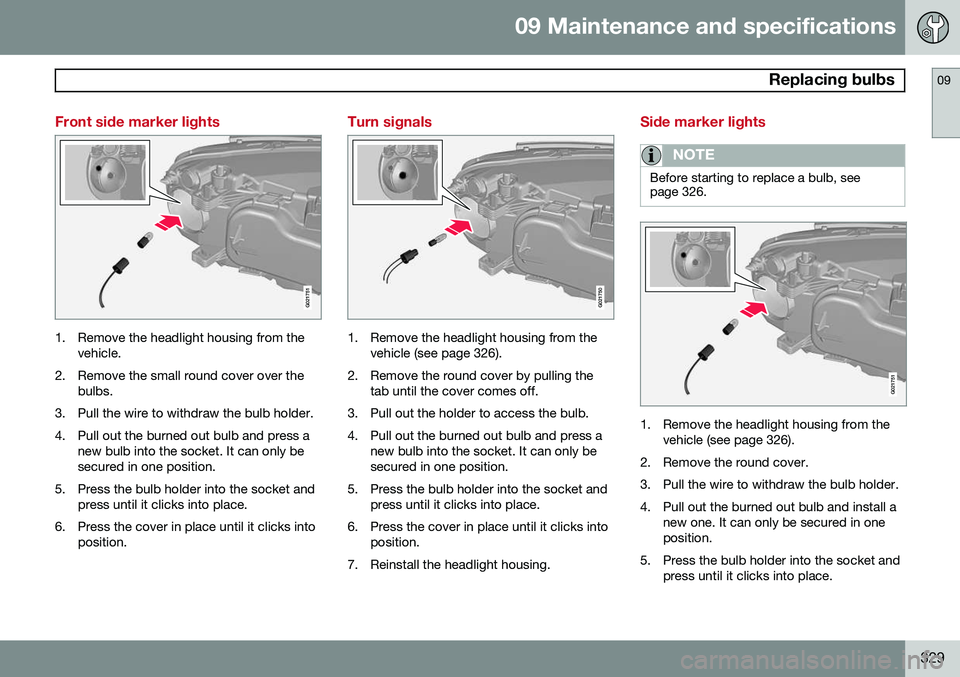
Front side marker lights
G021751
1. Remove the headlight housing from thevehicle.
2. Remove the small round cover over the bulbs.
3. Pull the wire to withdraw the bulb holder.
4. Pull out the burned out bulb and press a new bulb into the socket. It can only be secured in one position.
5. Press the bulb holder into the socket and press until it clicks into place.
6. Press the cover in place until it clicks into position.
Turn signals
G021750
1. Remove the headlight housing from thevehicle (see page 326).
2. Remove the round cover by pulling the tab until the cover comes off.
3. Pull out the holder to access the bulb.
4. Pull out the burned out bulb and press a new bulb into the socket. It can only be secured in one position.
5. Press the bulb holder into the socket and press until it clicks into place.
6. Press the cover in place until it clicks into position.
7. Reinstall the headlight housing.
Side marker lights
NOTE
Before starting to replace a bulb, see page 326.
G021751
1. Remove the headlight housing from the vehicle (see page 326).
2. Remove the round cover.
3. Pull the wire to withdraw the bulb holder.
4. Pull out the burned out bulb and install a new one. It can only be secured in one position.
5. Press the bulb holder into the socket and press until it clicks into place.