change time VOLVO S80 2014 Owner´s Manual
[x] Cancel search | Manufacturer: VOLVO, Model Year: 2014, Model line: S80, Model: VOLVO S80 2014Pages: 380, PDF Size: 10.83 MB
Page 244 of 380
06 Infotainment
Radio
06
242
Unlocking a channel
A channel's access code2
is required to
unlock a channel.
Unlock all channelsThis permanently removes all channels from the locked list and makes them available forselection.
Temporarily unlock all channelsThis function will temporarily unlock all chan- nels and make them available for selection.The channels remain on the locked list andwill again be locked the next time the ignitionis switched on.
CHANGE CODEThis function makes it possible to change the channel access code. The default code is0000. To change the code:1. Select
Change code in the Lock
options menu and press OK/MENU.
2. Enter the new code and press OK/
MENU .
3. Confirm the new code and press OK/
MENU .
If an incorrect code is entered, the text
Incorrect code is displayed. If you have forgotten the access code: 1.
Select
SIRIUS ID in the Advanced
settings menu and press OK/MENU.
2. Press and hold the OK/MENU button for
several seconds.
3. The current code will be displayed. Your Volvo retailer can also provide you with assistance.
SiriusXM™ ID
This function displays the 12-digit SiriusXM ™
activation ID.
2 The default code is 0000. If you have changed the code and forgotten it, see the section "If you have forgotten the access code."
Page 246 of 380
06 Infotainment
Media player
06
244* Option/accessory, for more information, see Introduction.
Navigating a disc and playing tracks
CD audio discsTurn TUNE to access the disc's playlist and
to navigate in this list. Press OK/MENU to
confirm a choice and begin listening. Press EXIT to cancel. Press and hold EXIT to return
to the playlist's root level. The
/ buttons on the center console
or steering wheel keypad can also be used to change tracks.
Home-burned CD/DVD audio/video filesTurn TUNE to access the disc's playlist and
to navigate in this list. Press OK/MENU to
confirm a choice and begin listening. Use EXIT to stop or to go back in the disc's folder
structure. Press and hold EXIT to return to
the playlist's root level. The
/ buttons on the center console
or steering wheel keypad* can also be used to change audio/video files. The following symbols are used in the dis- play: •
- audio files
•
- video files
•
- folders When a file has been played, the player will continue to play the rest of the files (of thesame type) in the current folder. When all ofthe files in the folder have been played, theplayer will automatically go to the next folder and play the files in it (unless
Repeat folderis activated). The system automatically detects and changes settings if a disc containing onlyaudio or only video files is inserted in theplayer and will play these files. However, thesystem will not change settings if a disc con-taining both audio and video files is insertedand the player will continue to play the cur-rent type of file.
NOTE
Video images will only be visible when the vehicle is not moving. When the vehicle istraveling faster than approximately 4 mph (6 km/h),
No visual media available
while driving will be displayed. Sound
from the film will still be audible and video images will be shown again when the vehi-cle stops.
NOTE
Some copy protected audio files or home- burned audio files may not be read by theplayer.
DVD videosFor information, see page 243.
Fast forward/reverse
Press and hold the / buttons to fast
forward/reverse. This is done at one speed for audio files but several speeds can be chosen for video files. Press the
/ but-
tons several times to increase the speed. Release the button to return to normal view-ing speed.
Scan 3This function plays the first ten seconds ofeach track/audio file. To start scanning:
1. Press
OK/MENU .
2. Scroll to
Scan.
> The first ten seconds of each track/ audio file will be played.
3. Stop scanning by pressing EXIT. The cur-
rent track/audio file will continue playing.
3 Not video DVDs
Page 256 of 380
06 Infotainment
Bluetooth®
hands-free connection
06
254
Bluetooth ®
functions in the center
console control panel
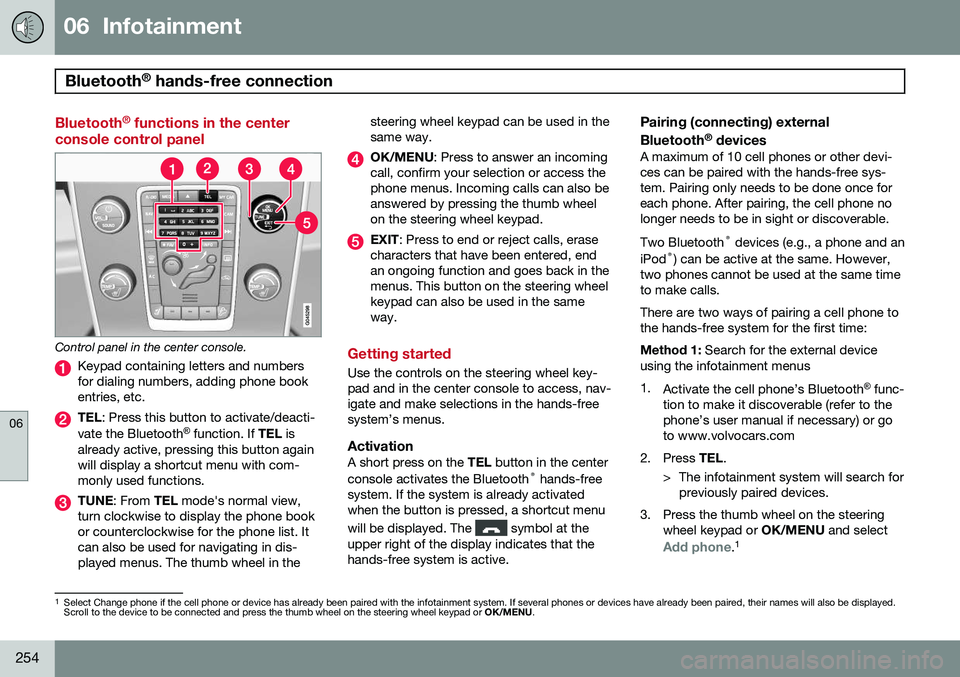
Control panel in the center console.
Keypad containing letters and numbers for dialing numbers, adding phone bookentries, etc.
TEL : Press this button to activate/deacti-
vate the Bluetooth ®
function. If TEL is
already active, pressing this button again will display a shortcut menu with com-monly used functions.
TUNE : From TEL mode's normal view,
turn clockwise to display the phone book or counterclockwise for the phone list. Itcan also be used for navigating in dis-played menus. The thumb wheel in the steering wheel keypad can be used in thesame way.
OK/MENU
: Press to answer an incoming
call, confirm your selection or access the phone menus. Incoming calls can also beanswered by pressing the thumb wheelon the steering wheel keypad.
EXIT : Press to end or reject calls, erase
characters that have been entered, end an ongoing function and goes back in themenus. This button on the steering wheelkeypad can also be used in the sameway.
Getting started
Use the controls on the steering wheel key- pad and in the center console to access, nav-igate and make selections in the hands-freesystem’s menus.
ActivationA short press on the TEL button in the center
console activates the Bluetooth ®
hands-free
system. If the system is already activatedwhen the button is pressed, a shortcut menu will be displayed. The
symbol at the
upper right of the display indicates that the hands-free system is active.
Pairing (connecting) external Bluetooth ®
devices
A maximum of 10 cell phones or other devi- ces can be paired with the hands-free sys-tem. Pairing only needs to be done once foreach phone. After pairing, the cell phone nolonger needs to be in sight or discoverable. Two Bluetooth ®
devices (e.g., a phone and an
iPod ®
) can be active at the same. However,
two phones cannot be used at the same time to make calls. There are two ways of pairing a cell phone to the hands-free system for the first time: Method 1: Search for the external device
using the infotainment menus1. Activate the cell phone’s Bluetooth ®
func-
tion to make it discoverable (refer to the phone’s user manual if necessary) or goto www.volvocars.com
2. Press TEL.
> The infotainment system will search for previously paired devices.
3. Press the thumb wheel on the steering wheel keypad or OK/MENU and select
Add phone.1
1
Select Change phone if the cell phone or device has already been paired with the infotainment system. If several phones or devices have already been paired, their names will also be displayed. Scroll to the device to be connected and press the thumb wheel on the steering wheel keypad or OK/MENU.
Page 260 of 380
06 Infotainment
Bluetooth®
hands-free connection
06
258
connected when the contact is saved. These contacts will be displayed regard-less of the cell phone that is connected. Ifa contact has been saved in the infotain- ment system, the
symbol will be
displayed next to it.
NOTE
Changes made from the infotainment sys- tem to a contact in the cell phone's phonebook will result in a new contact beingadded to the infotainment system's phonebook. However, this contact will not besaved in the cell phone's phone book. Theinfotainment system's display will showduplicate contacts with different icons. Please also note that if a speed dial num- ber is saved or if a contact's information isedited, this will result in a new contact inthe infotainment system's phone book.
The symbol must be displayed before
the phone book can be used and the hands- free function must be in phone mode. The infotainment system saves a copy of each paired cell phone's phone book. Thisphone book can be copied each time thephone is connected.
–Activate/deactivate this function in phone mode in
Phone menuPhone settings
Download phone book.
If the phone book contains information about someone who is trying to call you, this infor-mation will be shown in the display.
Contact shortcutsA quick way of searching the phone book forcontacts in normal view is to turn TUNE
clockwise to access the phone book and thencounter-clockwise to select a contact fromthe list. Press OK/MENU to call.
Each name in the phone book has a default phone number. If the
symbol is displayed
to the right of it, this indicates that there are additional phone numbers for this contact. Touse a phone number other than the default one, press the
button on the center
console control panel. Turn TUNE to select a
different phone number and press OK/MENU
to call. It is also possible to search for a contact by using the center console keypad to enter thefirst letter(s) of the contact's name (see alsothe following table "Buttons in the center con-sole" for each button's function). The list of contacts can also be accessed from normal view by pressing and holding thebutton on the center console keypad with the first letter of the contact's name. For exam-ple, pressing and holding button
6 would pro-
vide direct access to the section of the listwith contacts whose names begin with M.
Buttons in the center console
ButtonFunction
Space . , - ? @ : ; / ( ) 1
A B C Å Ä Æ À Ç 2
D E F È É 3
G H I Ì 4
J K L 5
M N O Ö Ø Ñ Ò 6
P Q R S ß 7
T U V Ü Ù 8
W X Y Z 9
Shift between upper and lower case
Page 266 of 380
06 Infotainment
Cell phone voice control*
06
264* Option/accessory, for more information, see Introduction.
Voice output volume
Press MY CAR and go to SettingsVoice
settings
Voice output volume. Press OK/
MENU and turn TUNE to raise or lower the
volume. Press EXIT to save the change and
exit the menu.
Using voice commands
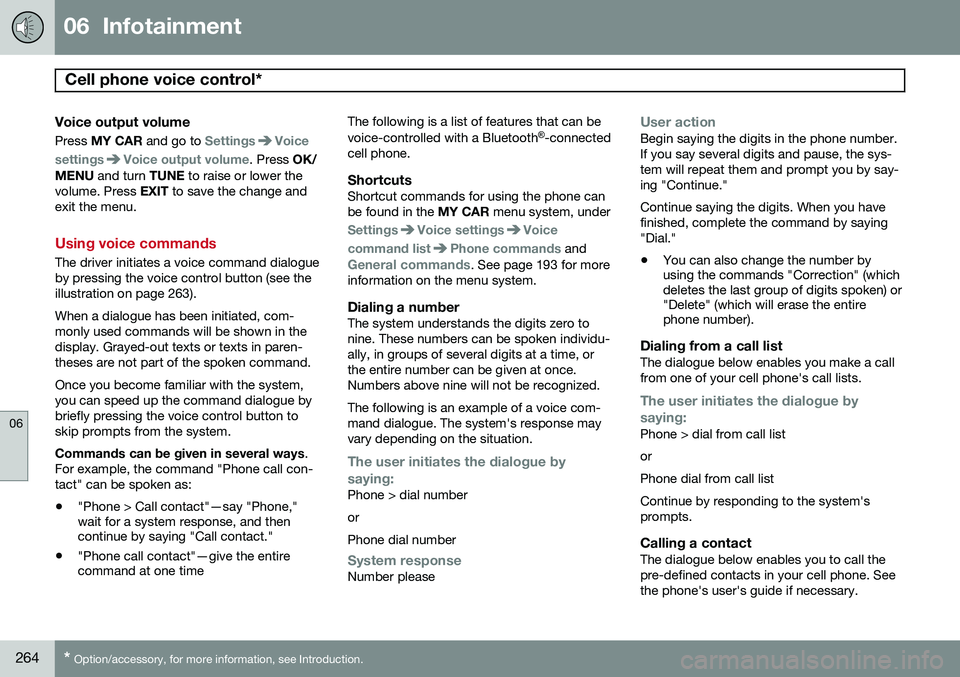
The driver initiates a voice command dialogue by pressing the voice control button (see theillustration on page 263). When a dialogue has been initiated, com- monly used commands will be shown in thedisplay. Grayed-out texts or texts in paren-theses are not part of the spoken command. Once you become familiar with the system, you can speed up the command dialogue bybriefly pressing the voice control button toskip prompts from the system. Commands can be given in several ways .
For example, the command "Phone call con- tact" can be spoken as:
• "Phone > Call contact"—say "Phone," wait for a system response, and thencontinue by saying "Call contact."
• "Phone call contact"—give the entirecommand at one time The following is a list of features that can be voice-controlled with a Bluetooth
®
-connected
cell phone.
ShortcutsShortcut commands for using the phone can be found in the MY CAR menu system, under
SettingsVoice settingsVoice
command list
Phone commands and
General commands. See page 193 for more
information on the menu system.
Dialing a numberThe system understands the digits zero to nine. These numbers can be spoken individu-ally, in groups of several digits at a time, orthe entire number can be given at once.Numbers above nine will not be recognized. The following is an example of a voice com- mand dialogue. The system's response mayvary depending on the situation.
The user initiates the dialogue by
saying:
Phone > dial number orPhone dial number
System responseNumber please
User actionBegin saying the digits in the phone number. If you say several digits and pause, the sys-tem will repeat them and prompt you by say-ing "Continue." Continue saying the digits. When you have finished, complete the command by saying"Dial." • You can also change the number by using the commands "Correction" (whichdeletes the last group of digits spoken) or"Delete" (which will erase the entirephone number).
Dialing from a call listThe dialogue below enables you make a call from one of your cell phone's call lists.
The user initiates the dialogue by saying:
Phone > dial from call list orPhone dial from call listContinue by responding to the system's prompts.
Calling a contactThe dialogue below enables you to call thepre-defined contacts in your cell phone. Seethe phone's user's guide if necessary.
Page 343 of 380
09 Maintenance and specifications
Fuses09
* Option/accessory, for more information, see Introduction.341
Engine compartment, upper
Engine compartment, front
Engine compartment, lower
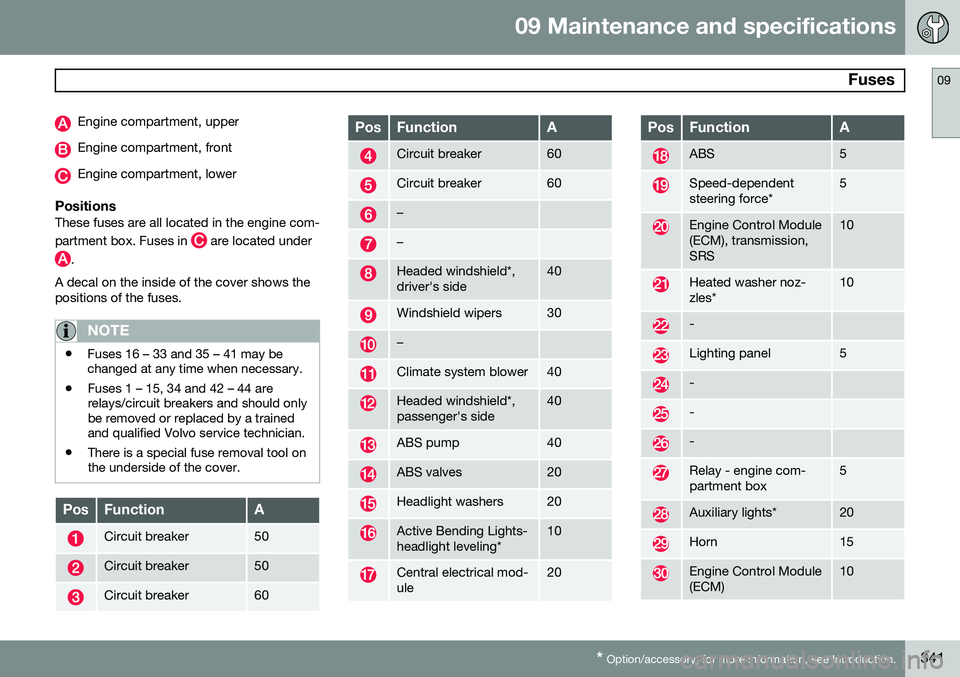
PositionsThese fuses are all located in the engine com- partment box. Fuses in
are located under
.
A decal on the inside of the cover shows the positions of the fuses.
NOTE
• Fuses 16 – 33 and 35 – 41 may be changed at any time when necessary.
• Fuses 1 – 15, 34 and 42 – 44 arerelays/circuit breakers and should onlybe removed or replaced by a trainedand qualified Volvo service technician.
• There is a special fuse removal tool onthe underside of the cover.
PosFunctionA
Circuit breaker50
Circuit breaker50
Circuit breaker60
PosFunctionA
Circuit breaker60
Circuit breaker60
–
–
Headed windshield*, driver's side40
Windshield wipers30
–
Climate system blower40
Headed windshield*, passenger's side40
ABS pump40
ABS valves20
Headlight washers20
Active Bending Lights- headlight leveling*10
Central electrical mod- ule20
PosFunctionA
ABS5
Speed-dependent steering force*5
Engine Control Module (ECM), transmission,SRS10
Heated washer noz- zles*10
-
Lighting panel5
-
-
-
Relay - engine com- partment box5
Auxiliary lights*20
Horn15
Engine Control Module (ECM)10