instrument panel VOLVO S80 2014 Owner´s Manual
[x] Cancel search | Manufacturer: VOLVO, Model Year: 2014, Model line: S80, Model: VOLVO S80 2014Pages: 380, PDF Size: 10.83 MB
Page 186 of 380
04 Driver support
Blind Spot Information System (BLIS)*
04
184* Option/accessory, for more information, see Introduction.
Introduction
G021426
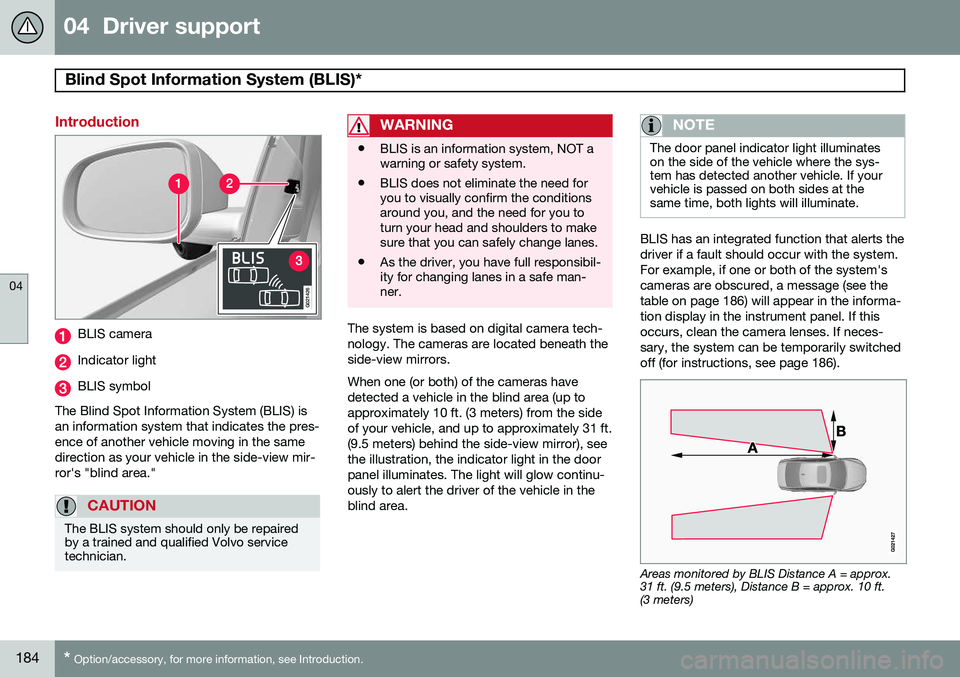
BLIS camera
Indicator light
BLIS symbol
The Blind Spot Information System (BLIS) is an information system that indicates the pres-ence of another vehicle moving in the samedirection as your vehicle in the side-view mir-ror's "blind area."
CAUTION
The BLIS system should only be repaired by a trained and qualified Volvo servicetechnician.
WARNING
• BLIS is an information system, NOT a warning or safety system.
• BLIS does not eliminate the need foryou to visually confirm the conditionsaround you, and the need for you toturn your head and shoulders to makesure that you can safely change lanes.
• As the driver, you have full responsibil-ity for changing lanes in a safe man-ner.
The system is based on digital camera tech- nology. The cameras are located beneath theside-view mirrors. When one (or both) of the cameras have detected a vehicle in the blind area (up toapproximately 10 ft. (3 meters) from the sideof your vehicle, and up to approximately 31 ft.(9.5 meters) behind the side-view mirror), seethe illustration, the indicator light in the doorpanel illuminates. The light will glow continu-ously to alert the driver of the vehicle in theblind area.
NOTE
The door panel indicator light illuminates on the side of the vehicle where the sys-tem has detected another vehicle. If yourvehicle is passed on both sides at thesame time, both lights will illuminate.
BLIS has an integrated function that alerts the driver if a fault should occur with the system.For example, if one or both of the system'scameras are obscured, a message (see thetable on page 186) will appear in the informa-tion display in the instrument panel. If thisoccurs, clean the camera lenses. If neces-sary, the system can be temporarily switchedoff (for instructions, see page 186).
Areas monitored by BLIS Distance A = approx. 31 ft. (9.5 meters), Distance B = approx. 10 ft.(3 meters)
Page 192 of 380
05 Comfort and driving pleasure
Volvo Sensus
05
190* Option/accessory, for more information, see Introduction.
Introduction
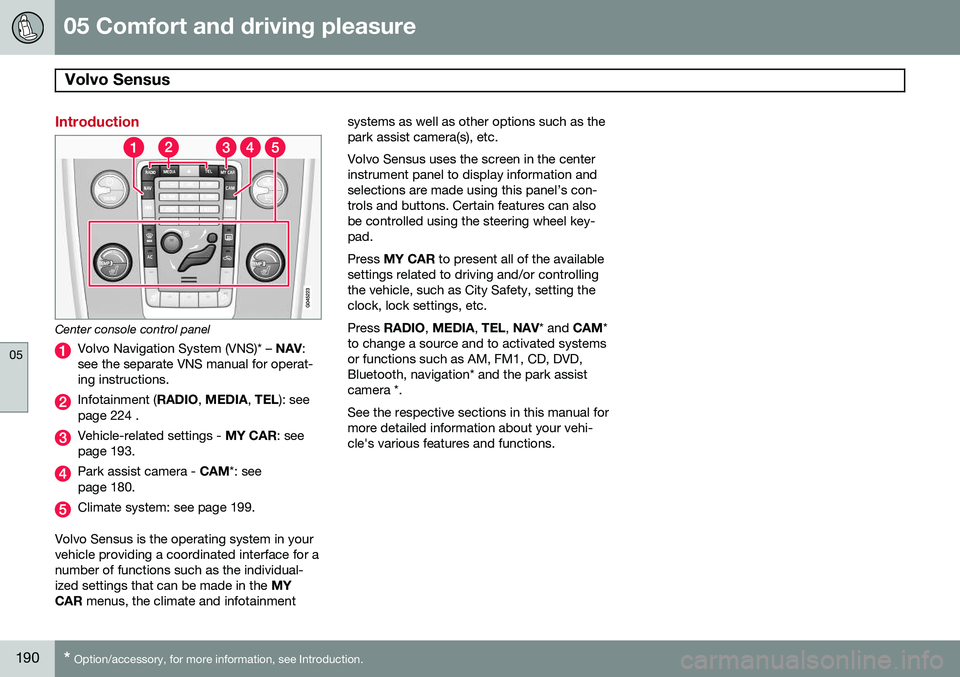
Center console control panel
Volvo Navigation System (VNS)* – NAV:
see the separate VNS manual for operat- ing instructions.
Infotainment ( RADIO, MEDIA , TEL ): see
page 224 .
Vehicle-related settings - MY CAR: see
page 193.
Park assist camera - CAM*: see
page 180.
Climate system: see page 199.
Volvo Sensus is the operating system in your vehicle providing a coordinated interface for anumber of functions such as the individual-ized settings that can be made in the MY
CAR menus, the climate and infotainment systems as well as other options such as thepark assist camera(s), etc. Volvo Sensus uses the screen in the center instrument panel to display information andselections are made using this panel’s con-trols and buttons. Certain features can alsobe controlled using the steering wheel key-pad. Press
MY CAR to present all of the available
settings related to driving and/or controlling the vehicle, such as City Safety, setting theclock, lock settings, etc. Press RADIO , MEDIA , TEL , NAV * and CAM*
to change a source and to activated systems or functions such as AM, FM1, CD, DVD,Bluetooth, navigation* and the park assistcamera *. See the respective sections in this manual for more detailed information about your vehi-cle's various features and functions.
Page 193 of 380
05 Comfort and driving pleasure
Menus and messages
05
* Option/accessory, for more information, see Introduction.191
Main instrument panel
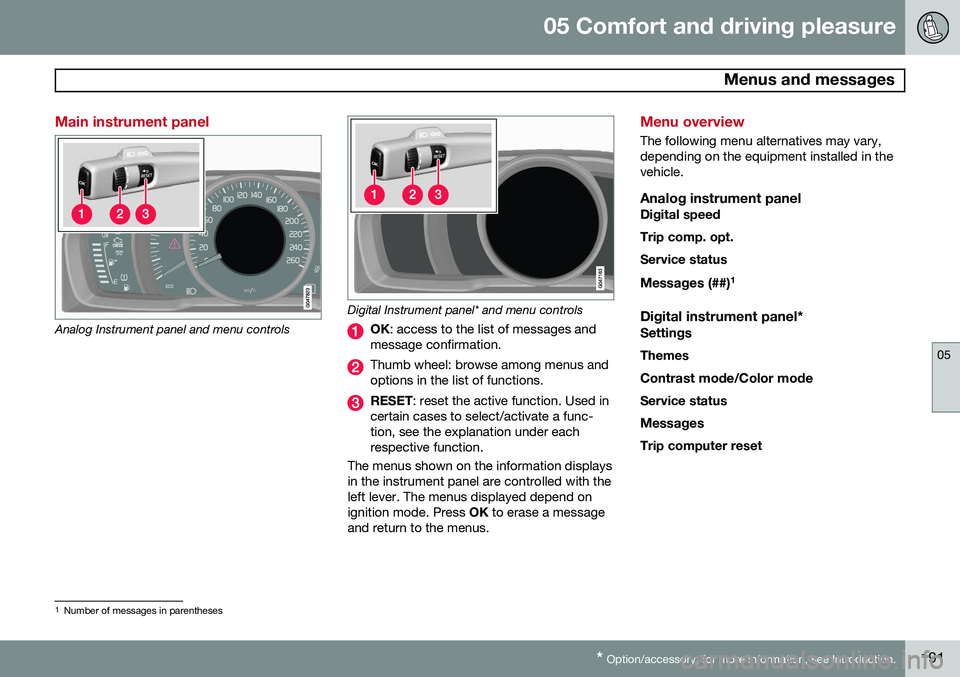
Analog Instrument panel and menu controls
Digital Instrument panel* and menu controls
OK : access to the list of messages and
message confirmation.
Thumb wheel: browse among menus and options in the list of functions.
RESET : reset the active function. Used in
certain cases to select/activate a func- tion, see the explanation under eachrespective function.
The menus shown on the information displaysin the instrument panel are controlled with theleft lever. The menus displayed depend onignition mode. Press OK to erase a message
and return to the menus.
Menu overview
The following menu alternatives may vary, depending on the equipment installed in thevehicle.
Analog instrument panelDigital speed Trip comp. opt.Service status
Messages (##) 1
Digital instrument panel*
Settings
Themes
Contrast mode /Color mode
Service status
Messages Trip computer reset
1 Number of messages in parentheses
Page 211 of 380
05 Comfort and driving pleasure
Trip computer
05
209
Introduction
The content and appearance of the trip com- puter varies depending on whether the vehi-cle is equipped with an analog or digital
instrument panel. The instrument panel illuminates as soon as the vehicle is unlocked and trip computer set-tings can be made. If none of the trip com-puter's controls are used within 30 secondsafter the driver's door has been opened, theinstrument panel lighting will go out and thetrip computer cannot be used again until: • the ignition is put in mode II1
• the engine is started
NOTE
If a warning message appears while you are using the trip computer, this messagemust be acknowledged in order to returnto the trip computer function. Acknowl-edge a message by pressing
OK.
Trip computer in models with an analog instrument panel
The trip computer has two different menu groups: •
Trip computer functions
• Trip computer information headings in the instrument panel
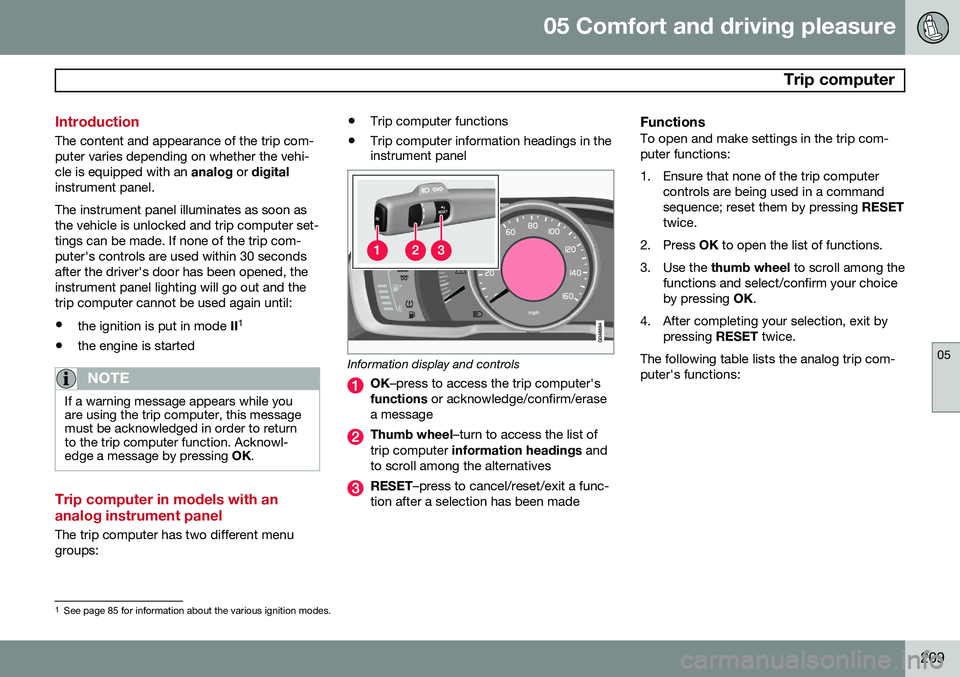
Information display and controls
OK
–press to access the trip computer's
functions or acknowledge/confirm/erase
a message
Thumb wheel –turn to access the list of
trip computer information headings and
to scroll among the alternatives
RESET –press to cancel/reset/exit a func-
tion after a selection has been made
FunctionsTo open and make settings in the trip com- puter functions:
1. Ensure that none of the trip computer controls are being used in a command sequence; reset them by pressing RESET
twice.
2. Press OK to open the list of functions.
3. Use the thumb wheel to scroll among the
functions and select/confirm your choiceby pressing OK.
4. After completing your selection, exit by pressing RESET twice.
The following table lists the analog trip com-puter's functions:
1 See page 85 for information about the various ignition modes.
Page 212 of 380
05 Comfort and driving pleasure
Trip computer
05
210
FunctionDescription
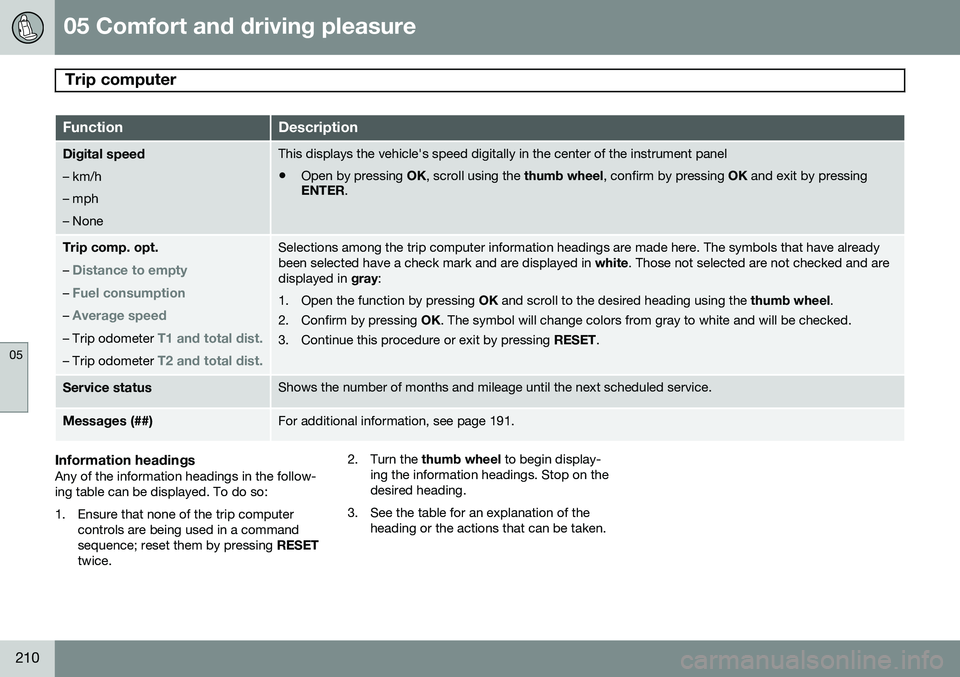
Digital speed – km/h – mph– NoneThis displays the vehicle's speed digitally in the center of the instrument panel
• Open by pressing
OK, scroll using the thumb wheel, confirm by pressing OK and exit by pressing
ENTER .
Trip comp. opt.
–
Distance to empty
– Fuel consumption
– Average speed
– Trip odometer T1 and total dist.
– Trip odometer T2 and total dist.
Selections among the trip computer information headings are made here. The symbols that have already been selected have a check mark and are displayed in white. Those not selected are not checked and are
displayed in gray:
1. Open the function by pressing OK and scroll to the desired heading using the thumb wheel.
2. Confirm by pressing OK. The symbol will change colors from gray to white and will be checked.
3. Continue this procedure or exit by pressing RESET.
Service statusShows the number of months and mileage until the next scheduled service.
Messages (##)For additional information, see page 191.
Information headingsAny of the information headings in the follow- ing table can be displayed. To do so:
1. Ensure that none of the trip computer
controls are being used in a command sequence; reset them by pressing RESET
twice. 2. Turn the
thumb wheel to begin display-
ing the information headings. Stop on thedesired heading.
3. See the table for an explanation of the heading or the actions that can be taken.
Page 213 of 380
05 Comfort and driving pleasure
Trip computer
05
}}
211
Information headings in the instrument panelDescription
Trip odometer T1 and total dist.•Press and hold
RESET to reset trip odometer T1.
Trip odometer T2 and total dist.•Press and hold
RESET to reset trip odometer T2.
Distance to emptySee Distance to empty on page 213.
Fuel consumptionCurrent fuel consumption.
Average speedPress and hold RESET to reset Average speed.
-No information will be displayed. This also indicates the beginning/end of the list of infor- mation headings.
Scroll among the trip computer information headings at any time by turning the thumb
wheel until the desired heading is displayed.
Trip computer in models with a digital instrument panel
The trip computer has two different menu groups:
• Trip computer functions
• Trip computer information headings in the instrument panel
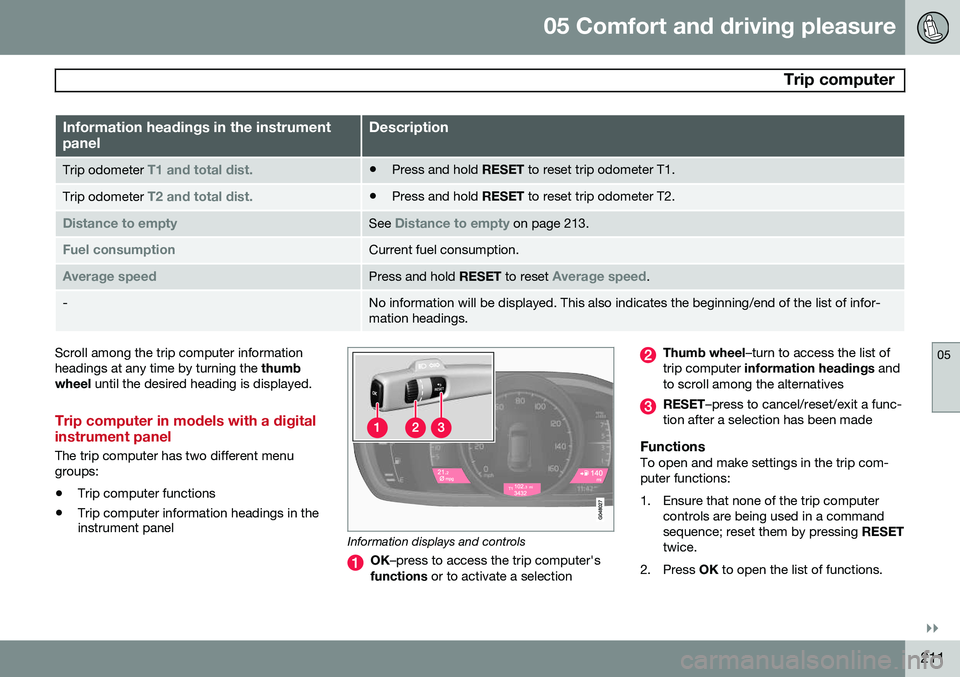
Information displays and controls
OK
–press to access the trip computer's
functions or to activate a selection
Thumb wheel –turn to access the list of
trip computer information headings and
to scroll among the alternatives
RESET –press to cancel/reset/exit a func-
tion after a selection has been made
FunctionsTo open and make settings in the trip com- puter functions:
1. Ensure that none of the trip computer controls are being used in a command sequence; reset them by pressing RESET
twice.
2. Press OK to open the list of functions.
Page 214 of 380
05 Comfort and driving pleasure
Trip computer
05
212* Option/accessory, for more information, see Introduction.
3. Use the thumb wheel to scroll among the
functions and select/confirm your choice by pressing OK. 4. After completing your selection, exit by
pressing RESET twice. The following table lists the digital trip com-puter's functions:
FunctionDescription
Trip computer reset
– Average fuel consumption – Average speedNOTE: This function does not reset the trip odometers, see page 214 for a description of how this is done.
MessagesFor additional information, see page 191.
ThemesSet the way in which information is displayed in the instrument panel, see page 76.
Settings *Select Auto On or Off.
Contrast mode /Color modeAdjust the instrument panel's contrast and color.
Service statusShows the number of months and mileage until the next scheduled service.
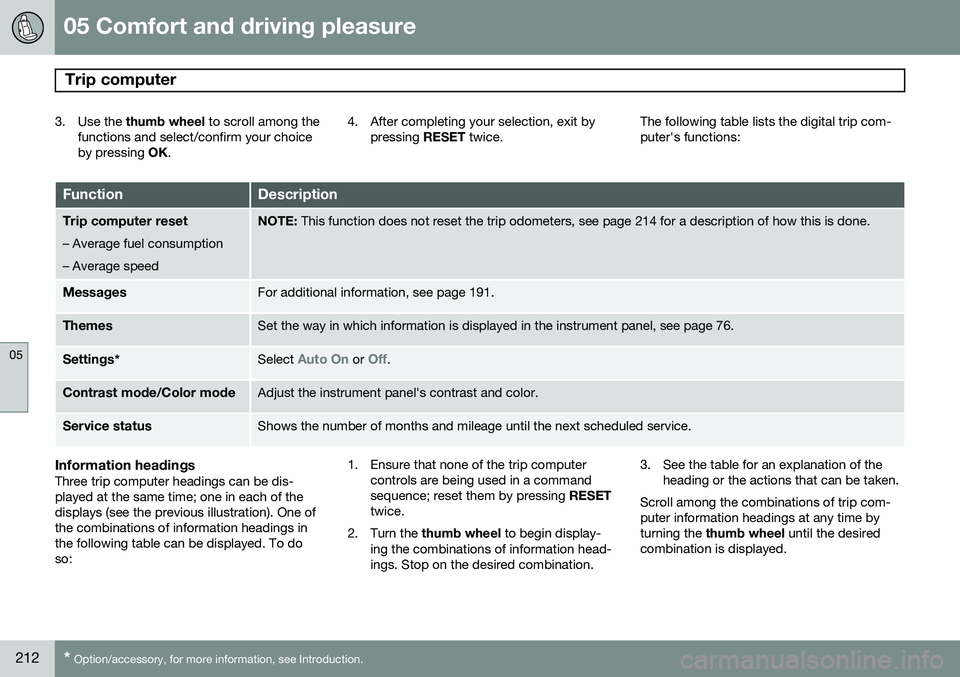
Information headingsThree trip computer headings can be dis- played at the same time; one in each of thedisplays (see the previous illustration). One ofthe combinations of information headings inthe following table can be displayed. To doso: 1. Ensure that none of the trip computer
controls are being used in a commandsequence; reset them by pressing RESET
twice.
2. Turn the thumb wheel to begin display-
ing the combinations of information head-ings. Stop on the desired combination. 3. See the table for an explanation of the
heading or the actions that can be taken.
Scroll among the combinations of trip com-puter information headings at any time byturning the thumb wheel until the desired
combination is displayed.
Page 215 of 380
05 Comfort and driving pleasure
Trip computer
05
}}
* Option/accessory, for more information, see Introduction.213
Heading combinationsDescription
Average fuel consumptionTrip odometer T1 + mileageAverage speed• Press and hold
RESET to reset trip odometer T1.
Current fuel consumptionTrip odometer T2 + mileageDistance to empty•Press and hold
RESET to reset trip odometer T2.
Current fuel consumptionMileagemph<>kmhChange between mph<>kmh – see "Digital speed display" on page 213.
-No trip computer informa-
tion displayed-No information will be displayed. This also indicates the begin- ning/end of the list of information headings.
Scroll among the trip computer information headings at any time by turning the thumb
wheel until the desired heading is displayed.
Supplementary information
Average fuel consumptionFuel consumption since the last time this function was reset.
Average speedThe vehicle's average speed since the lasttime this function was reset.
Current fuel consumptionCurrent fuel consumption is calculatedapproximately once a second. When the vehi-cle is moving at low speed, fuel consumptionis displayed per unit of time. At higherspeeds, it is displayed in terms of distance. Miles or kilometers can be displayed, see theheading "Changing units" on page 214
Distance to emptyThis function shows the approximate dis-tance that can be driven on the fuel remaining in the tank. When
Distance to empty shows
"----", there is very little useable fuel remain- ing in that tank; refuel as soon as possible.The calculation is based on average fuel con-sumption during the last 20 miles (30 km) ofdriving and the amount of fuel remaining inthe tank (the accuracy of this figure may varyif your driving style changes). An economicaldriving style will generally increase this dis-tance. See page268 for information about driving economically.
Digital speed display*Speed is expressed in the unit not used bythe instrument panel's speedometer e.g., ifthe normal speedometer is in mph, the tripcomputer will display in the speed in km/hand vice versa.
Resetting an analog instrument panel
Trip odometer(s) and average speed1. Display trip odometer T1 or T1, or Aver- age speed.
2. Press and hold RESET until selected
function is reset.
Each trip computer heading must be reset individually.
Page 216 of 380
05 Comfort and driving pleasure
Trip computer
05
214* Option/accessory, for more information, see Introduction.
Resetting a digital instrument panel
Trip odometer1. Turn the thumb wheel to select the com-
bination of headings containing the trip odometer to be reset.
2. Press and hold RESET until selected trip
odometer is reset.
Average speed and fuel consumption1. Select Trip computer reset and press
OK .
2. Select one of the following alternatives using the thumb wheel and press OK:
• mpg
• mph
• Reset both
3. Finish by pressing RESET.
Changing unitsTo change the unit (miles/km) used to meas- ure distance and speed, go to
MY CAR
SettingsSystem optionsDistance
and fuel units.
NOTE
In addition to changing units in the trip computer, this also changes the units usedin the Volvo Navigation System (VNS)*.
Trip statistics*
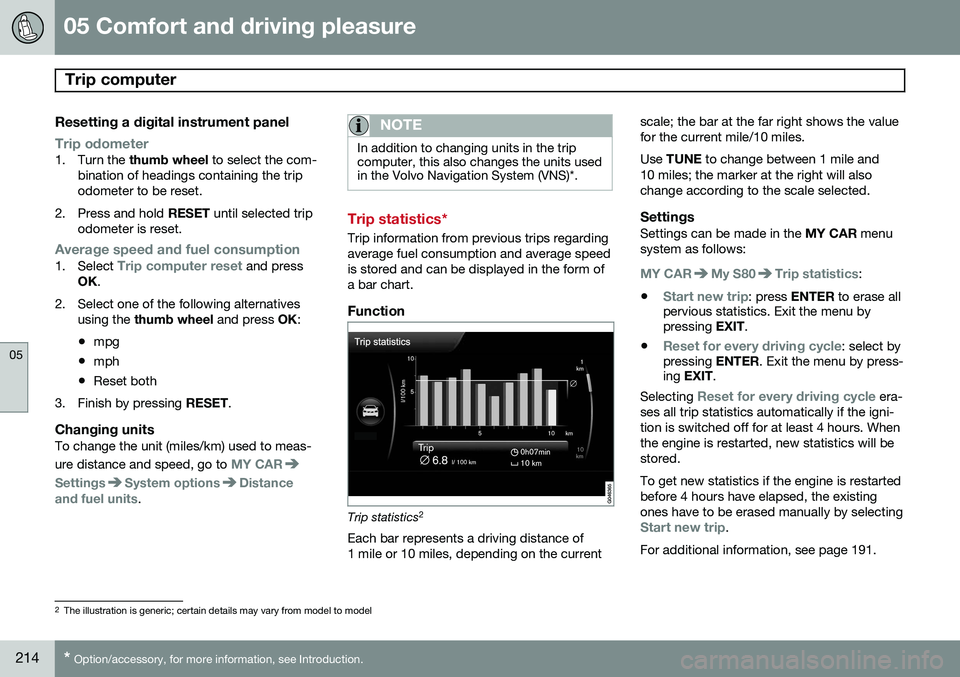
Trip information from previous trips regarding average fuel consumption and average speedis stored and can be displayed in the form ofa bar chart.
Function
Trip statistics 2
Each bar represents a driving distance of 1 mile or 10 miles, depending on the current scale; the bar at the far right shows the valuefor the current mile/10 miles. Use
TUNE to change between 1 mile and
10 miles; the marker at the right will also change according to the scale selected.
SettingsSettings can be made in the MY CAR menu
system as follows:
MY CARMy S80Trip statistics:
•
Start new trip: press ENTER to erase all
pervious statistics. Exit the menu by pressing EXIT.
•
Reset for every driving cycle: select by
pressing ENTER. Exit the menu by press-
ing EXIT .
Selecting
Reset for every driving cycle era-
ses all trip statistics automatically if the igni- tion is switched off for at least 4 hours. Whenthe engine is restarted, new statistics will bestored. To get new statistics if the engine is restarted before 4 hours have elapsed, the existingones have to be erased manually by selecting
Start new trip.
For additional information, see page 191.
2 The illustration is generic; certain details may vary from model to model
Page 273 of 380
07 During your trip
Refueling
07
271
Fuel requirements
Deposit control gasoline (detergentadditives)
Volvo recommends the use of detergent gas- oline to control engine deposits. Detergentgasoline is effective in keeping injectors andintake valves clean. Consistent use of depositcontrol gasolines will help ensure good driva-bility and fuel economy. If you are not surewhether the gasoline contains deposit controladditives, check with the service station oper-ator.
NOTE
Volvo does not recommend the use of external fuel injector cleaning systems.
Unleaded fuelEach Volvo has a three-way catalytic con- verter and must use only unleaded gasoline.U.S. and Canadian regulations require thatpumps delivering unleaded gasoline belabeled "UNLEADED". Only these pumpshave nozzles which fit your vehicle's fillerinlet. It is unlawful to dispense leaded fuelinto a vehicle labelled "unleaded gasolineonly". Leaded gasoline damages the three-way catalytic converter and the heated oxy-gen sensor system. Repeated use of leaded gasoline will lessen the effectiveness of theemission control system and could result inloss of emission warranty coverage. Stateand local vehicle inspection programs willmake detection of misfueling easier, possiblyresulting in emission test failure for misfueledvehicles.
NOTE
Some U.S. and Canadian gasolines con- tain an octane enhancing additive calledmethyl-cyclopentadienyl manganese tri-carbonyl (MMT). If such fuels are used,your Emission Control System perform-ance may be affected, and the CheckEngine Light (malfunction indicator light)located on your instrument panel maylight. If this occurs, please return yourvehicle to a trained and qualified Volvoservice technician for service.
Gasoline containing alcohol and ethers, "Oxygenated fuels"
Some fuel suppliers sell gasoline containing "oxygenates" which are usually alcohols orethers. In some areas, state or local lawsrequire that the service pump be marked indi- cating use of alcohols or ethers. However,there are areas in which the pumps areunmarked. If you are not sure whether there isalcohol or ethers in the gasoline you buy,check with the service station operator. Tomeet seasonal air quality standards, someareas require the use of "oxygenated" fuel. Volvo allows the use of the following "oxy- genated" fuels; however, the octane ratingslisted on page 272 must still be met.
Alcohol – EthanolFuels containing up to 10% ethanol by vol- ume may be used. Ethanol may also be refer-red to as Ethyl alcohol, or "Gasohol". Ethers – MTBE: Fuels containing up to 15% MTBE may be used.
MethanolDo not use gasolines containing methanol(methyl alcohol, wood alcohol). This practicecan result in vehicle performance deteriora-tion and can damage critical parts in the fuelsystem. Such damage may not be coveredunder the New Vehicle Limited Warranty.