key VOLVO S80 2014 Owner´s Manual
[x] Cancel search | Manufacturer: VOLVO, Model Year: 2014, Model line: S80, Model: VOLVO S80 2014Pages: 380, PDF Size: 10.83 MB
Page 227 of 380
06 Infotainment
Introduction
06
}}
* Option/accessory, for more information, see Introduction.225
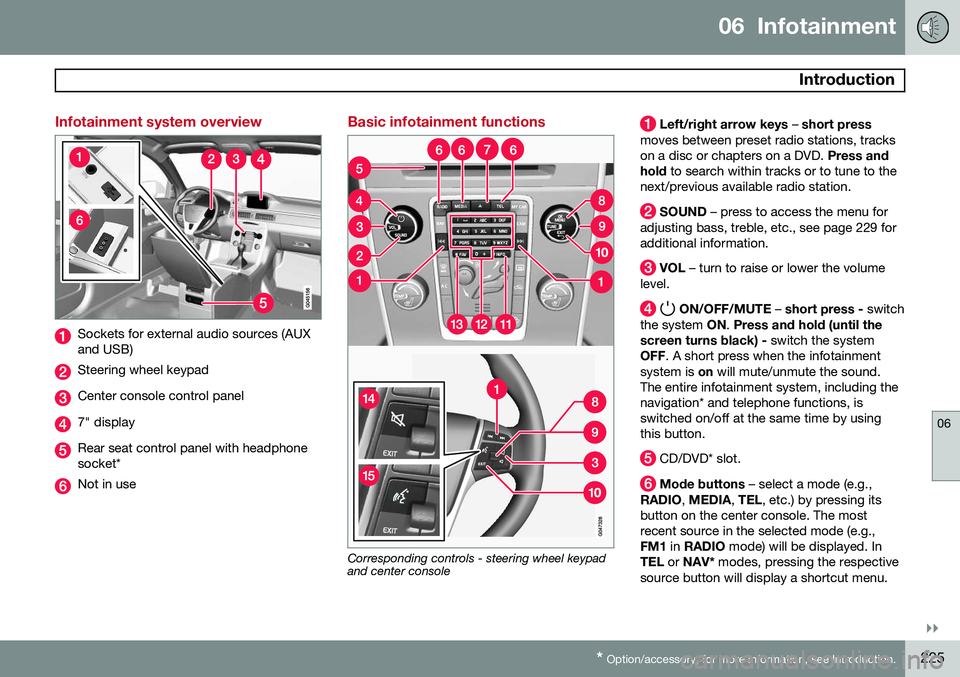
Infotainment system overview
Sockets for external audio sources (AUX and USB)
Steering wheel keypad
Center console control panel
7" display
Rear seat control panel with headphone socket*
Not in use
Basic infotainment functions
Corresponding controls - steering wheel keypad and center console
Left/right arrow keys – short press
moves between preset radio stations, tracks on a disc or chapters on a DVD. Press and
hold to search within tracks or to tune to the
next/previous available radio station.
SOUND – press to access the menu for
adjusting bass, treble, etc., see page 229 for additional information.
VOL – turn to raise or lower the volume
level.
ON/OFF/MUTE – short press - switch
the system ON. Press and hold (until the
screen turns black) - switch the system
OFF . A short press when the infotainment
system is on will mute/unmute the sound.
The entire infotainment system, including the navigation* and telephone functions, isswitched on/off at the same time by usingthis button.
CD/DVD* slot.
Mode buttons – select a mode (e.g.,
RADIO , MEDIA , TEL , etc.) by pressing its
button on the center console. The most recent source in the selected mode (e.g.,FM1 in RADIO mode) will be displayed. In
TEL or NAV* modes, pressing the respective
source button will display a shortcut menu.
Page 228 of 380
06 Infotainment
Introduction
06
226* Option/accessory, for more information, see Introduction.
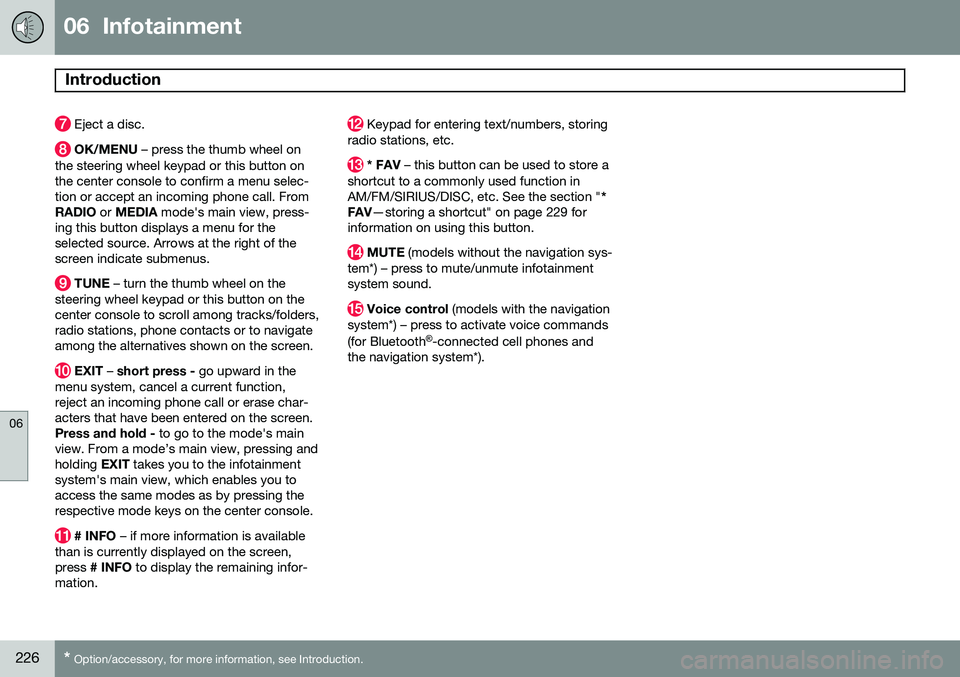
Eject a disc.
OK/MENU – press the thumb wheel on
the steering wheel keypad or this button on the center console to confirm a menu selec-tion or accept an incoming phone call. FromRADIO or MEDIA mode's main view, press-
ing this button displays a menu for theselected source. Arrows at the right of thescreen indicate submenus.
TUNE – turn the thumb wheel on the
steering wheel keypad or this button on the center console to scroll among tracks/folders,radio stations, phone contacts or to navigateamong the alternatives shown on the screen.
EXIT – short press - go upward in the
menu system, cancel a current function, reject an incoming phone call or erase char-acters that have been entered on the screen.Press and hold - to go to the mode's main
view. From a mode’s main view, pressing andholding EXIT takes you to the infotainment
system's main view, which enables you toaccess the same modes as by pressing therespective mode keys on the center console.
# INFO – if more information is available
than is currently displayed on the screen, press # INFO to display the remaining infor-
mation.
Keypad for entering text/numbers, storing
radio stations, etc.
* FAV – this button can be used to store a
shortcut to a commonly used function in AM/FM/SIRIUS/DISC, etc. See the section " *
FAV —storing a shortcut" on page 229 for
information on using this button.
MUTE (models without the navigation sys-
tem*) – press to mute/unmute infotainment system sound.
Voice control (models with the navigation
system*) – press to activate voice commands (for Bluetooth ®
-connected cell phones and
the navigation system*).
Page 232 of 380
06 Infotainment
Introduction
06
230
•DPL II centre level/3 channel centre
level3 : Volume for the center speaker.
•
DPL II surround level3 /4
: Surround level.
Advanced sound settings
EqualizerSound levels for different frequencies can be adjusted separately using this feature. To do so:1. Press OK/MENU to access
Audio
settings and select Equalizer
2. Turn TUNE to select one of the frequen-
cies and press OK/MENU.
3. Turn TUNE to adjust the sound setting
and confirm the change by pressing OK/
MENU . Do the same for the other fre-
quencies.
4. When you have finished making your set- tings, press EXIT to save and return to
normal view.
For general information regarding menu navi- gation, see page 227 and menu overview seepage 231.
Sound stage 5The sound experience can be optimized forthe driver's seat, both front seats or the rearseat. If the front and rear seats are occupied, the sound stage setting
Front seats is rec-
ommended. Select one of the options under
Audio settingsSound stage.
Audio volume and automatic volume
control
The infotainment system compensates for disrupting noises in the passenger compart-ment by increasing the volume according tothe speed of the vehicle. The level of soundcompensation can be set at low, medium,high or off. Select the level under
Audio
settings
Volume compensation.
External audio source volumeIf an external device such as an MP3 player or an iPod ®
is connected to the AUX socket,
the device's volume may be different than the volume of the internal sound sources such asthe disc player or the radio. If the externalsound source's volume is too high, the qualityof the sound may be impaired. To help pre-vent this, adjust the input volume of the exter-nal audio source:
NOTE
Sound quality may be affected if the MP3 player is being charged while the system isin AUX mode. To help prevent this, avoidcharging the MP3 player in a 12-voltsocket while it is being played.
1. Press MEDIA and turn TUNE to AUX.
Press OK/MENU or the thumb wheel on
the steering wheel keypad.
2. Press OK/MENU and turn TUNE to
AUX
input volume. Confirm by pressing OK/
MENU .
3. Turn TUNE to adjust the volume.
Optimal sound reproductionThe infotainment system is pre-calibrated for optimal sound reproduction using digital sig-nal processing. This calibration takes into account factors such as the speakers, amplifier, cabin acous-tics, the listeners' seating positions, etc., foreach combination of vehicle/infotainmentsystem.
3
Premium Sound Multimedia only
4 Only when Surround is on.
5Premium Sound Multimedia only
Page 236 of 380
06 Infotainment
Radio
06
234* Option/accessory, for more information, see Introduction.
General functions
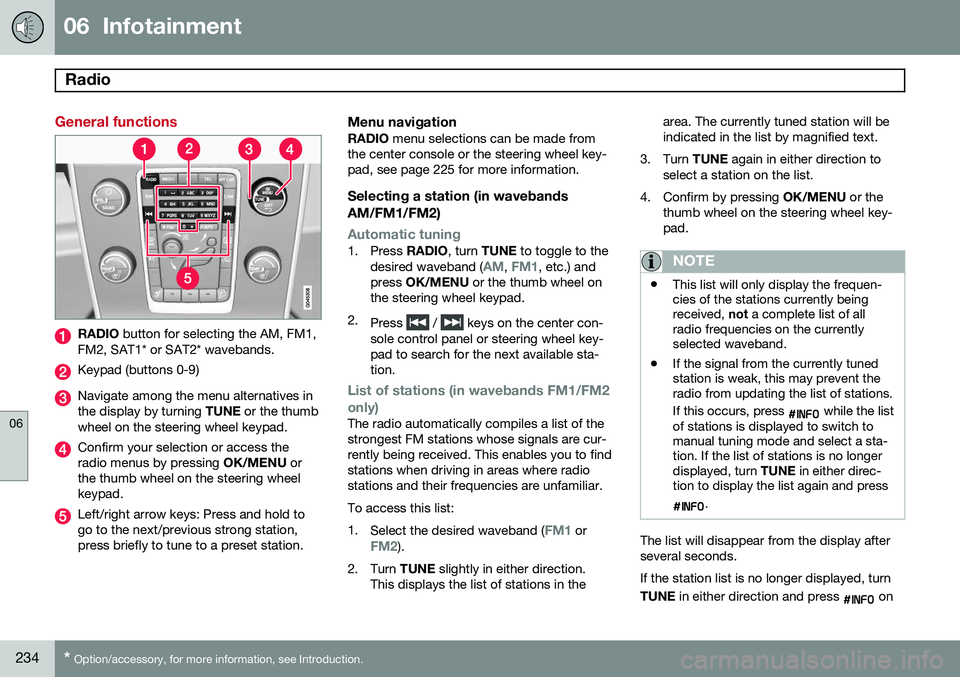
RADIO button for selecting the AM, FM1,
FM2, SAT1* or SAT2* wavebands.
Keypad (buttons 0-9)
Navigate among the menu alternatives in the display by turning TUNE or the thumb
wheel on the steering wheel keypad.
Confirm your selection or access the radio menus by pressing OK/MENU or
the thumb wheel on the steering wheelkeypad.
Left/right arrow keys: Press and hold to go to the next/previous strong station,press briefly to tune to a preset station.
Menu navigationRADIO menu selections can be made from
the center console or the steering wheel key-pad, see page 225 for more information.
Selecting a station (in wavebands AM/FM1/FM2)
Automatic tuning1. Press RADIO, turn TUNE to toggle to the
desired waveband (AM, FM1, etc.) and
press OK/MENU or the thumb wheel on
the steering wheel keypad.
2. Press
/ keys on the center con-
sole control panel or steering wheel key- pad to search for the next available sta-tion.
List of stations (in wavebands FM1/FM2 only)
The radio automatically compiles a list of the strongest FM stations whose signals are cur-rently being received. This enables you to findstations when driving in areas where radiostations and their frequencies are unfamiliar. To access this list:1. Select the desired waveband (
FM1 orFM2).
2. Turn TUNE slightly in either direction.
This displays the list of stations in the area. The currently tuned station will be indicated in the list by magnified text.
3. Turn TUNE again in either direction to
select a station on the list.
4. Confirm by pressing OK/MENU or the
thumb wheel on the steering wheel key-pad.
NOTE
• This list will only display the frequen- cies of the stations currently beingreceived,
not a complete list of all
radio frequencies on the currentlyselected waveband.
• If the signal from the currently tunedstation is weak, this may prevent theradio from updating the list of stations. If this occurs, press
while the list
of stations is displayed to switch to manual tuning mode and select a sta-tion. If the list of stations is no longerdisplayed, turn TUNE in either direc-
tion to display the list again and press
.
The list will disappear from the display after several seconds. If the station list is no longer displayed, turn TUNE in either direction and press
on
Page 237 of 380
06 Infotainment
Radio
06
235
the keypad on the center console to switch to manual tuning (or to switch back from manualtuning to the "list of stations" function).
Manual tuningBy default, the list of stations of the strongest stations in the area will be displayed whenyou turn
TUNE (see the preceding section,
"List of stations"). While the list of stations is displayed, press
on the center console
keypad to switch to manual tuning, which enables you to select a frequency from thecomplete list of all radio frequencies availa-
ble on the currently selected waveband. Inother words, in manual tuning mode, turningTUNE one step will change from e.g., 93.3 to
93.5, etc.). To manually tune a station:
1. Press RADIO. Turn TUNE to scroll to the
desired waveband (
AM, FM1, etc.) and
press OK/MENU or the thumb wheel on
the steering wheel keypad to confirm.
2. Turn TUNE or the thumb wheel to select
a frequency.
NOTE
The radio is initially set to automatically search for stations in the area in which youare driving (see the preceding section,"List of stations"). However, if you have switched to manual tuning (by pressing
on the keypad
on the center console while the list of sta- tions is displayed), the radio will remain inmanual tuning mode the next time it isswitched on. To switch back to "list of sta-tions" mode, turn TUNE one step (to dis-
play the full list of stations) and press
.
Please note that if you press
when
the list of stations is not displayed, this will activate the INFO function.
Storing preset stationsTen preset stations can be stored for each waveband (AM, FM1, etc.).
Stored preset stations are selected using the buttons on the keypad on the center console.
Manually storing preset stations1. Tune to a station (see "Selecting a sta- tion" on page 234).
2. Press and hold one of the number key buttons. > The sound will be muted for several
seconds and when it returns, the sta- tion has been stored on the numberkey button used.
A list of preset stations can be displayed. Thisfunction can be activated/deactivated in AM/FM mode in
FM menuShow presets
or in AM menuShow presets
ScanThe function automatically searches the cur- rent waveband for radio stations. When a sta-tion is found, it is played for several secondsbefore scanning is resumed. While the stationis playing it can be stored as a preset in theusual way (see "Manually storing preset sta-tions").
–To start scanning in AM/FM mode, go to
FM menuScan or in AM menuScan.
Stop station scanning by pressing EXIT.
NOTE
Storing a station interrupts the SCAN func- tion.
Page 238 of 380
06 Infotainment
Radio
06
236
Radio textSome stations transmit information on pro- gram content, artists, etc. This informationcan be shown on the display. Activate/deactivate in FM mode under
Show
radio text.
HD Radio™ reception (U.S. models
only)
Introduction
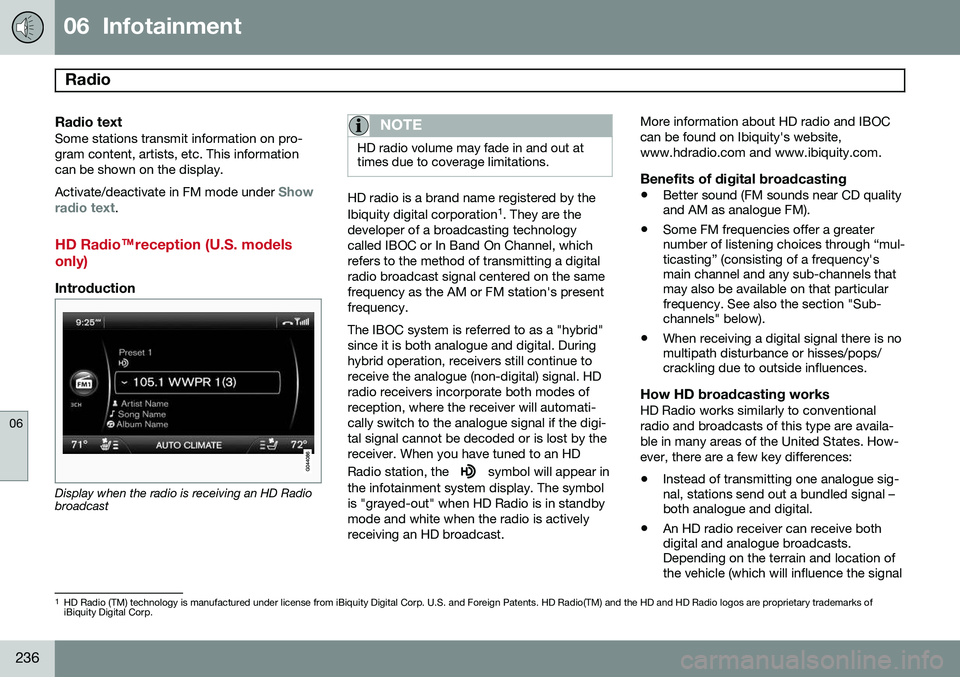
Display when the radio is receiving an HD Radio broadcast
NOTE
HD radio volume may fade in and out at times due to coverage limitations.
HD radio is a brand name registered by the Ibiquity digital corporation 1
. They are the
developer of a broadcasting technology called IBOC or In Band On Channel, whichrefers to the method of transmitting a digitalradio broadcast signal centered on the samefrequency as the AM or FM station's presentfrequency. The IBOC system is referred to as a "hybrid" since it is both analogue and digital. Duringhybrid operation, receivers still continue toreceive the analogue (non-digital) signal. HDradio receivers incorporate both modes ofreception, where the receiver will automati-cally switch to the analogue signal if the digi-tal signal cannot be decoded or is lost by thereceiver. When you have tuned to an HD Radio station, the
symbol will appear in
the infotainment system display. The symbol is "grayed-out" when HD Radio is in standbymode and white when the radio is activelyreceiving an HD broadcast. More information about HD radio and IBOCcan be found on Ibiquity's website,www.hdradio.com and www.ibiquity.com.
Benefits of digital broadcasting
•
Better sound (FM sounds near CD quality and AM as analogue FM).
• Some FM frequencies offer a greaternumber of listening choices through “mul-ticasting” (consisting of a frequency'smain channel and any sub-channels thatmay also be available on that particularfrequency. See also the section "Sub-channels" below).
• When receiving a digital signal there is nomultipath disturbance or hisses/pops/crackling due to outside influences.
How HD broadcasting worksHD Radio works similarly to conventional radio and broadcasts of this type are availa-ble in many areas of the United States. How-ever, there are a few key differences:
• Instead of transmitting one analogue sig- nal, stations send out a bundled signal –both analogue and digital.
• An HD radio receiver can receive bothdigital and analogue broadcasts.Depending on the terrain and location ofthe vehicle (which will influence the signal
1
HD Radio (TM) technology is manufactured under license from iBiquity Digital Corp. U.S. and Foreign Patents. HD Radio(TM) and the HD and HD Radio logos are proprietary trademarks of iBiquity Digital Corp.
Page 240 of 380
06 Infotainment
Radio
06
238* Option/accessory, for more information, see Introduction.
Sub-channels
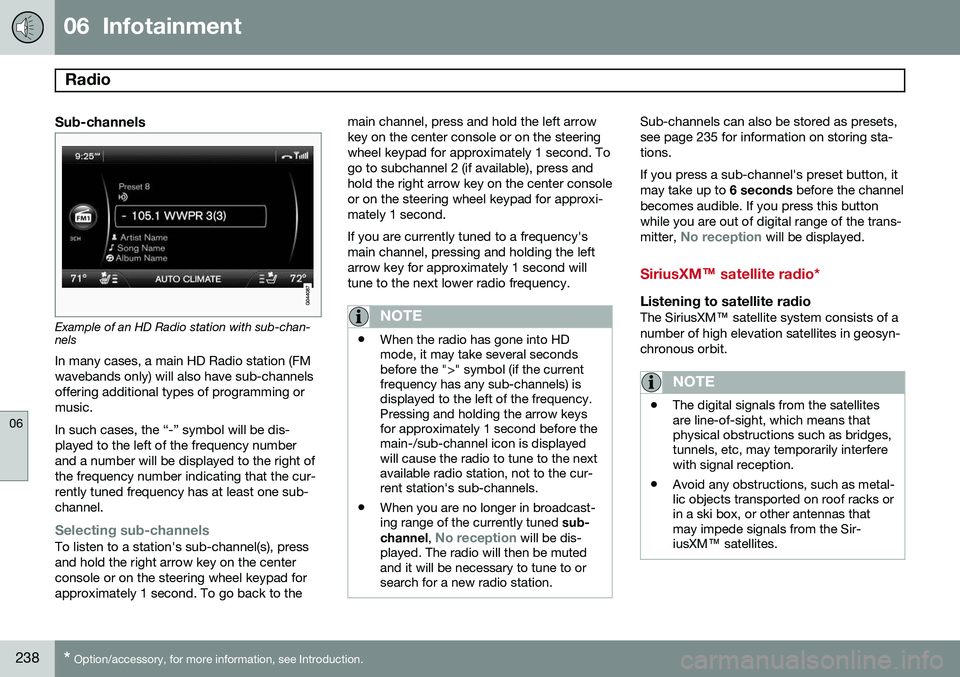
Example of an HD Radio station with sub-chan- nels
In many cases, a main HD Radio station (FM wavebands only) will also have sub-channelsoffering additional types of programming ormusic. In such cases, the “-” symbol will be dis- played to the left of the frequency numberand a number will be displayed to the right ofthe frequency number indicating that the cur-rently tuned frequency has at least one sub-channel.
Selecting sub-channelsTo listen to a station's sub-channel(s), press and hold the right arrow key on the centerconsole or on the steering wheel keypad forapproximately 1 second. To go back to the main channel, press and hold the left arrowkey on the center console or on the steeringwheel keypad for approximately 1 second. Togo to subchannel 2 (if available), press andhold the right arrow key on the center consoleor on the steering wheel keypad for approxi-mately 1 second. If you are currently tuned to a frequency's main channel, pressing and holding the leftarrow key for approximately 1 second willtune to the next lower radio frequency.
NOTE
•
When the radio has gone into HD mode, it may take several secondsbefore the ">" symbol (if the currentfrequency has any sub-channels) isdisplayed to the left of the frequency.Pressing and holding the arrow keysfor approximately 1 second before themain-/sub-channel icon is displayedwill cause the radio to tune to the nextavailable radio station, not to the cur-rent station's sub-channels.
• When you are no longer in broadcast-ing range of the currently tuned
sub-
channel ,
No reception will be dis-
played. The radio will then be muted and it will be necessary to tune to orsearch for a new radio station.
Sub-channels can also be stored as presets, see page 235 for information on storing sta-tions. If you press a sub-channel's preset button, it may take up to 6 seconds before the channel
becomes audible. If you press this buttonwhile you are out of digital range of the trans- mitter,
No reception will be displayed.
SiriusXM™ satellite radio*
Listening to satellite radioThe SiriusXM ™ satellite system consists of a
number of high elevation satellites in geosyn- chronous orbit.
NOTE
• The digital signals from the satellites are line-of-sight, which means thatphysical obstructions such as bridges,tunnels, etc, may temporarily interferewith signal reception.
• Avoid any obstructions, such as metal-lic objects transported on roof racks orin a ski box, or other antennas thatmay impede signals from the Sir-iusXM
™ satellites.
Page 241 of 380
06 Infotainment
Radio
06
239
Selecting SiriusXM™ radio mode
1. With the infotainment system switched
on, press RADIO.
2. Turn TUNE or the thumb wheel on the
steering wheel keypad to scroll to the desired waveband (
SAT1 or SAT2) and
press OK/MENU or the thumb wheel on
the steering wheel keypad.
Activating SiriusXM ™ radio
1. Tune to a satellite channel that has no
audio, which means that the channel is unsubscribed and the text
Subscription
update needed is displayed (see also
"Selecting a channel").
2. Call SiriusXM ™ at 1-888-539-SIRIUS
(7474).
3. If you tune to an unsubscribed channel, the SiriusXM ™ ID will be displayed. The
SiriusXM ™ ID can also be accessed from
the menu (press OK/MENU, turn TUNE
to scroll to the
Advanced settingsmenu, press OK/MENU, scroll to SIRIUS
ID and press OK/MENU to display the
number).
4.
Updating subscription will be displayed
while the subscription is being updated, after which the display will return to thenormal view.
SiriusXM™ ID
The SiriusXM ™ ID (sometimes referred to as
the Electronic Serial Number or ESN) is required when contacting the SiriusXM ™ Call
Center. It is used to activate your accountand when making any account transactions.
Selecting a channel category1. Turn TUNE to display a list of channels.
2. Press EXIT.
3. Turn TUNE to scroll through the list of
categories and press OK/MENU to make
a selection.
> The channels in the selected category are displayed.
NOTE
• The category All is default, which ena-
bles you to scroll through the entire list of available satellite channels.
• The channel categories are automati-cally updated several times a year.This takes approximately two minutesand will interrupt normal broadcasting.A message will be displayed whileupdating is in progress. Information onchannel or feature updates is availableat www.siriusxm.com.
Selecting a channelThere are three ways of tuning in a channel:
• Using the left and right arrow keys to go to the next channel. Skipped channels(see page 241) will be excluded.
• By turning the
TUNE control and select-
ing a channel from the list
• Through direct channel entry.
NOTE
•The numbers of skipped or locked channels will not be displayed.
• If a channel is locked, the access codemust be entered before the channelcan be selected. See "Unlocking achannel" on page 242.
Direct channel entryThe SiriusXM
™ satellite channels are in
numerical order throughout all of the catego- ries. To access a channel directly:
1. Turn TUNE to access the channel list.
2. Use the keypad buttons to enter the channel's number.
3. Press OK/MENU . The radio will tune to
this channel, even if it belongs to a cate- gory other than the currently selectedone.
Page 242 of 380
06 Infotainment
Radio
06
240
Scanning
Scan automatically searches through the list
of satellite channels. The search will only be carried out in the selected category, seepage 235 for more detailed information on thescan function.
Storing a channelA total of 20 satellite channels can be stored; 10 channels each for SAT1 and SAT2, see
page 235 for detailed information on storing channels.
• A
long press on one of the number keys
stores the currently tuned channel on that key.
• A
short press on a number key while the
radio is in
SAT1 or SAT2 mode will tune
to the preset satellite channel stored on that button, regardless of the currentlyselected channel category.
Searching for and storing songs
The Song Seek function provides notification
when SiriusXM ™ is broadcasting the songs
selected in song memory.
Song memoryenables you to store the name of the song for future advance notification when that song isbeing played.
Song seekWhen a satellite radio channel plays one of the songs stored in the song memory while the Song seek feature is activated, the lis-tener will be alerted by a text message and anaudible signal. Press
OK/MENU to listen to the song or EXIT
to cancel.To activate/deactivate the song seek func- tion:
1. Press OK/MENU .
2. Turn TUNE to scroll to
Song memoryand press OK/MENU .
3. Turn TUNE to scroll to
Song Seek and
press OK/MENU to activate or deactivate
the function.
NOTE
When the song has ended, the radio will remain tuned to the channel on which thesong was played.
Song memoryUp to ten songs can be saved in the system's memory. To add the currently playing song to the list:
1. Press OK/MENU .
2. Scroll to
Song memory and press OK/
MENU . 3.
Scroll to
Add current song to song
memory and press OK/MENU.
If a new song is selected when the memory is full, you will be prompted to delete a songfrom the list. To do so:
1. Press OK/MENU .
2. Turn TUNE to scroll through the list of
songs. Select a song and press OK/
MENU to delete it from the list.
Radio textThis text provides information about the song that is currently playing. To turn this featureon or off, press OK/MENU and scroll to
Show radio text and press OK/MENU to
toggle between on or off.
Advanced SiriusXM™ settings
This menu function enables you to make set- tings on certain SiriusXM ™ satellite radio
functions. To access this menu:
1. Press OK/MENU .
2. Scroll to the
Advanced settings menu
and press OK/MENU .
Page 243 of 380
06 Infotainment
Radio
06
241
WARNING
Settings should be made when the vehicle is at a standstill.
The following settings can be made in the satellite menus: •Channel skip settings can be made
• Channel lock settings can be made
• The channel access code can be dis- played or changed (see also "Locking achannel" on page 241)
• Your SiriusXM
™ ID can be displayed
• Reset SiriusXM
™ settings
Skip optionsThis function is used to remove a channel from the list of available channels.
Skipping a channel1. Press OK/MENU .
2. Scroll to the
Advanced settings menu.
3. Press OK/MENU to enter the
Skip
options menu.
4. Press OK/MENU to enter
Channel skip
list. 5.
Press OK/MENU to select
All categoriesor turn TUNE to scroll to a category and
press OK/MENU to select it.
6. Press OK/MENU to select
Skip all
channels in the category or turn TUNE
to scroll to a channel and press OK/
MENU to select or deselect it. Multiple
channels can be selected.
Unskip all channelsThis removes all channels from the skip list and makes them available for selection.
Temporary unskip all channelsThis function will temporarily unskip all chan- nels and make them available for selection.The channels remain on the skip list and willagain be skipped the next time the ignition isswitched on.
Channel lockAccess to specific channels can be restricted(locked). A locked channel will not provideaudio, song titles, or artist information.
NOTE
All channels are initially unlocked.
Locking a channel1. Press OK/MENU .
2. Scroll to the
Advanced settings menu.
3. Press OK/MENU and turn TUNE to scroll
to the
Lock options menu and press
OK/MENU .
4. Use the keypad in the central control panel to enter the channel access code 2
and press OK/MENU .
5. Press OK/MENU to enter the
Channel
lock list.
6. Press OK/MENU to select
All categoriesor turn TUNE to scroll to a category and
press OK/MENU to select it.
7. Press OK/MENU to select
Lock all
channels in the category or turn TUNE
to scroll to a channel and press OK/
MENU to select it. Multiple channels can
be selected.
The selected channel is now locked and a checked box will be displayed to indicatethis. It will be necessary to enter the channel access code 2
in order to listen to a locked
channel.
2 The default code is 0000. If you have changed the code and forgotten it, see the section "If you have forgotten the access code."