wheel VOLVO S80 2014 Owner´s Manual
[x] Cancel search | Manufacturer: VOLVO, Model Year: 2014, Model line: S80, Model: VOLVO S80 2014Pages: 380, PDF Size: 10.83 MB
Page 214 of 380
05 Comfort and driving pleasure
Trip computer
05
212* Option/accessory, for more information, see Introduction.
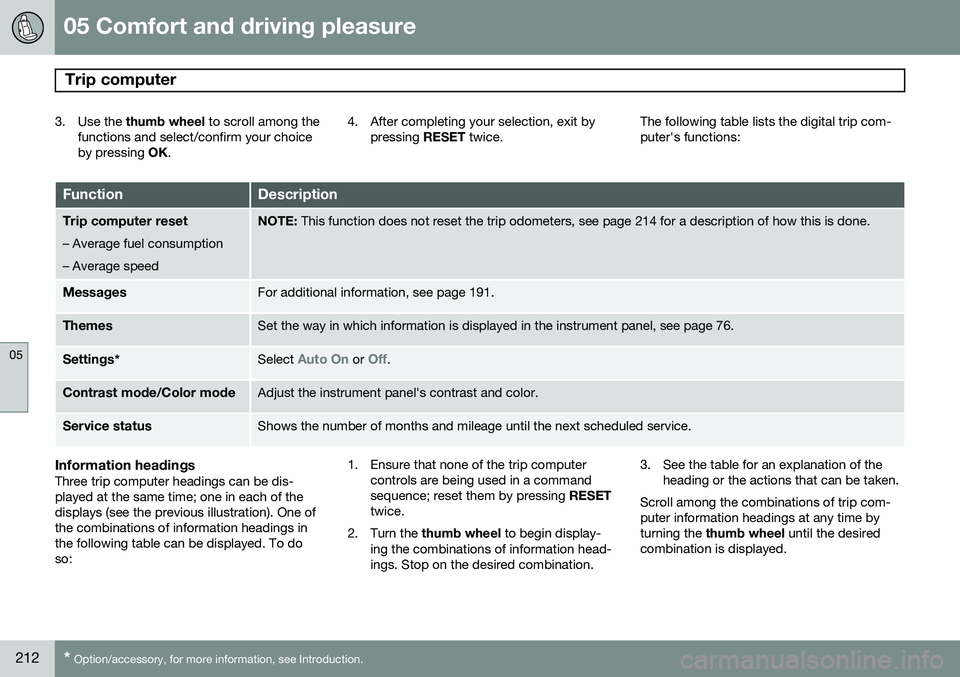
3. Use the thumb wheel to scroll among the
functions and select/confirm your choice by pressing OK. 4. After completing your selection, exit by
pressing RESET twice. The following table lists the digital trip com-puter's functions:
FunctionDescription
Trip computer reset
– Average fuel consumption – Average speedNOTE: This function does not reset the trip odometers, see page 214 for a description of how this is done.
MessagesFor additional information, see page 191.
ThemesSet the way in which information is displayed in the instrument panel, see page 76.
Settings *Select Auto On or Off.
Contrast mode /Color modeAdjust the instrument panel's contrast and color.
Service statusShows the number of months and mileage until the next scheduled service.
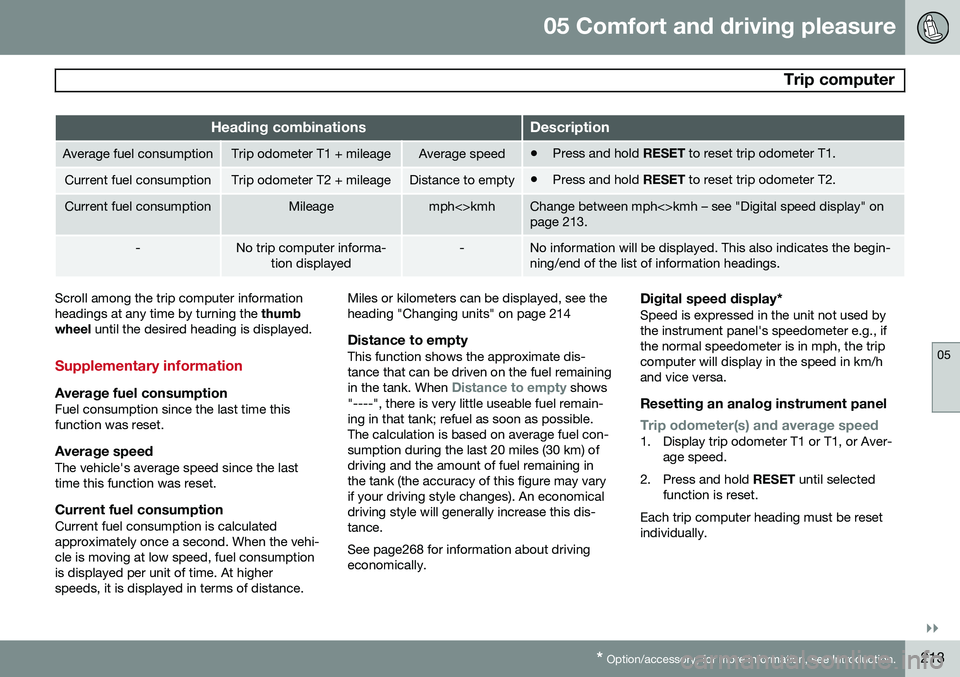
Information headingsThree trip computer headings can be dis- played at the same time; one in each of thedisplays (see the previous illustration). One ofthe combinations of information headings inthe following table can be displayed. To doso: 1. Ensure that none of the trip computer
controls are being used in a commandsequence; reset them by pressing RESET
twice.
2. Turn the thumb wheel to begin display-
ing the combinations of information head-ings. Stop on the desired combination. 3. See the table for an explanation of the
heading or the actions that can be taken.
Scroll among the combinations of trip com-puter information headings at any time byturning the thumb wheel until the desired
combination is displayed.
Page 215 of 380
05 Comfort and driving pleasure
Trip computer
05
}}
* Option/accessory, for more information, see Introduction.213
Heading combinationsDescription
Average fuel consumptionTrip odometer T1 + mileageAverage speed• Press and hold
RESET to reset trip odometer T1.
Current fuel consumptionTrip odometer T2 + mileageDistance to empty•Press and hold
RESET to reset trip odometer T2.
Current fuel consumptionMileagemph<>kmhChange between mph<>kmh – see "Digital speed display" on page 213.
-No trip computer informa-
tion displayed-No information will be displayed. This also indicates the begin- ning/end of the list of information headings.
Scroll among the trip computer information headings at any time by turning the thumb
wheel until the desired heading is displayed.
Supplementary information
Average fuel consumptionFuel consumption since the last time this function was reset.
Average speedThe vehicle's average speed since the lasttime this function was reset.
Current fuel consumptionCurrent fuel consumption is calculatedapproximately once a second. When the vehi-cle is moving at low speed, fuel consumptionis displayed per unit of time. At higherspeeds, it is displayed in terms of distance. Miles or kilometers can be displayed, see theheading "Changing units" on page 214
Distance to emptyThis function shows the approximate dis-tance that can be driven on the fuel remaining in the tank. When
Distance to empty shows
"----", there is very little useable fuel remain- ing in that tank; refuel as soon as possible.The calculation is based on average fuel con-sumption during the last 20 miles (30 km) ofdriving and the amount of fuel remaining inthe tank (the accuracy of this figure may varyif your driving style changes). An economicaldriving style will generally increase this dis-tance. See page268 for information about driving economically.
Digital speed display*Speed is expressed in the unit not used bythe instrument panel's speedometer e.g., ifthe normal speedometer is in mph, the tripcomputer will display in the speed in km/hand vice versa.
Resetting an analog instrument panel
Trip odometer(s) and average speed1. Display trip odometer T1 or T1, or Aver- age speed.
2. Press and hold RESET until selected
function is reset.
Each trip computer heading must be reset individually.
Page 216 of 380
05 Comfort and driving pleasure
Trip computer
05
214* Option/accessory, for more information, see Introduction.
Resetting a digital instrument panel
Trip odometer1. Turn the thumb wheel to select the com-
bination of headings containing the trip odometer to be reset.
2. Press and hold RESET until selected trip
odometer is reset.
Average speed and fuel consumption1. Select Trip computer reset and press
OK .
2. Select one of the following alternatives using the thumb wheel and press OK:
• mpg
• mph
• Reset both
3. Finish by pressing RESET.
Changing unitsTo change the unit (miles/km) used to meas- ure distance and speed, go to
MY CAR
SettingsSystem optionsDistance
and fuel units.
NOTE
In addition to changing units in the trip computer, this also changes the units usedin the Volvo Navigation System (VNS)*.
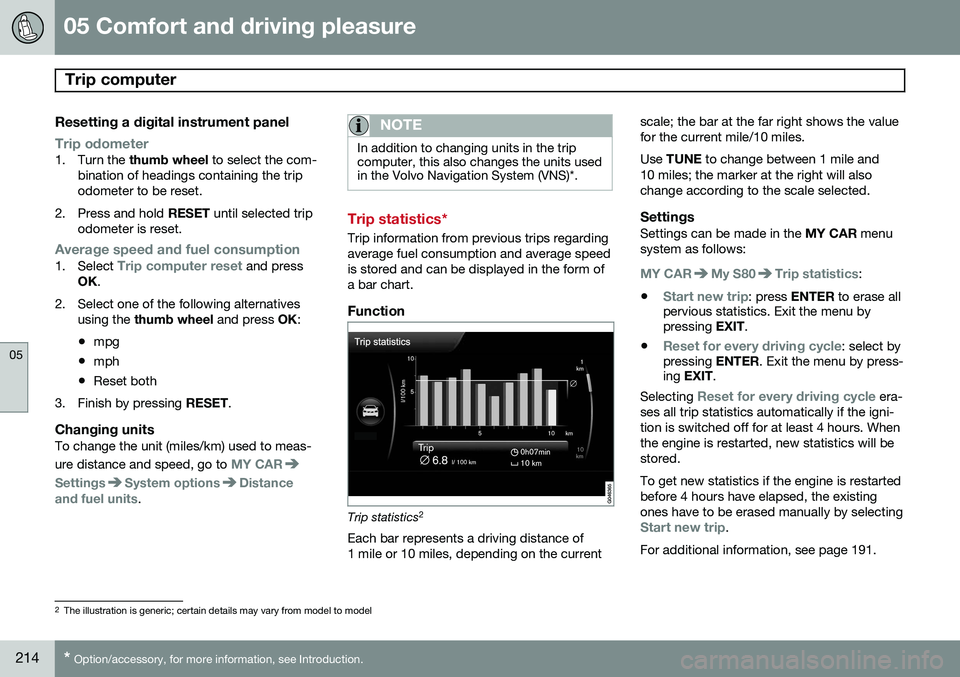
Trip statistics*
Trip information from previous trips regarding average fuel consumption and average speedis stored and can be displayed in the form ofa bar chart.
Function
Trip statistics 2
Each bar represents a driving distance of 1 mile or 10 miles, depending on the current scale; the bar at the far right shows the valuefor the current mile/10 miles. Use
TUNE to change between 1 mile and
10 miles; the marker at the right will also change according to the scale selected.
SettingsSettings can be made in the MY CAR menu
system as follows:
MY CARMy S80Trip statistics:
•
Start new trip: press ENTER to erase all
pervious statistics. Exit the menu by pressing EXIT.
•
Reset for every driving cycle: select by
pressing ENTER. Exit the menu by press-
ing EXIT .
Selecting
Reset for every driving cycle era-
ses all trip statistics automatically if the igni- tion is switched off for at least 4 hours. Whenthe engine is restarted, new statistics will bestored. To get new statistics if the engine is restarted before 4 hours have elapsed, the existingones have to be erased manually by selecting
Start new trip.
For additional information, see page 191.
2 The illustration is generic; certain details may vary from model to model
Page 218 of 380
05 Comfort and driving pleasure
Active chassis system–Four C*
05
216* Option/accessory, for more information, see Introduction.
Active chassis (Four C)
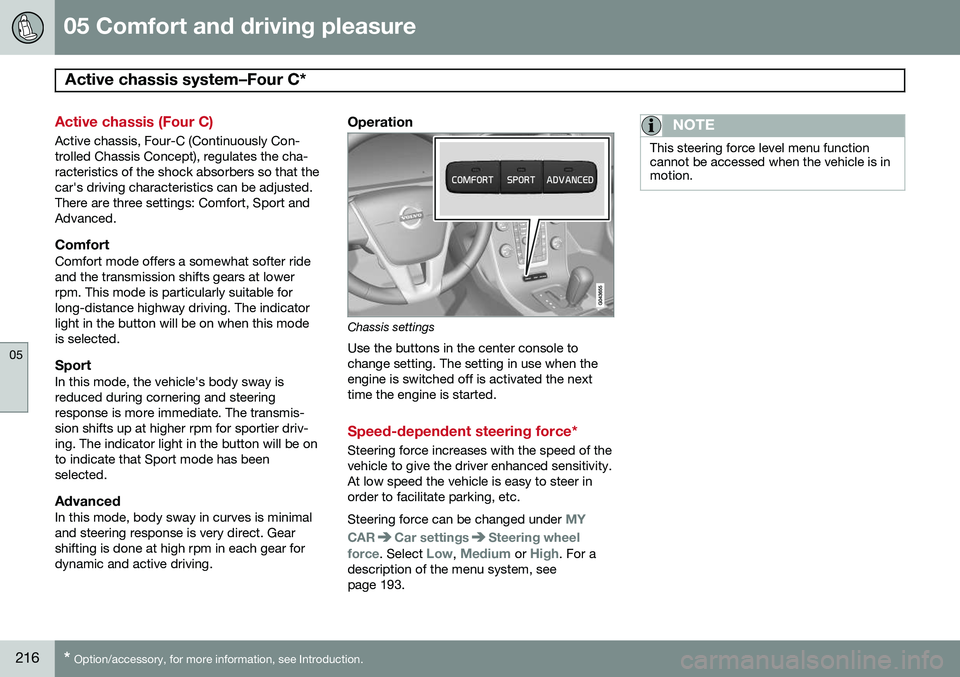
Active chassis, Four-C (Continuously Con- trolled Chassis Concept), regulates the cha-racteristics of the shock absorbers so that thecar's driving characteristics can be adjusted.There are three settings: Comfort, Sport andAdvanced.
ComfortComfort mode offers a somewhat softer rideand the transmission shifts gears at lowerrpm. This mode is particularly suitable forlong-distance highway driving. The indicatorlight in the button will be on when this modeis selected.
SportIn this mode, the vehicle's body sway isreduced during cornering and steeringresponse is more immediate. The transmis-sion shifts up at higher rpm for sportier driv-ing. The indicator light in the button will be onto indicate that Sport mode has beenselected.
AdvancedIn this mode, body sway in curves is minimaland steering response is very direct. Gearshifting is done at high rpm in each gear fordynamic and active driving.
Operation
Chassis settings
Use the buttons in the center console to change setting. The setting in use when theengine is switched off is activated the nexttime the engine is started.
Speed-dependent steering force*
Steering force increases with the speed of the vehicle to give the driver enhanced sensitivity.At low speed the vehicle is easy to steer inorder to facilitate parking, etc. Steering force can be changed under
MY
CAR
Car settingsSteering wheel
force
. Select Low, Medium or High. For a
description of the menu system, see page 193.
NOTE
This steering force level menu function cannot be accessed when the vehicle is inmotion.
Page 226 of 380
06 Infotainment
Introduction
06
224* Option/accessory, for more information, see Introduction.
General information
The infotainment system consists of radio and media player features and also makes itpossible to communicate via a cell phone.The information is displayed on a 7" screen inthe center console. Infotainment functionscan be controlled from the center console orvia the buttons on the steering wheel keypad.On models equipped with the navigation sys-tem*, voice commands can also be used toe.g., set destinations, make calls from a Bluetooth ®
-connected cell phone, etc.
If the infotainment system was on when the ignition was switched off, the most recently used source (
FM1, etc.) will restart the next
time the ignition is put in mode I or higher.
The driver's door must also be closed on vehicles with keyless drive*. The infotainment system can be operated for 15 minutes at a time while the engine isswitched off by pressing the On/Off button. While the engine is being started, the infotain- ment system will be temporarily interruptedand will resume when the engine has started.
NOTE
To help avoid excessive battery drain, remove the remote key from the ignitionslot if the infotainment system is usedwhile the engine is switched off.
Dolby Pro Logic
The system is manufactured under license from Dolby Laboratories LicensingCorporation. Dolby Pro Logic II and the
symbol are
trademarks of Dolby Laboratories Licensing Corporation.
Audyssey MultEQ 1
The Audyssey MultEQ system has been used to optimize sound quality to help ensure aworld-class listening experience.
1
Applies only to models with Premium Sound Multimedia.
Page 227 of 380
06 Infotainment
Introduction
06
}}
* Option/accessory, for more information, see Introduction.225
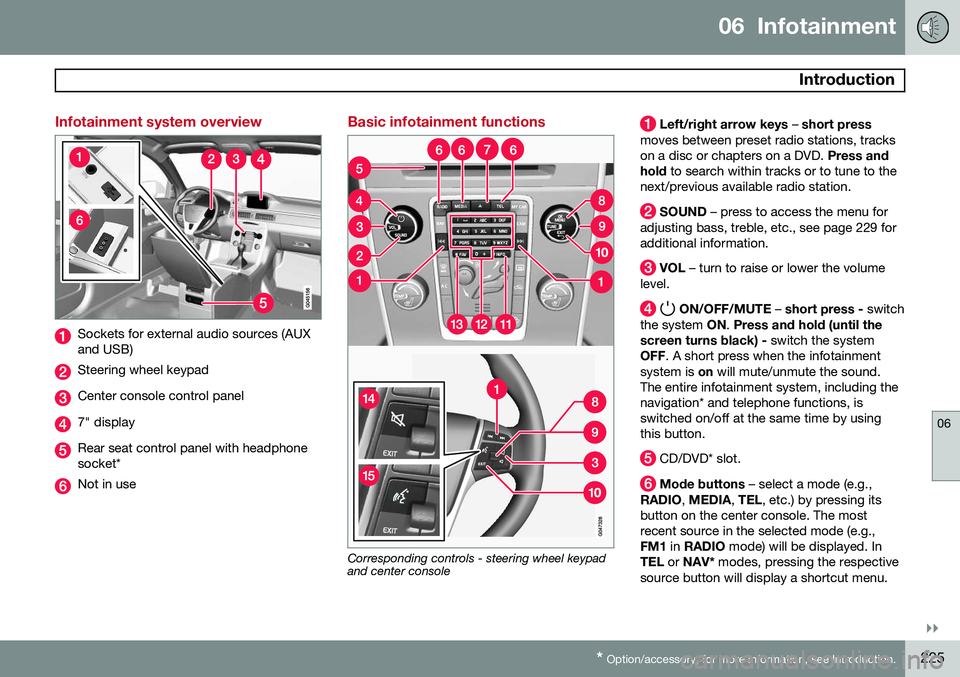
Infotainment system overview
Sockets for external audio sources (AUX and USB)
Steering wheel keypad
Center console control panel
7" display
Rear seat control panel with headphone socket*
Not in use
Basic infotainment functions
Corresponding controls - steering wheel keypad and center console
Left/right arrow keys – short press
moves between preset radio stations, tracks on a disc or chapters on a DVD. Press and
hold to search within tracks or to tune to the
next/previous available radio station.
SOUND – press to access the menu for
adjusting bass, treble, etc., see page 229 for additional information.
VOL – turn to raise or lower the volume
level.
ON/OFF/MUTE – short press - switch
the system ON. Press and hold (until the
screen turns black) - switch the system
OFF . A short press when the infotainment
system is on will mute/unmute the sound.
The entire infotainment system, including the navigation* and telephone functions, isswitched on/off at the same time by usingthis button.
CD/DVD* slot.
Mode buttons – select a mode (e.g.,
RADIO , MEDIA , TEL , etc.) by pressing its
button on the center console. The most recent source in the selected mode (e.g.,FM1 in RADIO mode) will be displayed. In
TEL or NAV* modes, pressing the respective
source button will display a shortcut menu.
Page 228 of 380
06 Infotainment
Introduction
06
226* Option/accessory, for more information, see Introduction.
Eject a disc.
OK/MENU – press the thumb wheel on
the steering wheel keypad or this button on the center console to confirm a menu selec-tion or accept an incoming phone call. FromRADIO or MEDIA mode's main view, press-
ing this button displays a menu for theselected source. Arrows at the right of thescreen indicate submenus.
TUNE – turn the thumb wheel on the
steering wheel keypad or this button on the center console to scroll among tracks/folders,radio stations, phone contacts or to navigateamong the alternatives shown on the screen.
EXIT – short press - go upward in the
menu system, cancel a current function, reject an incoming phone call or erase char-acters that have been entered on the screen.Press and hold - to go to the mode's main
view. From a mode’s main view, pressing andholding EXIT takes you to the infotainment
system's main view, which enables you toaccess the same modes as by pressing therespective mode keys on the center console.
# INFO – if more information is available
than is currently displayed on the screen, press # INFO to display the remaining infor-
mation.
Keypad for entering text/numbers, storing
radio stations, etc.
* FAV – this button can be used to store a
shortcut to a commonly used function in AM/FM/SIRIUS/DISC, etc. See the section " *
FAV —storing a shortcut" on page 229 for
information on using this button.
MUTE (models without the navigation sys-
tem*) – press to mute/unmute infotainment system sound.
Voice control (models with the navigation
system*) – press to activate voice commands (for Bluetooth ®
-connected cell phones and
the navigation system*).
Page 232 of 380
06 Infotainment
Introduction
06
230
•DPL II centre level/3 channel centre
level3 : Volume for the center speaker.
•
DPL II surround level3 /4
: Surround level.
Advanced sound settings
EqualizerSound levels for different frequencies can be adjusted separately using this feature. To do so:1. Press OK/MENU to access
Audio
settings and select Equalizer
2. Turn TUNE to select one of the frequen-
cies and press OK/MENU.
3. Turn TUNE to adjust the sound setting
and confirm the change by pressing OK/
MENU . Do the same for the other fre-
quencies.
4. When you have finished making your set- tings, press EXIT to save and return to
normal view.
For general information regarding menu navi- gation, see page 227 and menu overview seepage 231.
Sound stage 5The sound experience can be optimized forthe driver's seat, both front seats or the rearseat. If the front and rear seats are occupied, the sound stage setting
Front seats is rec-
ommended. Select one of the options under
Audio settingsSound stage.
Audio volume and automatic volume
control
The infotainment system compensates for disrupting noises in the passenger compart-ment by increasing the volume according tothe speed of the vehicle. The level of soundcompensation can be set at low, medium,high or off. Select the level under
Audio
settings
Volume compensation.
External audio source volumeIf an external device such as an MP3 player or an iPod ®
is connected to the AUX socket,
the device's volume may be different than the volume of the internal sound sources such asthe disc player or the radio. If the externalsound source's volume is too high, the qualityof the sound may be impaired. To help pre-vent this, adjust the input volume of the exter-nal audio source:
NOTE
Sound quality may be affected if the MP3 player is being charged while the system isin AUX mode. To help prevent this, avoidcharging the MP3 player in a 12-voltsocket while it is being played.
1. Press MEDIA and turn TUNE to AUX.
Press OK/MENU or the thumb wheel on
the steering wheel keypad.
2. Press OK/MENU and turn TUNE to
AUX
input volume. Confirm by pressing OK/
MENU .
3. Turn TUNE to adjust the volume.
Optimal sound reproductionThe infotainment system is pre-calibrated for optimal sound reproduction using digital sig-nal processing. This calibration takes into account factors such as the speakers, amplifier, cabin acous-tics, the listeners' seating positions, etc., foreach combination of vehicle/infotainmentsystem.
3
Premium Sound Multimedia only
4 Only when Surround is on.
5Premium Sound Multimedia only
Page 236 of 380
06 Infotainment
Radio
06
234* Option/accessory, for more information, see Introduction.
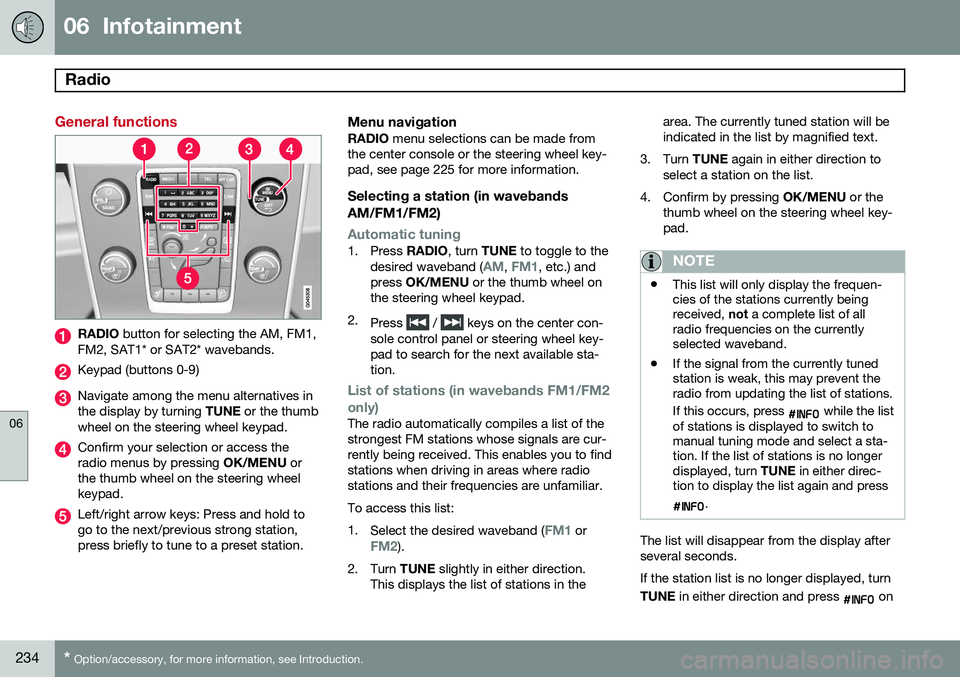
General functions
RADIO button for selecting the AM, FM1,
FM2, SAT1* or SAT2* wavebands.
Keypad (buttons 0-9)
Navigate among the menu alternatives in the display by turning TUNE or the thumb
wheel on the steering wheel keypad.
Confirm your selection or access the radio menus by pressing OK/MENU or
the thumb wheel on the steering wheelkeypad.
Left/right arrow keys: Press and hold to go to the next/previous strong station,press briefly to tune to a preset station.
Menu navigationRADIO menu selections can be made from
the center console or the steering wheel key-pad, see page 225 for more information.
Selecting a station (in wavebands AM/FM1/FM2)
Automatic tuning1. Press RADIO, turn TUNE to toggle to the
desired waveband (AM, FM1, etc.) and
press OK/MENU or the thumb wheel on
the steering wheel keypad.
2. Press
/ keys on the center con-
sole control panel or steering wheel key- pad to search for the next available sta-tion.
List of stations (in wavebands FM1/FM2 only)
The radio automatically compiles a list of the strongest FM stations whose signals are cur-rently being received. This enables you to findstations when driving in areas where radiostations and their frequencies are unfamiliar. To access this list:1. Select the desired waveband (
FM1 orFM2).
2. Turn TUNE slightly in either direction.
This displays the list of stations in the area. The currently tuned station will be indicated in the list by magnified text.
3. Turn TUNE again in either direction to
select a station on the list.
4. Confirm by pressing OK/MENU or the
thumb wheel on the steering wheel key-pad.
NOTE
• This list will only display the frequen- cies of the stations currently beingreceived,
not a complete list of all
radio frequencies on the currentlyselected waveband.
• If the signal from the currently tunedstation is weak, this may prevent theradio from updating the list of stations. If this occurs, press
while the list
of stations is displayed to switch to manual tuning mode and select a sta-tion. If the list of stations is no longerdisplayed, turn TUNE in either direc-
tion to display the list again and press
.
The list will disappear from the display after several seconds. If the station list is no longer displayed, turn TUNE in either direction and press
on
Page 237 of 380
06 Infotainment
Radio
06
235
the keypad on the center console to switch to manual tuning (or to switch back from manualtuning to the "list of stations" function).
Manual tuningBy default, the list of stations of the strongest stations in the area will be displayed whenyou turn
TUNE (see the preceding section,
"List of stations"). While the list of stations is displayed, press
on the center console
keypad to switch to manual tuning, which enables you to select a frequency from thecomplete list of all radio frequencies availa-
ble on the currently selected waveband. Inother words, in manual tuning mode, turningTUNE one step will change from e.g., 93.3 to
93.5, etc.). To manually tune a station:
1. Press RADIO. Turn TUNE to scroll to the
desired waveband (
AM, FM1, etc.) and
press OK/MENU or the thumb wheel on
the steering wheel keypad to confirm.
2. Turn TUNE or the thumb wheel to select
a frequency.
NOTE
The radio is initially set to automatically search for stations in the area in which youare driving (see the preceding section,"List of stations"). However, if you have switched to manual tuning (by pressing
on the keypad
on the center console while the list of sta- tions is displayed), the radio will remain inmanual tuning mode the next time it isswitched on. To switch back to "list of sta-tions" mode, turn TUNE one step (to dis-
play the full list of stations) and press
.
Please note that if you press
when
the list of stations is not displayed, this will activate the INFO function.
Storing preset stationsTen preset stations can be stored for each waveband (AM, FM1, etc.).
Stored preset stations are selected using the buttons on the keypad on the center console.
Manually storing preset stations1. Tune to a station (see "Selecting a sta- tion" on page 234).
2. Press and hold one of the number key buttons. > The sound will be muted for several
seconds and when it returns, the sta- tion has been stored on the numberkey button used.
A list of preset stations can be displayed. Thisfunction can be activated/deactivated in AM/FM mode in
FM menuShow presets
or in AM menuShow presets
ScanThe function automatically searches the cur- rent waveband for radio stations. When a sta-tion is found, it is played for several secondsbefore scanning is resumed. While the stationis playing it can be stored as a preset in theusual way (see "Manually storing preset sta-tions").
–To start scanning in AM/FM mode, go to
FM menuScan or in AM menuScan.
Stop station scanning by pressing EXIT.
NOTE
Storing a station interrupts the SCAN func- tion.