reset VOLVO S80 2015 Owner´s Manual
[x] Cancel search | Manufacturer: VOLVO, Model Year: 2015, Model line: S80, Model: VOLVO S80 2015Pages: 392, PDF Size: 10.66 MB
Page 150 of 392
04 Driver support
Cruise control
04
148
Operation
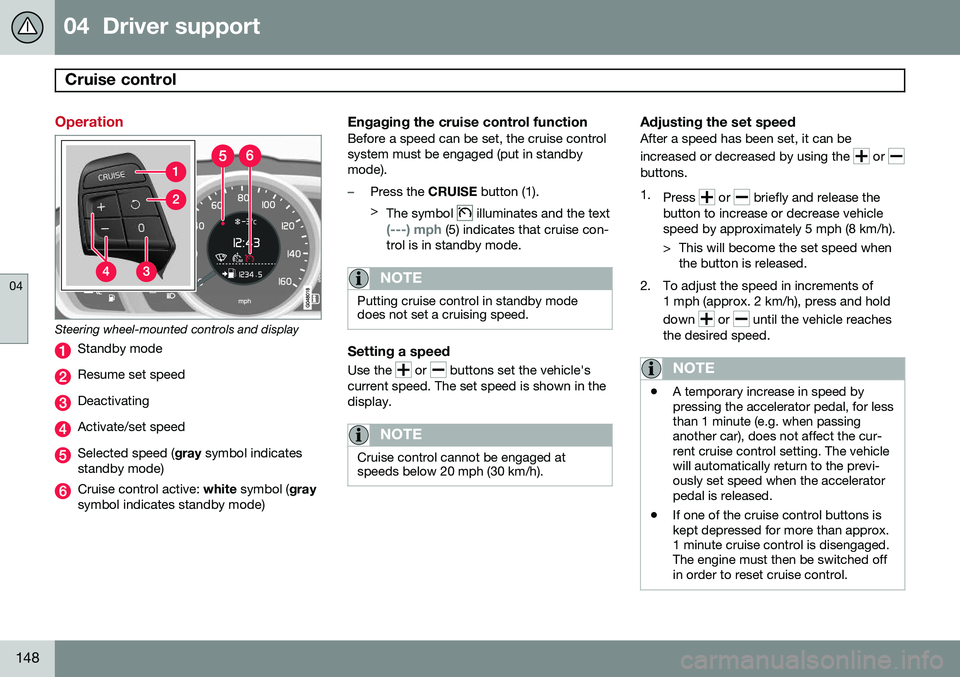
Steering wheel-mounted controls and display
Standby mode
Resume set speed
Deactivating
Activate/set speed
Selected speed (gray symbol indicates
standby mode)
Cruise control active: white symbol ( gray
symbol indicates standby mode)
Engaging the cruise control functionBefore a speed can be set, the cruise control system must be engaged (put in standbymode).
–Press the CRUISE button (1).
> The symbol
illuminates and the text
(---) mph (5) indicates that cruise con-
trol is in standby mode.
NOTE
Putting cruise control in standby mode does not set a cruising speed.
Setting a speed
Use the or buttons set the vehicle's
current speed. The set speed is shown in the display.
NOTE
Cruise control cannot be engaged at speeds below 20 mph (30 km/h).
Adjusting the set speedAfter a speed has been set, it can be increased or decreased by using the
or buttons. 1. Press
or briefly and release the
button to increase or decrease vehicle speed by approximately 5 mph (8 km/h).
> This will become the set speed when the button is released.
2. To adjust the speed in increments of 1 mph (approx. 2 km/h), press and hold down
or until the vehicle reaches
the desired speed.
NOTE
• A temporary increase in speed by pressing the accelerator pedal, for lessthan 1 minute (e.g. when passinganother car), does not affect the cur-rent cruise control setting. The vehiclewill automatically return to the previ-ously set speed when the acceleratorpedal is released.
• If one of the cruise control buttons iskept depressed for more than approx.1 minute cruise control is disengaged.The engine must then be switched offin order to reset cruise control.
Page 155 of 392

04 Driver support
Adaptive Cruise Control (ACC)*
04
}}
* Option/accessory, for more information, see Introduction.153
When this symbol has changed col- ors from
white to green , ACC is in
active mode and the vehicle will
maintain the set speed.
This symbol indicates that you are approaching a vehi-cle ahead. ACC will switch from main- taining a set speed to main-
taining a set distance from
that vehicle.
When this happens, a speed range will be indicated on
the speedometer: The higher speed (the cur-
rently set speed (5)) will be marked in green.
The lower speed in the range is the speed of
the vehicle ahead.
Changing the set speed
• After a speed has been set, it can be increased or decreased by briefly press- ing the
or buttons. Each time one
of these buttons is pressed, the vehicle's speed changes by 3 mph(approximately 5 km/h). If the speed isincreased by pressing the accelerator pedal, the vehicle's speed when the but-ton is pressed will be set.
• Press and hold one of the buttons toincrease/decrease the speed by 1 mph(approximately 1 km/h) at a time. Releasethe button when you have reached thedesired speed.
NOTE
•If one of the Adaptive Cruise Control buttons is pressed for more thanapproximately one minute, ACC will bedeactivated. The engine must then beswitched off and restarted to resetACC.
• In some situations Adaptive CruiseControl cannot be put in active mode.
Cruise control Unavailable is shown
in the display, see page 159.
Setting a time intervalThe set time interval to vehicles ahead can be increased by pressing
and decreased by
pressing
. The current time interval is
shown briefly in the display following adjust- ment. Different time intervals canbe selected and are shown in the instrument panel
2
as 1–5
horizontal bars. The greater the number of bars, thelonger the time interval. Onebar represents a time interval
of approximately 1 second; 5 bars is approxi-mately 3 seconds.
To set/change a time interval:
• Press the
/ buttons (3).
At low speeds, when the distance to the vehi- cle ahead is short, ACC increases the timeinterval slightly. In order to follow the vehicleahead as smoothly as possible, ACC allowsthe time interval to vary considerably in cer-tain situations.
WARNING
• Only use a time interval that is suitable in current traffic conditions.
• A short time interval gives the driverlimited reaction time if an unexpectedsituation occurs in traffic.
2
The same symbol appears if Distance Alert (see page 161) is activated
Page 197 of 392
04 Driver support
Blind Spot Information System (BLIS)*
04
* Option/accessory, for more information, see Introduction.195
Text in the displaySystem status
Blind-spot info systemOFFBLIS system off
Blind spot syst. ReducedfunctionThe BLIS cameras' func- tion has been reduceddue to weak or impaireddata transfer betweenthe BLIS system's cam-eras and the vehicle'selectrical system. Thecameras will reset them-selves when this datatransfer has returned tonormal.
Page 201 of 392
05 Comfort and driving pleasure
Menus and messages
05
}}
* Option/accessory, for more information, see Introduction.199
Main instrument panel
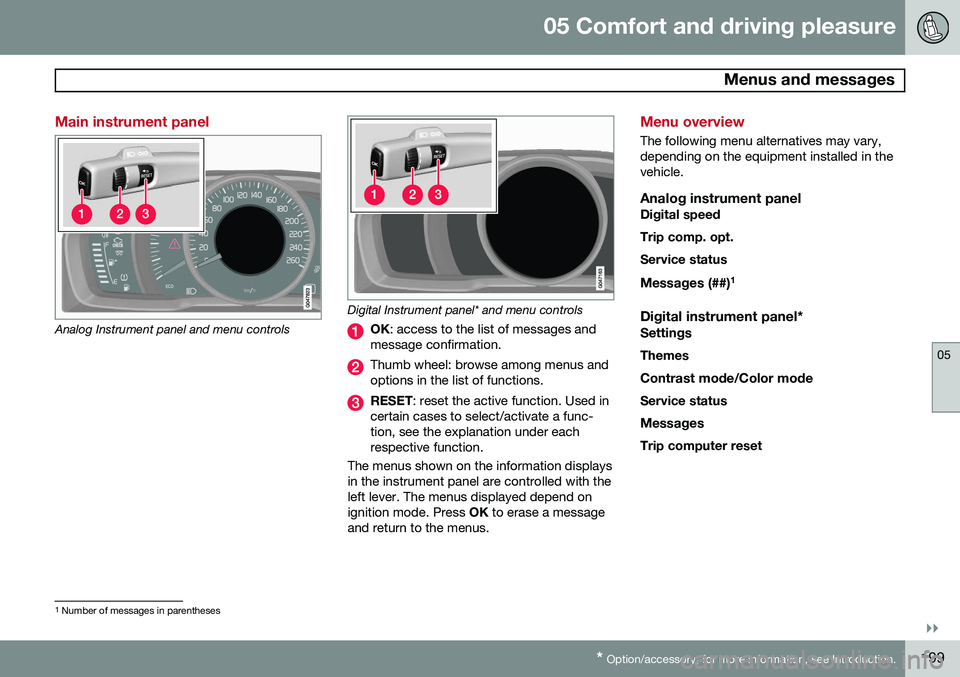
Analog Instrument panel and menu controls
Digital Instrument panel* and menu controls
OK : access to the list of messages and
message confirmation.
Thumb wheel: browse among menus and options in the list of functions.
RESET : reset the active function. Used in
certain cases to select/activate a func- tion, see the explanation under eachrespective function.
The menus shown on the information displaysin the instrument panel are controlled with theleft lever. The menus displayed depend onignition mode. Press OK to erase a message
and return to the menus.
Menu overview
The following menu alternatives may vary, depending on the equipment installed in thevehicle.
Analog instrument panelDigital speed Trip comp. opt.Service status
Messages (##) 1
Digital instrument panel*
Settings
Themes
Contrast mode /Color mode
Service status
Messages Trip computer reset
1 Number of messages in parentheses
Page 202 of 392
05 Comfort and driving pleasure
Menus and messages
05
200
Messages
When a warning, information or indicator symbol comes on, a corresponding messageappears in the information panel. An errormessage is stored in a memory list until thefault is rectified. Press OK to acknowledge and scroll among
the messages.
NOTE
If a warning message appears while you are using the trip computer, the messagemust be read and confirmed by pressingOK before the previous activity can be
resumed.
MessageDescription
Stop engineAStop and switch off the engine as soon as possi-ble. Serious risk of dam-age. Contact an author-ized Volvo workshop.
Stop safelyAStop and switch off the engine. Serious risk ofdamage. Contact anauthorized Volvo work-shop.
MessageDescription
Service urgentAHave the vehicle checked by an authorized Volvoworkshop immediately.
Service requiredAHave the vehicle checked by an authorized Volvoworkshop as soon as pos-sible.
See man- ualARead the owner's manual.
Book time for mainte-nanceTime to book service at an authorized Volvo retailer.
Time for regularmainte-nanceTime for regular service at an authorized Volvo work-shop. The timing is deter-mined by the number ofmiles driven, number ofmonths since the lastservice, engine runningtime.
MessageDescription
Mainte- nance over-dueIf the service intervals are not followed, the warrantydoes not cover any dam-aged parts. Contact anauthorized Volvo work-shop for service.
Temporarily OFFAA function has been tem- porarily switched off andis reset automatically whiledriving or after startingagain.
Low battery Power savemodeThe audio system is switched off to save cur-rent. Charge the battery.
A There will also be a system-specific part of this message
Page 205 of 392
05 Comfort and driving pleasure
The MY CAR menus
05
}}
203
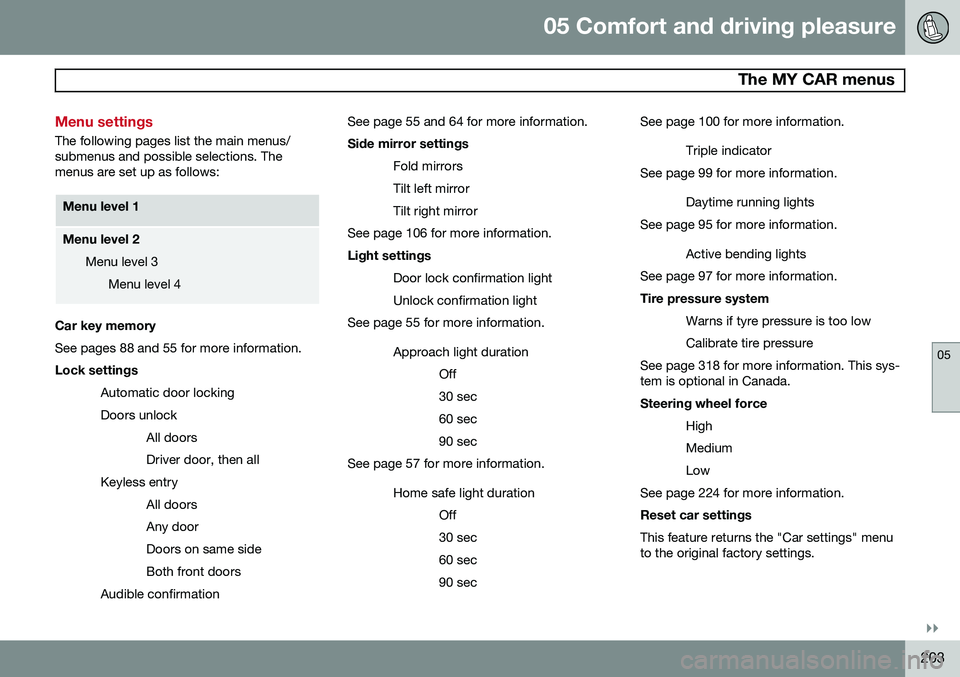
Menu settings
The following pages list the main menus/ submenus and possible selections. Themenus are set up as follows:
Menu level 1
Menu level 2Menu level 3Menu level 4
Car key memory See pages 88 and 55 for more information. Lock settings
Automatic door locking Doors unlockAll doorsDriver door, then all
Keyless entry All doorsAny doorDoors on same sideBoth front doors
Audible confirmation See page 55 and 64 for more information. Side mirror settings
Fold mirrors Tilt left mirrorTilt right mirror
See page 106 for more information. Light settings
Door lock confirmation light Unlock confirmation light
See page 55 for more information.
Approach light durationOff30 sec60 sec90 sec
See page 57 for more information.
Home safe light durationOff30 sec60 sec90 sec See page 100 for more information.
Triple indicator
See page 99 for more information.
Daytime running lights
See page 95 for more information.
Active bending lights
See page 97 for more information. Tire pressure system
Warns if tyre pressure is too low Calibrate tire pressure
See page 318 for more information. This sys- tem is optional in Canada. Steering wheel force
High MediumLow
See page 224 for more information. Reset car settings This feature returns the "Car settings" menu to the original factory settings.
Page 207 of 392
05 Comfort and driving pleasure
The MY CAR menus
05
}}
205
Rear park assist volume Phone ringing volume
Reset system options This feature returns the "System options" menu to the original factory settings.
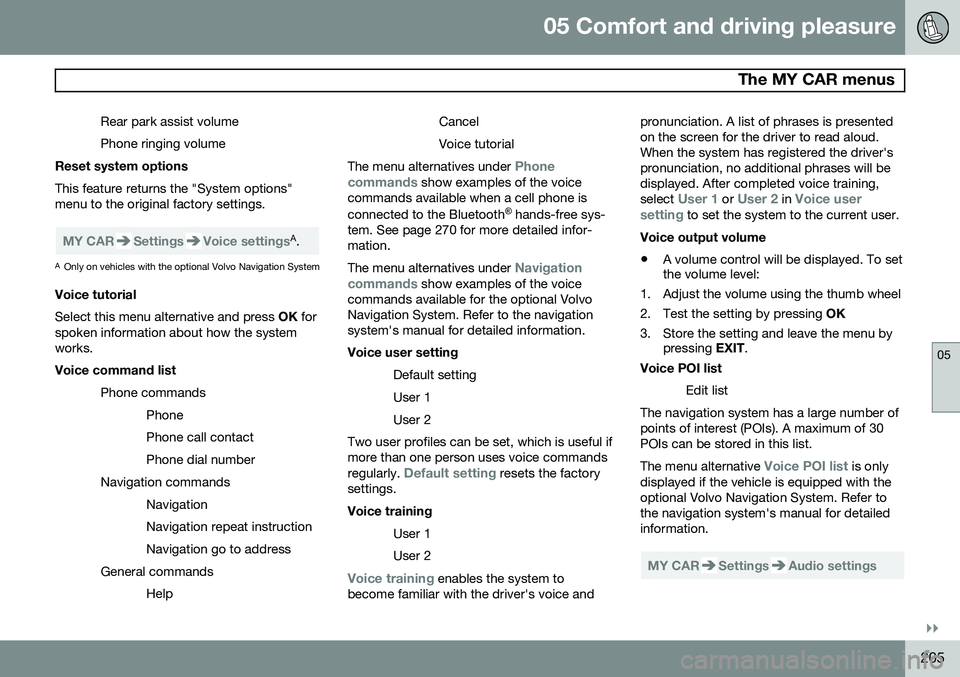
MY CARSettingsVoice settingsA .
A Only on vehicles with the optional Volvo Navigation System
Voice tutorial Select this menu alternative and press OK for
spoken information about how the system works. Voice command list
Phone commandsPhone Phone call contactPhone dial number
Navigation commands NavigationNavigation repeat instructionNavigation go to address
General commands Help CancelVoice tutorial
The menu alternatives under
Phone
commands show examples of the voice
commands available when a cell phone is connected to the Bluetooth ®
hands-free sys-
tem. See page 270 for more detailed infor- mation. The menu alternatives under
Navigation
commands show examples of the voice
commands available for the optional Volvo Navigation System. Refer to the navigationsystem's manual for detailed information. Voice user setting
Default setting User 1User 2
Two user profiles can be set, which is useful if more than one person uses voice commands regularly.
Default setting resets the factory
settings. Voice training
User 1 User 2
Voice training enables the system to
become familiar with the driver's voice and pronunciation. A list of phrases is presented on the screen for the driver to read aloud.When the system has registered the driver'spronunciation, no additional phrases will bedisplayed. After completed voice training, select
User 1 or User 2 in Voice user
setting to set the system to the current user.
Voice output volume
• A volume control will be displayed. To set the volume level:
1. Adjust the volume using the thumb wheel
2. Test the setting by pressing OK
3. Store the setting and leave the menu by pressing EXIT.
Voice POI list
Edit list
The navigation system has a large number of points of interest (POIs). A maximum of 30POIs can be stored in this list. The menu alternative
Voice POI list is only
displayed if the vehicle is equipped with the optional Volvo Navigation System. Refer tothe navigation system's manual for detailedinformation.
MY CARSettingsAudio settings
Page 208 of 392
05 Comfort and driving pleasure
The MY CAR menus
05
206
See page 232 for more information about the infotainment system.
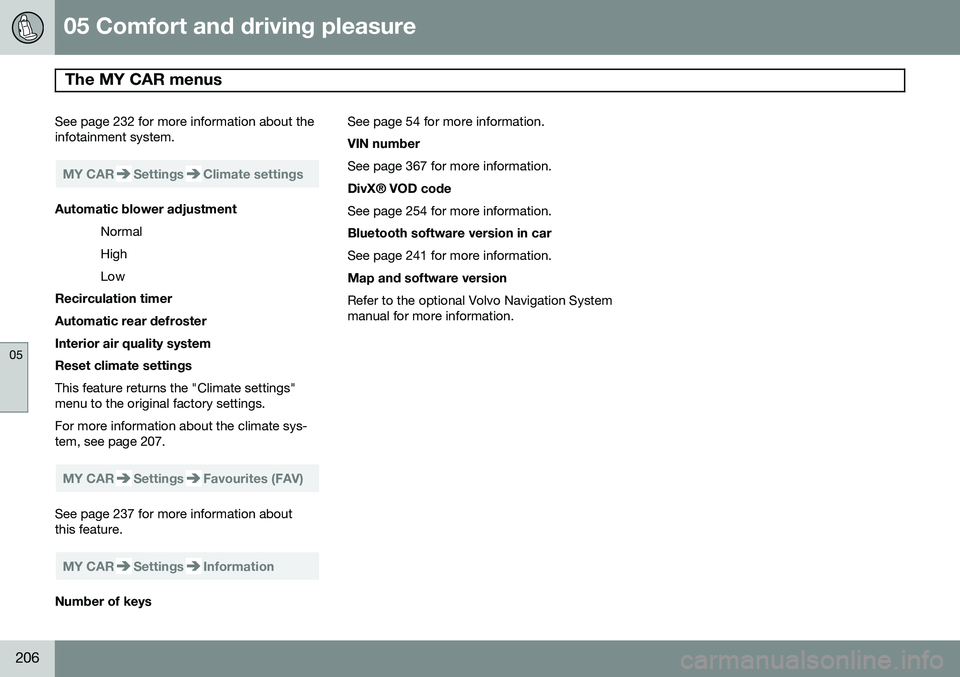
MY CARSettingsClimate settings
Automatic blower adjustmentNormal HighLow
Recirculation timerAutomatic rear defrosterInterior air quality systemReset climate settings This feature returns the "Climate settings" menu to the original factory settings. For more information about the climate sys- tem, see page 207.
MY CARSettingsFavourites (FAV)
See page 237 for more information about this feature.
MY CARSettingsInformation
Number of keys See page 54 for more information. VIN number See page 367 for more information. DivX® VOD code See page 254 for more information. Bluetooth software version in car See page 241 for more information. Map and software version Refer to the optional Volvo Navigation System manual for more information.
Page 219 of 392
05 Comfort and driving pleasure
Trip computer
05
}}
217
Introduction
The content and appearance of the trip com- puter varies depending on whether the vehi-cle is equipped with an analog or digital
instrument panel. The instrument panel illuminates as soon as the vehicle is unlocked and trip computer set-tings can be made. If none of the trip com-puter's controls are used within 30 secondsafter the driver's door has been opened, theinstrument panel lighting will go out and thetrip computer cannot be used again until: • the ignition is put in mode II1
• the engine is started
NOTE
If a warning message appears while you are using the trip computer, this messagemust be acknowledged in order to returnto the trip computer function. Acknowl-edge a message by pressing
OK.
Trip computer in models with an analog instrument panel
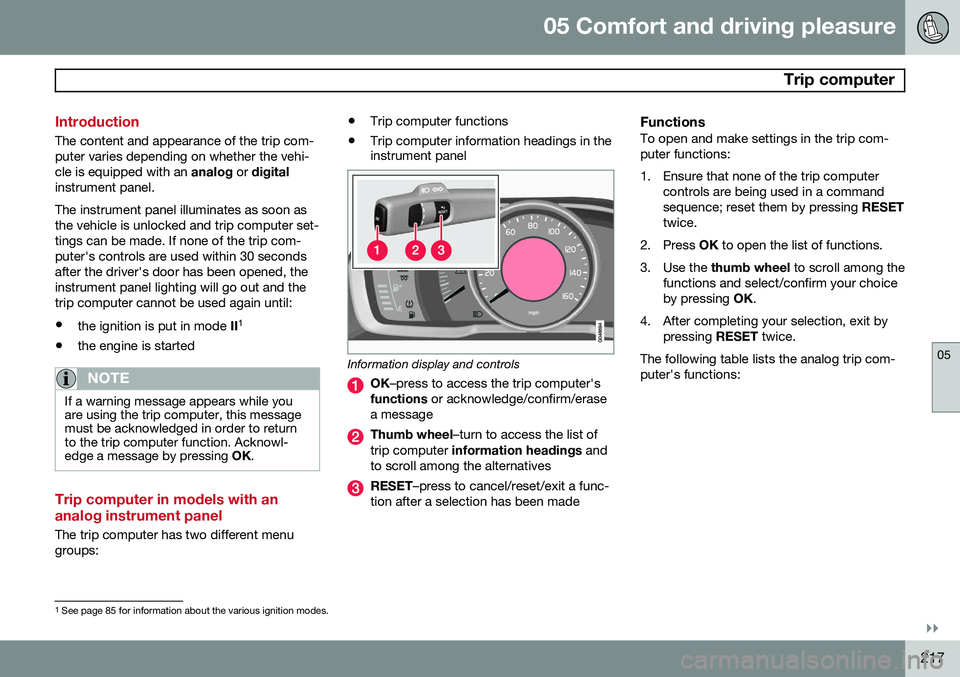
The trip computer has two different menu groups: •
Trip computer functions
• Trip computer information headings in the instrument panel
Information display and controls
OK
–press to access the trip computer's
functions or acknowledge/confirm/erase
a message
Thumb wheel –turn to access the list of
trip computer information headings and
to scroll among the alternatives
RESET –press to cancel/reset/exit a func-
tion after a selection has been made
FunctionsTo open and make settings in the trip com- puter functions:
1. Ensure that none of the trip computer controls are being used in a command sequence; reset them by pressing RESET
twice.
2. Press OK to open the list of functions.
3. Use the thumb wheel to scroll among the
functions and select/confirm your choiceby pressing OK.
4. After completing your selection, exit by pressing RESET twice.
The following table lists the analog trip com-puter's functions:
1 See page 85 for information about the various ignition modes.
Page 220 of 392
05 Comfort and driving pleasure
Trip computer
05
218
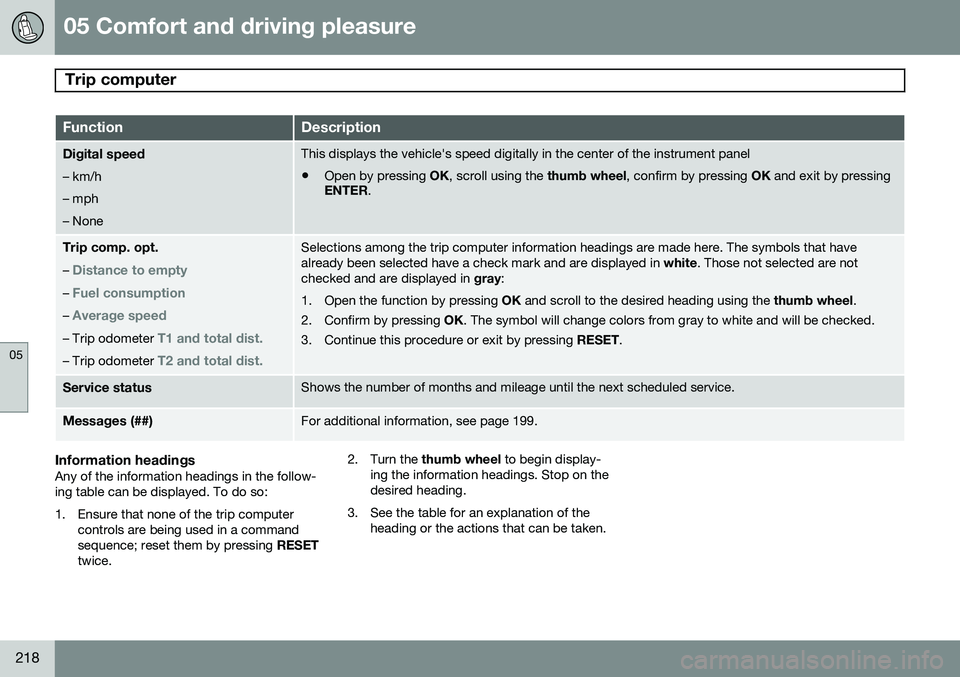
FunctionDescription
Digital speed – km/h – mph– NoneThis displays the vehicle's speed digitally in the center of the instrument panel
• Open by pressing
OK, scroll using the thumb wheel, confirm by pressing OK and exit by pressing
ENTER .
Trip comp. opt.
–
Distance to empty
– Fuel consumption
– Average speed
– Trip odometer T1 and total dist.
– Trip odometer T2 and total dist.
Selections among the trip computer information headings are made here. The symbols that have already been selected have a check mark and are displayed in white. Those not selected are not
checked and are displayed in gray:
1. Open the function by pressing OK and scroll to the desired heading using the thumb wheel.
2. Confirm by pressing OK. The symbol will change colors from gray to white and will be checked.
3. Continue this procedure or exit by pressing RESET.
Service statusShows the number of months and mileage until the next scheduled service.
Messages (##)For additional information, see page 199.
Information headingsAny of the information headings in the follow- ing table can be displayed. To do so:
1. Ensure that none of the trip computer
controls are being used in a command sequence; reset them by pressing RESET
twice. 2. Turn the
thumb wheel to begin display-
ing the information headings. Stop on thedesired heading.
3. See the table for an explanation of the heading or the actions that can be taken.