door lock VOLVO S80 2015 Owner´s Manual
[x] Cancel search | Manufacturer: VOLVO, Model Year: 2015, Model line: S80, Model: VOLVO S80 2015Pages: 392, PDF Size: 10.66 MB
Page 117 of 392
03 Your driving environment
HomeLink®
Wireless Control System*
03
* Option/accessory, for more information, see Introduction.115
both the HomeLink and hand-held trans- mitter buttons.
Proceed with “Programming” step 3 to com-
plete.
Using HomeLink
To operate, simply press and hold the pro- grammed HomeLink button until the traineddevice begins to operate (this may take sev-eral seconds). Activation will now occur forthe trained device (i.e., garage door opener,gate operator, security system, entry doorlock, home/office lighting, etc.). For conven-ience, the hand-held transmitter of the devicemay also be used at any time. In the eventthat there are still programming difficulties orquestions, contact HomeLink at:www.homelink.com or by phoning the hotlineat 1–800–355–3515.
NOTE
If the ignition is switched off, HomeLink will function for 30 minutes after the driv-er's door has been opened.
Resetting HomeLink Buttons
Use the following procedure to reset (erase programming) from the three HomeLink but-tons (individual buttons cannot be reset butcan be “reprogrammed” as outlined in the fol-lowing section):
1. Press and hold the two outer HomeLink buttons until the indicator light begins to flash.
2. Release both buttons. > HomeLink is now in the training (orlearning) mode and can be pro-grammed at any time beginning with“Programming” - step 1.
Reprogramming a Single HomeLink Button
To program a device to HomeLink using a HomeLink button previously trained, followthese steps:
1. Press and hold the desired HomeLink button. DO NOT release the button.
2. The indicator light will begin to flash after 20 seconds. Without releasing the Home- Link button, proceed with “Programming”- step 1. For questions or comments, contact Home-Link at: www.homelink.com or phone 1–800–355–3515. This device complies with FCC rules part 15 and Industry Canada (IC) RSS-210. Operationis subject to the following two conditions: (1)This device may not cause harmful interfer-ence, and (2) This device must accept anyinterference that may be received includinginterference that may cause undesired opera-tion.
NOTE
The transmitter has been tested and com- plies with FCC and IC rules. Changes ormodifications not expressly approved bythe party responsible for compliance couldvoid the user’s authority to operate the device.
2
2
The term “IC:” before the certification/registration number only signifies that Industry Canada technical specifications were met.
Page 120 of 392
03 Your driving environment
Starting the engine
03
118* Option/accessory, for more information, see Introduction.
Engine Remote Start (ERS)*
IntroductionERS is a feature that makes it possible to remotely start the engine to cool or heat thepassenger compartment before driving. The climate control system will start using the same settings as when the engine wasswitched off. When the engine is started using ERS, it will run for a maximum of 15 minutes beforeautomatically switching off again. After 2 ERSstarts, the engine must be started in the nor-mal way before ERS can be used again.
NOTE
• Always adhere to applicable State, Province and/or Local laws regardingengine idling when using ERS.
• The service life of the remote key'sbattery is affected by ERS use. If thisfeature is used frequently, the batteryshould be replaced once a year, seepage 56).
WARNING
Keep the following in mind before using ERS
• The vehicle should be in view.
• The vehicle should be unoccupied.
• The vehicle must not be parked indoors or in an enclosed area.Exhaust fumes are harmful to thehealth.
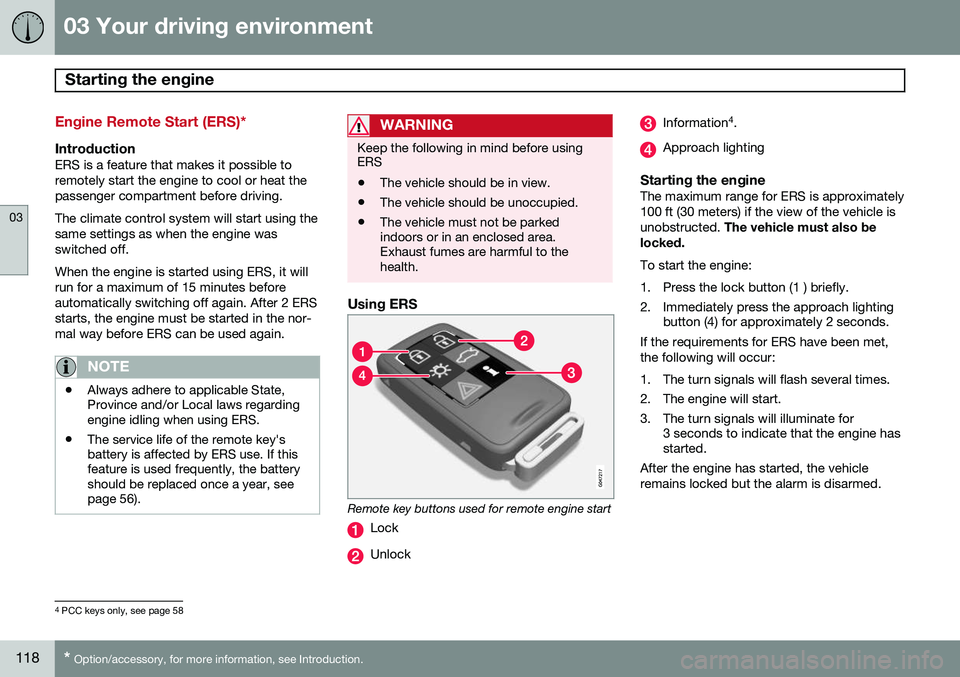
Using ERS
Remote key buttons used for remote engine start
Lock
Unlock
Information 4
.
Approach lighting
Starting the engineThe maximum range for ERS is approximately 100 ft (30 meters) if the view of the vehicle isunobstructed. The vehicle must also be
locked. To start the engine:
1. Press the lock button (1 ) briefly.
2. Immediately press the approach lighting button (4) for approximately 2 seconds.
If the requirements for ERS have been met, the following will occur:
1. The turn signals will flash several times.
2. The engine will start.
3. The turn signals will illuminate for 3 seconds to indicate that the engine has started.
After the engine has started, the vehicle remains locked but the alarm is disarmed.
4 PCC keys only, see page 58
Page 121 of 392
03 Your driving environment
Starting the engine
03
}}
* Option/accessory, for more information, see Introduction.119
Models with a Personal Car
Communicator (PCC) remote key* (seepage 58)
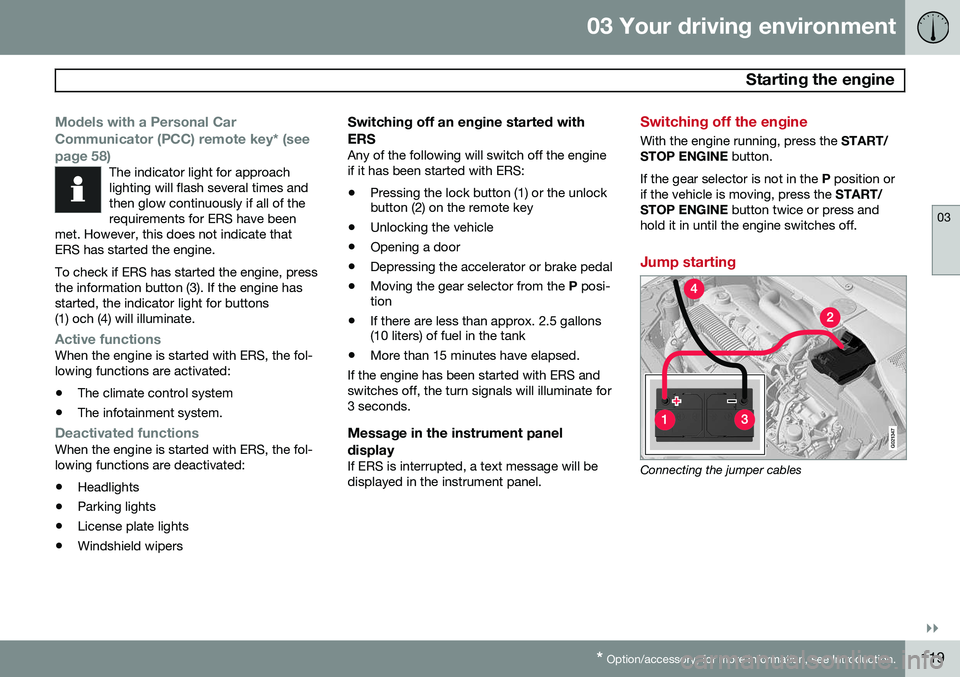
The indicator light for approach lighting will flash several times andthen glow continuously if all of therequirements for ERS have been
met. However, this does not indicate thatERS has started the engine. To check if ERS has started the engine, press the information button (3). If the engine hasstarted, the indicator light for buttons(1) och (4) will illuminate.
Active functionsWhen the engine is started with ERS, the fol- lowing functions are activated: • The climate control system
• The infotainment system.
Deactivated functionsWhen the engine is started with ERS, the fol- lowing functions are deactivated: •Headlights
• Parking lights
• License plate lights
• Windshield wipers
Switching off an engine started with ERS
Any of the following will switch off the engine if it has been started with ERS:
• Pressing the lock button (1) or the unlock button (2) on the remote key
• Unlocking the vehicle
• Opening a door
• Depressing the accelerator or brake pedal
• Moving the gear selector from the
P posi-
tion
• If there are less than approx. 2.5 gallons(10 liters) of fuel in the tank
• More than 15 minutes have elapsed.
If the engine has been started with ERS and switches off, the turn signals will illuminate for3 seconds.
Message in the instrument panel
display
If ERS is interrupted, a text message will bedisplayed in the instrument panel.
Switching off the engine
With the engine running, press the START/
STOP ENGINE button.
If the gear selector is not in the P position or
if the vehicle is moving, press the START/
STOP ENGINE button twice or press and
hold it in until the engine switches off.
Jump starting
G021347
Connecting the jumper cables
Page 203 of 392
05 Comfort and driving pleasure
The MY CAR menus
05
}}
201
Introduction
The menu system provides access to menus for operating many of the vehi-cle's functions, such as setting the
clock, door mirrors, locks, etc.
Navigating in the menus is done using the buttons on the center console control panelor with the right-side steering wheel keypad. Some of the features mentioned in this sec- tion are optional.
Operation
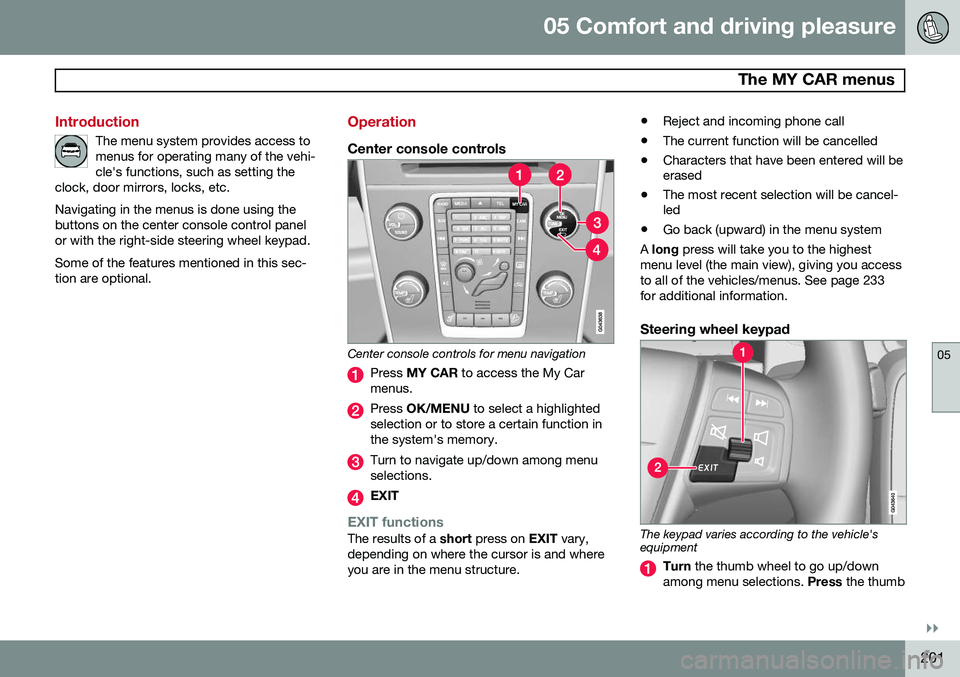
Center console controls
Center console controls for menu navigation
Press MY CAR to access the My Car
menus.
Press OK/MENU to select a highlighted
selection or to store a certain function in the system's memory.
Turn to navigate up/down among menu selections.
EXIT
EXIT functionsThe results of a short press on EXIT vary,
depending on where the cursor is and where you are in the menu structure. •
Reject and incoming phone call
• The current function will be cancelled
• Characters that have been entered will be erased
• The most recent selection will be cancel-led
• Go back (upward) in the menu system
A long press will take you to the highest
menu level (the main view), giving you access to all of the vehicles/menus. See page 233for additional information.
Steering wheel keypad
The keypad varies according to the vehicle's equipment
Turn the thumb wheel to go up/down
among menu selections. Press the thumb
Page 204 of 392
05 Comfort and driving pleasure
The MY CAR menus
05
202
wheel to make a selection or store a func tion in the system's memory.
EXIT.
MY CAR menu pathsThe current menu level is displayed at the upper right of the center console display.Menu paths are displayed as follows, forexample:
SettingsCar settingsLock settings
Doors unlockDriver door, then all
The following is an example of how to set a function in the menu system:
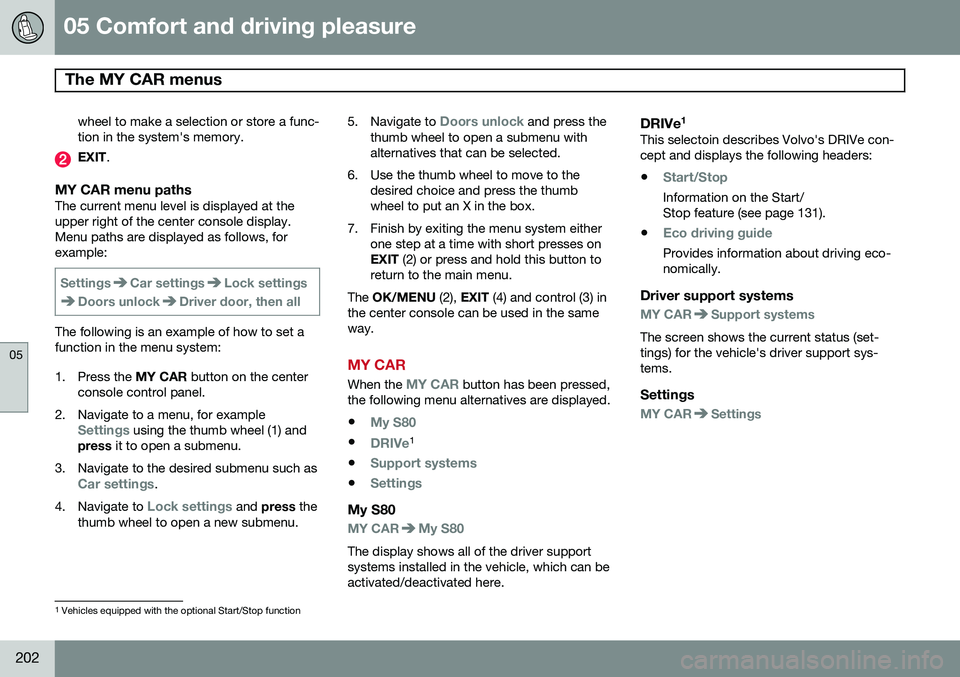
1. Press the MY CAR button on the center
console control panel.
2. Navigate to a menu, for example
Settings using the thumb wheel (1) and
press it to open a submenu.
3. Navigate to the desired submenu such as
Car settings.
4. Navigate to
Lock settings and press the
thumb wheel to open a new submenu. 5.
Navigate to
Doors unlock and press the
thumb wheel to open a submenu with alternatives that can be selected.
6. Use the thumb wheel to move to the desired choice and press the thumbwheel to put an X in the box.
7. Finish by exiting the menu system either one step at a time with short presses onEXIT (2) or press and hold this button to
return to the main menu.
The OK/MENU (2), EXIT (4) and control (3) in
the center console can be used in the sameway.
MY CAR
When the MY CAR button has been pressed,
the following menu alternatives are displayed.
•
My S80
•DRIVe1
•
Support systems
•Settings
My S80
MY CARMy S80
The display shows all of the driver support systems installed in the vehicle, which can beactivated/deactivated here.
DRIVe 1This selectoin describes Volvo's DRIVe con-cept and displays the following headers:
•
Start/Stop
Information on the Start/ Stop feature (see page 131).
•
Eco driving guide
Provides information about driving eco- nomically.
Driver support systems
MY CARSupport systems
The screen shows the current status (set- tings) for the vehicle's driver support sys-tems.
Settings
MY CARSettings
1 Vehicles equipped with the optional Start/Stop function
Page 205 of 392
05 Comfort and driving pleasure
The MY CAR menus
05
}}
203
Menu settings
The following pages list the main menus/ submenus and possible selections. Themenus are set up as follows:
Menu level 1
Menu level 2Menu level 3Menu level 4
Car key memory See pages 88 and 55 for more information. Lock settings
Automatic door locking Doors unlockAll doorsDriver door, then all
Keyless entry All doorsAny doorDoors on same sideBoth front doors
Audible confirmation See page 55 and 64 for more information. Side mirror settings
Fold mirrors Tilt left mirrorTilt right mirror
See page 106 for more information. Light settings
Door lock confirmation light Unlock confirmation light
See page 55 for more information.
Approach light durationOff30 sec60 sec90 sec
See page 57 for more information.
Home safe light durationOff30 sec60 sec90 sec See page 100 for more information.
Triple indicator
See page 99 for more information.
Daytime running lights
See page 95 for more information.
Active bending lights
See page 97 for more information. Tire pressure system
Warns if tyre pressure is too low Calibrate tire pressure
See page 318 for more information. This sys- tem is optional in Canada. Steering wheel force
High MediumLow
See page 224 for more information. Reset car settings This feature returns the "Car settings" menu to the original factory settings.
Page 209 of 392
05 Comfort and driving pleasure
Climate system
05
}}
* Option/accessory, for more information, see Introduction.207
Introduction
Air conditioningThe vehicle is equipped with Electronic Cli- mate Control (ECC). The climate control sys-tem cools, heats or dehumidifies the air in thepassenger compartment.
NOTE
• The air conditioning can be switched off, but to ensure the best possible cli-mate comfort in the passenger com-partment and to prevent the windowsfrom misting, it should always be on.
• In warm weather, a small amount ofwater may accumulate under the carwhen it has been parked. This water iscondensation from the A/C systemand is normal.
Sensor location
•
The sunlight sensor is located on the top side of the dashboard.
NOTE
The sunlight sensor monitors which side of the car that is most exposed to sunlight.This can mean that the temperature maydiffer between the right and left-side airvents, even if the temperatures set for bothsides of the passenger compartment arethe same.
•The temperature sensor for the passen- ger compartment is located below the cli-mate control panel.
• The outside (ambient) temperature sensoris located on the door mirror.
• The humidity sensor* is located in theinterior rearview mirror.
NOTE
Do not cover or block the sensors with clothing or other objects.
Side windows and moonroofTo ensure that the air conditioning works optimally, the side windows, and the optionalmoonroof should be closed.
Fog on the inside of the windowsThe defroster function should be used toremove fog or mist from the inside of the win-dows. Keeping the windows clean with acommercially available window washing spray will also help prevent fogging or mist-ing.
Vents in the parcel shelf
NOTE
The air vents at the rear of the parcel shelf should never be obstructed.
Temporary shut-off of the air conditioning
The air conditioning is momentarily disen- gaged during full acceleration or when drivinguphill with a trailer. This may result in a tem-porary increase in cabin temperature.
Ice and snowAlways keep the air intake grille at the base ofthe windshield free of snow.
Climate system maintenanceSpecial tools and equipment are required tomaintain and carry out repairs on the climatesystem. Work of this type should only bedone by a trained and qualified Volvo servicetechnician.
RefrigerantVolvo cares about the environment. The airconditioning system in your car contains aCFC-free refrigerant – R134a. This substancewill not deplete the ozone layer. See page
Page 219 of 392
05 Comfort and driving pleasure
Trip computer
05
}}
217
Introduction
The content and appearance of the trip com- puter varies depending on whether the vehi-cle is equipped with an analog or digital
instrument panel. The instrument panel illuminates as soon as the vehicle is unlocked and trip computer set-tings can be made. If none of the trip com-puter's controls are used within 30 secondsafter the driver's door has been opened, theinstrument panel lighting will go out and thetrip computer cannot be used again until: • the ignition is put in mode II1
• the engine is started
NOTE
If a warning message appears while you are using the trip computer, this messagemust be acknowledged in order to returnto the trip computer function. Acknowl-edge a message by pressing
OK.
Trip computer in models with an analog instrument panel
The trip computer has two different menu groups: •
Trip computer functions
• Trip computer information headings in the instrument panel
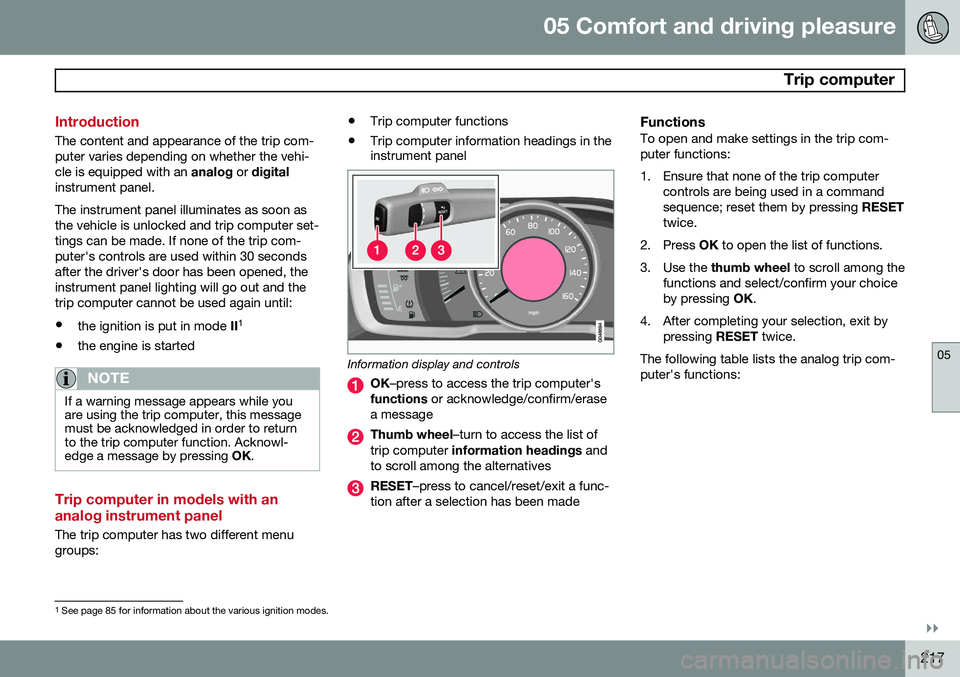
Information display and controls
OK
–press to access the trip computer's
functions or acknowledge/confirm/erase
a message
Thumb wheel –turn to access the list of
trip computer information headings and
to scroll among the alternatives
RESET –press to cancel/reset/exit a func-
tion after a selection has been made
FunctionsTo open and make settings in the trip com- puter functions:
1. Ensure that none of the trip computer controls are being used in a command sequence; reset them by pressing RESET
twice.
2. Press OK to open the list of functions.
3. Use the thumb wheel to scroll among the
functions and select/confirm your choiceby pressing OK.
4. After completing your selection, exit by pressing RESET twice.
The following table lists the analog trip com-puter's functions:
1 See page 85 for information about the various ignition modes.
Page 228 of 392
05 Comfort and driving pleasure
Passenger compartment convenience
05
226
Compartment in door panel
Storage pocket on the front edge of the front seat cushions
Glove compartment
Storage compartment, 12-volt socket and AUX input
Jacket holder
Rear seat cup holders
Storage pocket
Jacket holderThe jacket hanger is located on the inboard side of the front passenger's seat headrestraint. It is only intended for hanging lightgarments.
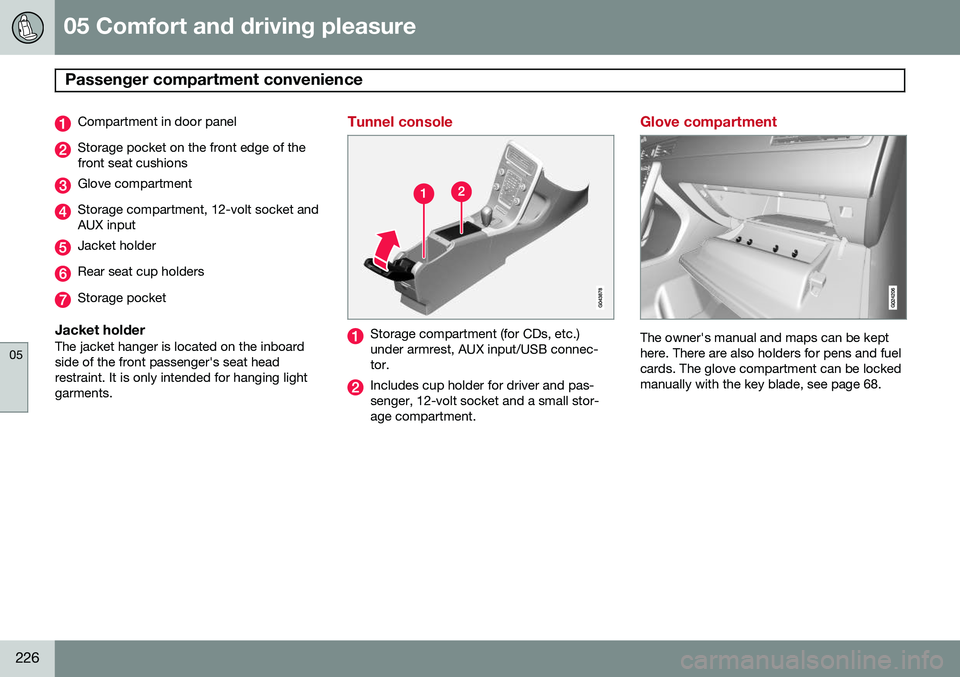
Tunnel console
Storage compartment (for CDs, etc.) under armrest, AUX input/USB connec-tor.
Includes cup holder for driver and pas- senger, 12-volt socket and a small stor-age compartment.
Glove compartment
The owner's manual and maps can be kept here. There are also holders for pens and fuelcards. The glove compartment can be lockedmanually with the key blade, see page 68.
Page 266 of 392
06 Infotainment
Bluetooth® hands-free connection
06
264
Making a call1. Ensure that is shown at the top of
the center console display and that the hands-free function is in telephone mode.
2. Dial the desired phone number using the center console keypad or use the speeddial function (see page 268). In normalview (see page see page 233 for informa-tion about the various display views), it isalso possible to turn TUNE clockwise to
access the phone book and then counter-clockwise for the call list. See page 269for more information about the phonebook.
3. Press the thumb wheel or OK/MENU.
End or reject a call by pressing EXIT.
Disconnecting the cell phoneThe cell phone is automatically disconnectedfrom the infotainment system if it is movedout of range. The cell phone can be manually disconnected from the hands-free system by pressing andholding TEL or in phone mode, going to
Phone menuDisconnect phone. See also
page 265 for more information about con- nections. The hands-free system is also deactivatedwhen the ignition is switched off (or if thedriver’s door is opened). When the cell phone is disconnected from the hands-free system, a call in progress can becontinued using the cell phone’s own speakerand microphone. Even if the cell phone has been disconnected manually, some phones may reconnect auto-matically, for example when a new call is initi-ated.
Removing a paired deviceA paired phone or device can be removedfrom the list. To do so:
1. Press
TEL.
2. Select
Phone menuRemove
Bluetooth device.
Handling calls
Incoming calls–Press OK/MENU (or the thumb wheel on
the steering wheel keypad) to answer a call, even if the infotainment system is currently in another mode (e.g.,
RADIO orMEDIA).
Press EXIT to reject a call.
Auto answerThis function means that incoming calls will be answered automatically. Activate or deac-tivate the function in the menu system under
Phone menuCall optionsAuto
answer.
Call settingsWhile a call is in progress, press OK/MENU
or the thumb wheel on the steering wheel keypad to access the following functions:
•
Mute: mute the infotainment system’s
microphone.
•
Mobile phone: transfer the call from
hands-free to the cell phone. On certain cell phones, the connection will be bro-ken, which is normal. The hands-freefunction will ask if you would like toreconnect.
•
Dial number: dial a third party during an
ongoing call using the keypad (the current call will be put on hold).
Call listsCall lists are copied to the hands-free func- tion each time a cell phone is connected andthe lists are updated while the phone is con-nected. In normal view, turn TUNE counter-
clockwise to see the
All calls list.