wheel VOLVO S80 2016 Owner´s Manual
[x] Cancel search | Manufacturer: VOLVO, Model Year: 2016, Model line: S80, Model: VOLVO S80 2016Pages: 380, PDF Size: 9.45 MB
Page 115 of 380
03 Instruments and controls
03
}}
* Option/accessory, for more information, see Introduction.113
Trip computer – functions, digital instrument panel
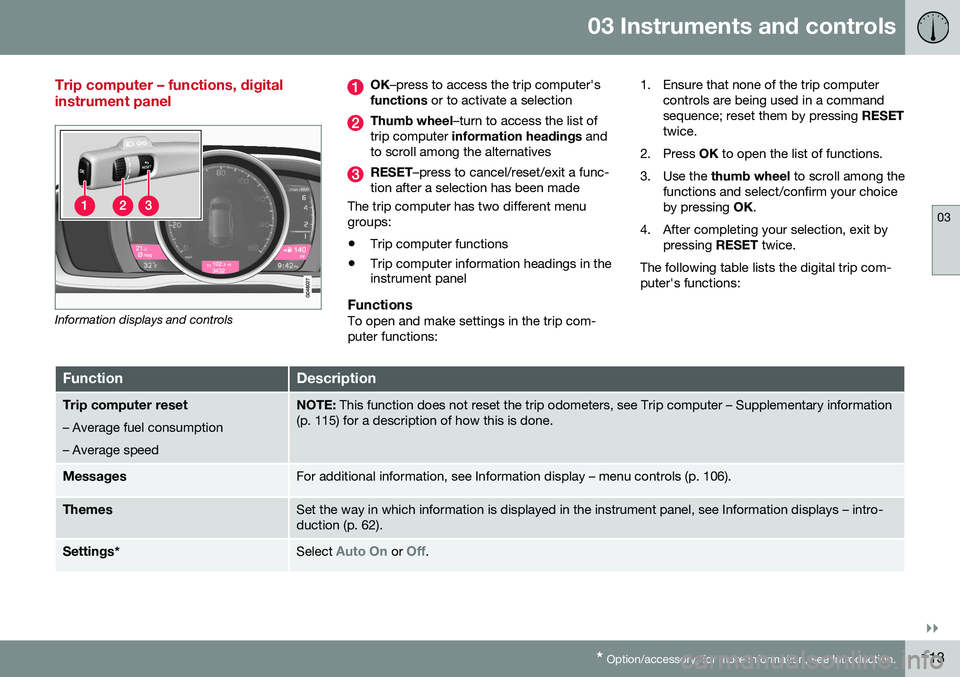
Information displays and controls
OK –press to access the trip computer's
functions or to activate a selection
Thumb wheel –turn to access the list of
trip computer information headings and
to scroll among the alternatives
RESET –press to cancel/reset/exit a func-
tion after a selection has been made
The trip computer has two different menu groups:
• Trip computer functions
• Trip computer information headings in the instrument panel
FunctionsTo open and make settings in the trip com- puter functions: 1. Ensure that none of the trip computer
controls are being used in a commandsequence; reset them by pressing RESET
twice.
2. Press OK to open the list of functions.
3. Use the thumb wheel to scroll among the
functions and select/confirm your choiceby pressing OK.
4. After completing your selection, exit by pressing RESET twice.
The following table lists the digital trip com-puter's functions:
FunctionDescription
Trip computer reset
– Average fuel consumption – Average speedNOTE: This function does not reset the trip odometers, see Trip computer – Supplementary information
(p. 115) for a description of how this is done.
MessagesFor additional information, see Information display – menu controls (p. 106).
ThemesSet the way in which information is displayed in the instrument panel, see Information displays – intro- duction (p. 62).
Settings *Select Auto On or Off.
Page 116 of 380
||
03 Instruments and controls
03
114
FunctionDescription
Contrast mode/Color modeAdjust the instrument panel's contrast and color.
Service statusShows the number of months and mileage until the next scheduled service.
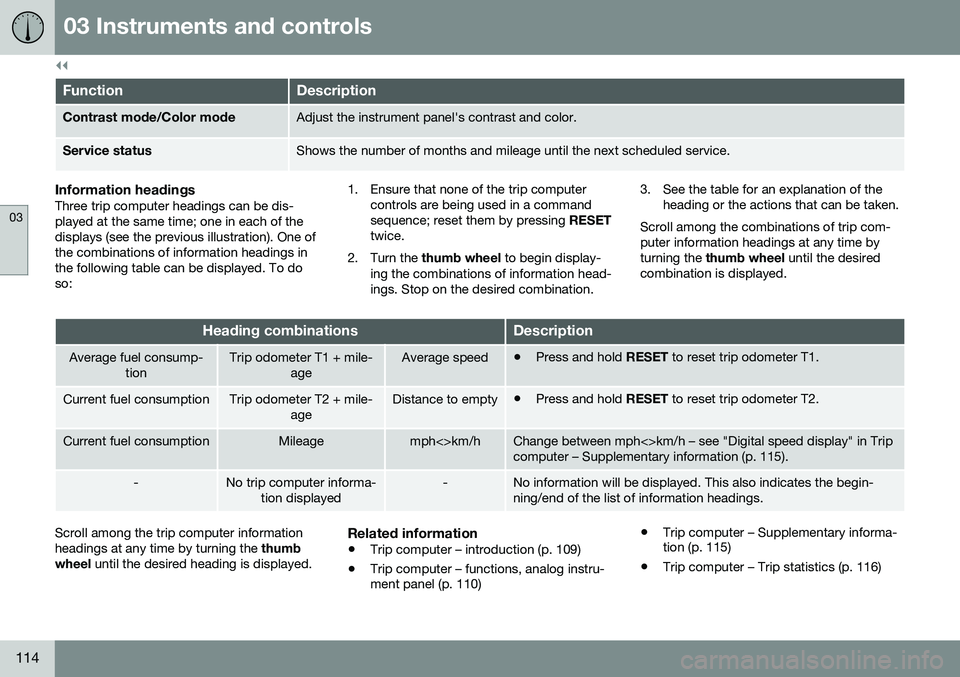
Information headingsThree trip computer headings can be dis- played at the same time; one in each of thedisplays (see the previous illustration). One ofthe combinations of information headings inthe following table can be displayed. To doso: 1. Ensure that none of the trip computer
controls are being used in a commandsequence; reset them by pressing RESET
twice.
2. Turn the thumb wheel to begin display-
ing the combinations of information head-ings. Stop on the desired combination. 3. See the table for an explanation of the
heading or the actions that can be taken.
Scroll among the combinations of trip com-puter information headings at any time byturning the thumb wheel until the desired
combination is displayed.
Heading combinationsDescription
Average fuel consump- tionTrip odometer T1 + mile- ageAverage speed•Press and hold
RESET to reset trip odometer T1.
Current fuel consumptionTrip odometer T2 + mile-
ageDistance to empty•Press and hold
RESET to reset trip odometer T2.
Current fuel consumptionMileagemph<>km/hChange between mph<>km/h – see "Digital speed display" in Trip computer – Supplementary information (p. 115).
-No trip computer informa-
tion displayed-No information will be displayed. This also indicates the begin- ning/end of the list of information headings.
Scroll among the trip computer information headings at any time by turning the thumb
wheel until the desired heading is displayed.Related information
•Trip computer – introduction (p. 109)
• Trip computer – functions, analog instru- ment panel (p. 110) •
Trip computer – Supplementary informa-tion (p. 115)
• Trip computer – Trip statistics (p. 116)
Page 117 of 380
03 Instruments and controls
03
* Option/accessory, for more information, see Introduction.115
Trip computer – Supplementary information
General information for both Analog and Digi- tal trip computer functions.
Average fuel consumptionFuel consumption since the last time thisfunction was reset.
Average speedThe vehicle's average speed since the lasttime this function was reset.
Current fuel consumptionCurrent fuel consumption is calculatedapproximately once a second. When the vehi-cle is moving at low speed, fuel consumptionis displayed per unit of time. At higherspeeds, it is displayed in terms of distance. Miles or kilometers can be displayed, see the heading "Changing units".
Distance to emptyThis function shows the approximate dis-tance that can be driven on the fuel remaining in the tank. When
Distance to empty shows
"----", there is very little useable fuel remain- ing in that tank; refuel as soon as possible.The calculation is based on average fuel con-sumption during the last 20 miles (30 km) ofdriving and the amount of fuel remaining inthe tank (the accuracy of this figure may varyif your driving style changes). An economical driving style will generally increase this dis-tance. See Economical driving (p. 265) for informa- tion about driving economically.
Digital speed display*Speed is expressed in the unit not used bythe instrument panel's speedometer e.g., ifthe normal speedometer is in mph, the tripcomputer will display in the speed in km/hand vice versa.
Resetting an analog instrument panel
Trip odometer(s) and average speed1. Display trip odometer T1 or T1, or Aver-
age speed.
2. Press and hold RESET until selected
function is reset.
Each trip computer heading must be reset individually.
Resetting a digital instrument panel
Trip odometer1. Turn the thumb wheel to select the com-
bination of headings containing the trip odometer to be reset.
2. Press and hold RESET until selected trip
odometer is reset.
Average speed and fuel consumption1. Select Trip computer reset and press
OK . 2. Select one of the following alternatives
using the thumb wheel and press OK:
• mpg
• mph
• Reset both
3. Finish by pressing RESET.
Changing unitsTo change the unit (miles/km) used to meas- ure distance and speed, go to
MY CAR
SettingsSystem optionsDistance
and fuel units.
NOTE
In addition to changing units in the trip computer, this also changes the units usedin the Volvo Navigation System (VNS)*.
Related information
• Trip computer – introduction (p. 109)
• Trip computer – functions, analog instru- ment panel (p. 110)
• Trip computer – functions, digital instru-ment panel (p. 113)
• Trip computer – Trip statistics (p. 116)
Page 146 of 380
||
06 Locks and alarm
06
144* Option/accessory, for more information, see Introduction.
After a short pause, press the Unlock button a second time within 10 seconds to unlockthe other doors and the trunk. This function can be changed so that all doors unlock at the same time by pressing My Car and going to
SettingsCar
settings
Lock settingsChange doors
unlock setting. For a description of the menu
system, see My Car – introduction (p. 70).
Approach lighting – As you approach
the vehicle, press the button on the remote key to light the interior lighting, parking lights,license plate lighting and the lights in the doormirrors*. These lights will switch off automatically after 30, 60 or 90 seconds. For a description of themenu system, see My Car – introduction(p. 70).
Unlock/open trunk
Press once: This unlocks the trunk (but does
not open it) and disarms the alarm (the alarm indicator light on the dashboard will go out). Ifthe trunk is not opened within two minutes itwill automatically relock and the alarm will berearmed. Press twice: This both unlocks the trunk and
pops it open slightly.
NOTE
Any excess weight (snow, etc.) on the trunk lid may prevent it from opening.
For information on opening the trunk from the passenger compartment, see Locking/unlocking – trunk (p. 156). After closing, the trunk will not automatically relock. Press Lock to relock it and rearm thealarm.
Panic alarm – This button can be used
to attract attention during emergency situa- tions. To activate the panic alarm, press and hold this button for at least 3 seconds or press ittwice within 3 seconds. The turn signals andhorn will be activated. The panic alarm willstop automatically after 2 minutes and45 seconds. To deactivate, wait approximately 5 seconds and press the button again. The Panic alarm button will not unlock the vehicle.
Related information
• Locking/unlocking – from inside (p. 154)
• Locking/unlocking – from the outside (p. 153)
• Locking/unlocking confirmation (p. 141)
Remote key – range
The remote key has a range of approximately 60 ft. (20 m) from the vehicle.
NOTE
Buildings or other obstacles may interfere with the function of the remote key. Thevehicle can also be locked or unlockedwith the key blade, see Alarm-related func-tions (p. 160).
If the remote key is removed from the vehicle while the engine is running or if the ignition isin mode
I or II and all of the doors are closed,
a message will appear in the instrument paneldisplay and there will be an audible signal. When the remote key is returned to the vehi- cle, the message will be erased and the audi-ble signal will stop after one of the followinghas been done: • The remote key is inserted in the ignition slot
• The vehicle's speed exceeds 20 mph(30 km/h)
• The
OK button on the left steering wheel
lever is pressed
Related information
• Remote key – functions (p. 143)
Page 164 of 380
07 Driver support
07
162* Option/accessory, for more information, see Introduction.
Active chassis* (Four C)
Active chassis, Four-C (Continuously Controlled Chassis Concept), regulates thecharacteristics of the shock absorbers so thatthe vehicle's driving characteristics can beadjusted. There are three settings: Comfort,Sport and Advanced.
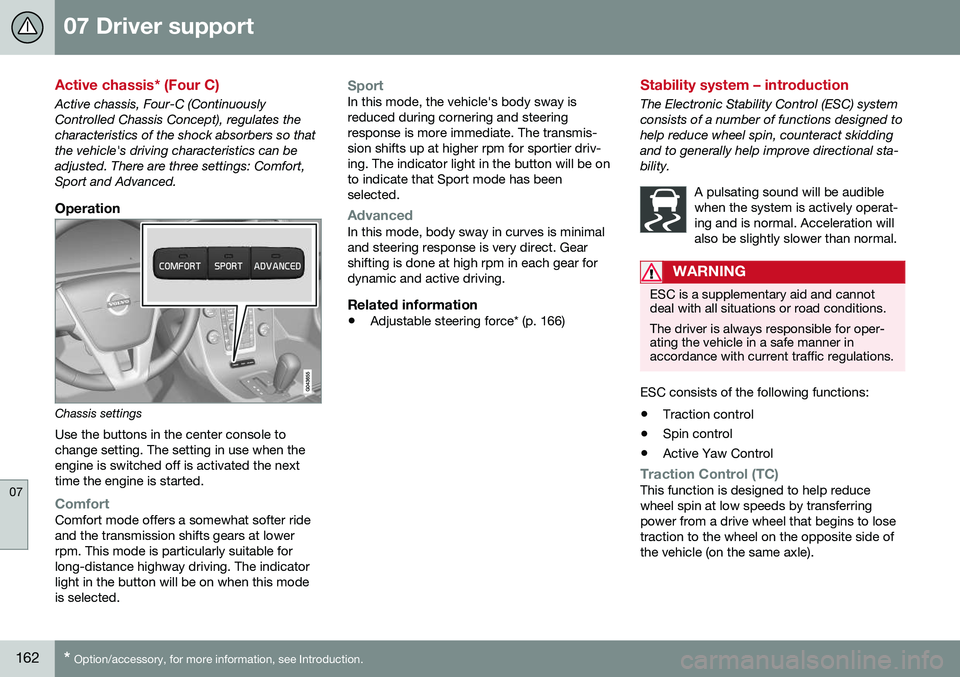
Operation
Chassis settings
Use the buttons in the center console to change setting. The setting in use when theengine is switched off is activated the nexttime the engine is started.
ComfortComfort mode offers a somewhat softer ride and the transmission shifts gears at lowerrpm. This mode is particularly suitable forlong-distance highway driving. The indicatorlight in the button will be on when this modeis selected.
SportIn this mode, the vehicle's body sway is reduced during cornering and steeringresponse is more immediate. The transmis-sion shifts up at higher rpm for sportier driv-ing. The indicator light in the button will be onto indicate that Sport mode has beenselected.
AdvancedIn this mode, body sway in curves is minimal and steering response is very direct. Gearshifting is done at high rpm in each gear fordynamic and active driving.
Related information
• Adjustable steering force* (p. 166)
Stability system – introduction
The Electronic Stability Control (ESC) system consists of a number of functions designed tohelp reduce wheel spin, counteract skiddingand to generally help improve directional sta-bility.
A pulsating sound will be audiblewhen the system is actively operat-ing and is normal. Acceleration willalso be slightly slower than normal.
WARNING
ESC is a supplementary aid and cannot deal with all situations or road conditions. The driver is always responsible for oper- ating the vehicle in a safe manner inaccordance with current traffic regulations.
ESC consists of the following functions:
• Traction control
• Spin control
• Active Yaw Control
Traction Control (TC)This function is designed to help reduce wheel spin at low speeds by transferringpower from a drive wheel that begins to losetraction to the wheel on the opposite side ofthe vehicle (on the same axle).
Page 165 of 380
07 Driver support
07
163
Spin Control (SC)The SC function is designed to help prevent the drive wheels from spinning while the vehi-cle is accelerating.
Active Yaw Control (AYC)This function helps maintain directional stabil- ity, for example when cornering, by brakingone or more of the wheels if the vehicleshows a tendency to skid or slide laterally.
Trailer Stability Assist (TSA)The TSA helps stabilize a vehicle that is tow- ing a trailer when the vehicle and trailer havebegun to sway. See Trailer Stability Assist(TSA) (p. 268) for more information. This system is automatically deactivated if the driver selects Sport mode.
Related information
•Stability system – operation (p. 163)
• Stability system – symbols and messages (p. 164)
• Trailer Stability Assist (TSA) (p. 268)
Stability system – operation
Operation
Sport modeThe stability system is always activated and cannot be switched off.
However, the driver canselect Sport mode, which
offers more active drivingcharacteristics. Sport mode can be selected
in the MY CAR menus, see
My Car – introduction (p. 70).
In Sport mode, the engine management sys-
tem monitors movement of the accelerator pedal and steering wheel for sportier drivingby allowing more lateral movement of the rearwheels before ESC is activated. Under certain circumstances, such as when driving with snow chains, or driving in deepsnow or loose sand, it may be advisable totemporarily use Sport mode for maximum
tractive force. If the driver releases pressure on the acceler- ator pedal, ETC will also activate to help sta-bilize the vehicle. To switch to Sport mode:
Sport mode remains active until the driver
switches it off in the menu or until the engine is switched off. ETC will return to normalmode when the engine is restarted.
Related information
• Stability system – introduction (p. 162)
• Stability system – symbols and messages (p. 164)
Page 167 of 380
07 Driver support
07
165
SymbolMessageDescription
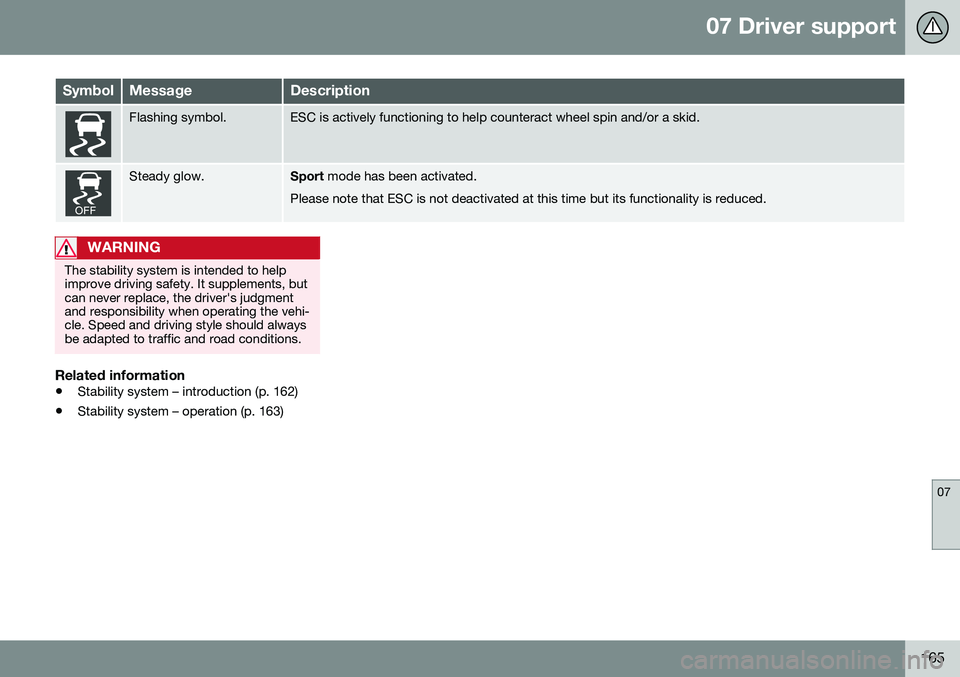
Flashing symbol.ESC is actively functioning to help counteract wheel spin and/or a skid.
Steady glow.Sport mode has been activated.
Please note that ESC is not deactivated at this time but its functionality is reduced.
WARNING
The stability system is intended to help improve driving safety. It supplements, butcan never replace, the driver's judgmentand responsibility when operating the vehi-cle. Speed and driving style should alwaysbe adapted to traffic and road conditions.
Related information
• Stability system – introduction (p. 162)
• Stability system – operation (p. 163)
Page 168 of 380
07 Driver support
07
166* Option/accessory, for more information, see Introduction.
Adjustable steering force*
Steering force increases with the speed of the vehicle to give the driver enhanced sense ofcontrol and stability. At low speed the vehicleis easy to steer in order to facilitate parking,etc.
Adjustable steering force*Steering force can be changed under MY
CAR
Car settingsSteering wheel
force
. Select Low, Medium or High. For a
description of the menu system, My Car – introduction (p. 70).
NOTE
This steering force level menu function cannot be accessed when the vehicle is inmotion.
NOTE
In certain situations, the power steering may become too warm and will have to betemporarily cooled down. While this ishappening, the power steering effect willbe reduced slightly and somewhat moreeffort may be required to turn the steeringwheel. If this occurs, a message will be displayed in the instrument panel.
Related information
• Active chassis* (Four C) (p. 162)
Road Sign Information (RSI)* – introduction
RSI is a feature that helps the driver see road signs with the posted speed limit.
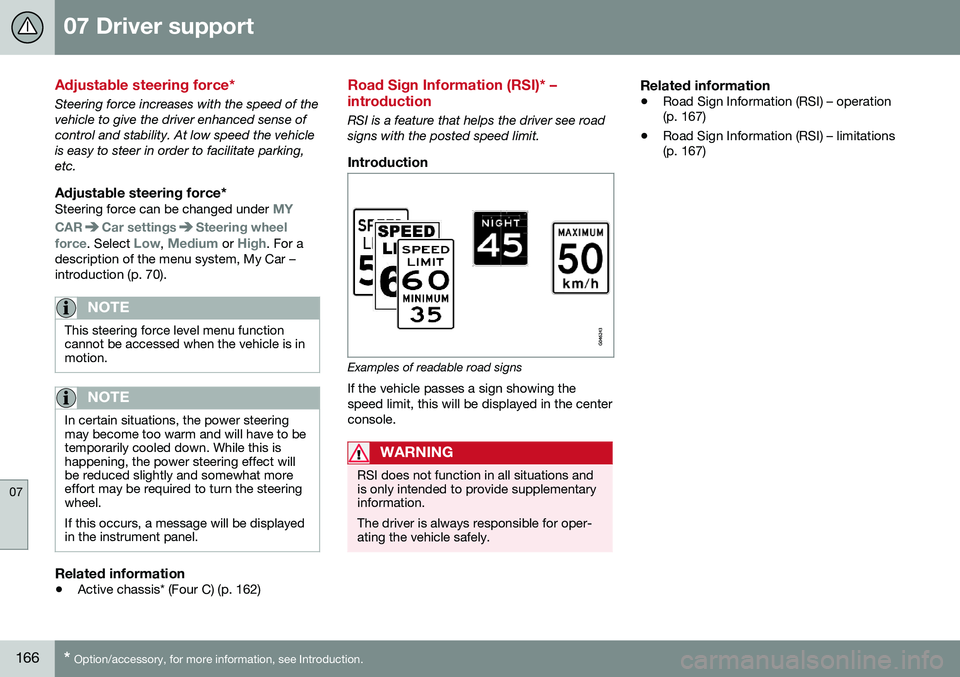
Introduction
Examples of readable road signs If the vehicle passes a sign showing the speed limit, this will be displayed in the centerconsole.
WARNING
RSI does not function in all situations and is only intended to provide supplementaryinformation. The driver is always responsible for oper- ating the vehicle safely.
Related information
•Road Sign Information (RSI) – operation (p. 167)
• Road Sign Information (RSI) – limitations(p. 167)
Page 170 of 380
07 Driver support
07
168
Cruise control (CC) – introduction
Cruise control is designed to assist the driver by maintaining a set speed. It is primarilyintended for use on long straight roads insteady traffic, such as on highways and othermain roads.
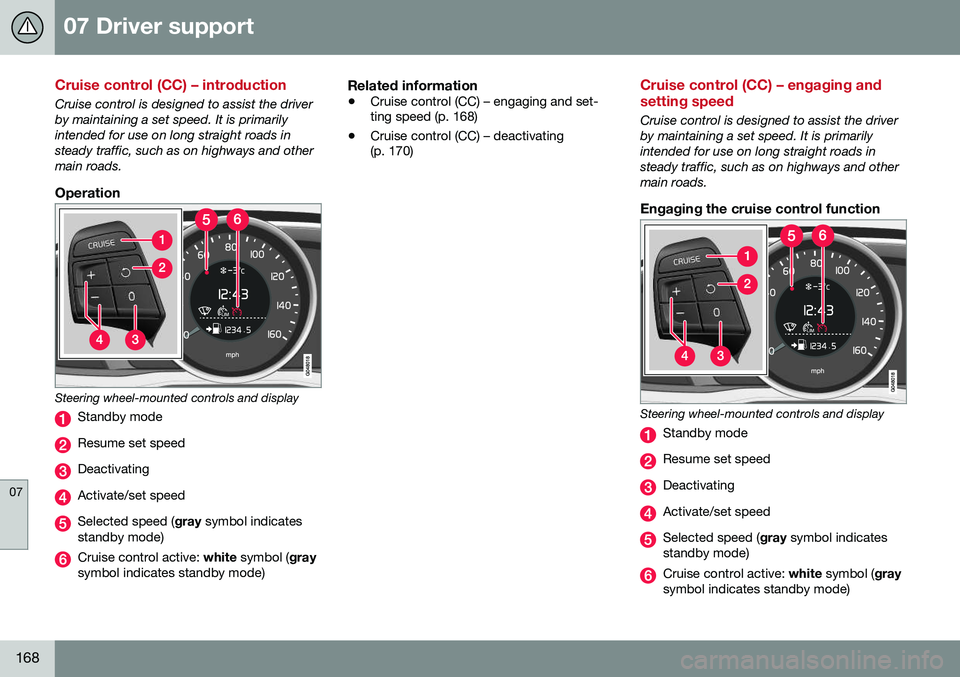
Operation
Steering wheel-mounted controls and display
Standby mode
Resume set speed
Deactivating
Activate/set speed
Selected speed (gray symbol indicates
standby mode)
Cruise control active: white symbol ( gray
symbol indicates standby mode)
Related information
• Cruise control (CC) – engaging and set- ting speed (p. 168)
• Cruise control (CC) – deactivating(p. 170)
Cruise control (CC) – engaging and setting speed
Cruise control is designed to assist the driver by maintaining a set speed. It is primarilyintended for use on long straight roads insteady traffic, such as on highways and othermain roads.
Engaging the cruise control function
Steering wheel-mounted controls and display
Standby mode
Resume set speed
Deactivating
Activate/set speed
Selected speed (
gray symbol indicates
standby mode)
Cruise control active: white symbol ( gray
symbol indicates standby mode)
Page 172 of 380
07 Driver support
07
170
Toggling between ACC and CC (standard Cruise Control)
Adaptive Cruise Control (ACC) helps the driver maintain a safe distance/time interval tothe vehicle ahead.
Switching from ACC to CCThis may be useful if, for example, the radarsensor is obstructed in some way. SeeAdaptive Cruise Control – limitations (p. 180)for additional information.
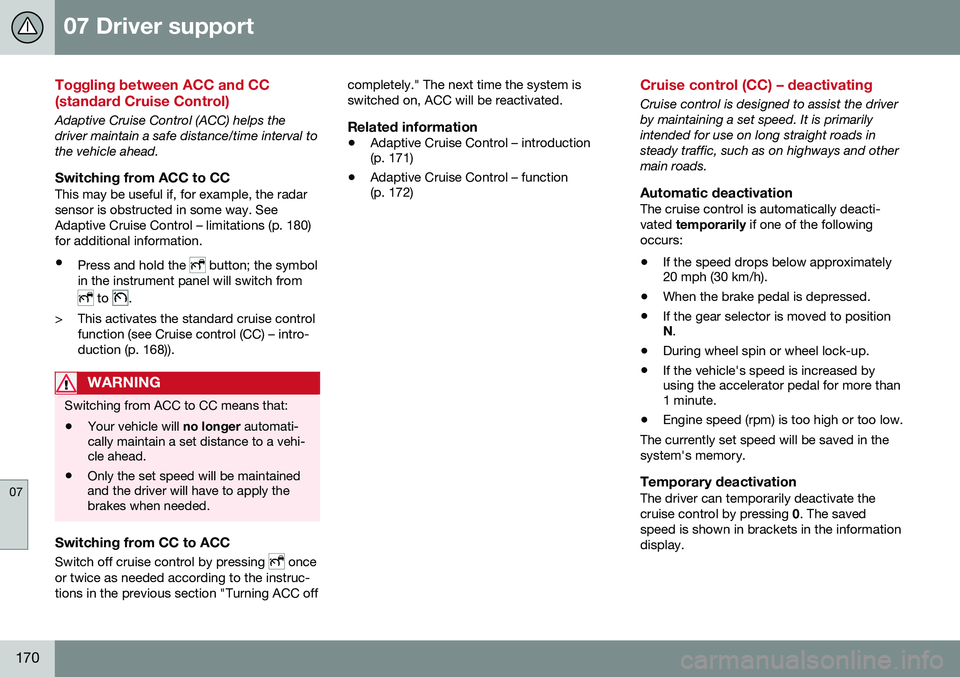
• Press and hold the
button; the symbol
in the instrument panel will switch from
to .
> This activates the standard cruise control function (see Cruise control (CC) – intro- duction (p. 168)).
WARNING
Switching from ACC to CC means that:
• Your vehicle will
no longer automati-
cally maintain a set distance to a vehi- cle ahead.
• Only the set speed will be maintainedand the driver will have to apply thebrakes when needed.
Switching from CC to ACC
Switch off cruise control by pressing once
or twice as needed according to the instruc- tions in the previous section "Turning ACC off completely." The next time the system isswitched on, ACC will be reactivated.
Related information
•
Adaptive Cruise Control – introduction (p. 171)
• Adaptive Cruise Control – function(p. 172)
Cruise control (CC) – deactivating
Cruise control is designed to assist the driver by maintaining a set speed. It is primarilyintended for use on long straight roads insteady traffic, such as on highways and othermain roads.
Automatic deactivationThe cruise control is automatically deacti-vated
temporarily if one of the following
occurs: • If the speed drops below approximately 20 mph (30 km/h).
• When the brake pedal is depressed.
• If the gear selector is moved to positionN
.
• During wheel spin or wheel lock-up.
• If the vehicle's speed is increased byusing the accelerator pedal for more than1 minute.
• Engine speed (rpm) is too high or too low.
The currently set speed will be saved in the system's memory.
Temporary deactivationThe driver can temporarily deactivate thecruise control by pressing 0. The saved
speed is shown in brackets in the informationdisplay.