steering VOLVO S90 2017 Owner´s Manual
[x] Cancel search | Manufacturer: VOLVO, Model Year: 2017, Model line: S90, Model: VOLVO S90 2017Pages: 548, PDF Size: 11.42 MB
Page 394 of 548
INFOTAINMENT
* Option/accessory.
392
Radio Your vehicle's radio offers AM and FM with HD Radio ™ Technology and SiriusXM ®
Satellite
radio *.
The radio can be controlled using the right-side steeringwheel keypad, the center dis-play or by using voice com-mands.
Related information
• Changing and searching for radio stations (p. 393)
• Radio settings (p. 392)
• SiriusXM ®
Satellite radio * (p. 398)
• HD Radio
™reception (p. 394)
• Changing and searching for radio stations(p. 393)
Radio settings
The following information lists the settings that can be made for the various wavebands.
Pull down the center display's Top view and select
SettingsMedia for the desired wave-
band. Tap to activate/deactivate.
AM/FM
•Show Radio Text: displays information
about program content, artists, etc.
•
Freeze Program Service Name: select to
stop excessive scrolling to freeze after 20 seconds.
• AM HD Radio: Enables HD Radio
™
Technology for AM audio quality comparableto analogue FM.
• FM HD Radio: - Enables HD Radio
™
Technology for audio comparable to CDquality. See the article "HD Radio" fordetailed information.
SiriusXM ® Satellite radioWith SiriusXM ® Satellite radio activated, pull
down the center display's Top view and tap
SiriusXM Settings to display a list of available
alternatives. See the article "SiriusXM Satellite radio settings" for detailed information.
Related information
• SiriusXM ®
Satellite radio * settings (p. 400)
• SiriusXM ®
Satellite radio * (p. 398) •
Radio (p. 392)
• HD Radio
™reception (p. 394)
Page 395 of 548
INFOTAINMENT
}}
393
RBDS radio
RBDS radio
RBDS (Radio Data Broadcast System) enables certain functionality 2
, such as:
• Searches for program types or new broad- casts
• Text information about currently broadcastprograms
For example, if news is broadcast, the currentlyplaying sound source will be interrupted so thatthe news can be heard. The infotainment systemwill return to the previous sound source when thenews broadcast has been completed. To cancel the announcement, press the
but-
ton on the right-side steering wheel keypad or tap
Cancel on the center display. This function
can be activated/deactivated in the center dis- play's
Settings menu.
Related information
• Radio (p. 392)
• Radio settings (p. 392)
Changing and searching for radio stations The radio automatically compiles a list of the strongest stations that it is currently receiving.
Turning the radio on1. Open an app (e.g., FM) from the center dis-
play's App view.
2. Select a station.
Changing a list in a waveband1. Tap Library.
2. Sect from
Stations, Favorites or Genres.
3. Tap the desired station in the list.
Favorites: only plays stations from the list of
favorites (see "Favorites" below).
Genres: only plays stations broadcasting the
selected genre or program type, e.g., pop, classi- cal, etc.
Changing stations in a selected list
–Tap < > under the center display or on the
right-side steering wheel keypad.
> Move step-by-step through the selected list.
The center display can also be used to change stations.
FavoritesIf a favorite station from a list is currently availa-ble, the radio will automatically tune to that sta-tion. See "Changing a list in a waveband" above for information about selecting favorites on a wave-band. See "Radio favorites" below for informationabout selecting a station among all of your favor-ites.
–Tap to add or remove a station for the
waveband's list of favorites or Radio favorites.
Radio favorites
Radio favorites shows all of the favorite stations that have beensaved for e.g., AM, FM.
1. Open the Radio favorites app in App view.
2. Tap the desired station to listen. When a station is removed, it will also be removed from the respective waveband's list offavorites.
2 Certain stations only.
Page 396 of 548
||
INFOTAINMENT
* Option/accessory.
394
Changing wavebands 3
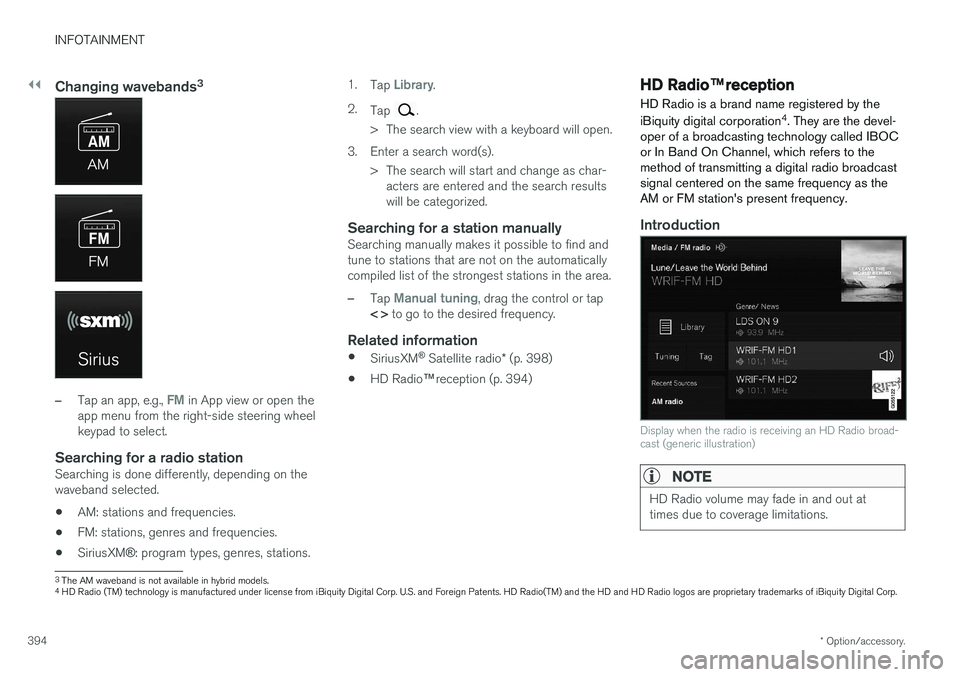
–Tap an app, e.g., FM in App view or open the
app menu from the right-side steering wheel keypad to select.
Searching for a radio stationSearching is done differently, depending on thewaveband selected.
• AM: stations and frequencies.
• FM: stations, genres and frequencies.
• SiriusXM
®: program types, genres, stations. 1.
Tap
Library.
2. Tap
.
> The search view with a keyboard will open.
3. Enter a search word(s). > The search will start and change as char-acters are entered and the search results will be categorized.
Searching for a station manuallySearching manually makes it possible to find andtune to stations that are not on the automaticallycompiled list of the strongest stations in the area.
–Tap Manual tuning, drag the control or tap
< > to go to the desired frequency.
Related information
•
SiriusXM ®
Satellite radio * (p. 398)
• HD Radio
™reception (p. 394)
HD Radio ™reception
HD Radio is a brand name registered by the iBiquity digital corporation 4
. They are the devel-
oper of a broadcasting technology called IBOC or In Band On Channel, which refers to themethod of transmitting a digital radio broadcastsignal centered on the same frequency as theAM or FM station's present frequency.
Introduction
Display when the radio is receiving an HD Radio broad- cast (generic illustration)
NOTE
HD Radio volume may fade in and out at times due to coverage limitations.
3 The AM waveband is not available in hybrid models.4
HD Radio (TM) technology is manufactured under license from iBiquity Digital Corp. U.S. and Foreign Patents. HD Radio(TM) and the HD and HD Radio logos are proprietary trademarks of iBiquity Digital Corp.
Page 399 of 548
INFOTAINMENT
397
Selecting sub-channels
To listen to a station's sub-channel(s), tap the station on the screen or press the forward/backarrow keys on the right-side steering wheel key-pad or below the screen. Sub-channels can also be stored as favorites, see the article "Changing and searching for radio sta-tions". If you tap a sub-channel favorite, it may take up to 6 seconds before the channel becomes audi-
ble. If you tap a station while you are out of digital range of the transmitter,
No reception will be
displayed.
Related information
• HD Radio
™reception (p. 394)
• Switching HD Radio on and off (p. 396)
• Changing and searching for radio stations (p. 393)
HD Radio limitations
Limitations
•
Main channel vs. sub-channels (FM only)
:
The main channel is the only channel that can receive in hybrid mode (both digital andanalogue). If a frequency has sub-channels,they are broadcast in digital mode only. Themain FM channel will be displayed as, forexample, "WRIF-FM HD1". The sub-FMchannels will be displayed as"WRIF-FMHD2", "WRIF-FM HD3", etc.
• Reception coverage area
: Due to current
IBOC transmitter power limitations, thereception coverage area in digital mode issomewhat more limited than the station'sanalogue coverage area. Please be awarethat as with any radio broadcast technology,terrain, time of day, foliage level and buildinglocation can have positive or negative effectson radio reception.
• Analogue to digital/digital to analogueblending
: Analogue to digital blending will
occur as the signal strength reaches a presetthreshold in the receiver. This will be noticea-ble in fringe areas (areas with weak recep-tion) and is normal.
NOTE
There may be a noticeable difference in sound quality when a change from analogueto digital or digital to analogue occurs, suchas:
• Volume increase or decrease
• Equalizer settings, i.e., Bass/ Midrange/Treble cut or boost
• Time alignment (Digital program materialin extreme cases can be as much as 8seconds behind the analogue). This willnoticeable as a "stuttering" effect.
The above items are dependant on thebroadcaster's equipment settings and donot indicate a fault in the vehicle's radioreceiver or antenna systems .
Related information
•HD Radio sub-channels (p. 396)
• HD Radio
™reception (p. 394)
Page 409 of 548
INFOTAINMENT
407
Phone
A Bluetooth-enabled cell phone can be paired and connected to the vehicle's integrated hands-free system.
The infotainment system offers hands-free func- tionality for remote-controlling a number of a cellphone's features. The phone's integrated controlscan also be used, even when it is connected tothe vehicle. When the phone has been paired and connected to the infotainment system, it can be used tomake or receive calls, send or receive text mes-sages, to stream music, etc., or as an Internetconnection.
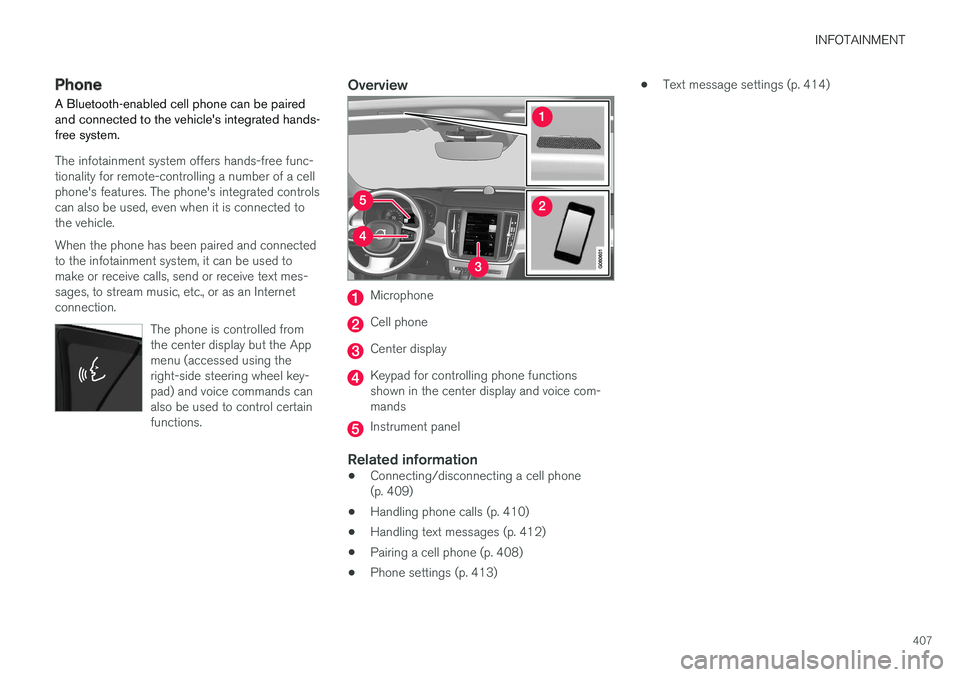
The phone is controlled fromthe center display but the Appmenu (accessed using theright-side steering wheel key-pad) and voice commands canalso be used to control certainfunctions.
Overview
Microphone
Cell phone
Center display
Keypad for controlling phone functions shown in the center display and voice com-mands
Instrument panel
Related information
•Connecting/disconnecting a cell phone (p. 409)
• Handling phone calls (p. 410)
• Handling text messages (p. 412)
• Pairing a cell phone (p. 408)
• Phone settings (p. 413) •
Text message settings (p. 414)
Page 412 of 548
||
INFOTAINMENT
4103. Tap the name of the phone to be deleted
from the list.
4. Tap
Remove device and confirm.
> The phone or other device is no longer paired to the vehicle. Before this device can be used again, the pairing procedurewill have to be repeated.
Related information
• Pairing a cell phone (p. 408)
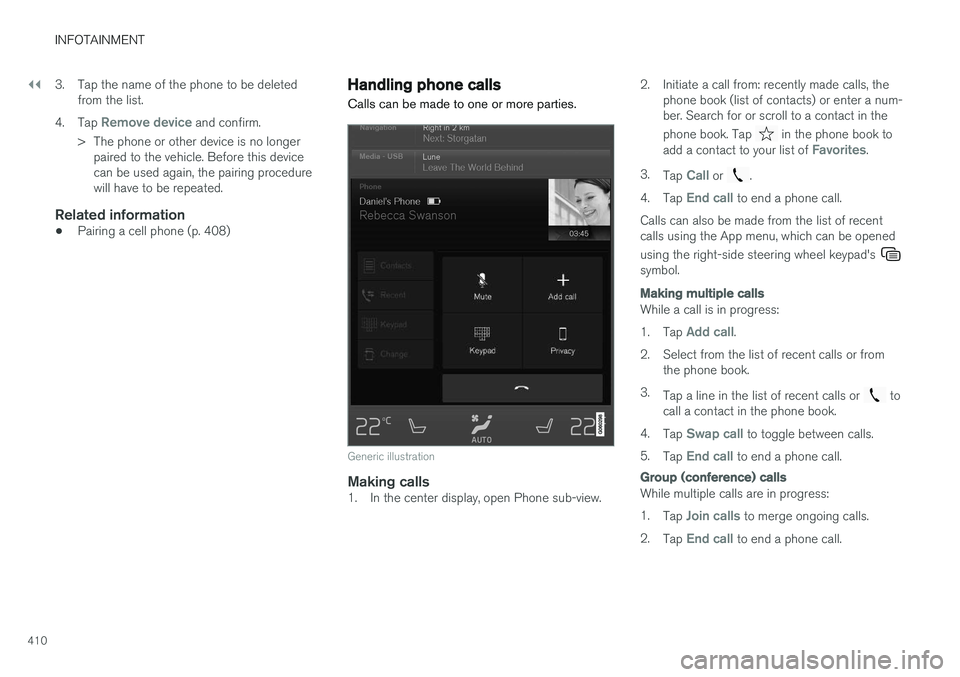
Handling phone calls Calls can be made to one or more parties.
Generic illustration
Making calls1. In the center display, open Phone sub-view. 2. Initiate a call from: recently made calls, the
phone book (list of contacts) or enter a num- ber. Search for or scroll to a contact in the phone book. Tap
in the phone book to
add a contact to your list of Favorites.
3. Tap
Call or .
4. Tap
End call to end a phone call.
Calls can also be made from the list of recent calls using the App menu, which can be opened using the right-side steering wheel keypad's
symbol.
Making multiple calls
While a call is in progress: 1. Tap
Add call.
2. Select from the list of recent calls or from the phone book.
3. Tap a line in the list of recent calls or
to
call a contact in the phone book.
4. Tap
Swap call to toggle between calls.
5. Tap
End call to end a phone call.
Group (conference) calls
While multiple calls are in progress: 1.
Tap
Join calls to merge ongoing calls.
2. Tap
End call to end a phone call.
Page 413 of 548
INFOTAINMENT
}}
411
Incoming callsInformation about incoming calls is displayed in the instrument panel and the center display. Han-dle the calls using the right-side steering wheelkeypad or the center display. 1.Tap
Answer/Reject.
2. Tap
End call to end a phone call.
Incoming calls while another call is in progress
1. Tap Answer/Reject.
2. Tap
End call to end a phone call.
PrivacyWhile a call is in progress:
–Tap Privacy.
> The vehicle's integrated microphone will be turned off.
•
Switch to mobile phone: the hands-free
function will be disconnected and the call will continue in the cell phone.
•
Driver focused: the microphone in the ceil-
ing liner on the passenger's side will be muted and the call will continue using vehi-cle's the hands-free function on the driver'sside.
Related information
• Phone (p. 407)
• Voice control for cell phones (p. 120) •
Using the center display (p. 44)
• Using the center display keyboard (p. 31)
• Phone settings (p. 413)
Managing the phone book
The following is information about keeping track of contacts in your Bluetooth-connected cellphone's phone book.
Page 415 of 548
INFOTAINMENT
* Option/accessory.413
1.
From App view, tap Messages to open.
2. Tap the name of the contact who sent the message.
3. Tap
Read out to have the message read
aloud or tap the message to be displayed.
Reading new text messages in the instrument panel
Text messages are only displayed in the instru- ment panel if this has been selected. See thearticle "Text message settings" for more informa-tion.
–To have the message read aloud, selectRead out using the keypad in the steering
wheel.
Sending text messages
1. From App view, tap Messages to open. 2.
•To reply to a message: tap the name of the contact who sent the message and then tap
Answer.
• To create a new message: tap
Create
new
+. Select the contact who will
receive the message or enter a phone number.
3. Write or dictate (
) the message.
4. Tap
Send.
Message notificationSee the article "Text message settings" for a list of possible settings.
Related information
• Text message settings (p. 414)
Phone settings
The following settings can be made for a paired and connected cell phone.
Cell phones
–Pull down the center display's Top view and tap
SettingsCommunicationPhoneand choose among the following settings: •
Ringtones: select a ring tone (tones from
the cell phone or the vehicle can be used). Not all cell phones are fully com-patible and it may not be possible to usetheir ring tones in the vehicle. Go towww.volvocars.com for additional informa-tion.
•
Sort order for contacts: select sort cri-
teria for the phone book (list of contacts).
To show call notifications in the head-up dis- play *, see the article "Head-up display."
Related information
• Text message settings (p. 414)
• Bluetooth settings (p. 429)
• Phone (p. 407)
• Handling phone calls (p. 410)
• Head-up display (HUD)
* (p. 116)
Page 416 of 548
INFOTAINMENT
414
Text message settings
The following settings can be made for text mes- sages received through a paired and connectedcell phone.
Text message settings
–Pull down the center display's Top view and tap
SettingsCommunicationText
Messages and choose among the following
settings:
•
Notification in center display: shows
text messages in the center display's sta- tus bar.
•
Notification in driver display: shows
text messages in the instrument panel. With this alternative active, incoming mes-sages can be handled from the right-sidesteering wheel keypad.
•
Text message tone: select an audible
signal for incoming text messages.
Related information
• Connecting/disconnecting a cell phone (p. 409)
• Pairing a cell phone (p. 408)
• Handling text messages (p. 412)
Connecting a Bluetooth ®
device
Bluetooth ®
-enabled devices can be paired and
connected to the infotainment system to stream media and in some cases connect to the Inter-net.
Many cell phones and other devices currently on the market offer wireless Bluetooth ®
technology.
Consult your Volvo retailer or go to support.volvocars.com for any questions regar-ding a device's compatibility with the vehicle'sinfotainment system. The procedure for pairing and connecting a Bluetooth ®
-enabled device is the same as for a
cell phone. See the articles "Pairing a cell phone" and "Connecting/disconnecting a cell phone" fordetails.
Related information
• Pairing a cell phone (p. 408)
• Connecting/disconnecting a cell phone(p. 409)
Connecting a device via the AUX/USB socket
External audio sources such as an iPod ®
or mp3
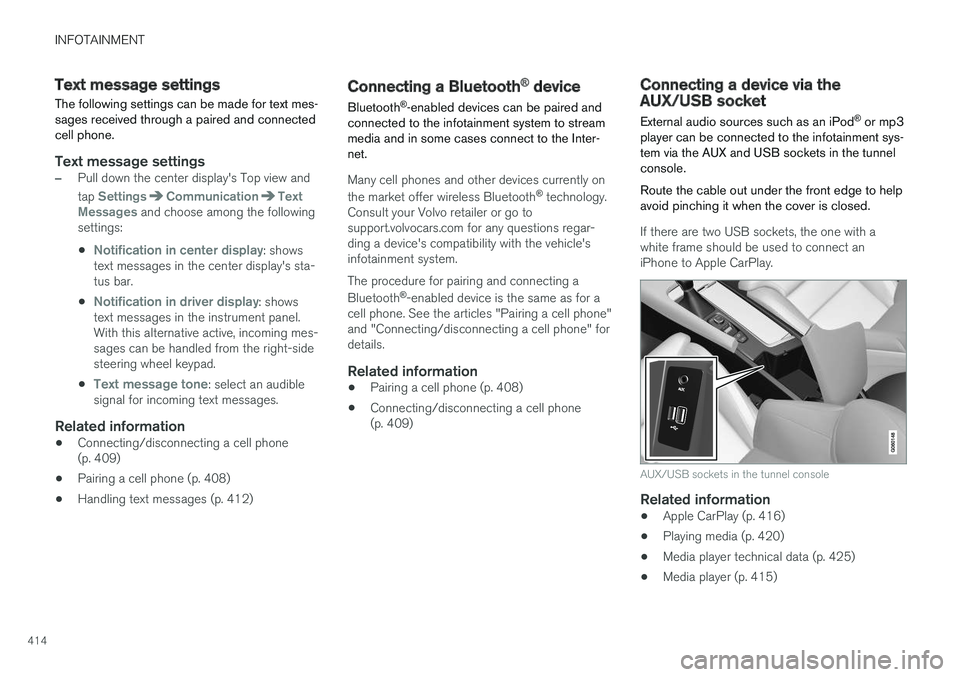
player can be connected to the infotainment sys- tem via the AUX and USB sockets in the tunnelconsole. Route the cable out under the front edge to help avoid pinching it when the cover is closed.
If there are two USB sockets, the one with a white frame should be used to connect aniPhone to Apple CarPlay.
AUX/USB sockets in the tunnel console
Related information
• Apple CarPlay (p. 416)
• Playing media (p. 420)
• Media player technical data (p. 425)
• Media player (p. 415)
Page 417 of 548
INFOTAINMENT
* Option/accessory.415
Media player
The media player can play audio from a CD *,
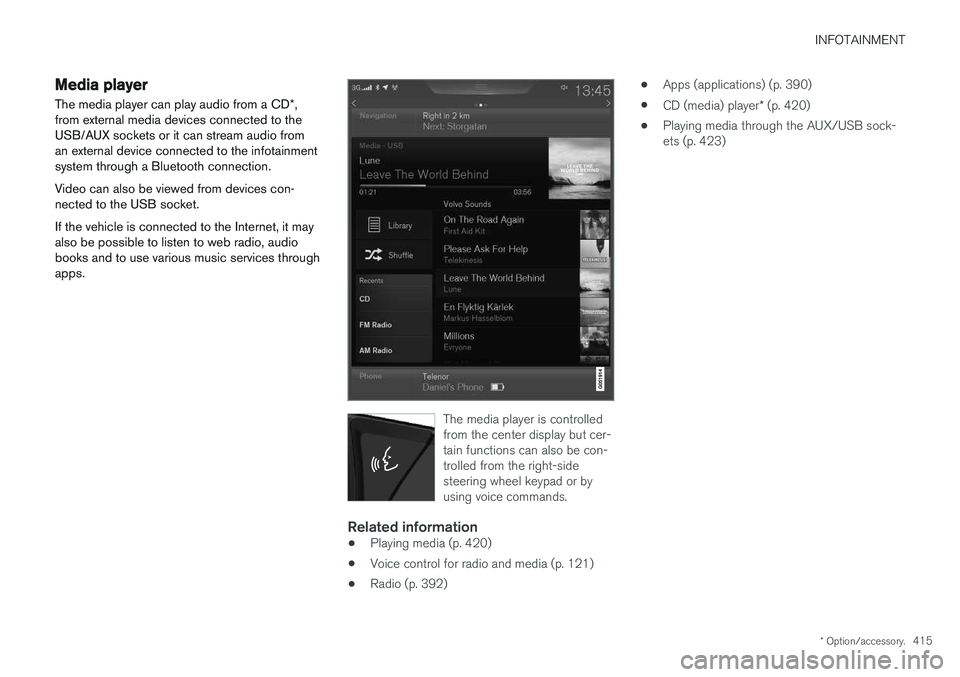
from external media devices connected to the USB/AUX sockets or it can stream audio froman external device connected to the infotainmentsystem through a Bluetooth connection. Video can also be viewed from devices con- nected to the USB socket. If the vehicle is connected to the Internet, it may also be possible to listen to web radio, audiobooks and to use various music services throughapps.
The media player is controlled from the center display but cer-tain functions can also be con-trolled from the right-sidesteering wheel keypad or byusing voice commands.
Related information
• Playing media (p. 420)
• Voice control for radio and media (p. 121)
• Radio (p. 392) •
Apps (applications) (p. 390)
• CD (media) player
* (p. 420)
• Playing media through the AUX/USB sock- ets (p. 423)