AC port VOLVO S90 2017 Owner´s Manual
[x] Cancel search | Manufacturer: VOLVO, Model Year: 2017, Model line: S90, Model: VOLVO S90 2017Pages: 548, PDF Size: 11.42 MB
Page 414 of 548
||
INFOTAINMENT
412
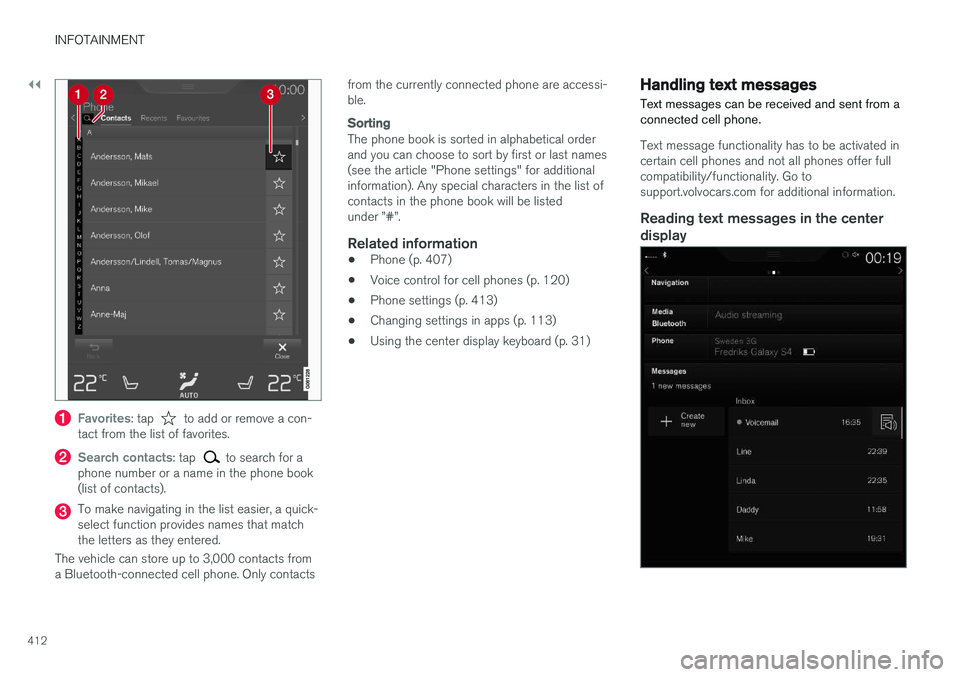
Favorites: tap to add or remove a con-
tact from the list of favorites.
Search contacts: tap to search for a
phone number or a name in the phone book (list of contacts).
To make navigating in the list easier, a quick- select function provides names that matchthe letters as they entered.
The vehicle can store up to 3,000 contacts froma Bluetooth-connected cell phone. Only contacts from the currently connected phone are accessi-ble.
Sorting
The phone book is sorted in alphabetical order and you can choose to sort by first or last names(see the article "Phone settings" for additionalinformation). Any special characters in the list ofcontacts in the phone book will be listedunder ”#”.
Related information
•
Phone (p. 407)
• Voice control for cell phones (p. 120)
• Phone settings (p. 413)
• Changing settings in apps (p. 113)
• Using the center display keyboard (p. 31)
Handling text messages
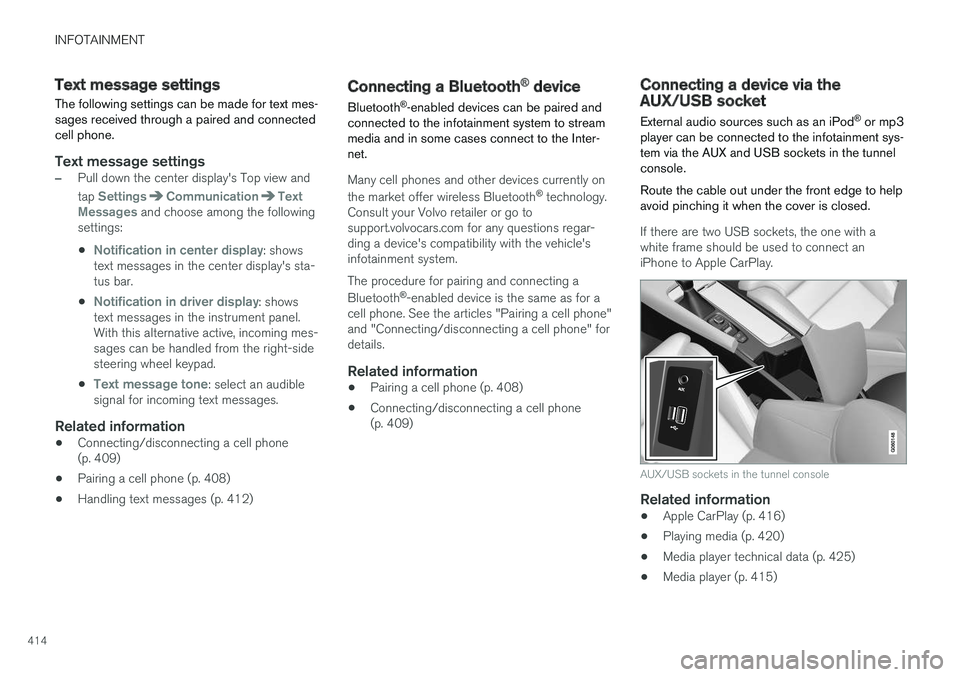
Text messages can be received and sent from a connected cell phone.
Text message functionality has to be activated in certain cell phones and not all phones offer fullcompatibility/functionality. Go tosupport.volvocars.com for additional information.
Reading text messages in the center display
Page 416 of 548
INFOTAINMENT
414
Text message settings
The following settings can be made for text mes- sages received through a paired and connectedcell phone.
Text message settings
–Pull down the center display's Top view and tap
SettingsCommunicationText
Messages and choose among the following
settings:
•
Notification in center display: shows
text messages in the center display's sta- tus bar.
•
Notification in driver display: shows
text messages in the instrument panel. With this alternative active, incoming mes-sages can be handled from the right-sidesteering wheel keypad.
•
Text message tone: select an audible
signal for incoming text messages.
Related information
• Connecting/disconnecting a cell phone (p. 409)
• Pairing a cell phone (p. 408)
• Handling text messages (p. 412)
Connecting a Bluetooth ®
device
Bluetooth ®
-enabled devices can be paired and
connected to the infotainment system to stream media and in some cases connect to the Inter-net.
Many cell phones and other devices currently on the market offer wireless Bluetooth ®
technology.
Consult your Volvo retailer or go to support.volvocars.com for any questions regar-ding a device's compatibility with the vehicle'sinfotainment system. The procedure for pairing and connecting a Bluetooth ®
-enabled device is the same as for a
cell phone. See the articles "Pairing a cell phone" and "Connecting/disconnecting a cell phone" fordetails.
Related information
• Pairing a cell phone (p. 408)
• Connecting/disconnecting a cell phone(p. 409)
Connecting a device via the AUX/USB socket
External audio sources such as an iPod ®
or mp3
player can be connected to the infotainment sys- tem via the AUX and USB sockets in the tunnelconsole. Route the cable out under the front edge to help avoid pinching it when the cover is closed.
If there are two USB sockets, the one with a white frame should be used to connect aniPhone to Apple CarPlay.
AUX/USB sockets in the tunnel console
Related information
• Apple CarPlay (p. 416)
• Playing media (p. 420)
• Media player technical data (p. 425)
• Media player (p. 415)
Page 418 of 548
INFOTAINMENT
* Option/accessory.
416
Apple CarPlay
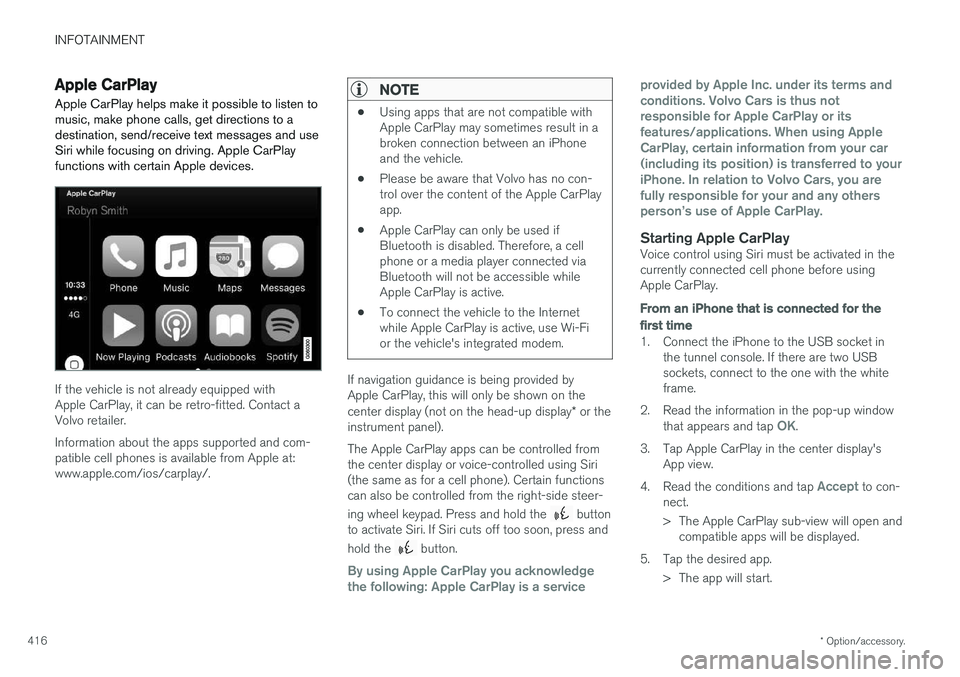
Apple CarPlay helps make it possible to listen to music, make phone calls, get directions to adestination, send/receive text messages and useSiri while focusing on driving. Apple CarPlayfunctions with certain Apple devices.
If the vehicle is not already equipped with Apple CarPlay, it can be retro-fitted. Contact aVolvo retailer. Information about the apps supported and com- patible cell phones is available from Apple at:www.apple.com/ios/carplay/.
NOTE
• Using apps that are not compatible with Apple CarPlay may sometimes result in abroken connection between an iPhoneand the vehicle.
• Please be aware that Volvo has no con-trol over the content of the Apple CarPlayapp.
• Apple CarPlay can only be used ifBluetooth is disabled. Therefore, a cellphone or a media player connected viaBluetooth will not be accessible whileApple CarPlay is active.
• To connect the vehicle to the Internetwhile Apple CarPlay is active, use Wi-Fior the vehicle's integrated modem.
If navigation guidance is being provided by Apple CarPlay, this will only be shown on the center display (not on the head-up display
* or the
instrument panel). The Apple CarPlay apps can be controlled from the center display or voice-controlled using Siri(the same as for a cell phone). Certain functionscan also be controlled from the right-side steer- ing wheel keypad. Press and hold the
button
to activate Siri. If Siri cuts off too soon, press and hold the
button.
By using Apple CarPlay you acknowledge the following: Apple CarPlay is a service provided by Apple Inc. under its terms andconditions. Volvo Cars is thus notresponsible for Apple CarPlay or itsfeatures/applications. When using AppleCarPlay, certain information from your car(including its position) is transferred to youriPhone. In relation to Volvo Cars, you arefully responsible for your and any othersperson
Page 420 of 548
||
INFOTAINMENT
* Option/accessory.
418 2.
Tap
SoundSystem Volumes and select
the following settings: •
Voice Control
•Navigation
•Ringtone
Related information
• Apple CarPlay (p. 416)
• Resetting the settings view (p. 113)
Android auto
*
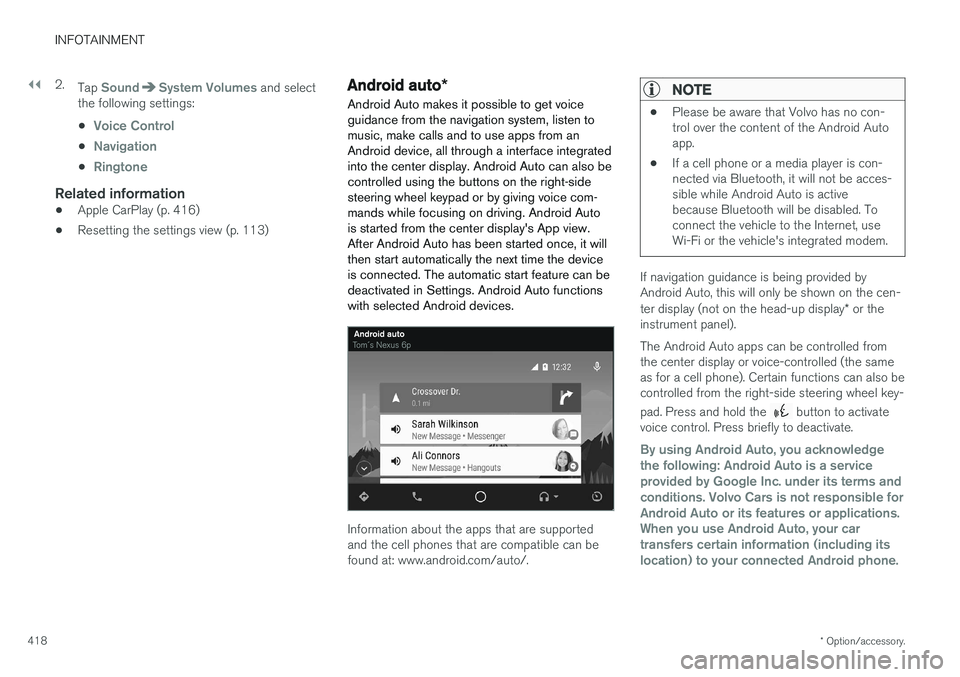
Android Auto makes it possible to get voice guidance from the navigation system, listen tomusic, make calls and to use apps from anAndroid device, all through a interface integratedinto the center display. Android Auto can also becontrolled using the buttons on the right-sidesteering wheel keypad or by giving voice com-mands while focusing on driving. Android Autois started from the center display's App view.After Android Auto has been started once, it willthen start automatically the next time the deviceis connected. The automatic start feature can bedeactivated in Settings. Android Auto functionswith selected Android devices.
Information about the apps that are supported and the cell phones that are compatible can befound at: www.android.com/auto/.
NOTE
• Please be aware that Volvo has no con- trol over the content of the Android Autoapp.
• If a cell phone or a media player is con-nected via Bluetooth, it will not be acces-sible while Android Auto is activebecause Bluetooth will be disabled. Toconnect the vehicle to the Internet, useWi-Fi or the vehicle's integrated modem.
If navigation guidance is being provided by Android Auto, this will only be shown on the cen- ter display (not on the head-up display
* or the
instrument panel). The Android Auto apps can be controlled from the center display or voice-controlled (the sameas for a cell phone). Certain functions can also becontrolled from the right-side steering wheel key- pad. Press and hold the
button to activate
voice control. Press briefly to deactivate.
By using Android Auto, you acknowledge the following: Android Auto is a serviceprovided by Google Inc. under its terms andconditions. Volvo Cars is not responsible forAndroid Auto or its features or applications.When you use Android Auto, your cartransfers certain information (including itslocation) to your connected Android phone.
Page 425 of 548
INFOTAINMENT
423
3.
Tap
Search.
> The infotainment system will search through all connected devices and any results will be displayed by category.
Swipe the screen horizontally to display each cat-egory separately.
Related information
• Media player (p. 415)
• Playing media (p. 420)
• Using the center display keyboard (p. 31)
Playing media through the AUX/USB sockets
An external media device, such as an iPod or an mp-3 player can be connected to the infotain-ment system.
A device with rechargeable batteries can be recharged when it is connected to the USBsocket (if the ignition is on or the engine is run-ning). To simplify the use of a USB flash drive, it is advisable to only store files with compatible fileformats on it. It will take considerably longer forthe system to index the files on the drive if it con-tains anything other than compatible files. In addition to audio, the vehicle's media player also supports video playback when the externaldevice is connected to the USB socket. Certain mp-3 players have proprietary file formats that are not supported by the infotainment sys-tem.
Related information
• Connecting a device via the AUX/USBsocket (p. 414)
Streaming media through a Bluetooth connection The media player is equipped with Bluetooth ®
for streaming audio files from external Bluetooth ®
-enabled devices.
Related information
• Connecting a Bluetooth ®
device (p. 414)
• Playing media (p. 420)
• Voice control for radio and media (p. 121)
• Media player (p. 415)
• Ignition modes (p. 370)
• Media player technical data (p. 425)
Page 427 of 548

INFOTAINMENT
}}
425
•
None: no results will be shown.
Updating GracenoteGracenote's contents are updated continuously. For optimal functionality, always use the latestversion. See support.volvocars.com for informa-tion and downloads.
Related information
•
Infotainment system license information(p. 433)
• Playing media (p. 420)
Video
The media player can play video from USB-con- nected devices.
No video will be available when the vehicle is moving. Video will resume playing when the vehi-cle is stationary. See the article "Media player technical data" for a list of video formats supported by the mediaplayer.
Related information
• Playing media (p. 420)
• Media player (p. 415)
• Media player technical data (p. 425)
Media player technical data The following tables list compatible file formats and other technical specifications for the mediaplayer.
Audio files
For- mat File extension
Codec
MP3 .mp3 MPEG1 Layer III, MPEG2 Layer III, MP3 Pro (mp3compatible),MP3 HD (mp3compatible)
AAC .m4a, .m4b, .aac AAC LC (MPEG-4 part III Audio),HE-AAC (aacPlusv1/v2)
WMA .wma WMA8/9, WMA9/10 Pro
WAV .wav LPCM
FLAC .flac FLAC
Video files
Format File extension
MP4 .mp4, .m4v
MPEG-PS .mpg, .mp2, .mpeg, .m1v
Page 429 of 548
INFOTAINMENT
}}
427
Internet connected vehicle
Connecting to the Internet makes it possible to e.g., use certain navigation services, listen toweb radio, stream music using apps, contact aretailer and download software.
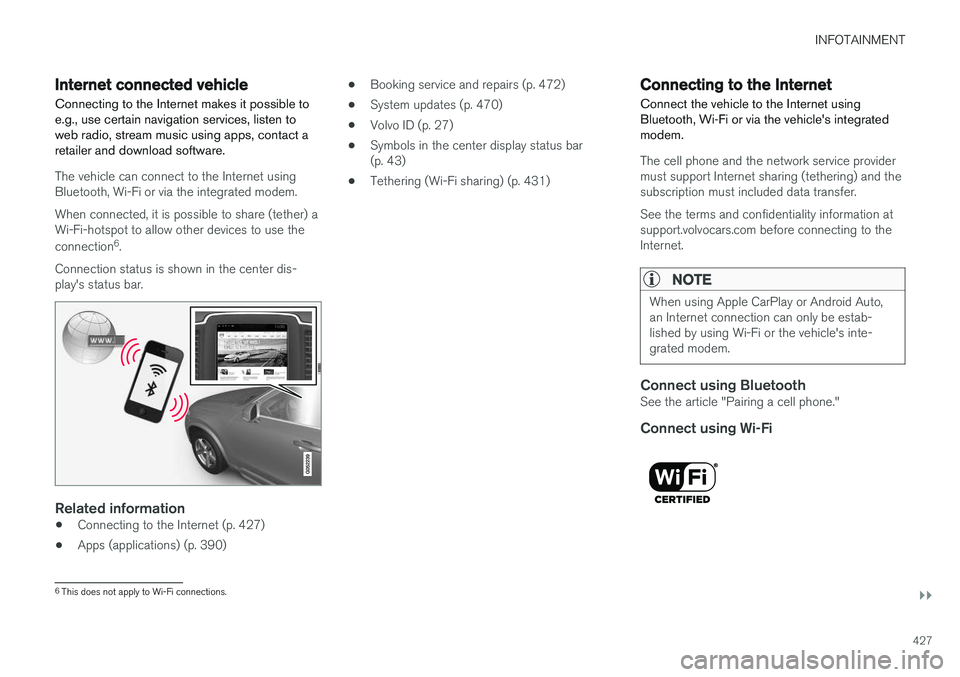
The vehicle can connect to the Internet using Bluetooth, Wi-Fi or via the integrated modem. When connected, it is possible to share (tether) a Wi-Fi-hotspot to allow other devices to use the connection 6
.
Connection status is shown in the center dis- play's status bar.
Related information
• Connecting to the Internet (p. 427)
• Apps (applications) (p. 390) •
Booking service and repairs (p. 472)
• System updates (p. 470)
• Volvo ID (p. 27)
• Symbols in the center display status bar (p. 43)
• Tethering (Wi-Fi sharing) (p. 431)
Connecting to the Internet
Connect the vehicle to the Internet using
Bluetooth, Wi-Fi or via the vehicle's integratedmodem.
The cell phone and the network service provider must support Internet sharing (tethering) and thesubscription must included data transfer. See the terms and confidentiality information at support.volvocars.com before connecting to theInternet.
NOTE
When using Apple CarPlay or Android Auto, an Internet connection can only be estab-lished by using Wi-Fi or the vehicle's inte-grated modem.
Connect using BluetoothSee the article "Pairing a cell phone."
Connect using Wi-Fi
6 This does not apply to Wi-Fi connections.
Page 433 of 548
INFOTAINMENT
431
Related information
•Internet connected vehicle (p. 427)
• Connecting to the Internet (p. 427)
Tethering (Wi-Fi sharing)
When the vehicle is connected to the Internet, this connection can be shared (tethered) with other devices 7
.
The network service provider (the SIM card) must support tethering.
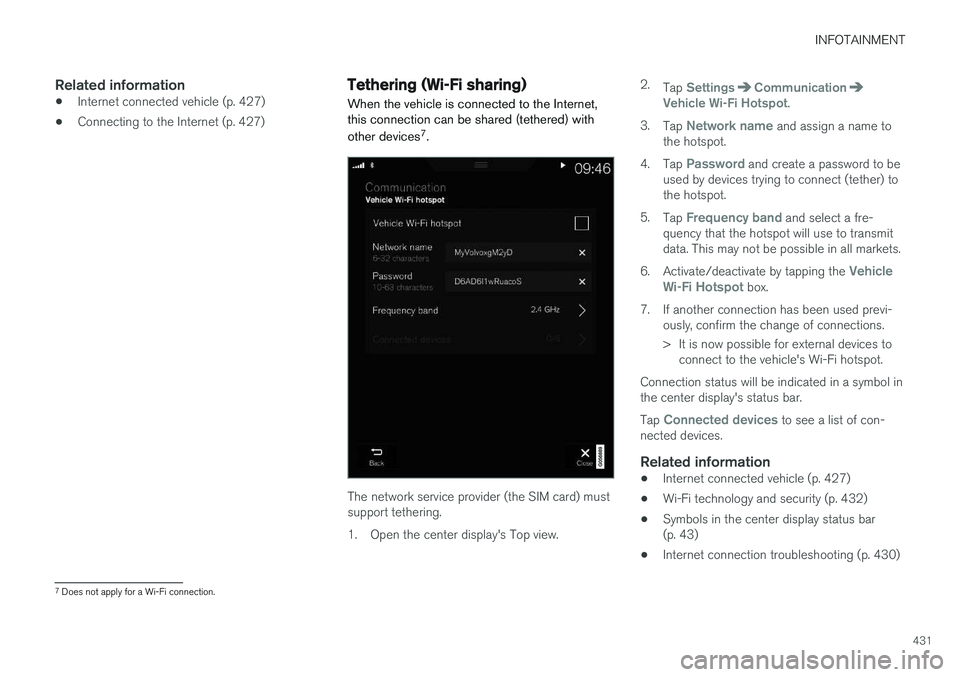
1. Open the center display's Top view. 2.
Tap
SettingsCommunicationVehicle Wi-Fi Hotspot.
3. Tap
Network name and assign a name to
the hotspot.
4. Tap
Password and create a password to be
used by devices trying to connect (tether) to the hotspot.
5. Tap
Frequency band and select a fre-
quency that the hotspot will use to transmit data. This may not be possible in all markets.
6. Activate/deactivate by tapping the
Vehicle
Wi-Fi Hotspot box.
7. If another connection has been used previ- ously, confirm the change of connections.
> It is now possible for external devices toconnect to the vehicle's Wi-Fi hotspot.
Connection status will be indicated in a symbol in the center display's status bar. Tap
Connected devices to see a list of con-
nected devices.
Related information
• Internet connected vehicle (p. 427)
• Wi-Fi technology and security (p. 432)
• Symbols in the center display status bar (p. 43)
• Internet connection troubleshooting (p. 430)
7
Does not apply for a Wi-Fi connection.
Page 437 of 548
INFOTAINMENT
}}
435
©
Gracenote, Inc. 2009
Sensus software
This software uses parts of sources from clib2 and Prex Embedded Real-time OS - Source (Copyright ©) 1982, 1986, 1991, 1993, 1994),
and Quercus Robusta (Copyright ©) 1990,
1993), The Regents of the University of California. All or some portions are derived frommaterial licensed to the University of California byAmerican Telephone and Telegraph Co. or UnixSystem Laboratories, Inc. and are reproducedherein with the permission of UNIX SystemLaboratories, Inc. Redistribution and use insource and binary forms, with or withoutmodification, are permitted provided that thefollowing conditions are met: Redistributions ofsource code must retain the above copyrightnotice, this list of conditions and the followingdisclaimer. Redistributions in binary form mustreproduce the above copyright notice, this list ofconditions and the following disclaimer in thedocumentation and/or other materials providedwith the distribution. Neither the name of the
©) 1991-2000 Silicon
Graphics, Inc. Copyright in any portions created by third parties is as indicated elsewhere herein. All Rights Reserved. Copyright ©) [1991-2000]
Silicon Graphics, Inc. All Rights Reserved. Permission is hereby granted, free of charge, toany person obtaining a copy of this software andassociated documentation files (the "Software"),to deal in the Software without restriction, including without limitation the rights to use,copy, modify, merge, publish, distribute,sublicense, and/or sell copies of the Software,and to permit persons to whom the Software isfurnished to do so, subject to the followingconditions: The above copyright notice includingthe dates of first publication and either thispermission notice or a reference to http://oss.sgi.com/projects/FreeB/ shall be included inall copies or substantial portions of the Software.THE SOFTWARE IS PROVIDED "AS IS",WITHOUT WARRANTY OF ANY KIND,EXPRESS OR IMPLIED, INCLUDING BUT NOTLIMITED TO THE WARRANTIES OFMERCHANTABILITY, FITNESS FOR APARTICULAR PURPOSE ANDNONINFRINGEMENT. IN NO EVENT SHALLSILICON GRAPHICS, INC. BE LIABLE FOR ANYCLAIM, DAMAGES OR OTHER LIABILITY,WHETHER IN AN ACTION OF CONTRACT,TORT OR OTHERWISE, ARISING FROM, OUTOF OR IN CONNECTION WITH THE SOFTWAREOR THE USE OR OTHER DEALINGS IN THESOFTWARE. Except as contained in this notice,the name of Silicon Graphics, Inc. shall not beused in advertising or otherwise to promote thesale, use or other dealings in this Softwarewithout prior written authorization from SiliconGraphics, Inc. This software is based in parts on the work of the FreeType Team.
Page 439 of 548
INFOTAINMENT
437
NONINFRINGEMENT OF THIRD PARTY RIGHTS. IN NO EVENT SHALL THECOPYRIGHT HOLDER OR HOLDERSINCLUDED IN THIS NOTICE BE LIABLE FORANY CLAIM, OR ANY SPECIAL INDIRECT ORCONSEQUENTIAL DAMAGES, OR ANYDAMAGES WHATSOEVER RESULTING FROMLOSS OF USE, DATA OR PROFITS, WHETHERIN AN ACTION OF CONTRACT, NEGLIGENCEOR OTHER TORTIOUS ACTION, ARISING OUTOF OR IN CONNECTION WITH THE USE ORPERFORMANCE OF THE DATA FILES ORSOFTWARE. Except as contained in this notice, the name of a copyright holder shall not be used in advertisingor otherwise to promote the sale, use or otherdealings in these Data Files or Software withoutprior written authorization of the copyright holder.
Bluetooth
®
declaration of conformityUnited States FCC CAUTION Changes or modifications not expressly approved by the party responsible for compliance couldvoid the user's authority to operate the equip-ment. This transmitter must not be co-located oroperated in conjunction with any other antennaor transmitter. CanadaThis device complies with Industry Canada licence-exempt RSS standard(s). Operation is subject to the following two conditions: (1) thisdevice may not cause interference, and (2) thisdevice must accept any interference, includinginterference that may cause undesired operationof the device.
Terms, conditions and confidentiality
See terms and conditions for services and cus- tomer privacy policy at support.volvocars.com.
Terms & Conditions for ServicesVolvo offers the best possible services to make owning and operating a Volvo safe, convenient,comfortable and enjoyable. Volvo offers a widearray of services, ranging from emergency assis-tance to navigation and infotainment.
Customer privacy policyThis policy applies to the way in which customer-related and personal information are handled. Itspurpose is to provide our present, previous andfuture customers a general understanding of: • The circumstances under which we gather and process your personal information.
• The types of personal information gathered.
• The reasons for gathering your personalinformation.
• How we deal with your personal information.
This policy can be read in its entirety atsupport.volvocars.com.