ad blue VOLVO S90 2017 Owner´s Manual
[x] Cancel search | Manufacturer: VOLVO, Model Year: 2017, Model line: S90, Model: VOLVO S90 2017Pages: 548, PDF Size: 11.42 MB
Page 182 of 548
||
CLIMATE
* Option/accessory.
180
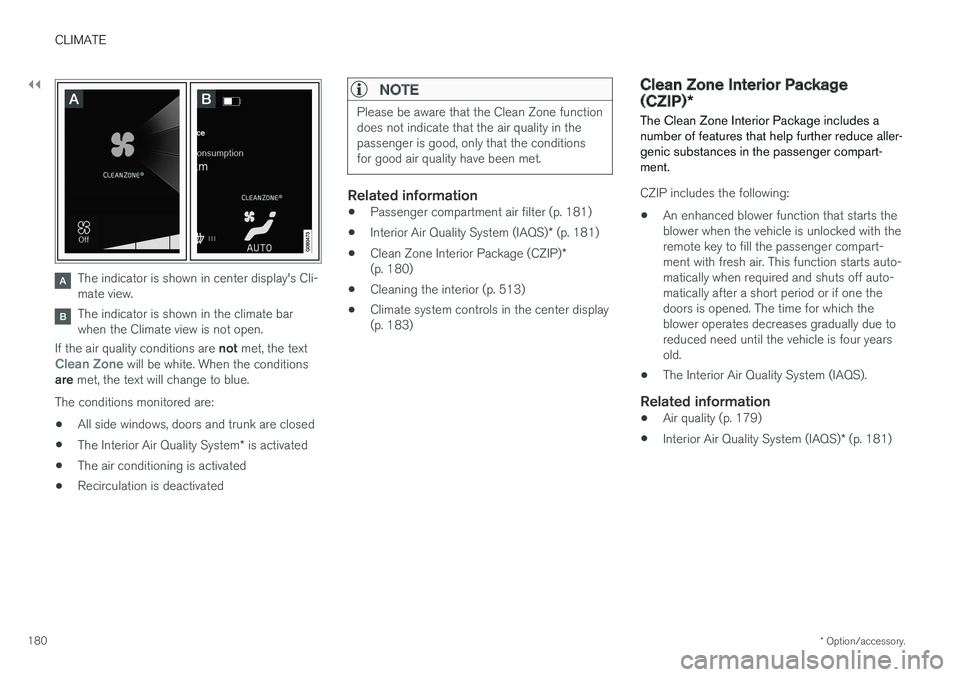
The indicator is shown in center display's Cli- mate view.
The indicator is shown in the climate bar when the Climate view is not open.
If the air quality conditions are not met, the text
Clean Zone will be white. When the conditions
are met, the text will change to blue.
The conditions monitored are:
• All side windows, doors and trunk are closed
• The Interior Air Quality System
* is activated
• The air conditioning is activated
• Recirculation is deactivated
NOTE
Please be aware that the Clean Zone function does not indicate that the air quality in thepassenger is good, only that the conditionsfor good air quality have been met.
Related information
•
Passenger compartment air filter (p. 181)
• Interior Air Quality System (IAQS)
* (p. 181)
• Clean Zone Interior Package (CZIP)
*
(p. 180)
• Cleaning the interior (p. 513)
• Climate system controls in the center display (p. 183)
Clean Zone Interior Package (CZIP)
*
The Clean Zone Interior Package includes a number of features that help further reduce aller-genic substances in the passenger compart-ment.
CZIP includes the following:
• An enhanced blower function that starts the blower when the vehicle is unlocked with theremote key to fill the passenger compart-ment with fresh air. This function starts auto-matically when required and shuts off auto-matically after a short period or if one thedoors is opened. The time for which theblower operates decreases gradually due toreduced need until the vehicle is four yearsold.
• The Interior Air Quality System (IAQS).
Related information
•
Air quality (p. 179)
• Interior Air Quality System (IAQS)
* (p. 181)
Page 373 of 548
STARTING AND DRIVING
* Option/accessory.371
ModeFunctions available
0 •The odometer, clock and tem- perature gauge are illuminated
• Power seats
* can be adjusted
• The power windows can be oper-ated
• The 12-volt socket in the cargocompartment can be used
• The center display is activatedand can be used
• The infotainment system can beused for a limited time
In this mode, certain functions canonly be used for a limited time to helpminimize battery drain
I •The moonroof
*, power seats */
windows,12-volt sockets in thepassenger compartment, Blue- tooth, navigation system *, climate
system blower, windshield wipers can be operated
• The infotainment system will start(if it was started when the ignitionwas switched off)Mode
Functions available
II •The headlights illuminate
• Warning/indicator lights illumi- nate for 5 seconds
• A number of other functions willalso be activated. However, the heated seats
* and heated rear
window functions can only be activated when the engine is run-ning.
This mode should only be used forvery short periods to help avoiddraining the battery.
Selecting an ignition mode
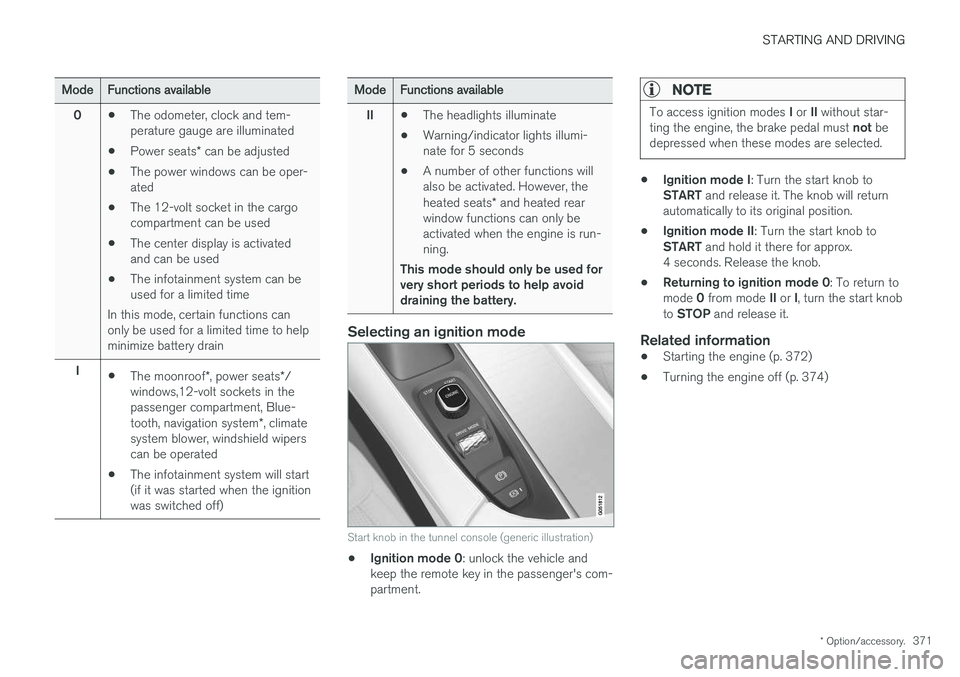
Start knob in the tunnel console (generic illustration)
• Ignition mode 0
: unlock the vehicle and
keep the remote key in the passenger's com- partment.
NOTE
To access ignition modes I or II without star-
ting the engine, the brake pedal must not be
depressed when these modes are selected.
• Ignition mode I
: Turn the start knob to
START and release it. The knob will return
automatically to its original position.
• Ignition mode II
: Turn the start knob to
START and hold it there for approx.
4 seconds. Release the knob.
• Returning to ignition mode 0
: To return to
mode 0 from mode II or I, turn the start knob
to STOP and release it.
Related information
•Starting the engine (p. 372)
• Turning the engine off (p. 374)
Page 392 of 548
INFOTAINMENT
390
The infotainment system
The infotainment system consists of a radio, media player and has the capacity to communi-cate with a Bluetooth-connected cell phone. It isalso possible to connect to the Internet to e.g.,stream audio content via apps. The system's functions can be controlled from the right-side steering wheel keypad, the centerdisplay or by using voice commands.
Infotainment overview
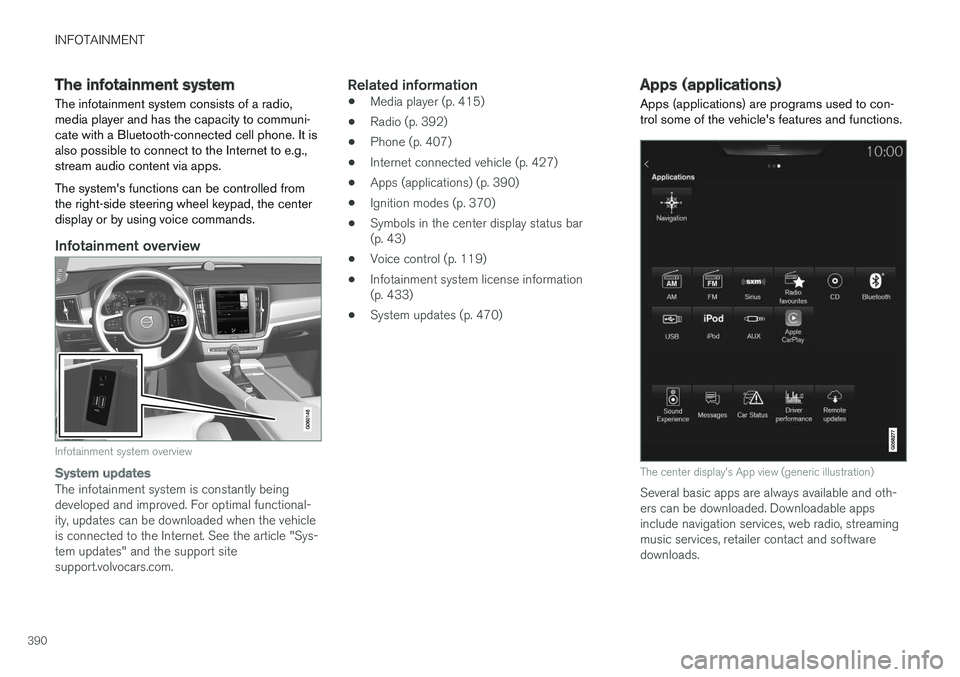
Infotainment system overview
System updates
The infotainment system is constantly being developed and improved. For optimal functional-ity, updates can be downloaded when the vehicleis connected to the Internet. See the article "Sys-tem updates" and the support sitesupport.volvocars.com.
Related information
• Media player (p. 415)
• Radio (p. 392)
• Phone (p. 407)
• Internet connected vehicle (p. 427)
• Apps (applications) (p. 390)
• Ignition modes (p. 370)
• Symbols in the center display status bar(p. 43)
• Voice control (p. 119)
• Infotainment system license information(p. 433)
• System updates (p. 470)
Apps (applications)
Apps (applications) are programs used to con- trol some of the vehicle's features and functions.
The center display's App view (generic illustration)
Several basic apps are always available and oth- ers can be downloaded. Downloadable appsinclude navigation services, web radio, streamingmusic services, retailer contact and softwaredownloads.
Page 409 of 548
INFOTAINMENT
407
Phone
A Bluetooth-enabled cell phone can be paired and connected to the vehicle's integrated hands-free system.
The infotainment system offers hands-free func- tionality for remote-controlling a number of a cellphone's features. The phone's integrated controlscan also be used, even when it is connected tothe vehicle. When the phone has been paired and connected to the infotainment system, it can be used tomake or receive calls, send or receive text mes-sages, to stream music, etc., or as an Internetconnection.
The phone is controlled fromthe center display but the Appmenu (accessed using theright-side steering wheel key-pad) and voice commands canalso be used to control certainfunctions.
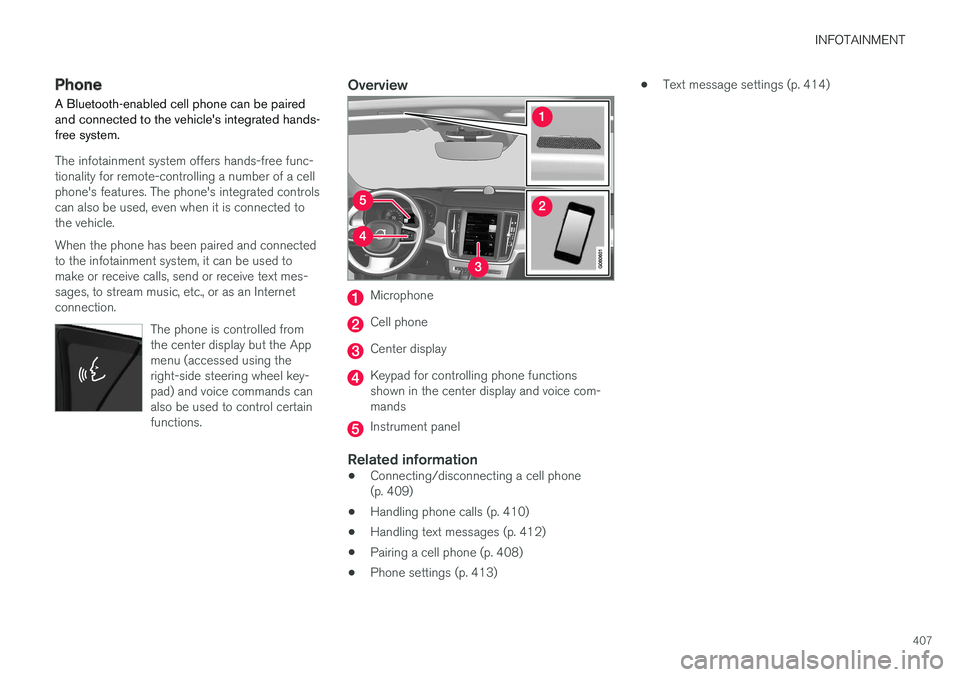
Overview
Microphone
Cell phone
Center display
Keypad for controlling phone functions shown in the center display and voice com-mands
Instrument panel
Related information
•Connecting/disconnecting a cell phone (p. 409)
• Handling phone calls (p. 410)
• Handling text messages (p. 412)
• Pairing a cell phone (p. 408)
• Phone settings (p. 413) •
Text message settings (p. 414)
Page 410 of 548
INFOTAINMENT
408
Pairing a cell phone
A Bluetooth ®
-enabled cell phone or other device
can be paired and wirelessly connected to the infotainment system.
When a cell phone or other device is connected, audio can be streamed to the infotainment sys-tem. Toggle between the devices by pressing the TEL and MEDIA buttons to access the respective
sources' functions. Before a Bluetooth device can be used with the infotainment system, it has to be paired("registered"). This procedure only needs to be done once for each device (a maximum of 20 Bluetooth devicescan be paired to the system). Once a device hasbeen paired and its Bluetooth function is acti-vated, it can then be selected for use (wirelesslyconnected) to the vehicle's infotainment system. Two Bluetooth devices can be connected at the same time. However, if two cell phones are con-nected, only the most recently connected onecan be used as a phone. The other one can beused to e.g., to stream audio or video. To changewhat the phone will be used for, see the article"Bluetooth settings." A paired and connected cell phone can also be used to connect the vehicle to the Internet. To doso, its tethering/personal hotspot function mustbe activated. There are two ways of pairing a Bluetooth deviceto the infotainment system:
• Searching for the phone (or other device)from the vehicle
• Searching for the vehicle from the phone (orother device)
The following instructions assume that a cellphone is to be paired to the infotainment systembut the procedure is the same for any Bluetoothdevice.
Alternative 1: searching for the phone
from the vehicle
1. Make the phone discoverable/visible using its Bluetooth function. Refer to the phone'suser guide if necessary.
2. Open the Phone view on the center display. >
•If no phones have been paired to the vehicle, tap
Add phone.
• If a list of phones is displayed, tap
Change and tap Add phone in
the pop-up window.
3. Tap the name of the phone to be connected.
4. Check that the code displayed in the vehicle is the same as the one in the phone. Confirm in both places. 5. For the phone selected, accept or cancel the
alternatives for the phone book (list of con-tacts), text messages, etc. Full functionalitymay not be available in all cell phones.
6. To connect the vehicle to the Internet via the phone's Bluetooth function, activate thephone's function for tethering/personal hot-spot, etc.
Alternative 2: searching for the vehicle from the phone
1. Open the center display's Phone view.
•If no phones have been paired to the vehi- cle, tap
Add phoneMake vehicle
discoverable.
• If a phone has previously been paired to the vehicle, tap
Change and tap Add
phone
Make vehicle discoverable in
the pop-up window.
2. Activate the phone's Bluetooth function.
3. Search in the phone for Bluetooth devices. > A list of Bluetooth devices will be dis-played.
4. Select the vehicle's name in the list.
5. Check that the code displayed in the phone is the same as the one in the vehicle. Con- firm in both places.
Page 411 of 548
INFOTAINMENT
}}
409
6. For the phone selected, accept or cancel the
alternatives for the phone book (list of con- tacts), text messages, etc. Full functionalitymay not be available in all cell phones.
7. To connect the vehicle to the Internet via the phone's Bluetooth function, activate thephone's function for tethering/personal hot-spot, etc.
NOTE
If your cell phone's operating system is upda- ted, this may break the connection betweenthe phone and the vehicle. If this happens,delete the phone from the list of pairedphones and repeat the pairing proceduredescribed in this article.
Compatible cell phonesMany of the cell phones available today have Bluetooth functionality but not all of them arefully compatible with the vehicle. Go towww.volvocars.com for a list of compatiblephones or contact your Volvo retailer.
Related information
• Connecting/disconnecting a cell phone(p. 409)
• Handling phone calls (p. 410)
• Handling text messages (p. 412)
• Phone settings (p. 413)
• Bluetooth settings (p. 429)
Connecting/disconnecting a cell phone
Once a cell phone or other Bluetooth device has been paired to the infotainment system, it can beconnected, disconnected or removed from thelist of available devices.
Connecting automaticallyOnly the 2 most recently connected cell phones can be connected automatically.
1. Before switching on the vehicle's ignition, be sure that the phone's Bluetooth function is activated. To connect to the Internet, the phone's per- sonal hotspot (tethering) function must alsobe activated.
2. Switch on the ignition. > The phone will be connected to the sys-tem and can be used wirelessly.
Connecting manually1. Be sure that the phone's Bluetooth and per- sonal hotspot (tethering) functions are acti-vated.
2. In the center display, open Phone view and tap
Change phone.
> A list of available Bluetooth devices (ones that have already been paired to the info- tainment system) will be displayed. 3. Tap the name of the phone or other device
to be connected.
> The phone (or other device) will be con-nected.
Disconnecting a phone
–Deactivate the phone's Bluetooth function.
If a phone is carried out of range of the vehicle, it will automatically be disconnected. If a call in progress when this is done, the call will be transferred from the vehicle's speakers/micro-phone to the cell phone.
Changing phones1. In the center display, open Phone view. 2. Tap
Change.
> A list of available Bluetooth devices (ones that have already been paired to the info- tainment system) will be displayed.
3. Tap the name of the phone (or other device) to be connected.
Removing a phone (or other device) from the list
1. In the center display, open Phone view. 2.Tap
SettingsCommunicationBluetooth.
> A list of available Bluetooth devices (ones that have already been paired to the info- tainment system) will be displayed.
Page 413 of 548
INFOTAINMENT
}}
411
Incoming callsInformation about incoming calls is displayed in the instrument panel and the center display. Han-dle the calls using the right-side steering wheelkeypad or the center display. 1.Tap
Answer/Reject.
2. Tap
End call to end a phone call.
Incoming calls while another call is in progress
1. Tap Answer/Reject.
2. Tap
End call to end a phone call.
PrivacyWhile a call is in progress:
–Tap Privacy.
> The vehicle's integrated microphone will be turned off.
•
Switch to mobile phone: the hands-free
function will be disconnected and the call will continue in the cell phone.
•
Driver focused: the microphone in the ceil-
ing liner on the passenger's side will be muted and the call will continue using vehi-cle's the hands-free function on the driver'sside.
Related information
• Phone (p. 407)
• Voice control for cell phones (p. 120) •
Using the center display (p. 44)
• Using the center display keyboard (p. 31)
• Phone settings (p. 413)
Managing the phone book
The following is information about keeping track of contacts in your Bluetooth-connected cellphone's phone book.
Page 414 of 548
||
INFOTAINMENT
412
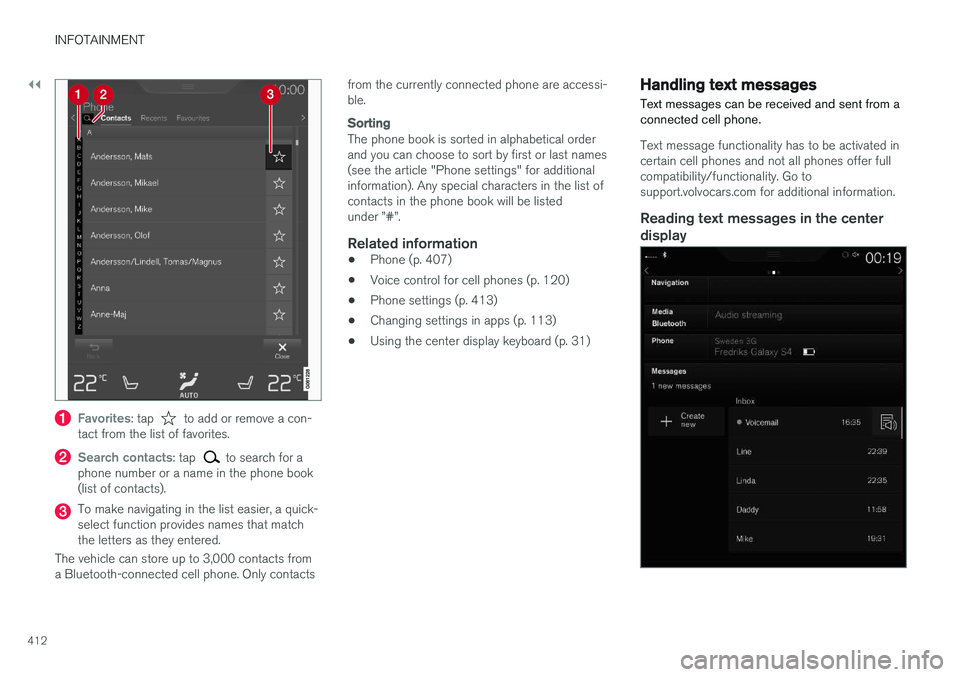
Favorites: tap to add or remove a con-
tact from the list of favorites.
Search contacts: tap to search for a
phone number or a name in the phone book (list of contacts).
To make navigating in the list easier, a quick- select function provides names that matchthe letters as they entered.
The vehicle can store up to 3,000 contacts froma Bluetooth-connected cell phone. Only contacts from the currently connected phone are accessi-ble.
Sorting
The phone book is sorted in alphabetical order and you can choose to sort by first or last names(see the article "Phone settings" for additionalinformation). Any special characters in the list ofcontacts in the phone book will be listedunder ”#”.
Related information
•
Phone (p. 407)
• Voice control for cell phones (p. 120)
• Phone settings (p. 413)
• Changing settings in apps (p. 113)
• Using the center display keyboard (p. 31)
Handling text messages
Text messages can be received and sent from a connected cell phone.
Text message functionality has to be activated in certain cell phones and not all phones offer fullcompatibility/functionality. Go tosupport.volvocars.com for additional information.
Reading text messages in the center display
Page 415 of 548
INFOTAINMENT
* Option/accessory.413
1.
From App view, tap Messages to open.
2. Tap the name of the contact who sent the message.
3. Tap
Read out to have the message read
aloud or tap the message to be displayed.
Reading new text messages in the instrument panel
Text messages are only displayed in the instru- ment panel if this has been selected. See thearticle "Text message settings" for more informa-tion.
–To have the message read aloud, selectRead out using the keypad in the steering
wheel.
Sending text messages
1. From App view, tap Messages to open. 2.
•To reply to a message: tap the name of the contact who sent the message and then tap
Answer.
• To create a new message: tap
Create
new
+. Select the contact who will
receive the message or enter a phone number.
3. Write or dictate (
) the message.
4. Tap
Send.
Message notificationSee the article "Text message settings" for a list of possible settings.
Related information
• Text message settings (p. 414)
Phone settings
The following settings can be made for a paired and connected cell phone.
Cell phones
–Pull down the center display's Top view and tap
SettingsCommunicationPhoneand choose among the following settings: •
Ringtones: select a ring tone (tones from
the cell phone or the vehicle can be used). Not all cell phones are fully com-patible and it may not be possible to usetheir ring tones in the vehicle. Go towww.volvocars.com for additional informa-tion.
•
Sort order for contacts: select sort cri-
teria for the phone book (list of contacts).
To show call notifications in the head-up dis- play *, see the article "Head-up display."
Related information
• Text message settings (p. 414)
• Bluetooth settings (p. 429)
• Phone (p. 407)
• Handling phone calls (p. 410)
• Head-up display (HUD)
* (p. 116)
Page 416 of 548
INFOTAINMENT
414
Text message settings
The following settings can be made for text mes- sages received through a paired and connectedcell phone.
Text message settings
–Pull down the center display's Top view and tap
SettingsCommunicationText
Messages and choose among the following
settings:
•
Notification in center display: shows
text messages in the center display's sta- tus bar.
•
Notification in driver display: shows
text messages in the instrument panel. With this alternative active, incoming mes-sages can be handled from the right-sidesteering wheel keypad.
•
Text message tone: select an audible
signal for incoming text messages.
Related information
• Connecting/disconnecting a cell phone (p. 409)
• Pairing a cell phone (p. 408)
• Handling text messages (p. 412)
Connecting a Bluetooth ®
device
Bluetooth ®
-enabled devices can be paired and
connected to the infotainment system to stream media and in some cases connect to the Inter-net.
Many cell phones and other devices currently on the market offer wireless Bluetooth ®
technology.
Consult your Volvo retailer or go to support.volvocars.com for any questions regar-ding a device's compatibility with the vehicle'sinfotainment system. The procedure for pairing and connecting a Bluetooth ®
-enabled device is the same as for a
cell phone. See the articles "Pairing a cell phone" and "Connecting/disconnecting a cell phone" fordetails.
Related information
• Pairing a cell phone (p. 408)
• Connecting/disconnecting a cell phone(p. 409)
Connecting a device via the AUX/USB socket
External audio sources such as an iPod ®
or mp3
player can be connected to the infotainment sys- tem via the AUX and USB sockets in the tunnelconsole. Route the cable out under the front edge to help avoid pinching it when the cover is closed.
If there are two USB sockets, the one with a white frame should be used to connect aniPhone to Apple CarPlay.
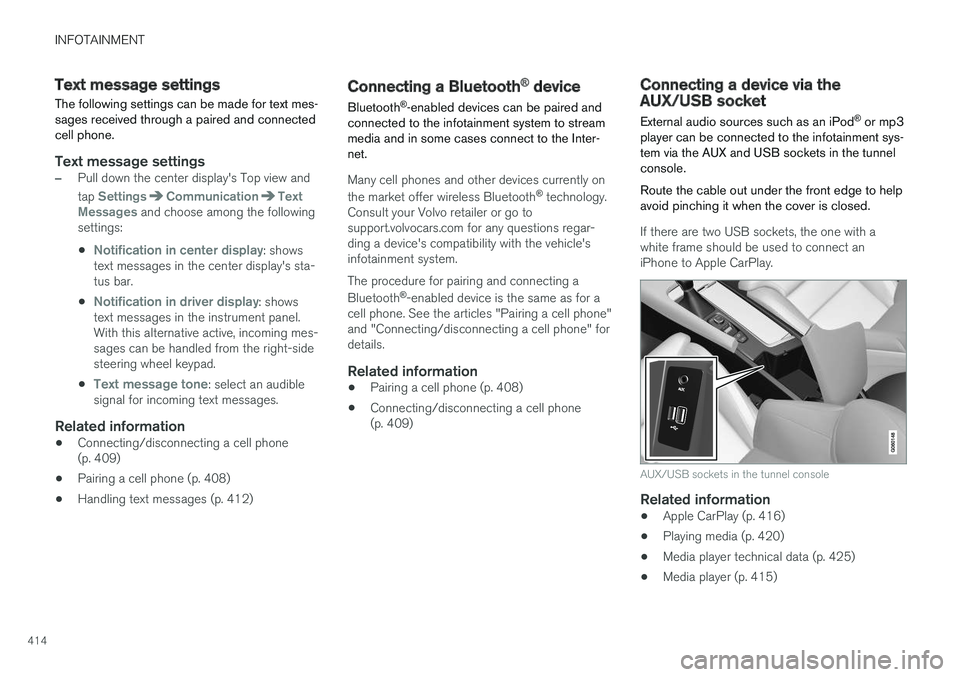
AUX/USB sockets in the tunnel console
Related information
• Apple CarPlay (p. 416)
• Playing media (p. 420)
• Media player technical data (p. 425)
• Media player (p. 415)