reset VOLVO S90 2017 Owner´s Manual
[x] Cancel search | Manufacturer: VOLVO, Model Year: 2017, Model line: S90, Model: VOLVO S90 2017Pages: 548, PDF Size: 11.42 MB
Page 296 of 548
||
DRIVER SUPPORT
294
CauseAction
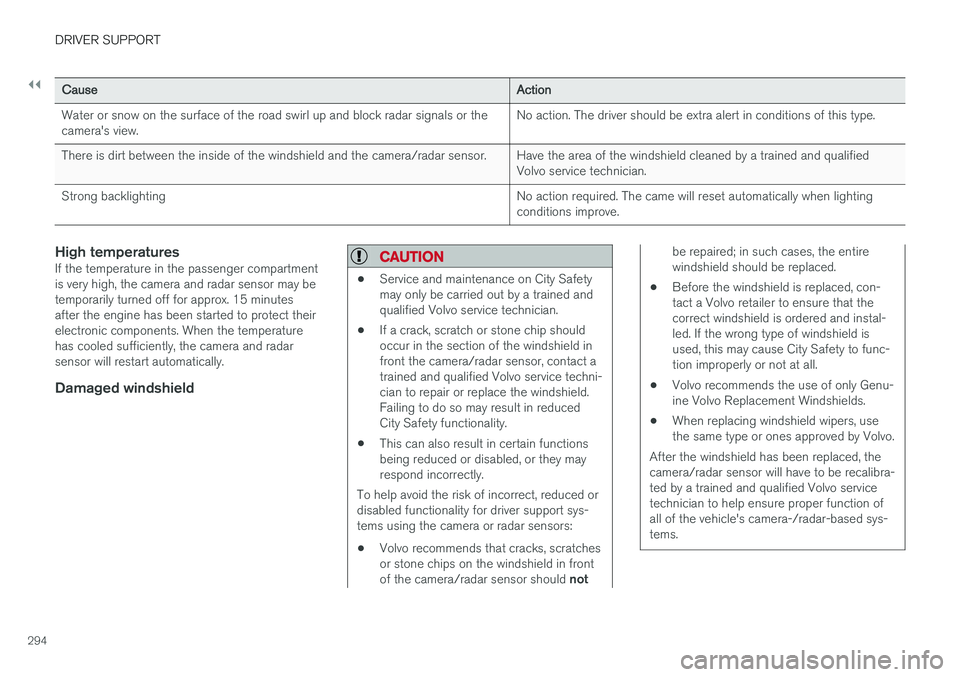
Water or snow on the surface of the road swirl up and block radar signals or the camera's view. No action. The driver should be extra alert in conditions of this type.
There is dirt between the inside of the windshield and the camera/radar sensor. Have the area of the windshield cleaned by a trained and qualified Volvo service technician.
Strong backlighting No action required. The came will reset automatically when lightingconditions improve.
High temperaturesIf the temperature in the passenger compartment is very high, the camera and radar sensor may betemporarily turned off for approx. 15 minutesafter the engine has been started to protect theirelectronic components. When the temperaturehas cooled sufficiently, the camera and radarsensor will restart automatically.
Damaged windshield
CAUTION
•Service and maintenance on City Safety may only be carried out by a trained andqualified Volvo service technician.
• If a crack, scratch or stone chip shouldoccur in the section of the windshield infront the camera/radar sensor, contact atrained and qualified Volvo service techni-cian to repair or replace the windshield.Failing to do so may result in reducedCity Safety functionality.
• This can also result in certain functionsbeing reduced or disabled, or they mayrespond incorrectly.
To help avoid the risk of incorrect, reduced ordisabled functionality for driver support sys-tems using the camera or radar sensors:
• Volvo recommends that cracks, scratchesor stone chips on the windshield in front of the camera/radar sensor should
not
be repaired; in such cases, the entire windshield should be replaced.
• Before the windshield is replaced, con-tact a Volvo retailer to ensure that thecorrect windshield is ordered and instal-led. If the wrong type of windshield isused, this may cause City Safety to func-tion improperly or not at all.
• Volvo recommends the use of only Genu-ine Volvo Replacement Windshields.
• When replacing windshield wipers, usethe same type or ones approved by Volvo.
After the windshield has been replaced, thecamera/radar sensor will have to be recalibra-ted by a trained and qualified Volvo servicetechnician to help ensure proper function ofall of the vehicle's camera-/radar-based sys-tems.
Page 378 of 548
||
STARTING AND DRIVING
* Option/accessory.
376
INDIVIDUAL
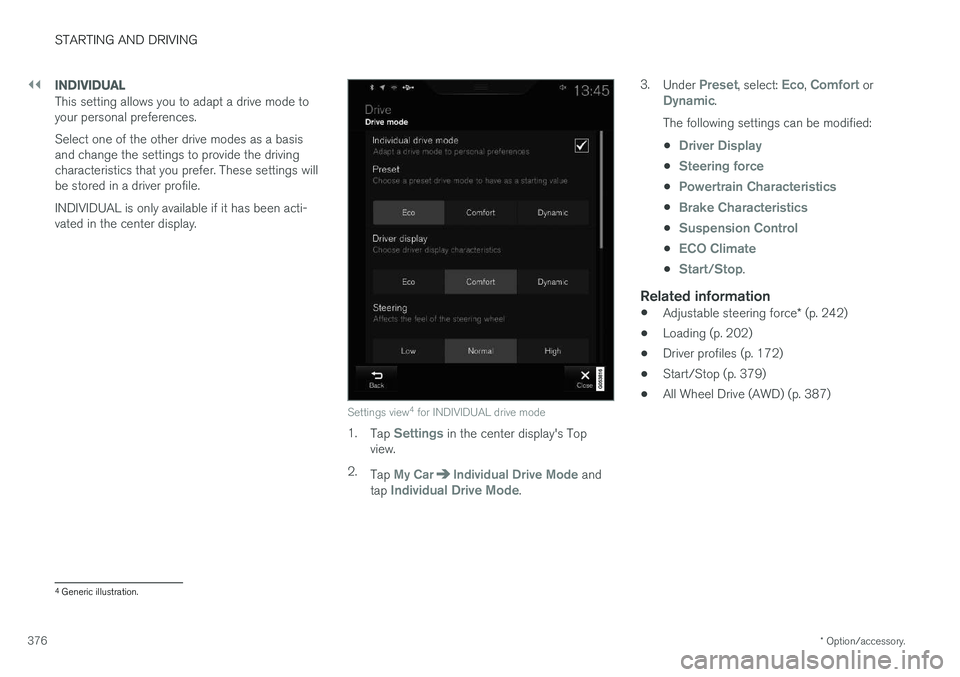
This setting allows you to adapt a drive mode to your personal preferences. Select one of the other drive modes as a basis and change the settings to provide the drivingcharacteristics that you prefer. These settings willbe stored in a driver profile. INDIVIDUAL is only available if it has been acti- vated in the center display.
Settings view 4
for INDIVIDUAL drive mode
1. Tap Settings in the center display's Top
view.
2. Tap
My CarIndividual Drive Mode and
tap Individual Drive Mode. 3.
Under
Preset, select: Eco, Comfort orDynamic.
The following settings can be modified: •
Driver Display
•Steering force
•Powertrain Characteristics
•Brake Characteristics
•Suspension Control
•ECO Climate
•Start/Stop.
Related information
• Adjustable steering force
* (p. 242)
• Loading (p. 202)
• Driver profiles (p. 172)
• Start/Stop (p. 379)
• All Wheel Drive (AWD) (p. 387)
4
Generic illustration.
Page 399 of 548
INFOTAINMENT
397
Selecting sub-channels
To listen to a station's sub-channel(s), tap the station on the screen or press the forward/backarrow keys on the right-side steering wheel key-pad or below the screen. Sub-channels can also be stored as favorites, see the article "Changing and searching for radio sta-tions". If you tap a sub-channel favorite, it may take up to 6 seconds before the channel becomes audi-
ble. If you tap a station while you are out of digital range of the transmitter,
No reception will be
displayed.
Related information
• HD Radio
™reception (p. 394)
• Switching HD Radio on and off (p. 396)
• Changing and searching for radio stations (p. 393)
HD Radio limitations
Limitations
•
Main channel vs. sub-channels (FM only)
:
The main channel is the only channel that can receive in hybrid mode (both digital andanalogue). If a frequency has sub-channels,they are broadcast in digital mode only. Themain FM channel will be displayed as, forexample, "WRIF-FM HD1". The sub-FMchannels will be displayed as"WRIF-FMHD2", "WRIF-FM HD3", etc.
• Reception coverage area
: Due to current
IBOC transmitter power limitations, thereception coverage area in digital mode issomewhat more limited than the station'sanalogue coverage area. Please be awarethat as with any radio broadcast technology,terrain, time of day, foliage level and buildinglocation can have positive or negative effectson radio reception.
• Analogue to digital/digital to analogueblending
: Analogue to digital blending will
occur as the signal strength reaches a presetthreshold in the receiver. This will be noticea-ble in fringe areas (areas with weak recep-tion) and is normal.
NOTE
There may be a noticeable difference in sound quality when a change from analogueto digital or digital to analogue occurs, suchas:
• Volume increase or decrease
• Equalizer settings, i.e., Bass/ Midrange/Treble cut or boost
• Time alignment (Digital program materialin extreme cases can be as much as 8seconds behind the analogue). This willnoticeable as a "stuttering" effect.
The above items are dependant on thebroadcaster's equipment settings and donot indicate a fault in the vehicle's radioreceiver or antenna systems .
Related information
•HD Radio sub-channels (p. 396)
• HD Radio
™reception (p. 394)
Page 419 of 548
INFOTAINMENT
}}
417
From a previously connected iPhone
1. Connect the iPhone to the USB socket in
the tunnel console. If there are two USB sockets, connect to the one with the whiteframe. >If the automatic start setting has been
activated, the Apple CarPlay sub-view will open and compatible apps will be dis-played.
2. If the automatic start setting has not been
activated, open the
Apple CarPlay app from
the center display's App view.
> The Apple CarPlay sub-view will open and compatible apps will be displayed.
3. Tap the desired app. > The app will start.
Apple CarPlay will run in the background if another app is started in the same sub-view. Toreturn to Apple CarPlay, tap the Apple CarPlayicon in App view.
Toggling between Apple CarPlay and iPod
Apple CarPlay to iPod
1.
Tap Settings in the center display's Top
view.
2. Tap
CommunicationApple CarPlay. 3. Deselect the Apple device's box that will no
longer start Apple CarPlay when it is con- nected.
4. Disconnect and reconnect the Apple device to the USB socket.
5. Open the
iPod app from App view.
iPod to Apple CarPlay
1.
Tap Apple CarPlay in the center display's
App view.
2. Read the conditions in the pop-up window that appears and tap
OK.
3. Disconnect and reconnect the Apple device to the USB socket.
> The Apple CarPlay sub-view will open.
Related information
• Media player (p. 415)
• Playing media (p. 420)
• Connecting a device via the AUX/USB socket (p. 414)
• Apple CarPlay settings (p. 417)
Apple CarPlay settings This article explains settings for a cell phone connected through Apple CarPlay.
Automatic start1.
Tap Settings in the center display's Top
view.
2. Tap
CommunicationApple CarPlay and
select the following settings:
• Select the Apple CarPlay box for auto- matic start when the device's USB cableis connected.
• Deselect the Apple CarPlay box to
disa-
ble automatic start when the device's
USB cable is connected.
A maximum of 20 Apple devices can be stored inthe list. When the list is full, the first (oldest)device stored will be deleted. To erase the entire list, a factory reset has to be performed. See the article "Resetting the set-tings view."
System volume levels1. Tap Settings in the center display's Top
view.
Page 420 of 548
||
INFOTAINMENT
* Option/accessory.
418 2.
Tap
SoundSystem Volumes and select
the following settings: •
Voice Control
•Navigation
•Ringtone
Related information
• Apple CarPlay (p. 416)
• Resetting the settings view (p. 113)
Android auto
*
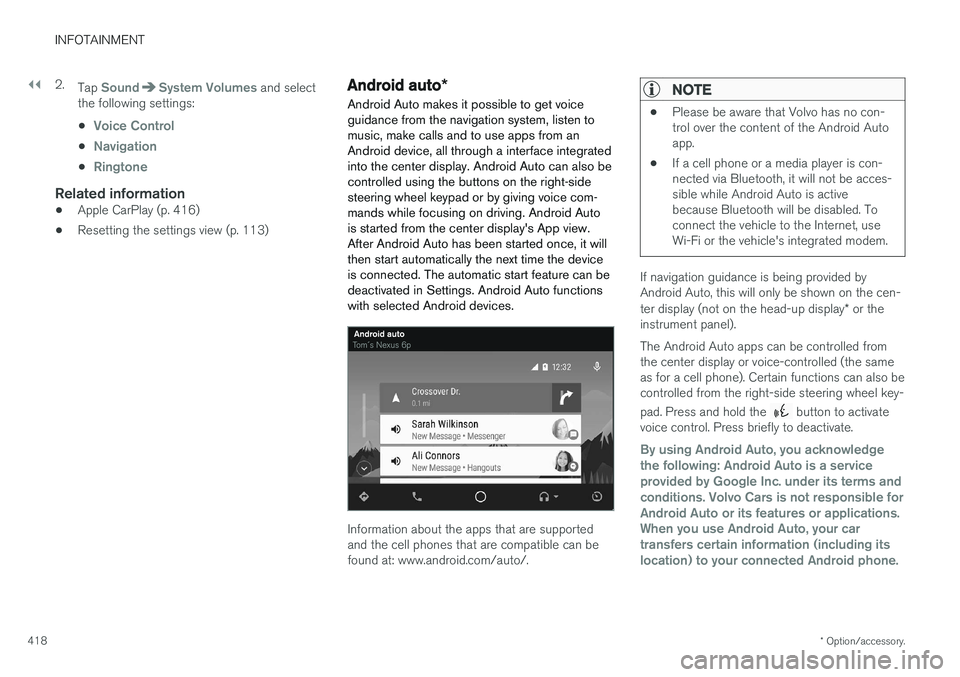
Android Auto makes it possible to get voice guidance from the navigation system, listen tomusic, make calls and to use apps from anAndroid device, all through a interface integratedinto the center display. Android Auto can also becontrolled using the buttons on the right-sidesteering wheel keypad or by giving voice com-mands while focusing on driving. Android Autois started from the center display's App view.After Android Auto has been started once, it willthen start automatically the next time the deviceis connected. The automatic start feature can bedeactivated in Settings. Android Auto functionswith selected Android devices.
Information about the apps that are supported and the cell phones that are compatible can befound at: www.android.com/auto/.
NOTE
• Please be aware that Volvo has no con- trol over the content of the Android Autoapp.
• If a cell phone or a media player is con-nected via Bluetooth, it will not be acces-sible while Android Auto is activebecause Bluetooth will be disabled. Toconnect the vehicle to the Internet, useWi-Fi or the vehicle's integrated modem.
If navigation guidance is being provided by Android Auto, this will only be shown on the cen- ter display (not on the head-up display
* or the
instrument panel). The Android Auto apps can be controlled from the center display or voice-controlled (the sameas for a cell phone). Certain functions can also becontrolled from the right-side steering wheel key- pad. Press and hold the
button to activate
voice control. Press briefly to deactivate.
By using Android Auto, you acknowledge the following: Android Auto is a serviceprovided by Google Inc. under its terms andconditions. Volvo Cars is not responsible forAndroid Auto or its features or applications.When you use Android Auto, your cartransfers certain information (including itslocation) to your connected Android phone.
Page 422 of 548
||
INFOTAINMENT
* Option/accessory.
420 2.
Tap
SoundSystem Volumes and select
the following settings: •
Voice Control
•Navigation
•Ringtone
Related information
• Android auto
* (p. 418)
• Resetting the settings view (p. 113)
CD (media) player
*
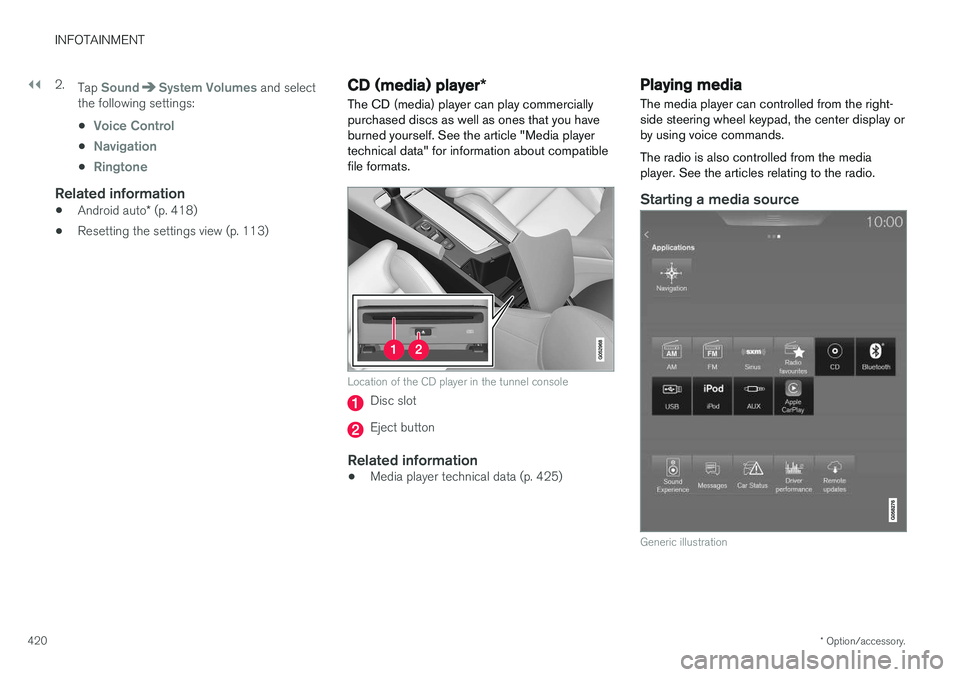
The CD (media) player can play commercially purchased discs as well as ones that you haveburned yourself. See the article "Media playertechnical data" for information about compatiblefile formats.
Location of the CD player in the tunnel console
Disc slot
Eject button
Related information
• Media player technical data (p. 425)
Playing media The media player can controlled from the right- side steering wheel keypad, the center display orby using voice commands. The radio is also controlled from the media player. See the articles relating to the radio.
Starting a media source
Generic illustration
Page 434 of 548
INFOTAINMENT
432
Deleting Wi-Fi networks
Networks that are not used can be deleted.
1. Tap Settings in the center display's Top
view.
2. Tap
Wi-FiSaved networks.
3. Tap
Forget to remove the network.
4. Confirm the selection. > The vehicle will no longer connect to thedeleted network.
Deleting all networksAll networks can be deleted at the same time by returning (resetting) to factory settings. If this is done, all user data and settings will be reset to their default settings.
Related information
• Internet connected vehicle (p. 427)
• Connecting to the Internet (p. 427)
Wi-Fi technology and security
The following are types of networks can be con- nect to.
It is possible to connect to the following types of networks:
• Frequency: 2.4 or 5 GHz 8
.
• Standards: 802.11 a/b/g/n.
• Security type: WPA2-AES-CCMP.
The vehicle's Wi-Fi system is designed to man-age Wi-Fi devices in the vehicle. If several devices are using a frequency at the same time, this may result in poorer performance.
Related information
• Internet connected vehicle (p. 427)
• Connecting to the Internet (p. 427)
• Tethering (Wi-Fi sharing) (p. 431)
• Internet connection troubleshooting (p. 430)
Vehicle modem settings
The vehicle is equipped with a modem that can be used to connect the vehicle to the Internet. Itis also possible to share (tether) this connectionvia Wi-Fi.
1. Tap Settings in the center display's Top
view.
2. Tap
CommunicationVehicle Modem
Internet and choose among the following
settings:
•
Vehicle modem Internet: select to use the
vehicle's modem to connect to the Internet.
•
Data usage: %s: Tap Reset to restart
(reset) the counter for the amount of data sent/received.
•
Network Select carrier
: select a service provider
automatically or manually.
Data roaming: select to allow the vehicle to
connect to another network if the standard network is not available (e.g., if you are driv-ing in another country). This could entailadditional charges, consult your service pro-vider.
•
SIM card PIN
8 Selecting a frequency is not possible in all markets.
Page 544 of 548
INDEX
542
S
Safety, occupant 56
Safety defects, reporting 57
Safety locks, child 238
Safety mode 73Seatadjusting the passenger's seat from the
driver's seat 163
Seat belt reminder 64
Seat belts Automatic locking retractor/Emergency
locking retractor 77
buckling 62
pretensioners 60, 61
reminder 64
securing child restraint systems 78, 80, 83
unbuckling 62
use during pregnancy 58
using 60
Seats rear 169
Sensus 17 Service connected service booking 472
Settings view
categories 110
resetting 113
system settings 112
Shiftlock override 383
Side door mirrors 102
Side impact airbags 72Sirius Satellite radio Travel link 401
SiriusXM ®
Satellite radio
traffic information 398, 399, 400
Ski hatch center backrest 202
Snow chains 447
Snow tires 447Sound settings media 424
ringtones 413
Sound settings, audio system 391, 424 Specifications bulbs 500
Speed camera alert 316
Speed limiter 247, 249, 253 automatic 249, 251
deactivating/reactivating 252
starting/activating 248Spin control 243
Stability system 243sport mode 244
Start/Stop (engine function) 379, 381Start and lock system type designations 239
Starting and driving 346
Starting the engine 372Starting the vehicle after a crash (crash mode) 73, 74
Start inhibitor (immobilizer) 214
Steering wheel 159 adjusting 161
heated 192
horn 159
keypad 159
Steering wheel paddles 159
Stone chips, touching up 516, 517
Storage compartments 204
Studded tires 447
Sunroof (moonroof) 103, 104
Sun shade 106, 108
Sun visor 208
Suspension 388
System updates 470
Page 545 of 548
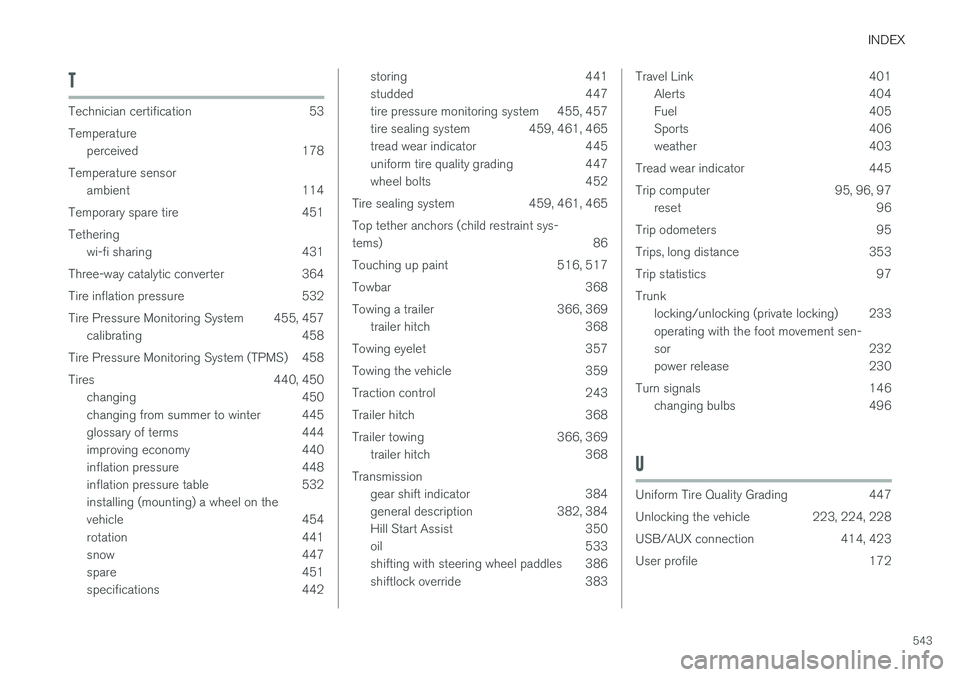
INDEX
543
T
Technician certification 53 Temperatureperceived 178
Temperature sensor ambient 114
Temporary spare tire 451Tethering wi-fi sharing 431
Three-way catalytic converter 364
Tire inflation pressure 532
Tire Pressure Monitoring System 455, 457 calibrating 458
Tire Pressure Monitoring System (TPMS) 458
Tires 440, 450 changing 450
changing from summer to winter 445
glossary of terms 444
improving economy 440
inflation pressure 448
inflation pressure table 532installing (mounting) a wheel on the
vehicle 454
rotation 441
snow 447
spare 451
specifications 442
storing 441
studded 447
tire pressure monitoring system 455, 457
tire sealing system 459, 461, 465
tread wear indicator 445
uniform tire quality grading 447
wheel bolts 452
Tire sealing system 459, 461, 465 Top tether anchors (child restraint sys- tems) 86
Touching up paint 516, 517
Towbar 368
Towing a trailer 366, 369 trailer hitch 368
Towing eyelet 357
Towing the vehicle 359
Traction control 243
Trailer hitch 368
Trailer towing 366, 369 trailer hitch 368
Transmission gear shift indicator 384
general description 382, 384
Hill Start Assist 350
oil 533
shifting with steering wheel paddles 386
shiftlock override 383Travel Link 401Alerts 404
Fuel 405
Sports 406
weather 403
Tread wear indicator 445
Trip computer 95, 96, 97 reset 96
Trip odometers 95
Trips, long distance 353
Trip statistics 97Trunk locking/unlocking (private locking) 233 operating with the foot movement sen-
sor 232
power release 230
Turn signals 146 changing bulbs 496
U
Uniform Tire Quality Grading 447
Unlocking the vehicle 223, 224, 228
USB/AUX connection 414, 423
User profile 172