radio VOLVO S90 2017 Owner´s Manual
[x] Cancel search | Manufacturer: VOLVO, Model Year: 2017, Model line: S90, Model: VOLVO S90 2017Pages: 548, PDF Size: 11.42 MB
Page 408 of 548
||
INFOTAINMENT
* Option/accessory.
406 arrange the list according to
Nearest orRecommended. Tap Done to return to the pre-
vious screen.
Related information
• SiriusXM Travel Link
* (p. 401)
• Octane rating (p. 362)
• Opening/closing the fuel filler door (p. 363)
• Fuel (p. 361)
SiriusXM Travel Link - Sports
This SiriusXM Travel Link service provides infor- mation sporting events, tournaments, teams, lea-gues, etc.
From the SiriusXM Travel Link home screen, to display sports information:
–Tap the Sports button to display the main
sports screen.
A number of
Sports categories will be listed
(Football, Baseball, Basketball, etc.) Tap a sport to select a league in that sport (NFL, MLB, etc.) or a sport organization (PGA, LPGA,etc.). The following is an example of the result of tapping Baseball :
1. MLB (Major League Baseball) will be dis- played.
2. Tap MLB to display the two leagues in Major League Baseball (American League orNational League).
3. Tap one of the league names to display the divisions in the league. 4. Tap one of the divisions to display:
•
In progress: play-by-play information
about a match/game/tournament cur- rently in progress. Continue tapping todisplay. In the detailed view, you can alsoselect a radio station that is currentlybroadcasting an ongoing sporting event
•
Headlines for MLB: Tap to display brief
headline information
•
Scheduled: schedules for coming
matches, games, etc.
•
Scores: match/game results
The same principle applies to all sports.
Related information
• Using SiriusXM ®
Satellite radio * (p. 399)
Page 417 of 548
INFOTAINMENT
* Option/accessory.415
Media player
The media player can play audio from a CD *,
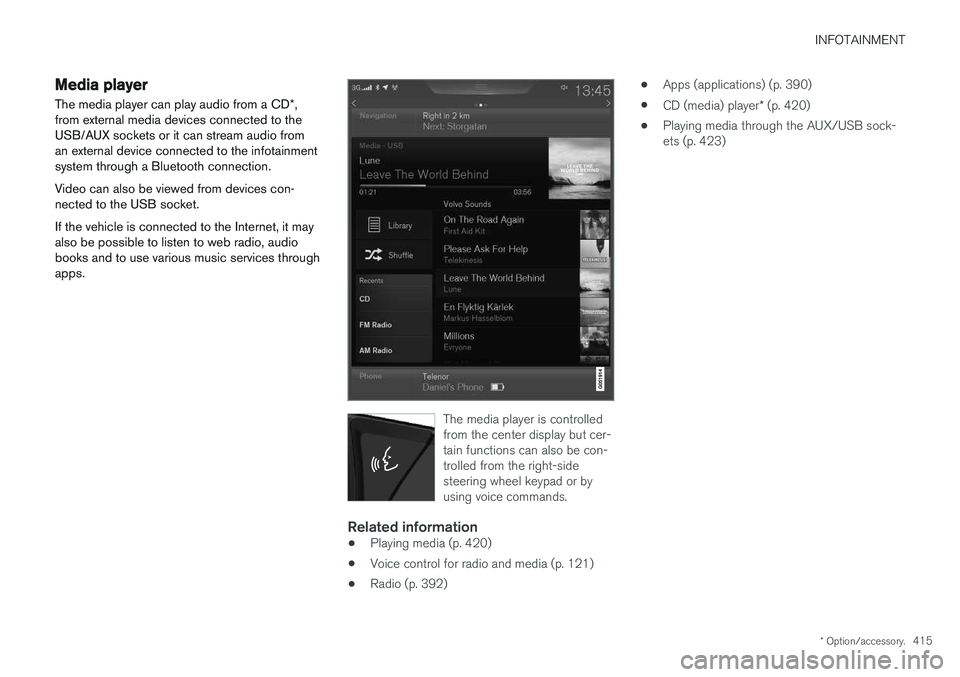
from external media devices connected to the USB/AUX sockets or it can stream audio froman external device connected to the infotainmentsystem through a Bluetooth connection. Video can also be viewed from devices con- nected to the USB socket. If the vehicle is connected to the Internet, it may also be possible to listen to web radio, audiobooks and to use various music services throughapps.
The media player is controlled from the center display but cer-tain functions can also be con-trolled from the right-sidesteering wheel keypad or byusing voice commands.
Related information
• Playing media (p. 420)
• Voice control for radio and media (p. 121)
• Radio (p. 392) •
Apps (applications) (p. 390)
• CD (media) player
* (p. 420)
• Playing media through the AUX/USB sock- ets (p. 423)
Page 422 of 548
||
INFOTAINMENT
* Option/accessory.
420 2.
Tap
SoundSystem Volumes and select
the following settings: •
Voice Control
•Navigation
•Ringtone
Related information
• Android auto
* (p. 418)
• Resetting the settings view (p. 113)
CD (media) player
*
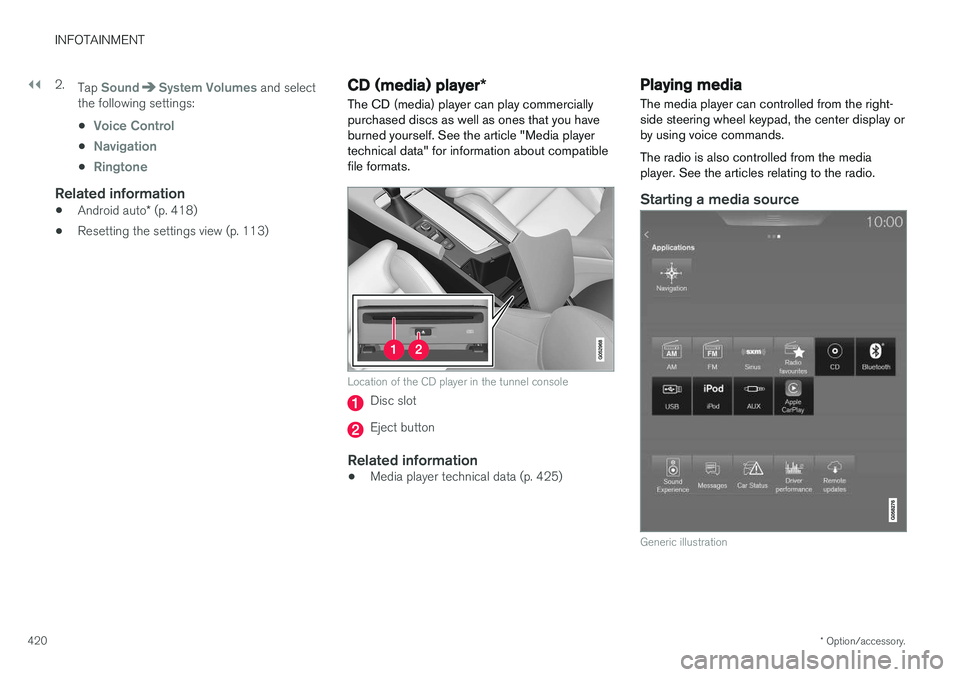
The CD (media) player can play commercially purchased discs as well as ones that you haveburned yourself. See the article "Media playertechnical data" for information about compatiblefile formats.
Location of the CD player in the tunnel console
Disc slot
Eject button
Related information
• Media player technical data (p. 425)
Playing media The media player can controlled from the right- side steering wheel keypad, the center display orby using voice commands. The radio is also controlled from the media player. See the articles relating to the radio.
Starting a media source
Generic illustration
Page 424 of 548
||
INFOTAINMENT
* Option/accessory.
422 Play/pause: tap the track's image, press the
symbol on the keypad or press the button under the center display. Change tracks: tap the desired track on the cen- ter display, press the
buttons under the
center display or on the right-side steering wheel keypad. Fast forward/reverse, move within a track: press the time axis on the center display and drag from side to side, press and hold the
buttons
under the center display or on the right-side steering wheel keypad. Change media source: Tap a media source under
Recents, tap the desired app in the center dis-
play's App view or use the
button on the
right-side steering wheel keypad.
Library: tap to play a track from the library.
Shuffle: tap to play tracks in random order.
Similar: tap to use Gracenote to search for simi-
lar music on the USB device and create a playlist based on the results. The playlist can contain upto 50 tracks.
Change device: tap to toggle between USB
devices if more than one is connected.
Video settings
The following can be adjusted with the video player in full screen or by opening the center dis- play's Top view and tapping
SettingsVideo:
Primary Audio Default Language, Subtitleand Primary Subtitle Default Language.
Play DivX®
This DivX device must be registered in order to play purchased DivX Video-on-Demand (VOD)movies.
1. Open the center display's Top view and tap
SettingsVideoDivX
® VOD to get a
registration code.
2. Go to vod.divx.com for additional information and to complete the registration process.
Related information
• CD (media) player
* (p. 420)
• Media player (p. 415)
• Voice control for radio and media (p. 121)
• Apps (applications) (p. 390)
• Connecting a Bluetooth ®
device (p. 414)
• Connecting a device via the AUX/USB socket (p. 414)
• Gracenote (p. 424)
• Connecting to the Internet (p. 427)
• Media searches (p. 422)
• Video (p. 425)
• Apple CarPlay (p. 416)
Media searches
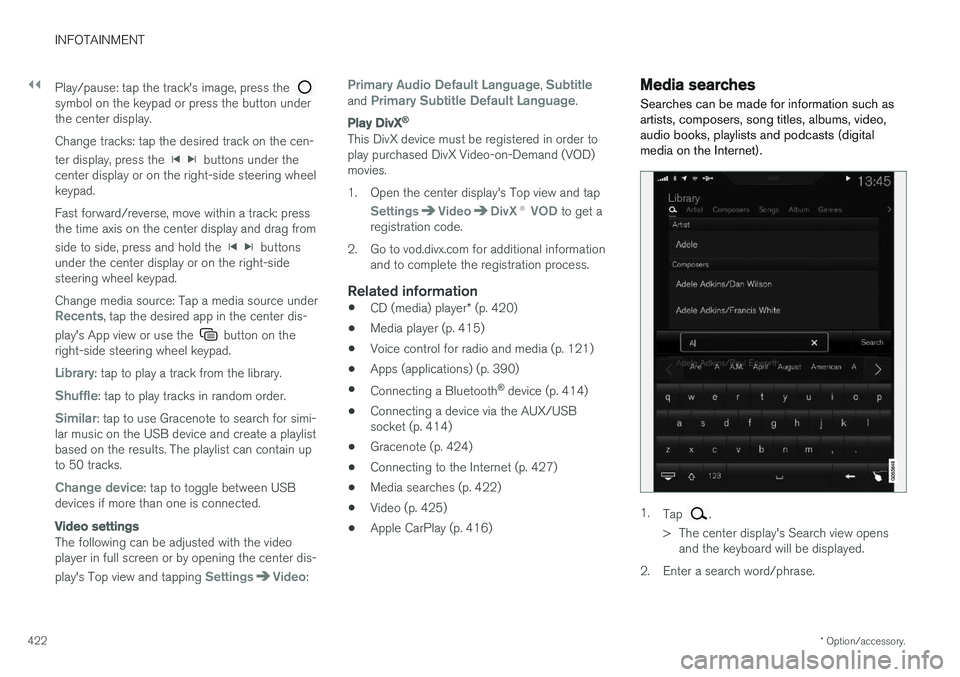
Searches can be made for information such as artists, composers, song titles, albums, video,audio books, playlists and podcasts (digitalmedia on the Internet).
1. Tap .
> The center display's Search view opens and the keyboard will be displayed.
2. Enter a search word/phrase.
Page 425 of 548
INFOTAINMENT
423
3.
Tap
Search.
> The infotainment system will search through all connected devices and any results will be displayed by category.
Swipe the screen horizontally to display each cat-egory separately.
Related information
• Media player (p. 415)
• Playing media (p. 420)
• Using the center display keyboard (p. 31)
Playing media through the AUX/USB sockets
An external media device, such as an iPod or an mp-3 player can be connected to the infotain-ment system.
A device with rechargeable batteries can be recharged when it is connected to the USBsocket (if the ignition is on or the engine is run-ning). To simplify the use of a USB flash drive, it is advisable to only store files with compatible fileformats on it. It will take considerably longer forthe system to index the files on the drive if it con-tains anything other than compatible files. In addition to audio, the vehicle's media player also supports video playback when the externaldevice is connected to the USB socket. Certain mp-3 players have proprietary file formats that are not supported by the infotainment sys-tem.
Related information
• Connecting a device via the AUX/USBsocket (p. 414)
Streaming media through a Bluetooth connection The media player is equipped with Bluetooth ®
for streaming audio files from external Bluetooth ®
-enabled devices.
Related information
• Connecting a Bluetooth ®
device (p. 414)
• Playing media (p. 420)
• Voice control for radio and media (p. 121)
• Media player (p. 415)
• Ignition modes (p. 370)
• Media player technical data (p. 425)
Page 426 of 548
INFOTAINMENT
* Option/accessory.
424
Media sound settings
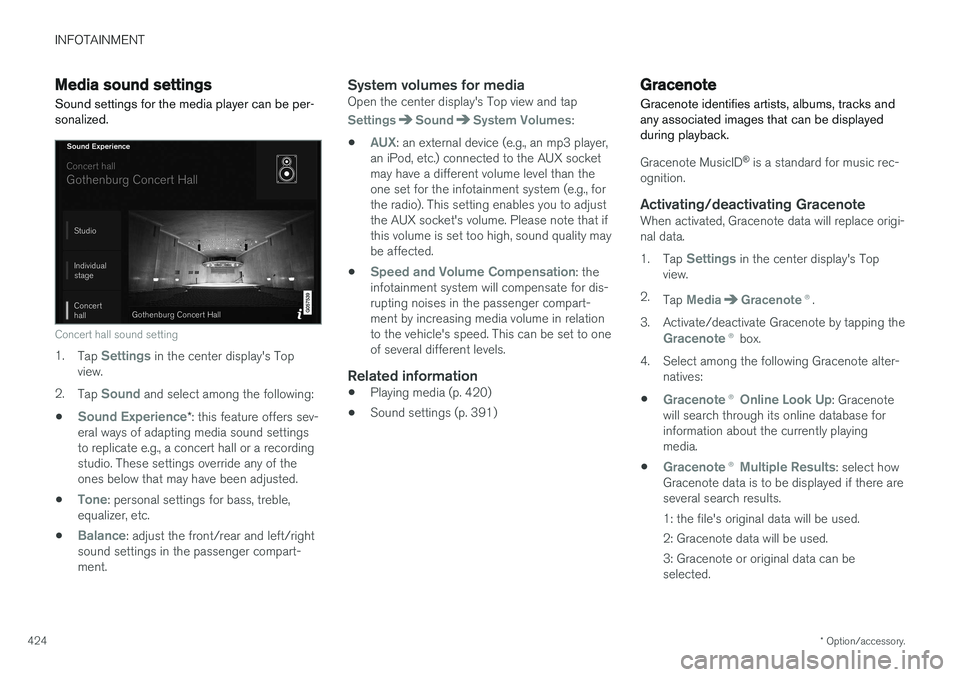
Sound settings for the media player can be per- sonalized.
Concert hall sound setting
1. Tap Settings in the center display's Top
view.
2. Tap
Sound and select among the following:
•
Sound Experience* : this feature offers sev-
eral ways of adapting media sound settings to replicate e.g., a concert hall or a recordingstudio. These settings override any of theones below that may have been adjusted.
•
Tone: personal settings for bass, treble,
equalizer, etc.
•
Balance: adjust the front/rear and left/right
sound settings in the passenger compart- ment.
System volumes for mediaOpen the center display's Top view and tap
SettingsSoundSystem Volumes:
•
AUX: an external device (e.g., an mp3 player,
an iPod, etc.) connected to the AUX socket may have a different volume level than theone set for the infotainment system (e.g., forthe radio). This setting enables you to adjustthe AUX socket's volume. Please note that ifthis volume is set too high, sound quality maybe affected.
•
Speed and Volume Compensation: the
infotainment system will compensate for dis- rupting noises in the passenger compart-ment by increasing media volume in relationto the vehicle's speed. This can be set to oneof several different levels.
Related information
• Playing media (p. 420)
• Sound settings (p. 391)
Gracenote
Gracenote identifies artists, albums, tracks and any associated images that can be displayedduring playback.
Gracenote MusicID ®
is a standard for music rec-
ognition.
Activating/deactivating GracenoteWhen activated, Gracenote data will replace origi- nal data. 1. Tap
Settings in the center display's Top
view.
2. Tap
MediaGracenote ®.
3. Activate/deactivate Gracenote by tapping the
Gracenote ® box.
4. Select among the following Gracenote alter- natives:
•
Gracenote ® Online Look Up: Gracenote
will search through its online database for information about the currently playingmedia.
•
Gracenote ® Multiple Results: select how
Gracenote data is to be displayed if there are several search results.
1: the file's original data will be used. 2: Gracenote data will be used.3: Gracenote or original data can be selected.
Page 429 of 548
INFOTAINMENT
}}
427
Internet connected vehicle
Connecting to the Internet makes it possible to e.g., use certain navigation services, listen toweb radio, stream music using apps, contact aretailer and download software.
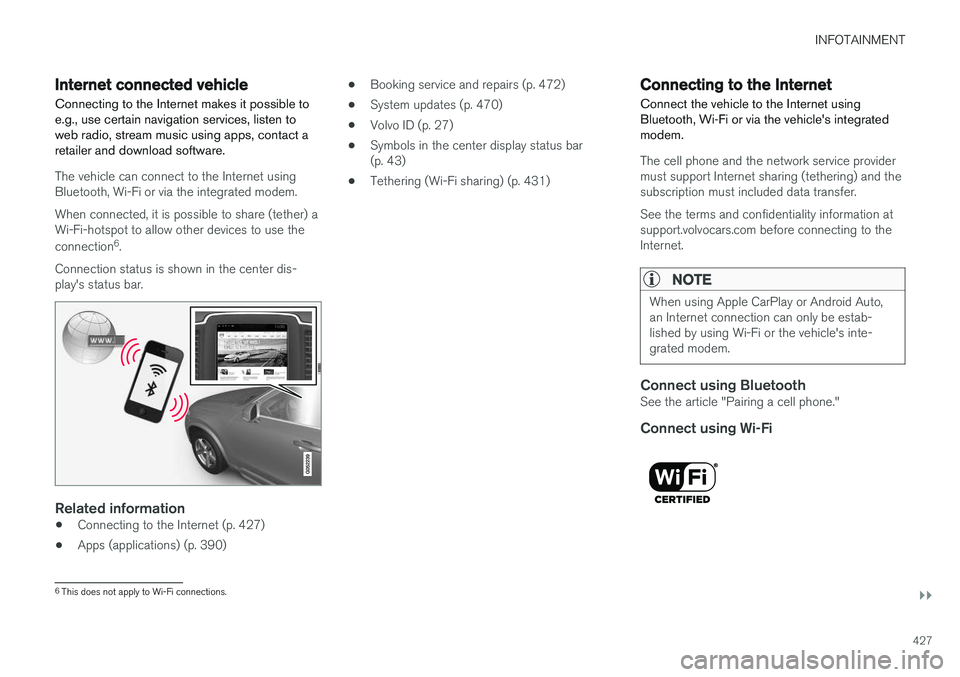
The vehicle can connect to the Internet using Bluetooth, Wi-Fi or via the integrated modem. When connected, it is possible to share (tether) a Wi-Fi-hotspot to allow other devices to use the connection 6
.
Connection status is shown in the center dis- play's status bar.
Related information
• Connecting to the Internet (p. 427)
• Apps (applications) (p. 390) •
Booking service and repairs (p. 472)
• System updates (p. 470)
• Volvo ID (p. 27)
• Symbols in the center display status bar (p. 43)
• Tethering (Wi-Fi sharing) (p. 431)
Connecting to the Internet
Connect the vehicle to the Internet using
Bluetooth, Wi-Fi or via the vehicle's integratedmodem.
The cell phone and the network service provider must support Internet sharing (tethering) and thesubscription must included data transfer. See the terms and confidentiality information at support.volvocars.com before connecting to theInternet.
NOTE
When using Apple CarPlay or Android Auto, an Internet connection can only be estab-lished by using Wi-Fi or the vehicle's inte-grated modem.
Connect using BluetoothSee the article "Pairing a cell phone."
Connect using Wi-Fi
6 This does not apply to Wi-Fi connections.
Page 431 of 548
INFOTAINMENT
}}
429
Bluetooth settingsThe following settings apply to a Bluetooth-con- nected cell phone or other device.
Bluetooth1. Tap Settings in the center display's Top
view.
2. Tap
CommunicationBluetooth and
select among the following settings:
•
Previously paired devices: lists the
devices that are paired and connected to the vehicle.
•
Internet connection: select to connect
to the Internet using the device's Bluetooth connection.
•
Add device: begin the procedure to pair
a new device.
•
Remove device: remove a paired device.
•
Allowed services for this device: select
what the device will be used for: make calls, send/receive messages, streammedia, Internet connection.
Bluetooth complianceUnited States FCC CAUTION Changes or modifications not expressly approved by the party responsible for compliance couldvoid the user's authority to operate the equip-ment. This transmitter must not be co-located or operated in conjunction with any other antennaor transmitter. Canada This device complies with Industry Canada licence-exempt RSS standard(s). Operation issubject to the following two conditions: (1) this device may not cause interference, and(2) this device must accept any interference, including interference that may cause undesiredoperation of the device.
Related information
•
Internet connected vehicle (p. 427)
• Pairing a cell phone (p. 408)
• Phone (p. 407)
• Media player (p. 415)
• Connecting/disconnecting a cell phone(p. 409)
Downloading, updating and uninstalling apps
When the vehicle is connected to the Internet, apps can be added (downloaded), kept up-to-date or deleted.
NOTE
Downloading data may affect other services that transfer data such as web radio, stream-ing music, etc. If this occurs, a download inprogress can be cancelled or the other serv-ice can be temporarily turned off.
Apps are managed via theDownload Center in the cen-
ter display's App view. To download, update or delete apps, the vehicle must be con-nected to the Internet.
Downloading an app
1. Open the Download Center app.
2. Select
New apps to open a list of apps that
are available but which are not installed in the vehicle. Tap anywhere in a line for an appto expand the list for additional information.
Page 541 of 548
INDEX
539
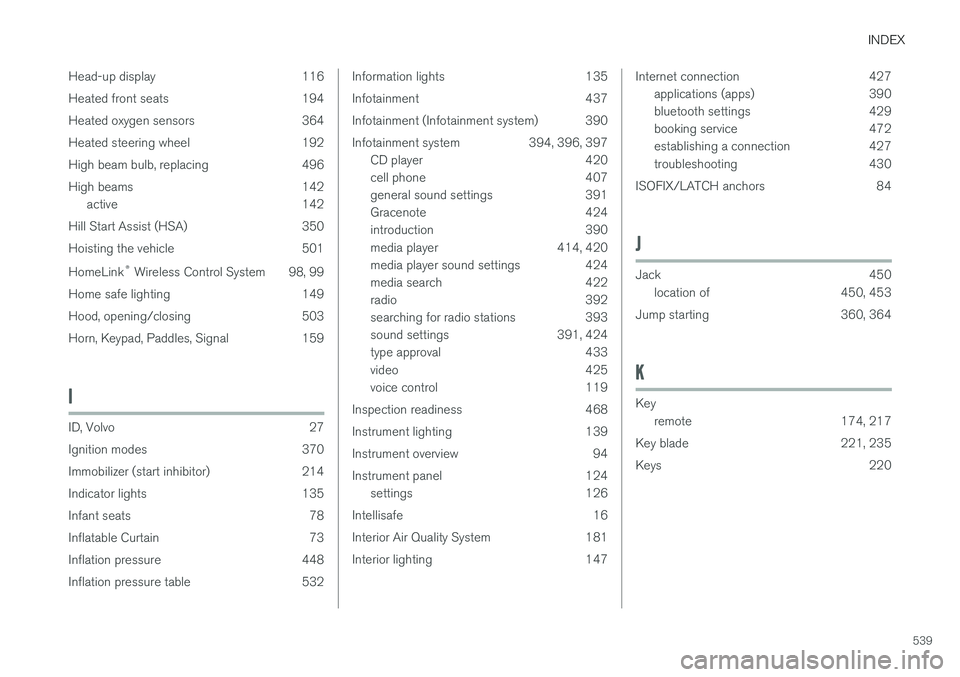
Head-up display 116
Heated front seats 194
Heated oxygen sensors 364
Heated steering wheel 192
High beam bulb, replacing 496
High beams 142
active 142
Hill Start Assist (HSA) 350
Hoisting the vehicle 501 HomeLink ®
Wireless Control System 98, 99
Home safe lighting 149
Hood, opening/closing 503
Horn, Keypad, Paddles, Signal 159
I
ID, Volvo 27
Ignition modes 370
Immobilizer (start inhibitor) 214
Indicator lights 135
Infant seats 78
Inflatable Curtain 73
Inflation pressure 448
Inflation pressure table 532
Information lights 135
Infotainment 437
Infotainment (Infotainment system) 390
Infotainment system 394, 396, 397 CD player 420
cell phone 407
general sound settings 391
Gracenote 424
introduction 390
media player 414, 420
media player sound settings 424
media search 422
radio 392
searching for radio stations 393
sound settings 391, 424
type approval 433
video 425
voice control 119
Inspection readiness 468
Instrument lighting 139
Instrument overview 94
Instrument panel 124 settings 126
Intellisafe 16
Interior Air Quality System 181
Interior lighting 147Internet connection 427 applications (apps) 390
bluetooth settings 429
booking service 472
establishing a connection 427
troubleshooting 430
ISOFIX/LATCH anchors 84
J
Jack 450 location of 450, 453
Jump starting 360, 364
K
Key remote 174, 217
Key blade 221, 235
Keys 220
Page 543 of 548
INDEX
541
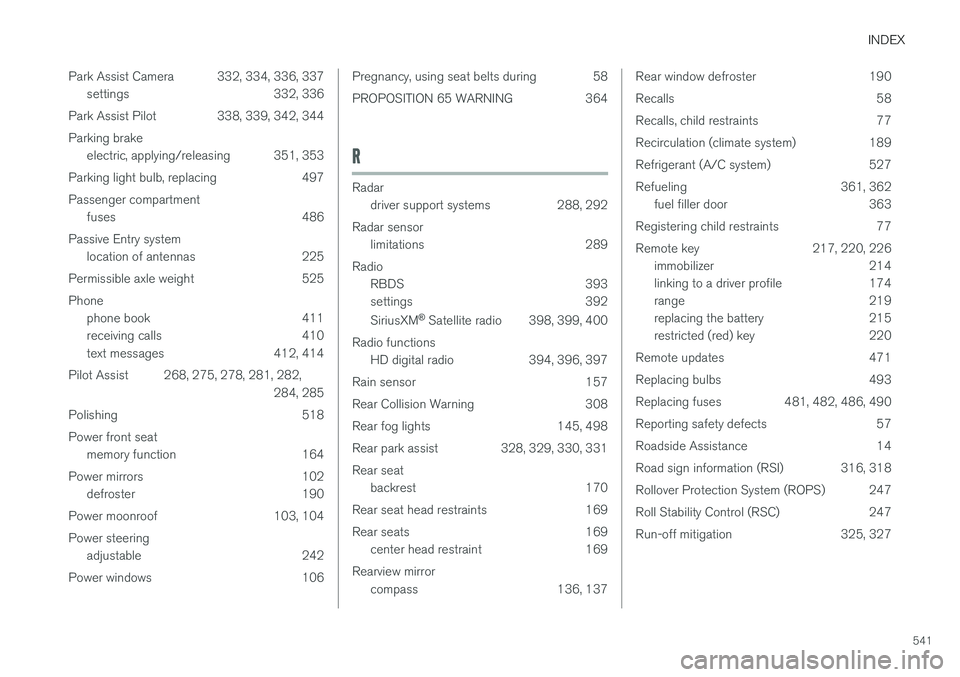
Park Assist Camera 332, 334, 336, 337
settings 332, 336
Park Assist Pilot 338, 339, 342, 344 Parking brake electric, applying/releasing 351, 353
Parking light bulb, replacing 497Passenger compartment fuses 486
Passive Entry system location of antennas 225
Permissible axle weight 525Phone phone book 411
receiving calls 410
text messages 412, 414
Pilot Assist 268, 275, 278, 281, 282, 284, 285
Polishing 518 Power front seat memory function 164
Power mirrors 102 defroster 190
Power moonroof 103, 104Power steering adjustable 242
Power windows 106
Pregnancy, using seat belts during 58
PROPOSITION 65 WARNING 364
R
Radar driver support systems 288, 292
Radar sensor limitations 289
Radio RBDS 393
settings 392 SiriusXM ®
Satellite radio 398, 399, 400
Radio functions HD digital radio 394, 396, 397
Rain sensor 157
Rear Collision Warning 308
Rear fog lights 145, 498
Rear park assist 328, 329, 330, 331Rear seat backrest 170
Rear seat head restraints 169
Rear seats 169 center head restraint 169
Rearview mirror compass 136, 137
Rear window defroster 190
Recalls 58
Recalls, child restraints 77
Recirculation (climate system) 189
Refrigerant (A/C system) 527
Refueling 361, 362
fuel filler door 363
Registering child restraints 77
Remote key 217, 220, 226 immobilizer 214
linking to a driver profile 174
range 219
replacing the battery 215
restricted (red) key 220
Remote updates 471
Replacing bulbs 493
Replacing fuses 481, 482, 486, 490
Reporting safety defects 57
Roadside Assistance 14
Road sign information (RSI) 316, 318
Rollover Protection System (ROPS) 247
Roll Stability Control (RSC) 247
Run-off mitigation 325, 327