USB VOLVO S90 2017 Owner´s Manual
[x] Cancel search | Manufacturer: VOLVO, Model Year: 2017, Model line: S90, Model: VOLVO S90 2017Pages: 548, PDF Size: 11.42 MB
Page 6 of 548
4
Using turn signals146
Passenger compartment lighting 147
Home safe lighting 149
Approach lighting 150
Messages in the instrument panel and center display 150
Handling messages in the instru-ment panel and center display 152
Handling messages stored from theinstrument panel and center display 154
Instrument panel App menu 155
Using the instrument panel App menu 156
Using the windshield wipers 157
Activating/deactivating the rain sensor 157
Windshield and headlight washers 158
Steering wheel 159
Adjusting the steering wheel 161
Seats 161
Manually operated front seats 162
Power front seats *
162
Adjusting power front seats *
163
Adjusting the passenger's seat from the driver's seat * 163
Using the power seat memory function *
164
Multifunctional front seats *
165
Adjusting function settings in the multifunctional front seats *166
Rear seats 169
Adjusting the second row head restraints 169
Folding down the rear seat backrests *
170
Driver profiles 172
Selecting a driver profile 172
Editing a driver profile 173
Linking a remote key to a driver profile 174
Importing/exporting a driver profile from/to a USB flash drive 175
CLIMATE
Climate control system
178
Perceived temperature 178
Climate system sensors 179
Air quality 179
Clean Zone Interior Package (CZIP) *
180
Interior Air Quality System (IAQS) *
181
Passenger compartment air filter 181
Automatic climate control 182
Climate system controls 182
Climate system controls in the center display 183
Rear climate system controls on the tunnel console * 185
Setting the blower speed 185
Setting the temperature 187
Turning recirculation on and off 189
Defrosting windows and mirrors 190
Turning steering wheel heating * on
and off 192
Air conditioning 193
Turning seat heating * on and off
194
Turning front seat ventilation * on and off
195
Air distribution 196
Opening/closing/directing air vents 197
Adjusting air distribution 198
Page 11 of 548

9
Managing the phone book411
Handling text messages 412
Phone settings 413
Text message settings 414
Connecting a Bluetooth ®
device 414
Connecting a device via the AUX/USB socket 414
Media player 415
Apple CarPlay 416
Apple CarPlay settings 417
Android auto *
418
Android Auto * settings
419
CD (media) player *
420
Playing media 420
Media searches 422
Playing media through theAUX/USB sockets 423
Streaming media through a Blue-tooth connection 423
Media sound settings 424
Gracenote 424
Video 425
Media player technical data 425
Internet connected vehicle 427
Connecting to the Internet 427
Bluetooth settings429
Downloading, updating and uninstal- ling apps 429
Internet connection troubleshooting 430
Tethering (Wi-Fi sharing) 431
Deleting Wi-Fi networks 432
Wi-Fi technology and security 432
Vehicle modem settings 432
Infotainment system license information 433
Terms, conditions and confidentiality 437
WHEELS AND TIRES
Tires440
Tire sidewall designations 442
Wheel (rim) designations 443
Tire terminology 444
Tire direction of rotation 445
Tread wear indicator 445
Loading specifications 446
Uniform Tire Quality Grading 447
Snow tires and chains 447
Checking tire inflation pressure 448
Changing tires 450
Tools 450
Jack 450
Spare tire 451
Wheel bolts 452
Removing a wheel 453
Installing a wheel 454
Tire Pressure Monitoring System (TPMS) 455
Checking tire inflation pressure 456
Reinflating tires equipped with the Tire Pressure Monitoring System (TPMS) 457
Calibrating the Tire PressureMonitoring System (TPMS) 458
Tire sealing system 459
Using the tire sealing system 461
Page 42 of 548

||
INTRODUCTION
40tive app's basic functions. When a sub-view is expanded, the Home view's fourth sub-view will temporarily not be displayed.
• To minimize a sub-view, tap anywhere on thescreen.
Opening/closing a sub-view in full-screen
mode
The extra sub-view and the Navigation sub-view
can be opened in full-screen mode to show addi- tional information and possible settings.
In expanded mode, open theapp in full-screen mode by tap-ping the symbol.
Tap on the symbol or the Home button below the screen toreturn to the expanded view.
It is always possible to return to Home view by pressing the Home button. Press the Home but- ton twice to return to Home view's standard view
from full-screen.
Home button for the center display
Status barCurrent vehicle activities are shown in the status bar at the top of the screen. Network and con-nection information is shown to the left. Briefinformation about currently running apps and theclock are shown to the right.
Top viewThe top view has a tab at the center of the statusbar. Pull down (expand) the Top view by swipingthe tab downward.
Top view when expanded
Top view provides access to: •
Settings
•Owner's manual
•Profile
• The vehicle's stored messages
To leave (minimize) Top view, tap the screen out- side of this view or tap at the bottom of Top viewand swipe upward. The views behind will becomevisible again. Top view is not available when theignition is being started/switched off or when amessage is displayed on the screen.
Page 45 of 548

INTRODUCTION
43
Symbols in the center display status bar
The following table provides an overview of the symbols used in the center display's status bar.
The status bar shows current vehicle activities and in certain cases, also their status. Due to lim-ited space in the status bar, not all symbols willbe displayed at all times.
Symbol Meaning
Roaming activated.
Cell phone network signal strength.
Bluetooth device connected.
Bluetooth activated but no device connected.
Connected to a Wi-Fi network.
Tethering activated. (Wi-Fi hotspot).
Vehicle modem activated.
Remote diagnostics active.
Action in progress.
SymbolMeaning
Preconditioning A
in progress.
Audio source being played.
Audio source paused.
Phone call in progress.
Audio source muted.
News broadcasts from current radio station B
.
Traffic information being received B
.
Clock.
A Hybrid models only.
B Not available in all markets.
Related information
• Navigating in the center display's views (p. 38)
• Indicator symbols in the instrument panel(p. 127)
• Warning symbols in the instrument panel(p. 135)
• Messages in the instrument panel and centerdisplay (p. 150)
Changing settings in different types of apps
App view, which is one of the center display's basic views, contains all of the vehicle's apps(applications/programs). Access this view byswiping the screen from right to left.
Basic appsA number of apps are standard and are part of Volvo Sensus, such as FM Radio, USB and CD.
To change settings in a basic app: 1. Open the app, for example
Phone, either on
the home screen or full-screen from App view.
2. Pull down Top view. 3. Tap
Phone settings.
4. Change the desired settings and confirm.
5. Press the Home button, tap the screen out- side of Top view or pull Top view up.
Third-party appsThird party apps have to be selected and down- loaded. In these apps, setting are made fromwithin the app, not from Top view.
Page 115 of 548
INSTRUMENTS AND CONTROLS
}}
113
Changing settings in apps
App view, which is one of the center display's basic views, contains all of the apps installed inthe vehicle. From Home view, navigate to Appview by swiping the screen from right to left.
Apps for integrated (basic) functionsCertain apps in your vehicle are factory-installed, such as FM, USB and CD and are part of Sen-
sus. Settings in these apps can be changed in the center display's Top view.
Changing settings for a basic app
1. Tap one of the basic apps, for example FM
radio.
2. Pull down Top view. 3. Tap
FM Radio Settings.
4. Change the desired settings and confirm.
5. Press the Home button below the center dis- play or tap the screen outside of Top view or pull up Top view to return to your originalview. See also the article "Categories in Set-tings view."
Third party appsThird party apps have to be downloaded e.g.,Volvo ID. Settings for these apps are made in
the apps themselves, not in Top view.
Related information
• Settings view (p. 109)
• Navigating in the center display's views (p. 38)
• Categories in Settings view (p. 110)
Resetting the settings view
All of the changes made under Settings view can be reset to their default values at the sametime.
Types of resetThere are three ways to reset the settings in Set- tings view under Global Reset:
•
Factory Reset: erases all data and media
and resets to the settings used when the vehicle left the factory.
•
Reset Vehicle Settings: resets all global
settings to standard ones.
•
Reset Personal Settings: erases all per-
sonal data and resets to standard settings.
Resetting
NOTE
Global Reset is only possible when the vehi-
cle is stationary.
1. Tap Settings in the center display's Top
view.
2. Tap
SystemGlobal Reset.
> A pop-up menu will appear.
Page 123 of 548
INSTRUMENTS AND CONTROLS
* Option/accessory.121
Related information
•Voice control (p. 119)
• Using voice commands (p. 119)
• Voice control settings (p. 124)
Voice control for radio and media
The following voice commands can be used for the radio or an external media player.
To use the voice control system, press the on the right-side steering wheel keypad and say one of the following commands after the tone:
• "
Media": initiates a dialog and displays pos-
sible commands.
• "
Play [artist]": plays music by the selected
artist.
• "
Play [song title]": plays the selected song.
• "
Play [song title] from [album]": plays the
selected song from the selected album.
• "
Play [radio station]": starts the selected
radio station.
• "
Tune to [frequency]": tunes to the
selected frequency on the current waveband. If no waveband has been selected, FM is thedefault.
• "
Tune to [frequency] [waveband]": tunes
to the selected station on the selected wave- band.
• "
Radio": starts FM radio.
• "
Radio FM": starts FM radio.
• "
Radio AM": starts AM radio.
• "
SiriusXM": starts SiriusXM radio
*
• "
CD": starts playback from a CD. •
"
USB": starts playback from a USB flash
drive.
• "
iPod": starts playback from an iPod.
• "
Bluetooth": starts playback from a Blue-
tooth-connected device.
• "
Similar music": starts playback from a
USB flash drive with music similar to the type currently playing.
Related information
• Voice control (p. 119)
• Using voice commands (p. 119)
• Voice control settings (p. 124)
Page 177 of 548
INSTRUMENTS AND CONTROLS
175
Importing/exporting a driver profile from/to a USB flash drive The personal settings stored in a driver profile can be imported or exported to another vehicleusing a USB flash drive.
The following steps describe the procedure for importing or exporting personal settings saved ina driver profile to a USB flash drive: 1.Tap
Settings in the center display's Top
view.
2. Tap
SystemDriver Profile.
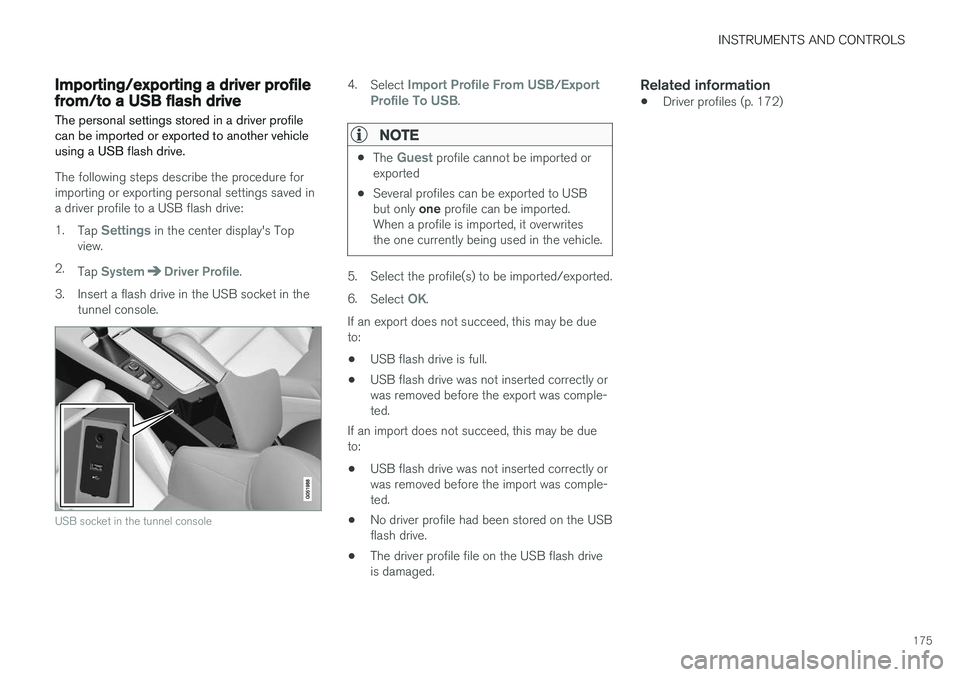
3. Insert a flash drive in the USB socket in the tunnel console.
USB socket in the tunnel console
4.Select Import Profile From USB/Export
Profile To USB.
NOTE
• The Guest profile cannot be imported or
exported
• Several profiles can be exported to USB but only
one profile can be imported.
When a profile is imported, it overwrites the one currently being used in the vehicle.
5. Select the profile(s) to be imported/exported. 6. Select
OK.
If an export does not succeed, this may be due to:
• USB flash drive is full.
• USB flash drive was not inserted correctly orwas removed before the export was comple-ted.
If an import does not succeed, this may be dueto:
• USB flash drive was not inserted correctly orwas removed before the import was comple-ted.
• No driver profile had been stored on the USBflash drive.
• The driver profile file on the USB flash driveis damaged.
Related information
•Driver profiles (p. 172)
Page 206 of 548
||
LOADING AND STORAGE
204•
Place heavier cargo at the bottom of the load.
• Secure the cargo correctly with appropriatetie-down equipment.
• Check periodically that the load carriers andload are properly secured.
• Remember that the vehicle's center of gravityand handling change when you carry a loadon the roof.
• The vehicle's wind resistance and fuel con-sumption will increase with the size of theload.
• Drive smoothly. Avoid rapid starts, fast cor-nering and hard braking.
CAUTION
The optional moonroof should not be opened while load carriers are installed on the vehicle.
See the article "Weights" for information about the maximum permissible load that can be trans-ported on the roof.
Related information
•
Weights (p. 525)
• Load anchoring eyelets (p. 207)
• Whiplash protection system (p. 59)
• Locking/unlocking the trunk (p. 228)
Passenger compartment storage spaces
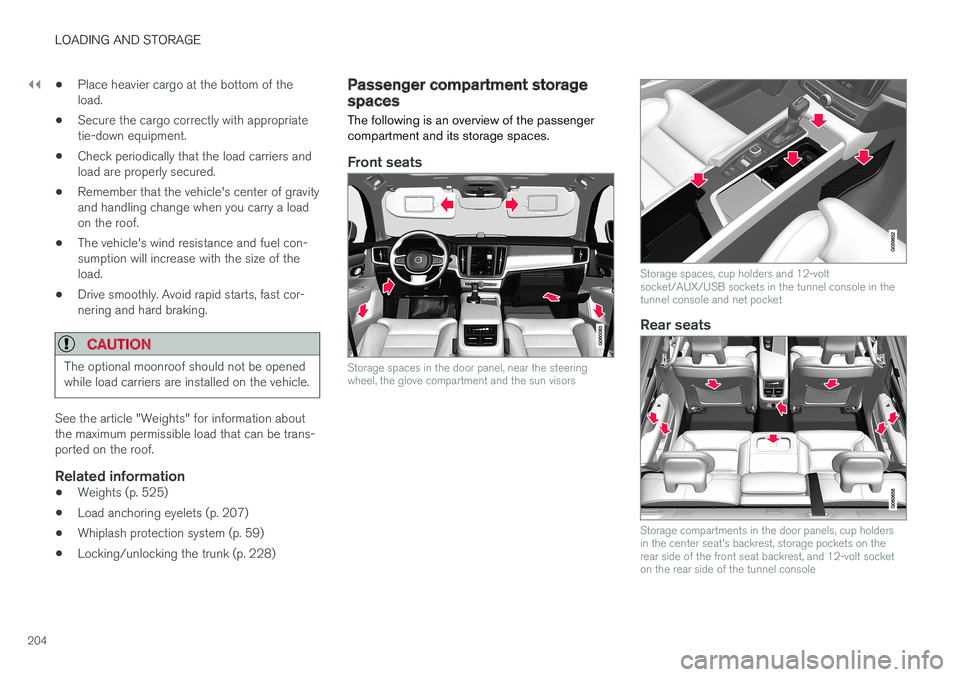
The following is an overview of the passenger compartment and its storage spaces.
Front seats
Storage spaces in the door panel, near the steering wheel, the glove compartment and the sun visors
Storage spaces, cup holders and 12-volt socket/AUX/USB sockets in the tunnel console in thetunnel console and net pocket
Rear seats
Storage compartments in the door panels, cup holders in the center seat's backrest, storage pockets on therear side of the front seat backrest, and 12-volt socketon the rear side of the tunnel console
Page 208 of 548
||
LOADING AND STORAGE
* Option/accessory.
206
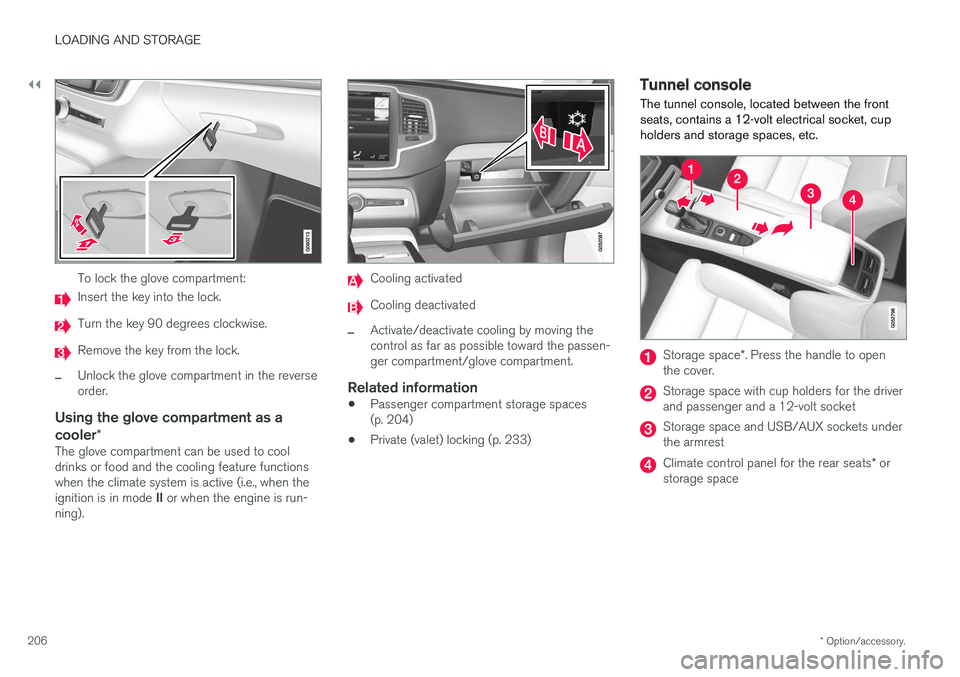
To lock the glove compartment:
Insert the key into the lock.
Turn the key 90 degrees clockwise.
Remove the key from the lock.
–Unlock the glove compartment in the reverse order.
Using the glove compartment as a cooler *
The glove compartment can be used to cool drinks or food and the cooling feature functionswhen the climate system is active (i.e., when the ignition is in mode II or when the engine is run-
ning).
Cooling activated
Cooling deactivated
–Activate/deactivate cooling by moving the control as far as possible toward the passen-ger compartment/glove compartment.
Related information
• Passenger compartment storage spaces(p. 204)
• Private (valet) locking (p. 233)
Tunnel console The tunnel console, located between the front seats, contains a 12-volt electrical socket, cupholders and storage spaces, etc.
Storage space
*. Press the handle to open
the cover.
Storage space with cup holders for the driver and passenger and a 12-volt socket
Storage space and USB/AUX sockets under the armrest
Climate control panel for the rear seats * or
storage space
Page 402 of 548
||
INFOTAINMENT
* Option/accessory.
400
iTunes taggingFrom the center display's Top view, tapSiriusXM
Settings. Tap theiTunes Tagging menu. Tap
the iTunes Tagging box to activate/deactivate
this function and tap Close to return to Home
view. Tap List Of Tags to display a list of all tag-
ged songs. If the function is activated, the
iTunes tag button
will be displayed in Home view. If a song is played that you would like to buy in the iTunes store, tapthis button while the song is playing to tag it. If a song with
iTunes Tagging information is availa-
ble, the button will be selectable. Tap the button to tag the song. If you would like to buy a taggedsong via iTunes, Tap the iTunes tag button. To buy a song in iTunes, begin by connecting an iPhone/iPod/iPad to the USB socket in the tun-nel console. The iTunes tagging list will automati-cally be transferred to the device and removedfrom the list in the vehicle. If the device is con-nected when a song is tagged, the data will auto-matically be saved in the device. To purchase thesong, consult the iTunes support page.
Related information
• SiriusXM ®
Satellite radio * (p. 398)
• Using the center display keyboard (p. 31)
• SiriusXM ®
Satellite radio * settings (p. 400)
• Connecting a device via the AUX/USBsocket (p. 414)
SiriusXM ®
Satellite radio * settings
There are numerous settings that can be made to enhance your SiriusXM ®
Satellite radio listen-
ing experience.
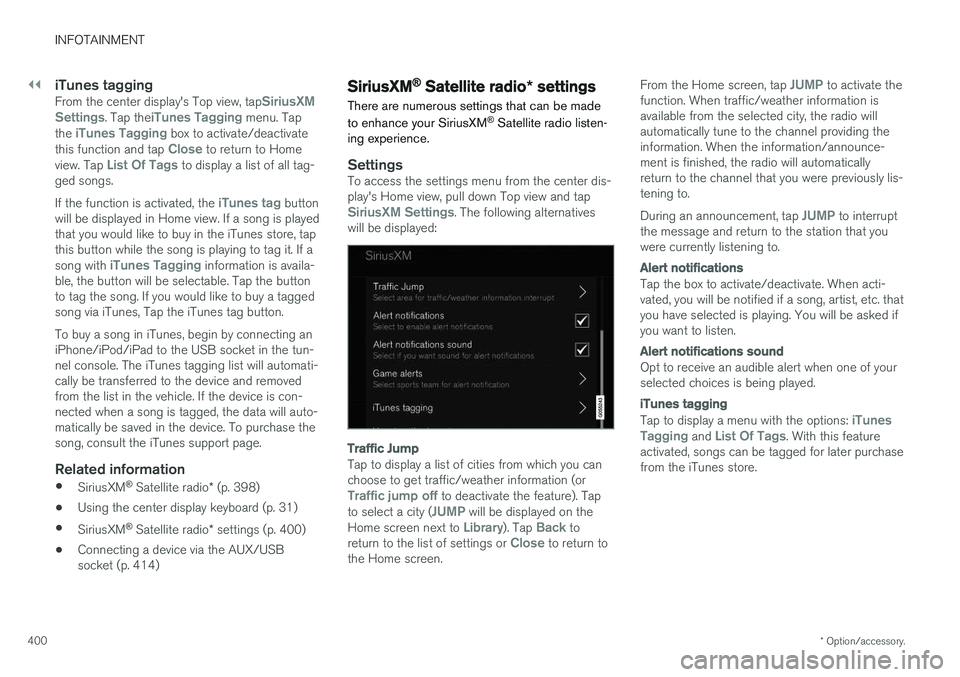
SettingsTo access the settings menu from the center dis- play's Home view, pull down Top view and tap
SiriusXM Settings. The following alternatives
will be displayed:
Traffic Jump
Tap to display a list of cities from which you can choose to get traffic/weather information (or
Traffic jump off to deactivate the feature). Tap
to select a city (JUMP will be displayed on the
Home screen next to Library). Tap Back to
return to the list of settings or Close to return to
the Home screen. From the Home screen, tap
JUMP to activate the
function. When traffic/weather information is available from the selected city, the radio willautomatically tune to the channel providing theinformation. When the information/announce-ment is finished, the radio will automaticallyreturn to the channel that you were previously lis-tening to. During an announcement, tap
JUMP to interrupt
the message and return to the station that you were currently listening to.
Alert notifications
Tap the box to activate/deactivate. When acti- vated, you will be notified if a song, artist, etc. thatyou have selected is playing. You will be asked ifyou want to listen.
Alert notifications sound
Opt to receive an audible alert when one of your selected choices is being played.
iTunes tagging
Tap to display a menu with the options: iTunes
Tagging and List Of Tags. With this feature
activated, songs can be tagged for later purchase from the iTunes store.