reset VOLVO S90 2018 Owner´s Manual
[x] Cancel search | Manufacturer: VOLVO, Model Year: 2018, Model line: S90, Model: VOLVO S90 2018Pages: 640, PDF Size: 11.37 MB
Page 298 of 640
||
DRIVER SUPPORT
* Option/accessory.
296
Related information
• Adaptive Cruise Control
* (p. 284)
Switching between Cruise Controland Adaptive Cruise Control
In vehicles equipped with Adaptive Cruise Con- trol (ACC 53
), the driver can switch between
Cruise Control (CC 54
) and ACC.
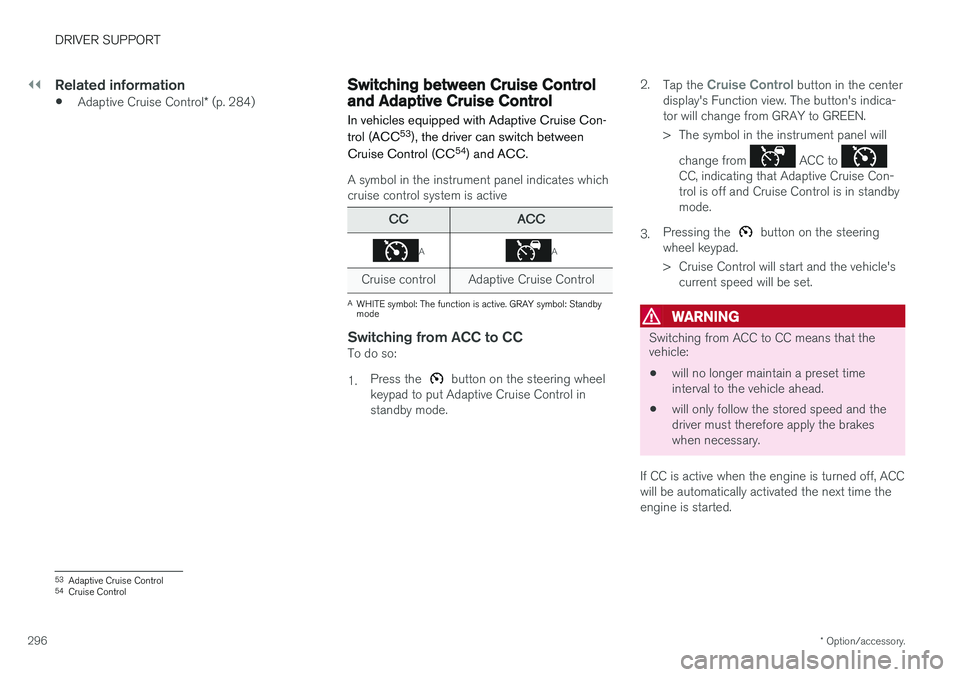
A symbol in the instrument panel indicates which cruise control system is active
CCACC
AA
Cruise control Adaptive Cruise Control
A WHITE symbol: The function is active. GRAY symbol: Standby mode
Switching from ACC to CCTo do so: 1. Press the
button on the steering wheel
keypad to put Adaptive Cruise Control in standby mode. 2.
Tap the
Cruise Control button in the center
display's Function view. The button's indica- tor will change from GRAY to GREEN.
> The symbol in the instrument panel will
change from
ACC to CC, indicating that Adaptive Cruise Con- trol is off and Cruise Control is in standbymode.
3. Pressing the
button on the steering
wheel keypad.
> Cruise Control will start and the vehicle's current speed will be set.
WARNING
Switching from ACC to CC means that the vehicle:
• will no longer maintain a preset time interval to the vehicle ahead.
• will only follow the stored speed and thedriver must therefore apply the brakeswhen necessary.
If CC is active when the engine is turned off, ACC
will be automatically activated the next time theengine is started.
53 Adaptive Cruise Control
54 Cruise Control
Page 308 of 640
||
DRIVER SUPPORT
306
–Change a set speed by pressing the (1)
or
(2) buttons briefly or by pressing and
holding them:
• Press briefly
: Press briefly: each press
changes the speed in +/- 5 mph (+/- 5 km/h) increments.
• Press
and hold: Release the button when
the set speed indicator (3) has moved tothe desired speed.
• The most recently set speed will be stored.
If speed is increased by depressing the accelera- tor pedal while pressing the
button on the
steering wheel, the vehicle's speed when the but- ton is pressed will be stored as the set speed. Temporarily increasing speed using the accelera- tor pedal, e.g. when passing another vehicle, willnot affect the setting. The vehicle will return tothe set speed when the accelerator pedal isreleased.
Automatic transmission
Pilot Assist can follow another vehicle at speeds from a standstill up to 200 km/h (125 mph). The lowest speed that can be set for Pilot Assist is 30 km/h (20 mph). When following anothervehicle, ACC can monitor that vehicle's speedand slow your own vehicle down to a standstill,but it is not possible to set speeds lower than30 km/h (20 mph). The highest possible speed that can be set is200 km/h (125 mph).
Related information
•
Pilot Assist (p. 300)
Setting a time interval for PilotAssist
Pilot Assist can be set to different time intervals.
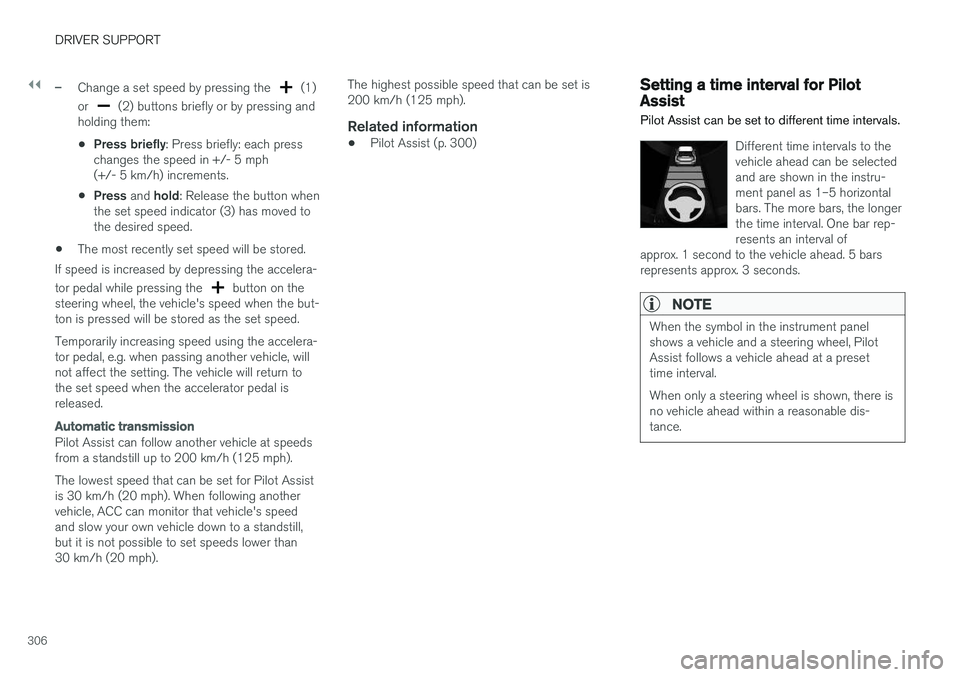
Different time intervals to the vehicle ahead can be selectedand are shown in the instru-ment panel as 1–5 horizontalbars. The more bars, the longerthe time interval. One bar rep-resents an interval of
approx. 1 second to the vehicle ahead. 5 barsrepresents approx. 3 seconds.
NOTE
When the symbol in the instrument panel shows a vehicle and a steering wheel, PilotAssist follows a vehicle ahead at a presettime interval. When only a steering wheel is shown, there is no vehicle ahead within a reasonable dis-tance.
Page 324 of 640
||
DRIVER SUPPORT
322
CauseAction
The area of the windshield in front of the camera/radar sensor is dirty or covered by ice or snow. Clean the windshield in front of the camera/radar sensor and remove dirt, ice andsnow.
Thick fog, heavy rain or snow is blocking the radar signals or thecamera's range of visibility. No action. Heavy precipitation may sometimes prevent the camera/radar sensor fromfunctioning.
Water or snow is spraying/swirling up and blocking the radar signalsor the camera's range of visibility. No action. Very wet or snow-covered roads may sometimes prevent the camera/radar sensor from functioning.
There is dirt between the inside of the windshield and the camera/radar sensor. Consult a workshop to have the area of the windshield on the inside of the camera'scasing cleaned. An authorized Volvo workshop is recommended.
Bright sunlight No action. The camera/radar sensor will reset automatically when lighting conditionsimprove.
NOTE
Keep the windshield in front of the camera and radar unit clean.
High temperaturesIf the temperature in the passenger compartment is very high, the camera/radar sensor will switchoff temporarily for approx. 15 minutes after theengine is started to protect its electronic compo-nents. When the temperature has cooled suffi-ciently, the camera/radar sensor will automati-cally restart.
Damaged windshield
CAUTION
If there are cracks, scratches or stone chips on the windshield in front of any of the cam-era and radar unit "windows" and this coversan area of about 0.5 × 3.0 mm(0.02 × 0.12 in.) or more, contact a workshopto have the windshield replaced – an author-ized Volvo workshop is recommended. Failure to take action could result in reduced performance for the driver support systemsthat use the camera and radar unit.
It could cause functions to be reduced, deac- tivated completely or produce an incorrectfunction response. To avoid the risk of loss of function, malfunc- tion or reduced function of the driver supportsystems that use the radar unit, the followingalso apply:
• Volvo advises
against repairing cracks,
scratches or stone chips in the area infront of the camera and radar unit – theentire windshield should instead bereplaced.
• Before replacing the windshield, contactan authorized Volvo workshop to verify
Page 350 of 640
||
DRIVER SUPPORT
* Option/accessory.
348
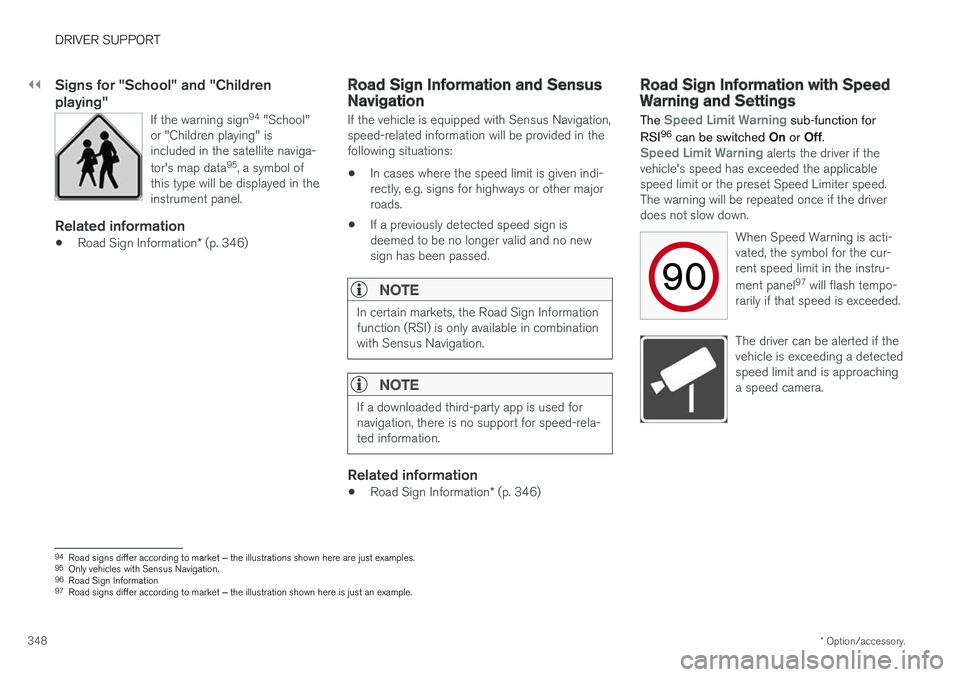
Signs for "School" and "Children playing"
If the warning sign 94
"School"
or "Children playing" is included in the satellite naviga- tor's map data 95
, a symbol of
this type will be displayed in the instrument panel.
Related information
• Road Sign Information
* (p. 346)
Road Sign Information and SensusNavigation
If the vehicle is equipped with Sensus Navigation, speed-related information will be provided in thefollowing situations:
• In cases where the speed limit is given indi-rectly, e.g. signs for highways or other majorroads.
• If a previously detected speed sign isdeemed to be no longer valid and no newsign has been passed.
NOTE
In certain markets, the Road Sign Information function (RSI) is only available in combinationwith Sensus Navigation.
NOTE
If a downloaded third-party app is used for navigation, there is no support for speed-rela-ted information.
Related information
•
Road Sign Information
* (p. 346)
Road Sign Information with SpeedWarning and Settings
The
Speed Limit Warning sub-function for
RSI 96
can be switched On or Off.
Speed Limit Warning alerts the driver if the
vehicle's speed has exceeded the applicable speed limit or the preset Speed Limiter speed.The warning will be repeated once if the driverdoes not slow down.
When Speed Warning is acti-vated, the symbol for the cur-rent speed limit in the instru- ment panel97
will flash tempo-
rarily if that speed is exceeded.
The driver can be alerted if the vehicle is exceeding a detectedspeed limit and is approachinga speed camera.
94 Road signs differ according to market ‒ the illustrations shown here are just examples.
95 Only vehicles with Sensus Navigation.
96 Road Sign Information
97 Road signs differ according to market ‒ the illustration shown here is just an example.
Page 416 of 640
||
STARTING AND DRIVING
* Option/accessory.
414
ECO
• Adapt the vehicle for more fuel-efficient and eco-friendly driving with Eco mode.
In this mode, the Start/Stop function is activatedand certain climate settings are reduced. The instrument panel has an ECO gauge to facili- tate fuel-efficient driving.
DYNAMIC
• Dynamic mode is designed to provide sport- ier driving characteristics and a faster accel-eration response.
Gear shifting will be faster and more distinct andthe transmission will prioritize gears with a highertraction force. Steering response is faster and suspension is stiffer 3
to help reduce body roll when cornering.
The Start/Stop function is deactivated.
INDIVIDUAL
• Customizes drive mode to personal preferen- ces.
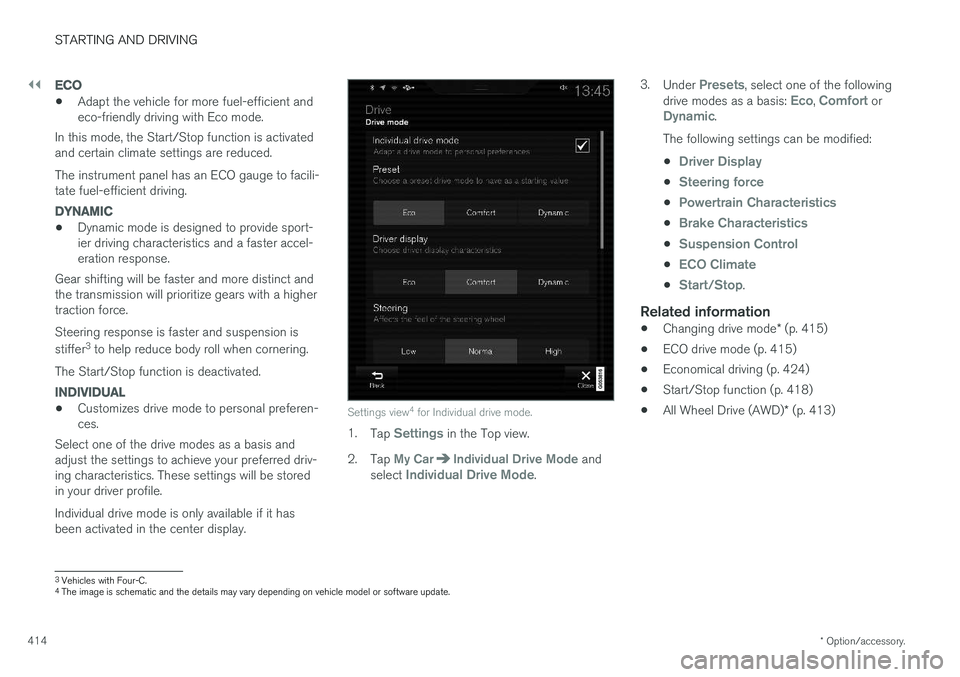
Select one of the drive modes as a basis andadjust the settings to achieve your preferred driv- ing characteristics. These settings will be stored in your driver profile. Individual drive mode is only available if it has been activated in the center display.Settings view 4
for Individual drive mode.
1. Tap Settings in the Top view.
2. Tap
My CarIndividual Drive Mode and
select Individual Drive Mode. 3.
Under
Presets, select one of the following
drive modes as a basis: Eco, Comfort orDynamic.
The following settings can be modified: •
Driver Display
•Steering force
•Powertrain Characteristics
•Brake Characteristics
•Suspension Control
•ECO Climate
•Start/Stop.
Related information
• Changing drive mode
* (p. 415)
• ECO drive mode (p. 415)
• Economical driving (p. 424)
• Start/Stop function (p. 418)
• All Wheel Drive (AWD)
* (p. 413)
3
Vehicles with Four-C.
4 The image is schematic and the details may vary depending on vehicle model or software update.
Page 419 of 640
STARTING AND DRIVING
* Option/accessory.417
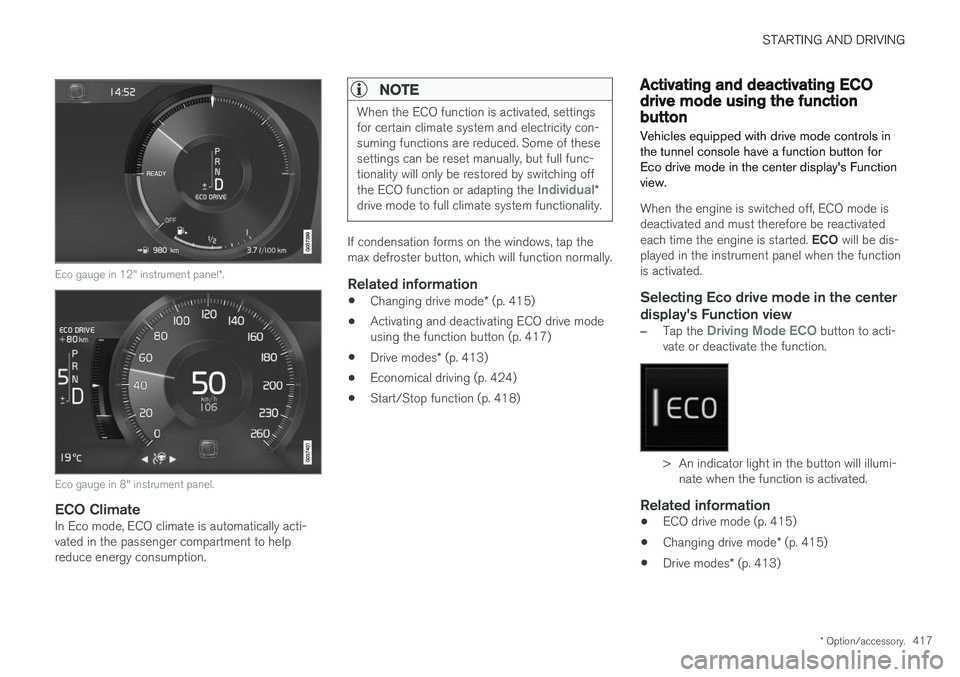
Eco gauge in 12" instrument panel *.
Eco gauge in 8" instrument panel.
ECO ClimateIn Eco mode, ECO climate is automatically acti- vated in the passenger compartment to helpreduce energy consumption.
NOTE
When the ECO function is activated, settings for certain climate system and electricity con-suming functions are reduced. Some of thesesettings can be reset manually, but full func-tionality will only be restored by switching off the ECO function or adapting the
Individual*
drive mode to full climate system functionality.
If condensation forms on the windows, tap the max defroster button, which will function normally.
Related information
• Changing drive mode
* (p. 415)
• Activating and deactivating ECO drive modeusing the function button (p. 417)
• Drive modes
* (p. 413)
• Economical driving (p. 424)
• Start/Stop function (p. 418)
Activating and deactivating ECOdrive mode using the functionbutton
Vehicles equipped with drive mode controls in the tunnel console have a function button forEco drive mode in the center display's Functionview.
When the engine is switched off, ECO mode is deactivated and must therefore be reactivated each time the engine is started. ECO will be dis-
played in the instrument panel when the function is activated.
Selecting Eco drive mode in the center
display's Function view
–Tap the Driving Mode ECO button to acti-
vate or deactivate the function.
> An indicator light in the button will illumi- nate when the function is activated.
Related information
• ECO drive mode (p. 415)
• Changing drive mode
* (p. 415)
• Drive modes
* (p. 413)
Page 440 of 640
||
STARTING AND DRIVING
* Option/accessory.
438 HomeLink
®
is delivered integrated in the rearview
mirror. The HomeLink ®
panel consists of three
programmable buttons and an indicator light in the mirror. For more information about HomeLink ®
, please
visit www.HomeLink.com, www.youtube.com/ HomeLinkGentex or call 1-800-355-3515. Save the original remote controls for future pro- gramming (e.g. for use in another vehicle). It isalso advisable to delete the button programmingif the vehicle is sold.
Related information
• Using HomeLink (p. 439)
• Programming HomeLink ®
* (p. 438)
• Type approval for HomeLink ®
* (p. 440)
Programming HomeLink®
*11
Follow these instructions to program HomeLink ®
, reset all programming, or program
individual buttons.
NOTE
In some vehicles, the ignition must be on or in the "accessory position" before HomeLink ®
can be programmed or used. It can be a good idea to put new batteries in the remote con- trol being replaced by HomeLink ®
for faster
programming and better radio signal trans-mission. The HomeLink ®
buttons should be
reset before programming.
WARNING
While HomeLink ®
is being programmed, the
garage door or gate being programmed may be activated. Make sure that no one is nearthe door or gate during programming. Whenprogramming a garage door opener, it isadvised to park outside of the garage. 1.
Point the remote control at the HomeLink ®
button to be programmed and hold it about 2-8 cm (1-3 inches) from the button. Do not obstruct the HomeLink ®
indicator light.
Note: Some remote controls are more effec-
tive at programming HomeLink ®
from a dis-
tance of about 15-20 cm (6-12 inches). Try moving the remote control closer or furtheraway if you are experiencing any difficultiesprogramming.
2. Press and hold both the remote control but- ton and the HomeLink ®
button to be pro-
grammed.
3. Do not release the buttons until the indicator light has stopped flashing slowly (about oncea second) and either flashes quickly (about10 times a second) or glows steadily. >Steady glow: Indication that program-
ming is complete. Press the programmed button twice to activate. Flashing quickly: The device being pro-
grammed with HomeLink ®
may have a
security function that requires an extra step. Try pressing the programmed buttontwice to see whether the programmingworks. Otherwise, continue with the fol-lowing steps.
10 HomeLink and the HomeLink house symbol are registered trademarks of Gentex Corporation.
11 Certain markets only.
Page 441 of 640
STARTING AND DRIVING
}}
* Option/accessory.439
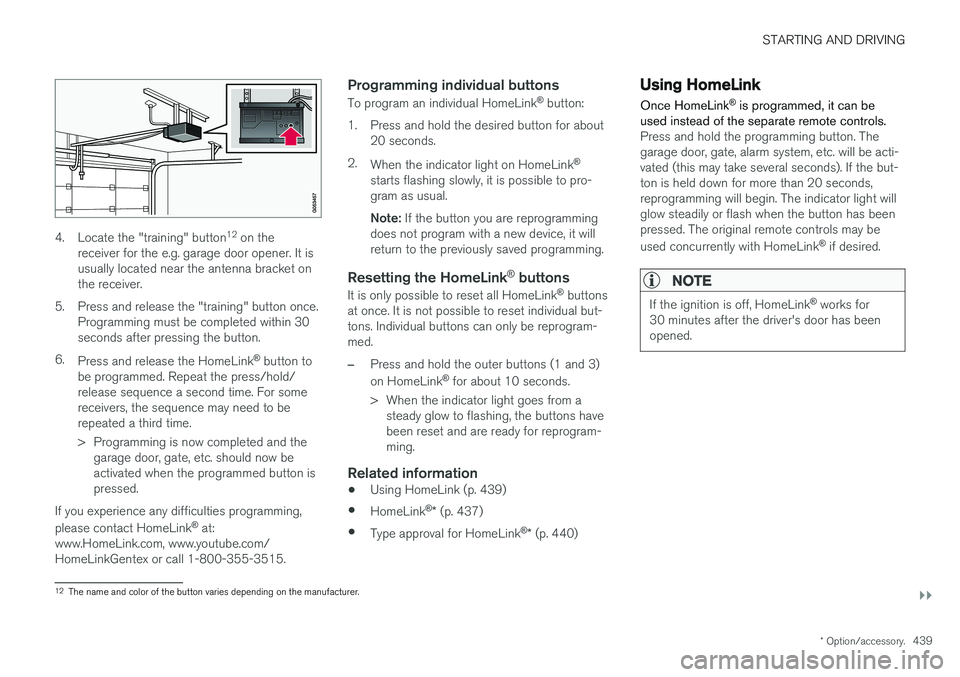
4. Locate the "training" button 12
on the
receiver for the e.g. garage door opener. It is usually located near the antenna bracket onthe receiver.
5. Press and release the "training" button once. Programming must be completed within 30seconds after pressing the button.
6. Press and release the HomeLink ®
button to
be programmed. Repeat the press/hold/release sequence a second time. For somereceivers, the sequence may need to berepeated a third time.
> Programming is now completed and the garage door, gate, etc. should now be activated when the programmed button ispressed.
If you experience any difficulties programming, please contact HomeLink ®
at:
www.HomeLink.com, www.youtube.com/ HomeLinkGentex or call 1-800-355-3515.
Programming individual buttons
To program an individual HomeLink ®
button:
1. Press and hold the desired button for about 20 seconds.
2. When the indicator light on HomeLink ®
starts flashing slowly, it is possible to pro-gram as usual. Note: If the button you are reprogramming
does not program with a new device, it will return to the previously saved programming.
Resetting the HomeLink ®
buttons
It is only possible to reset all HomeLink ®
buttons
at once. It is not possible to reset individual but-tons. Individual buttons can only be reprogram-med.
–Press and hold the outer buttons (1 and 3) on HomeLink ®
for about 10 seconds.
> When the indicator light goes from a steady glow to flashing, the buttons have been reset and are ready for reprogram-ming.
Related information
• Using HomeLink (p. 439)
• HomeLink ®
* (p. 437)
• Type approval for HomeLink ®
* (p. 440)
Using HomeLink
Once HomeLink ®
is programmed, it can be
used instead of the separate remote controls.
Press and hold the programming button. The garage door, gate, alarm system, etc. will be acti-vated (this may take several seconds). If the but-ton is held down for more than 20 seconds,reprogramming will begin. The indicator light willglow steadily or flash when the button has beenpressed. The original remote controls may be used concurrently with HomeLink ®
if desired.
NOTE
If the ignition is off, HomeLink ®
works for
30 minutes after the driver's door has been opened.
12 The name and color of the button varies depending on the manufacturer.
Page 457 of 640
AUDIO, MEDIA AND INTERNET
455
Selecting sub-channels
To listen to a station's sub-channel(s), tap the station on the screen or press the forward/backarrow keys on the right-side steering wheel key-pad or below the screen. Sub-channels can also be saved as radio favor- ites. If you tap a sub-channel favorite, it may take up to 6 seconds before the channel becomes audi-
ble. If you tap a station while you are out of digital range of the transmitter,
No reception will be
displayed.
Related information
• HD Radio
™ (p. 452)
• Activating and deactivating the HD Radio
™
(p. 454)
• Changing waveband and radio station (p. 449)
• Searching for a radio station (p. 450)
• HD Radio
™ limitations (p. 455)
HD Radio™ limitations
Limitations
• Main channel vs. sub-channels (FM only)
:
The main channel is the only channel that can receive in hybrid mode (both digital andanalog). If a frequency has sub-channels,they are broadcast in digital mode only. Themain FM channel will be displayed as, forexample, "WRIF-FM HD1". The sub-FMchannels will be displayed as"WRIF-FMHD2", "WRIF-FM HD3", etc.
• Reception coverage area
: Due to current
IBOC transmitter power limitations, thereception coverage area in digital mode issomewhat more limited than the station'sanalog coverage area. Be aware that, like allradio transmission technology, terrain, time ofday, vegetation and buildings can have apositive or negative effect on radio reception.
• Analog to digital/digital to analog blend-ing
: Analog to digital blending will occur as
the signal strength reaches a preset thresh-old in the receiver. This will be noticeable infringe areas (areas with weak reception) andis normal.
NOTE
There may be a noticeable difference in sound quality when a change from analogueto digital or digital to analogue occurs, suchas:
• Volume increase or decrease
• Equalizer settings, i.e., Bass/ Midrange/Treble cut or boost
• Time alignment (Digital program materialin extreme cases can be as much as 8seconds behind the analogue). This willnoticeable as a "stuttering" effect.
The above items are dependant on thebroadcaster's equipment settings and donot indicate a fault in the vehicle's radioreceiver or antenna systems .
Related information
•HD Radio
™ (p. 452)
• Activating and deactivating the HD Radio
™
(p. 454)
• HD Radio
™
sub-channels (p. 454)
Page 476 of 640
||
AUDIO, MEDIA AND INTERNET
* Option/accessory.
474 5. Tap the desired app.
> The app will start up.
Starting CarPlay
CarPlay can be started as follows after an iPhone is connected.
1. Connect an iPhone to the USB port. If there are two USB ports, use the one with the white frame. >If the auto start setting is selected -
the name of the phone will be displayed.
2. Tap the name of the phone - the CarPlay tile will open and compatible apps will be dis- played.
3. If the CarPlay tile does not open, tap
Apple
CarPlay in App view.
> The CarPlay tile will open and compatible apps will be displayed.
4. Tap the desired app. > The app will start up.
CarPlay will run in the background if another app is started in the same tile. To display CarPlay inthe tile, tap the CarPlay icon in App view.
Switching connection between CarPlay and iPod
CarPlay to iPod
1. Tap Settings in the Top view. 2. Proceed to
CommunicationApple
CarPlay.
3. Uncheck the box for the Apple device that should no longer start CarPlay automatically when the USB cable is connected.
4. Remove and then reinsert the Apple device into the USB port.
5. Open the
iPod app from App view.
iPod to CarPlay
1.Tap Apple CarPlay in App view.
2. Read the information in the pop-up window and then tap
OK.
3. Remove and then reinsert the Apple device into the USB port.
> The Apple CarPlay tile will open and com-
patible apps will be displayed 8
.
Related information
• Connecting a device via the USB port (p. 472)
• Apple ®
CarPlay ®
* (p. 473)
• Settings for Apple ®
CarPlay ®
* (p. 474)
• Connecting the car to the Internet via amobile device (Wi-Fi) (p. 489)
• Connect the car to the Internet via carmodem (SIM card) (p. 490)
• Voice control (p. 143)
Settings for Apple® CarPlay®
*
Settings for an Apple device connected through CarPlay 9
.
Automatic start1. Tap Settings in the Top view.
2. Tap
CommunicationApple CarPlay and
select the desired setting:
• Check the box - CarPlay will start auto- matically when the USB cable is con-nected.
• Uncheck the box - CarPlay will not startautomatically when the USB cable is con-nected.
A maximum of 20 Apple devices can be stored inthe list. When the list is full and a new device isconnected, the oldest one will be deleted. To delete the list, the settings must be rest in the center display (factory reset).
System Volumes1. Tap Settings in the Top view.
2. Tap
SoundSystem Volumes to change
the settings for the following:
•
Voice Control
•Navi Voice Guidance
•Phone Ringtone
8 Apple, CarPlay, iPhone and iPod are registered trademarks of Apple Inc.