audio VOLVO S90 TWIN ENGINE 2019 User Guide
[x] Cancel search | Manufacturer: VOLVO, Model Year: 2019, Model line: S90 TWIN ENGINE, Model: VOLVO S90 TWIN ENGINE 2019Pages: 669, PDF Size: 14.33 MB
Page 248 of 669
KEY, LOCKS AND ALARM
* Option/accessory.246
Ordering additional remote keys
Two remote keys are provided with the vehicle.One Key Tag is also included if the vehicle isequipped with keyless locking/unlocking*. Addi-tional keys can be ordered.
A total of 12 keys can be programmed and usedfor the same vehicle. An additional driver profilewill be added for each new remote key. This alsoapplies to the key tag.
Loss of a remote key
If you lose your remote key, you can order areplacement from a workshop - an authorizedVolvo workshop is recommended. Bring the otherremaining remote keys to the workshop. As ananti-theft measure, the code of the lost remotekey must be erased from the system.
The current number of keys registered for thevehicle can be checked via driver profiles in the
center display's Top view. Select Settings
SystemDriver Profiles.
NOTE
Volvo recommends that you order a new orduplicate remote control key from an author-ized Volvo workshop.
You can also obtain additional or duplicateremote control keys from certain independentrepair facilities and locksmiths that are quali-fied to make remote control keys. Each keymust be programmed to work with your vehi-cle.
A list of independent repair facilities and/orlocksmiths known to Volvo that can cut andcode replacement keys can be found:
on Volvo's website www.volvocars.com/us
by calling Volvo Customer Care1-800-458-1552.
Related information
Remote key (p. 237)
Red Key - restricted remote key*
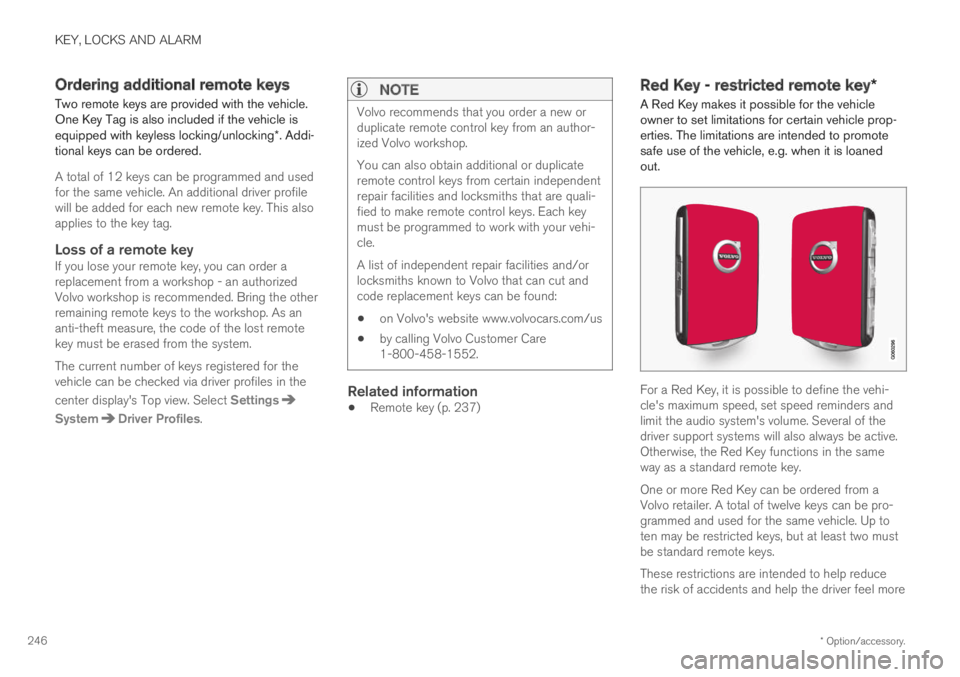
A Red Key makes it possible for the vehicleowner to set limitations for certain vehicle prop-erties. The limitations are intended to promotesafe use of the vehicle, e.g. when it is loanedout.
For a Red Key, it is possible to define the vehi-cle's maximum speed, set speed reminders andlimit the audio system's volume. Several of thedriver support systems will also always be active.Otherwise, the Red Key functions in the sameway as a standard remote key.
One or more Red Key can be ordered from aVolvo retailer. A total of twelve keys can be pro-grammed and used for the same vehicle. Up toten may be restricted keys, but at least two mustbe standard remote keys.
These restrictions are intended to help reducethe risk of accidents and help the driver feel more
Page 361 of 669

DRIVER SUPPORT
}}
* Option/accessory.359
Road Sign Information with SpeedWarning and Settings
The Speed Limit Warning sub-function for
RSI92 can be switched On or Off.
Speed Limit Warning warns the driver if thevehicle's speed has exceeded the applicablespeed limit or the preset Speed Limiter speed.The warning will be repeated once afterabout 1 minute in that speed limit area if thedriver does not slow down.
A new warning and message indicating that thespeed limit has been exceeded will be providedonly when the vehicle has entered a new/differ-ent speed limit area.
When Speed Warning is acti-vated, the symbol for the cur-rent speed limit in the instru-
ment panel93 will flash tempo-rarily if that speed is exceeded.
The driver can be alerted if thevehicle is exceeding a detectedspeed limit and is approachinga speed camera.
Settings
Adjusting the Speed Warning limit
The driver can adjust the settings to be alerted ata higher speed than the posted speed limit.
To adjust the Speed Warning limit:
1. Select SettingsMy CarIntelliSafe
Road Sign Information in the centerdisplay's Top view.
2.Mark Speed Limit Warning.
> The function is activated and a speed limitselector is displayed.
3.Tap the up/down arrows on the screen toadjust the speed at which the Speed Warn-ing will be given.
Please note that the set warn-ing limit will not be used whena speed camera symbol is dis-played in the instrument panel.
Audible alert On/Off
An audible alert can also be given along with theSpeed Warning.
To adjust the audible alert settings:
1. Select SettingsMy CarIntelliSafe
Road Sign Information in the centerdisplay's Top view.
2.Select/deselect Road Sign Audio Warningto activate/deactivate the audible alert.
When Road Sign Audio Warning is activated,the driver will also be alerted if the vehicle isapproaching a one-way/"no-entry" road orentrance.
Speed camera warning On/Off
If the vehicle is equipped withSensus Navigation* and mapdata contains information onspeed cameras, the driver canchoose to receive an audiblealert if the vehicle is approach-ing a speed camera.
To adjust the audible alert settings:
1. Select SettingsMy CarIntelliSafe
Road Sign Information in the centerdisplay's Top view.
2.Select/deselect Speed Camera AudioWarning to activate/deactivate the speedcamera audible alert.
92Road Sign Information93Road signs differ according to market ‒ the illustration shown here is just an example.
Page 363 of 669

DRIVER SUPPORT
}}
* Option/accessory.361
For more information on Speed Warnings in con-junction with speed cameras, also see “RoadSign Information with Speed Warning and Set-tings” and “Road Sign Information limitations”.
NOTE
For an audible alert to be provided if thespeed is exceeded, the Speed LimitWarning function must be activated andthe Road Sign Audio Warning sub-function must be On. Audible alerts areprovided if the vehicle's speed exceedsthe speed displayed by RSI in the instru-ment panel.
It is possible to receive an audible alertfor speed cameras regardless of the vehi-cle's speed, whether or not the speedlimit is exceeded, and even if the RoadSign Audio Warning function is deacti-vated: See heading "Speed camerawarning On/Off" in section "Road SignInformation with Speed Warning and set-tings" and select Speed Camera AudioWarning there.
Information about speed cameras on thenavigation map is not available for allmarkets/areas.
Related information
Road Sign Information* (p. 356)
Road Sign Information with Speed Warningand Settings (p. 359)
Road Sign Information limitations (p. 361)
Road Sign Information limitations
Road Sign Information (RSI96) functionality maybe reduced in certain situations.
RSI could have reduced functionality due to e.g.:
faded road signs
signs located in a curve in the road
twisted or damaged signs
signs positioned high above the road
fully/partially obstructed or poorly positionedsigns
signs partially or fully covered by frost, snowand/or dirt
digital road maps97 that are outdated, incor-
rect or do not contain speed information98.
NOTE
Certain types of bike carriers that are con-nected to the trailer socket may be interpre-ted as a connected trailer by the RSI function.In such cases, the instrument panel may indi-cate incorrect speed information.
96Road Sign Information97Vehicles equipped with Sensus Navigation*.98Map data and speed information is not available for all areas.
Page 384 of 669

DRIVER SUPPORT
* Option/accessory.382
Park Assist*
The Park Assist function can help the driverwhen maneuvering in tight spaces by indicatingdistances to obstacles using audible signals andgraphics in the center display.
Display view showing obstacle zones and sensor sec-tors.
The center display shows an overview of the vehi-cle in relation to objects that have been detected.
The marked sector indicates where the obstacleis located. The closer the vehicle symbol is to amarked sector forward/rearward, the closer thedetected obstacle is to your vehicle.
The side sectors change color as the distancebetween the vehicle and an object decreases.
The audible signals will also speed up the closerthe obstacle is to the vehicle. The volume of theaudio system will be automatically lowered.
Audible signals for obstacles in front and to thesides of the vehicle are active when the vehicle ismoving but will cease after the vehicle has beenstationary for approx. 2 seconds. Audible signalsfor obstacles behind the vehicle will remain activeeven when the vehicle is stationary.
If a detected obstacle is within approx. 30 cm(1 ft) from the front or rear of the vehicle, thetone will become constant and the active sen-sor's field closest to the vehicle symbol will befilled in.
At distances within approx. 25 cm (0.8 ft) from anobstacle to the sides of the vehicle, an rapid puls-ing signal will be given and the active sectorfields will change color from ORANGE to RED.
The volume of the Park Assist audible signalscan be adjusted while the signal is being givenusing the >II knob or in the center display's Topview under Settings.
NOTE
Besides in the sector closest to the vehi-cle symbol, audible warnings are only pro-vided for objects located directly in thevehicle's path.
WARNING
The Parking Assist function is supple-mentary driver support intended to facili-tate driving and help make it safer – itcannot handle all situations in all traffic,weather and road conditions.
The parking sensors have dead/blindspots where objects cannot be detected.
Pay particular attention to people andanimals near the vehicle.
Parking Assist is not a substitute for thedriver's attention and judgment. The driveris always responsible for ensuring thevehicle is driven in a safe manner, at theappropriate speed, with an appropriatedistance to other vehicles, and in accord-ance with current traffic rules and regula-tions.
Related information
Park Assist front, rear and sides (p. 383)
Activating/deactivating Park Assist (p. 384)
Park Assist limitations (p. 385)
Recommended maintenance for Park Assist(p. 386)
Park Assist symbols and messages (p. 387)
Page 468 of 669

STARTING AND DRIVING
466
Battery drain
The electrical functions in the vehicle drain thebattery to varying degrees. Avoid using ignitionmode II when the engine is switched off. Useignition mode I instead, as this uses less electri-cal current.
Note that certain accessories may also drainpower from the electrical system. Do not usefunctions that use a lot of electrical current whenthe engine is turned off. Examples of such func-tions are:
blower
headlights
windshield wipers
audio system (especially at high volume).
If the starter battery voltage is low, a message isshown in the driver display. The vehicle's energy-saving function will then turn off or reduce certainfunctions, such as the blower and/or the audiosystem.
–Charge the battery by starting the engineand let it run for at least 15 minutes (drivingcharges the battery faster than letting theengine idle).
Related information
Start battery (p. 601)
Ignition modes (p. 429)
Jump starting using another battery
If the start battery is discharged, current fromanother battery can be used to start the vehicle.
Jumper cable connecting points.
CAUTION
The charging point of the vehicle is onlyintended for jump starting the vehicle in ques-tion. The charging point is not intended forjump-starting another vehicle. Using thecharging point to start another vehicle couldcause a fuse to blow, which would cause thecharging point to stop working.
If a fuse has blown, 12 V Battery Fuse failureService required will be displayed in the instru-ment panel. Volvo recommends contacting anauthorized Volvo workshop.
To avoid short circuits or other damage, the fol-lowing steps are recommended when jump star-ting the battery:
Page 480 of 669

AUDIO, MEDIA AND INTERNET
* Option/accessory.478
Audio, media and Internet
The audio and media system consists of a mediaplayer and a radio. A cellular phone can also beconnected through Bluetooth to use hands-freefunctions or play music in the vehicle. When thevehicle is connected to the Internet, it is alsopossible to use apps to play media.
Audio and media overview
The functions can be controlled using voice com-mands, the steering wheel keypad or the centerdisplay. The number of speakers and amplifiersvaries depending on the audio system installed inthe vehicle.
System updates
The audio and media system is continuouslyimproved. When the vehicle has an Internet con-nection, system updates can be downloaded foroptimal functionality; see support.volvocars.com.
Related information
Media player (p. 500)
Radio (p. 483)
Phone (p. 514)
Internet-connected vehicle* (p. 523)
Apps (p. 480)
Voice control (p. 141)
Ignition modes (p. 429)
Driver distraction (p. 39)
Handling system updates via Download Cen-ter (p. 587)
License agreement for audio and media(p. 531)
Sound settings
The sound system is precalibrated for optimalsound reproduction, but these settings can bepersonalized.
The system's volume is normally adjusted usingthe volume control below the center display orthe right-side steering wheel keypad. Thisapplies, for example, when playing music or theradio or during phone calls and active traffic mes-sages.
Optimal sound reproduction
The audio system is precalibrated for optimalsound reproduction using digital signal process-ing. This calibration takes into account speakers,amplifiers, passenger compartment acoustics, lis-tener position, etc. for each combination of vehi-cle model and audio system. There is also adynamic calibration that takes into account thevolume control setting and the vehicle's speed.
Personal settings
Different settings are available in Top view under
SettingsSound depending on the vehicle'ssound system.
Page 481 of 669
AUDIO, MEDIA AND INTERNET
}}
* Option/accessory.479
Premium Sound * (Bowers & Wilkins)
Tone - setting for e.g. bass, treble, equalizer,etc.
Balance - balance between right/left andfront/rear speakers.
System Volumes – adjusts volume in thevarious systems of the car, e.g. VoiceControl, Park Assist and Phone Ringtone.
High Performance Pro * (Harman
Kardon)
Equalizer - setting of equalizer.
Balance - balance between right/left andfront/rear speakers.
System Volumes – adjusts volume in thevarious systems of the car, e.g. VoiceControl, Park Assist and Phone Ringtone.
High Performance
Tone - setting for e.g. bass, treble, equalizer,etc.
Balance - balance between right/left andfront/rear speakers.
System Volumes – adjusts volume in thevarious systems of the car, e.g. VoiceControl, Park Assist and Phone Ringtone.
Related information
Sound experience* (p. 479)
Media player (p. 500)
Voice control settings (p. 144)
Phone settings (p. 522)
Audio, media and Internet (p. 478)
Internet-connected vehicle* (p. 523)
Sound experience*
Sound experience is an app that providesaccess to additional sound settings.
Open Sound Experience from the center dis-play's App view. Depending on the sound systeminstalled in the vehicle, the following settings arepossible:
Premium Sound * (Bowers & Wilkins)
Studio - the sound can be optimized forDriver, All and Rear.
Individual stage - surround sound modewith settings for intensity and enclosure.
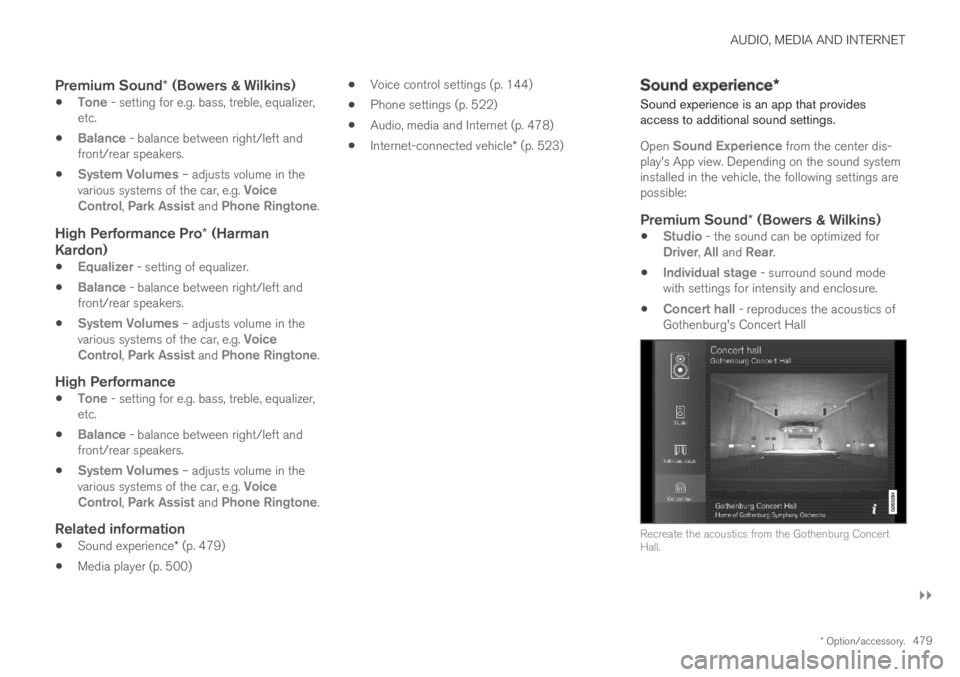
Concert hall - reproduces the acoustics ofGothenburg's Concert Hall
Recreate the acoustics from the Gothenburg ConcertHall.
Page 482 of 669
||
AUDIO, MEDIA AND INTERNET
* Option/accessory.480
High Performance Pro * (Harman
Kardon)
Seat Optimization - the sound can be opti-mized for Driver, All and Rear.
Surround - surround sound mode with levelsettings.
Tone - setting for e.g. bass, treble, equalizer,etc.
Related information
Sound settings (p. 478)
Navigating in the center display's views(p. 111)
Apps
The App view contains applications (apps) thatprovide access to certain vehicle services.
Swipe the center display screen from right to
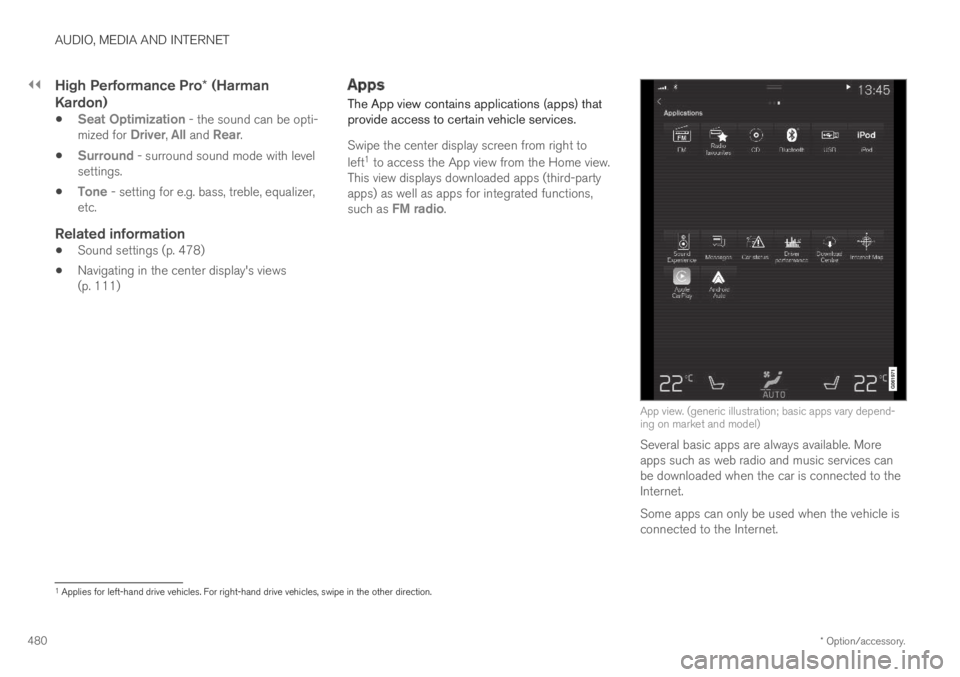
left1 to access the App view from the Home view.This view displays downloaded apps (third-partyapps) as well as apps for integrated functions,such as FM radio.
App view. (generic illustration; basic apps vary depend-ing on market and model)
Several basic apps are always available. Moreapps such as web radio and music services canbe downloaded when the car is connected to theInternet.
Some apps can only be used when the vehicle isconnected to the Internet.
1Applies for left-hand drive vehicles. For right-hand drive vehicles, swipe in the other direction.
Page 483 of 669
AUDIO, MEDIA AND INTERNET
* Option/accessory.481
Start an app by pressing the app in the centerdisplay's app view.
Related information
Download apps (p. 481)
Updating apps (p. 482)
Deleting apps (p. 482)
Apple® CarPlay®* (p. 509)
Android Auto* (p. 512)
Internet-connected vehicle* (p. 523)
Hard disk storage space (p. 530)
Terms of use and data sharing (p. 530)
Download apps
New apps can be downloaded when the vehicleis connected to the Internet.
NOTE
Data downloading can affect other servicessuch as transfer data, e.g. web radio. If theaffect on other services is experienced asproblematic, the download can be interrupted.Alternatively, it may be appropriate to switchoff or cancel other services.
NOTE
When downloading using a phone, pay extraattention to the data traffic costs.
1.Open the Download Center app in Appview.
2.Select New apps to open a list of apps thatare available but are not installed in the vehi-cle.
3.Tap on the row for an app in order to expandin the list and get more information about theapp.
4.Select Install to start the download andinstallation of the app.
>The current status of the download andinstallation will be shown.
If a download cannot be started immedi-ately, a message will be displayed. Theapp will remain in the list and it will bepossible to reattempt downloading.
Canceling a download
–Tap Abort to cancel a download in progress.
Note that only a download can be cancelled. Aninstallation cannot be cancelled once it hasbegun.
Related information
Apps (p. 480)
Updating apps (p. 482)
Deleting apps (p. 482)
Internet-connected vehicle* (p. 523)
Handling system updates via Download Cen-ter (p. 587)
Hard disk storage space (p. 530)
Page 484 of 669
AUDIO, MEDIA AND INTERNET
* Option/accessory.482
Updating apps
Apps can be updated when the vehicle is con-nected to the Internet.
NOTE
Data downloading can affect other servicessuch as transfer data, e.g. web radio. If theaffect on other services is experienced asproblematic, the download can be interrupted.Alternatively, it may be appropriate to switchoff or cancel other services.
NOTE
When downloading using a phone, pay extraattention to the data traffic costs.
If an app is being used while an update is in pro-gress, it will be restarted to complete the update.
Update all
1.Open the Download Center app in Appview.
2.Select Install all.
>The update will begin.
Update certain apps
1.Open the Download Center app in Appview.
2.Select Application updates to open a listof all available updates.
3.Find the desired app and select Install.
> The update will begin.
Related information
Apps (p. 480)
Download apps (p. 481)
Deleting apps (p. 482)
Handling system updates via Download Cen-ter (p. 587)
Internet-connected vehicle* (p. 523)
Deleting apps
When the vehicle is connected to the Internet, itis possible to uninstall apps.
If the app is being used, it must be closed beforeit can be uninstalled.
1.Open the Download Center app in Appview.
2.Select Application updates to open a listof all installed apps.
3.Find the desired app and select Uninstall tobegin uninstalling the app.
> When the app has been uninstalled, it willbe removed from the list.
Related information
Apps (p. 480)
Download apps (p. 481)
Updating apps (p. 482)
Handling system updates via Download Cen-ter (p. 587)
Internet-connected vehicle* (p. 523)