key VOLVO V50 2009 Owner´s Manual
[x] Cancel search | Manufacturer: VOLVO, Model Year: 2009, Model line: V50, Model: VOLVO V50 2009Pages: 286, PDF Size: 7.12 MB
Page 244 of 286
10 AudioRadio functions
10244
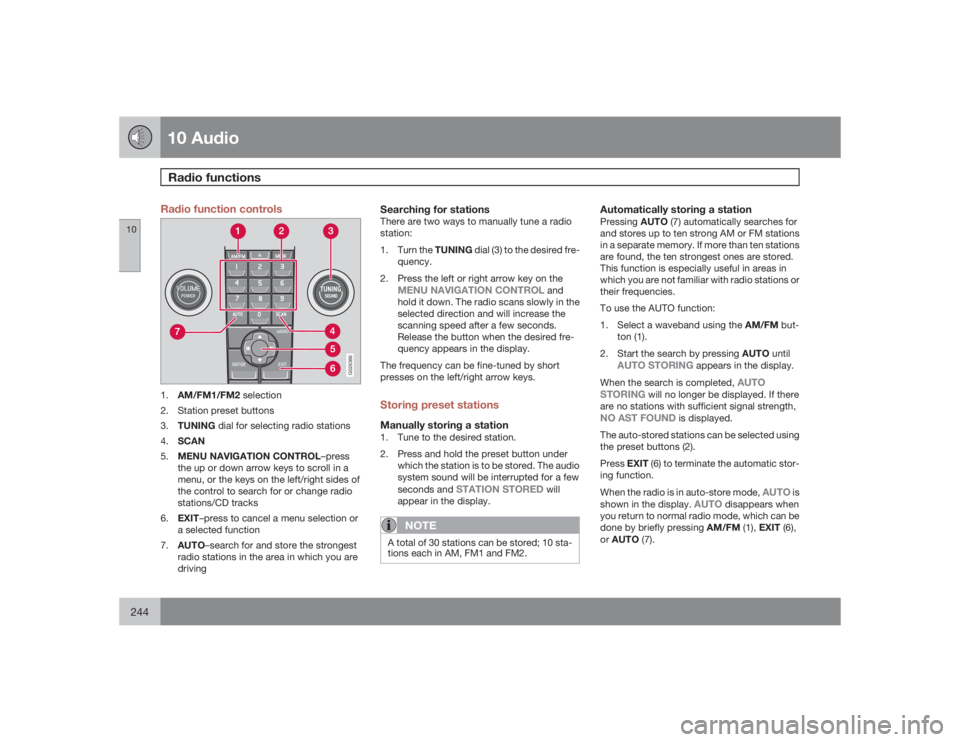
Radio function controls
G026366
1.
AM/FM1/FM2 selection
2. Station preset buttons
3.
TUNING dial for selecting radio stations
4.
SCAN
5.
MENU NAVIGATION CONTROL–press
the up or down arrow keys to scroll in a
menu, or the keys on the left/right sides of
the control to search for or change radio
stations/CD tracks
6.
EXIT–press to cancel a menu selection or
a selected function
7.
AUTO–search for and store the strongest
radio stations in the area in which you are
driving
Searching for stationsThere are two ways to manually tune a radio
station:
1.
Turn the TUNING dial (3) to the desired fre-
quency.
2. Press the left or right arrow key on the
MENU NAVIGATION CONTROL
and
hold it down. The radio scans slowly in the
selected direction and will increase the
scanning speed after a few seconds.
Release the button when the desired fre-
quency appears in the display.
The frequency can be fine-tuned by short
presses on the left/right arrow keys.
Storing preset stationsManually storing a station1. Tune to the desired station.
2. Press and hold the preset button under
which the station is to be stored. The audio
system sound will be interrupted for a few
seconds and
STATION STORED
will
appear in the display.
NOTE
A total of 30 stations can be stored; 10 sta-
tions each in AM, FM1 and FM2.
Automatically storing a stationPressingAUTO (7) automatically searches for
and stores up to ten strong AM or FM stations
in a separate memory. If more than ten stations
are found, the ten strongest ones are stored.
This function is especially useful in areas in
which you are not familiar with radio stations or
their frequencies.
To use the AUTO function:
1.
Select a waveband using the AM/FM but-
ton (1).
2.
Start the search by pressing AUTO until
AUTO STORING
appears in the display.
When the search is completed,
AUTO
STORING
will no longer be displayed. If there
are no stations with sufficient signal strength,
NO AST FOUND
is displayed.
The auto-stored stations can be selected using
the preset buttons (2).
PressEXIT (6) to terminate the automatic stor-
ing function.
When the radio is in auto-store mode,
AUTO
is
shown in the display.
AUTO
disappears when
you return to normal radio mode, which can be
done by briefly pressing AM/FM (1), EXIT (6),
orAUTO (7).
Page 246 of 286
10 AudioRadio functions
10246
(see also "Selecting a channel" in the right
column).
2. Call Sirius at 1-888-539-SIRIUS (7474).
3. When asked for the Sirius ID number press
AUTO to display this number. It is also
possible to retrieve the Sirius ID from the
MENU.
4.
"UPDATING SUBSCRIPTION
" will be
displayed while the subscription is being
updated, after which the display will return
to the normal view.
SIRUS ID
The SIRIUS ID is required when contacting the
Sirius Call Center. It is used to activate your
account and when making any account trans-
actions. The SIRIUS ID is sometimes referred
to as the Electronic Serial Number (ESN).
Selecting a channel category1. Select Sirius radio mode as described
above.
2.
PressENTER.
3. Use the up/down arrow keys to scroll
through the list of categories.
4.
PressENTER or the right arrow key to
select a category.5. Use the left or right arrow keys to select a
channel in the currently chosen category.
6.
PressENTER to listen to a channel.
NOTE
•
The category "All" is default, which ena-
bles you to scroll through the entire list
of available satellite channels.
•
The channel categories are automati-
cally updated several times a year. This
takes approximately two minutes and
will interrupt normal broadcasting. A
message will be displayed while updat-
ing is in progress. Information on chan-
nel or feature updates is available at
www.sirius.com.
Selecting a channelThere are three ways of tuning in a channel:•
Using the left and right arrow keys
•
By turning the tuning control
•
Through direct channel entry
Direct channel entryThe Sirius satellite channels are numbered
consecutively throughout all of the categories.
To access a channel directly:1.
PressMENU and scroll to "Direct channel
entry."
2. Use the numerical keypad to enter the
channel's number.
3.
PressENTER. The radio will tune to this
channel, even if it belongs to a category
other than the currently selected one.
NOTE
•
The numbers of skipped or locked
channels will not be displayed.
•
If a channel is locked, the access code
must be entered before the channel can
be selected. See "Unlocking a channel"
on page 247.
Scanning
NOTE
SCAN automatically searches through the
list of satellite channels. see page 245 for
more detailed information.Storing a channel•
Along press on one of the number keys
stores the currently tuned channel on that
key.
•
Ashort press on a number key while the
radio is in Sirius 1or 2 mode will tune to the
Page 248 of 286
10 AudioRadio functions
10248
2. Select a category in the list and press
ENTER.
3. Skip channels in the list presented by
pressingENTER or right arrow key.
Unskip all channels
This permanently removes all channels from
the skip list and makes them available for
selection.
Temp. unskip all ch.
This function will temporarily unskip all chan-
nels and make them available for selection. The
channels remain on the skip list and will again
be skipped the next time the ignition is
switched on.
Channel lock
Access to specific channels can be restricted
(locked). A locked channel will not provide
audio, song titles, or artist information.
NOTE
All channels are initially unlocked.Locking a channel1.
Select "
Sirius ID
" in the menu and select
LOCK OPTIONS
and press ENTER.2.
Select
CHANNEL LOCK LIST
and press
ENTER
3. Enter the channel access code and press
ENTER.
4. Select a category in the list and press
ENTER.
5. Lock channels in the list presented by
pressingENTER or right arrow.
The channel is now locked and a checked box
will be displayed to indicate this. It will be nec-
essary to enter the channel access code1 in
order to listen to a locked channel.
Unlocking a channel:A channel's access code1 is required to unlock
a channel.Unlock all channelsThis permanently removes all channels from
the locked list and makes them available for
selection.Temp. unlock all ch.This function will temporarily unlock all chan-
nels and make them available for selection. The
channels remain on the locked list and will
again be locked the next time the ignition is
switched on.
CHANGE CODEThis function makes it possible to change the
channel access code. The default code is
0000.
To change the code:
1.
Select
CHANGE CODE
and press
ENTER.
2.
Enter the current code and press ENTER.
3.
Enter the code and press ENTER.
4.
Confirm the new code and press ENTER.
If an incorrect code is entered, the text
WRONG CODE!
is displayed.
If you have forgotten the access code:
1.
Select "
SIRIUS ID
" in the Sirius settings
menu and press ENTER.
2.
Press and hold the ENTER button for
2 seconds.
3. The current code will be displayed.
Your Volvo retailer can also provide you with
assistance.
SIRUS IDThis function displays the 12-digit Sirius acti-
vation ID.
Page 249 of 286
10 Audio
CD player/CD changer
10``249 CD function controls
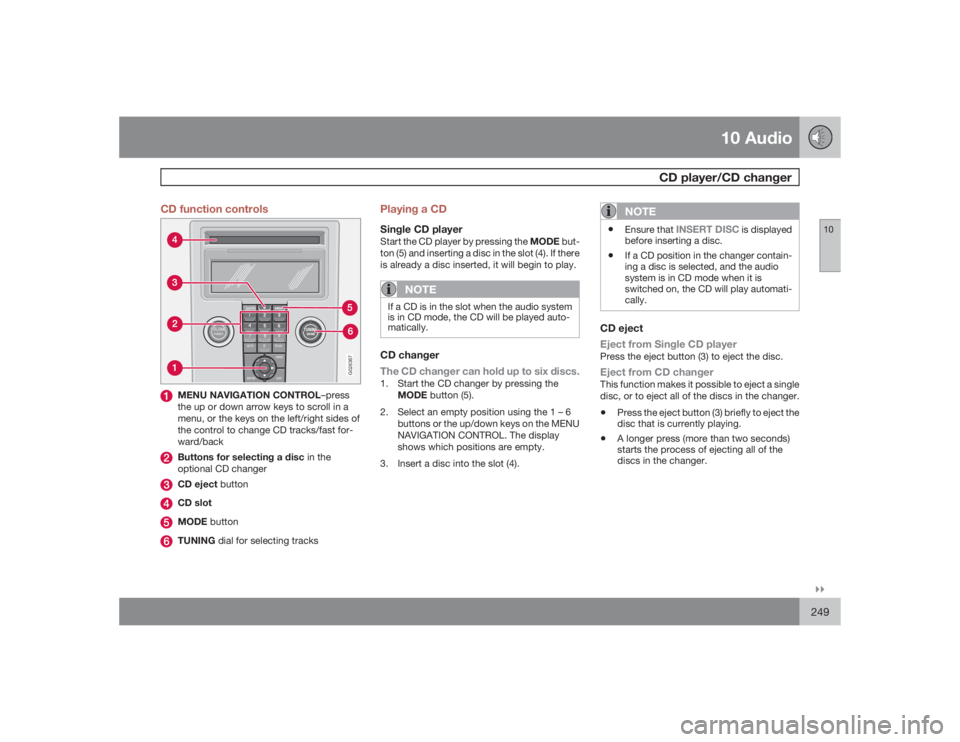
G026367
MENU NAVIGATION CONTROL–press
the up or down arrow keys to scroll in a
menu, or the keys on the left/right sides of
the control to change CD tracks/fast for-
ward/backButtons for selecting a disc in the
optional CD changerCD eject buttonCD slotMODE buttonTUNING dial for selecting tracks
Playing a CDSingle CD playerStart the CD player by pressing the MODE but-
ton (5) and inserting a disc in the slot (4). If there
is already a disc inserted, it will begin to play.
NOTE
If a CD is in the slot when the audio system
is in CD mode, the CD will be played auto-
matically.CD changer
The CD changer can hold up to six discs.1. Start the CD changer by pressing the
MODE button (5).
2. Select an empty position using the 1 – 6
buttons or the up/down keys on the MENU
NAVIGATION CONTROL. The display
shows which positions are empty.
3. Insert a disc into the slot (4).
NOTE
•
Ensure that
INSERT DISC
is displayed
before inserting a disc.
•
If a CD position in the changer contain-
ing a disc is selected, and the audio
system is in CD mode when it is
switched on, the CD will play automati-
cally.
CD eject
Eject from Single CD playerPress the eject button (3) to eject the disc.Eject from CD changerThis function makes it possible to eject a single
disc, or to eject all of the discs in the changer.•
Press the eject button (3) briefly to eject the
disc that is currently playing.
•
A longer press (more than two seconds)
starts the process of ejecting all of the
discs in the changer.
Page 250 of 286
10 AudioCD player/CD changer
10250
NOTE
•
The EJECT ALL function can only be
used while the vehicle is at a standstill
and will be cancelled if the vehicle
begins to move.
•
For reasons of traffic safety, the ejected
CD must be removed within 12 seconds
or it will be automatically drawn back
into the slot and the CD player will enter
pause mode. Press the CD button to
restart the disc.
CD PauseWhen the audio system volume is turned off
completely, the CD player will pause and will
resume playing when the volume is turned up
again.Audio filesIn addition to playing normal music CDs, the
CD player/changer can also play discs con-
taining files in mp3 or wma format.
NOTE
Certain discs that are copy protected can-
not be read by the player.When a disc with audio files is inserted in the
player, the player scans the disc's folders
before it begins playing the files. The length oftime that this takes depends on the quality of
the disc.
Navigating the disc and playing tracksIf a disc with audio files is in the CD player,
pressENTER to display a list of folders on the
disc.
Use the up and down arrows in the navigation
control (see the illustration on page 249) to
move among the folders on the disc. Audio files
have the
symbol and folders containing
these files have the
symbol. Press
ENTER to play a selected folder or a file.
When the music file has been played, the
player will continue to play the rest of the files
in the current folder. When all of the files in the
folder have been played, the player will auto-
matically go to the next folder and play the files
in it.
Press the left or right arrow key on the naviga-
tion control if the entire name of the current
track does not fit in the display.
Changing tracksBriefly press the left or right arrow keys on the
MENU NAVIGATION CONTROL to skip to the
previous or next track/file.
NOTE
TheTUNING dial (6) (turn clockwise to go to
the next track/file, or counterclockwise to
go to the previous track/file) or the steering
wheel keypad can also be used for this pur-
pose.Fast forward/backPress and hold down the left or right arrows
keys in the MENU NAVIGATION CONTROL (or
the corresponding keys on the optional steer-
ing wheel keypad) to search within a track/file
or the whole disc. The search continues for as
long as the buttons are held down.Random playThis function plays the tracks/files on a CD (or
on all of the CDs if the vehicle is equipped with
the optional CD changer) in random order
(shuffle).Activating/deactivating the random
function-CD player
If a normal CD is being played:1.
PressMENU followed by ENTER.
2.
Select Random and press ENTER.If a CD with audio files is being played:1.
PressMENU followed by ENTER.
2.
Select
Random
and press ENTER.
Page 255 of 286
10 Audio
Bluetooth hands-free connection
10``255
> The audio system will search for cell
phones that are in range. This search
takes approximately 30 seconds. Any
phones detected will be displayed with
their BluetoothŸ names. The hands-free
system’s BluetoothŸ name will appear
in the cell phone’s display as
My Car
.
4. Select one of the cell phones shown in the
audio system’s (center console) display.
5. Using the cell phone’s keypad, enter the
digits shown in the audio system’s display.
Alternative 2–using the cell phone’s menus
1. Activate the hands-free system by briefly
pressing the PHONE button in the center
console. If there is a cell phone connected,
disconnect it from the hands-free system
(by pressing PHONE in the center console
for several seconds).
2. Perform a search using the cell phone’s
BluetoothŸ function (consult the cell
phone’s owner’s manual if necessary).
3.
Select
My Car
in the list of devices shown
in the cell phone’s display.
4. When prompted, enter the PIN code 1234
in the cell phone.
5.
Connect to
My Car
from the cell phone.The cell phone will be registered and will be
connected automatically to the audio system
while the text
Synchronising
is displayed. For
more information on synchronizing a cell
phone, see page 257.
When a connection has been established, the
symbol and the cell phone’s BluetoothŸ
name will be displayed. The cell phone can
now be controlled from the audio system.Making a call1.
Ensure that
TELEPHONE
is shown at the
top of the center console display and that
the
symbol is visible (by pressing briefly
onPHONE on the center console).
2. Dial the desired phone number or use the
phone book (see page 257).
3.
PressENTER.
End the call by pressing EXIT.
Disconnecting the cell phoneThe cell phone is automatically disconnected
from the audio system if it is moved out of
range. For more information about connec-
tions, see page 254.
The cell phone can be manually disconnected
from the hands-free system by pressing
PHONE. The hands-free system is also deac-
tivated when the ignition is switched off (or ifthe driver’s door is opened on vehicles equip-
ped with the optional keyless drive).
When the cell phone is disconnected from the
hands-free system, a call in progress can be
continued using the cell phone’s own speaker
and microphone.
NOTE
Certain cell phones may require confirma-
tion from the phone’s keypad when a call is
transferred from hands-free to the cell
phone.Handling callsIncoming callsPressENTER to answer a call, even if the audio
system is currently in e.g., CD or FM mode.
PressEXIT to defer a call.Automatic answerThis function means that incoming calls will be
answered automatically. Activate or deactivate
the function in the menu system under Phone
settings
Call options
Automatic
answer.
Page 256 of 286
10 AudioBluetoothŸ hands-free connection
10256
Call settingsWhile a call is in progress, press MENU or
ENTER on the center console to access the
following functions:•
Microphone off
–mute the audio system’s
microphone.
•
Transfer call to mobile
–transfer the call
from hands-free to the cell phone.
•
Phone book
–this feature enables you to
search for a stored telephone number.
NOTE
•
On certain cell phones, the connection
is broken when the mute function is
used, which is normal. If this happens,
the hands-free system will prompt you
to reconnect.
•
A new call cannot be initiated while
another call is in progress.
Sound settingsCall volumeCall volume can be adjusted when the hands-
free system is activated. Use the buttons in the
steering wheel keypad or the audio system’s
volume control.Audio system volumeWhile a phone call is in progress, volume for
the audio system can be adjusted in the normal
way with the audio system's volume control. In
order to adjust volume during a phone call, the
audio system must be switched to one of the
other modes (FM, CD, etc).
Audio system sound can be automatically
muted when a phone call is received in Phone
settings
Sounds and volume
Mute
radio and adjust the volume with the
/
keys on the center console.Ringing volumeGo to Phone settings
Sounds and volume
Ring volume and adjust the volume with
the
/
keys on the center console.
Ringing tonesThe hands-free system’s integrated ringing
tones can be selected in Phone settings
Sounds and volume
Ring signal
Ring
signal 1,2,3....
NOTE
The connected cell phone’s ring tone is not
switched off when one of the hands-free
system's ringing tones is used.If you prefer to use the connected cell phone’s
ring tone
1, go to Phone settings
Sounds
and volume
Ring signal
Use mobile
phone signal
More information about registering
and connecting cell phonesA maximum of 5 cell phones can be registered
in the hands-free system. Registration only
needs to be done once for each phone. After
registration, the cell phone no longer needs to
be in sight or searchable. Only one cell phone
can be connected to hands-free at a time.
Phones can be unregistered in BluetoothRemove telephoneAutomatic connectionWhen the hands-free system is active and the
most recently connected cell phone is within
range, it is detected automatically. When the
1Not supported by all cell phones
Page 257 of 286
10 Audio
Bluetooth hands-free connection
10``257
audio system searches for the most recently
connected phone, this phone’s name appears
in the display. To manually connect a different
cell phone, press EXIT.Manual connectionTo connect a phone other than the one that
was most recently connected or to switch
between cell phones that are already regis-
tered in the hands-free system:
1. Put the audio system in telephone mode.
2.
PressPHONE in the center console and
select one of the phones on the list.
A connection can also be established in the
menu system under Bluetooth
Connect
phone or Change phone.
Phone bookIn order to use the hands-free system’s phone
book (list of contacts),
TELEPHONE
must be
displayed at the top of the center console dis-
play and the
symbol must be visible.
The audio system stores a copy of the phone
book of each registered cell phone. The phone
book is automatically copied each time a
phone is connected. This function can be acti-
vated in Phone settings
Synchronise
phone book. Searches for contacts are onlymade in the phone book of the currently con-
nected cell phone.
NOTE
If a particular cell phone does not support
copying of the phone book,
List is empty
will be displayed when copying has been
completed.If the phone book contains information about
someone who is trying to call you, this infor-
mation will be shown in the display.Searching for contactsThe easiest way to search for a contact in the
phone book is to press and hold any of the
buttons2–9. This starts a search based on the
first letter on the button that has been pressed.
The phone book can also be accessed by
pressing the navigation buttons
/
on the
center console or by pressing
/
on the
steering wheel keypad. A search can also be
made in the phone book’s search menu in
Phone book
Search:
1. Enter the first letter of the contact’s name
and press ENTER or simply press ENTER.
2. Select the desired contact and press
ENTER to make a call to that person.
Voice controlIf the cell phone that is currently connected
allows calls to be made via voice commands,
this function can be used by pressing and hold-
ingENTER.Voice mail numberThe phone number to your voice mail can be
changed in the menu Phone settings
Call
options
Voice mail number. If no number
has been stored, this menu can be accessed
by a prolonged press on button 1. Once a
phone number has been stored, press and hold
1 to dial this number.
Call listsLists of calls in a particular cell phone are cop-
ied to the hands-free system each time that
phone is connected. These lists are then upda-
ted while the phone is connected. Press
ENTER to show the most recently dialed num-
bers. Other call lists can be found under
Call
register
.NOTE
Certain cell phones display the list of the
most recently dialed numbers in reverse
order.
Page 272 of 286
11 SpecificationsElectrical system
11272
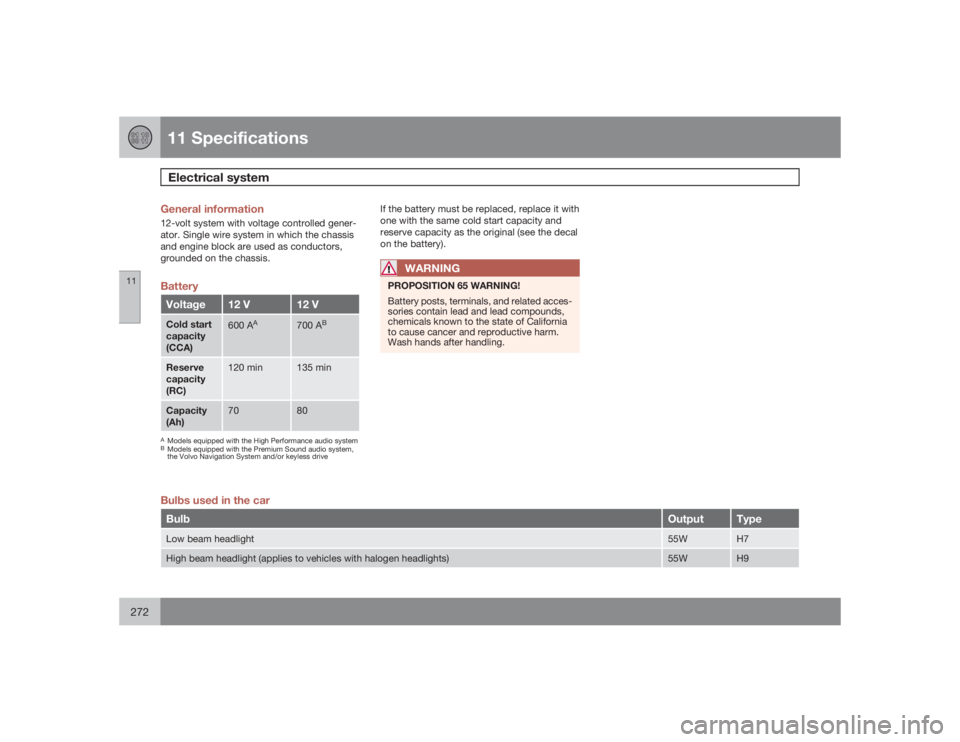
General information12-volt system with voltage controlled gener-
ator. Single wire system in which the chassis
and engine block are used as conductors,
grounded on the chassis.BatteryVoltage
12 V
12 V
Cold start
capacity
(CCA)
600 A
A
700 A
B
Reserve
capacity
(RC)
120 min
135 min
Capacity
(Ah)
70
80
AModels equipped with the High Performance audio systemBModels equipped with the Premium Sound audio system,
the Volvo Navigation System and/or keyless drive
If the battery must be replaced, replace it with
one with the same cold start capacity and
reserve capacity as the original (see the decal
on the battery).
WARNING
PROPOSITION 65 WARNING!
Battery posts, terminals, and related acces-
sories contain lead and lead compounds,
chemicals known to the state of California
to cause cancer and reproductive harm.
Wash hands after handling.
Bulbs used in the carBulb
Output
Type
Low beam headlight
55W
H7
High beam headlight (applies to vehicles with halogen headlights)
55W
H9
Page 276 of 286

12 Index
12276
1, 2, 3 ...12-volt sockets.......................................... 60AA/C (air conditioning)................................. 90
ABS (anti-lock brake system).................. 153
Active Bi-Xenon headlights........................ 61
Airbags
front...................................................... 22
inflatable curtain................................... 30
side impact........................................... 29
Airbag system............................................ 22
Air conditioning.......................................... 90
Air distribution table................................... 99
Air vents..................................................... 92
Alarm system........................................... 130
turning off sensors.............................. 131
All Wheel Drive......................................... 152
Anti-lock Brake System (ABS)................. 153
Approach lighting....................................... 83
Audio files................................................ 250Audio system
audio functions................................... 240
automatic sound control..................... 243
AUX port............................................. 240
CD changer......................................... 249
CD player/changer.............................. 249
compact disc care.............................. 251
Dolby Surround Pro Logic II............... 243
equalizer............................................. 243
menu settings..................................... 253
radio functions.................................... 244
selecting a sound source.................... 240
Sirius satellite radio............................ 245
sound settings.................................... 242
steering wheel keypad........................ 241
storing radio stations.......................... 244
subwoofer...........................................242
USB/iPOD connector.......................... 241
Auto-dim rearview mirror........................... 77
Autolock..................................................... 82
Automatic locking retractor....................... 35
Automatic sound control.........................243
Automatic transmission........................... 149
kickdown............................................ 150
oil........................................................ 267
shiftlock override................................ 151
Automatic transmission - Geartronic....... 150AUX port.................................................. 240
Axle weight......................................183, 265
BBackrest, rear seat, folding...................... 111
Bass......................................................... 242
Battery
maintenance....................................... 221
remote control, replacing................... 120
specifications...................................... 272
warning symbols................................. 221
Battery – replacing................................... 221
Bi-Xenon headlights.................................. 61
Black Box (Vehicle Event Data)............... 210
Blind Spot Information System (BLIS)..... 164
Booster cushion
accessory............................................. 41
Brake fluid........................................ 219, 267
Brake lights................................................ 62
Brake system
anti-lock brakes (ABS)........................ 153
emergency brake assistance.............. 154