remote control VOLVO V60 2012 Workshop Manual
[x] Cancel search | Manufacturer: VOLVO, Model Year: 2012, Model line: V60, Model: VOLVO V60 2012Pages: 400, PDF Size: 9.28 MB
Page 219 of 400
04 Comfort and driving pleasure
Comfort inside the passenger compartment
04
* Option/accessory, for more information, see Introduction.217 Vanity mirror
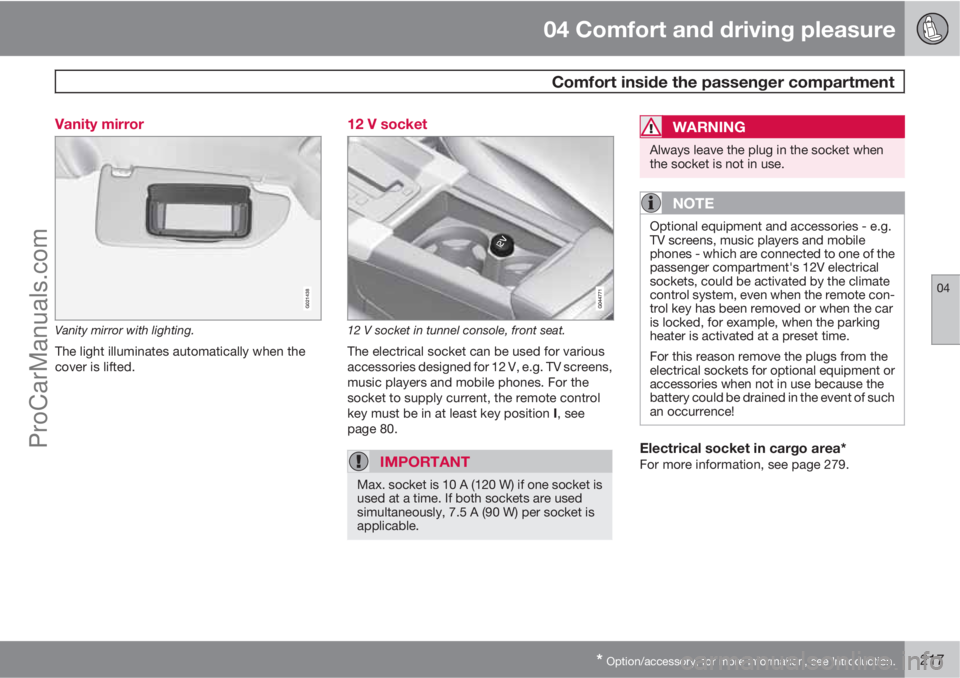
G021438
Vanity mirror with lighting.
The light illuminates automatically when the
cover is lifted.
12 V socket
12 V socket in tunnel console, front seat.
The electrical socket can be used for various
accessories designed for 12 V, e.g. TV screens,
music players and mobile phones. For the
socket to supply current, the remote control
key must be in at least key position I, see
page 80.
IMPORTANT
Max. socket is 10 A (120 W) if one socket is
used at a time. If both sockets are used
simultaneously, 7.5 A (90 W) per socket is
applicable.
WARNING
Always leave the plug in the socket when
the socket is not in use.
NOTE
Optional equipment and accessories - e.g.
TV screens, music players and mobile
phones - which are connected to one of the
passenger compartment's 12V electrical
sockets, could be activated by the climate
control system, even when the remote con-
trol key has been removed or when the car
is locked, for example, when the parking
heater is activated at a preset time.
For this reason remove the plugs from the
electrical sockets for optional equipment or
accessories when not in use because the
battery could be drained in the event of such
an occurrence!
Electrical socket in cargo area*For more information, see page 279.
ProCarManuals.com
Page 220 of 400
218* Option/accessory, for more information, see Introduction.
General information on infotainment..................................................... 220
Quick start............................................................................................. 222
General infotainment functions............................................................. 226
Radio..................................................................................................... 229
Media player......................................................................................... 236
External audio source via AUX/USB* input........................................... 240
Media Bluetooth
Ÿ* ................................................................................ 243
TV*......................................................................................................... 246
Remote control* ................................................................................... 249
Bluetooth
Ÿ handsfree*.......................................................................... 251
Voice recognition* mobile phone..........................................................259
Menu navigation, Infotainment.............................................................. 263
ProCarManuals.com
Page 222 of 400
05 Infotainment system
General information on infotainment
05
220* Option/accessory, for more information, see Introduction.
General
The infotainment system in your car has one of
the following four levels:
Performance
•5" TV screen TFT
•Steering wheel keypad* without thumb-
wheel
•AM/FM radio
•CD
•AUX input
•6 speakers
•4x20W amplifier
High Performance
•5" TV screen TFT
•Steering wheel keypad* with thumbwheel
•AM/FM radio
•CD
•AUX and USB input (for e.g. iPodŸ)
•BluetoothŸ handsfree/streaming audio
•8 speakers
•4x40W amplifier
High Performance Multimedia
•7" TV screen TFT
•Steering wheel keypad* with thumbwheel
•AM/FM radio
•CD/DVD
•AUX and USB input (for e.g. iPodŸ)
•BluetoothŸ handsfree/streaming audio
•8 speakers
•4x40W amplifier
Premium Sound Multimedia
•7" TV screen TFT
•Steering wheel keypad* with thumbwheel
•AM/FM radio
•CD/DVD
•AUX and USB input (for e.g. iPodŸ)
•BluetoothŸ handsfree/streaming audio
•12 speakers
•5x130W amplifier
Dolby, Pro Logic
Made under license from Dolby Laboratories.
Dolby, Pro Logic and the double-D symbol are
trademarks of Dolby Laboratories.
Audyssey MultEQ1
The Audyssey MultEQ system has been used
in the development and tuning of the sound to
ensure a world-class sound experience.
Other
If the Infotainment System is active when the
engine is switched off then it is automatically
activated the next time the key is inserted into
position I or higher, and it continues with the
same source (e.g. radio) as before the engine
was switched off (the driver's door must be
closed on cars with Keyless systems*).
The infotainment system can be used for 15
minutes at a time without the remote control
1Only applies to Premium Sound Multimedia.
ProCarManuals.com
Page 231 of 400
05 Infotainment system
Radio
05
* Option/accessory, for more information, see Introduction.229 Radio functions, general
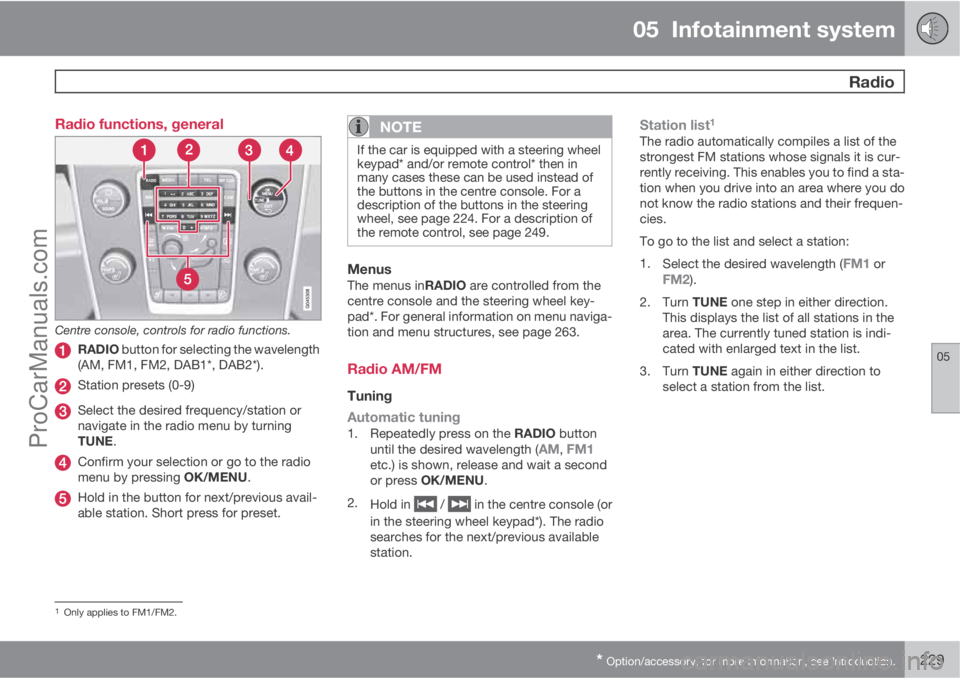
Centre console, controls for radio functions.
RADIO button for selecting the wavelength
(AM, FM1, FM2, DAB1*, DAB2*).
Station presets (0-9)
Select the desired frequency/station or
navigate in the radio menu by turning
TUNE.
Confirm your selection or go to the radio
menu by pressing OK/MENU.
Hold in the button for next/previous avail-
able station. Short press for preset.
NOTE
If the car is equipped with a steering wheel
keypad* and/or remote control* then in
many cases these can be used instead of
the buttons in the centre console. For a
description of the buttons in the steering
wheel, see page 224. For a description of
the remote control, see page 249.
MenusThe menus inRADIO are controlled from the
centre console and the steering wheel key-
pad*. For general information on menu naviga-
tion and menu structures, see page 263.
Radio AM/FM
Tuning
Automatic tuning
1.
Repeatedly press on the RADIO button
until the desired wavelength (AM, FM1etc.) is shown, release and wait a second
or press OK/MENU.
2.
Hold in
/ in the centre console (or
in the steering wheel keypad*). The radio
searches for the next/previous available
station.
Station list1
The radio automatically compiles a list of the
strongest FM stations whose signals it is cur-
rently receiving. This enables you to find a sta-
tion when you drive into an area where you do
not know the radio stations and their frequen-
cies.
To go to the list and select a station:
1.
Select the desired wavelength (
FM1 orFM2).
2.
Turn TUNE one step in either direction.
This displays the list of all stations in the
area. The currently tuned station is indi-
cated with enlarged text in the list.
3.
Turn TUNE again in either direction to
select a station from the list.
1Only applies to FM1/FM2.
ProCarManuals.com
Page 238 of 400
05 Infotainment system
Media player
05
236* Option/accessory, for more information, see Introduction.
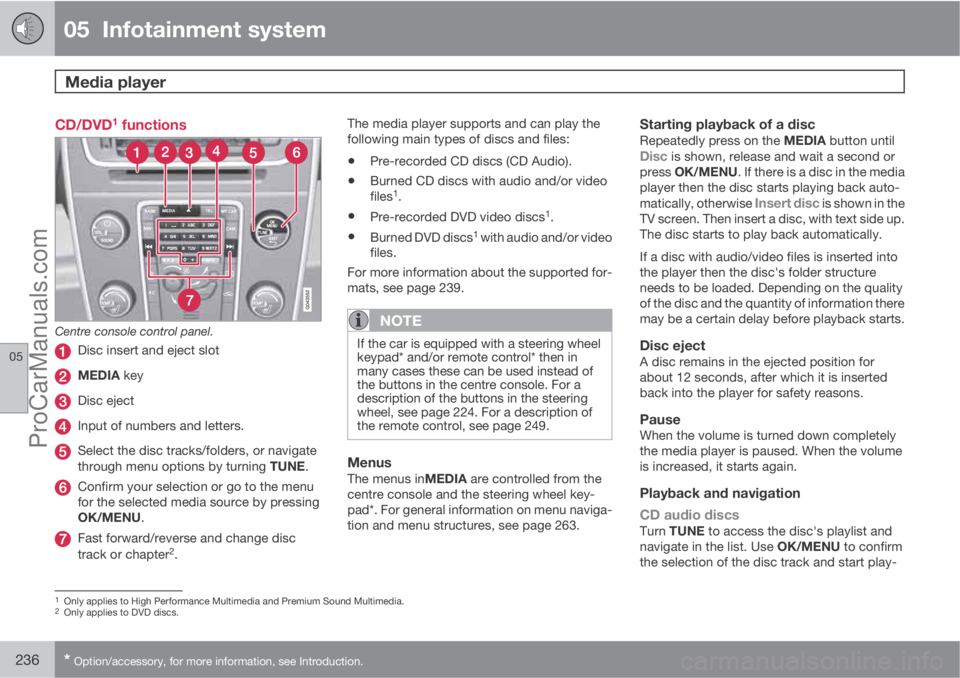
CD/DVD1 functions
Centre console control panel.
Disc insert and eject slot
MEDIA key
Disc eject
Input of numbers and letters.
Select the disc tracks/folders, or navigate
through menu options by turning TUNE.
Confirm your selection or go to the menu
for the selected media source by pressing
OK/MENU.
Fast forward/reverse and change disc
track or chapter2.The media player supports and can play the
following main types of discs and files:
•Pre-recorded CD discs (CD Audio).
•Burned CD discs with audio and/or video
files1.
•Pre-recorded DVD video discs1.
•Burned DVD discs1 with audio and/or video
files.
For more information about the supported for-
mats, see page 239.
NOTE
If the car is equipped with a steering wheel
keypad* and/or remote control* then in
many cases these can be used instead of
the buttons in the centre console. For a
description of the buttons in the steering
wheel, see page 224. For a description of
the remote control, see page 249.
MenusThe menus inMEDIA are controlled from the
centre console and the steering wheel key-
pad*. For general information on menu naviga-
tion and menu structures, see page 263.
Starting playback of a discRepeatedly press on the MEDIA button untilDisc is shown, release and wait a second or
press OK/MENU. If there is a disc in the media
player then the disc starts playing back auto-
matically, otherwise
Insert disc is shown in the
TV screen. Then insert a disc, with text side up.
The disc starts to play back automatically.
If a disc with audio/video files is inserted into
the player then the disc's folder structure
needs to be loaded. Depending on the quality
of the disc and the quantity of information there
may be a certain delay before playback starts.
Disc ejectA disc remains in the ejected position for
about 12 seconds, after which it is inserted
back into the player for safety reasons.
PauseWhen the volume is turned down completely
the media player is paused. When the volume
is increased, it starts again.
Playback and navigation
CD audio discs
Turn TUNE to access the disc's playlist and
navigate in the list. Use OK/MENU to confirm
the selection of the disc track and start play-
1Only applies to High Performance Multimedia and Premium Sound Multimedia.2Only applies to DVD discs.
ProCarManuals.com
Page 242 of 400
05 Infotainment system
External audio source via AUX/USB* input
05
240* Option/accessory, for more information, see Introduction.
AUX, USB1 and external audio source
General
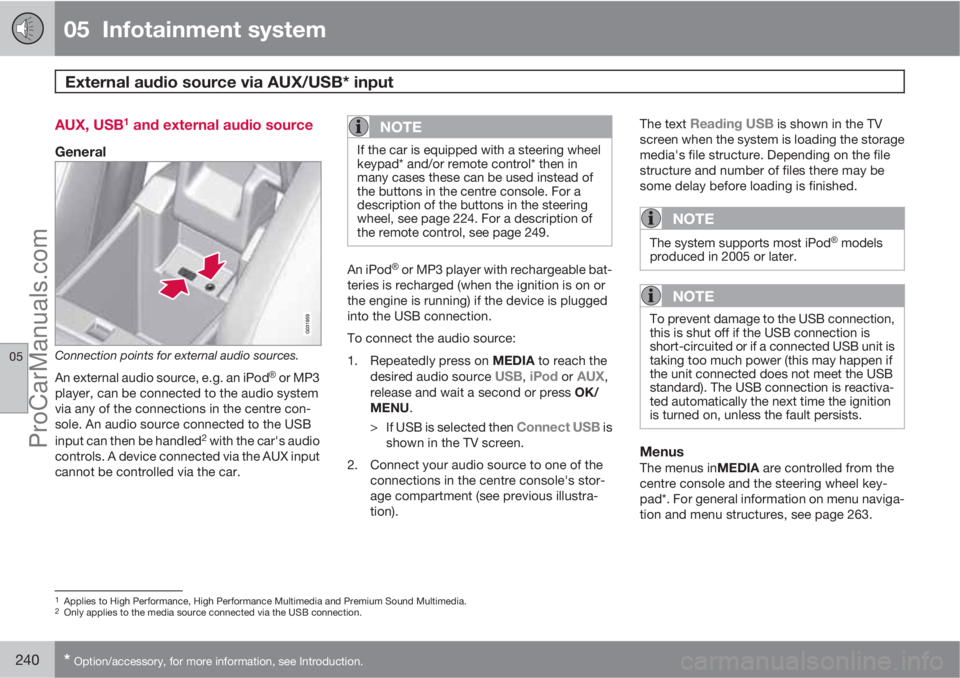
Connection points for external audio sources.
An external audio source, e.g. an iPodŸ or MP3
player, can be connected to the audio system
via any of the connections in the centre con-
sole. An audio source connected to the USB
input can then be handled
2 with the car's audio
controls. A device connected via the AUX input
cannot be controlled via the car.
NOTE
If the car is equipped with a steering wheel
keypad* and/or remote control* then in
many cases these can be used instead of
the buttons in the centre console. For a
description of the buttons in the steering
wheel, see page 224. For a description of
the remote control, see page 249.
An iPodŸ or MP3 player with rechargeable bat-
teries is recharged (when the ignition is on or
the engine is running) if the device is plugged
into the USB connection.
To connect the audio source:
1.
Repeatedly press on MEDIA to reach the
desired audio source
USB, iPod or AUX,
release and wait a second or press OK/
MENU.
>
If USB is selected then
Connect USB is
shown in the TV screen.
2. Connect your audio source to one of the
connections in the centre console's stor-
age compartment (see previous illustra-
tion).The text
Reading USB is shown in the TV
screen when the system is loading the storage
media's file structure. Depending on the file
structure and number of files there may be
some delay before loading is finished.
NOTE
The system supports most iPodŸ models
produced in 2005 or later.
NOTE
To prevent damage to the USB connection,
this is shut off if the USB connection is
short-circuited or if a connected USB unit is
taking too much power (this may happen if
the unit connected does not meet the USB
standard). The USB connection is reactiva-
ted automatically the next time the ignition
is turned on, unless the fault persists.
MenusThe menus inMEDIA are controlled from the
centre console and the steering wheel key-
pad*. For general information on menu naviga-
tion and menu structures, see page 263.
1Applies to High Performance, High Performance Multimedia and Premium Sound Multimedia.2Only applies to the media source connected via the USB connection.
ProCarManuals.com
Page 245 of 400
05 Infotainment system
Media BluetoothŸŸ*
05
* Option/accessory, for more information, see Introduction.243 Streaming audio
GeneralThe car's media player is equipped with
BluetoothŸ1 and can wirelessly play streaming
audio files from external devices with
Bluetooth
Ÿ, such as mobile phones and PDAs.
Navigation and control of the sound can be
carried out via the centre console buttons or via
the steering wheel keypad*. In some external
devices it is also possible to change tracks
from the device.
To play back the audio the car's media player
must first be set in
Bluetooth mode.
NOTE
The BluetoothŸ media player must support
the Audio/Video Remote Control Profile
(AVRCP) and Advanced Audio Distribution
Profile (A2DP). The player should use
AVRCP version 1.3, A2DP 1.2. Otherwise
some functions may not work.
Not all mobile phones and external media
players available in the market are fully com-
patible with the Bluetooth
Ÿ function in the
car's media player. Volvo recommends that
you contact an authorised Volvo dealer or
visit www.volvocars.com for information on
compatible phones and external media
players.
NOTE
The car's media player can only play the
audio files via the BluetoothŸ function.
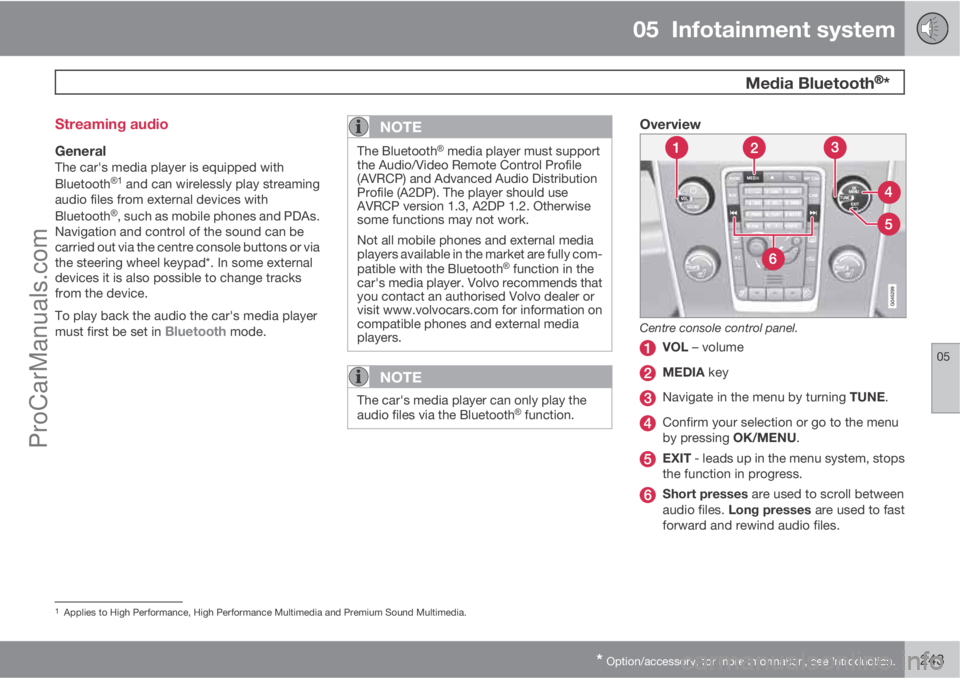
Overview
Centre console control panel.
VOL – volume
MEDIA key
Navigate in the menu by turning TUNE.
Confirm your selection or go to the menu
by pressing OK/MENU.
EXIT - leads up in the menu system, stops
the function in progress.
Short presses are used to scroll between
audio files. Long presses are used to fast
forward and rewind audio files.
1Applies to High Performance, High Performance Multimedia and Premium Sound Multimedia.
ProCarManuals.com
Page 246 of 400
05 Infotainment system
Media BluetoothŸŸ*
05
244* Option/accessory, for more information, see Introduction.
NOTE
If the car is equipped with a steering wheel
keypad* and/or remote control* then in
many cases these can be used instead of
the buttons in the centre console. For a
description of the buttons in the steering
wheel, see page 224. For a description of
the remote control, see page 249.
MenusThe menus inMEDIA are controlled from the
centre console and the steering wheel key-
pad*. For general information on menu naviga-
tion and menu structures, see page 263.
Pair and connect external deviceThe connection of an external device takes
place in different ways depending on whether
or not it has been previously paired. A maxi-
mum of 10 external devices can be paired.
Pairing takes place once per external device.
To connect a device for the first time, follow the
instructions below:
1.
Repeatedly press on MEDIA until
Bluetooth is shown, release and wait a
second or press OK/MENU.
2.
Press OK/MENU.
3.
When
Add device is shown, press OK/
MENU.4. Check that the external device is searcha-
ble/visible via Bluetooth
Ÿ, see the manual
for the external device.
5.
Press OK/MENU.
> The infotainment system searches for
external devices in the vicinity. The
search may take a little while. The devi-
ces detected are specified with their
respective Bluetooth
Ÿ name in the cen-
tre console TV screen.
6. Select the external device you want to pair
with and press OK/MENU.
7. Enter the series of numbers that is shown
in the centre console TV screen via the
external device's keypad and press the
external device's button to confirm the
selection.
The external device is paired and connected
automatically to the infotainment system.
Change audio file by pressing
/ on the
centre console or the steering wheel keypad*.
Automatic connection
When the BluetoothŸ function is active and the
last external device connected is in range it is
connected automatically. When the infotain-
ment system searches for the last device con-
nected its name is shown in the TV screen. To
connect to another device, press EXIT. Con-nect a new external device, see "Change to
another external device" below.
Change to another external deviceIt is possible to change a connected device
with another device if there are several devices
in the car. However, the device must first have
been paired, see "Pair and connect external
device" above. To change to another device:
1.
Repeatedly press on MEDIA until
Bluetooth is shown, release and wait a
second or press OK/MENU.
2. Check that the external device is searcha-
ble/visible via Bluetooth
Ÿ, see the manual
for the external device.
3.
Press OK/MENU.
4.
Turn TUNE to
Change device, and con-
firm with OK/MENU.
> After a while, the external device's name
is shown in the TV screen. If several
external devices have been paired then
these are also shown.
5. Select the device to be connected by turn-
ing TUNE and confirm with OK/MENU.
> Connection of the external device takes
place.
Change audio file by pressing
/ on the
centre console or the steering wheel keypad*.
ProCarManuals.com
Page 248 of 400
05 Infotainment system
TV*
05
246* Option/accessory, for more information, see Introduction.
TV*
General
NOTE
This system only supports TV transmissions
in countries which transmit signals in
mpeg-2 format and follow the DVB-T stand-
ard. The system does not support TV trans-
missions in mpeg-4 format or analogue
transmissions.
NOTE
The TV picture is only shown when the car
is stationary. When the car is moving at a
speed over about 6 km/h the picture disap-
pears,
No visual media available during
driving appears on the display screen,
although the audio is heard during this time.
The picture reappears when the car has
stopped.
NOTE
The reception is dependent both on how
good the signal strength and signal quality
are. The transmission may be disturbed by
various factors such as tall buildings or the
TV transmitter being far away. Coverage
level can also vary depending on where in
the country you are located.
IMPORTANT
A TV licence is required for this product in
some countries.
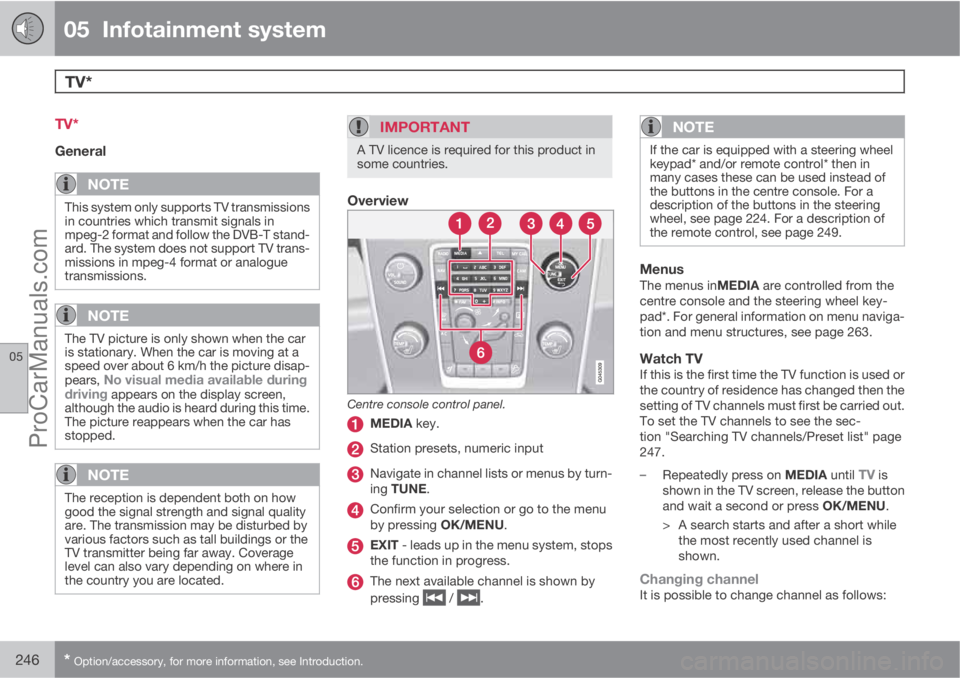
Overview
Centre console control panel.
MEDIA key.
Station presets, numeric input
Navigate in channel lists or menus by turn-
ing TUNE.
Confirm your selection or go to the menu
by pressing OK/MENU.
EXIT - leads up in the menu system, stops
the function in progress.
The next available channel is shown by
pressing
/ .
NOTE
If the car is equipped with a steering wheel
keypad* and/or remote control* then in
many cases these can be used instead of
the buttons in the centre console. For a
description of the buttons in the steering
wheel, see page 224. For a description of
the remote control, see page 249.
MenusThe menus inMEDIA are controlled from the
centre console and the steering wheel key-
pad*. For general information on menu naviga-
tion and menu structures, see page 263.
Watch TVIf this is the first time the TV function is used or
the country of residence has changed then the
setting of TV channels must first be carried out.
To set the TV channels to see the sec-
tion "Searching TV channels/Preset list" page
247.
–
Repeatedly press on MEDIA until
TV is
shown in the TV screen, release the button
and wait a second or press OK/MENU.
> A search starts and after a short while
the most recently used channel is
shown.
Changing channelIt is possible to change channel as follows:
ProCarManuals.com
Page 250 of 400
05 Infotainment system
TV*
05
248* Option/accessory, for more information, see Introduction.
Save the available TV channels as
presets
If the car has been moved within the country,
for example, from one city to another, it is not
certain that the presets are available at the new
location as the frequency range may have
changed. In which case, carry out another scan
and save a new preset list.
1.
Press TV mode on OK/MENU.
2.
Turn TUNE to
TV menu and press OK/
MENU.
3.
Turn TUNE to
Autostore and press OK/
MENU.
> An automatic scan for available TV
channels starts, this scan takes a little
while. During this time the figure for
each channel found and added as a pre-
set is shown. When the scan is com-
plete a message is shown and the pic-
ture is shown. A preset list (max. 30 pre-
sets) has now been created and is avail-
able. To change channel, see
page 246.
Scanning the TV channelsThis function automatically scans through the
frequency range for all channels available in the
area where you are. When a channel is found,
it is shown for approx. 10 seconds before
scanning is resumed. Scanning is stopped withEXIT, then the channel that you just watched
continues to be shown. Scanning does not
affect the preset list.
Activate scanning in TV mode under TV menu
Scan.
TeletextIt is possible to read Teletext. Follow these
steps:
1.
Press the
button on the remote con-
trol.
2. Enter the page number (3 digits) with the
number keys (0-9) to select page.
> The page is shown automatically.
Enter new page number, or press the remote
control buttons
/ to go to the next page.
Return to TV screen with EXIT or by pressing
the
button on the remote control.
It is also possible to control the teletext with the
coloured buttons on the remote control.
Information about the current
programme
Press the INFO button in order to display the
information about the current programme, the
next programme and its start time. If the
INFO button is pressed once more then addi-
tional information on the current programmecan sometimes be displayed, such as start and
end times and a brief description of the current
programme. For more information on the
INFO button, see page 226.
To return to the TV picture, wait several sec-
onds or press EXIT.
Picture settingsThe settings for brightness and contrast can be
adjusted. For more information, see page 239.
The reception is lostIf the reception for the TV channel that is being
shown disappears then the picture will freeze.
Shortly after this a message appears informing
that the reception has been lost for the current
TV channel, and a new search for the channel
continues. When the reception returns the dis-
play of the TV channel starts immediately. It is
possible to change channel at any time when
the message is shown.
If the message
Reception lost, searching is
shown then this is because the system has
detected that there is no reception for all TV
channels. One possible reason may be that a
border has been crossed and that the system
is set to the wrong country. In which case,
change to the right country in accordance
with "Searching TV channels/Preset list", see
page 247.
ProCarManuals.com