audio VOLVO V60 2015 Owner´s Manual
[x] Cancel search | Manufacturer: VOLVO, Model Year: 2015, Model line: V60, Model: VOLVO V60 2015Pages: 414, PDF Size: 11.44 MB
Page 255 of 414
06 Infotainment
Introduction
06
}}
253
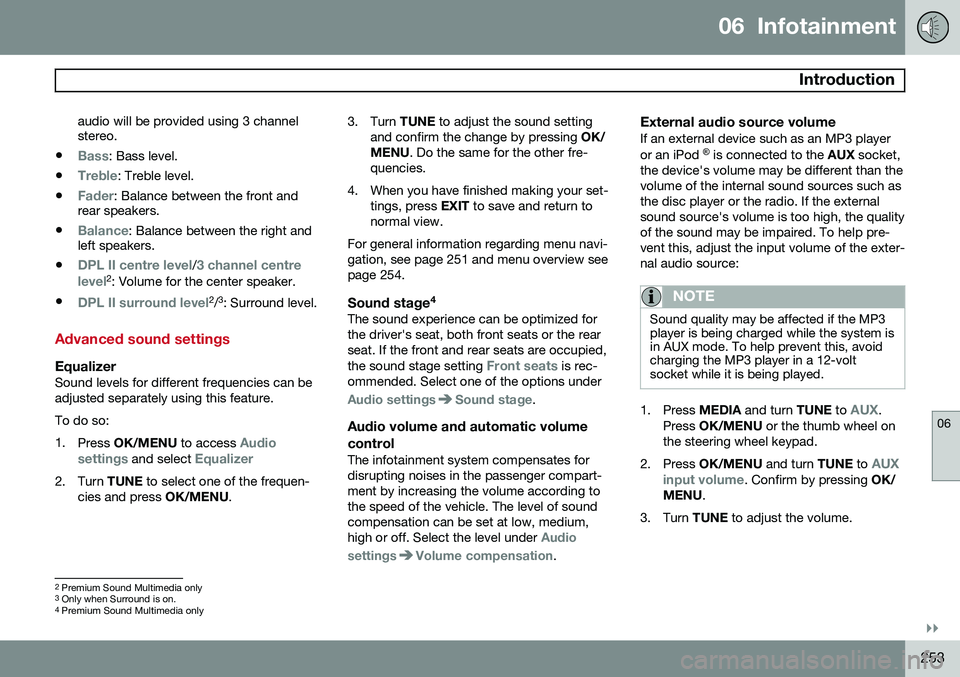
audio will be provided using 3 channel stereo.
•
Bass: Bass level.
•
Treble: Treble level.
•
Fader: Balance between the front and
rear speakers.
•
Balance: Balance between the right and
left speakers.
•
DPL II centre level/3 channel centre
level2 : Volume for the center speaker.
•
DPL II surround level2 /3
: Surround level.
Advanced sound settings
EqualizerSound levels for different frequencies can be adjusted separately using this feature. To do so:1. Press OK/MENU to access
Audio
settings and select Equalizer
2. Turn TUNE to select one of the frequen-
cies and press OK/MENU. 3. Turn
TUNE to adjust the sound setting
and confirm the change by pressing OK/
MENU . Do the same for the other fre-
quencies.
4. When you have finished making your set- tings, press EXIT to save and return to
normal view.
For general information regarding menu navi- gation, see page 251 and menu overview seepage 254.
Sound stage 4The sound experience can be optimized forthe driver's seat, both front seats or the rearseat. If the front and rear seats are occupied, the sound stage setting
Front seats is rec-
ommended. Select one of the options under
Audio settingsSound stage.
Audio volume and automatic volume
control
The infotainment system compensates for disrupting noises in the passenger compart-ment by increasing the volume according tothe speed of the vehicle. The level of soundcompensation can be set at low, medium,high or off. Select the level under
Audio
settings
Volume compensation.
External audio source volumeIf an external device such as an MP3 player or an iPod ®
is connected to the AUX socket,
the device's volume may be different than the volume of the internal sound sources such asthe disc player or the radio. If the externalsound source's volume is too high, the qualityof the sound may be impaired. To help pre-vent this, adjust the input volume of the exter-nal audio source:
NOTE
Sound quality may be affected if the MP3 player is being charged while the system isin AUX mode. To help prevent this, avoidcharging the MP3 player in a 12-voltsocket while it is being played.
1. Press MEDIA and turn TUNE to AUX.
Press OK/MENU or the thumb wheel on
the steering wheel keypad.
2. Press OK/MENU and turn TUNE to
AUX
input volume. Confirm by pressing OK/
MENU .
3. Turn TUNE to adjust the volume.
2
Premium Sound Multimedia only
3 Only when Surround is on.
4
Premium Sound Multimedia only
Page 256 of 414
06 Infotainment
Introduction
06
254* Option/accessory, for more information, see Introduction.
Optimal sound reproductionThe infotainment system is pre-calibrated for optimal sound reproduction using digital sig-nal processing. This calibration takes into account factors such as the speakers, amplifier, cabin acous-tics, the listeners' seating positions, etc., foreach combination of vehicle/infotainmentsystem. There is also a dynamic calibration that takes into consideration the volume level, radioreception, and the speed of the vehicle. The settings that are described in this man- ual, (
Bass, Treble, Equalizer etc.) are only
intended to enable the user to adapt sound reproduction to his/her personal tastes.
Infotainment system menus RADIO menus
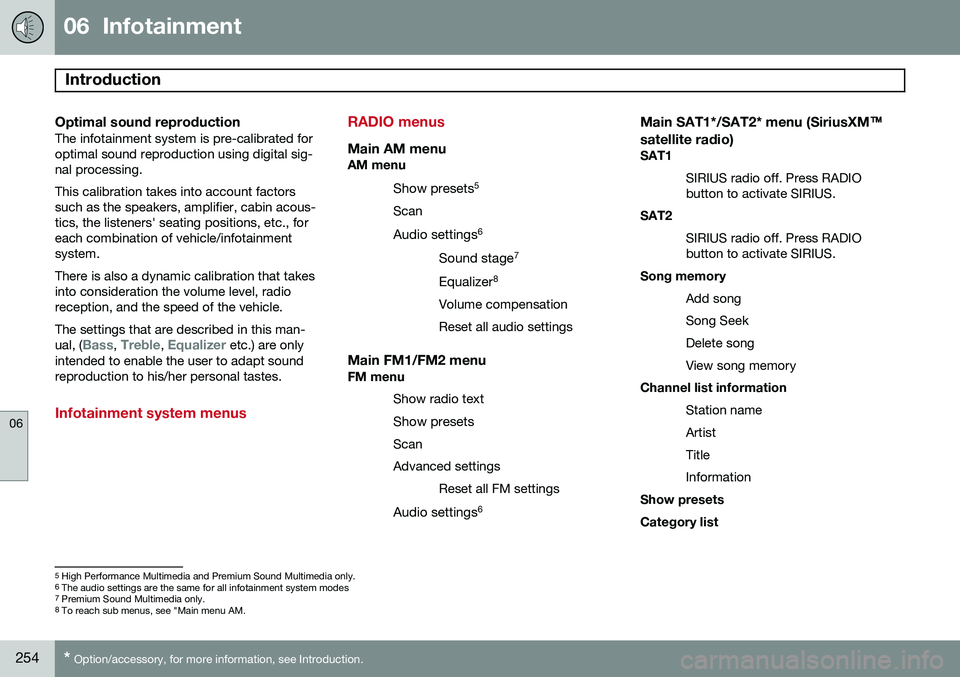
Main AM menuAM menu
Show presets 5
Scan
Audio settings 6
Sound stage 7
Equalizer 8
Volume compensation Reset all audio settings
Main FM1/FM2 menuFM menu Show radio text
Show presets
ScanAdvanced settings Reset all FM settings
Audio settings 6
Main SAT1*/SAT2* menu (SiriusXM™
satellite radio)
SAT1
SIRIUS radio off. Press RADIO button to activate SIRIUS.
SAT2
SIRIUS radio off. Press RADIObutton to activate SIRIUS.
Song memory
Add song Song SeekDelete songView song memory
Channel list information
Station nameArtistTitleInformation
Show presetsCategory list
5 High Performance Multimedia and Premium Sound Multimedia only.
6 The audio settings are the same for all infotainment system modes
7 Premium Sound Multimedia only.
8 To reach sub menus, see "Main menu AM.
Page 257 of 414
06 Infotainment
Introduction
06
}}
255
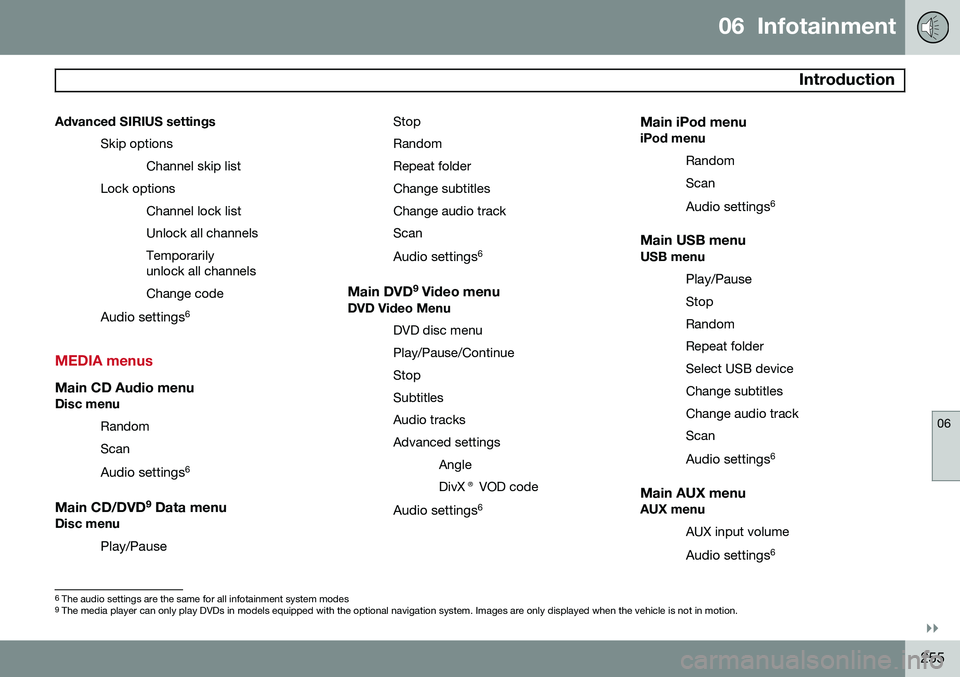
Advanced SIRIUS settings
Skip optionsChannel skip list
Lock options Channel lock list Unlock all channelsTemporarily unlock all channels Change code
Audio settings 6
MEDIA menus
Main CD Audio menuDisc menu
Random Scan
Audio settings 6
Main CD/DVD 9
Data menuDisc menu
Play/Pause StopRandomRepeat folderChange subtitlesChange audio trackScan
Audio settings 6
Main DVD9
Video menuDVD Video Menu
DVD disc menuPlay/Pause/ContinueStopSubtitlesAudio tracksAdvanced settingsAngleDivX® VOD code
Audio settings 6
Main iPod menuiPod menu
RandomScan
Audio settings 6
Main USB menuUSB menu
Play/Pause
StopRandomRepeat folderSelect USB deviceChange subtitlesChange audio trackScan
Audio settings 6
Main AUX menuAUX menu
AUX input volume
Audio settings 6
6
The audio settings are the same for all infotainment system modes9
The media player can only play DVDs in models equipped with the optional navigation system. Images are only displayed when the vehicle is not in motion.
Page 258 of 414
06 Infotainment
Introduction
06
256
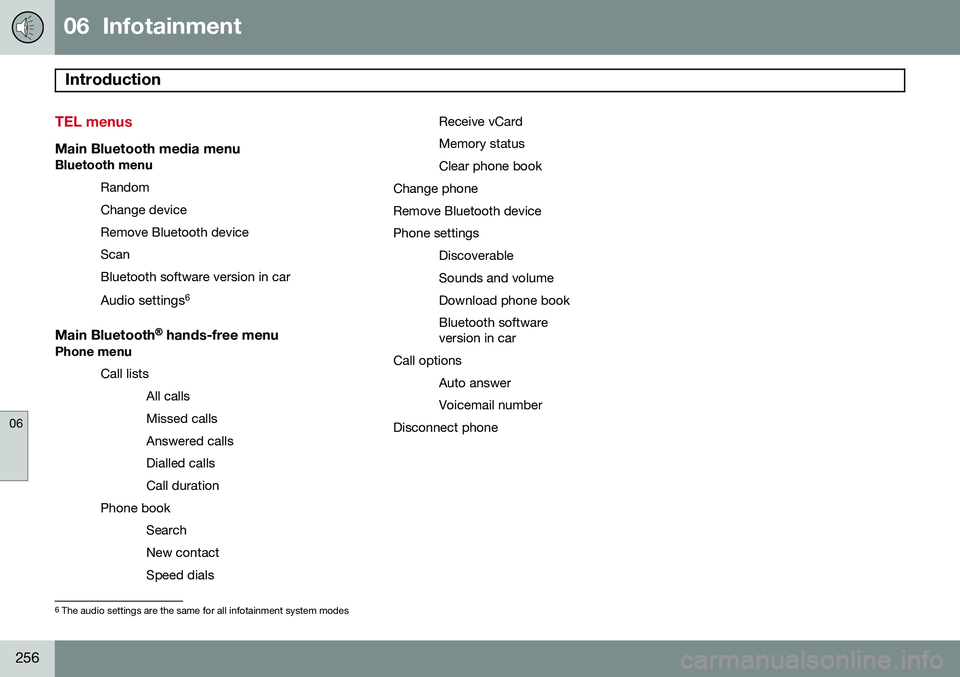
TEL menus
Main Bluetooth media menuBluetooth menuRandom Change deviceRemove Bluetooth deviceScanBluetooth software version in car
Audio settings 6
Main Bluetooth®
hands-free menu
Phone menu
Call listsAll calls Missed callsAnswered callsDialled callsCall duration
Phone book SearchNew contactSpeed dials Receive vCardMemory statusClear phone book
Change phoneRemove Bluetooth devicePhone settings DiscoverableSounds and volumeDownload phone bookBluetooth software version in car
Call options
Auto answer Voicemail number
Disconnect phone
6 The audio settings are the same for all infotainment system modes
Page 264 of 414
06 Infotainment
Radio
06
262
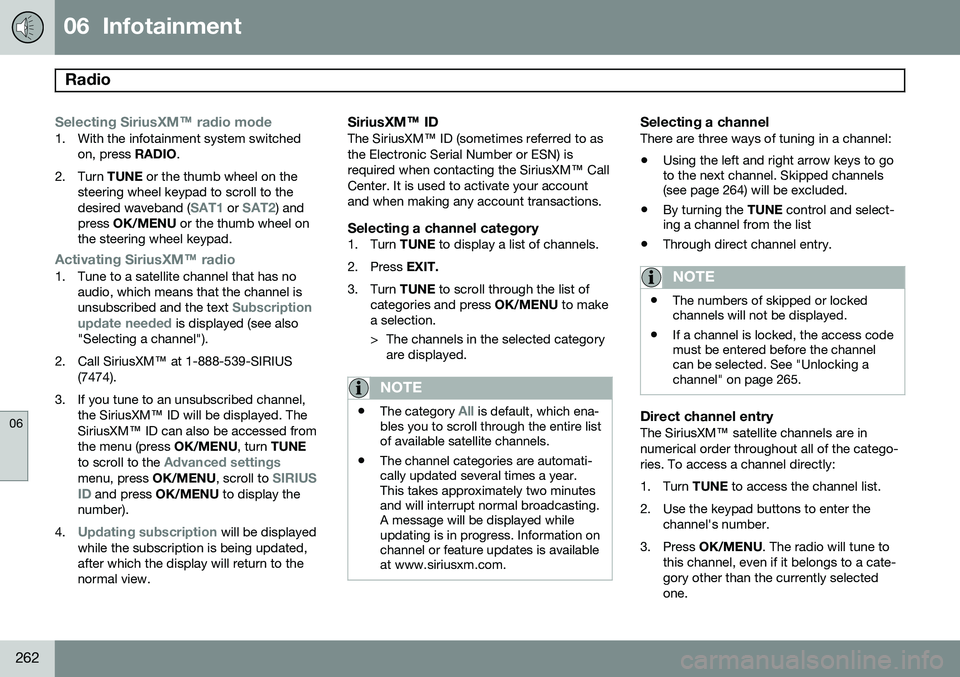
Selecting SiriusXM™ radio mode
1. With the infotainment system switched
on, press RADIO.
2. Turn TUNE or the thumb wheel on the
steering wheel keypad to scroll to the desired waveband (
SAT1 or SAT2) and
press OK/MENU or the thumb wheel on
the steering wheel keypad.
Activating SiriusXM ™ radio
1. Tune to a satellite channel that has no
audio, which means that the channel is unsubscribed and the text
Subscription
update needed is displayed (see also
"Selecting a channel").
2. Call SiriusXM ™ at 1-888-539-SIRIUS
(7474).
3. If you tune to an unsubscribed channel, the SiriusXM ™ ID will be displayed. The
SiriusXM ™ ID can also be accessed from
the menu (press OK/MENU, turn TUNE
to scroll to the
Advanced settingsmenu, press OK/MENU, scroll to SIRIUS
ID and press OK/MENU to display the
number).
4.
Updating subscription will be displayed
while the subscription is being updated, after which the display will return to thenormal view.
SiriusXM™ ID
The SiriusXM ™ ID (sometimes referred to as
the Electronic Serial Number or ESN) is required when contacting the SiriusXM ™ Call
Center. It is used to activate your accountand when making any account transactions.
Selecting a channel category1. Turn TUNE to display a list of channels.
2. Press EXIT.
3. Turn TUNE to scroll through the list of
categories and press OK/MENU to make
a selection.
> The channels in the selected category are displayed.
NOTE
• The category All is default, which ena-
bles you to scroll through the entire list of available satellite channels.
• The channel categories are automati-cally updated several times a year.This takes approximately two minutesand will interrupt normal broadcasting.A message will be displayed whileupdating is in progress. Information onchannel or feature updates is availableat www.siriusxm.com.
Selecting a channelThere are three ways of tuning in a channel:
• Using the left and right arrow keys to go to the next channel. Skipped channels(see page 264) will be excluded.
• By turning the
TUNE control and select-
ing a channel from the list
• Through direct channel entry.
NOTE
•The numbers of skipped or locked channels will not be displayed.
• If a channel is locked, the access codemust be entered before the channelcan be selected. See "Unlocking achannel" on page 265.
Direct channel entryThe SiriusXM
™ satellite channels are in
numerical order throughout all of the catego- ries. To access a channel directly:
1. Turn TUNE to access the channel list.
2. Use the keypad buttons to enter the channel's number.
3. Press OK/MENU . The radio will tune to
this channel, even if it belongs to a cate- gory other than the currently selectedone.
Page 266 of 414
06 Infotainment
Radio
06
264
WARNING
Settings should be made when the vehicle is at a standstill.
The following settings can be made in the satellite menus: •Channel skip settings can be made
• Channel lock settings can be made
• The channel access code can be dis- played or changed (see also "Locking achannel" on page 264)
• Your SiriusXM
™ ID can be displayed
• Reset SiriusXM
™ settings
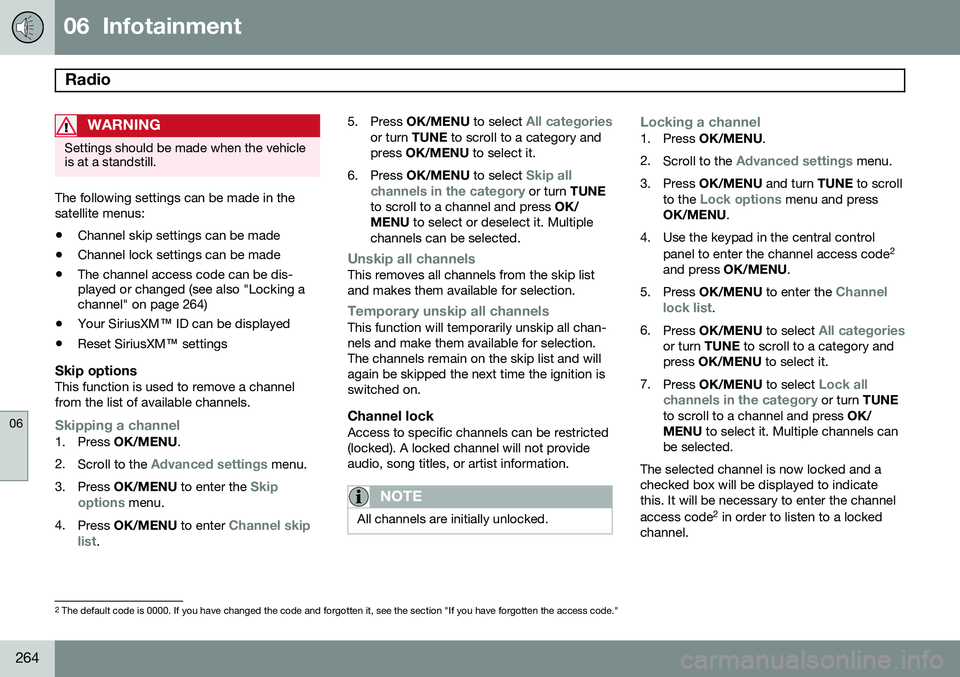
Skip optionsThis function is used to remove a channel from the list of available channels.
Skipping a channel1. Press OK/MENU .
2. Scroll to the
Advanced settings menu.
3. Press OK/MENU to enter the
Skip
options menu.
4. Press OK/MENU to enter
Channel skip
list. 5.
Press OK/MENU to select
All categoriesor turn TUNE to scroll to a category and
press OK/MENU to select it.
6. Press OK/MENU to select
Skip all
channels in the category or turn TUNE
to scroll to a channel and press OK/
MENU to select or deselect it. Multiple
channels can be selected.
Unskip all channelsThis removes all channels from the skip list and makes them available for selection.
Temporary unskip all channelsThis function will temporarily unskip all chan- nels and make them available for selection.The channels remain on the skip list and willagain be skipped the next time the ignition isswitched on.
Channel lockAccess to specific channels can be restricted(locked). A locked channel will not provideaudio, song titles, or artist information.
NOTE
All channels are initially unlocked.
Locking a channel1. Press OK/MENU .
2. Scroll to the
Advanced settings menu.
3. Press OK/MENU and turn TUNE to scroll
to the
Lock options menu and press
OK/MENU .
4. Use the keypad in the central control panel to enter the channel access code 2
and press OK/MENU .
5. Press OK/MENU to enter the
Channel
lock list.
6. Press OK/MENU to select
All categoriesor turn TUNE to scroll to a category and
press OK/MENU to select it.
7. Press OK/MENU to select
Lock all
channels in the category or turn TUNE
to scroll to a channel and press OK/
MENU to select it. Multiple channels can
be selected.
The selected channel is now locked and a checked box will be displayed to indicatethis. It will be necessary to enter the channel access code 2
in order to listen to a locked
channel.
2 The default code is 0000. If you have changed the code and forgotten it, see the section "If you have forgotten the access code."
Page 268 of 414
06 Infotainment
Media player
06
266
CD/DVD1
functions
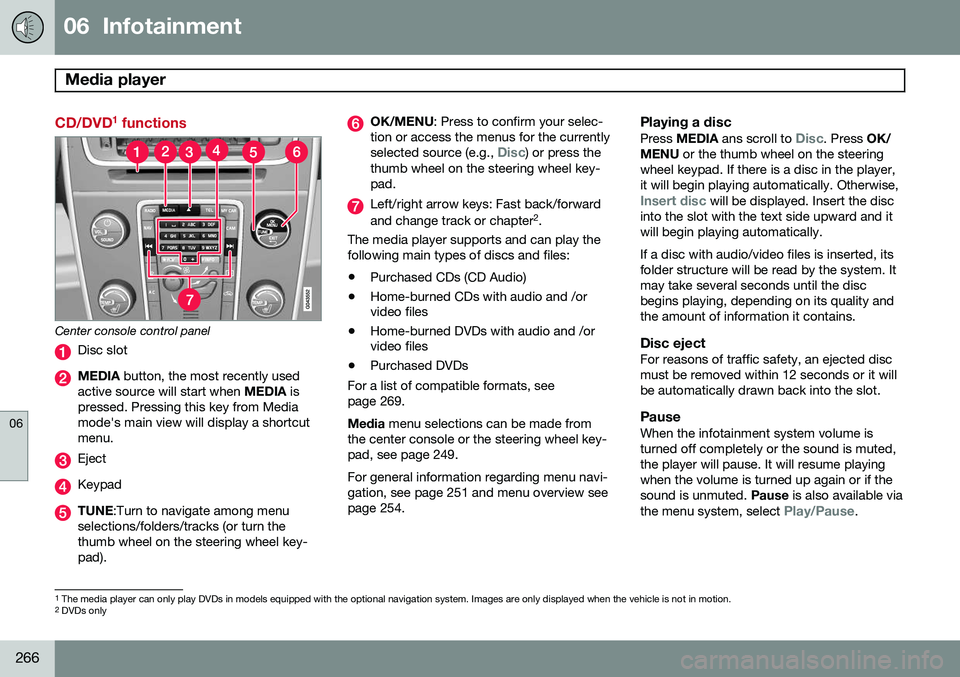
Center console control panel
Disc slot
MEDIA button, the most recently used
active source will start when MEDIA is
pressed. Pressing this key from Media mode's main view will display a shortcutmenu.
Eject
Keypad
TUNE :Turn to navigate among menu
selections/folders/tracks (or turn the thumb wheel on the steering wheel key-pad).
OK/MENU : Press to confirm your selec-
tion or access the menus for the currently selected source (e.g.,
Disc) or press the
thumb wheel on the steering wheel key- pad.
Left/right arrow keys: Fast back/forward and change track or chapter 2
.
The media player supports and can play the following main types of discs and files:
• Purchased CDs (CD Audio)
• Home-burned CDs with audio and /or video files
• Home-burned DVDs with audio and /orvideo files
• Purchased DVDs
For a list of compatible formats, see page 269. Media menu selections can be made from
the center console or the steering wheel key- pad, see page 249. For general information regarding menu navi- gation, see page 251 and menu overview seepage 254.
Playing a disc
Press MEDIA ans scroll to Disc. Press OK/
MENU or the thumb wheel on the steering
wheel keypad. If there is a disc in the player, it will begin playing automatically. Otherwise,
Insert disc will be displayed. Insert the disc
into the slot with the text side upward and it will begin playing automatically. If a disc with audio/video files is inserted, its folder structure will be read by the system. Itmay take several seconds until the discbegins playing, depending on its quality andthe amount of information it contains.
Disc ejectFor reasons of traffic safety, an ejected discmust be removed within 12 seconds or it willbe automatically drawn back into the slot.
PauseWhen the infotainment system volume isturned off completely or the sound is muted,the player will pause. It will resume playingwhen the volume is turned up again or if thesound is unmuted. Pause is also available via
the menu system, select
Play/Pause.
1 The media player can only play DVDs in models equipped with the optional navigation system. Images are only displayed when the vehicle is not in motion.
2 DVDs only
Page 269 of 414
06 Infotainment
Media player
06
}}
* Option/accessory, for more information, see Introduction.267
Navigating a disc and playing tracks
CD audio discsTurn TUNE to access the disc's playlist and
to navigate in this list. Press OK/MENU to
confirm a choice and begin listening. Press EXIT to cancel. Press and hold EXIT to return
to the playlist's root level. The
/ buttons on the center console
or steering wheel keypad can also be used to change tracks.
Home-burned CD/DVD audio/video filesTurn TUNE to access the disc's playlist and
to navigate in this list. Press OK/MENU to
confirm a choice and begin listening. Use EXIT to stop or to go back in the disc's folder
structure. Press and hold EXIT to return to
the playlist's root level. The
/ buttons on the center console
or steering wheel keypad* can also be used to change audio/video files. The following symbols are used in the dis- play: •
- audio files
•
- video files
•
- folders When a file has been played, the player will continue to play the rest of the files (of thesame type) in the current folder. When all ofthe files in the folder have been played, theplayer will automatically go to the next folder and play the files in it (unless
Repeat folderis activated). The system automatically detects and changes settings if a disc containing onlyaudio or only video files is inserted in theplayer and will play these files. However, thesystem will not change settings if a disc con-taining both audio and video files is insertedand the player will continue to play the cur-rent type of file.
NOTE
Video images will only be visible when the vehicle is not moving. When the vehicle istraveling faster than approximately 4 mph (6 km/h),
No visual media available
while driving will be displayed. Sound
from the film will still be audible and video images will be shown again when the vehi-cle stops.
NOTE
Some copy protected audio files or home- burned audio files may not be read by theplayer.
DVD videosFor information, see page 266.
Fast forward/reverse
Press and hold the / buttons to fast
forward/reverse. This is done at one speed for audio files but several speeds can be chosen for video files. Press the
/ but-
tons several times to increase the speed. Release the button to return to normal view-ing speed.
Scan 3This function plays the first ten seconds ofeach track/audio file. To start scanning:
1. Press
OK/MENU .
2. Scroll to
Scan.
> The first ten seconds of each track/ audio file will be played.
3. Stop scanning by pressing EXIT. The cur-
rent track/audio file will continue playing.
3 Not video DVDs
Page 270 of 414
06 Infotainment
Media player
06
268
Random3This function plays the tracks in random order (shuffle). The random tracks/sound files canbe scrolled through in the normal way. To lis-ten to tracks in random order:
1. Press
OK/MENU ,
2. Scroll to
Random
3. Press OK/MENU to activate/deactivate
the random play function.
Press the
/ buttons on the center
console or steering wheel keypad to change tracks/audio files.
Repeat folder 4This function makes it possible to play files ina folder repeatedly. When the last file hasbeen played, the first file will begin again. Toactivate:
1. Press
OK/MENU .
2. Turn TUNE to
Repeat folder.
3. Press OK/MENU to activate/deactivate
the function.
Playing video DVDs
PlayWhen playing a video DVD, a disc menu may appear on the display, giving you access toextra functions and settings such as choice ofsubtitle and language, scene selection, etc.
NOTE
Video images will only be visible when the vehicle is not moving. When the vehicle istraveling faster than approximately 4 mph (6 km/h),
No visual media available
while driving will be displayed. Sound
from the film will still be audible and video images will be shown again when the vehi-cle stops.
Navigating in a DVD's menus
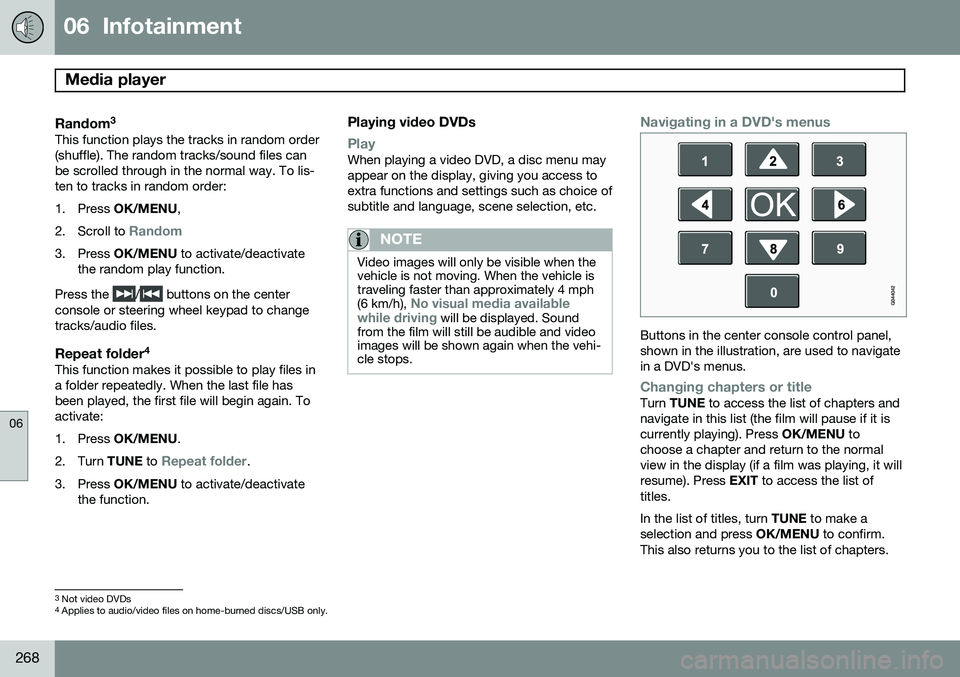
Buttons in the center console control panel, shown in the illustration, are used to navigatein a DVD's menus.
Changing chapters or titleTurn TUNE to access the list of chapters and
navigate in this list (the film will pause if it is currently playing). Press OK/MENU to
choose a chapter and return to the normalview in the display (if a film was playing, it willresume). Press EXIT to access the list of
titles. In the list of titles, turn TUNE to make a
selection and press OK/MENU to confirm.
This also returns you to the list of chapters.
3 Not video DVDs
4 Applies to audio/video files on home-burned discs/USB only.
Page 272 of 414
06 Infotainment
Media player
06
270
NOTE
Dual format (double-sided discs) such as DVD Plus or CD-DVD are thicker than nor-mal discs and may not play in your info-tainment system. If a disc containing both CDDA and MP3 tracks is played, all MP3 tracks will beignored.
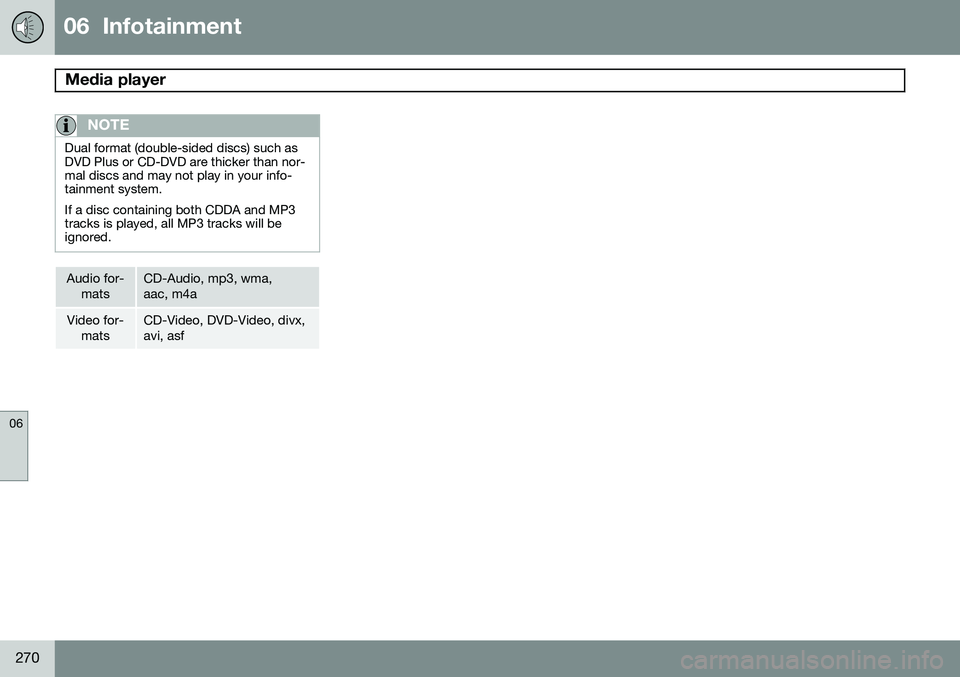
Audio for-matsCD-Audio, mp3, wma, aac, m4a
Video for-matsCD-Video, DVD-Video, divx, avi, asf