change wheel VOLVO V60 2015 Owner´s Manual
[x] Cancel search | Manufacturer: VOLVO, Model Year: 2015, Model line: V60, Model: VOLVO V60 2015Pages: 414, PDF Size: 11.44 MB
Page 276 of 414
06 Infotainment
Bluetooth® media
06
274
Introduction
The vehicle's media player is equipped with Bluetooth ®
and can play streaming audio files
from a Bluetooth ®
device such as a cell
phone or mp3 player. Navigation and control of the device can be done through the vehi-cle's center console control panel or thesteering wheel keypad. On certain externaldevices, it is also possible to change tracksfrom the device.
NOTE
Any Bluetooth cell phones used must sup- port Audio/Video Remote Control Profile(AVRCP) and Advanced Audio DistributionProfile (A2DP). The phone must useAVRCP version 1.3 and A2DP 1.2. If olderversions of these standards are used, cer-tain features (e.g., scan or random) maynot function. Not all cell phones are fully compatible with the vehicle's Bluetooth system. A listof compatible phones is available at youVolvo retailer or at www.volvocars.us.
Menu navigation
Choices can be made in the Bluetoothmenus from the center console control panel or the steering wheel keypad. For additionalinformation about navigating the variousmenus, see page 249. The vehicle's media player can only play audio files through the Bluetooth
®
function.
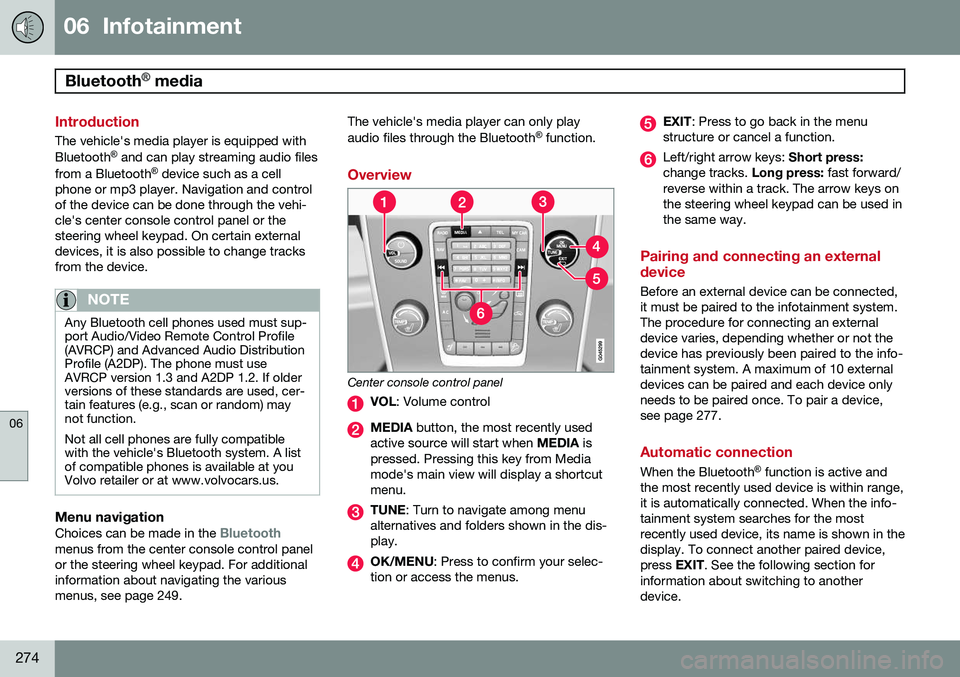
Overview
Center console control panel
VOL : Volume control
MEDIA button, the most recently used
active source will start when MEDIA is
pressed. Pressing this key from Media mode's main view will display a shortcutmenu.
TUNE : Turn to navigate among menu
alternatives and folders shown in the dis- play.
OK/MENU : Press to confirm your selec-
tion or access the menus.
EXIT : Press to go back in the menu
structure or cancel a function.
Left/right arrow keys: Short press:
change tracks. Long press: fast forward/
reverse within a track. The arrow keys on the steering wheel keypad can be used inthe same way.
Pairing and connecting an external device
Before an external device can be connected, it must be paired to the infotainment system.The procedure for connecting an externaldevice varies, depending whether or not thedevice has previously been paired to the info-tainment system. A maximum of 10 externaldevices can be paired and each device onlyneeds to be paired once. To pair a device,see page 277.
Automatic connection
When the Bluetooth ®
function is active and
the most recently used device is within range, it is automatically connected. When the info-tainment system searches for the mostrecently used device, its name is shown in thedisplay. To connect another paired device,press EXIT. See the following section for
information about switching to anotherdevice.
Page 277 of 414
06 Infotainment
Bluetooth® media
06
275
Switching to another device
It is possible to switch among paired Bluetooth ®
devices that are in the vehicle. To
do so: 1. Press MEDIA ,scroll to
Bluetooth and
press the thumb wheel on the steering wheel keypad or OK/MENU.
2. Be sure the Bluetooth ®
device is discov-
erable (refer to its user manual if neces-sary).
3. Press the thumb wheel or OK/MENU.
4. Turn the thumb wheel or TUNE to
Change device and confirm by pressing
the thumb wheel or OK/MENU.
> After several seconds, the names of any paired external devices will be dis- played.
5. Scroll to the device to be connected and press the thumb wheel or OK/MENU.
> The device will be connected.
Audio files can now be selected using the
/ buttons in the center console or on
the steering wheel keypad.
Disconnecting an external device
The external device is automatically discon- nected from the infotainment system if it ismoved out of range.
Removing a paired device
1. In Bluetooth mode, press OK/MENU.
2. Scroll to
Remove Bluetooth device and
press the thumb wheel or OK/MENU.
3. Scroll to the device to be removed by turning the thumb wheel or TUNE and
confirm by pressing the thumb wheel or OK/MENU .
> A question asking if you would like to remove the device will be displayed.
4. Press the thumb wheel or OK/MENU to
confirm or EXIT to cancel.
Random 1
This function plays the audio files on the external device in random order (shuffle). Thisfunction can be activated/deactivated under:
Bluetooth menuRandom
Press the / buttons on the center
console or steering wheel keypad to change tracks.
Scanning audio files on an external device 1
This function plays the first ten seconds of each audio file. This function can be acti- vated/deactivated under:
Bluetooth menuScan. Scanning can be canceled by pressing
EXIT.
Bluetooth® version information
This feature offers information about the Bluetooth ®
version installed in the vehicle's
infotainment system. This information can be found under
Bluetooth menuBluetooth
software version in car.
1 Function is not supported on all cell phones.
Page 278 of 414
06 Infotainment
Bluetooth® hands-free connection
06
276
Introduction
This feature makes it possible to set up a wireless connection between a Bluetooth ®
-
enabled cell phone or other device and the vehicle’s infotainment system. This enablesthe infotainment system to function as ahands-free connection and allows you toremote-control a number of the phone’s func-tions. The microphone used by this system islocated near the driver's side sun visor (2).The buttons and other controls on the cellphone can always be used regardless ofwhether or not the phone is connected to thehands-free system.
NOTE
Not all cell phones are fully compatible with the hands-free system. A list of com-patible phones is available at your Volvoretailer or at www.volvocars.us
WARNING
Never use the hands-free feature or any other device in your vehicle in a way thatdistracts you from the task of drivingsafely. Distraction can lead to a seriousaccident.
Compliance
FCC/IC common sentenceThis device complies with Part 15 of FCC Rules and RSS-Gen of IC Rules and IndustryCanada license-exempt RSS standard(s).Operation is subject to the following two con-ditions: (1) this device may not cause interfer-ence, and (2) this device must accept anyinterference, including interference that maycause undesired operation of this device. USA: FCC ID A269ZUA134USA: FCC ID A269ZUA135FCC WARNINGChanges or modifications not expressly approved by the party responsible for compli-ance could void the user’s authority to oper-ate the equipment.
IC RSS-GenThis equipment complies with FCC/IC radia- tion exposure limits set forth for an uncontrol-led environment and meets the FCC radio fre-quency (RF) Exposure Guidelines in Supple-ment C to OET65 and RSS-102 of the ICradio frequency (RF) Exposure rules. Thisequipment has very low levels of RF energythat it deemed to comply without maximumpermissive exposure evaluation (MPE). But itis desirable that it should be installed andoperated keeping the radiator at least 8 in. (20 cm) or more away from person’s body(excluding extremities: hands, wrists, feet andankles). Canada: IC 700BIAM2103Canada: IC 700BIAM2104
Menu navigationTEL
menu selections can be made from the
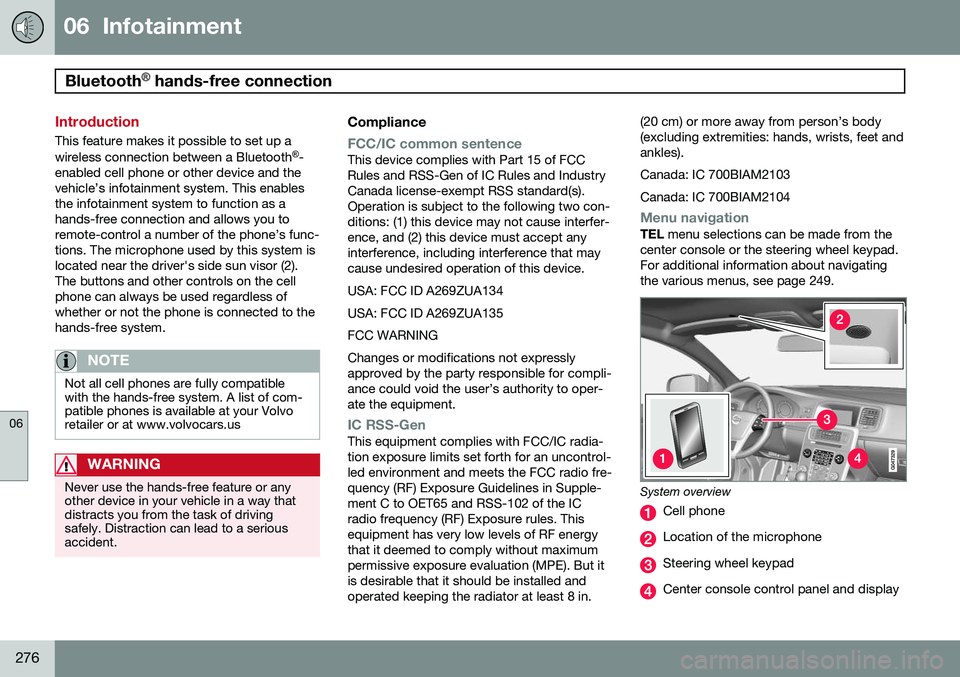
center console or the steering wheel keypad. For additional information about navigatingthe various menus, see page 249.
System overview
Cell phone
Location of the microphone
Steering wheel keypad
Center console control panel and display
Page 279 of 414
06 Infotainment
Bluetooth® hands-free connection
06
}}
277
Bluetooth ®
functions in the center
console control panel
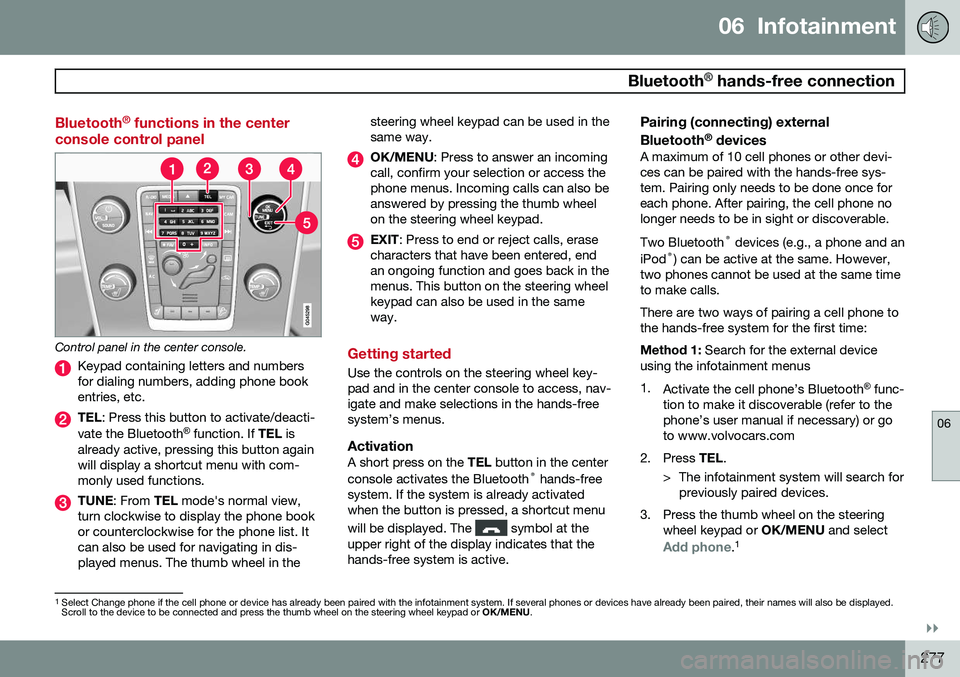
Control panel in the center console.
Keypad containing letters and numbers for dialing numbers, adding phone bookentries, etc.
TEL : Press this button to activate/deacti-
vate the Bluetooth ®
function. If TEL is
already active, pressing this button again will display a shortcut menu with com-monly used functions.
TUNE : From TEL mode's normal view,
turn clockwise to display the phone book or counterclockwise for the phone list. Itcan also be used for navigating in dis-played menus. The thumb wheel in the steering wheel keypad can be used in thesame way.
OK/MENU
: Press to answer an incoming
call, confirm your selection or access the phone menus. Incoming calls can also beanswered by pressing the thumb wheelon the steering wheel keypad.
EXIT : Press to end or reject calls, erase
characters that have been entered, end an ongoing function and goes back in themenus. This button on the steering wheelkeypad can also be used in the sameway.
Getting started
Use the controls on the steering wheel key- pad and in the center console to access, nav-igate and make selections in the hands-freesystem’s menus.
ActivationA short press on the TEL button in the center
console activates the Bluetooth ®
hands-free
system. If the system is already activatedwhen the button is pressed, a shortcut menu will be displayed. The
symbol at the
upper right of the display indicates that the hands-free system is active.
Pairing (connecting) external Bluetooth ®
devices
A maximum of 10 cell phones or other devi- ces can be paired with the hands-free sys-tem. Pairing only needs to be done once foreach phone. After pairing, the cell phone nolonger needs to be in sight or discoverable. Two Bluetooth ®
devices (e.g., a phone and an
iPod ®
) can be active at the same. However,
two phones cannot be used at the same time to make calls. There are two ways of pairing a cell phone to the hands-free system for the first time: Method 1: Search for the external device
using the infotainment menus1. Activate the cell phone’s Bluetooth ®
func-
tion to make it discoverable (refer to the phone’s user manual if necessary) or goto www.volvocars.com
2. Press TEL.
> The infotainment system will search for previously paired devices.
3. Press the thumb wheel on the steering wheel keypad or OK/MENU and select
Add phone.1
1
Select Change phone if the cell phone or device has already been paired with the infotainment system. If several phones or devices have already been paired, their names will also be displayed. Scroll to the device to be connected and press the thumb wheel on the steering wheel keypad or OK/MENU.
Page 280 of 414
06 Infotainment
Bluetooth® hands-free connection
06
278
4. With the cell phone in discoverable mode,
press OK/MENU .
> The infotainment system will search for cell phones or devices that are in range, which takes approximately 30seconds. Any phones detected will be displayed using their Bluetooth ®
names. The hands-free system’sBluetooth ®
name will appear in the cell
phone’s display as My Volvo Car.
5. Turn the thumb wheel or TUNE to select
one of the cell phones shown in the cen- ter console display and press the thumbwheel or OK/MENU .
6. Using the cell phone’s keypad, enter the digits (PIN code) shown in the center con-sole display and press the button on thecell phone used to confirm a choice.
The external device is now paired and can becontrolled from the infotainment system. If the connection failed: Press EXIT and con-
nect with method 2 below.Method 2: Search for the vehicle using the
external device’s Bluetooth ®
function.
1. Press TEL. If a phone or external device
is already connected, disconnect it. > The Bluetooth ®
function will search for
previously paired devices. 2. Make the vehicle discoverable by press-
ing the thumb wheel or OK/MENU and
selecting
Phone settingsDiscoverable.
3. Search for the vehicle using the phone or external device's Bluetooth ®
function.
Refer to its user manual if necessary.
4. Select
My Volvo Car on the phone or
external device’s screen and follow the directions provided.
5. Enter a PIN code of your choice in the external device and press its button topair the device. When prompted, enterthe same PIN code in the vehicle usingthe center console keypad.
6. Pair
My Volvo Car from the external
device.
When the external device has been paired, its Bluetooth ®
name appear in the center con-
sole display. This device can now be con- trolled from the infotainment system.
Connect automaticallyWhen the hands-free system is active and the most recently connected cell phone is withinrange, it will be connected automatically. Ifthis phone is not within range, the hands-freesystem will attempt to connect one of theother paired cell phones. When the infotain-ment system searches for the most recently connected phone, its name appears in thedisplay.
Connect manuallyTo connect a phone other than the one that was most recently connected or to switchbetween cell phones that are already pairedwith the hands-free system, go to
Phone
menu
Change phone.
Changing phones or devicesMore than one device can be used in the vehicle as long as this device has beenpaired. To do so, see page 277. Changing devices:
1. Check that the external device is discov- erable.
2. Press TEL and select
Change phone.
> The infotainment system will search for previously paired devices. Those that are detected will be displayed on thescreen.
3. Select the desired device by turning the thumb wheel or TUNE and confirm by
pressing the thumb wheel or OK/MENU.
> The device will be connected.
Page 282 of 414
06 Infotainment
Bluetooth® hands-free connection
06
280
In phone mode, the various call lists can be displayed in
Phone menuCall lists:
•
All calls
•Missed calls
•Answered calls
•Dialled calls (certain cell phones show
this list in reverse order)
•
Call duration
If no number has been stored, this menu can be accessed by pressing and holding 1.
Voice mailIn normal view, a speed dial number for voicemail can be programmed and accessed bypressing and holding 1.
The number for voice mail can be changed in phone mode in
Phone menuCall options
Voicemail numberChange number.
Sound settings
Call volumeCall volume can be only be adjusted during a call. Use the buttons in the steering wheelkeypad or the infotainment system’s VOL
control.
Infotainment system volumeIf no phone call is in progress, volume for theinfotainment system can be adjusted in thenormal way with the infotainment system'sVOL control or from the steering wheel key-
pad. Infotainment system sound can be automati- cally muted when a phone call is received in
Phone menuPhone settingsSounds
and volume
Mute radio/media.
Ringing volume
In phone mode, go to Phone menuPhone
settings
Sounds and volumeRing
volume and adjust the volume by turning
VOL . Save the setting by pressing EXIT.
Ringing tonesThe hands-free system’s integrated ringing tones can be selected in
Phone menu
Phone settingsSounds and volume
Ring signalsRing signal 1, etc.
NOTE
The connected cell phone’s ring tone may not be switched off when one of thehands-free system's ringing tones is used.
If you prefer to use the connected cell phone’s ring tone 2
, go to
Phone menu
Phone settingsSounds and volume
Ring signalsMobile phone ring signal.
Phone book
The hands-free system uses two phone books (one with the cell phone's list of con-tacts and one with contacts saved directly inthe infotainment system), which are com-bined to form one phone book.
• The infotainment system downloads the phone book from a connected cell phone.This phone book will only be displayedwhen this cell phone is connected to thehands-free system.
• The infotainment system also has an inte-grated phone book made up of contactsthat have been saved in the system,regardless of which cell phone is currently
2
Not supported by all cell phones.
Page 287 of 414
06 Infotainment
Cell phone voice control*
06
}}
* Option/accessory, for more information, see Introduction.285
Introduction
The infotainment system's voice control fea- ture 1
enables the driver to voice-activate cer-
tain functions in a Bluetooth ®
-connected cell
phone or the navigation system.
NOTE
• The information in this section applies to using voice commands to operate a Bluetooth
®
-connected cell phone .
See also the section "Bluetooth ®
hands-free connection" beginning on page 276 for detailed informationabout using a cell phone with the vehi-cle's infotainment system.
• The navigation system has a separateuser's guide containing informationabout voice commands for operatingthat system.
Voice commands offer convenience and help avoid distractions so that you can concen-trate on driving and focus your attention onroad and traffic conditions.
WARNING
As the driver, you have full responsibility for operating the vehicle safely and adher-ing to all applicable traffic regulations.
The voice control feature provides access to a number of functions in the Bluetooth ®
hands-free and navigation systems while allowing you to keep your hands on the steer-ing wheel. Input is in dialogue form usingspoken commands from the user and verbalprompts from the system. Voice control uses the same microphone as the Bluetooth ®
hands-free system (see the illustration on page 276) and system prompts are providedthrough the infotainment system's frontspeakers.
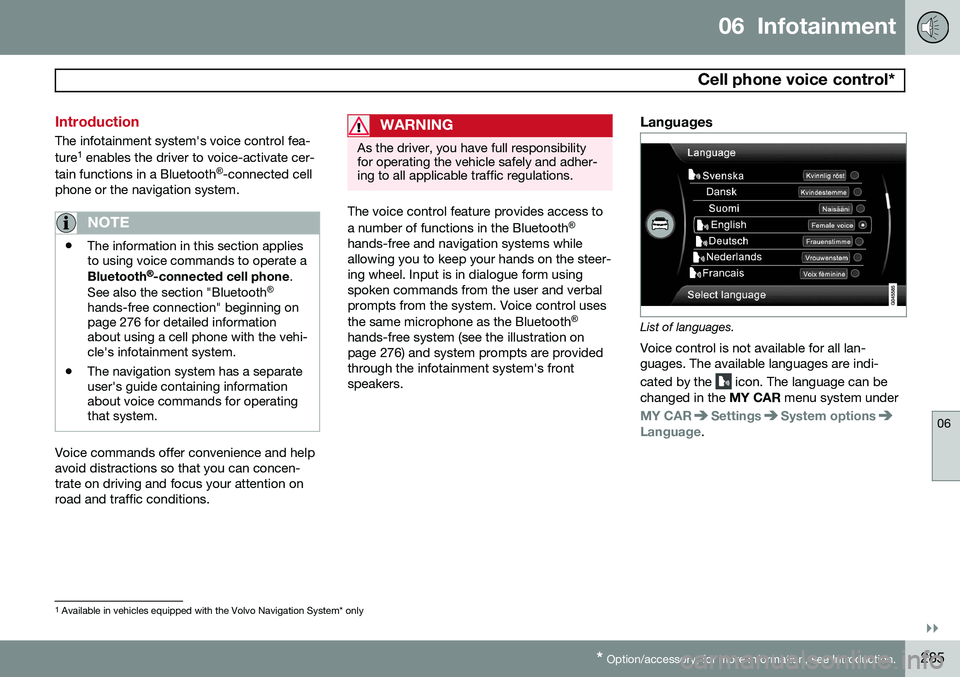
Languages
List of languages.
Voice control is not available for all lan- guages. The available languages are indi- cated by the
icon. The language can be
changed in the MY CAR menu system under
MY CARSettingsSystem optionsLanguage.
1
Available in vehicles equipped with the Volvo Navigation System* only
Page 319 of 414
08 Wheels and tires
Tire inflation
08
}}
317
Inflation placard
G032521
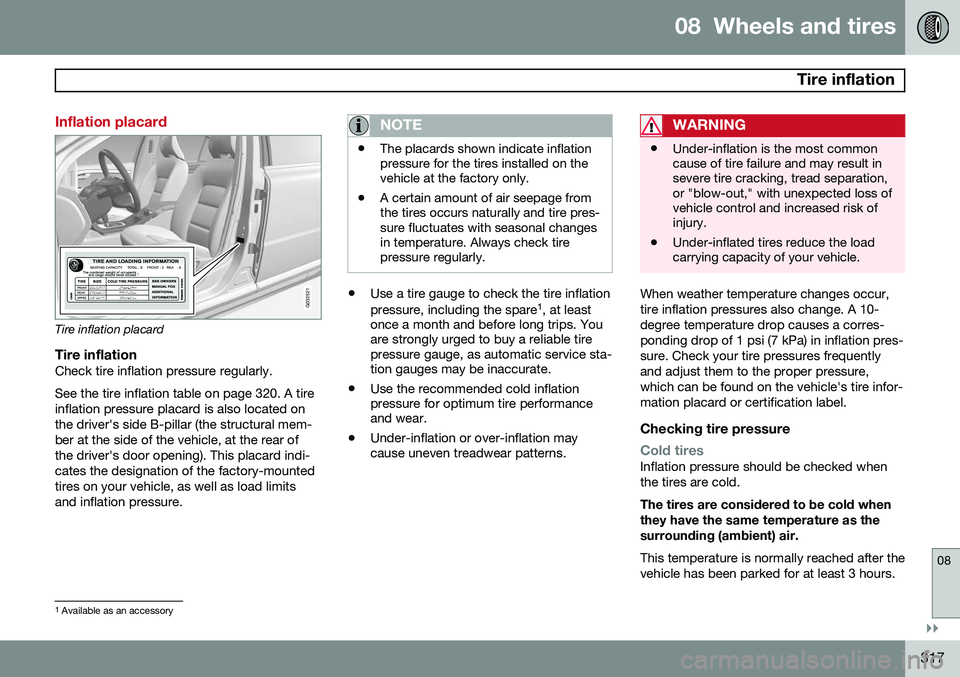
Tire inflation placard
Tire inflationCheck tire inflation pressure regularly. See the tire inflation table on page 320. A tire inflation pressure placard is also located onthe driver's side B-pillar (the structural mem-ber at the side of the vehicle, at the rear ofthe driver's door opening). This placard indi-cates the designation of the factory-mountedtires on your vehicle, as well as load limitsand inflation pressure.
NOTE
•The placards shown indicate inflation pressure for the tires installed on thevehicle at the factory only.
• A certain amount of air seepage fromthe tires occurs naturally and tire pres-sure fluctuates with seasonal changesin temperature. Always check tirepressure regularly.
•
Use a tire gauge to check the tire inflation pressure, including the spare 1
, at least
once a month and before long trips. You are strongly urged to buy a reliable tirepressure gauge, as automatic service sta-tion gauges may be inaccurate.
• Use the recommended cold inflationpressure for optimum tire performanceand wear.
• Under-inflation or over-inflation maycause uneven treadwear patterns.
WARNING
•Under-inflation is the most common cause of tire failure and may result insevere tire cracking, tread separation,or "blow-out," with unexpected loss ofvehicle control and increased risk ofinjury.
• Under-inflated tires reduce the loadcarrying capacity of your vehicle.
When weather temperature changes occur, tire inflation pressures also change. A 10-degree temperature drop causes a corres-ponding drop of 1 psi (7 kPa) in inflation pres-sure. Check your tire pressures frequentlyand adjust them to the proper pressure,which can be found on the vehicle's tire infor-mation placard or certification label.
Checking tire pressure
Cold tiresInflation pressure should be checked when the tires are cold. The tires are considered to be cold when they have the same temperature as thesurrounding (ambient) air. This temperature is normally reached after the vehicle has been parked for at least 3 hours.
1
Available as an accessory
Page 338 of 414
08 Wheels and tires
Changing a wheel
08
336* Option/accessory, for more information, see Introduction.
Removing a wheel
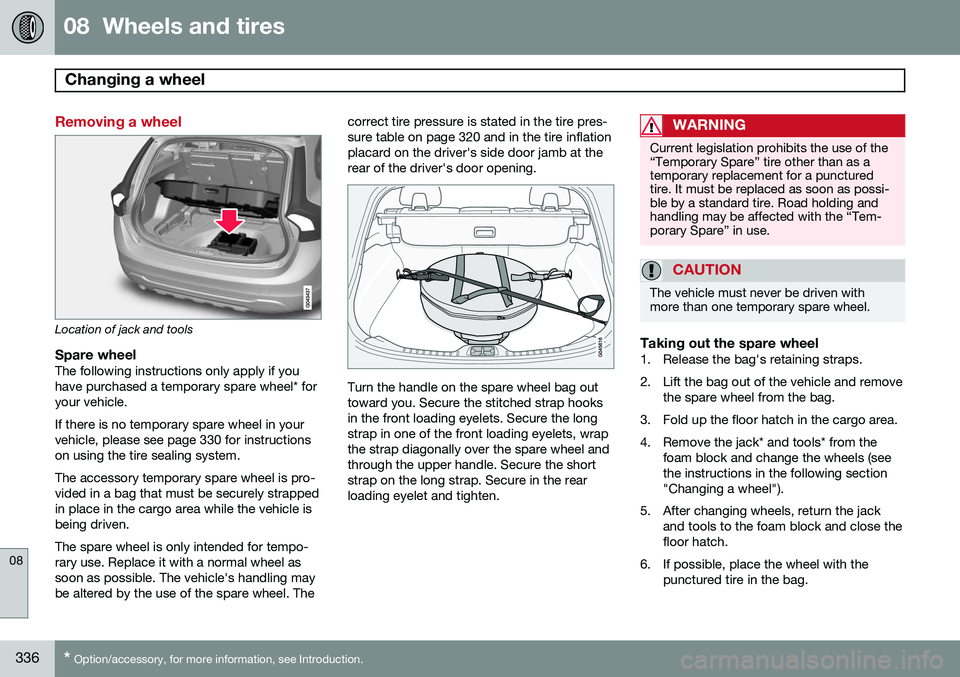
Location of jack and tools
Spare wheelThe following instructions only apply if you have purchased a temporary spare wheel* foryour vehicle. If there is no temporary spare wheel in your vehicle, please see page 330 for instructionson using the tire sealing system. The accessory temporary spare wheel is pro- vided in a bag that must be securely strappedin place in the cargo area while the vehicle isbeing driven. The spare wheel is only intended for tempo- rary use. Replace it with a normal wheel assoon as possible. The vehicle's handling maybe altered by the use of the spare wheel. The correct tire pressure is stated in the tire pres-sure table on page 320 and in the tire inflationplacard on the driver's side door jamb at therear of the driver's door opening.Turn the handle on the spare wheel bag out toward you. Secure the stitched strap hooksin the front loading eyelets. Secure the longstrap in one of the front loading eyelets, wrapthe strap diagonally over the spare wheel andthrough the upper handle. Secure the shortstrap on the long strap. Secure in the rearloading eyelet and tighten.
WARNING
Current legislation prohibits the use of the “Temporary Spare” tire other than as atemporary replacement for a puncturedtire. It must be replaced as soon as possi-ble by a standard tire. Road holding andhandling may be affected with the “Tem-porary Spare” in use.
CAUTION
The vehicle must never be driven with more than one temporary spare wheel.
Taking out the spare wheel1. Release the bag's retaining straps.
2. Lift the bag out of the vehicle and remove
the spare wheel from the bag.
3. Fold up the floor hatch in the cargo area.
4. Remove the jack* and tools* from the foam block and change the wheels (see the instructions in the following section"Changing a wheel").
5. After changing wheels, return the jack and tools to the foam block and close thefloor hatch.
6. If possible, place the wheel with the punctured tire in the bag.
Page 340 of 414
08 Wheels and tires
Changing a wheel
08
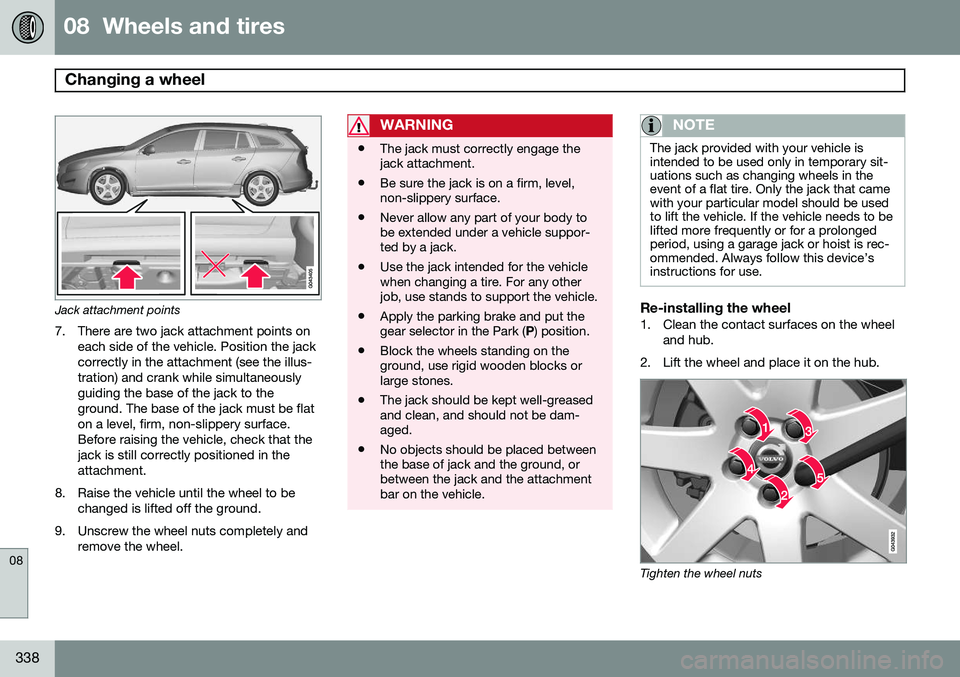
338
Jack attachment points7. There are two jack attachment points on each side of the vehicle. Position the jack correctly in the attachment (see the illus-tration) and crank while simultaneouslyguiding the base of the jack to theground. The base of the jack must be flaton a level, firm, non-slippery surface.Before raising the vehicle, check that thejack is still correctly positioned in theattachment.
8. Raise the vehicle until the wheel to be changed is lifted off the ground.
9. Unscrew the wheel nuts completely and remove the wheel.
WARNING
•The jack must correctly engage the jack attachment.
• Be sure the jack is on a firm, level,non-slippery surface.
• Never allow any part of your body tobe extended under a vehicle suppor-ted by a jack.
• Use the jack intended for the vehiclewhen changing a tire. For any otherjob, use stands to support the vehicle.
• Apply the parking brake and put thegear selector in the Park (
P) position.
• Block the wheels standing on theground, use rigid wooden blocks orlarge stones.
• The jack should be kept well-greasedand clean, and should not be dam-aged.
• No objects should be placed betweenthe base of jack and the ground, orbetween the jack and the attachmentbar on the vehicle.
NOTE
The jack provided with your vehicle is intended to be used only in temporary sit-uations such as changing wheels in theevent of a flat tire. Only the jack that camewith your particular model should be usedto lift the vehicle. If the vehicle needs to belifted more frequently or for a prolongedperiod, using a garage jack or hoist is rec-ommended. Always follow this device’sinstructions for use.
Re-installing the wheel1. Clean the contact surfaces on the wheel
and hub.
2. Lift the wheel and place it on the hub.
Tighten the wheel nuts