instrument panel VOLVO V60 2016 Owner´s Manual
[x] Cancel search | Manufacturer: VOLVO, Model Year: 2016, Model line: V60, Model: VOLVO V60 2016Pages: 402, PDF Size: 10.3 MB
Page 184 of 402
||
07 Driver support
07
182
WARNING
Adaptive Cruise Control only warns of vehicles detected by the radar sensor, seeAdaptive Cruise Control – limitations(p. 188). In some cases there may be nowarning or the warning may be delayed.The driver should always apply the brakeswhen necessary.
Steep inclines and/or heavy loadsACC is primarily intended for use on fairly level roads. The system may have difficultymaintaining the correct distance to a vehicleahead on steep inclines, if the vehicle is car-rying a heavy load or is towing a trailer. Inthese situations, the driver should always beprepared to apply the brakes if necessary.
Related information
•Adaptive Cruise Control – introduction (p. 179)
Adaptive Cruise Control – engaging
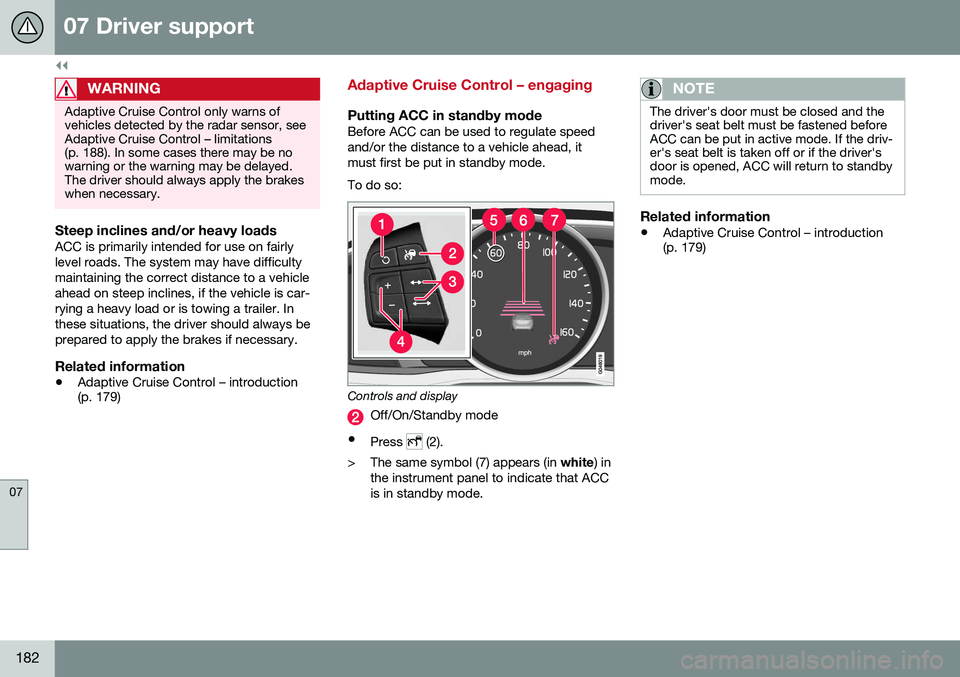
Putting ACC in standby modeBefore ACC can be used to regulate speed and/or the distance to a vehicle ahead, itmust first be put in standby mode. To do so:
Controls and display
Off/On/Standby mode
• Press
(2).
> The same symbol (7) appears (in white) in
the instrument panel to indicate that ACC is in standby mode.
NOTE
The driver's door must be closed and the driver's seat belt must be fastened beforeACC can be put in active mode. If the driv-er's seat belt is taken off or if the driver'sdoor is opened, ACC will return to standbymode.
Related information
• Adaptive Cruise Control – introduction (p. 179)
Page 186 of 402
07 Driver support
07
184
Adaptive Cruise Control – setting time interval
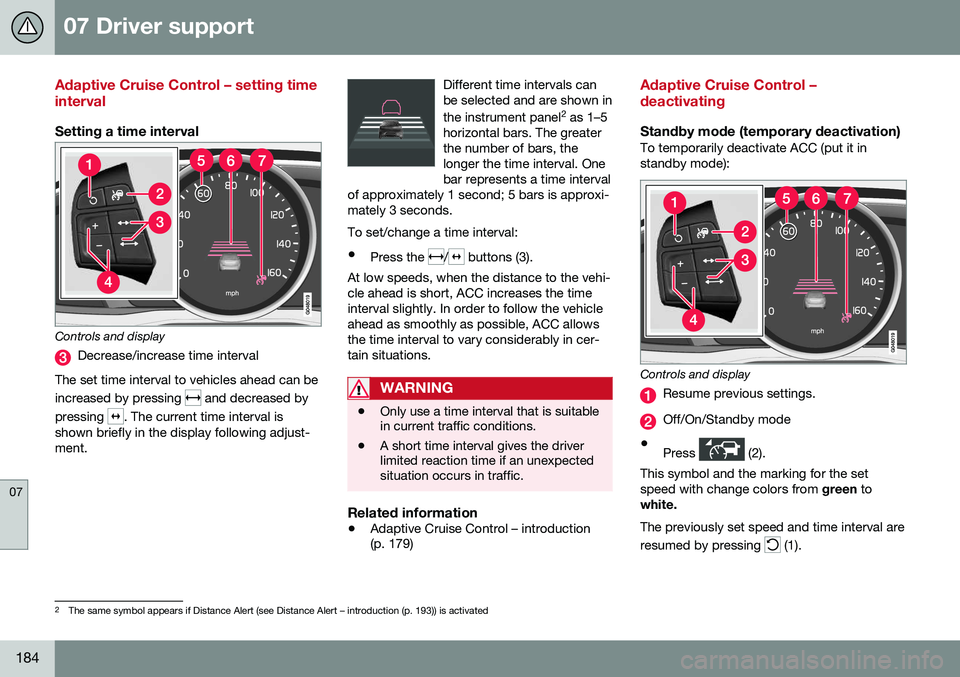
Setting a time interval
Controls and display
Decrease/increase time interval
The set time interval to vehicles ahead can be increased by pressing
and decreased by
pressing
. The current time interval is
shown briefly in the display following adjust- ment. Different time intervals canbe selected and are shown in the instrument panel
2
as 1–5
horizontal bars. The greater the number of bars, thelonger the time interval. Onebar represents a time interval
of approximately 1 second; 5 bars is approxi-mately 3 seconds.
To set/change a time interval:
• Press the
/ buttons (3).
At low speeds, when the distance to the vehi- cle ahead is short, ACC increases the timeinterval slightly. In order to follow the vehicleahead as smoothly as possible, ACC allowsthe time interval to vary considerably in cer-tain situations.
WARNING
• Only use a time interval that is suitable in current traffic conditions.
• A short time interval gives the driverlimited reaction time if an unexpectedsituation occurs in traffic.
Related information
•
Adaptive Cruise Control – introduction (p. 179)
Adaptive Cruise Control – deactivating
Standby mode (temporary deactivation)To temporarily deactivate ACC (put it in standby mode):
Controls and display
Resume previous settings.
Off/On/Standby mode
• Press
(2).
This symbol and the marking for the set speed with change colors from green to
white. The previously set speed and time interval are resumed by pressing
(1).
2 The same symbol appears if Distance Alert (see Distance Alert – introduction (p. 193)) is activated
Page 187 of 402
07 Driver support
07
185
WARNING
The vehicle may accelerate quickly after
has been pressed if its current speed is
considerably lower than the set speed.
Standby mode due to action by the driver
ACC is temporarily deactivated and put in standby mode:
• if the brakes are applied
• if the gear selector is moved to
N
• if the driver drives faster than the set speed for more than
1 minute.
In this happens, the driver will have to regu- late the vehicle's speed.
NOTE
If the accelerator pedal is only depressed for a short time, such as when passinganother vehicle, ACC is deactivated tem-porarily and is reactivated when the pedalis released.
Automatic standby modeACC is linked to other systems such as the stability system. If this system is not function-ing properly, ACC will switch off automati-cally. In the event of automatic deactivation, an audible signal will sound and the message
Cruise control Cancelled is shown in the
instrument panel. The driver must then inter- vene and adapt the vehicle's speed to thesurrounding traffic and regulate the distanceto the vehicle ahead. An automatic switch to standby mode may be caused if:
• engine speed (rpm) is too high/low
• The driver's door is opened
• The driver unbuckles his/her seat belt
• the vehicle's speed goes below 18 mph (30 km/h)
• the wheels lose traction
• brake temperature is high
• the radar sensor is obstructed by, forexample, wet snow or rain.
Resuming the set speedIf ACC is in standby mode, it can be reactiva- ted by pressing the
button on the steering
wheel keypad. The vehicle will return to the most recently set speed.
WARNING
The vehicle may accelerate quickly after
has been pressed if its current speed is
considerably lower than the set speed.
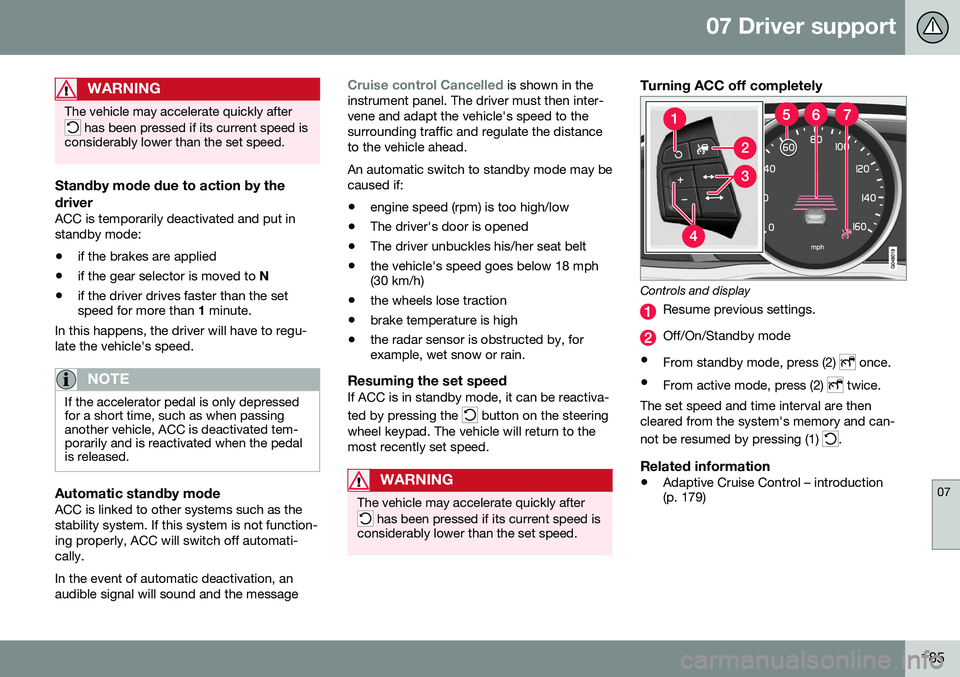
Turning ACC off completely
Controls and display
Resume previous settings.
Off/On/Standby mode
• From standby mode, press (2)
once.
• From active mode, press (2)
twice.
The set speed and time interval are then cleared from the system's memory and can- not be resumed by pressing (1)
.
Related information
• Adaptive Cruise Control – introduction (p. 179)
Page 195 of 402
07 Driver support
07
}}
193
Distance Alert – introduction
Distance Alert is part of Adaptive Cruise Con- trol and is a function that provides informationabout the time interval to the vehicle ahead.
IntroductionDistance Alert is active at speeds aboveapproximately 18 mph (30 km/h). Time inter-val information is only given for a vehicle thatis driving ahead of your vehicle in the samedirection. No information is provided for vehi-cles driving toward you, moving very slowly,or at a standstill.
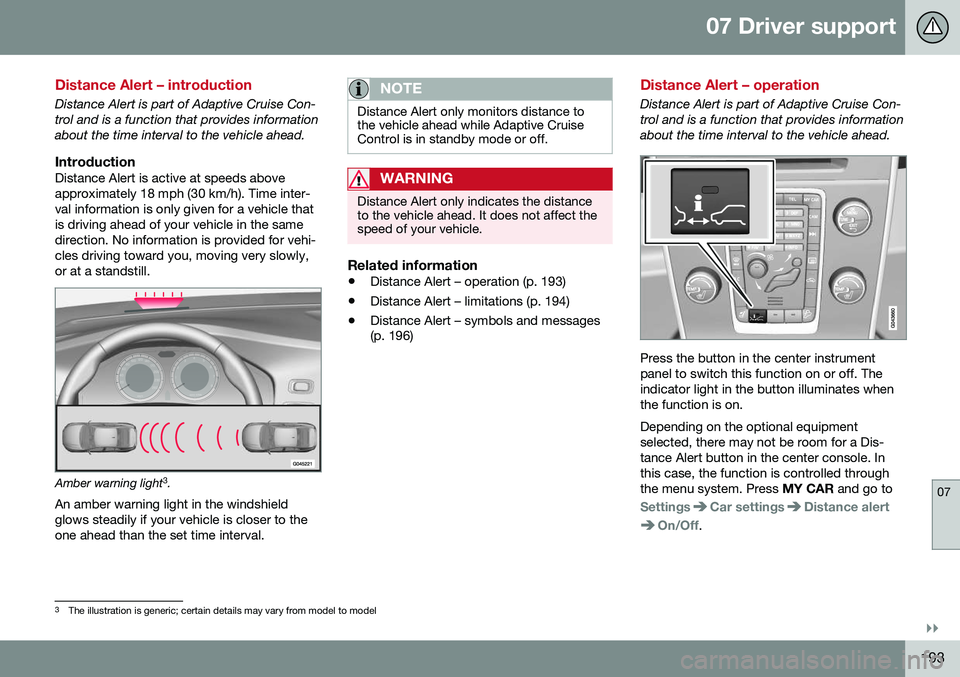
Amber warning light3
.
An amber warning light in the windshield glows steadily if your vehicle is closer to theone ahead than the set time interval.
NOTE
Distance Alert only monitors distance to the vehicle ahead while Adaptive CruiseControl is in standby mode or off.
WARNING
Distance Alert only indicates the distance to the vehicle ahead. It does not affect thespeed of your vehicle.
Related information
• Distance Alert – operation (p. 193)
• Distance Alert – limitations (p. 194)
• Distance Alert – symbols and messages (p. 196)
Distance Alert – operation
Distance Alert is part of Adaptive Cruise Con- trol and is a function that provides informationabout the time interval to the vehicle ahead.
Press the button in the center instrument panel to switch this function on or off. Theindicator light in the button illuminates whenthe function is on. Depending on the optional equipment selected, there may not be room for a Dis-tance Alert button in the center console. Inthis case, the function is controlled throughthe menu system. Press
MY CAR and go to
SettingsCar settingsDistance alert
On/Off.
3
The illustration is generic; certain details may vary from model to model
Page 204 of 402
07 Driver support
07
202
City Safety – symbols and messages
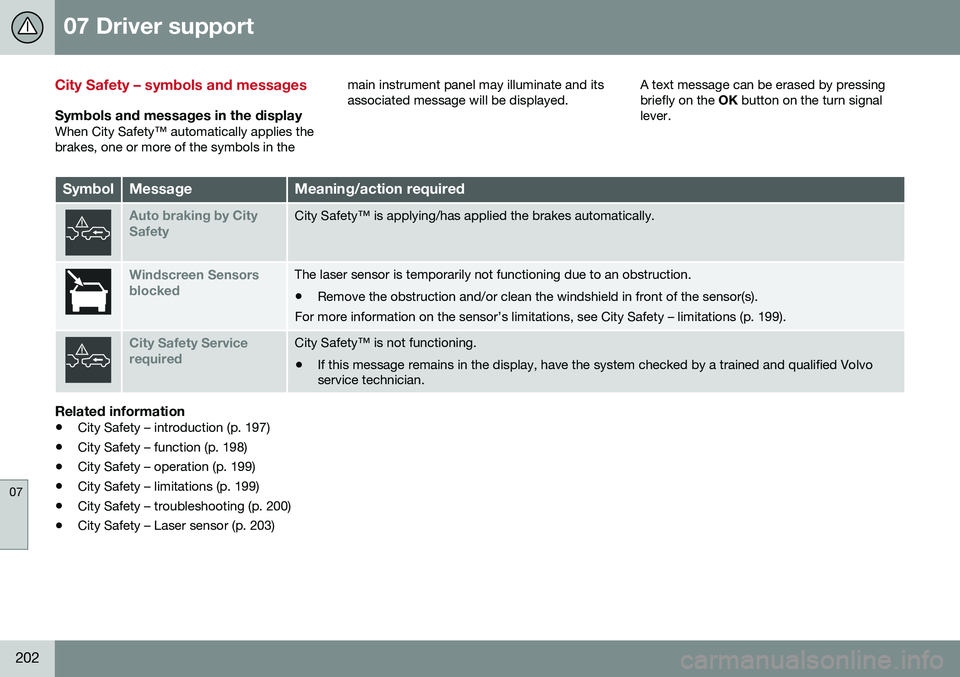
Symbols and messages in the displayWhen City Safety™ automatically applies the brakes, one or more of the symbols in themain instrument panel may illuminate and itsassociated message will be displayed.
A text message can be erased by pressingbriefly on the
OK button on the turn signal
lever.
SymbolMessageMeaning/action required
Auto braking by City SafetyCity Safety™ is applying/has applied the brakes automatically.
Windscreen Sensors blockedThe laser sensor is temporarily not functioning due to an obstruction.
• Remove the obstruction and/or clean the windshield in front of the sensor(s).
For more information on the sensor’s limitations, see City Safety – limitations (p. 199).
City Safety Service requiredCity Safety™ is not functioning.
• If this message remains in the display, have the system checked by a trained and qualified Volvo service technician.
Related information
• City Safety – introduction (p. 197)
• City Safety – function (p. 198)
• City Safety – operation (p. 199)
• City Safety – limitations (p. 199)
• City Safety – troubleshooting (p. 200)
• City Safety – Laser sensor (p. 203)
Page 222 of 402
07 Driver support
07
220
Driver Alert Control (DAC) – symbols and messages
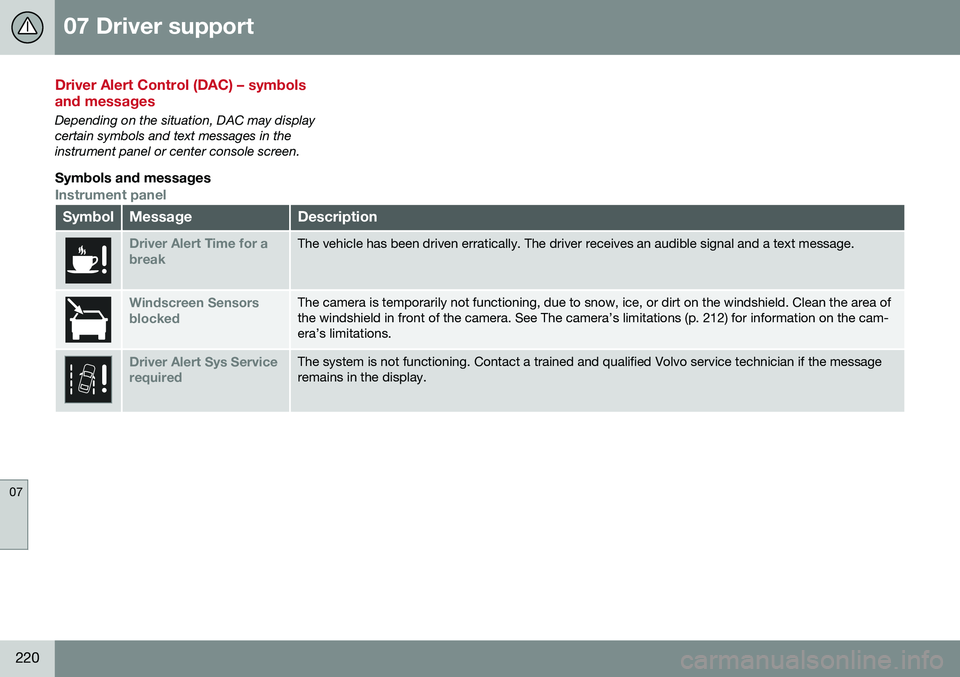
Depending on the situation, DAC may display certain symbols and text messages in theinstrument panel or center console screen.
Symbols and messages
Instrument panel
SymbolMessageDescription
Driver Alert Time for a breakThe vehicle has been driven erratically. The driver receives an audible signal and a text message.
Windscreen Sensors blockedThe camera is temporarily not functioning, due to snow, ice, or dirt on the windshield. Clean the area of the windshield in front of the camera. See The camera’s limitations (p. 212) for information on the cam-era’s limitations.
Driver Alert Sys Service requiredThe system is not functioning. Contact a trained and qualified Volvo service technician if the message remains in the display.
Page 225 of 402
07 Driver support
07
}}
223
Lane Departure Warning (LDW) – operation
Operation and function
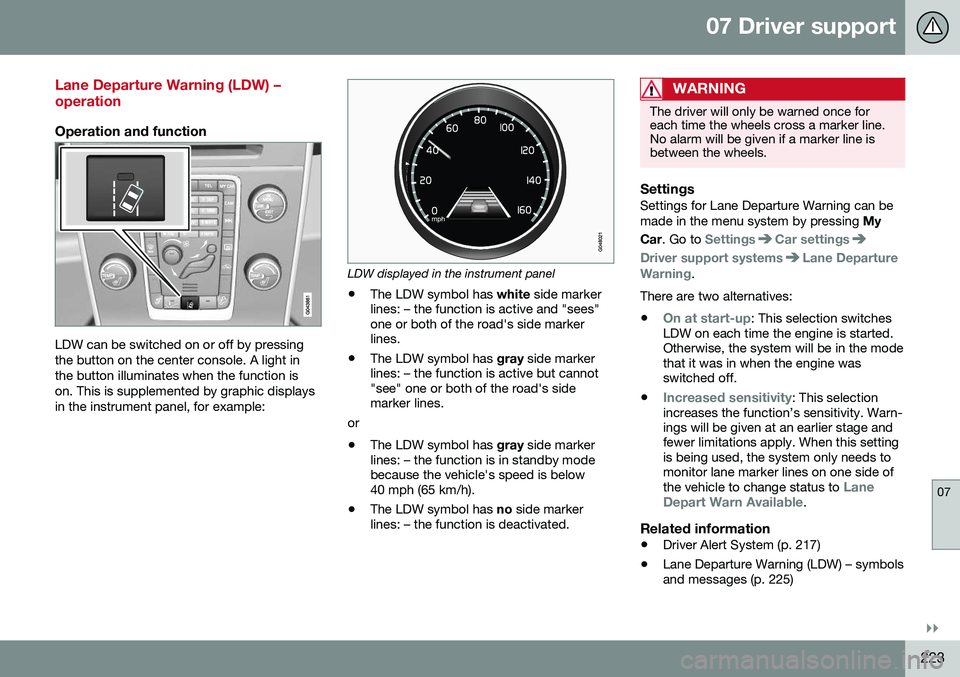
LDW can be switched on or off by pressing the button on the center console. A light inthe button illuminates when the function ison. This is supplemented by graphic displaysin the instrument panel, for example:
LDW displayed in the instrument panel
• The LDW symbol has
white side marker
lines: – the function is active and "sees" one or both of the road's side markerlines.
• The LDW symbol has
gray side marker
lines: – the function is active but cannot"see" one or both of the road's sidemarker lines.
or
• The LDW symbol has
gray side marker
lines: – the function is in standby modebecause the vehicle's speed is below40 mph (65 km/h).
• The LDW symbol has
no side marker
lines: – the function is deactivated.
WARNING
The driver will only be warned once for each time the wheels cross a marker line.No alarm will be given if a marker line isbetween the wheels.
SettingsSettings for Lane Departure Warning can be made in the menu system by pressing My
Car . Go to
SettingsCar settings
Driver support systemsLane Departure
Warning.
There are two alternatives:
•
On at start-up: This selection switches
LDW on each time the engine is started. Otherwise, the system will be in the modethat it was in when the engine wasswitched off.
•
Increased sensitivity: This selection
increases the function’s sensitivity. Warn- ings will be given at an earlier stage andfewer limitations apply. When this settingis being used, the system only needs tomonitor lane marker lines on one side of the vehicle to change status to
Lane
Depart Warn Available.
Related information
• Driver Alert System (p. 217)
• Lane Departure Warning (LDW) – symbols and messages (p. 225)
Page 233 of 402
07 Driver support
07
231
Lane Keeping Aid (LKA) – symbols and messages
A text message can be erased by pressing briefly on the OK button on the turn signal
lever.
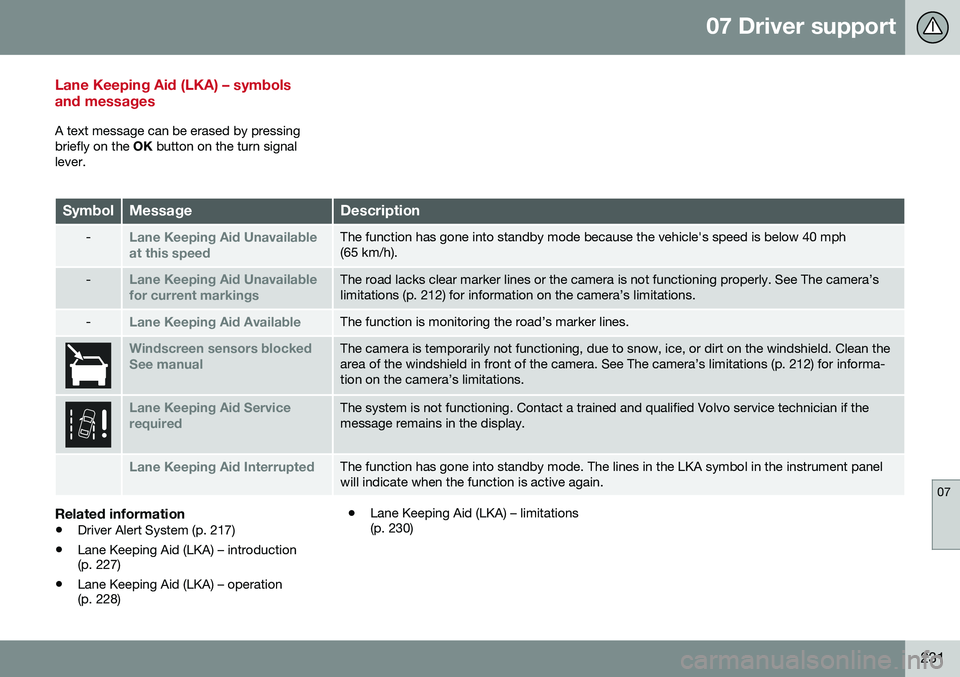
SymbolMessageDescription
-Lane Keeping Aid Unavailable
at this speedThe function has gone into standby mode because the vehicle's speed is below 40 mph (65 km/h).
-Lane Keeping Aid Unavailable
for current markingsThe road lacks clear marker lines or the camera is not functioning properly. See The camera’s limitations (p. 212) for information on the camera’s limitations.
-Lane Keeping Aid AvailableThe function is monitoring the road’s marker lines.
Windscreen sensors blocked See manualThe camera is temporarily not functioning, due to snow, ice, or dirt on the windshield. Clean the area of the windshield in front of the camera. See The camera’s limitations (p. 212) for informa-tion on the camera’s limitations.
Lane Keeping Aid Service requiredThe system is not functioning. Contact a trained and qualified Volvo service technician if the message remains in the display.
Lane Keeping Aid InterruptedThe function has gone into standby mode. The lines in the LKA symbol in the instrument panel will indicate when the function is active again.
Related information
• Driver Alert System (p. 217)
• Lane Keeping Aid (LKA) – introduction (p. 227)
• Lane Keeping Aid (LKA) – operation(p. 228) •
Lane Keeping Aid (LKA) – limitations(p. 230)
Page 238 of 402
07 Driver support
07
236* Option/accessory, for more information, see Introduction.
Park Assist Pilot (PAP)* – introduction
The Park Assist Pilot provides assistance when parallel parking by measuring the park-ing space and turning the steering wheel.
Introduction
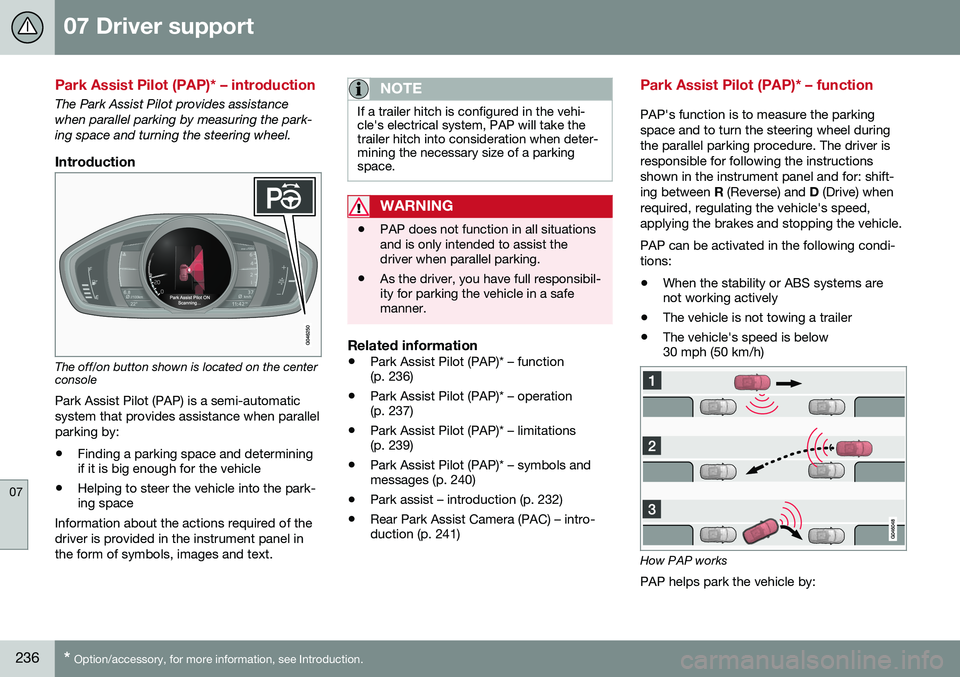
The off/on button shown is located on the center console
Park Assist Pilot (PAP) is a semi-automatic system that provides assistance when parallelparking by:
• Finding a parking space and determining if it is big enough for the vehicle
• Helping to steer the vehicle into the park-ing space
Information about the actions required of the driver is provided in the instrument panel inthe form of symbols, images and text.
NOTE
If a trailer hitch is configured in the vehi- cle's electrical system, PAP will take thetrailer hitch into consideration when deter-mining the necessary size of a parkingspace.
WARNING
• PAP does not function in all situations and is only intended to assist thedriver when parallel parking.
• As the driver, you have full responsibil-ity for parking the vehicle in a safemanner.
Related information
•
Park Assist Pilot (PAP)* – function (p. 236)
• Park Assist Pilot (PAP)* – operation(p. 237)
• Park Assist Pilot (PAP)* – limitations(p. 239)
• Park Assist Pilot (PAP)* – symbols andmessages (p. 240)
• Park assist – introduction (p. 232)
• Rear Park Assist Camera (PAC) – intro-duction (p. 241)
Park Assist Pilot (PAP)* – function
PAP's function is to measure the parking space and to turn the steering wheel duringthe parallel parking procedure. The driver isresponsible for following the instructionsshown in the instrument panel and for: shift-ing between
R (Reverse) and D (Drive) when
required, regulating the vehicle's speed,applying the brakes and stopping the vehicle. PAP can be activated in the following condi- tions: • When the stability or ABS systems are not working actively
• The vehicle is not towing a trailer
• The vehicle's speed is below30 mph (50 km/h)
How PAP works
PAP helps park the vehicle by:
Page 240 of 402
||
07 Driver support
07
238* Option/accessory, for more information, see Introduction.
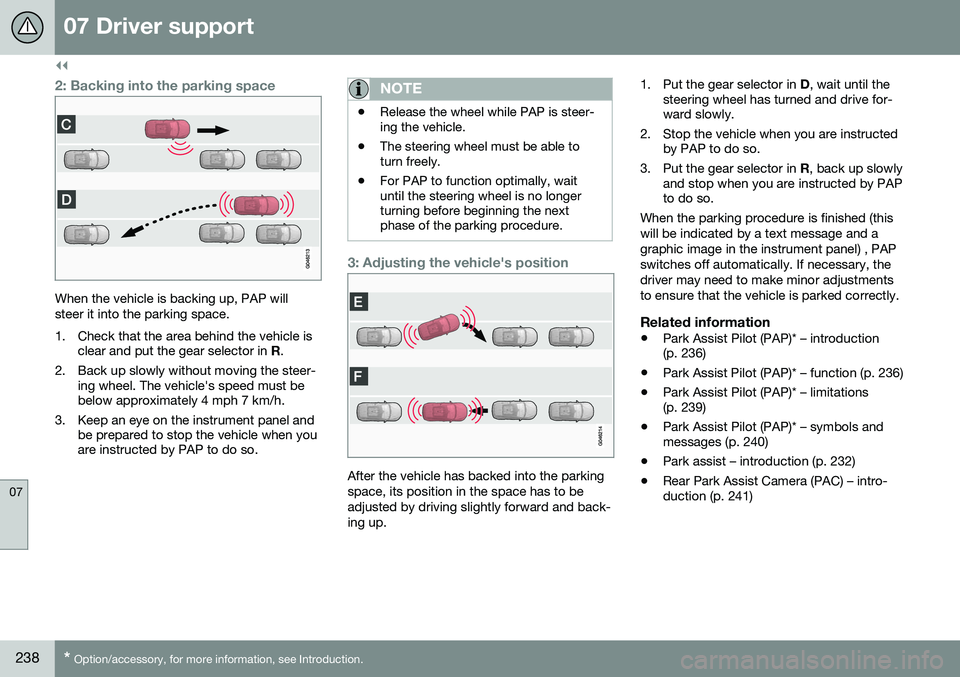
2: Backing into the parking space
When the vehicle is backing up, PAP will steer it into the parking space.
1. Check that the area behind the vehicle is
clear and put the gear selector in R.
2. Back up slowly without moving the steer- ing wheel. The vehicle's speed must be below approximately 4 mph 7 km/h.
3. Keep an eye on the instrument panel and be prepared to stop the vehicle when youare instructed by PAP to do so.
NOTE
•Release the wheel while PAP is steer- ing the vehicle.
• The steering wheel must be able toturn freely.
• For PAP to function optimally, waituntil the steering wheel is no longerturning before beginning the nextphase of the parking procedure.
3: Adjusting the vehicle's position
After the vehicle has backed into the parking space, its position in the space has to beadjusted by driving slightly forward and back-ing up. 1. Put the gear selector in
D, wait until the
steering wheel has turned and drive for- ward slowly.
2. Stop the vehicle when you are instructed by PAP to do so.
3. Put the gear selector in R, back up slowly
and stop when you are instructed by PAPto do so.
When the parking procedure is finished (this will be indicated by a text message and agraphic image in the instrument panel) , PAPswitches off automatically. If necessary, thedriver may need to make minor adjustmentsto ensure that the vehicle is parked correctly.
Related information
• Park Assist Pilot (PAP)* – introduction (p. 236)
• Park Assist Pilot (PAP)* – function (p. 236)
• Park Assist Pilot (PAP)* – limitations(p. 239)
• Park Assist Pilot (PAP)* – symbols andmessages (p. 240)
• Park assist – introduction (p. 232)
• Rear Park Assist Camera (PAC) – intro-duction (p. 241)