fuel VOLVO V60 2017 Owner´s Manual
[x] Cancel search | Manufacturer: VOLVO, Model Year: 2017, Model line: V60, Model: VOLVO V60 2017Pages: 406, PDF Size: 9.65 MB
Page 121 of 406
INSTRUMENTS AND CONTROLS
}}
119
FunctionDescription
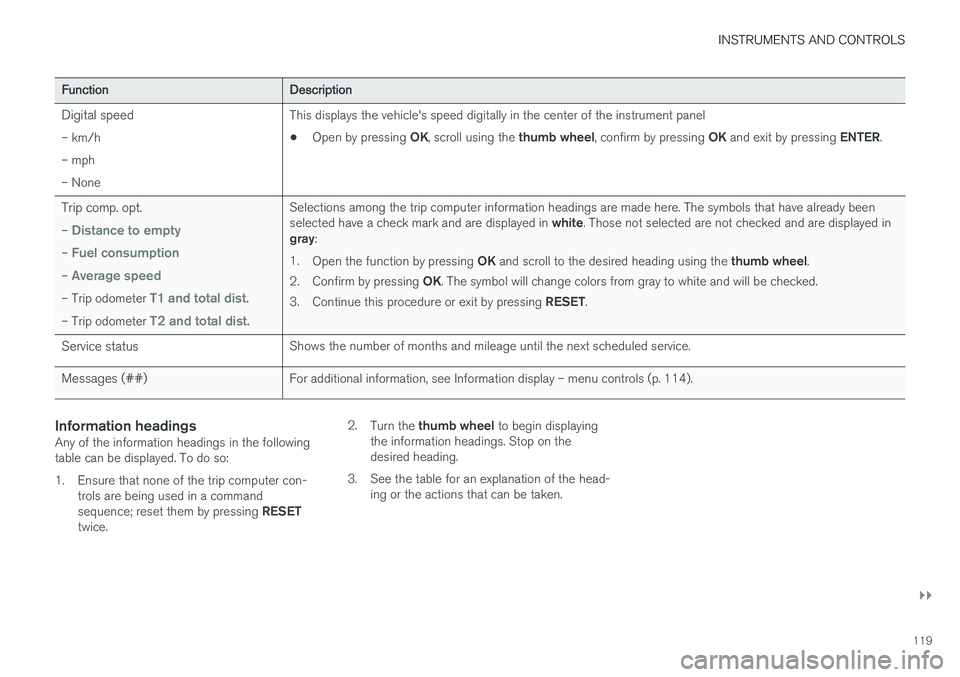
Digital speed– km/h – mph– NoneThis displays the vehicle's speed digitally in the center of the instrument panel • Open by pressing
OK, scroll using the thumb wheel, confirm by pressing OK and exit by pressing ENTER.
Trip comp. opt.
–
Distance to empty
– Fuel consumption
– Average speed
– Trip odometer T1 and total dist.
– Trip odometer T2 and total dist.
Selections among the trip computer information headings are made here. The symbols that have already been selected have a check mark and are displayed in white. Those not selected are not checked and are displayed in
gray :
1. Open the function by pressing OK and scroll to the desired heading using the thumb wheel.
2. Confirm by pressing OK. The symbol will change colors from gray to white and will be checked.
3. Continue this procedure or exit by pressing RESET.
Service statusShows the number of months and mileage until the next scheduled service.
Messages (##)For additional information, see Information display – menu controls (p. 114).
Information headingsAny of the information headings in the following table can be displayed. To do so:
1. Ensure that none of the trip computer con-
trols are being used in a command sequence; reset them by pressing RESET
twice. 2.
Turn the thumb wheel to begin displaying
the information headings. Stop on the desired heading.
3. See the table for an explanation of the head- ing or the actions that can be taken.
Page 122 of 406
||
INSTRUMENTS AND CONTROLS
120
Information headings in the instrument panelDescription
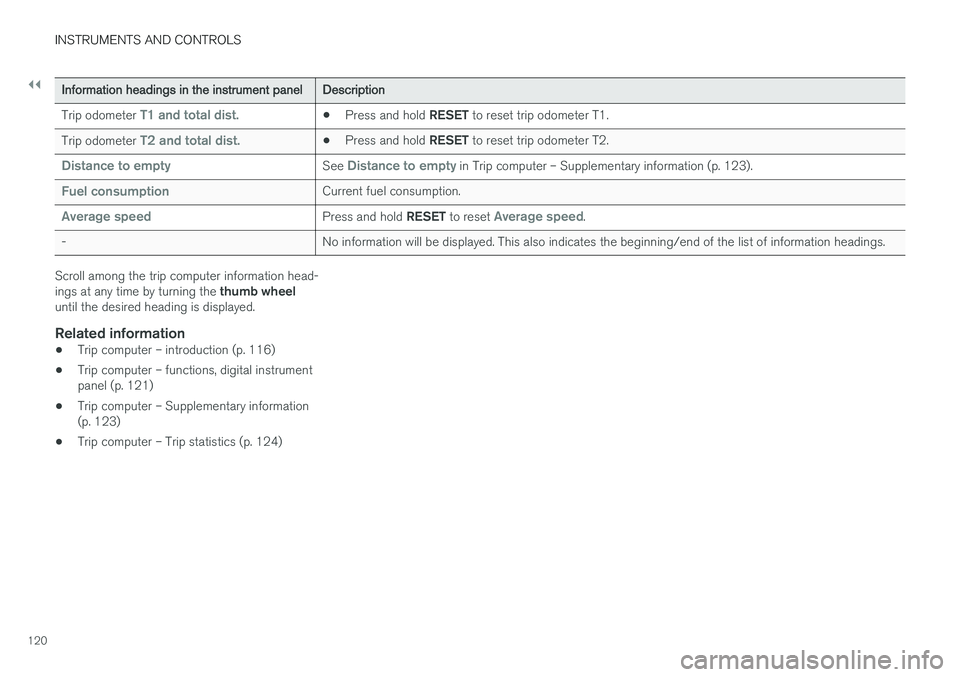
Trip odometer T1 and total dist.•Press and hold
RESET to reset trip odometer T1.
Trip odometer T2 and total dist.•Press and hold
RESET to reset trip odometer T2.
Distance to emptySee Distance to empty in Trip computer – Supplementary information (p. 123).
Fuel consumptionCurrent fuel consumption.
Average speedPress and hold RESET to reset Average speed.
-No information will be displayed. This also indicates the beginning/end of the list of information headings.
Scroll among the trip computer information head- ings at any time by turning the thumb wheel
until the desired heading is displayed.
Related information
• Trip computer – introduction (p. 116)
• Trip computer – functions, digital instrument panel (p. 121)
• Trip computer – Supplementary information(p. 123)
• Trip computer – Trip statistics (p. 124)
Page 123 of 406
INSTRUMENTS AND CONTROLS
}}
* Option/accessory, for more information, see Introduction.121
Trip computer – functions, digital instrument panel
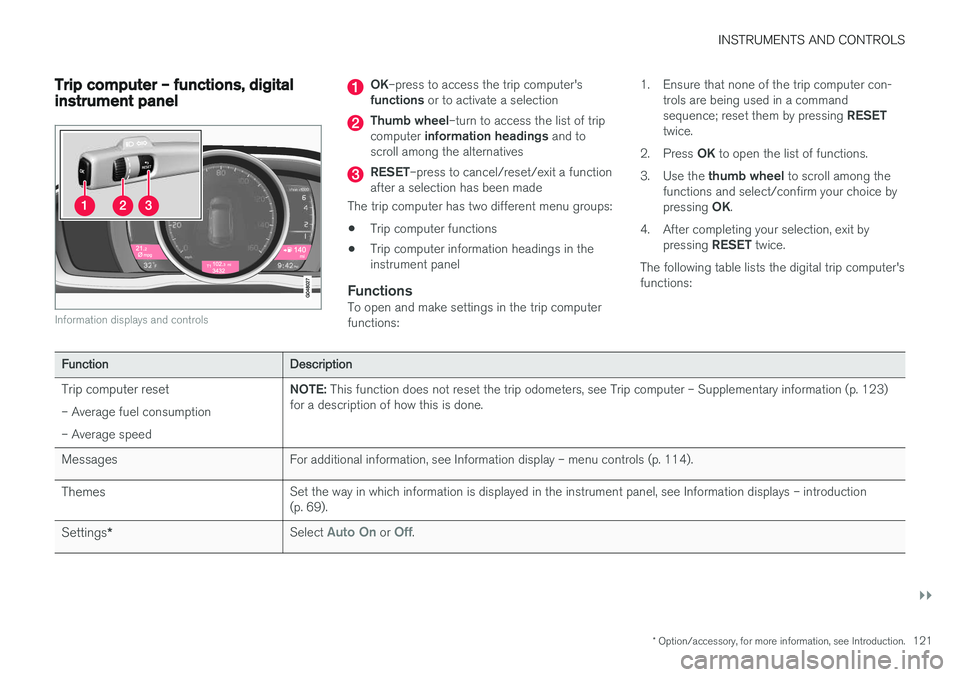
Information displays and controls
OK–press to access the trip computer's
functions or to activate a selection
Thumb wheel –turn to access the list of trip
computer information headings and to
scroll among the alternatives
RESET –press to cancel/reset/exit a function
after a selection has been made
The trip computer has two different menu groups: • Trip computer functions
• Trip computer information headings in the instrument panel
FunctionsTo open and make settings in the trip computerfunctions: 1. Ensure that none of the trip computer con-
trols are being used in a command sequence; reset them by pressing RESET
twice.
2. Press OK to open the list of functions.
3. Use the thumb wheel to scroll among the
functions and select/confirm your choice bypressing OK.
4. After completing your selection, exit by pressing RESET twice.
The following table lists the digital trip computer's functions:
FunctionDescription
Trip computer reset – Average fuel consumption – Average speedNOTE: This function does not reset the trip odometers, see Trip computer – Supplementary information (p. 123)
for a description of how this is done.
MessagesFor additional information, see Information display – menu controls (p. 114).
ThemesSet the way in which information is displayed in the instrument panel, see Information displays – introduction (p. 69).
Settings *Select Auto On or Off.
Page 124 of 406
||
INSTRUMENTS AND CONTROLS
122
FunctionDescription
Contrast mode/Color modeAdjust the instrument panel's contrast and color.
Service statusShows the number of months and mileage until the next scheduled service.
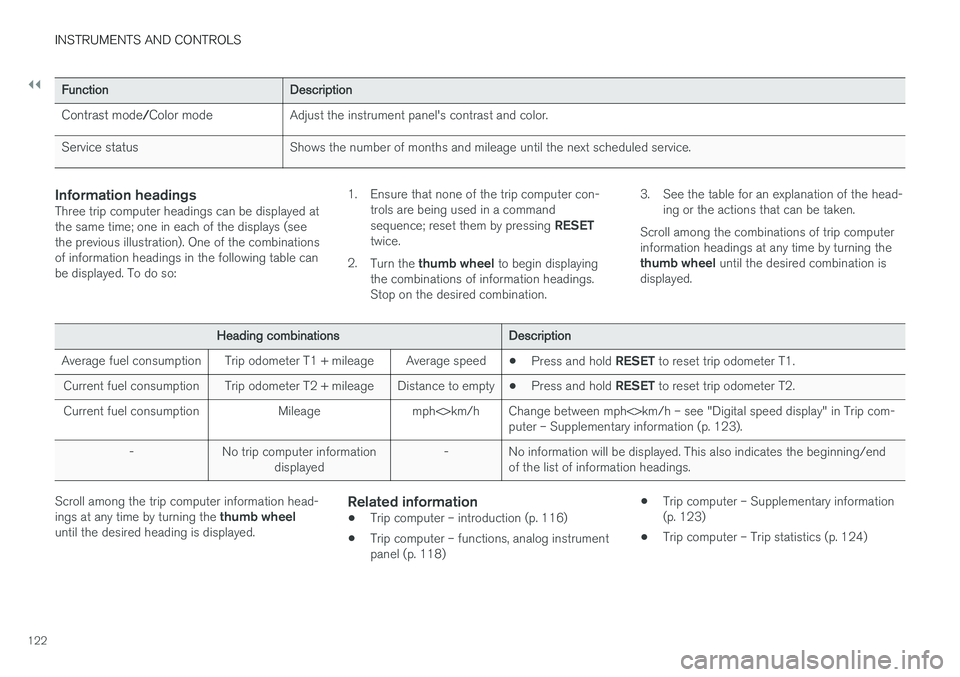
Information headingsThree trip computer headings can be displayed at the same time; one in each of the displays (seethe previous illustration). One of the combinationsof information headings in the following table canbe displayed. To do so: 1. Ensure that none of the trip computer con-
trols are being used in a command sequence; reset them by pressing RESET
twice.
2. Turn the thumb wheel to begin displaying
the combinations of information headings. Stop on the desired combination. 3. See the table for an explanation of the head-
ing or the actions that can be taken.
Scroll among the combinations of trip computerinformation headings at any time by turning the thumb wheel until the desired combination is
displayed.
Heading combinationsDescription
Average fuel consumptionTrip odometer T1 + mileageAverage speed• Press and hold
RESET to reset trip odometer T1.
Current fuel consumptionTrip odometer T2 + mileageDistance to empty•Press and hold
RESET to reset trip odometer T2.
Current fuel consumptionMileagemph<>km/hChange between mph<>km/h – see "Digital speed display" in Trip com- puter – Supplementary information (p. 123).
-No trip computer information
displayed-No information will be displayed. This also indicates the beginning/end of the list of information headings.
Scroll among the trip computer information head- ings at any time by turning the thumb wheel
until the desired heading is displayed.Related information
• Trip computer – introduction (p. 116)
• Trip computer – functions, analog instrument panel (p. 118) •
Trip computer – Supplementary information(p. 123)
• Trip computer – Trip statistics (p. 124)
Page 125 of 406
INSTRUMENTS AND CONTROLS
* Option/accessory, for more information, see Introduction.123
Trip computer – Supplementary information
General information for both Analog and Digital trip computer functions.
Average fuel consumptionFuel consumption since the last time this func- tion was reset.
Average speedThe vehicle's average speed since the last timethis function was reset.
Current fuel consumptionCurrent fuel consumption is calculated approxi-mately once a second. When the vehicle is mov-ing at low speed, fuel consumption is displayedper unit of time. At higher speeds, it is displayedin terms of distance. Miles or kilometers can be displayed, see the heading "Changing units".
Distance to emptyThis function shows the approximate distancethat can be driven on the fuel remaining in the tank. When
Distance to empty shows "----",
there is very little useable fuel remaining in that tank; refuel as soon as possible. The calculationis based on average fuel consumption during thelast 20 miles (30 km) of driving and the amountof fuel remaining in the tank (the accuracy of thisfigure may vary if your driving style changes). An economical driving style will generally increasethis distance. See Economical driving (p. 291) for information about driving economically.
Digital speed display
*Speed is expressed in the unit not used by theinstrument panel's speedometer e.g., if the nor-mal speedometer is in mph, the trip computer willdisplay in the speed in km/h and vice versa.
Resetting an analog instrument panel
Trip odometer(s) and average speed
1. Display trip odometer T1 or T1, or Average
speed.
2. Press and hold RESET until selected func-
tion is reset.
Each trip computer heading must be reset indi- vidually.
Resetting a digital instrument panel
Trip odometer
1. Turn the thumb wheel to select the combi-
nation of headings containing the trip odom- eter to be reset.
2. Press and hold RESET until selected trip
odometer is reset.
Average speed and fuel consumption
1. Select Trip computer reset and press OK. 2. Select one of the following alternatives using
the thumb wheel and press OK:
• mpg
• mph
• Reset both
3. Finish by pressing RESET.
Changing unitsTo change the unit (miles/km) used to measure distance and speed, go to
MY CARSettings
System optionsDistance and fuel units.
NOTE
In addition to changing units in the trip com- puter, this also changes the units used in the Volvo Navigation System (VNS) *.
Related information
• Trip computer – introduction (p. 116)
• Trip computer – functions, analog instrument panel (p. 118)
• Trip computer – functions, digital instrumentpanel (p. 121)
• Trip computer – Trip statistics (p. 124)
Page 126 of 406
INSTRUMENTS AND CONTROLS
* Option/accessory, for more information, see Introduction.
124
Trip computer – Trip statistics
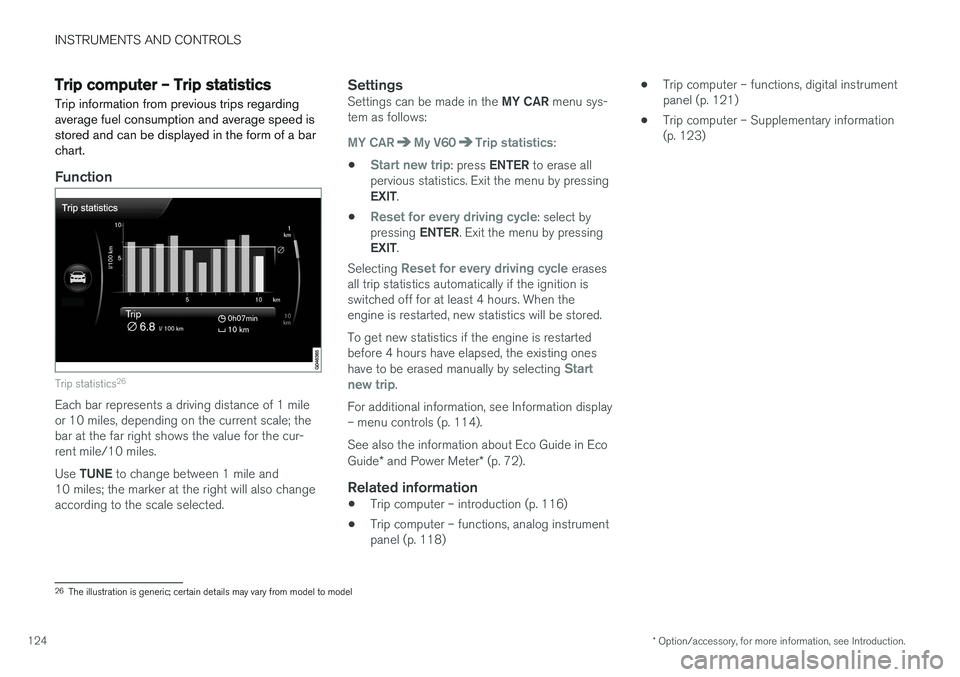
Trip information from previous trips regarding average fuel consumption and average speed isstored and can be displayed in the form of a barchart.
Function
Trip statistics 26
Each bar represents a driving distance of 1 mile or 10 miles, depending on the current scale; thebar at the far right shows the value for the cur-rent mile/10 miles. Use
TUNE to change between 1 mile and
10 miles; the marker at the right will also change according to the scale selected.
SettingsSettings can be made in the MY CAR menu sys-
tem as follows:
MY CARMy V60Trip statistics:
•
Start new trip: press ENTER to erase all
pervious statistics. Exit the menu by pressing EXIT .
•
Reset for every driving cycle: select by
pressing ENTER. Exit the menu by pressing
EXIT .
Selecting
Reset for every driving cycle erases
all trip statistics automatically if the ignition is switched off for at least 4 hours. When theengine is restarted, new statistics will be stored. To get new statistics if the engine is restarted before 4 hours have elapsed, the existing ones have to be erased manually by selecting
Start
new trip.
For additional information, see Information display – menu controls (p. 114). See also the information about Eco Guide in Eco Guide * and Power Meter * (p. 72).
Related information
• Trip computer – introduction (p. 116)
• Trip computer – functions, analog instrument panel (p. 118) •
Trip computer – functions, digital instrumentpanel (p. 121)
• Trip computer – Supplementary information(p. 123)
26
The illustration is generic; certain details may vary from model to model
Page 145 of 406
LOADING AND STORAGE
* Option/accessory, for more information, see Introduction.143
Glove compartment
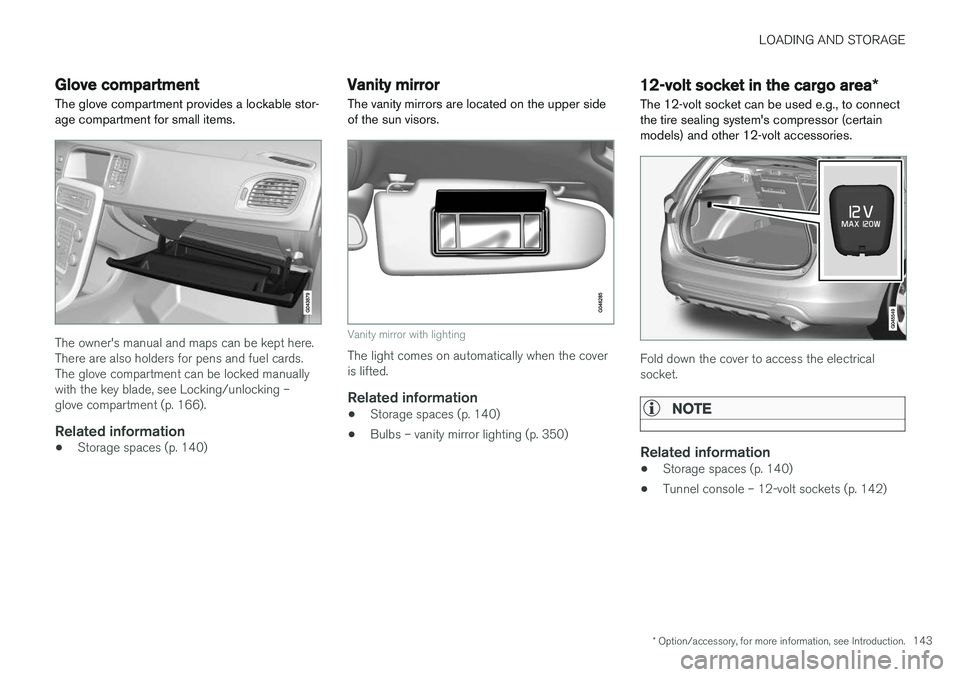
The glove compartment provides a lockable stor- age compartment for small items.
The owner's manual and maps can be kept here. There are also holders for pens and fuel cards.The glove compartment can be locked manuallywith the key blade, see Locking/unlocking –glove compartment (p. 166).
Related information
• Storage spaces (p. 140)
Vanity mirror
The vanity mirrors are located on the upper side of the sun visors.
Vanity mirror with lighting
The light comes on automatically when the cover is lifted.
Related information
• Storage spaces (p. 140)
• Bulbs – vanity mirror lighting (p. 350)
12-volt socket in the cargo area
*
The 12-volt socket can be used e.g., to connect the tire sealing system's compressor (certainmodels) and other 12-volt accessories.
Fold down the cover to access the electrical socket.
NOTE
Related information
• Storage spaces (p. 140)
• Tunnel console – 12-volt sockets (p. 142)
Page 147 of 406
LOADING AND STORAGE
145
•
The vehicle's wind resistance and fuel con- sumption will increase with the size of theload.
• Drive smoothly. Avoid rapid starts, fast cor-nering and hard braking.
Related information
• Loading – general (p. 144)
• Load anchoring eyelets (p. 145)
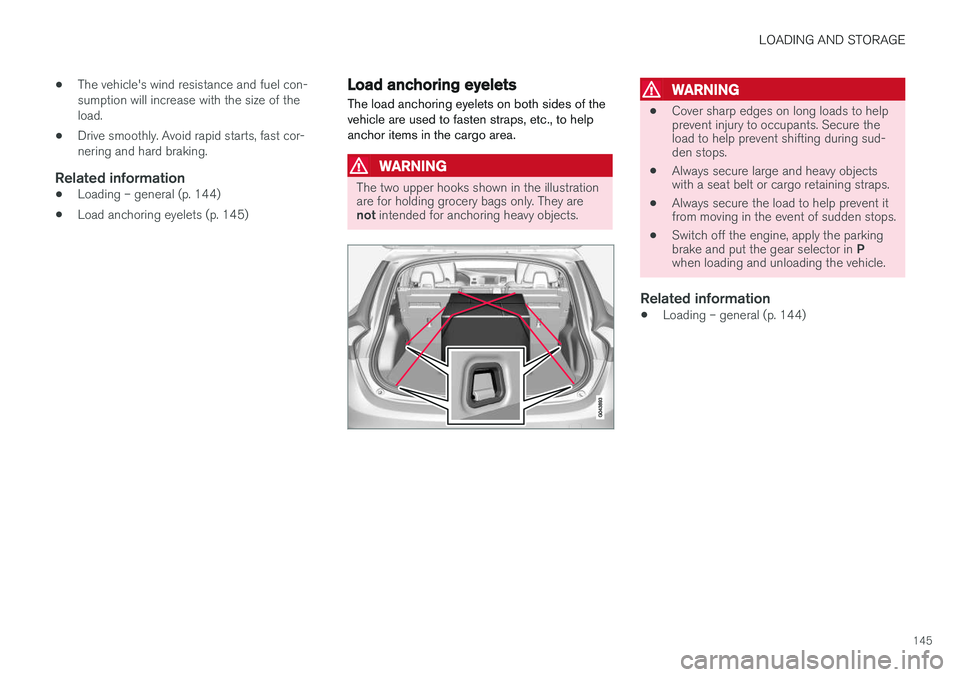
Load anchoring eyelets
The load anchoring eyelets on both sides of the vehicle are used to fasten straps, etc., to helpanchor items in the cargo area.
WARNING
The two upper hooks shown in the illustration are for holding grocery bags only. They are not intended for anchoring heavy objects.
WARNING
• Cover sharp edges on long loads to help prevent injury to occupants. Secure theload to help prevent shifting during sud-den stops.
• Always secure large and heavy objectswith a seat belt or cargo retaining straps.
• Always secure the load to help prevent itfrom moving in the event of sudden stops.
• Switch off the engine, apply the parking brake and put the gear selector in
P
when loading and unloading the vehicle.
Related information
• Loading – general (p. 144)
Page 263 of 406
STARTING AND DRIVING
}}
* Option/accessory, for more information, see Introduction.261
1. The turn signals will flash several times.
2. The engine will start.
3. The turn signals will illuminate for 3 seconds
to indicate that the engine has started.
After the engine has started, the vehicle remains locked but the alarm is disarmed.
Active functions
When the engine is started with ERS, the follow- ing functions are activated: • The climate control system
• The infotainment system.
• Approach lighting
Deactivated functions
When the engine is started with ERS, the follow- ing functions are deactivated: •
Headlights
• Parking lights
• License plate lights
• Windshield wipers
Related information
•
Engine Remote Start (ERS)
* – switching off
the engine (p. 261)
• Engine Remote Start (ERS)
* – introduction
(p. 260)
Engine Remote Start (ERS) * –
switching off the engine
Any of the following will switch off the engine if it has been started with ERS: • Pressing the lock button (1) or the unlock button (2) on the remote key
• Unlocking the vehicle
• Opening a door
• Depressing the accelerator or brake pedal
• Moving the gear selector from the
P position
• If there are less than approx. 2.5 gallons(10 liters) of fuel in the tank
• More than 15 minutes have elapsed.
If the engine has been started with ERS andswitches off, the turn signals will illuminate for3 seconds.
Message in the instrument panel display
If ERS is interrupted, a text message will be dis- played in the instrument panel.
Related information
• Engine Remote Start (ERS)
* – introduction
(p. 260)
• Engine Remote Start (ERS)
* – starting the
engine (p. 260)
Jump starting
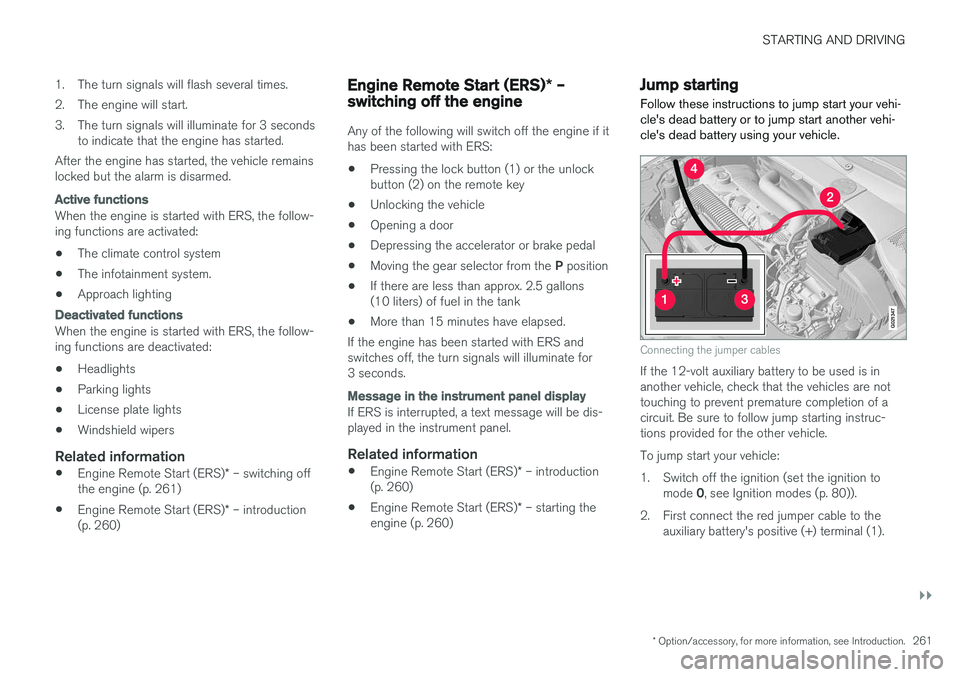
Follow these instructions to jump start your vehi- cle's dead battery or to jump start another vehi-cle's dead battery using your vehicle.
G021347
Connecting the jumper cables
If the 12-volt auxiliary battery to be used is in another vehicle, check that the vehicles are nottouching to prevent premature completion of acircuit. Be sure to follow jump starting instruc-tions provided for the other vehicle. To jump start your vehicle:
1. Switch off the ignition (set the ignition to mode 0, see Ignition modes (p. 80)).
2. First connect the red jumper cable to the auxiliary battery's positive (+) terminal (1).
Page 264 of 406
||
STARTING AND DRIVING
2623. Fold back the cover over the positive (+) ter-
minal on your vehicle's battery (2), marked with a "+" sign, located under a folding cover.
4. Connect the black jumper cable to the auxili- ary battery's negative (–) terminal (3) and tothe ground point in your vehicle's enginecompartment (right engine mount at the top,on the outer screw) (4).
5. Start the engine in the assisting vehicle, then start the engine in the vehicle with dead bat-tery.
6. After the engine has started, first remove the negative (–) terminal jumper cable (black).Then remove the positive (+) terminal jumpercable (red).
WARNING
PROPOSITION 65 WARNING! Battery posts, terminals, and related accesso- ries contain lead and lead compounds, chemi-cals known to the state of California to causecancer and reproductive harm. Wash handsafter handling.
CAUTION
Connect the jumper cables carefully to avoid short circuits with other components in theengine compartment.
WARNING
• Do not connect the jumper cable to any part of the fuel system or to any movingparts. Avoid touching hot manifolds.
• Batteries generate hydrogen gas, whichis flammable and explosive.
• Battery fluid contains sulfuric acid. Do notallow battery fluid to contact eyes, skin,fabrics or painted surfaces. If contactoccurs, flush the affected area immedi-ately with water. Obtain medical helpimmediately if eyes are affected.
• Never expose the battery to open flameor electric spark.
• Do not smoke near the battery.
• Failure to follow the instructions for jumpstarting can lead to injury.
Related information
• Starting the engine (p. 258)
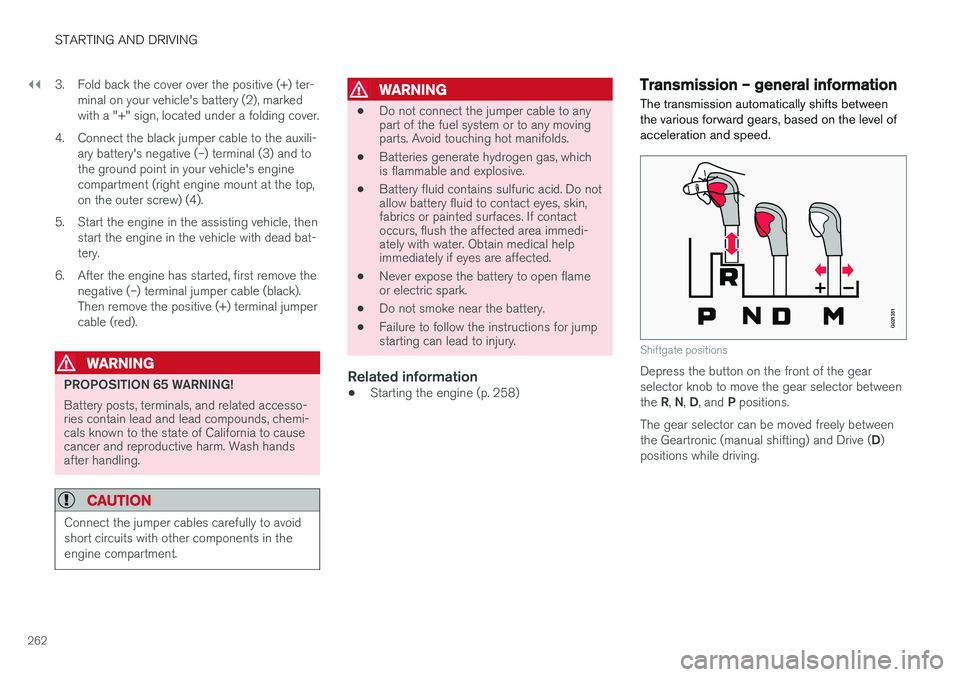
Transmission – general information The transmission automatically shifts between the various forward gears, based on the level ofacceleration and speed.
G021351
Shiftgate positions
Depress the button on the front of the gear selector knob to move the gear selector between the
R, N , D , and P positions.
The gear selector can be moved freely betweenthe Geartronic (manual shifting) and Drive ( D)
positions while driving.