audio VOLVO V60 2021 User Guide
[x] Cancel search | Manufacturer: VOLVO, Model Year: 2021, Model line: V60, Model: VOLVO V60 2021Pages: 661, PDF Size: 12.68 MB
Page 265 of 661
KEY, LOCKS AND ALARM
}}
* Option/accessory.263
Setting maximum opening height for the power tailgate *
The tailgate can be set to stop opening at a certain height, for example if the tailgateneeds to be opened in a garage with a lowceiling.
Setting maximum opening height1. Open the tailgate manually to the desired opening height.
2. Press the
button on the lower edge of
the tailgate and hold it for about 3 seconds.
> Two audio signals will sound to indicate that the position has been stored.
NOTE
It is not possible to program an opening position lower than half-open tailgate.
Resetting maximum opening position1. Open the tailgate manually to the fully open position.
2. Press the
button on the lower edge of
the tailgate and hold it for about 3 seconds.
> Two audio signals will sound to indicate that the stored position has been erased.
NOTE
If the system has been working contin- uously for a prolonged period of time, itwill be switched off to avoid overload.It can be used again after approxi-mately 2 minutes.
Operating the tailgate with a foot movement
*
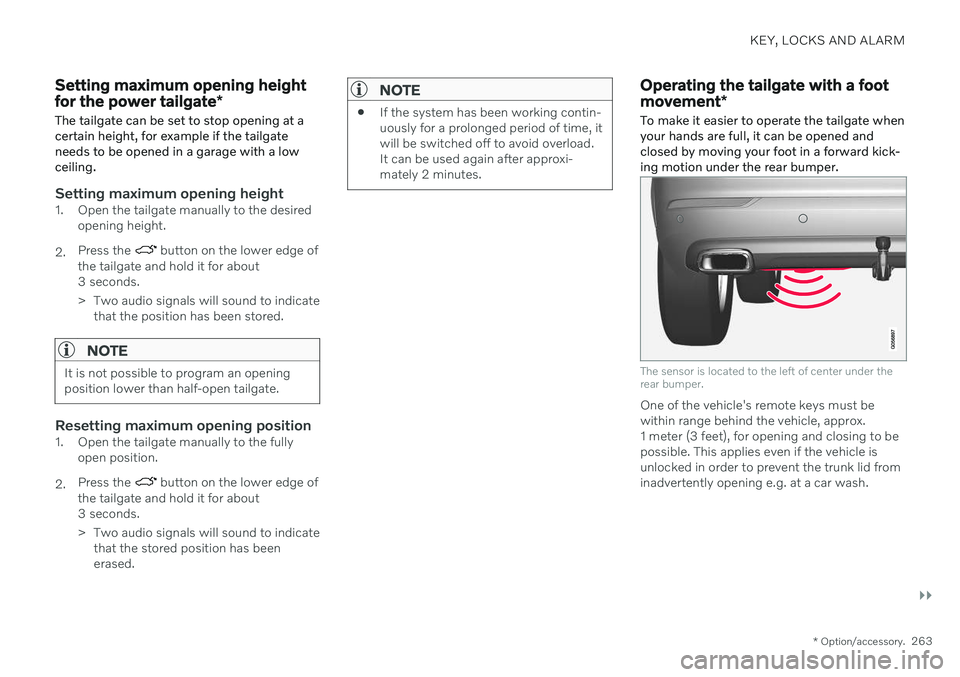
To make it easier to operate the tailgate when your hands are full, it can be opened andclosed by moving your foot in a forward kick-ing motion under the rear bumper.
The sensor is located to the left of center under the rear bumper.
One of the vehicle's remote keys must be within range behind the vehicle, approx.1 meter (3 feet), for opening and closing to bepossible. This applies even if the vehicle isunlocked in order to prevent the trunk lid frominadvertently opening e.g. at a car wash.
Page 283 of 661
DRIVER SUPPORT
}}
* Option/accessory.281
The driver can be alerted if the vehicle is exceeding a detected speed limit and isapproaching a speed camera.
Speed Limit Warning warns the driver if the
vehicle's speed has exceeded the applicable speed limit or the stored maximum speed. Thewarning will be repeated once afterabout 30 seconds in that speed limit area ifthe driver does not slow down. An additional warning will not be provided unless the vehicle's speed is reduced by atleast 5 km/h (3 mph) and then exceeds thespeed limit again or the vehicle enters a new/different speed limit area.
NOTE
For an audible alert to be provided if the speed is exceeded, the Speed Limit
Warning function must be activated and
the Road Sign Audio Warning sub-func-
tion must be On. Audible alerts are provi-
ded if the vehicle's speed exceeds the speed displayed by Road Sign Informationin the instrument panel.
Speed camera warningVehicles equipped with Road Sign Information and SensusNavigation can provide infor-mation on upcoming speedcameras in the instrument panel 22
.
If the vehicle exceeds a detected speed limit with the Speed Limit Warning function acti-
vated, the driver is given a speed warning when the vehicle is approaching a speed cam-era if the navigation map for the vehicle's cur-rent location contains information on speedcameras.
NOTE
It is possible to receive an audible alert for speed cameras regardless of the vehicle'sspeed and whether or not the speed limit is exceeded, even if the
Road Sign Audio
Warning function is deactivated.
Related information
Road Sign Information
* (p. 278)
Activating or deactivating warnings from Road Sign Information
* (p. 281)
Road Sign Information
* limitations
(p. 282)
Activating or deactivating warnings from Road Sign Information *
The Road Sign Information (RSI 23
) subfunc-
tion
Speed Limit Warning is optional – the
driver can choose to have the subfunction activated or deactivated.
Activating Speed Warning
1. Select SettingsMy CarIntelliSafe
Road Sign Information in the center
display's Top view.
2. Select
Speed Limit Warning.
> The function is activated and a speed limit selector is displayed.
Adjusting the Speed Warning limitThe driver can adjust the settings to be alerted at a higher speed than the posted speed limit.
1. Select
SettingsMy CarIntelliSafe
Road Sign Information in the center
display's Top view.
2. Select
Speed Limit Warning.
> The function is activated and a speed limit selector is displayed.
22Information on speed cameras on the navigation map is not available for all markets/areas.
23 Road Sign Information
Page 284 of 661
||
DRIVER SUPPORT
* Option/accessory.
282 3. Tap the up/down arrows on the screen to
adjust the speed at which the Speed Warning will be given.
Please note that the setwarning limit will not be usedwhen a speed camera symbolis displayed in the instrumentpanel.
Activating audible alert for Speed Warning
1. Select SettingsMy CarIntelliSafe
Road Sign Information in the center
display's Top view.
2. Select/deselect
Road Sign Audio
Warning to activate/deactivate the audi-
ble alert.
When
Road Sign Audio Warning is acti-
vated, the driver will also be alerted if the vehi- cle is approaching a one-way/"no-entry" roador entrance.
Activating speed camera alertsIf the vehicle is equipped with Sensus Navigation * and map data contains informa-
tion on speed cameras, the driver can choose to receive an audible alert if the vehicle isapproaching a speed camera. 1. Select
SettingsMy CarIntelliSafe
Road Sign Information in the center
display's Top view.
2. Select/deselect
Speed Camera Audio
Warning to activate/deactivate the speed
camera audible alert.
Related information
Road Sign Information
* (p. 278)
Speed limit and speed camera warnings from Road Sign Information
* (p. 280)
Road Sign Information
* limitations
(p. 282)
Road Sign Information * limitations
Road Sign Information (RSI 24
) functionality
may be reduced in certain situations.
The function could have reduced functionality due to e.g.: faded road signs
signs located in a curve in the road
twisted or damaged signs
signs positioned high above the road
fully/partially obstructed or poorly posi- tioned signs
signs partially or fully covered by frost,snow and/or dirt
digital road maps 25
that are outdated,
incorrect or do not contain speed informa- tion 26
NOTE
In certain markets, the Road Sign Informa- tion
* function is only available in combina-
tion with Sensus Navigation *.
24
Road Sign Information
Page 358 of 661
DRIVER SUPPORT
* Option/accessory.
356
Park Assist *
The Park Assist function (PAS 101
) uses sen-
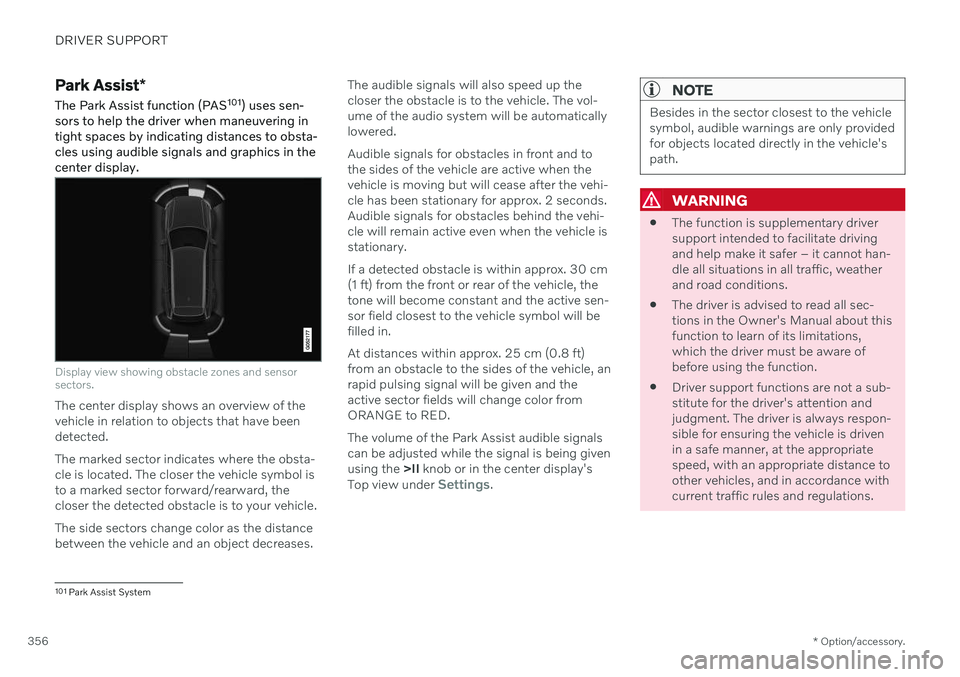
sors to help the driver when maneuvering in tight spaces by indicating distances to obsta-cles using audible signals and graphics in thecenter display.
Display view showing obstacle zones and sensor sectors.
The center display shows an overview of the vehicle in relation to objects that have beendetected. The marked sector indicates where the obsta- cle is located. The closer the vehicle symbol isto a marked sector forward/rearward, thecloser the detected obstacle is to your vehicle. The side sectors change color as the distance between the vehicle and an object decreases. The audible signals will also speed up thecloser the obstacle is to the vehicle. The vol-ume of the audio system will be automaticallylowered. Audible signals for obstacles in front and to the sides of the vehicle are active when thevehicle is moving but will cease after the vehi-cle has been stationary for approx. 2 seconds.Audible signals for obstacles behind the vehi-cle will remain active even when the vehicle isstationary. If a detected obstacle is within approx. 30 cm (1 ft) from the front or rear of the vehicle, thetone will become constant and the active sen-sor field closest to the vehicle symbol will befilled in. At distances within approx. 25 cm (0.8 ft) from an obstacle to the sides of the vehicle, anrapid pulsing signal will be given and theactive sector fields will change color fromORANGE to RED. The volume of the Park Assist audible signals can be adjusted while the signal is being givenusing the
>II knob or in the center display's
Top view under
Settings.
NOTE
Besides in the sector closest to the vehicle symbol, audible warnings are only providedfor objects located directly in the vehicle'spath.
WARNING
The function is supplementary driver support intended to facilitate drivingand help make it safer – it cannot han-dle all situations in all traffic, weatherand road conditions.
The driver is advised to read all sec-tions in the Owner's Manual about thisfunction to learn of its limitations,which the driver must be aware ofbefore using the function.
Driver support functions are not a sub-stitute for the driver's attention andjudgment. The driver is always respon-sible for ensuring the vehicle is drivenin a safe manner, at the appropriatespeed, with an appropriate distance toother vehicles, and in accordance withcurrent traffic rules and regulations.
101
Park Assist System
Page 420 of 661

STARTING AND DRIVING
* Option/accessory.
418
Activating and deactivating Eco drive mode using the functionbutton There is a function button for
Eco drive mode
in the center display's Function view if the vehicle is not equipped with a drive modecontrol in the tunnel console.
When the engine is switched off, Eco mode is
deactivated and must therefore be reactivated each time the engine is started. ECO will be
displayed in the instrument panel when thefunction is activated.
Selecting Eco drive mode in the center
display's Function view
–Tap the Driving Mode ECO button to
activate or deactivate the function.
> An indicator light in the button will illu- minate when the function is activated.
Related information
Eco drive mode (p. 416)
Changing drive mode
* (p. 415)
Drive modes
* (p. 413)
Start/Stop function Start/Stop is a function that temporarily switches off the engine when the vehicle hasstopped, e.g. at a traffic light or in heavy traf-fic, and then starts it again automaticallywhen needed.
The Start/Stop function reduces fuel con- sumption, which helps to reduce exhaustemissions. The system makes it possible to drive more economically and climate-smart by letting theengine auto-stop when appropriate.
Related information
Driving with the Start/Stop function(p. 418)
Conditions for the Start/Stop function(p. 420)
Drive modes
* (p. 413)
Driving with the Start/Stop function
Start/stop is a function that temporarily turns off the engine when the vehicle is stationaryand then automatically starts it when needed.
The Start/Stop function is available when the ignition is started and can be activated if cer-tain conditions are met. The instrument panel indicates when the func- tion is
Available
active
not available.
All of the vehicle's ordinary systems, such aslighting, radio, etc. function normally when theengine has been auto-stopped. Certain func-tions may be temporarily reduced howeversuch as the climate system's blower speed orextremely high audio system volume.
Auto-stopTo auto-stop the engine:
Page 433 of 661
STARTING AND DRIVING
}}
431
Related information
Refilling coolant (p. 582)
Driving with a trailer (p. 434)
Preparing for a long trip (p. 424)
Battery drain
The electrical functions in the vehicle drain the battery to varying degrees. Avoid usingignition mode II when the engine is switched
off. Use ignition mode I instead, as this uses
less electrical current.
Note that certain accessories may also drain power from the electrical system. Do not usefunctions that use a lot of electrical currentwhen the engine is turned off. Examples ofsuch functions are: blower
headlights
windshield wipers
audio system (especially at high volume).
If the starter battery voltage is low, a message is shown in the driver display. The vehicle'senergy-saving function will then turn off orreduce certain functions, such as the blowerand/or the audio system.
–To charge the battery, start the engine and let it run for at least 15 minutes (drivingcharges the battery faster than letting theengine idle).
Related information
Starter battery (p. 584)
Ignition modes (p. 395)
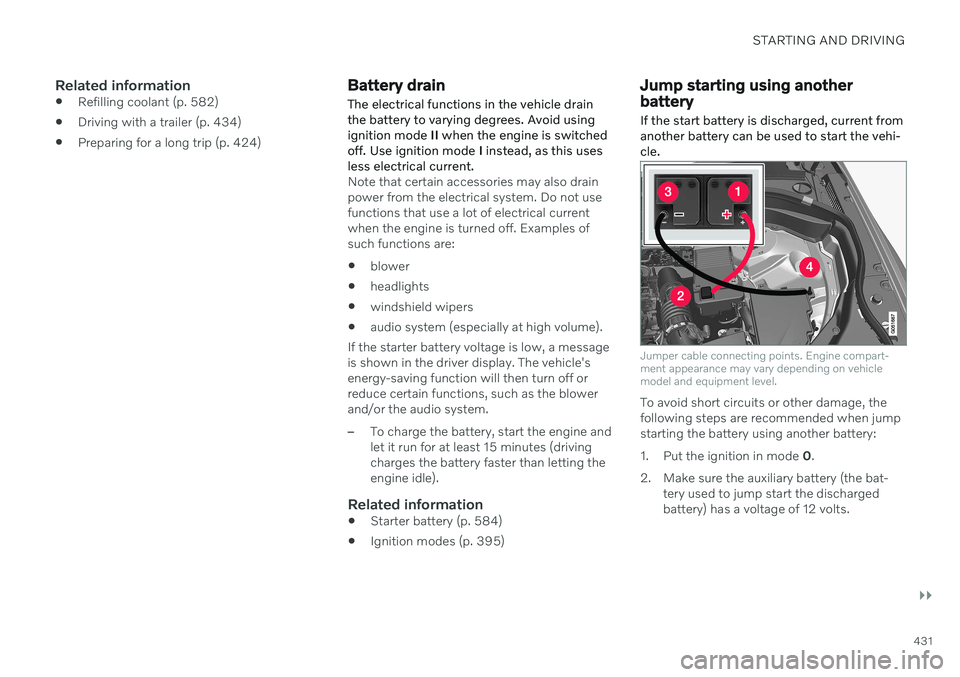
Jump starting using another battery If the start battery is discharged, current from another battery can be used to start the vehi-cle.
Jumper cable connecting points. Engine compart- ment appearance may vary depending on vehiclemodel and equipment level.
To avoid short circuits or other damage, the following steps are recommended when jumpstarting the battery using another battery:
1. Put the ignition in mode
0.
2. Make sure the auxiliary battery (the bat- tery used to jump start the discharged battery) has a voltage of 12 volts.
Page 450 of 661
AUDIO, MEDIA AND INTERNET
* Option/accessory.
448
Audio, media and Internet
The audio and media system consists of a media player and a radio. A cellular phone canalso be connected through Bluetooth to usehands-free functions or play music in thevehicle. When the vehicle is connected to theInternet, it is also possible to use apps to playmedia.
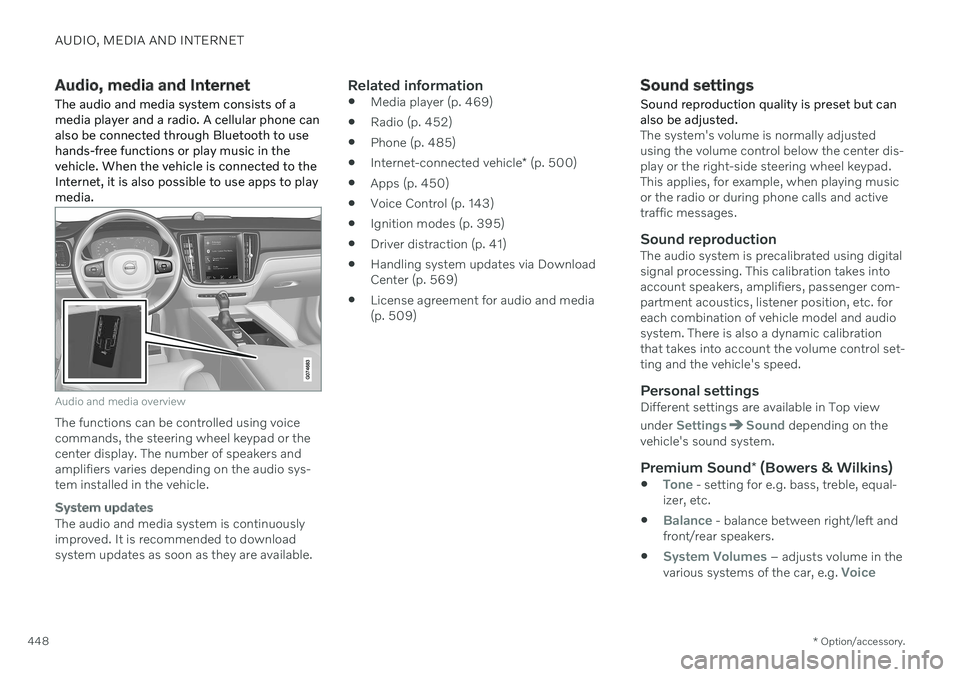
Audio and media overview
The functions can be controlled using voice commands, the steering wheel keypad or thecenter display. The number of speakers andamplifiers varies depending on the audio sys-tem installed in the vehicle.
System updates
The audio and media system is continuously improved. It is recommended to download system updates as soon as they are available.
Related information
Media player (p. 469)
Radio (p. 452)
Phone (p. 485)
Internet-connected vehicle
* (p. 500)
Apps (p. 450)
Voice Control (p. 143)
Ignition modes (p. 395)
Driver distraction (p. 41)
Handling system updates via DownloadCenter (p. 569)
License agreement for audio and media(p. 509)
Sound settings
Sound reproduction quality is preset but can also be adjusted.
The system's volume is normally adjusted using the volume control below the center dis-play or the right-side steering wheel keypad.This applies, for example, when playing musicor the radio or during phone calls and activetraffic messages.
Sound reproductionThe audio system is precalibrated using digitalsignal processing. This calibration takes intoaccount speakers, amplifiers, passenger com-partment acoustics, listener position, etc. foreach combination of vehicle model and audiosystem. There is also a dynamic calibrationthat takes into account the volume control set-ting and the vehicle's speed.
Personal settingsDifferent settings are available in Top view under
SettingsSound depending on the
vehicle's sound system.
Premium Sound * (Bowers & Wilkins)
Tone - setting for e.g. bass, treble, equal-
izer, etc.
Balance - balance between right/left and
front/rear speakers.
System Volumes – adjusts volume in the
various systems of the car, e.g. Voice
Page 451 of 661
AUDIO, MEDIA AND INTERNET
* Option/accessory.449
Control, Park Assist and Phone
Ringtone.
High Performance Pro * (Harman
Kardon)
Equalizer - setting of equalizer.
Balance - balance between right/left and
front/rear speakers.
System Volumes – adjusts volume in the
various systems of the car, e.g. Voice
Control, Park Assist and Phone
Ringtone.
High Performance
Tone - setting for e.g. bass, treble, equal-
izer, etc.
Balance - balance between right/left and
front/rear speakers.
System Volumes – adjusts volume in the
various systems of the car, e.g. Voice
Control, Park Assist and Phone
Ringtone.
Related information
Sound experience
* (p. 449)
Media player (p. 469)
Voice control settings (p. 148)
Phone settings (p. 492)
Audio, media and Internet (p. 448)
Internet-connected vehicle
* (p. 500)
Sound experience *
Sound experience is an app that provides access to additional sound settings.
Open Sound Experience from the center dis-
play's App view. Depending on the sound sys- tem installed in the vehicle, the following set-tings are possible:
Premium Sound * (Bowers & Wilkins)
Studio – sound settings can be adjusted
to be primarily adapted for Driver, All andRear.
Individual stage - surround sound mode
with settings for intensity and enclosure.
Concert hall - reproduces the acoustics
of Gothenburg's Concert Hall.
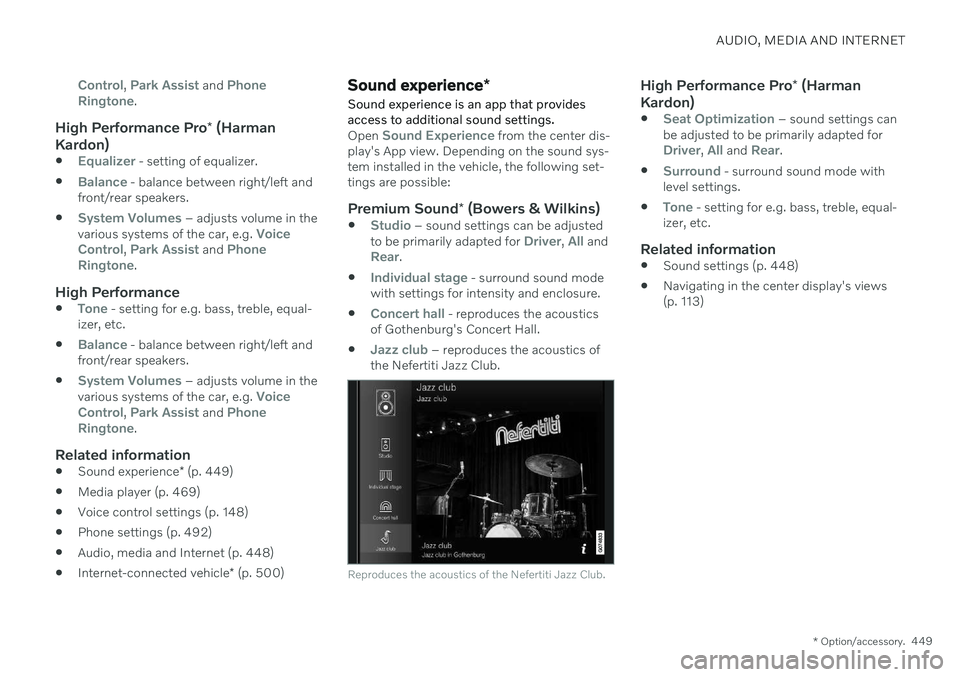
Jazz club – reproduces the acoustics of
the Nefertiti Jazz Club.
Reproduces the acoustics of the Nefertiti Jazz Club.
High Performance Pro * (Harman
Kardon)
Seat Optimization – sound settings can
be adjusted to be primarily adapted for
Driver, All and Rear.
Surround - surround sound mode with
level settings.
Tone - setting for e.g. bass, treble, equal-
izer, etc.
Related information
Sound settings (p. 448)
Navigating in the center display's views (p. 113)
Page 452 of 661
AUDIO, MEDIA AND INTERNET
* Option/accessory.
450
Apps
The App view contains apps that provide access to certain vehicle services.
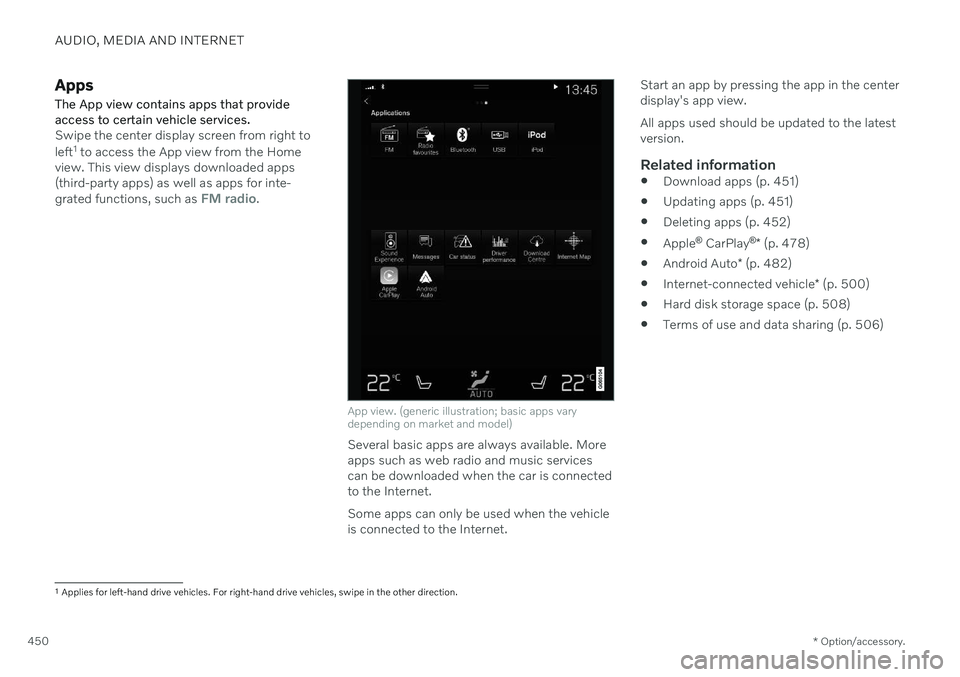
Swipe the center display screen from right to left 1
to access the App view from the Home
view. This view displays downloaded apps (third-party apps) as well as apps for inte- grated functions, such as
FM radio.
App view. (generic illustration; basic apps vary depending on market and model)
Several basic apps are always available. More apps such as web radio and music servicescan be downloaded when the car is connectedto the Internet. Some apps can only be used when the vehicle is connected to the Internet. Start an app by pressing the app in the centerdisplay's app view. All apps used should be updated to the latest version.
Related information
Download apps (p. 451)
Updating apps (p. 451)
Deleting apps (p. 452)
Apple ®
CarPlay ®
* (p. 478)
Android Auto
* (p. 482)
Internet-connected vehicle
* (p. 500)
Hard disk storage space (p. 508)
Terms of use and data sharing (p. 506)
1
Applies for left-hand drive vehicles. For right-hand drive vehicles, swipe in the other direction.
Page 453 of 661
AUDIO, MEDIA AND INTERNET
}}
* Option/accessory.451
Download apps New apps can be downloaded when the vehi- cle is connected to the Internet.
NOTE
Data downloading can affect other services such as transfer data, e.g. web radio. If theaffect on other services is experienced asproblematic, the download can be interrup-ted. Alternatively, it may be appropriate toswitch off or cancel other services.
NOTE
When downloading using a phone, pay extra attention to the data traffic costs.
1.
Open the Download Center app in App
view.
2. Select New apps to open a list of apps
that are available but are not installed in the vehicle. 3. Tap on the row for an app in order to
expand in the list and get more informa-tion about the app.
4. Select
Install to start the download and
installation of the app.
> The current status of the download and installation will be shown. If a download cannot be started imme- diately, a message will be displayed.The app will remain in the list and it willbe possible to reattempt downloading.
Canceling a download
–Tap Abort to cancel a download in pro-
gress.
Note that only a download can be cancelled. An installation cannot be cancelled once it hasbegun.
Related information
Apps (p. 450)
Updating apps (p. 451)
Deleting apps (p. 452)
Internet-connected vehicle
* (p. 500)
Handling system updates via DownloadCenter (p. 569)
Hard disk storage space (p. 508)
Updating apps
Apps can be updated when the vehicle is connected to the Internet.
NOTE
Data downloading can affect other services such as transfer data, e.g. web radio. If theaffect on other services is experienced asproblematic, the download can be interrup-ted. Alternatively, it may be appropriate toswitch off or cancel other services.
NOTE
When downloading using a phone, pay extra attention to the data traffic costs.
If an app is being used while an update is in progress, it will be restarted to complete theupdate.
Update all
1. Open the Download Center app in App
view.
2. Select Install all.
> The update will begin.