service VOLVO V60 2021 Manual PDF
[x] Cancel search | Manufacturer: VOLVO, Model Year: 2021, Model line: V60, Model: VOLVO V60 2021Pages: 661, PDF Size: 12.68 MB
Page 469 of 661
AUDIO, MEDIA AND INTERNET
}}
* Option/accessory.467
SiriusXM Travel Link ®
* -
Notifications
This SiriusXM Travel Link service provides notifications of potential weather problems orother emergency situations in the vicinity ofthe vehicle.
From the SiriusXM Travel Link home screen, to show notifications:
–Tap the Alerts button to display this
screen.
If any notifications are currently available, a message will appear at the top of thescreen. They can also be listed from the
Settings menu in the center display's Top
view.
If no notifications are available,
No active
alerts will be displayed.
Types of notifications
To select the types of notifications to be dis- played: 1. From the
Alerts screen, tap the Select
alerts button at the bottom of the screen.
2. This displays the types of notifications that can be displayed. Tap the box to the right of each type of notification to select/dese-lect it.
3. Tap
Done when you have made your
selections. You will return to the Alertsscreen.
Information about a notification
If any notifications have been displayed on the screen, tap one for more detailed information(i.e., the location of the weather problem on amap and a description of the situation). If a phone number is available in a notification, a
Call button will be displayed. Tap this button
for additional information.
Related information
SiriusXM Travel Link ®
* (p. 464)
SiriusXM Travel Link ®
* - Fuel (p. 467)
SiriusXM Travel Link ®
* - Sports (p. 469)
SiriusXM Travel Link ®
* - Weather (p. 465)
SiriusXM Travel Link ®
* - Fuel 6
This SiriusXM Travel Link service provides information and guidance to service stationsnear the vehicle providing the type of fuel thatyou prefer/require for your vehicle.
From the SiriusXM Travel Link home screen, to show fuel information:
–Tap the Fuel button to display the main
fuel screen.
The following categories are shown:
Search (the magnifying glass icon)
Nearby
Recommended
Favorites
Brands
Tap one of the alternatives to display its screen.
NOTE
In each of the categories listed, tapping theSelect fuel type button near the bottom
of the screen opens a sub-view where you can specify the type of fuel preferred/ required (
Regular, Midrange, Premium,Diesel, Electric 120V, etc.) Tap Done to
return to the previous screen.
Page 470 of 661
||
AUDIO, MEDIA AND INTERNET
* Option/accessory.
468
SearchTap the magnifying glass icon. If the function is supported in the current context, a keyboardwill appear on the screen. Enter the text of your choice and tap
Search for detailed infor-
mation if available.
NearbyTap for a list of service stations in the vicinity of the vehicle, with the nearest station at thetop of the list. The following information will be provided where available:
For vehicles using gasoline, the priceinformation for regular gasoline (unlessanother grade/type of fuel has been selected in
Select fuel type)
For electric vehicles/hybrids, information about charging stations, showing the totalnumber of charging ports and the numberof ports currently not in use
The distance to the station
A star icon to set the service station as afavorite
Tap the name of a service station to displaymore detailed information. For guidance to the service station, tap the
Start navigation or Add as waypoint but-
tons. See the Sensus Navigation * supplement for additional information about using the nav- igation system.
RecommendedTap for a list of service stations near the vehi-cle, displayed according to the price of regulargasoline (unless another grade/type of fuel has been selected in
Select fuel type) or of sta-
tions offering the greatest number of available charging ports for electric vehicles/hybrids.The station offering the lowest price/mostavailable charging ports will be displayed atthe top of the list. Tap the name of a servicestation to display more detailed information.
FavoritesTap for a list of service stations that have beenstored as favorites. Tap the name of a servicestation to display more detailed information. In addition to the
Select fuel type button at
the bottom of the screen, tap the Edit button
to delete individual stations from the list or tap
Delete to clear the list. Tap Done to return to
the previous screen.
Brands1. Tap Brands to display a list of service sta-
tion brands in the area. 2. Tap a brand to display a list of service sta-
tions affiliated with that brand (BP, Exxon, etc.).
3. Tap the name of a service station to dis- play more detailed information.
In addition to the
Select fuel type button at
the bottom of the screen, tap the Sort button
to arrange the list according to Nearest orCheapest/Recommended. Tap Done to
return to the previous screen.
Related information
SiriusXM Travel Link ®
* (p. 464)
SiriusXM Travel Link ®
* - Notifications
(p. 467)
SiriusXM Travel Link ®
* - Sports (p. 469)
SiriusXM Travel Link ®
* - Weather (p. 465)
6
This service is not available in Canada.
Page 471 of 661
AUDIO, MEDIA AND INTERNET
}}
* Option/accessory.469
SiriusXM Travel Link ®
* - Sports
This SiriusXM Travel Link service provides information about sporting events, tourna-ments, teams, leagues, etc.
From the SiriusXM Travel Link home screen, to display sports information:
–Tap the Sports button to display the main
sports screen.
A number of sports categories will be listed (Football, Baseball, Basketball, etc.) Tap a sport to select a league in that sport (NFL, MLB, etc.) or a sport organization (PGA,LPGA, etc.). The following is an example of the result of tapping Baseball :
1. MLB (Major League Baseball) will be dis- played.
2. Tap MLB to display the two leagues in Major League Baseball (American Leagueor National League).
3. Tap one of the league names to display the divisions in the league. 4. Tap one of the divisions to display:
In progress: play-by-play information
about a match/game/tournament cur- rently in progress. Continue tapping todisplay. In the detailed view, you canalso select a radio station that is cur-rently broadcasting an ongoing sport-ing event
Headlines for MLB: tap to display
brief headline information
Scheduled: schedules for coming
matches, games, etc.
Scores: match/game results
The same principle applies to all sports.
Related information
SiriusXM Travel Link ®
* (p. 464)
SiriusXM Travel Link ®
* - Notifications
(p. 467)
SiriusXM Travel Link ®
* - Fuel (p. 467)
SiriusXM Travel Link ®
* - Weather (p. 465)
Media player
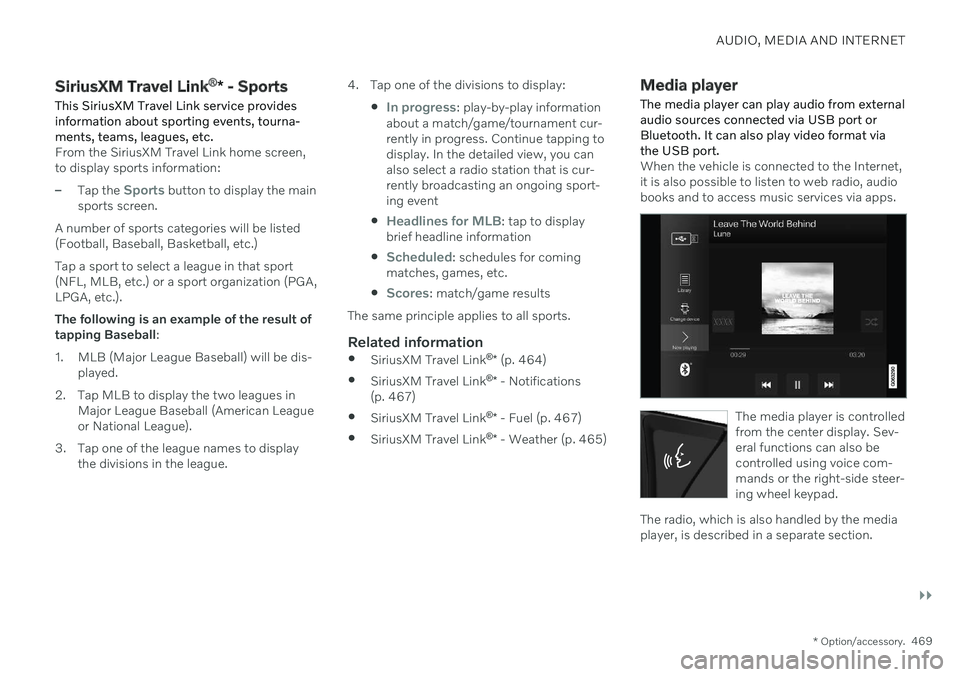
The media player can play audio from external audio sources connected via USB port orBluetooth. It can also play video format viathe USB port.
When the vehicle is connected to the Internet, it is also possible to listen to web radio, audiobooks and to access music services via apps.
The media player is controlled from the center display. Sev-eral functions can also becontrolled using voice com-mands or the right-side steer-ing wheel keypad.
The radio, which is also handled by the media player, is described in a separate section.
Page 481 of 661
AUDIO, MEDIA AND INTERNET
}}
* Option/accessory.479
using Siri. Press and hold the
button on
the steering wheel to start voice control with Siri. Press briefly to activate the vehicle's ownvoice control system. If Siri cuts off too soon, press and hold the
9 button on the steer-
ing wheel..
By using Apple CarPlay you acknowledge the following: Apple CarPlay is a serviceprovided by Apple Inc. under its terms andconditions. Volvo Cars is thus notresponsible for Apple CarPlay or itsfeatures/applications. When using AppleCarPlay, certain information from your car(including its position) is transferred toyour iPhone. In relation to Volvo Cars, youare fully responsible for your and anyothers person
Page 485 of 661
AUDIO, MEDIA AND INTERNET
* Option/accessory.483
NOTE
When a device is connected to Android Auto, it is possible to stream to anothermedia player via Bluetooth. Bluetooth isactive while Android Auto is in use.
When using navigation guidance provided by Android Auto, navigation will only be shownon the center display and not in the instrumentpanel or head-up display. Android Auto can be controlled from the cen- ter display, with the right-side steering wheelkeypad or by using voice commands. Press and hold the steering wheel button
to
start the Google Assistant and press briefly to deactivate it.
By using Android Auto, you acknowledge the following: Android Auto is a serviceprovided by Google Inc. under its termsand conditions. Volvo Cars is notresponsible for Android Auto or itsfeatures or applications. When you useAndroid Auto, your car transfers certaininformation (including its location) to yourconnected Android phone. You are fullyresponsible for your and any otherperson
Page 495 of 661
AUDIO, MEDIA AND INTERNET
* Option/accessory.493
Head-up display
* (p. 140)
Sound settings (p. 448)
Settings for Bluetooth devices
Settings for Bluetooth-connected devices.
1. Tap Settings in the Top view.
2. Tap
CommunicationBluetooth
Devices and select settings:
Add device - start the procedure for pair-
ing a new device.
Previously paired devices - lists regis-
tered/paired devices.
Remove device - remove a connected
device.
Allowed services for this device - select
what the device will be used for: making calls, sending/receiving messages,streaming media, Internet connection.
Internet connection connect the vehicle
to the Internet using the device's Bluetooth connection.
Bluetooth ®
declaration of conformityUSA FCC CAUTIONChanges or modifications not expressly approved by the party responsible for compli-ance could void the user's authority to operatethe equipment. This transmitter must not beco-located or operated in conjunction with anyother antenna or transmitter. Canada This device complies with Industry Canada license-exempt RSS standard(s). Operation issubject to the following two conditions: (1) this device may not cause interference, and (2) this device must accept any interference, including interference that may cause unde-sired operation of the device.
Related information
Phone (p. 485)
Phone settings (p. 492)
Internet-connected vehicle
* (p. 500)
Connecting a phone to the car via Blue-tooth for the first time (p. 486)
Page 502 of 661
AUDIO, MEDIA AND INTERNET
* Option/accessory.
500
Internet-connected vehicle *
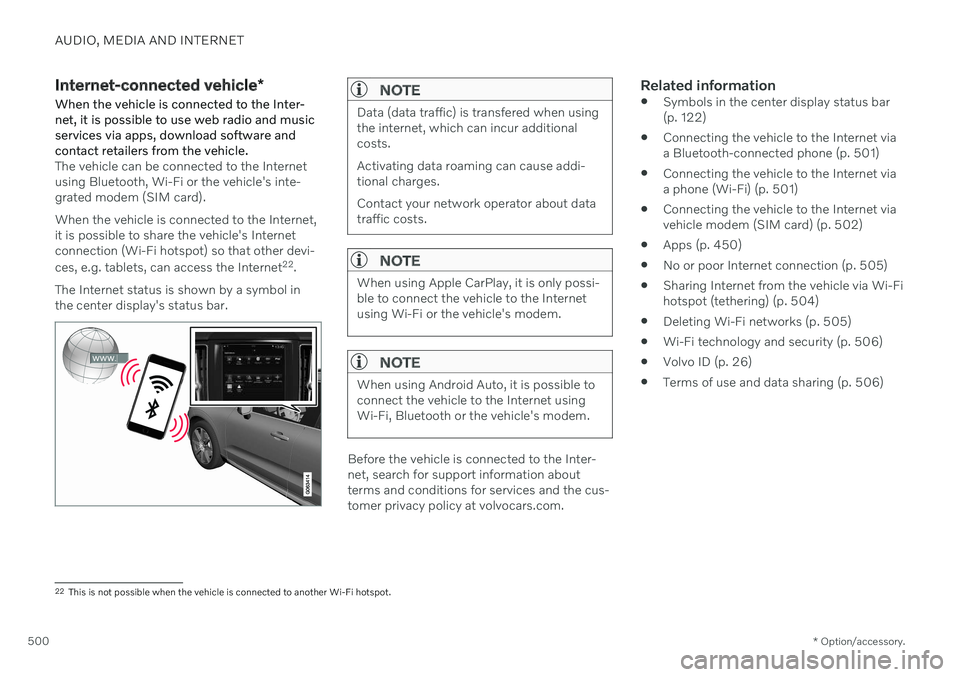
When the vehicle is connected to the Inter- net, it is possible to use web radio and musicservices via apps, download software andcontact retailers from the vehicle.
The vehicle can be connected to the Internet using Bluetooth, Wi-Fi or the vehicle's inte-grated modem (SIM card). When the vehicle is connected to the Internet, it is possible to share the vehicle's Internetconnection (Wi-Fi hotspot) so that other devi- ces, e.g. tablets, can access the Internet 22
.
The Internet status is shown by a symbol in the center display's status bar.
NOTE
Data (data traffic) is transfered when using the internet, which can incur additionalcosts. Activating data roaming can cause addi- tional charges. Contact your network operator about data traffic costs.
NOTE
When using Apple CarPlay, it is only possi- ble to connect the vehicle to the Internetusing Wi-Fi or the vehicle's modem.
NOTE
When using Android Auto, it is possible to connect the vehicle to the Internet usingWi-Fi, Bluetooth or the vehicle's modem.
Before the vehicle is connected to the Inter- net, search for support information aboutterms and conditions for services and the cus-tomer privacy policy at volvocars.com.
Related information
Symbols in the center display status bar(p. 122)
Connecting the vehicle to the Internet viaa Bluetooth-connected phone (p. 501)
Connecting the vehicle to the Internet viaa phone (Wi-Fi) (p. 501)
Connecting the vehicle to the Internet viavehicle modem (SIM card) (p. 502)
Apps (p. 450)
No or poor Internet connection (p. 505)
Sharing Internet from the vehicle via Wi-Fihotspot (tethering) (p. 504)
Deleting Wi-Fi networks (p. 505)
Wi-Fi technology and security (p. 506)
Volvo ID (p. 26)
Terms of use and data sharing (p. 506)
22
This is not possible when the vehicle is connected to another Wi-Fi hotspot.
Page 503 of 661
AUDIO, MEDIA AND INTERNET
}}
* Option/accessory.501
Connecting the vehicle to the Internet via a Bluetooth-connectedphone
Establish an Internet connection using
Bluetooth and tethering from a phone andget access to multiple connected services inyour vehicle.
1. To connect the vehicle to the Internet via a Bluetooth-connected phone, the phone must first be paired with the vehicle viaBluetooth.
2. Make sure that the phone supports Inter- net sharing (tethering) and that the func-tion is activated. In an iPhone, the functionis called "personal hotspot". In Androidphones, the function can have differentnames, but is often called "hotspot". ForiPhone phones, the "personal hotspot"menu page must also be open until theInternet connection has been made.
3. If the phone has been connected via Blue- tooth previously, tap
Settings in the cen-
ter display's Top view.
4. Tap
CommunicationBluetooth
Devices.
5. Mark the window for
Bluetooth Internet
connection under the heading Internet
connection. 6. If a different connection is being used,
confirm the connection change.
> Your vehicle is now connected to theInternet via your Bluetooth-connected phone.
NOTE
The cellular phone and network operator must support tethering (sharing of Internetconnection) and the subscription mustinclude data traffic.
NOTE
When using Apple CarPlay, it is only possi- ble to connect the vehicle to the Internetusing Wi-Fi or the vehicle's modem.
Related information
Internet-connected vehicle
* (p. 500)
Connecting the vehicle to the Internet via vehicle modem (SIM card) (p. 502)
Connecting a phone to the car via Blue-tooth for the first time (p. 486)
Connecting the vehicle to the Internet viaa phone (Wi-Fi) (p. 501)
Apple ®
CarPlay ®
* (p. 478)
No or poor Internet connection (p. 505)
Settings for Bluetooth devices (p. 493)
Connecting the vehicle to the Internet via a phone (Wi-Fi) Establish an Internet connection using Wi-Fi through Internet sharing (tethering) from aphone and get access to the connected servi-ces in your vehicle.
1. Make sure that the phone supports Inter-
net sharing (tethering) and that the func- tion is activated. In an iPhone, the functionis called "personal hotspot". In Androidphones, the function can have differentnames, but is often called "hotspot". ForiPhone phones, the "personal hotspot"menu page must also be open until theInternet connection has been made.
2. Tap
Settings in the Top view.
3. Proceed to
CommunicationWi-Fi.
4. Activate/deactivate by tapping to check/ uncheck the Wi-Fi box.
5. If a different connection is being used, confirm the connection change.
6. Tap the name of the network you would like to connect.
7. Enter the network password. > The vehicle will connect to the network.
Please note that certain cellular phones will disable Internet sharing (tethering) when theconnection to the vehicle has been broken,e.g. when the phone has been removed from
Page 504 of 661

||
AUDIO, MEDIA AND INTERNET
* Option/accessory.
502 the vehicle. The phone's tethering function will then need to be reactivated the next time thephone's hotspot is used to connect to theInternet. When a phone is connected to the vehicle, it will be saved for future use. To display a list ofsaved networks or to manually delete saved networks, tap
SettingsCommunication
Wi-FiSaved networks.
NOTE
The cellular phone and network operator must support tethering (sharing of Internetconnection) and the subscription mustinclude data traffic.
Technical and security requirements for Wi-Fi connection are described in a separate sec-tion.
Related information
Internet-connected vehicle
* (p. 500)
Deleting Wi-Fi networks (p. 505)
No or poor Internet connection (p. 505)
Wi-Fi technology and security (p. 506)
Connecting the vehicle to the Internet via vehicle modem (SIMcard)
It is possible to establish an Internet connec- tion via the vehicle modem and a personal
SIM card (P-SIM).
Vehicles equipped with Volvo On Call will use the vehicle modem Internet connection for theservices. 1.
Insert a personal SIM card in the holder in the passenger-side footwell. Note that the vehicle's card reader requires mini SIM cards.
2. Tap
Settings in the Top view.
Page 505 of 661
AUDIO, MEDIA AND INTERNET
* Option/accessory.503
3. Tap
CommunicationVehicle Modem
Internet.
4. Activate/deactivate by tapping to check/ uncheck the
Vehicle modem Internetbox.
5. If a different connection is being used, confirm the connection change.
6. Enter the SIM card's PIN code. > The vehicle will connect to the network.
NOTE
Please note that the SIM card used for Internet connection via P-SIM cannot havethe same telephone number as the SIMcard used in the cellular phone. If the samecard is used for both, phone calls will notbe connected properly to the cellularphone. Use a SIM card with a separatephone number for the Internet connectionor a data card that does not handle phonecalls and can therefore not interfere withphone function.
Related information
Internet-connected vehicle
* (p. 500)
No or poor Internet connection (p. 505)
Vehicle modem settings (p. 503)
Vehicle modem settings Your vehicle is equipped with a modem that can be used to connect the vehicle to theInternet. It is also possible to share this Inter-net connection over Wi-Fi.
1.
Tap Settings in the Top view.
2. Tap
CommunicationVehicle Modem
Internet and select settings:
Vehicle modem Internet - select this to
use the vehicle's modem to connect to the Internet.
Data usage. - tap Reset to reset the
counter for the amount of data received and sent.
Network.
Select carrier - select a service provider
manually or automatically.
Data roaming - if the box is checked, the
vehicle modem will attempt to connect to the Internet when the vehicle is outside itshome network (e.g. if you are in anothercountry). Please note that this could entailadditional charges. Consult with your serv-ice provider for data roaming terms underyour contract.
SIM card PIN.
Change PIN - a maximum of 4 digits can
be entered.
Disable PIN - select whether a PIN code
will be required to access the SIM card.
Send request code - used to e.g. down-
load or check the balance remaining on a prepaid phone card. This function is spe-cific to your service provider.
NOTE
Please note that the SIM card used for Internet connection via P-SIM cannot havethe same telephone number as the SIMcard used in the cellular phone. If the samecard is used for both, phone calls will notbe connected properly to the cellularphone. Use a SIM card with a separatephone number for the Internet connectionor a data card that does not handle phonecalls and can therefore not interfere withphone function.
Related information
Connecting the vehicle to the Internet via vehicle modem (SIM card) (p. 502)
No or poor Internet connection (p. 505)