wheel VOLVO V60 TWIN ENGINE 2020 Owners Manual
[x] Cancel search | Manufacturer: VOLVO, Model Year: 2020, Model line: V60 TWIN ENGINE, Model: VOLVO V60 TWIN ENGINE 2020Pages: 673, PDF Size: 14.2 MB
Page 450 of 673
||
STARTING AND DRIVING
* Option/accessory.
448
Checking trailer lights *
Automatic check
When the trailer has been connected to the vehicle's electrical system, its lights can bechecked by automatically activating them.This function helps the driver check that thetrailer's lights are functioning correctly beforestarting to drive. In order to perform this check, the vehicle must be switched off.
1. When a trailer is connected to the towbar,
the message
Automatic Trailer Lamp
Check will appear in the instrument panel.
2. Acknowledge the message by pressing the O button on the right-side steering
wheel keypad.
> The light check will begin.
3. Get out of the vehicle to perform the check.
> All of the lights on the trailer will beginflashing, and then illuminate separately one at a time.
4. Visually check that all of the trailer's lights are functioning correctly.
5. After a short time, all of the trailer's lights will start flashing again.
> The light check is completed.
Disabling the automatic check
The automatic light check can be disabled in the center display. 1.Tap
Settings in the Top view.
2. Tap
My CarLights and Lighting.
3. Deselect
Automatic Trailer Lamp
Check.
Manual check
If the automatic check has been disabled, the check can be started manually. 1. Tap
Settings in the Top view.
2. Tap
My CarLights and Lighting.
3. Select
Manual Trailer Lamp Check.
> The light check will begin. Get out of the vehicle to perform the check.
Related information
Driving with a trailer (p. 444)
Towing using a towline
This section refers to one vehicle being towed behind another using a towline.
Never attempt to tow a Twin Engine vehicle behind another vehicle as this could damagethe electric motor. The vehicle must instead belifted onto a tow truck and transported with allfour wheels on the bed or lifting platform ofthe truck (no wheels may touch the road).
Towing another vehicleTowing another vehicle requires a lot of power - use the Constant AWD drive mode. This
helps charge the hybrid battery and improve the vehicle's driving and roadholding characte-ristics. Before towing another vehicle, check applica- ble speed limit regulations.
Jump startingNever attempt to tow the vehicle to start theengine, as this could damage the electricmotor. Use an auxiliary battery if the start bat-tery's charge level is so low that the enginecannot be started.
CAUTION
Attempts to tow-start the vehicle could cause damage to the electrical drive motorand three-way catalytic converter.
Page 452 of 673

||
STARTING AND DRIVING
* Option/accessory.
450 3. Screw the towing eyelet into place as far
as possible.
Fasten the eyelet securing by, for example, inserting a lug wrench * through it and
using this as a lever.
CAUTION
It is important that the towing eye is screwed in securely as far as possible.
Removing the towing eyelet–Unscrew the towing eyelet after use and return it to its storage location in the foamblock. Replace the cover on the bumper.
Related information
Towing using a towline (p. 448)
Recovery (p. 450)
Tool kit (p. 540)
Recovery
This section refers to transporting the vehicle with a tow truck or similar vehicle.
Call a professional towing service for assis- tance. In certain conditions, the towing eyelet can be used to pull the vehicle onto a flatbed towtruck.
CAUTION
Note that vehicles with Twin Engine must always be towed raised with all wheels onthe tow truck.
The vehicle's location and ground clearance determine if it can be lifted onto a tow truck. Ifthe incline of the tow truck is too steep or ifthe ground clearance under the vehicle isinsufficient, attempting to pull it up may resultin damage. In this case, the vehicle shouldonly be lifted with the tow truck's lifting equip-ment.
WARNING
No person or object should be behind the tow truck when the vehicle is lifted ontothe bed of the truck.
Related information
Attaching and removing the towing eyelet (p. 449)
HomeLink ®
*13
HomeLink ®
14
is a programmable remote con-
trol, integrated in the vehicle electrical sys- tem, that can control up to three differentdevices (e.g. garage door opener, alarm sys-tem, outdoor and indoor lighting) and therebyreplace the remote controls for these.
General
The illustration is generic – the design may vary.
Button 1
Button 2
Button 3
Indicator light
HomeLink ®
is delivered integrated in the rear-
view mirror. The HomeLink ®
panel consists of
Page 460 of 673
AUDIO, MEDIA AND INTERNET
* Option/accessory.
458
Audio, media and Internet
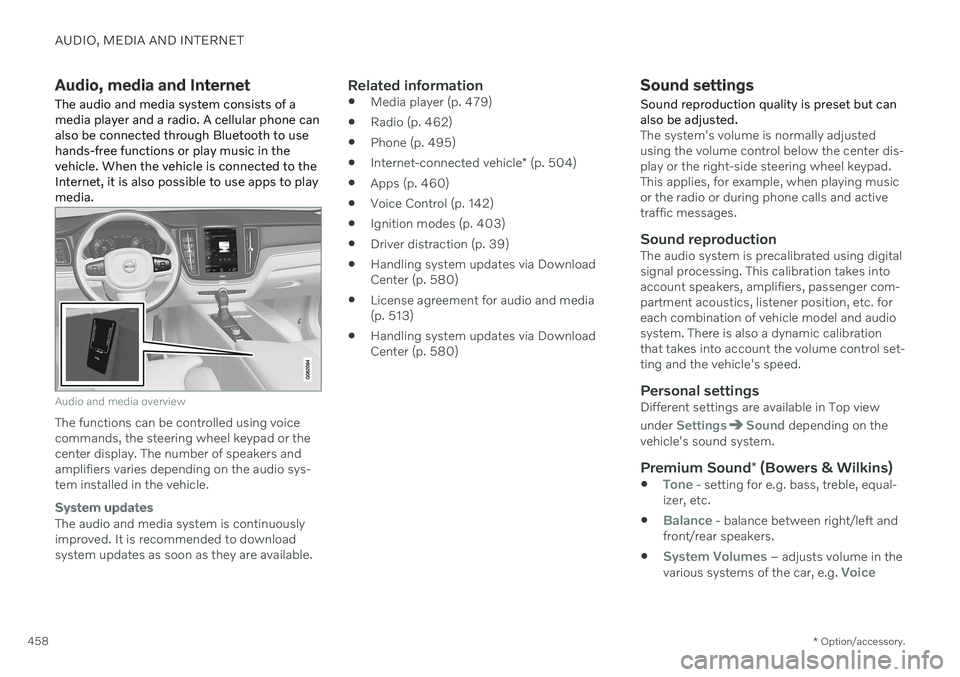
The audio and media system consists of a media player and a radio. A cellular phone canalso be connected through Bluetooth to usehands-free functions or play music in thevehicle. When the vehicle is connected to theInternet, it is also possible to use apps to playmedia.
Audio and media overview
The functions can be controlled using voice commands, the steering wheel keypad or thecenter display. The number of speakers andamplifiers varies depending on the audio sys-tem installed in the vehicle.
System updates
The audio and media system is continuously improved. It is recommended to download system updates as soon as they are available.
Related information
Media player (p. 479)
Radio (p. 462)
Phone (p. 495)
Internet-connected vehicle
* (p. 504)
Apps (p. 460)
Voice Control (p. 142)
Ignition modes (p. 403)
Driver distraction (p. 39)
Handling system updates via DownloadCenter (p. 580)
License agreement for audio and media(p. 513)
Handling system updates via DownloadCenter (p. 580)
Sound settings
Sound reproduction quality is preset but can also be adjusted.
The system's volume is normally adjusted using the volume control below the center dis-play or the right-side steering wheel keypad.This applies, for example, when playing musicor the radio or during phone calls and activetraffic messages.
Sound reproductionThe audio system is precalibrated using digitalsignal processing. This calibration takes intoaccount speakers, amplifiers, passenger com-partment acoustics, listener position, etc. foreach combination of vehicle model and audiosystem. There is also a dynamic calibrationthat takes into account the volume control set-ting and the vehicle's speed.
Personal settingsDifferent settings are available in Top view under
SettingsSound depending on the
vehicle's sound system.
Premium Sound * (Bowers & Wilkins)
Tone - setting for e.g. bass, treble, equal-
izer, etc.
Balance - balance between right/left and
front/rear speakers.
System Volumes – adjusts volume in the
various systems of the car, e.g. Voice
Page 464 of 673

||
AUDIO, MEDIA AND INTERNET
* Option/accessory.
462
Update certain apps
1.
Open the Download Center app in App
view.
2. Select
Application updates to open a list
of all available updates.
3. Find the desired app and select
Install.
> The update will begin.
Related information
Apps (p. 460)
Download apps (p. 461)
Deleting apps (p. 462)
Handling system updates via Download Center (p. 580)
Internet-connected vehicle
* (p. 504)
Deleting apps
When the vehicle is connected to the Inter- net, it is possible to uninstall apps.
If the app is being used, it must be closed before it can be uninstalled. 1. Open the
Download Center app in App
view.
2. Select Application updates to open a list
of all installed apps.
3. Find the desired app and select
Uninstallto begin uninstalling the app.
> When the app has been uninstalled, it
will be removed from the list.
Related information
Apps (p. 460)
Download apps (p. 461)
Updating apps (p. 461)
Handling system updates via Download Center (p. 580)
Internet-connected vehicle
* (p. 504)
Radio
The radio can receive broadcasting from the FM waveband with HD Radio ™ Technology
and SiriusXM ®
Satellite radio *. When the
vehicle has an Internet connection, it is alsopossible to listen to web radio.
The radio can be controlled using voice commands, theright-side steering wheel key-pad or the center display.
Related information
Starting the radio (p. 463)
Changing waveband and radio station (p. 464)
Storing radio channels in the Radio favor-ites app (p. 465)
Page 466 of 673

AUDIO, MEDIA AND INTERNET
464
Changing waveband and radio station
Instructions for changing wavebands, wave- band lists and radio stations in the selectedlist are provided here.
Changing wavebandsSwipe from App view on the center display and select the desired waveband (e.g. FM) or
open the App menu in the instrument panel with the right-side steering wheel keypad andmake your selection there.
Changing a list in a waveband
1. Tap Library.
2. Select playback from
Stations, Favoritesor Genres.
3. Tap the desired station in the list.
Favorites – only plays selected favorite chan-
nels.
Genres - only plays channels broadcasting the
selected genre or program type, e.g. pop, clas- sical, etc.
Changing radio stations in a selected
list
–Press or under the center display
or on the right-side steering wheel key- pad.
> Move step-by-step through the selected list.
It is also possible to change radio station in the selected list via the center display.
Related information
Radio (p. 462)
Searching for a radio station (p. 464)
Voice control for radio and media (p. 146)
Storing radio channels in the Radio favor-ites app (p. 465)
Radio settings (p. 466)
App menu in instrument panel (p. 101)
Searching for a radio station
The radio automatically compiles a list of the radio stations that are sending out the stron-gest signals in the vehicle's current location.
Searching is performed in different ways depending on the waveband selected:
FM, stations, genres and frequency.
1. Tap
Library.
2. Tap
.
> Search view will displayed and the key- board will open.
3. Enter a search word/phrase. > The search will start and change ascharacters are entered. Search results will be displayed by category.
Page 467 of 673
AUDIO, MEDIA AND INTERNET
465
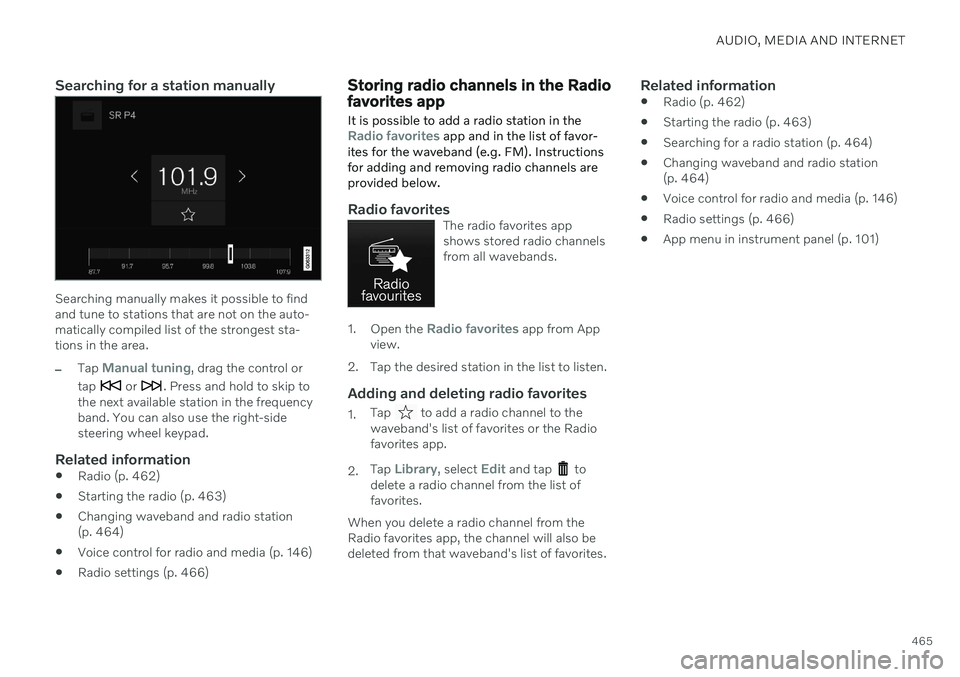
Searching for a station manually
Searching manually makes it possible to find and tune to stations that are not on the auto-matically compiled list of the strongest sta-tions in the area.
–Tap Manual tuning, drag the control or
tap
or . Press and hold to skip to
the next available station in the frequency band. You can also use the right-sidesteering wheel keypad.
Related information
Radio (p. 462)
Starting the radio (p. 463)
Changing waveband and radio station(p. 464)
Voice control for radio and media (p. 146)
Radio settings (p. 466)
Storing radio channels in the Radio favorites app
It is possible to add a radio station in the
Radio favorites app and in the list of favor-
ites for the waveband (e.g. FM). Instructions for adding and removing radio channels areprovided below.
Radio favoritesThe radio favorites app shows stored radio channelsfrom all wavebands.
1. Open the Radio favorites app from App
view.
2. Tap the desired station in the list to listen.
Adding and deleting radio favorites
1. Tap to add a radio channel to the
waveband's list of favorites or the Radio favorites app.
2. Tap
Library, select Edit and tap to
delete a radio channel from the list of favorites.
When you delete a radio channel from theRadio favorites app, the channel will also bedeleted from that waveband's list of favorites.
Related information
Radio (p. 462)
Starting the radio (p. 463)
Searching for a radio station (p. 464)
Changing waveband and radio station(p. 464)
Voice control for radio and media (p. 146)
Radio settings (p. 466)
App menu in instrument panel (p. 101)
Page 468 of 673

AUDIO, MEDIA AND INTERNET
* Option/accessory.
466
Radio settings
There are a number of different radio func- tions that can be activated and deactivated.
Canceling a traffic messageA current broadcast (e.g. a traffic message) can be temporarily interrupted by pressing
in the right-side steering wheel keypad or
tapping Cancel in the center display.
Activating and deactivating radio
functions
Pull down Top view and select SettingsMedia and the desired waveband to see avail-
able functions.
FM Radio
HD Radio FM: HD Radio ™
Technology:
makes it possible to achieve a sound qual- ity comparable with a CD.
Show Broadcast Information: shows
information on program content, artists, etc.
Freeze Program Name: select to stop
the program service name from scrolling continuously. Instead it freezes after 20seconds.
SiriusXM ®
Satellite radio *
Pull down Top view and select Settings
MediaSiriusXM to show a list of available
options.
Related information
Radio (p. 462)
Settings for SiriusXM ®
Satellite radio *
(p. 472)
Symbols in the center display status bar (p. 121)
RBDS
RBDS radio
RBDS (Radio Broadcast Data System) ena- bles certain functionality 2
, such as:
Searches for program types or new broad- casts
Text information about currently broadcastprograms
Related information
Radio (p. 462)
Radio settings (p. 466)
Page 471 of 673
AUDIO, MEDIA AND INTERNET
469
Selecting sub-channels
To listen to a station's sub-channel(s), tap the station on the screen or press the forward/back arrow keys on the right-side steeringwheel keypad or below the screen. Sub-channels can also be saved as radio favorites. If you tap a sub-channel favorite, it may take up to 6 seconds before the channel becomes
audible. If you tap a station while you are out of digital range of the transmitter,
No
reception will be displayed.
Related information
HD Radio
™
(p. 467)
Activating and deactivating the HD Radio
™ (p. 468)
Changing waveband and radio station(p. 464)
Searching for a radio station (p. 464)
HD Radio
™
limitations (p. 469)
HD Radio ™ limitations
Limitations
Main channel vs. sub-channels (FM only)
: The main channel is the only chan-
nel that can receive in hybrid mode (bothdigital and analog). If a frequency has sub-channels, they are broadcast in digitalmode only. The main FM channel will bedisplayed as, for example, "WRIF-FMHD1". The sub-FM channels will be dis-played as"WRIF-FM HD2", "WRIF-FMHD3", etc.
Reception coverage area
: Due to current
IBOC transmitter power limitations, thereception coverage area in digital mode issomewhat more limited than the station'sanalog coverage area. Be aware that, likeall radio transmission technology, terrain,time of day, vegetation and buildings canhave a positive or negative effect on radioreception.
Analog to digital/digital to analogblending
: Analog to digital blending will
occur as the signal strength reaches a pre-set threshold in the receiver. This will benoticeable in fringe areas (areas with weakreception) and is normal.
NOTE
There may be a noticeable difference in sound quality when a change from ana-logue to digital or digital to analogueoccurs, such as:
Volume increase or decrease
Equalizer settings, i.e., Bass/ Mid-range/Treble cut or boost
Time alignment (Digital program mate-rial in extreme cases can be as muchas 8 seconds behind the analogue).This will noticeable as a "stuttering"effect.
The above items are dependant on thebroadcaster's equipment settings anddo not indicate a fault in the vehicle'sradio receiver or antenna systems .
Related information
HD Radio
™ (p. 467)
Activating and deactivating the HD Radio
™ (p. 468)
HD Radio
™ sub-channels (p. 468)
Page 481 of 673

AUDIO, MEDIA AND INTERNET
* Option/accessory.479
4. Tap one of the divisions to display:
In progress: play-by-play information
about a match/game/tournament cur- rently in progress. Continue tapping todisplay. In the detailed view, you canalso select a radio station that is cur-rently broadcasting an ongoing sport-ing event
Headlines for MLB: tap to display
brief headline information
Scheduled: schedules for coming
matches, games, etc.
Scores: match/game results
The same principle applies to all sports.
Related information
SiriusXM Travel Link ®
* (p. 474)
SiriusXM Travel Link ®
* - Notifications
(p. 476)
SiriusXM Travel Link ®
* - Fuel (p. 477)
SiriusXM Travel Link ®
* - Weather (p. 475)
Media player
The media player can play audio from the CD player * and from external audio sources con-
nected via USB port or Bluetooth. It can also play video format via the USB port.
When the vehicle is connected to the Internet, it is also possible to listen to web radio, audiobooks and to access music services via apps.
The media player is controlled from the center display. Sev-eral functions can also becontrolled using voice com-mands or the right-side steer-ing wheel keypad.
The radio, which is also handled by the media player, is described in a separate section.
Related information
Playing media (p. 480)
Controlling and changing media (p. 481)
Media searches (p. 482)
Apps (p. 460)
Radio (p. 462)
CD player
* (p. 483)
Video (p. 484)
Streaming media via Bluetooth ®
(p. 485)
Playing media via the USB port (p. 486)
Internet-connected vehicle
* (p. 504)
Page 482 of 673

AUDIO, MEDIA AND INTERNET
* Option/accessory.
480
Playing media
The media player is controlled from the cen- ter display. Several other functions can alsobe controlled using the right-side steeringwheel keypad or by using voice commands. The radio can also be controlled in the media player. See the section describing the radio.
Starting a media source
App view. (Generic illustration; basic apps vary depending on market and model).
CD *
1. Insert a CD. 2.
Open the
CD app from App view.
3. Select the track you would like to play. > Playback will begin.
USB flash drive
1. Inset a USB flash drive. 2.Open the
USB app from App view.
3. Select the track you would like to play. > Playback will begin.
MP3 player and iPod®
NOTE
To start playback from an iPod, the iPod app must be used (not USB). When an iPod is used as source, the car's audio and media system has a menu struc-ture similar to the iPod player's own menustructure.
1. Connect a media source.
2. Start playback in the connected media
source.
3. Open the app (
iPod, USB) from App view.
> Playback will begin.
Bluetooth-connected device
1. Activate Bluetooth in the media source. 2. Connect a media source.
3. Start playback in the connected media
source.
4. Open the
Bluetooth app from App view.
> Playback will begin.
Media with Internet connection
Medial playback from apps with Internet con- nection:
1. Connect the vehicle to the Internet.
2. Open the app from the App view. > Playback will begin.
Read the separate section on how to down- load apps.
Video
1. Connect a media source. 2. Open the
USB app from App view.
3. Tap the title you would like to play. > Playback will begin.
Apple CarPlay
CarPlay is described in a separate section.
Android Auto
Android Auto is described in a separate sec- tion.