radio VOLVO V90 2017 User Guide
[x] Cancel search | Manufacturer: VOLVO, Model Year: 2017, Model line: V90, Model: VOLVO V90 2017Pages: 594, PDF Size: 15.07 MB
Page 171 of 594
INSTRUMENTS AND CONTROLS
}}
169
1.
Press
Settings in the top view.
2. Press
SystemUnits.
3. Under
Units of Measurement, select the
required unit standard: Metric, Imperial orUS.
Related information
• Trip computer (p. 165)
• Show trip data in the driver display (p. 166)
Settings view
Settings and information for many of the car's
functions can be managed in the centre dis- play's settings view.
Opening/closing and navigating in the
settings view
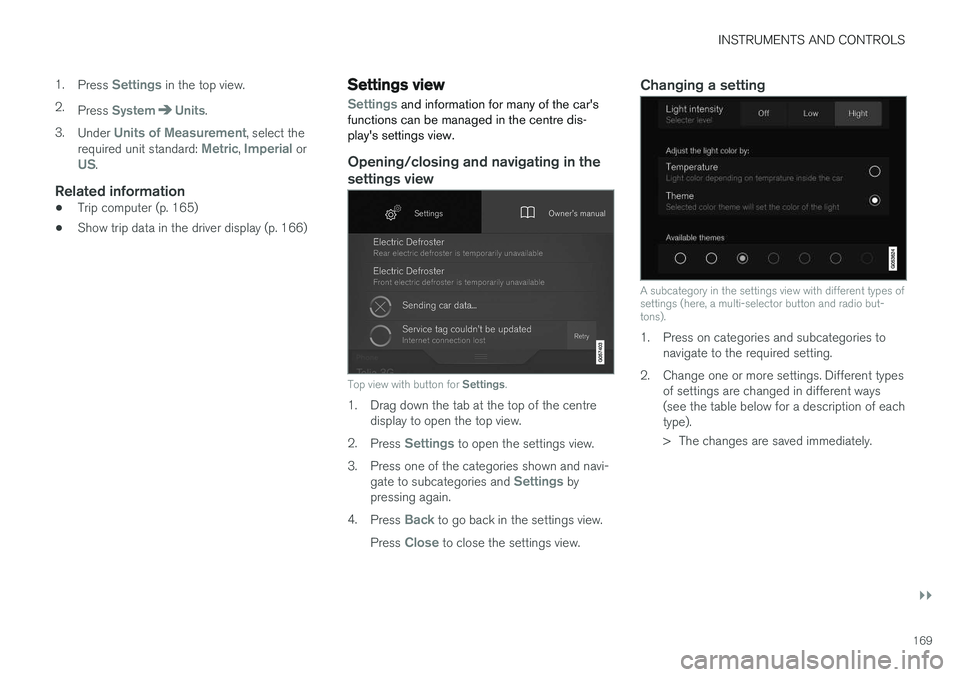
Top view with button for Settings.
1. Drag down the tab at the top of the centre
display to open the top view.
2. Press
Settings to open the settings view.
3. Press one of the categories shown and navi- gate to subcategories and
Settings by
pressing again.
4. Press
Back to go back in the settings view.
Press
Close to close the settings view.
Changing a setting
A subcategory in the settings view with different types of settings (here, a multi-selector button and radio but-tons).
1. Press on categories and subcategories to navigate to the required setting.
2. Change one or more settings. Different types of settings are changed in different ways (see the table below for a description of eachtype).
> The changes are saved immediately.
Page 172 of 594
||
INSTRUMENTS AND CONTROLS
170
Types of settings
There are several different types of settings:
Setting typeDescription
Trigger function Starts an app or separate viewfor more advanced settingsthrough a press on the text, e.g.to connect a device withBluetooth.
Radio but-ton Select a setting from severaloptions by pressing the requiredradio button, e.g. to select a sys-tem language.
Multi-selectorbutton Select a level for something bypressing the required part of thebutton, e.g. to select a sensitivitylevel for City Safety.
Checkbox Activate/deactivate a function by pressing on the box to select/deselect it, e.g. to select auto-matic start of seat heating.
Slider Select a level for something within an interval by pressing anddragging the slider, e.g. to selectvolume level.
Display ofinforma-tion No actual setting. Shows infor-mation about something, e.g. thecar's identification number.
Related information
•
Overview of the centre display (p. 33)
• Categories in the settings view (p. 170)
Categories in the settings view The settings view has a number of main catego- ries and subcategories where settings and infor-mation for many of the car's functions are collec-ted.
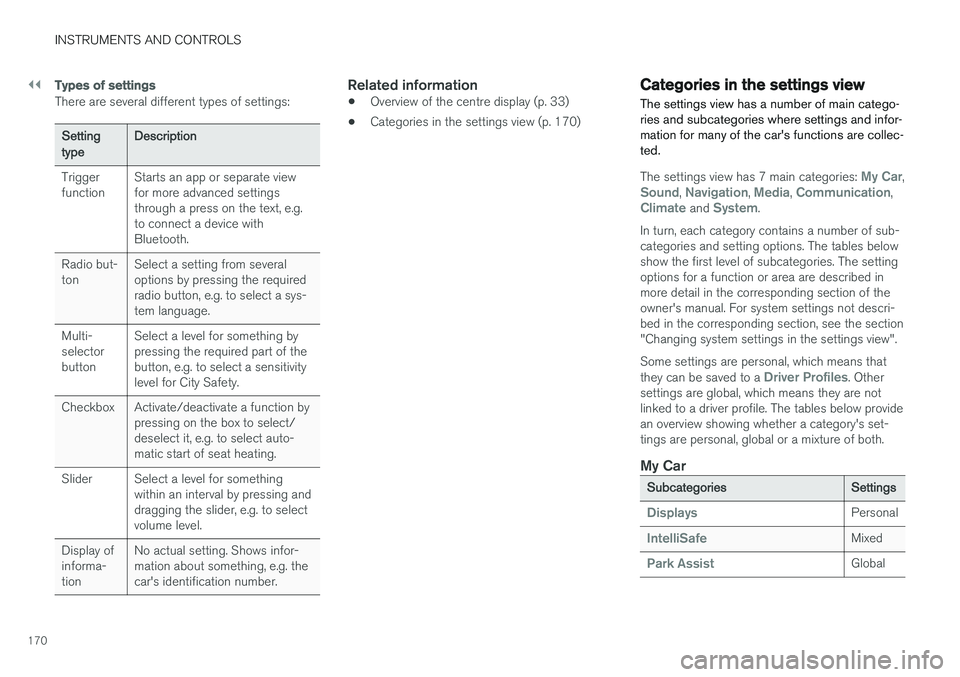
The settings view has 7 main categories: My Car,Sound, Navigation, Media, Communication,Climate and System.
In turn, each category contains a number of sub- categories and setting options. The tables belowshow the first level of subcategories. The settingoptions for a function or area are described inmore detail in the corresponding section of theowner's manual. For system settings not descri-bed in the corresponding section, see the section"Changing system settings in the settings view". Some settings are personal, which means that they can be saved to a
Driver Profiles. Other
settings are global, which means they are not linked to a driver profile. The tables below providean overview showing whether a category's set-tings are personal, global or a mixture of both.
My Car
Subcategories Settings
DisplaysPersonal
IntelliSafeMixed
Park AssistGlobal
Page 173 of 594
INSTRUMENTS AND CONTROLS
}}
* Option/accessory.171
Subcategories Settings
Drive Mode/Individual Drive
Mode* Mixed
Lights and LightingMixed
Mirrors and Easy EntryPersonal
LockingMixed
Parking Brake and SuspensionMixed
SeatsMixed
WipersMixed
SuspensionGlobal
Sound
Subcategories
Settings
Sound Experience*Personal
TonePersonal
BalancePersonal
System VolumesMixed
Navigation
Subcategories
Settings
MapPersonal
Route and GuidancePersonal
SubcategoriesSettings
TrafficPersonal
GuidancePersonal
SystemPersonal
Media
SubcategoriesSettings
AM/FM radioPersonal
DABPersonal
Gracenote®Personal
VideoPersonal
Communication
Subcategories Settings
Phone–
Text Messages–
Bluetooth Devices–
Wi-FiGlobal
Car Wi-Fi HotspotGlobal
Car Modem InternetGlobal
SubcategoriesSettings
Volvo On Call–
Volvo Service NetworksGlobal
ClimateThe main category Climate has no subcatego-
ries.
System
Subcategories Settings
Driver ProfilePersonal
Date and Time–
System LanguagePersonal
Keyboard LayoutsGlobal
Voice ControlPersonal
UnitsPersonal
Storage–
Software Updates–
Factory reset–
Services–
Page 180 of 594
||
INSTRUMENTS AND CONTROLS
178If the import fails, it may be due to the following:
• The USB memory is incorrectly inserted or was pulled out during the import.
• There is no driver profile saved on the USBmemory.
• The file for the driver profile on the USBmemory is corrupt.
Related information
• Driver profiles (p. 174)
Changing settings for apps
All of the car's apps are listed in the app view. The app settings that relate to the car's embed-ded functions can be changed from the centredisplay's top view.
Apps for embedded functions - basic
apps
The apps installed in the car from the beginning, e.g. FM radio and USB, are a part of Sensus and
are part of the car's embedded functions. Set- tings for these apps can be changed directly inthe top view in the centre display.
Change the settings for a basic app
1. Tap on the app, e.g. FM radio.
2. Drag down the top view. 3. Press
FM Radio Settings.
4. Change settings as desired and confirm the selections.
5. Press either the physical home button or the virtual close button.
Most of the car's basic apps have this contextual setting option, but not all. Refer to the section"Categories in the settings view" for more infor-mation on how settings are changed.
Third party appsThird party apps are not included in the car's sys-tem from the beginning, but are the type that can be downloaded e.g.
Volvo ID. Here the settings are always made inside the app and not from the top view.
Related information
•
Navigating in the centre display's views(p. 40)
• Settings view (p. 169)
• Downloading, updating and uninstalling apps(p. 468)
• Categories in the settings view (p. 170)
Page 222 of 594
LOADING AND STORAGE
* Option/accessory.
220
Electrical sockets In the tunnel console there are two 12 V electri- cal sockets and one 230 V electrical socket *, in
the cargo area there is one 12 V electricalsocket *.
For the sockets to supply current, the car's elec- trical system must be set in the lowest ignition position I. The sockets are then active as long as
the starter battery level does not become too low. If the engine is switched off and the car is locked, the sockets are deactivated. If the engine isswitched off and the car is not locked, or islocked with blocked lock position temporarilydeactivated, then the sockets continue to beactive for a further ten minutes.
NOTE
Remember that use of the electrical socket with the engine switched off entails a risk ofdischarging the starter battery, which can limitfunctionality.
230 V electrical socket *
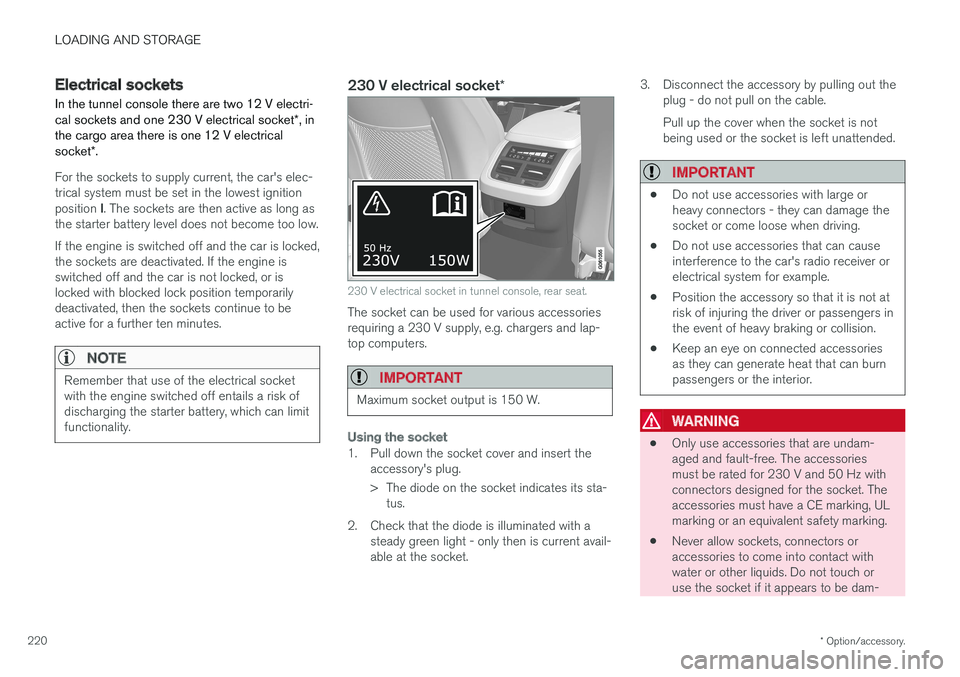
230 V electrical socket in tunnel console, rear seat.
The socket can be used for various accessories requiring a 230 V supply, e.g. chargers and lap-top computers.
IMPORTANT
Maximum socket output is 150 W.
Using the socket
1. Pull down the socket cover and insert the
accessory's plug.
> The diode on the socket indicates its sta-tus.
2. Check that the diode is illuminated with a steady green light - only then is current avail- able at the socket. 3. Disconnect the accessory by pulling out the
plug - do not pull on the cable. Pull up the cover when the socket is not being used or the socket is left unattended.
IMPORTANT
• Do not use accessories with large or heavy connectors - they can damage thesocket or come loose when driving.
• Do not use accessories that can causeinterference to the car's radio receiver orelectrical system for example.
• Position the accessory so that it is not atrisk of injuring the driver or passengers inthe event of heavy braking or collision.
• Keep an eye on connected accessoriesas they can generate heat that can burnpassengers or the interior.
WARNING
•
Only use accessories that are undam- aged and fault-free. The accessoriesmust be rated for 230 V and 50 Hz withconnectors designed for the socket. Theaccessories must have a CE marking, ULmarking or an equivalent safety marking.
• Never allow sockets, connectors oraccessories to come into contact withwater or other liquids. Do not touch oruse the socket if it appears to be dam-
Page 240 of 594
LOCKS AND ALARM
* Option/accessory.
238 •
Power operated tailgate
* (p. 253)
• Starting the car (p. 386)
• Red Key - Restricted remote control key
*
(p. 239)
Remote control key range In order for the remote control key to work prop- erly it needs to be within a certain distance fromthe car.
For manual useThe remote control key's functions for e.g. lock- ing/unlocking that are activated by pressing on
or have a range that extends approx.
20 metres from the car. If the car does not verify a button being pressed - move closer and try again.
For keyless use 2
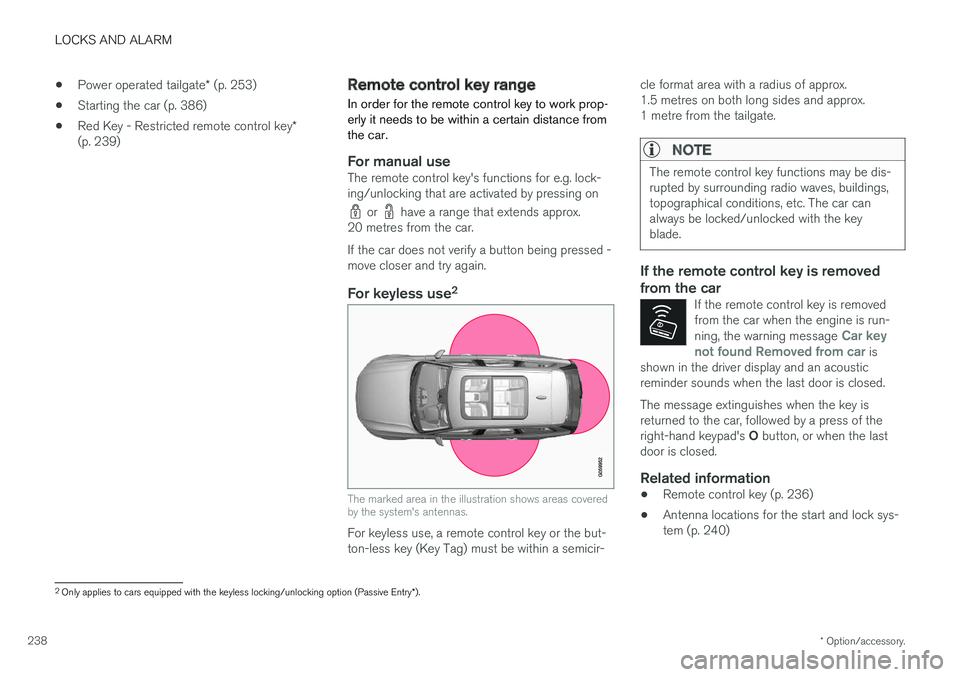
The marked area in the illustration shows areas covered by the system's antennas.
For keyless use, a remote control key or the but- ton-less key (Key Tag) must be within a semicir- cle format area with a radius of approx.1.5 metres on both long sides and approx.1 metre from the tailgate.
NOTE
The remote control key functions may be dis- rupted by surrounding radio waves, buildings,topographical conditions, etc. The car canalways be locked/unlocked with the keyblade.
If the remote control key is removed from the car
If the remote control key is removed from the car when the engine is run- ning, the warning message
Car key
not found Removed from car is
shown in the driver display and an acoustic reminder sounds when the last door is closed.
The message extinguishes when the key is returned to the car, followed by a press of the right-hand keypad's O button, or when the last
door is closed.
Related information
• Remote control key (p. 236)
• Antenna locations for the start and lock sys- tem (p. 240)
2
Only applies to cars equipped with the keyless locking/unlocking option (Passive Entry *).
Page 299 of 594
DRIVER SUPPORT
}}
* Option/accessory.297
Deactivating/activating the adaptive cruise control *
The adaptive cruise control (Adaptive Cruise Control - ACC) can be temporarily deactivatedso that it is set in the standby mode and canlater be reactivated.
Deactivate Adaptive Cruise Control and set it in standby mode
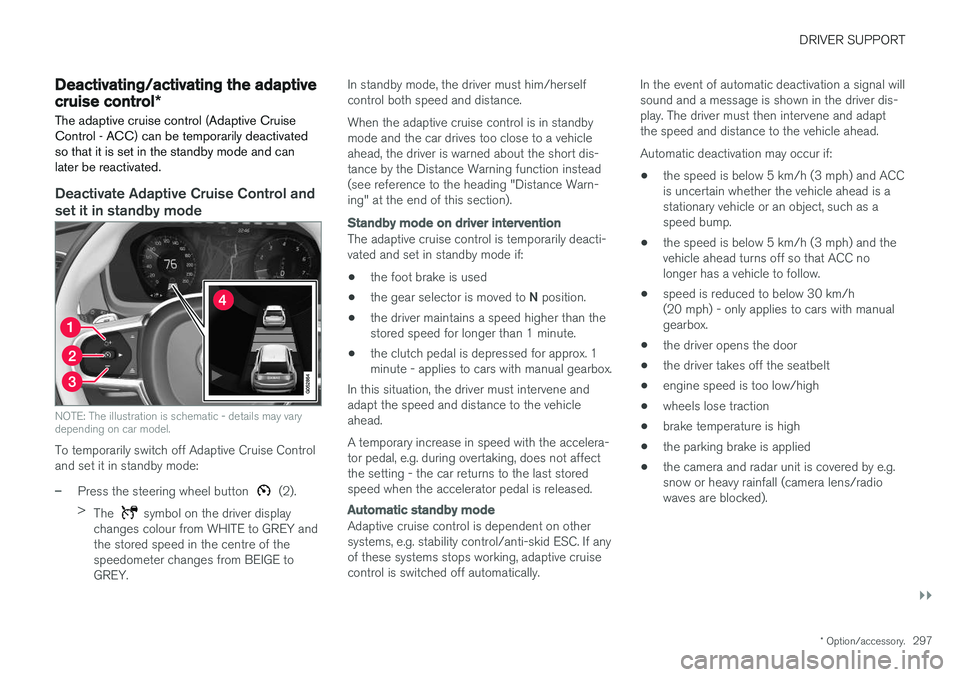
NOTE: The illustration is schematic - details may vary depending on car model.
To temporarily switch off Adaptive Cruise Control and set it in standby mode:
–Press the steering wheel button (2).
> The
symbol on the driver display
changes colour from WHITE to GREY and the stored speed in the centre of thespeedometer changes from BEIGE toGREY. In standby mode, the driver must him/herselfcontrol both speed and distance. When the adaptive cruise control is in standby mode and the car drives too close to a vehicleahead, the driver is warned about the short dis-tance by the Distance Warning function instead(see reference to the heading "Distance Warn-ing" at the end of this section).
Standby mode on driver intervention
The adaptive cruise control is temporarily deacti- vated and set in standby mode if:
• the foot brake is used
• the gear selector is moved to
N position.
• the driver maintains a speed higher than thestored speed for longer than 1 minute.
• the clutch pedal is depressed for approx. 1minute - applies to cars with manual gearbox.
In this situation, the driver must intervene andadapt the speed and distance to the vehicleahead. A temporary increase in speed with the accelera- tor pedal, e.g. during overtaking, does not affectthe setting - the car returns to the last storedspeed when the accelerator pedal is released.
Automatic standby mode
Adaptive cruise control is dependent on other systems, e.g. stability control/anti-skid ESC. If anyof these systems stops working, adaptive cruisecontrol is switched off automatically. In the event of automatic deactivation a signal willsound and a message is shown in the driver dis-play. The driver must then intervene and adaptthe speed and distance to the vehicle ahead. Automatic deactivation may occur if:
• the speed is below 5 km/h (3 mph) and ACC is uncertain whether the vehicle ahead is astationary vehicle or an object, such as aspeed bump.
• the speed is below 5 km/h (3 mph) and thevehicle ahead turns off so that ACC nolonger has a vehicle to follow.
• speed is reduced to below 30 km/h(20 mph) - only applies to cars with manualgearbox.
• the driver opens the door
• the driver takes off the seatbelt
• engine speed is too low/high
• wheels lose traction
• brake temperature is high
• the parking brake is applied
• the camera and radar unit is covered by e.g.snow or heavy rainfall (camera lens/radiowaves are blocked).
Page 314 of 594
||
DRIVER SUPPORT
* Option/accessory.
312
Automatic standby mode
Pilot Assist is dependent on other systems, e.g. stability control/anti-skid ESC. If any of theseother systems stops working, Pilot Assist isswitched off automatically. In the event of automatic deactivation a signal will sound and a message is shown in the driver dis-play. The driver must then intervene and adaptthe speed and distance to the vehicle ahead. Automatic deactivation may occur if:
• the speed is below 5 km/h (3 mph) and Pilot Assist is uncertain whether the vehicle aheadis a stationary vehicle or an object, such as aspeed bump.
• the speed is below 5 km/h (3 mph) and thevehicle ahead turns off so that Pilot Assist nolonger has a vehicle to follow.
• speed is reduced to below 30 km/h(20 mph) - only applies to cars with manualgearbox.
• the driver's hands are not on the steeringwheel
• the driver opens the door
• the driver takes off the seatbelt
• engine speed is too low/high
• wheels lose traction
• brake temperature is high
• the parking brake is applied •
the camera and radar unit is covered by e.g.snow or heavy rainfall (camera lens/radiowaves are blocked).
Reactivating Pilot Assist from the
standby mode
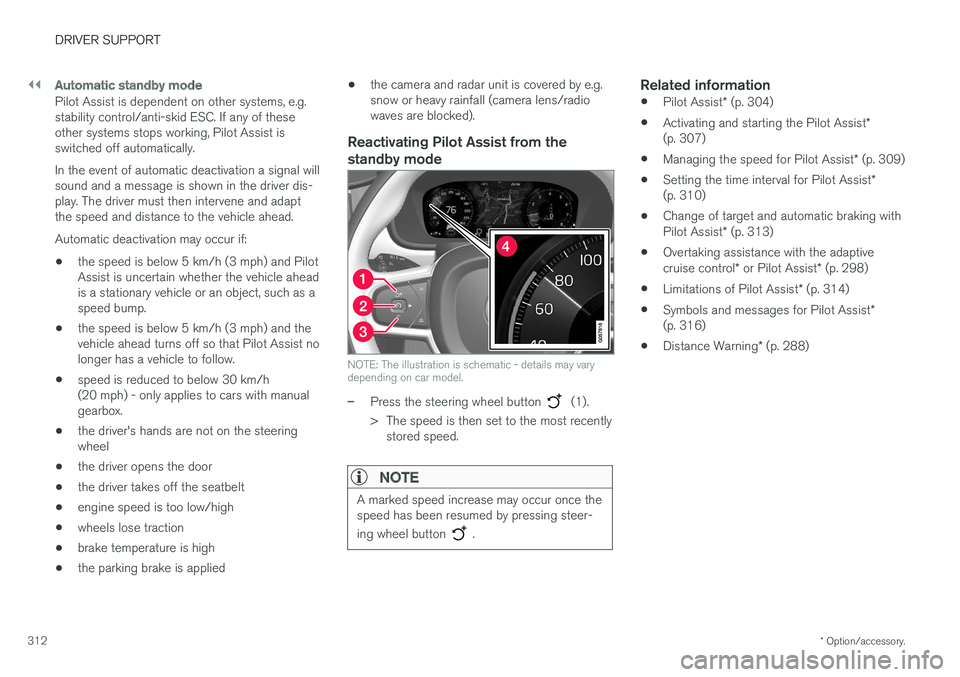
NOTE: The illustration is schematic - details may vary depending on car model.
–Press the steering wheel button (1).
> The speed is then set to the most recently stored speed.
NOTE
A marked speed increase may occur once the speed has been resumed by pressing steer- ing wheel button
.
Related information
• Pilot Assist
* (p. 304)
• Activating and starting the Pilot Assist
*
(p. 307)
• Managing the speed for Pilot Assist
* (p. 309)
• Setting the time interval for Pilot Assist
*
(p. 310)
• Change of target and automatic braking with Pilot Assist
* (p. 313)
• Overtaking assistance with the adaptivecruise control
* or Pilot Assist * (p. 298)
• Limitations of Pilot Assist
* (p. 314)
• Symbols and messages for Pilot Assist
*
(p. 316)
• Distance Warning
* (p. 288)
Page 398 of 594
||
STARTING AND DRIVING
* Option/accessory.
396
Automatic deactivation
In gear position D the steering wheel paddles are
deactivated after a short time if they are not used. This is indicated by means of the figure for thecurrent gear extinguishing. The exception is during engine braking - then the paddles are activated for as long as engine brak-ing is in progress. In gear position M there is no automatic deactiva-
tion.
Related information
• Gear positions for automatic gearbox (p. 390)
• Gear shift indicator
* (p. 392)
Start/Stop
With the Start/Stop function, the engine switches off temporarily when the car has stop-ped e.g. at traffic lights or in a traffic queue, andthen starts again automatically when the journeyis resumed.
Start/Stop is one of several energy-saving func- tions intended to reduce fuel consumption, whichin turn helps to reduce exhaust emissions. The system makes it possible to adopt an envi- ronmentally-conscious driving style by allowingthe car to engine auto-stop when possible.
Related information
• Using the Start/Stop function (p. 396)
• Conditions for the Start/Stop function(p. 398)
Using the Start/Stop function The Start/Stop function temporarily switches off the engine when stationary and then restarts itautomatically when the journey is resumed.
The Start/Stop function is available when the engine is started and can be activated if certainconditions have been met. The driver display indi-cates whether the function is available, active orunavailable, see heading "Symbols in driver dis-play" below. All of the car's normal systems such as lighting, radio, etc. work normally, even when the engine isauto-stopped. However, some equipment mayhave its output temporarily reduced, e.g. the cli-mate control system's fan speed or extremelyhigh volume on the audio system.
Auto-stopThe following is required for the engine to auto-stop:
Page 436 of 594
AUDIO AND MEDIA
* Option/accessory.
434
Audio and media
The audio and media system consists of media
player, radio and Bluetooth phone connection. With an online car it is also possible to listen toservices via apps. Functions can be controlled by voice command or via the steering wheel keypad and the centredisplay. The number of speakers and amplifiersdepends on which audio system the car isequipped with.
Overview of audio and media.
System updating
The audio and media system is continuously improved. When the car is online there is theoption to download updates for optimal function-ality, see the section "System updates" andsupport.volvocars.com.
Related information
• Media player (p. 442)
• Radio (p. 436)
• Phone (p. 456)
• Online car
* (p. 463)
• Apps (p. 434)
• Ignition positions (p. 385)
• Symbols in the centre display's status bar(p. 45)
• Voice recognition (p. 115)
• System updates (p. 510)
• License agreement for audio and media(p. 470)
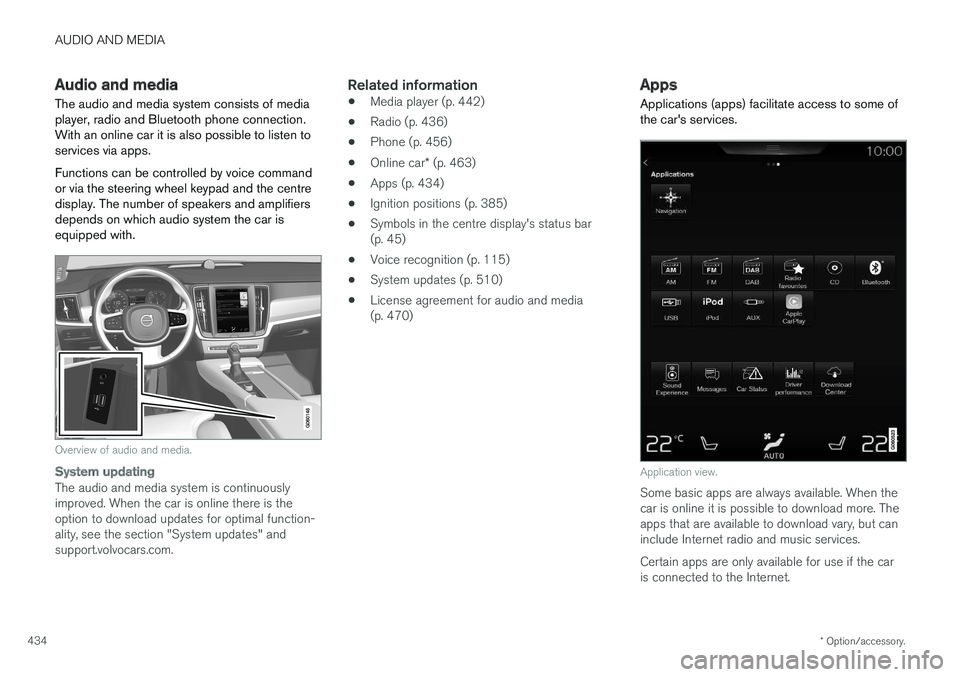
Apps
Applications (apps) facilitate access to some of the car's services.
Application view.
Some basic apps are always available. When the car is online it is possible to download more. Theapps that are available to download vary, but caninclude Internet radio and music services. Certain apps are only available for use if the car is connected to the Internet.