carplay VOLVO V90 2017 Owners Manual
[x] Cancel search | Manufacturer: VOLVO, Model Year: 2017, Model line: V90, Model: VOLVO V90 2017Pages: 594, PDF Size: 15.07 MB
Page 11 of 594
9
AUDIO AND MEDIA
Audio and media434
Apps 434
Audio settings 435
Radio 436
Changing and searching radio stations 436
RDS radio 439
Digital radio 440
Linking between different radio bands FM and DAB 440
Settings for radio 441
Media player 442
Media playback 443
Gracenote ®
445
Searching media 446
CD player *
446
Media via Bluetooth 447
Connecting media via Bluetooth 447
Media via AUX/USB input 447
Connecting media via AUX/USB input 448
video 448
Audio settings for media 448
TV *
449
Using the TV *
449
Apple CarPlay *
450
Using Apple CarPlay*
451
Settings for Apple CarPlay *
452
Android Auto *
453
Settings for Android Auto *
454
Technical specifications for media 455
Phone 456
Connect phone 457
Connecting/disconnecting the phone 458
Managing phone calls 459
Managing text messages 461
Managing the phone book 462
Settings for phone 462
Settings for text messages 463
Bluetooth settings 463
Online car *
463
Connecting the car 464
Sharing Internet via Wi-Fi hotspot 465
No or poor connection 466
Remove Wi-Fi network 467
Wi-Fi technologies and security 467
Settings for car modem *
468
Downloading, updating and uninstal- ling apps 468
License agreement for audio and media 470
Terms and conditions for services and Customer Privacy Policy480
Page 445 of 594
AUDIO AND MEDIA
}}
* Option/accessory.443
Media playback The media player is controlled from the centre display. Several functions can also be controlledfrom the right keypad on the steering wheel orwith voice recognition. The media player also operates the radio, which is described in a separate section.
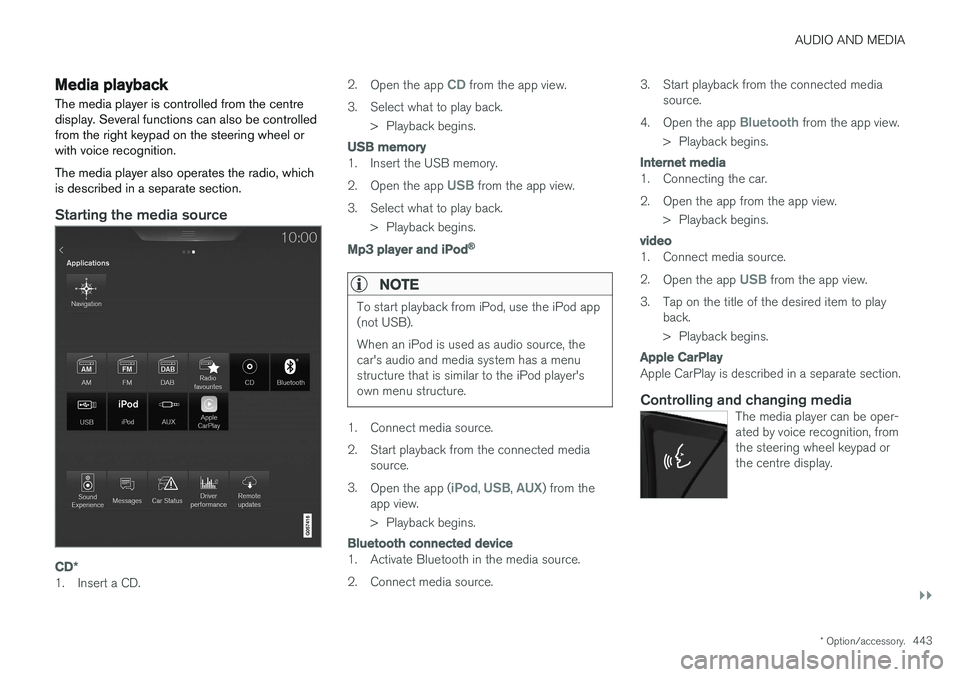
Starting the media source
CD*
1. Insert a CD. 2.
Open the app
CD from the app view.
3. Select what to play back. > Playback begins.
USB memory
1. Insert the USB memory. 2.Open the app
USB from the app view.
3. Select what to play back. > Playback begins.
Mp3 player and iPod®
NOTE
To start playback from iPod, use the iPod app (not USB). When an iPod is used as audio source, the car's audio and media system has a menustructure that is similar to the iPod player'sown menu structure.
1. Connect media source.
2. Start playback from the connected media
source.
3. Open the app (
iPod, USB, AUX) from the
app view.
> Playback begins.
Bluetooth connected device
1. Activate Bluetooth in the media source.
2. Connect media source. 3. Start playback from the connected media
source.
4. Open the app
Bluetooth from the app view.
> Playback begins.
Internet media
1. Connecting the car.
2. Open the app from the app view. > Playback begins.
video
1. Connect media source. 2.Open the app
USB from the app view.
3. Tap on the title of the desired item to play back.
> Playback begins.
Apple CarPlay
Apple CarPlay is described in a separate section.
Controlling and changing mediaThe media player can be oper- ated by voice recognition, fromthe steering wheel keypad orthe centre display.
Page 447 of 594
AUDIO AND MEDIA
* Option/accessory.445
•
Apple CarPlay
* (p. 450)
• Technical specifications for media (p. 455)
Gracenote ®
Gracenote identifies artist, album, song titles and associated images, which are shown duringplayback.
Gracenote MusicID ®
is a standard for music rec-
ognition.
Activate/deactivate GracenoteOn activation, Gracenote data replace the original data. 1. Press
Settings in top view.
2. Press
MediaGracenote ®.
3. Activate/deactivate Gracenote by ticking/ unticking the box for
Gracenote ®.
4. Select settings for activated Gracenote data:
•
Gracenote ® Online Search - searches in
Gracenote's online database for playing media.
•
Gracenote ® Multiple Results - selects
how to display Gracenote data if there are more than one search results.
1 - the file's original data are used. 2 - Gracenote data are used.3 - Gracenote or original data can be selected.
•
None - no results are shown.
Updating GracenoteThe content of the Gracenote database is upda- ted continuously. Download the latest update foroptimal functionality. For information and down-load, see support.volvocars.com.
Related information
• Media playback (p. 443)
• License agreement for audio and media(p. 470)
Page 449 of 594
AUDIO AND MEDIA
* Option/accessory.447
Media via Bluetooth The car's media player is equipped with Bluetooth and can wirelessly play streamingaudio files from external devices with Bluetooth,such as mobile phones and PDAs.
Related information
•Connecting media via Bluetooth (p. 447)
• Media playback (p. 443)
• Voice recognition control of radio and media (p. 118)
• Media player (p. 442)
• Ignition positions (p. 385)
• Technical specifications for media (p. 455)
Connecting media via Bluetooth
Connect a Bluetooth device with the car in order to stream media and use as Internet connectionif it is available.
Many phones on the market now have wireless Bluetooth technology, but not all of them are fullycompatible with the car. For compatibility, seesupport.volvocars.com. The procedure for connecting a media device is the same as for connecting a phone.
Related information
• Connect phone (p. 457)
• Media via Bluetooth (p. 447)
• Media playback (p. 443)
• Media player (p. 442)
Media via AUX/USB input An external media source, e.g. an iPod or MP3 player, can be connected to the audio system.
A media source with rechargeable batteries is recharged when connected via USB and when the ignition is in position
I, II or the engine is run-
ning. To facilitate the use of a USB memory stick, only store compatible formats on it. It takes a lotlonger for the system to load storage media thatcontains anything other than compatible formats.In addition to audio, the media player also sup-ports video playback when the device is con-nected via USB. Some MP3 players have their own file systems that are not supported by the audio system.
Related information
• Connecting media via AUX/USB input(p. 448)
• Media playback (p. 443)
• Voice recognition control of radio and media(p. 118)
• Media player (p. 442)
• Ignition positions (p. 385)
• video (p. 448)
• Apple CarPlay
* (p. 450)
• Technical specifications for media (p. 455)
Page 450 of 594
AUDIO AND MEDIA
* Option/accessory.
448
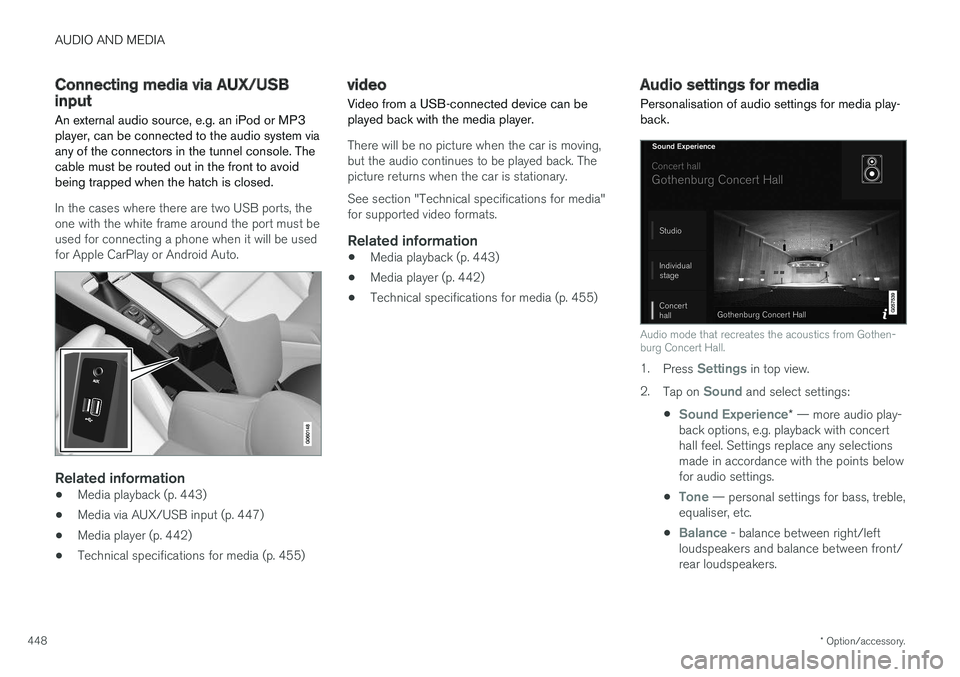
Connecting media via AUX/USB input An external audio source, e.g. an iPod or MP3 player, can be connected to the audio system viaany of the connectors in the tunnel console. Thecable must be routed out in the front to avoidbeing trapped when the hatch is closed.
In the cases where there are two USB ports, the one with the white frame around the port must beused for connecting a phone when it will be usedfor Apple CarPlay or Android Auto.
Related information
• Media playback (p. 443)
• Media via AUX/USB input (p. 447)
• Media player (p. 442)
• Technical specifications for media (p. 455)
video
Video from a USB-connected device can be played back with the media player.
There will be no picture when the car is moving, but the audio continues to be played back. Thepicture returns when the car is stationary. See section "Technical specifications for media" for supported video formats.
Related information
• Media playback (p. 443)
• Media player (p. 442)
• Technical specifications for media (p. 455)
Audio settings for media
Personalisation of audio settings for media play- back.
Audio mode that recreates the acoustics from Gothen- burg Concert Hall.
1. Press Settings in top view.
2. Tap on
Sound and select settings:
•
Sound Experience* — more audio play-
back options, e.g. playback with concert hall feel. Settings replace any selectionsmade in accordance with the points belowfor audio settings.
•
Tone — personal settings for bass, treble,
equaliser, etc.
•
Balance - balance between right/left
loudspeakers and balance between front/ rear loudspeakers.
Page 452 of 594
||
AUDIO AND MEDIA
* Option/accessory.
450
TV guide
A programme guide is available with information about TV programmes for up to 48 hours.
–Tap on Guide to show information about TV
programmes.
NOTE
If the car is moved within the country, e.g. from city to city, it is not certain that
Favourites are available since the frequency
may have changed.
Change the format of the TV picture
Tapping on Picture format enables you to
choose which format the TV picture should be shown in. 1.
Auto - The TV picture is shown in the image
format being transmitted.
2.
Auto fill - The TV picture is maximised with-
out cropping.
Settings for TVThe option to make certain settings is available, both in the top view or when TV-viewing takesplace in full screen mode. With the video player in full screen mode, or by opening the top view and pressing
Settings
MediaTV, the following can be adjusted: •
Subtitle Language
•Audio Language
Related information
•
TV
* (p. 449)
• Voice recognition control of radio and media (p. 118)
• Media playback (p. 443)
• Navigating in the centre display's views(p. 40)
• License agreement for audio and media(p. 470)
Apple CarPlay
*
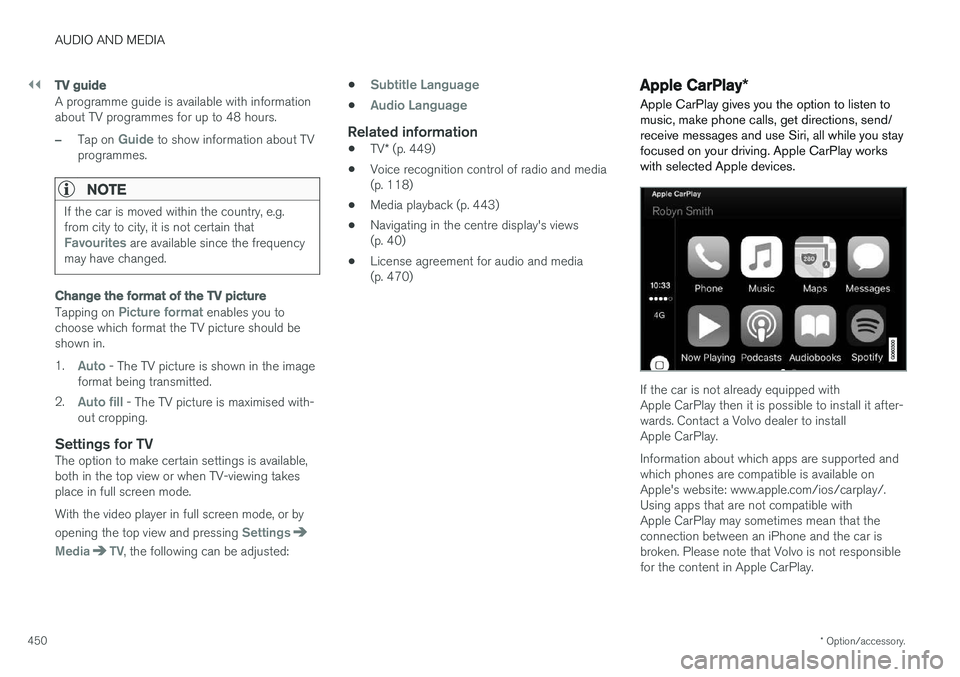
Apple CarPlay gives you the option to listen to music, make phone calls, get directions, send/receive messages and use Siri, all while you stayfocused on your driving. Apple CarPlay workswith selected Apple devices.
If the car is not already equipped with Apple CarPlay then it is possible to install it after-wards. Contact a Volvo dealer to installApple CarPlay. Information about which apps are supported and which phones are compatible is available onApple's website: www.apple.com/ios/carplay/.Using apps that are not compatible withApple CarPlay may sometimes mean that theconnection between an iPhone and the car isbroken. Please note that Volvo is not responsiblefor the content in Apple CarPlay.
Page 453 of 594
AUDIO AND MEDIA
}}
* Option/accessory.451
When using map navigation via Apple CarPlay there is no guidance in the driver display or head-up display, but only in the centre display. The Apple CarPlay apps can be controlled via the centre display, mobile phone or with the steeringwheel's right-hand keypad (applies to certainfunctions). The apps can also be voice-controlledusing Siri. A long press on the steering wheel button
starts voice control using Siri and a
short press activates the car's own voice control. If Siri breaks off too early, hold the steering wheel button
depressed.
By using Apple CarPlay you acknowledge the following: Apple CarPlay is a serviceprovided by Apple Inc. under its terms andconditions. Volvo Cars is thus notresponsible for Apple CarPlay or itsfeatures/applications. When using AppleCarPlay, certain information from your car(including its position) is transferred to youriPhone. In relation to Volvo Cars, you arefully responsible for your and any othersperson
Page 454 of 594
||
AUDIO AND MEDIA
* Option/accessory.
452
Switch the connection between Apple CarPlay and iPod
Apple CarPlay to iPod
1.
Press Settings in top view.
2. Press
CommunicationApple CarPlay.
3. Untick the box for the Apple device that shall no longer start Apple CarPlay automatically when the USB cable is connected.
4. Disconnect and connect the Apple device to the USB input.
5. Open the app
iPod from the app view.
iPod to Apple CarPlay
1.
Tap on Apple CarPlay in the app view.
2. Read the information in the pop-up message and then tap on
OK.
3. Disconnect and connect the Apple device to the USB input.
> The subview with Apple CarPlay is openedand compatible apps are shown.
Related information
• Media player (p. 442)
• Media playback (p. 443)
• Connecting media via AUX/USB input (p. 448)
• Settings for Apple CarPlay
* (p. 452)
• Connecting the car (p. 464)
Settings for Apple CarPlay
*
Settings for phone connected as Apple CarPlay.
Automatic start1. Press Settings in top view.
2. Press
CommunicationApple CarPlayand select setting: •Tick the box - Apple CarPlay starts auto- matically when the USB cable is con-nected.
• Untick the box - Apple CarPlay does notstart automatically when the USB cable isconnected.
A maximum of 20 Apple devices can be stored inthe list. When the list is full and a new device isconnected the oldest one is deleted. A factory reset is required in order to delete the list, see the section "Resetting settings in thesettings view".
System volumes1. Press Settings in top view.
2. Tap on
SoundSystem Volumes and
make the settings for the following:
•
Voice Control
•Navi Voice Guidance
•Phone Ringtone
Related information
• Apple CarPlay
* (p. 450)
• Resetting settings in the settings view (p. 173)
Page 466 of 594
||
AUDIO AND MEDIA
* Option/accessory.
464
Related information
• Connecting the car (p. 464)
• Apps (p. 434)
• Book service and repair (p. 506)
• System updates (p. 510)
• Volvo ID (p. 23)
• Symbols in the centre display's status bar (p. 45)
• Sharing Internet via Wi-Fi hotspot (p. 465)
Connecting the car Connect the car to the phone via Bluetooth, Wi-Fi or with the car's built-in modem
*.
The mobile phone and network operator must support tethering (sharing the Internet connec-tion) and the plan must include data.
NOTE
Data is transferred when using the internet (data traffic), which can have a cost. Activation of data roaming can result in fur- ther charges. Contact your network operator about the cost for data traffic.
NOTE
When using Apple CarPlay, it is only possible to connect the car to the Internet using Wi-Fi or car modem *.
NOTE
When using Android Auto, it is possible to connect the car to the Internet using Wi-Fi, Bluetooth or car modem *.
Read Terms and Conditions for Services and
Customer Privacy Policy at
support.volvocars.com before connecting.
Connecting with BluetoothSee Connecting a phone.
Connecting with Wi-Fi
1. Activate tethering (portable/personal hot- spot) on the mobile phone.
2. Press
Settings in top view.
3. Press
CommunicationWi-Fi.
4. Activate/deactivate by ticking/unticking the box for Wi-Fi.
5. Tap on the network name of the network to be connected.
6. Enter the network password.
7. If another connection source has been used in the past - confirm the option to change connection.
> The car connects to the network.
Note that certain phones switch off tethering after the contact with the car has been discon-nected, e.g. when leaving the car and until thenext time it is used. The tethering in the phonetherefore needs to be reactivated the next time itis used.
Page 467 of 594
AUDIO AND MEDIA
}}
* Option/accessory.465
When a phone is connected to the car, it is saved for future use. When the maximum number ofsaved phones (50) is reached, the first con-nected phones are deleted. To show the list ofsaved networks or manually delete saved net- works, press
SettingsWi-FiSaved
networks.
For network connection requirements, see the section “Technology and security for Wi-Fi”.
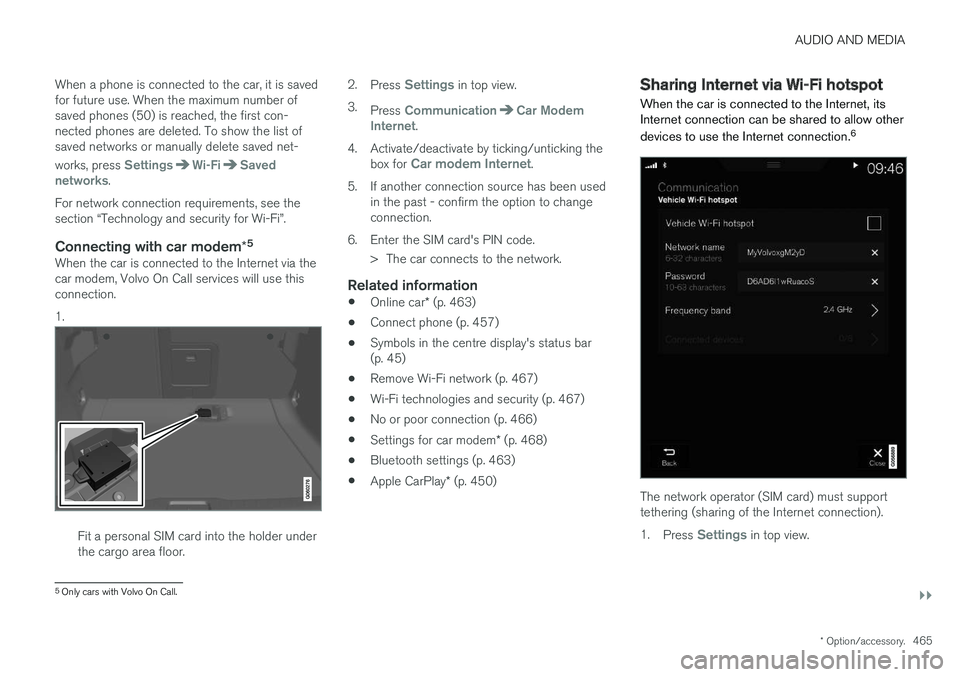
Connecting with car modem *5When the car is connected to the Internet via thecar modem, Volvo On Call services will use thisconnection. 1.
Fit a personal SIM card into the holder under the cargo area floor. 2.
Press
Settings in top view.
3. Press
CommunicationCar Modem
Internet.
4. Activate/deactivate by ticking/unticking the box for
Car modem Internet.
5. If another connection source has been used in the past - confirm the option to change connection.
6. Enter the SIM card's PIN code. > The car connects to the network.
Related information
• Online car
* (p. 463)
• Connect phone (p. 457)
• Symbols in the centre display's status bar(p. 45)
• Remove Wi-Fi network (p. 467)
• Wi-Fi technologies and security (p. 467)
• No or poor connection (p. 466)
• Settings for car modem
* (p. 468)
• Bluetooth settings (p. 463)
• Apple CarPlay
* (p. 450)
Sharing Internet via Wi-Fi hotspot
When the car is connected to the Internet, its Internet connection can be shared to allow other devices to use the Internet connection. 6
The network operator (SIM card) must support tethering (sharing of the Internet connection). 1.
Press
Settings in top view.
5
Only cars with Volvo On Call.