language VOLVO V90 CROSS COUNTRY 2017 Owner´s Manual
[x] Cancel search | Manufacturer: VOLVO, Model Year: 2017, Model line: V90 CROSS COUNTRY, Model: VOLVO V90 CROSS COUNTRY 2017Pages: 552, PDF Size: 13.6 MB
Page 428 of 552
||
INFOTAINMENT
* Option/accessory.
426 Play/pause: tap the track's image, press the
symbol on the keypad or press the button under the center display. Change tracks: tap the desired track on the cen- ter display, press the
buttons under the
center display or on the right-side steering wheel keypad. Fast forward/reverse, move within a track: press the time axis on the center display and drag from side to side, press and hold the
buttons
under the center display or on the right-side steering wheel keypad. Change media source: Tap a media source under
Recents, tap the desired app in the center dis-
play's App view or use the
button on the
right-side steering wheel keypad.
Library: tap to play a track from the library.
Shuffle: tap to play tracks in random order.
Similar: tap to use Gracenote to search for simi-
lar music on the USB device and create a playlist based on the results. The playlist can contain upto 50 tracks.
Change device: tap to toggle between USB
devices if more than one is connected.
Video settings
The following can be adjusted with the video player in full screen or by opening the center dis- play's Top view and tapping
SettingsVideo:Audio Language, Off and Subtitle Language.
Play
DivX®
This DivX device must be registered in order to play purchased DivX Video-on-Demand (VOD)movies.
1. Open the center display's Top view and tap
SettingsVideoDivX
® VOD to get a
registration code.
2. Go to vod.divx.com for additional information and to complete the registration process.
Related information
• CD (media) player
* (p. 424)
• Media player (p. 419)
• Voice control for radio and media (p. 121)
• Apps (applications) (p. 394)
• Connecting a Bluetooth ®
device (p. 418)
• Connecting a device via the AUX/USB socket (p. 418)
• Gracenote (p. 428)
• Connecting to the Internet (p. 431)
• Media searches (p. 426)
• Video (p. 429)
• Apple CarPlay (p. 420)
Media searches
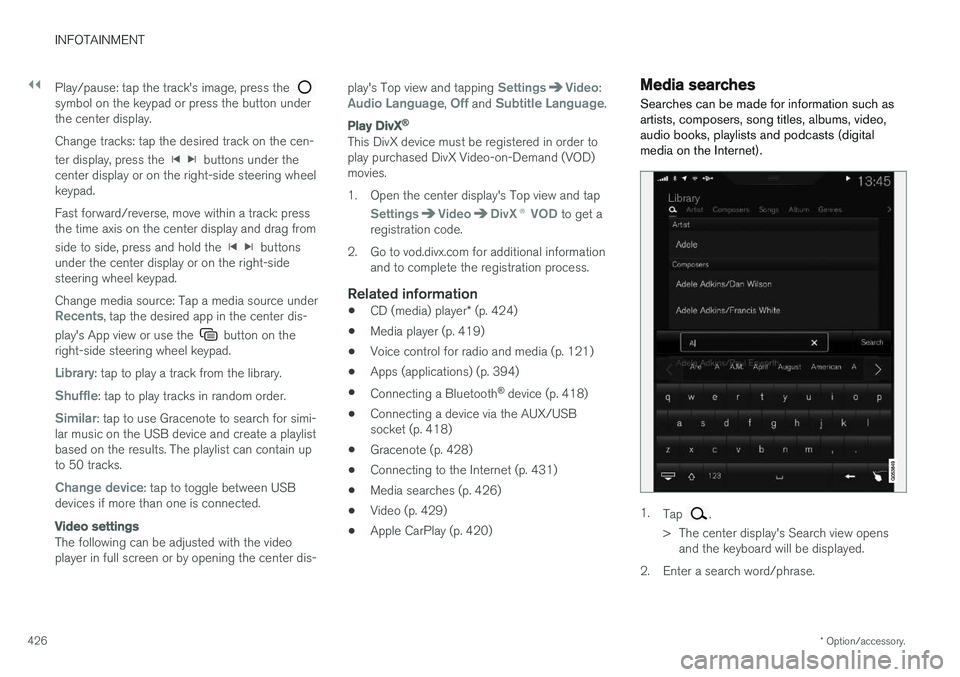
Searches can be made for information such as artists, composers, song titles, albums, video,audio books, playlists and podcasts (digitalmedia on the Internet).
1. Tap .
> The center display's Search view opens and the keyboard will be displayed.
2. Enter a search word/phrase.
Page 542 of 552
INDEX
540Bluetooth cell phone connection 414
Booster cushion, integrated 87, 89, 91
Booster cushions 83
Brake assist system 351
Brake lights 146, 352Brakes
auto-hold 350
Brake system Brake pad inspection 349
fluid 531
general information 348, 350, 351
Bulbs 501 replacing 497
specifications 503
C
Camera
driver support systems 294
limitations 295
Camera, Park Assist 334, 336, 338, 339
Capacity weight 450, 529
Cargo area, steel grid 209
Cargo area cover 211
Cargo compartment fuses 494
raising/lowering the level 202
Cargo net 208
Cargo space 202
Car wash 514
Catalytic converter 368CD, USB, iPod, AUX, Bluetooth, Recents, Library, Shuffle, Similar, Change device,Audio Language, Off, Subtitle Language, Video, DivX ® VOD 424
CD player 424 Cell phone hands-free 411
Pairing 412
Cell phone voice control 120 Center display changing settings 30
cleaning 519
keyboard 31
navigating in 38
overview 28
screen in the center console 44
symbols in the status bar 43
Chains 451
Changing a wheel 454Child restraints recalls and registration 77
Child restraint systems 77 booster cushions 83
convertible seats 80
infant seats 78
ISOFIX/LATCH anchors 84
top tether anchors 86
Child safety 75 booster cushions 83
child restraint systems 77, 85
convertible seats 80
infant seats 78
Child safety locks 240 Child seats lower attachment points 85
City safety 298, 306City Safety crossing traffic 303
detecting objects 301
limitations 306
rear collision warning 310
symbols and messages 309
troubleshooting 304
City Safety, On/Off 300 City Safety ™
Multi Target 304