odometer VOLVO V90 CROSS COUNTRY 2017 Owner´s Manual
[x] Cancel search | Manufacturer: VOLVO, Model Year: 2017, Model line: V90 CROSS COUNTRY, Model: VOLVO V90 CROSS COUNTRY 2017Pages: 552, PDF Size: 13.6 MB
Page 97 of 552
INSTRUMENTS AND CONTROLS
}}
* Option/accessory.95
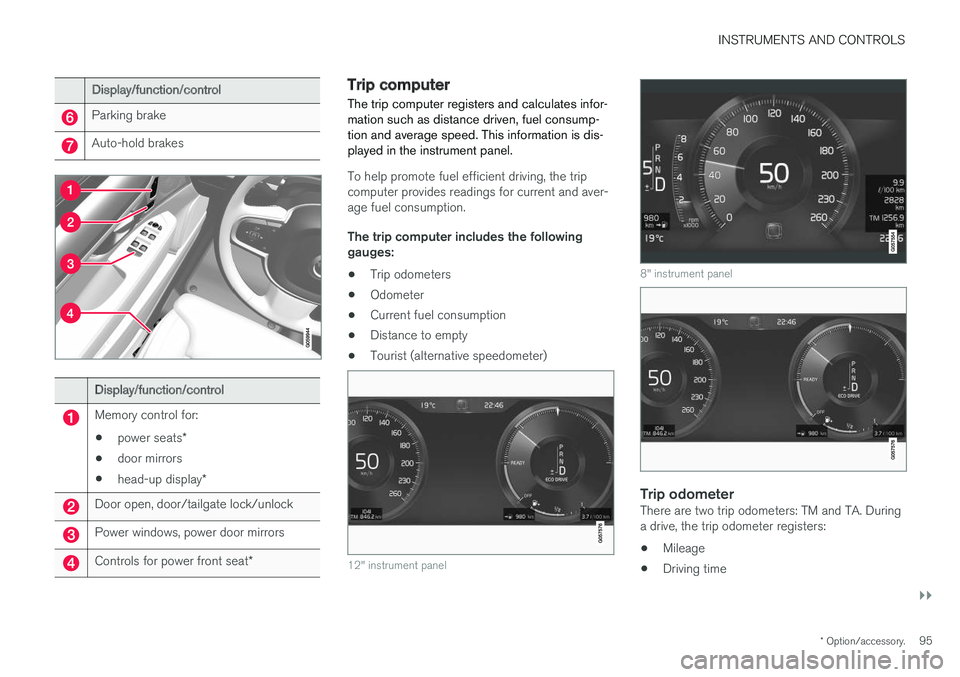
Display/function/control
Parking brake
Auto-hold brakes
Display/function/control
Memory control for:
• power seats
*
• door mirrors
• head-up display
*
Door open, door/tailgate lock/unlock
Power windows, power door mirrors
Controls for power front seat *
Trip computer The trip computer registers and calculates infor- mation such as distance driven, fuel consump-tion and average speed. This information is dis-played in the instrument panel.
To help promote fuel efficient driving, the trip computer provides readings for current and aver-age fuel consumption. The trip computer includes the following gauges:
• Trip odometers
• Odometer
• Current fuel consumption
• Distance to empty
• Tourist (alternative speedometer)
12" instrument panel
8" instrument panel
Trip odometerThere are two trip odometers: TM and TA. During a drive, the trip odometer registers:
• Mileage
• Driving time
Page 98 of 552
||
INSTRUMENTS AND CONTROLS
96•
Average speed
• Average fuel consumption
The values displayed are those since the last time the trip odometer was reset.
OdometerThe odometer registers the vehicle's total mile-age and cannot be reset.
Current fuel consumptionThis gauge shows the current fuel consumption.This reading is updated once a second.
Distance to emptyThis function shows the approximate distancethat can be driven on the fuel remaining in thetank. The calculation is based on average fuel con- sumption during the last 20 miles (30 km) ofdriving and the amount of fuel remaining in thetank. When the gauge displays "----", there is very little useable fuel remaining in the tank; refuel as soonas possible. The accuracy of this figure may vary if your driv- ing style changes. An economical driving style willgenerally increase this distance.
Tourist (alternative speedometer)This is an alternative digital speedometer can beused when driving in areas in which the speedlimit is listed in a different unit of measure. If the speedometer is in
mph, this gauge will show the
vehicle's speed in km/h and vice versa.
Related information
•Displaying trip computer information (p. 96)
• Displaying trip statistics (p. 98)
Displaying trip computer information
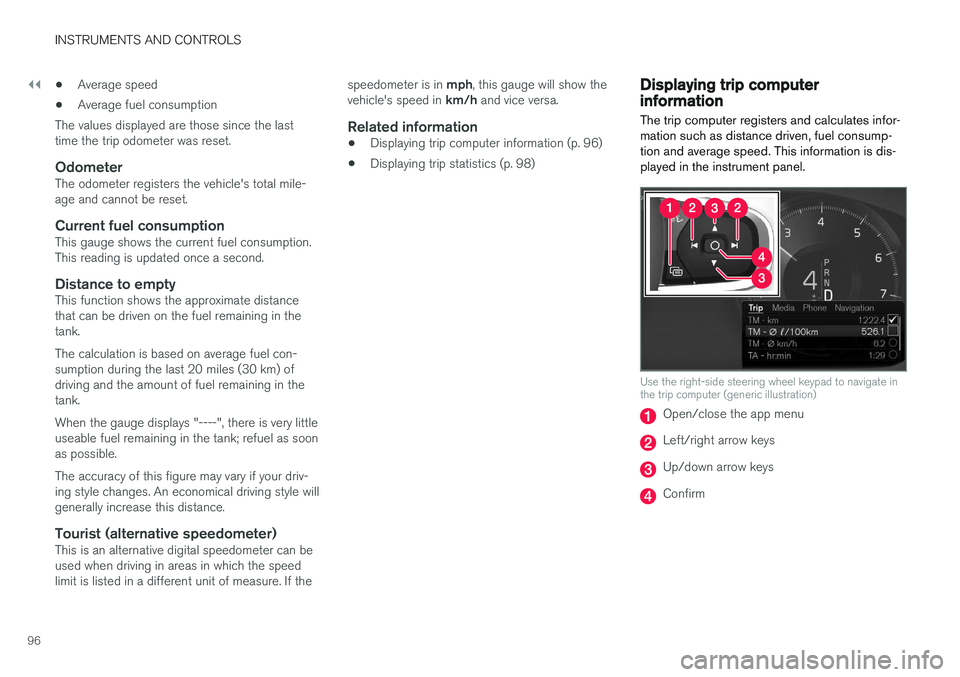
The trip computer registers and calculates infor- mation such as distance driven, fuel consump-tion and average speed. This information is dis-played in the instrument panel.
Use the right-side steering wheel keypad to navigate in the trip computer (generic illustration)
Open/close the app menu
Left/right arrow keys
Up/down arrow keys
Confirm
Page 99 of 552
INSTRUMENTS AND CONTROLS
* Option/accessory.97
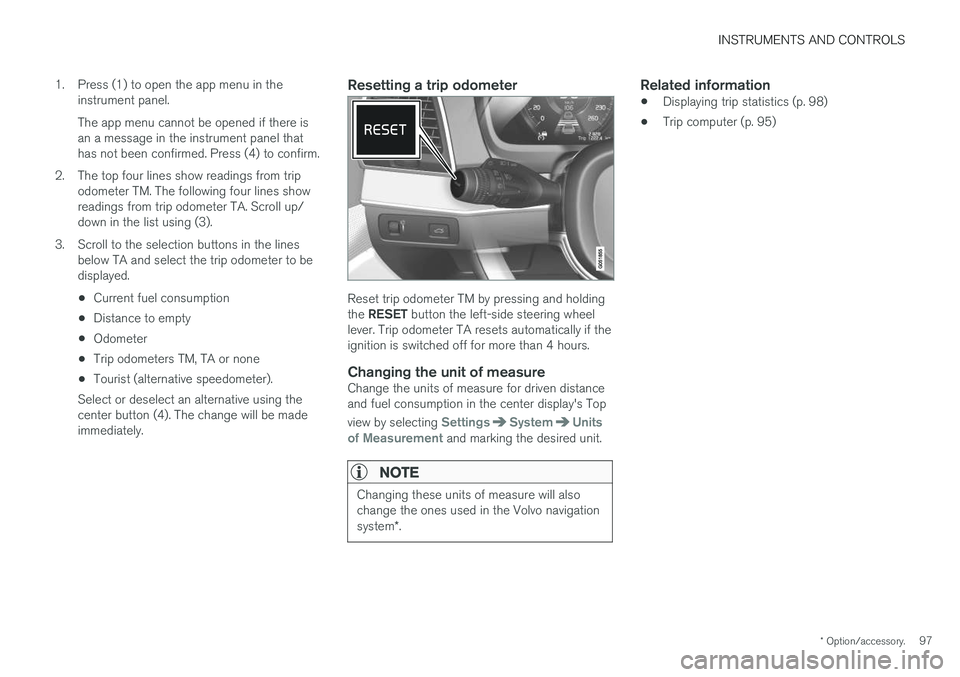
1. Press (1) to open the app menu in the
instrument panel. The app menu cannot be opened if there is an a message in the instrument panel thathas not been confirmed. Press (4) to confirm.
2. The top four lines show readings from trip odometer TM. The following four lines showreadings from trip odometer TA. Scroll up/down in the list using (3).
3. Scroll to the selection buttons in the lines below TA and select the trip odometer to bedisplayed.
• Current fuel consumption
• Distance to empty
• Odometer
• Trip odometers TM, TA or none
• Tourist (alternative speedometer).
Select or deselect an alternative using thecenter button (4). The change will be madeimmediately.
Resetting a trip odometer
Reset trip odometer TM by pressing and holding the RESET button the left-side steering wheel
lever. Trip odometer TA resets automatically if the ignition is switched off for more than 4 hours.
Changing the unit of measureChange the units of measure for driven distanceand fuel consumption in the center display's Top view by selecting
SettingsSystemUnits
of Measurement and marking the desired unit.
NOTE
Changing these units of measure will also change the ones used in the Volvo navigation system *.
Related information
• Displaying trip statistics (p. 98)
• Trip computer (p. 95)
Page 126 of 552
INSTRUMENTS AND CONTROLS
* Option/accessory.
124
Voice control settings
There are a number of settings that can be made for the voice control system.
Open the center display's Top view and tap
SettingsSystemVoice Control and
select settings. •
Repeat Voice Command
•Gender
•Speech Rate
Sound settings
Open Top view and tap SettingsSound
System VolumesVoice Control.
Changing languages
The voice control system only understands the languages marked by the
symbol in the list
of possible system languages. Changing the language for this system also affects menus, messages and help texts. Open Top view and tap
SettingsSystemSystem Language.
Related information
• Voice control (p. 119)
• Using voice commands (p. 119)
• Navigation system voice commands (p. 123)
Instrument panel
The instrument panel displays vehicle- and driv- ing-related information.
The gauges, indicators, symbols and functions displayed in the instrument panel depend on theequipment/systems installed in the vehicle andwhich functions are currently activated. The instrument panel is available in two versions: 12" and 8". Some of the functions listed below are optional.
WARNING
• If the instrument panel is not functioning properly, information about e.g., brakes,airbags or other safety-related messagescannot be displayed and the driver cannotbe alerted to possible problems.
• If the instrument panel turns off, does notactivate when the ignition is switched onor is completely/partially not possible toread, do not drive the vehicle. Contact atrained and qualified Volvo service techni-cian.
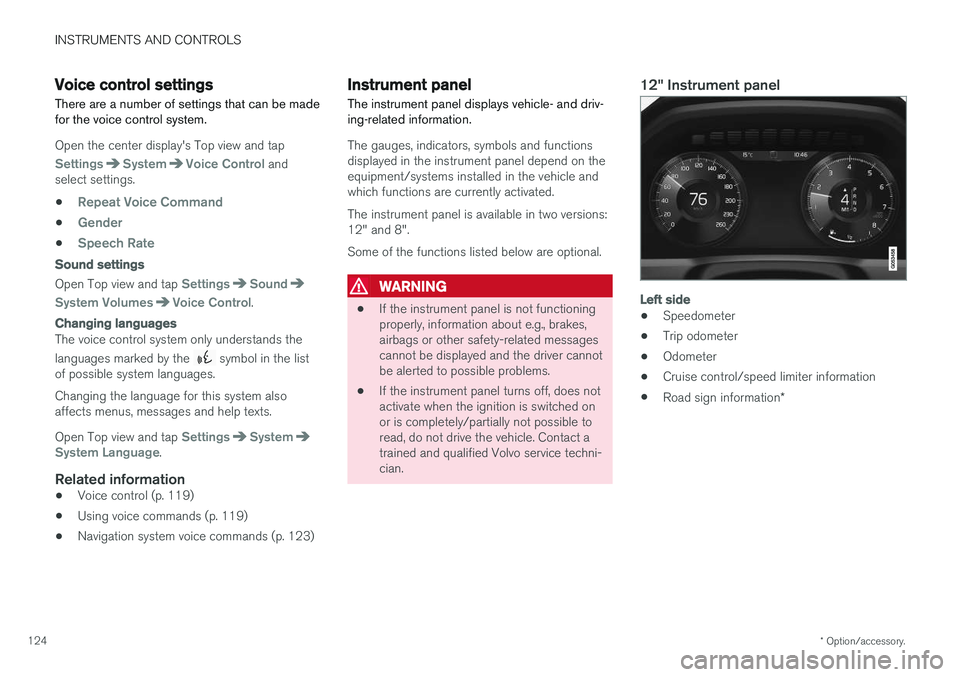
12" Instrument panel
Left side
• Speedometer
• Trip odometer
• Odometer
• Cruise control/speed limiter information
• Road sign information
*
Page 127 of 552
INSTRUMENTS AND CONTROLS
}}
* Option/accessory.125
Center
•Indicator and warning symbols
• Ambient temperature sensor
• Clock
• Messages (and in certain cases also graph- ics)
• Door and seat belt status
• Media player
• Navigation system map
• Cell phone
• Voice control
• Compass
Right side
•
Tachometer (depending on current driving mode)
• ECO gauge (depending on current drivingmode)
• Gear indicator
• Current driving mode (Comfort, Off Road,Eco, Dynamic and Individual)
• Fuel gauge
• Start/Stop function's status
• Driving distance to empty tank
• Current fuel consumption
• App menu (activated using the right-sidesteering wheel keypad)
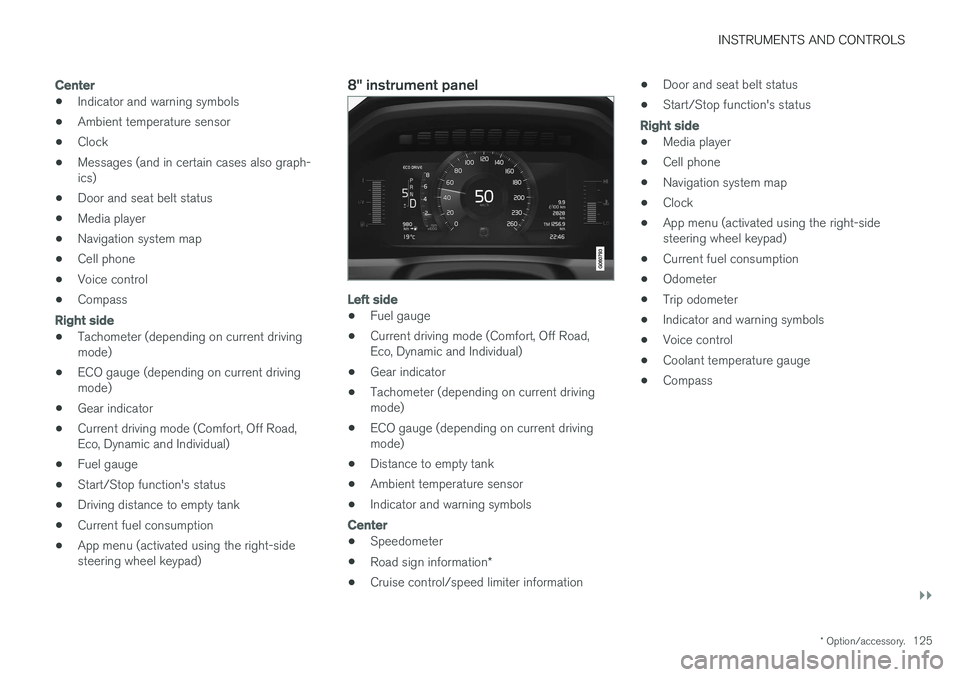
8" instrument panel
Left side
• Fuel gauge
• Current driving mode (Comfort, Off Road, Eco, Dynamic and Individual)
• Gear indicator
• Tachometer (depending on current drivingmode)
• ECO gauge (depending on current drivingmode)
• Distance to empty tank
• Ambient temperature sensor
• Indicator and warning symbols
Center
•
Speedometer
• Road sign information
*
• Cruise control/speed limiter information •
Door and seat belt status
• Start/Stop function's status
Right side
•Media player
• Cell phone
• Navigation system map
• Clock
• App menu (activated using the right-side steering wheel keypad)
• Current fuel consumption
• Odometer
• Trip odometer
• Indicator and warning symbols
• Voice control
• Coolant temperature gauge
• Compass
Page 158 of 552
||
INSTRUMENTS AND CONTROLS
156
AppFunctions
Trip com- puter Select a trip odometer, makeinstrument panel display set-tings, etc.
Mediaplayer Select the active source for themedia player.
Phone Call a contact from the call list.
Navigation Pause guidance, start guidance to a recently set destination, etc.
Related information
•Instrument panel (p. 124)
• Center display overview (p. 28)
• Using the instrument panel App menu (p. 156)
Using the instrument panel App menu
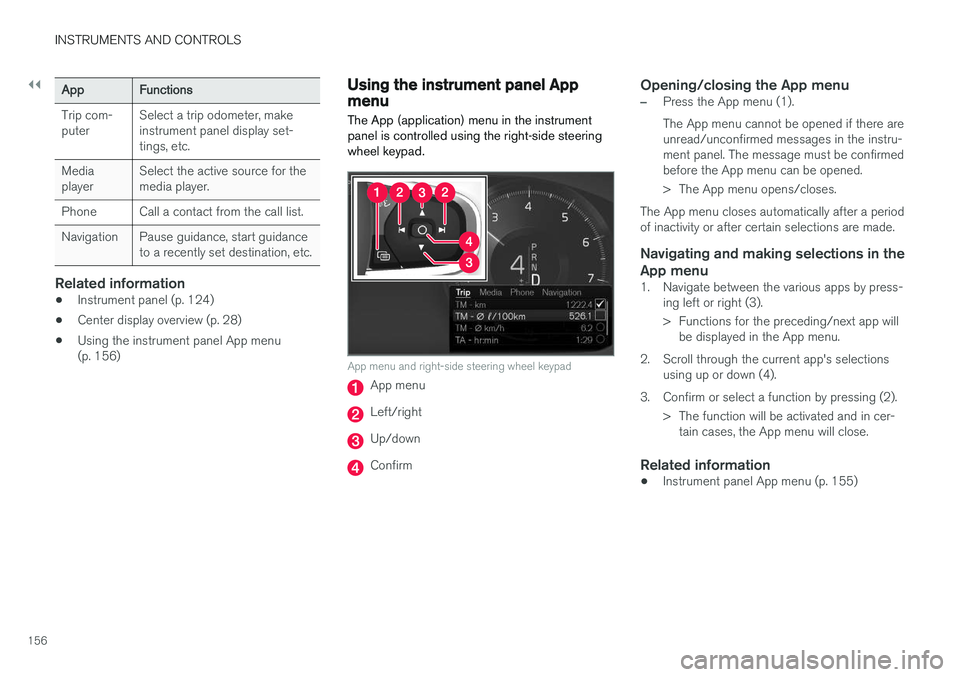
The App (application) menu in the instrument panel is controlled using the right-side steeringwheel keypad.
App menu and right-side steering wheel keypad
App menu
Left/right
Up/down
Confirm
Opening/closing the App menu
–Press the App menu (1). The App menu cannot be opened if there are unread/unconfirmed messages in the instru-ment panel. The message must be confirmedbefore the App menu can be opened.
> The App menu opens/closes.
The App menu closes automatically after a period of inactivity or after certain selections are made.
Navigating and making selections in the App menu
1. Navigate between the various apps by press- ing left or right (3).
> Functions for the preceding/next app willbe displayed in the App menu.
2. Scroll through the current app's selections using up or down (4).
3. Confirm or select a function by pressing (2). > The function will be activated and in cer-tain cases, the App menu will close.
Related information
• Instrument panel App menu (p. 155)
Page 378 of 552
||
STARTING AND DRIVING
* Option/accessory.
376
Mode Functions available
0 •The odometer, clock and tem- perature gauge are illuminated
• Power seats
* can be adjusted
• The power windows can be oper-ated
• The 12-volt socket in the cargocompartment can be used
• The center display is activatedand can be used
• The infotainment system can beused for a limited time
In this mode, certain functions canonly be used for a limited time to helpminimize battery drain
I •The laminated panoramic roof
*,
power seats */windows,12-volt
sockets in the passenger com-partment, Bluetooth, navigation system *, climate system blower,
windshield wipers can be oper- ated
• The infotainment system will start(if it was started when the ignitionwas switched off)Mode
Functions available
II •The headlights illuminate
• Warning/indicator lights illumi- nate for 5 seconds
• A number of other functions willalso be activated. However, the heated seats
* and heated rear
window functions can only be activated when the engine is run-ning.
This mode should only be used forvery short periods to help avoiddraining the battery.
Selecting an ignition mode
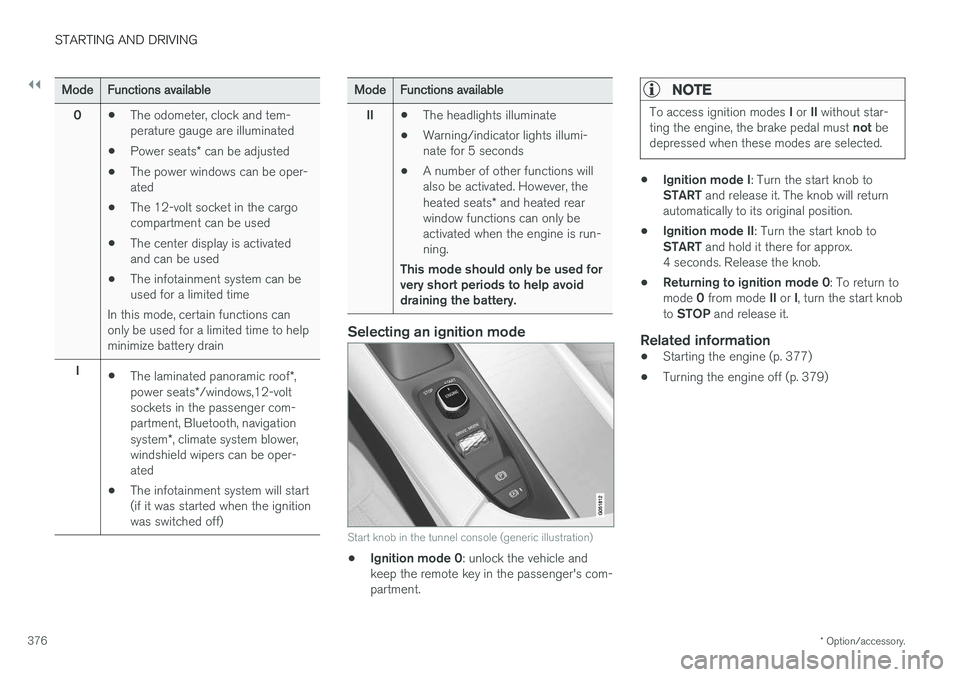
Start knob in the tunnel console (generic illustration)
• Ignition mode 0
: unlock the vehicle and
keep the remote key in the passenger's com- partment.
NOTE
To access ignition modes I or II without star-
ting the engine, the brake pedal must not be
depressed when these modes are selected.
• Ignition mode I
: Turn the start knob to
START and release it. The knob will return
automatically to its original position.
• Ignition mode II
: Turn the start knob to
START and hold it there for approx.
4 seconds. Release the knob.
• Returning to ignition mode 0
: To return to
mode 0 from mode II or I, turn the start knob
to STOP and release it.
Related information
•Starting the engine (p. 377)
• Turning the engine off (p. 379)
Page 480 of 552
||
MAINTENANCE AND SERVICING
478
Viewing workshop information
1.Open the Car status app in the center dis-
play's App view.
2. Tap
Appointments.
3. Under
Appointments, tap Workshop
information.
> A window with retailer information will appear.
4. If you prefer, call the retailer, or select an address or GPS coordinates to activate the navigation system.
Appointments and vehicle informationWhen you make an appointment or send vehicleinformation from your vehicle, this information will be sent using the Internet connection 2
. Informa-
tion about the vehicle includes:
• service requirements
• time since service was last performed
• function status
• fluid levels •
mileage (odometer reading)
• VIN (Vehicle Identification Number)
• The vehicle's software version
• Diagnostic information
Related information
•Internet connected vehicle (p. 431)
• Volvo ID (p. 27)
Wi-Fi connection to a workshop The time a vehicle is in a workshop for service or repairs can be reduced by transmitting trouble-shooting information as soon as the car reachesthe workshop. This is done most conveniently by selecting
Automatically connect when I arrive in the
center display's Settings menu.
Each time the vehicle slows down to a sufficiently low speed, it begins searching for a Wi-Fi net-work. If an authorized Volvo network (at a retaileror workshop) is found, a message will be dis-played or a pop-up window will open in the cen-ter display (this applies to manual connections,see the section "Manually connecting to a work-shop" below).
2 There will be a slight charge for sending this information via the vehicle's Internet connection, depending on your service plan.
Page 546 of 552
INDEX
544
K
Keyremote 174, 221
Key blade 225, 237
Keys 224
L
Labels list of 525
location of 525
Laminated panoramic roof 104, 105
Lane Keeping Aid 322, 325 settings 324
LATCH anchors 84
Leather care 517
Lighting panel 138
Load anchoring eyelets 211
Loading the vehicle 202, 450
Locking 227, 229
Locks and alarm 218
Low beam bulb, replacing 499
Low beams 141, 142
Low Speed Control 353
M
Maintenance 472 hoisting the vehicle 504
performed by the owner 472
Malfunction indicator light 127
Manual front seat adjustment 162
Media player 418, 419 compatible file formats 429
Media player (infotainment system) 424Menus instrument panel 150, 152, 154, 156
Mirrors defroster 190
power door 102
retractable 102
Mirrors, rearview mirror 108
Modem 436Motor oil checking 508, 509
MP3 files 429
Multifunctional front seats 165, 166
MY CAR 109, 110
N
Navigation system voice commands 123
Net cargo 208
O
Occupant safety 56
Occupant weight sensor 68
Octane recommendations 366
Odometer 95Oilchecking 508, 509
Oil quality 535
On-board diagnostics 472
On-board Diagnostic socket 21
On Call Roadside Assistance 14
Opening the hood 506
Option/accessory 48
Options 21
Outside temperature sensor 114
Overhead courtesy lighting 147
Overheating, engine 360
Page 550 of 552
INDEX
548Tread wear indicator 449
Trip computer 95, 96, 98
reset 96
Trip odometers 95
Trips, long distance 357
Trip statistics 98
Turn signals 146 changing bulbs 500
U
Uniform Tire Quality Grading 451
Unlocking the tailgate 232
Unlocking the vehicle 227, 229
USB/AUX connection 418, 427
User profile 172
V
Vehicle Event Data 26
Vehicle information 14
Vehicle loading 202, 450
Vehicle maintenance 472performed by the owner 472
Vehicle status 475
Vehicle weights 529 Voice control cell phones 120
giving commands 119
introduction 119
multimedia devices 121
radio 121
settings 124
Volvo and the environment 15
Volvo ID 27
Volvo maintenance 472
Volvo On Call Roadside Assistance 14
Volvo programs 14
W
Warning flashers, hazard 146
Warning lights 135
Warning system, collision 299
Warranties 472
Washer fluid 513Washers headlight 158
windshield 157
Water, driving through 359
Waxing 521
Weights trailer 370
Wheels changing 454, 457
storing 445
Whiplash Protection System 59
Wi-Fi 435, 436Windows laminated glass 53
power 107
sun shade 107
Windshield rain sensor 157
washers 158
wipers/washers 157
Windshield washer fluid reservoir 513
Windshield wiper blades 511Windshield wipers service position 510
Wiper blades replacing 510, 511
WMA files 429Workshop Wi-Fi connection 478