CD player VOLVO V90 CROSS COUNTRY 2018 Owner´s Manual
[x] Cancel search | Manufacturer: VOLVO, Model Year: 2018, Model line: V90 CROSS COUNTRY, Model: VOLVO V90 CROSS COUNTRY 2018Pages: 662, PDF Size: 11.93 MB
Page 13 of 662
11
SiriusXM Travel Link®
* - Fuel 479
SiriusXM Travel Link ®
* - Sports 480
Media player 481
Playing media 482
Controlling and changing media 483
Media searches 484
Gracenote ®
485
CD player *
485
Video 486
Playing video 486
Playing DivX ®
486
Video settings 487
Streaming media via Bluetooth ®
487
Connecting a device via Bluetooth ®
487
Playing media via the USB port 488
Connecting a device via the USB port 488
Apple ®
CarPlay ®
* 489
Using Apple ®
CarPlay ®
* 489
Settings for Apple ®
CarPlay ®
* 490
Tips for using Apple ®
CarPlay ®
* 491
Android Auto *
492
Using Android Auto *
492
Settings for Android Auto *
493
Tips for using Android Auto *
494
Phone 494
Connecting a phone to the car via Bluetooth for the first time 495
Connecting a phone to the car viaBluetooth automatically 497
Connecting a phone to the car viaBluetooth manually 497
Disconnecting a Bluetooth-con-nected phone 498
Switch between phones connectedvia Bluetooth 498
Removing a Bluetooth-connected phone 499
Handling phone calls 499
Handling text messages 500
Text message settings 501
Managing the phone book 501
Phone settings 502
Settings for Bluetooth devices 503
Internet-connected vehicle *
503
Connecting the car to the Internetvia a mobile device (Bluetooth) 505
Connecting the car to the Internetvia a mobile device (Wi-Fi) 505
Connect the car to the Internet viacar modem (SIM card) 506
Vehicle modem settings 507
Sharing Internet from the vehicle via Wi-Fi hotspot (tethering)507
No or poor Internet connection 508
Deleting Wi-Fi networks 509
Wi-Fi technology and security 509
Terms of use and data sharing 510
Activating and deactivating data sharing 510
Compatible file formats for media 510
Technical specifications for USB devices 511
Hard disk storage space 512
License agreement for audio and media 513
Page 86 of 662
DISPLAYS AND VOICE CONTROL
* Option/accessory.
84
Instrument panel
The instrument panel displays information rela- ted to the vehicle and driving.
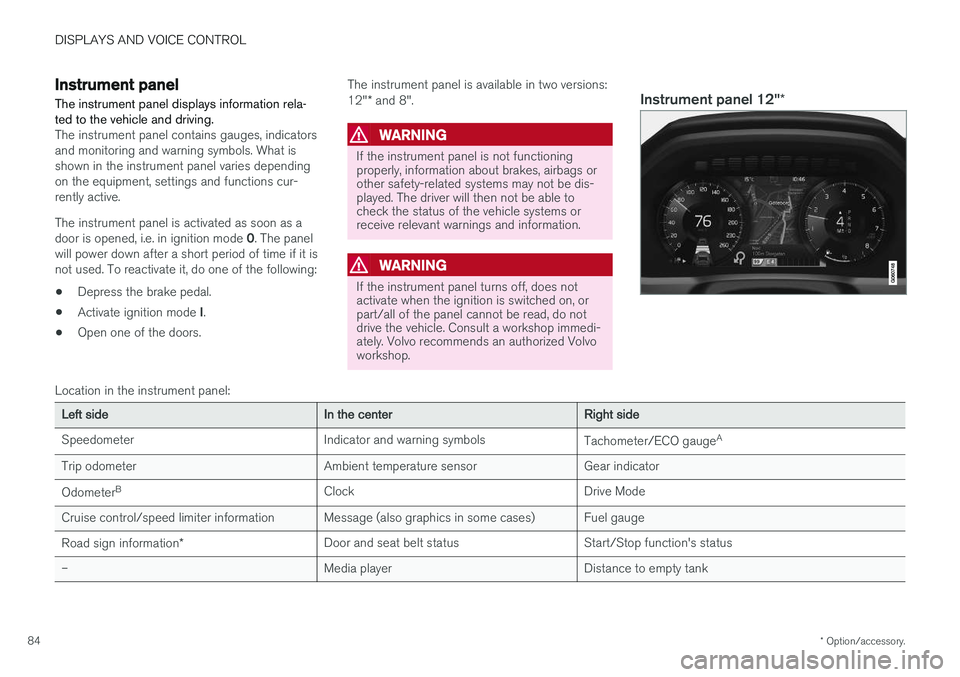
The instrument panel contains gauges, indicators and monitoring and warning symbols. What isshown in the instrument panel varies dependingon the equipment, settings and functions cur-rently active. The instrument panel is activated as soon as a door is opened, i.e. in ignition mode 0. The panel
will power down after a short period of time if it is not used. To reactivate it, do one of the following:
• Depress the brake pedal.
• Activate ignition mode
I.
• Open one of the doors. The instrument panel is available in two versions: 12"
* and 8".WARNING
If the instrument panel is not functioning properly, information about brakes, airbags orother safety-related systems may not be dis-played. The driver will then not be able tocheck the status of the vehicle systems orreceive relevant warnings and information.
WARNING
If the instrument panel turns off, does not activate when the ignition is switched on, orpart/all of the panel cannot be read, do notdrive the vehicle. Consult a workshop immedi-ately. Volvo recommends an authorized Volvoworkshop.
Instrument panel 12" *
Location in the instrument panel:
Left sideIn the centerRight side
Speedometer Indicator and warning symbols Tachometer/ECO gaugeA
Trip odometer Ambient temperature sensor Gear indicator Odometer B
Clock Drive Mode
Cruise control/speed limiter information Message (also graphics in some cases) Fuel gauge
Road sign information * Door and seat belt status Start/Stop function's status
– Media player Distance to empty tank
Page 87 of 662
DISPLAYS AND VOICE CONTROL
}}
* Option/accessory.85
Left sideIn the centerRight side
– Navigation system map Current fuel consumption
– PhoneApp menu (activated using steering wheel keypad)
– Voice Control –
– CompassA
–
ADepends on selected drive mode.
B Total distance.
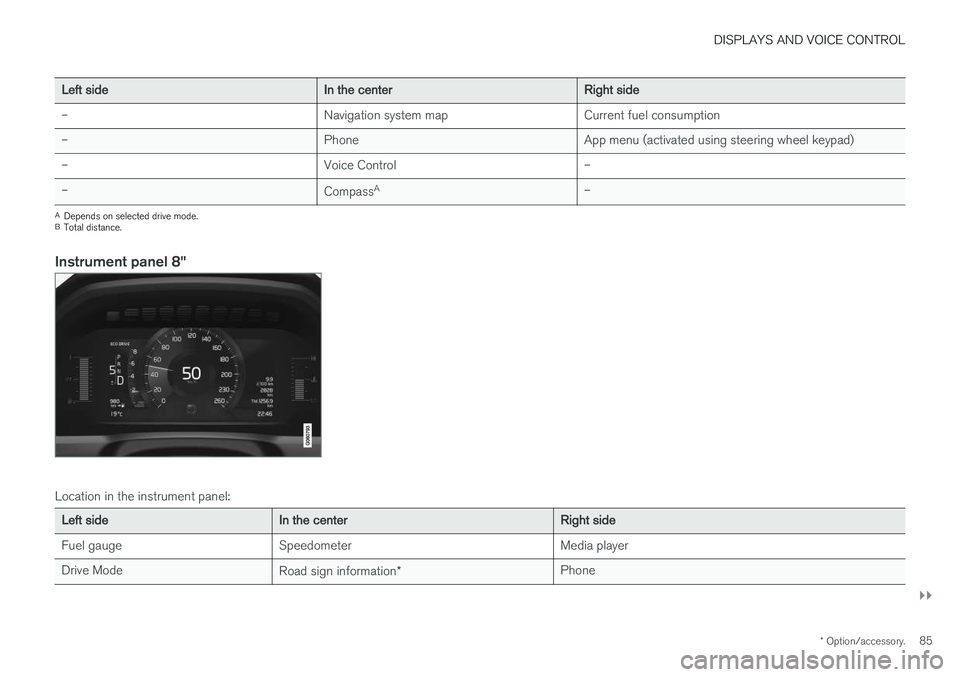
Instrument panel 8"
Location in the instrument panel:
Left sideIn the centerRight side
Fuel gauge Speedometer Media player Drive Mode Road sign information* Phone
Page 90 of 662
DISPLAYS AND VOICE CONTROL
* Option/accessory.
88
Instrument panel settings
Display settings for the instrument panel can be set in the instrument panel's app menu and inthe center display's Settings menu.
Settings in instrument panel's app menu
The app menu can be used to set what informa- tion will be displayed in the instrument panel:
• trip computer
• media player
• phone
• navigation system
*.
Center display settings
Selecting type of information
1.
Tap Settings in the center display's Top
view.
2. Tap
My CarDisplaysDriver Display
Information.
3. Select a background:
•
Show no information in the background
•Show information for current playing media
•Show navigation even if no route is set1.
Select theme
1. Tap Settings in the center display's Top
view.
2. Tap
My CarDisplaysDisplay
Themes
3. Select a theme (appearance) for the instru- ment panel:
•
Glass
•Minimalistic
•Performance
•Chrome Rings.
Select language
1. Tap Settings in the center display's Top
view.
2. Tap
SystemSystem Languages and
Units
System Language to select lan-
guage.
> A change made here will affect the lan- guage in all displays.
The settings are personal and saved automati- cally in the active driver profile.
Related information
• Instrument panel (p. 84)
• Handling the App menu in the instrumentpanel (p. 105) •
Changing settings in the center display(p. 136)
1
The map is only shown with the 12" instrument panel *. With the 8" instrument panel, only guidance is shown.
Page 107 of 662
DISPLAYS AND VOICE CONTROL
}}
105
AppFunctions
Trip com- puter Select a trip odometer, changeinstrument panel display set-tings, etc.
Media player Select active source for media player.
Phone Call a contact from the call list.
Navigation Guide to destination, etc.
Related information
• Instrument panel (p. 84)
• Center display overview (p. 111)
• Handling the App menu in the instrument panel (p. 105)
Handling the App menu in theinstrument panel
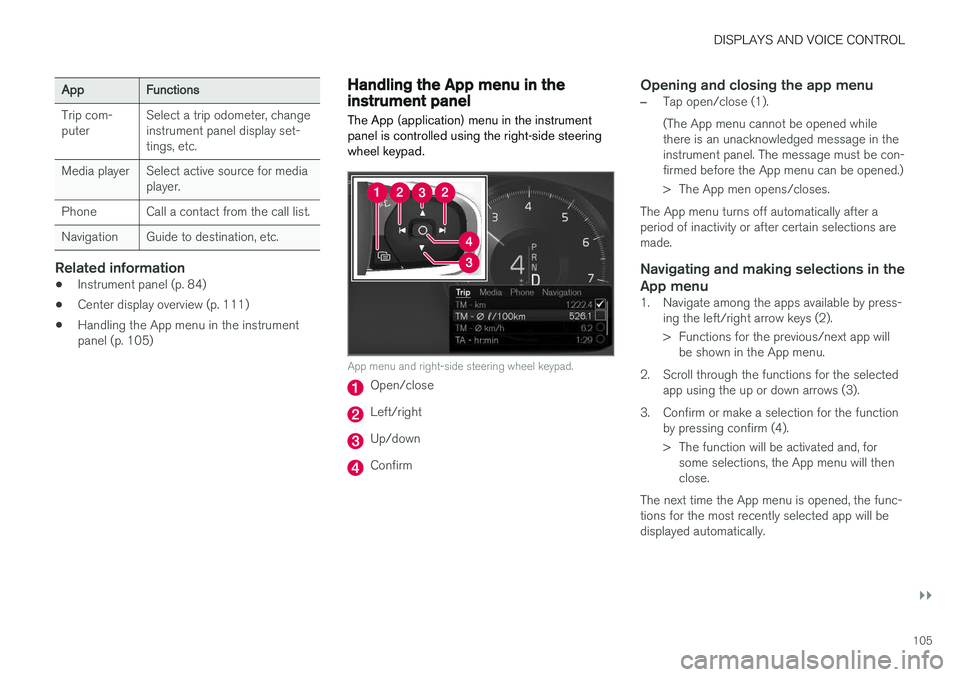
The App (application) menu in the instrument panel is controlled using the right-side steeringwheel keypad.
App menu and right-side steering wheel keypad.
Open/close
Left/right
Up/down
Confirm
Opening and closing the app menu
–Tap open/close (1). (The App menu cannot be opened while there is an unacknowledged message in theinstrument panel. The message must be con-firmed before the App menu can be opened.)
> The App men opens/closes.
The App menu turns off automatically after a period of inactivity or after certain selections aremade.
Navigating and making selections in the
App menu
1. Navigate among the apps available by press- ing the left/right arrow keys (2).
> Functions for the previous/next app willbe shown in the App menu.
2. Scroll through the functions for the selected app using the up or down arrows (3).
3. Confirm or make a selection for the function by pressing confirm (4).
> The function will be activated and, forsome selections, the App menu will then close.
The next time the App menu is opened, the func-tions for the most recently selected app will bedisplayed automatically.
Page 115 of 662
DISPLAYS AND VOICE CONTROL
* Option/accessory.113
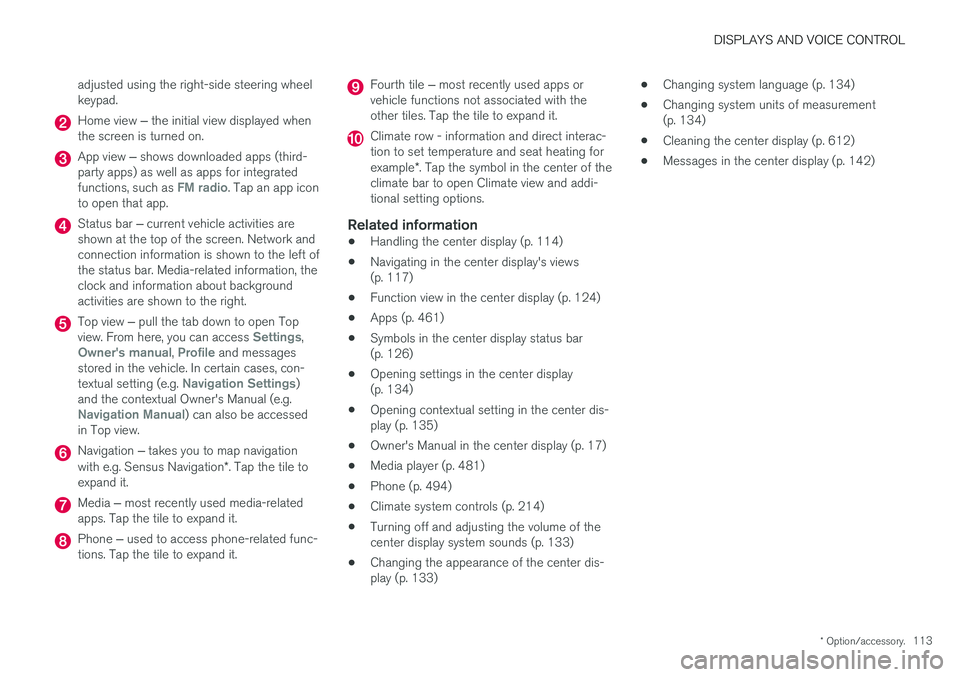
adjusted using the right-side steering wheel keypad.
Home view
‒ the initial view displayed when
the screen is turned on.
App view ‒ shows downloaded apps (third-
party apps) as well as apps for integrated functions, such as
FM radio. Tap an app icon
to open that app.
Status bar ‒ current vehicle activities are
shown at the top of the screen. Network and connection information is shown to the left ofthe status bar. Media-related information, theclock and information about backgroundactivities are shown to the right.
Top view ‒ pull the tab down to open Top
view. From here, you can access Settings,Owner's manual, Profile and messages
stored in the vehicle. In certain cases, con- textual setting (e.g.
Navigation Settings)
and the contextual Owner's Manual (e.g.
Navigation Manual) can also be accessed
in Top view.
Navigation ‒ takes you to map navigation
with e.g. Sensus Navigation *. Tap the tile to
expand it.
Media ‒ most recently used media-related
apps. Tap the tile to expand it.
Phone ‒ used to access phone-related func-
tions. Tap the tile to expand it.
Fourth tile ‒ most recently used apps or
vehicle functions not associated with the other tiles. Tap the tile to expand it.
Climate row - information and direct interac- tion to set temperature and seat heating for example *. Tap the symbol in the center of the
climate bar to open Climate view and addi- tional setting options.
Related information
• Handling the center display (p. 114)
• Navigating in the center display's views(p. 117)
• Function view in the center display (p. 124)
• Apps (p. 461)
• Symbols in the center display status bar(p. 126)
• Opening settings in the center display(p. 134)
• Opening contextual setting in the center dis-play (p. 135)
• Owner's Manual in the center display (p. 17)
• Media player (p. 481)
• Phone (p. 494)
• Climate system controls (p. 214)
• Turning off and adjusting the volume of thecenter display system sounds (p. 133)
• Changing the appearance of the center dis-play (p. 133) •
Changing system language (p. 134)
• Changing system units of measurement(p. 134)
• Cleaning the center display (p. 612)
• Messages in the center display (p. 142)
Page 149 of 662
DISPLAYS AND VOICE CONTROL
}}
* Option/accessory.147
Lowering position
Confirm
The brightness of the graphic is automatically adapted to the light conditions in its background.Brightness is also affected by adjustments to thebrightness of the other displays in the vehicle. The height position can be stored in the front power seat's * memory function.
Calibrating the horizontal positionIf the windshield or display unit has been replaced, the head-up display's horizontal posi-tion may need to be calibrated. Calibration meansthat the projected image is rotated clockwise orcounterclockwise. 1.
Tap
Settings in the center display's Top
view.
2. Select
My CarDisplaysHead-Up
Display Options
Head-Up Display
Calibration.
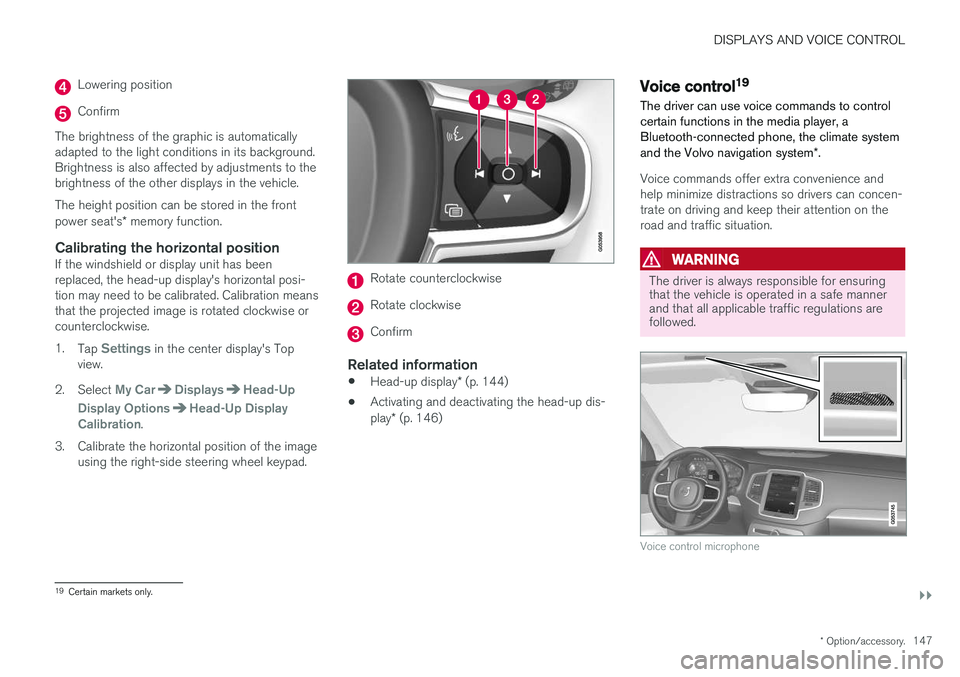
3. Calibrate the horizontal position of the image using the right-side steering wheel keypad.
Rotate counterclockwise
Rotate clockwise
Confirm
Related information
• Head-up display
* (p. 144)
• Activating and deactivating the head-up dis- play
* (p. 146)
Voice control19
The driver can use voice commands to control certain functions in the media player, aBluetooth-connected phone, the climate system and the Volvo navigation system *.
Voice commands offer extra convenience and help minimize distractions so drivers can concen-trate on driving and keep their attention on theroad and traffic situation.
WARNING
The driver is always responsible for ensuring that the vehicle is operated in a safe mannerand that all applicable traffic regulations arefollowed.
Voice control microphone
19
Certain markets only.
Page 462 of 662
AUDIO, MEDIA AND INTERNET
* Option/accessory.
460
Audio, media and Internet
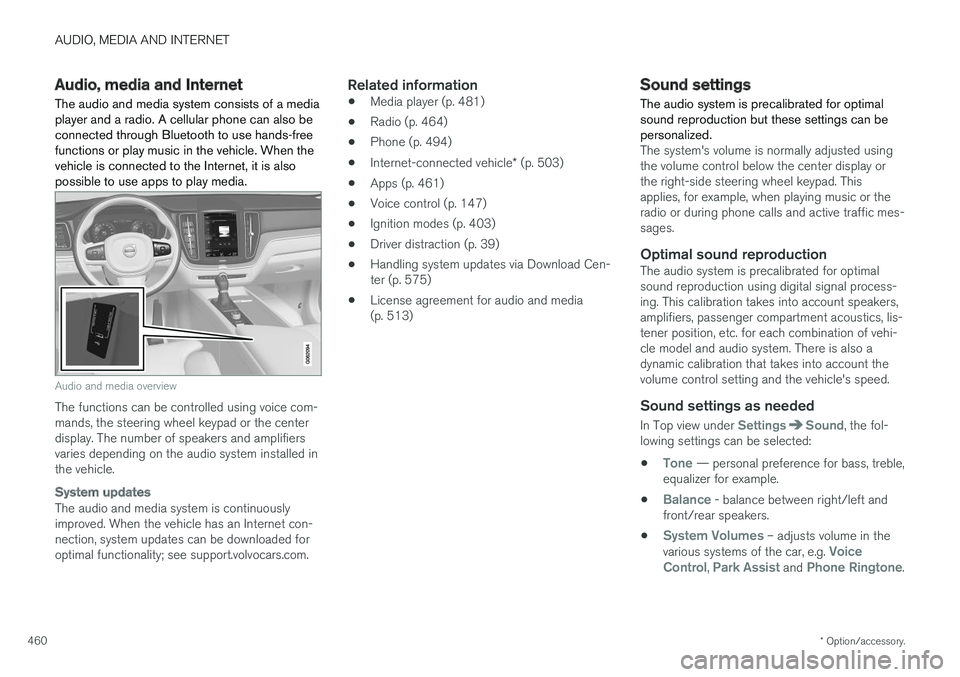
The audio and media system consists of a media player and a radio. A cellular phone can also beconnected through Bluetooth to use hands-freefunctions or play music in the vehicle. When thevehicle is connected to the Internet, it is alsopossible to use apps to play media.
Audio and media overview
The functions can be controlled using voice com- mands, the steering wheel keypad or the centerdisplay. The number of speakers and amplifiersvaries depending on the audio system installed inthe vehicle.
System updates
The audio and media system is continuously improved. When the vehicle has an Internet con-nection, system updates can be downloaded foroptimal functionality; see support.volvocars.com.
Related information
• Media player (p. 481)
• Radio (p. 464)
• Phone (p. 494)
• Internet-connected vehicle
* (p. 503)
• Apps (p. 461)
• Voice control (p. 147)
• Ignition modes (p. 403)
• Driver distraction (p. 39)
• Handling system updates via Download Cen-ter (p. 575)
• License agreement for audio and media(p. 513)
Sound settings
The audio system is precalibrated for optimal sound reproduction but these settings can bepersonalized.
The system's volume is normally adjusted using the volume control below the center display orthe right-side steering wheel keypad. Thisapplies, for example, when playing music or theradio or during phone calls and active traffic mes-sages.
Optimal sound reproductionThe audio system is precalibrated for optimalsound reproduction using digital signal process-ing. This calibration takes into account speakers,amplifiers, passenger compartment acoustics, lis-tener position, etc. for each combination of vehi-cle model and audio system. There is also adynamic calibration that takes into account thevolume control setting and the vehicle's speed.
Sound settings as needed
In Top view under SettingsSound, the fol-
lowing settings can be selected:
•
Tone — personal preference for bass, treble,
equalizer for example.
•
Balance - balance between right/left and
front/rear speakers.
•
System Volumes – adjusts volume in the
various systems of the car, e.g. Voice
Control, Park Assist and Phone Ringtone.
Page 463 of 662
AUDIO, MEDIA AND INTERNET
}}
* Option/accessory.461
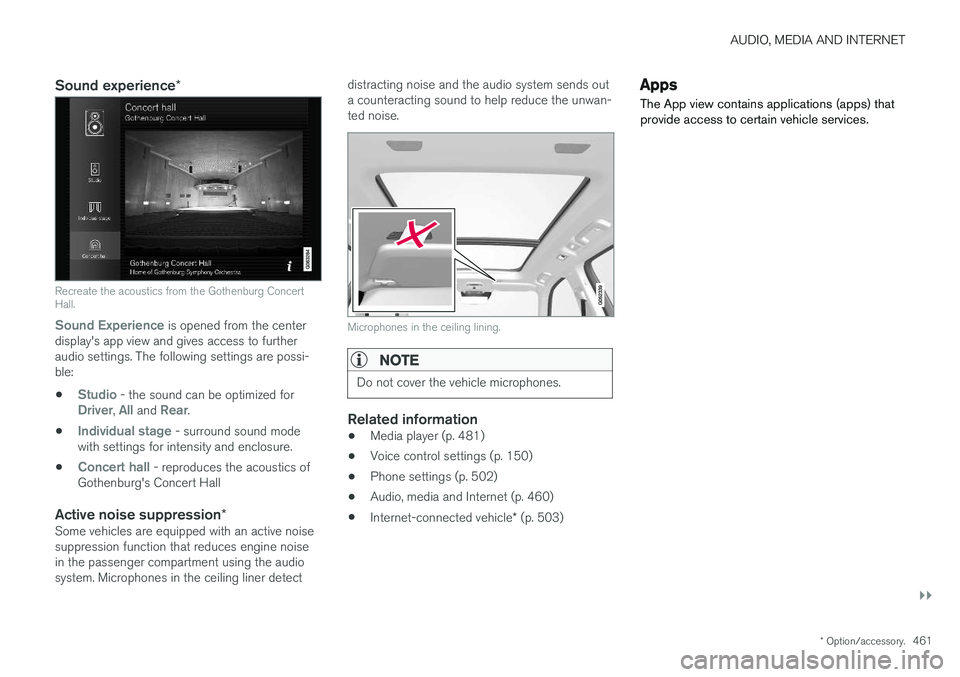
Sound experience *
Recreate the acoustics from the Gothenburg Concert Hall.
Sound Experience
is opened from the center
display's app view and gives access to further audio settings. The following settings are possi-ble:
•
Studio - the sound can be optimized forDriver, All and Rear.
•
Individual stage - surround sound mode
with settings for intensity and enclosure.
•
Concert hall - reproduces the acoustics of
Gothenburg's Concert Hall
Active noise suppression *Some vehicles are equipped with an active noise suppression function that reduces engine noisein the passenger compartment using the audiosystem. Microphones in the ceiling liner detect distracting noise and the audio system sends outa counteracting sound to help reduce the unwan-ted noise.
Microphones in the ceiling lining.
NOTE
Do not cover the vehicle microphones.
Related information
•
Media player (p. 481)
• Voice control settings (p. 150)
• Phone settings (p. 502)
• Audio, media and Internet (p. 460)
• Internet-connected vehicle
* (p. 503)
Apps
The App view contains applications (apps) that provide access to certain vehicle services.
Page 466 of 662
AUDIO, MEDIA AND INTERNET
* Option/accessory.
464
Deleting apps
When the vehicle is connected to the Internet, it is possible to uninstall apps.
If the app is being used, it must be closed before it can be uninstalled. 1. Open the
Download Center app in App
view.
2. Select Application updates to open a list
of all installed apps.
3. Find the desired app and select
Uninstall to
begin uninstalling the app.
> When the app has been uninstalled, it will be removed from the list.
Related information
• Apps (p. 461)
• Download apps (p. 462)
• Updating apps (p. 463)
• Handling system updates via Download Cen- ter (p. 575)
• Internet-connected vehicle
* (p. 503)
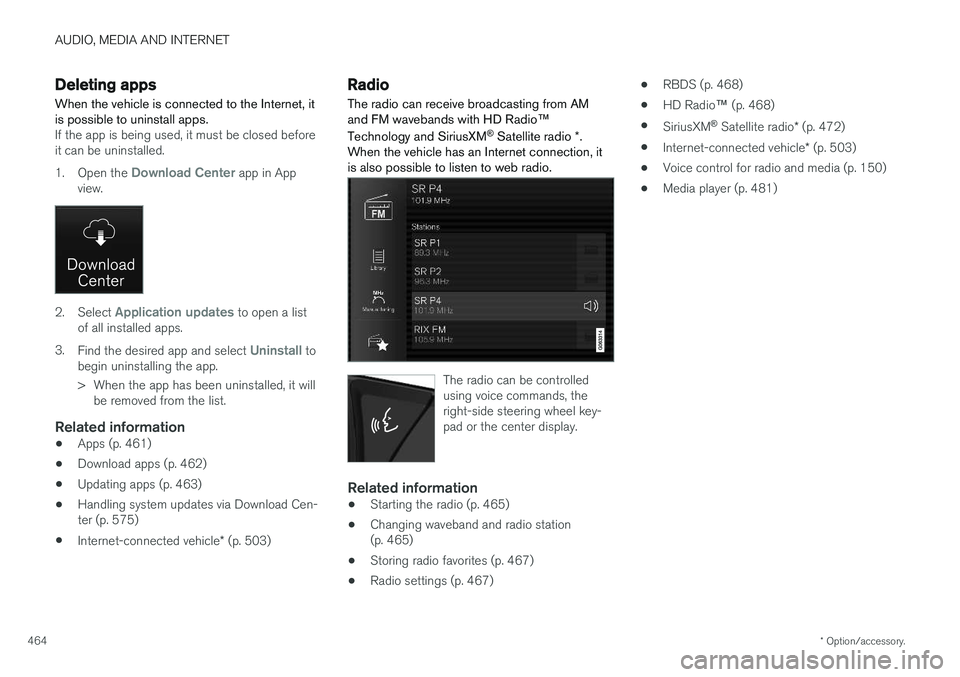
Radio The radio can receive broadcasting from AM and FM wavebands with HD Radio ™
Technology and SiriusXM ®
Satellite radio *.
When the vehicle has an Internet connection, it is also possible to listen to web radio.
The radio can be controlled using voice commands, theright-side steering wheel key-pad or the center display.
Related information
• Starting the radio (p. 465)
• Changing waveband and radio station (p. 465)
• Storing radio favorites (p. 467)
• Radio settings (p. 467) •
RBDS (p. 468)
• HD Radio
™ (p. 468)
• SiriusXM ®
Satellite radio * (p. 472)
• Internet-connected vehicle
* (p. 503)
• Voice control for radio and media (p. 150)
• Media player (p. 481)