steering wheel VOLVO XC60 2009 Owner´s Manual
[x] Cancel search | Manufacturer: VOLVO, Model Year: 2009, Model line: XC60, Model: VOLVO XC60 2009Pages: 297, PDF Size: 21.16 MB
Page 150 of 297
04 Comfort and driving pleasureBluetooth® hands-free connection 04
148 function is also available on the steering
wheel keypad.
Getting started
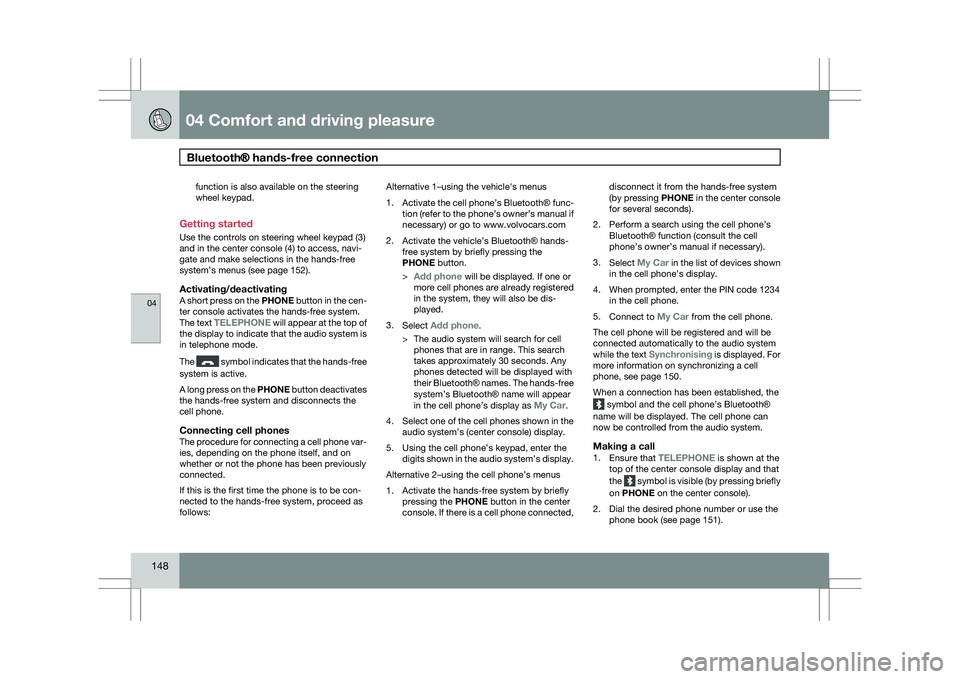
Use the controls on steering wheel keypad (3)
and in the center console (4) to access, navi-
gate and make selections in the hands-free
system’s menus (see page 152).
Activating/deactivatingA short press on the PHONE button in the cen-
ter console activates the hands-free system.
The text TELEPHONE will appear at the top of
the display to indicate that the audio system is
in telephone mode.
The symbol indicates that the hands-free
system is active.
A long press on the PHONE button deactivates
the hands-free system and disconnects the
cell phone.
Connecting cell phonesThe procedure for connecting a cell phone var-
ies, depending on the phone itself, and on
whether or not the phone has been previously
connected.
If this is the first time the phone is to be con-
nected to the hands-free system, proceed as
follows: Alternative 1–using the vehicle\fs menus
1.
Activate the cell phone’s Bluetooth® func-
tion (refer to the phone’s owner’s manual if
necessary) or go to www.volvocars.com
2. Activate the vehicle’s Bluetooth ® hands-
free system by briefly pressing the
PHONE button.
> Add phone will be displayed. If one or
more cell phones are already registered
in the system, they will also be dis-
played.
3. Select Add phone.
>The audio system will search for cell
phones that are in range. This search
takes approximately 30 seconds. Any
phones detected will be displayed with
their Bluetooth ® names. The hands-free
system’s Bluetooth ® name will appear
in the cell phone’s display as My Car.
4. Select one of the cell phones shown in the
audio system’s (center console) display.
5. Using the cell phone’s keypad, enter the digits shown in the audio system’s display.
Alternative 2–using the cell phone’s menus
1. Activate the hands-free system by briefly pressing the PHONE button in the center
console. If there is a cell phone connected, disconnect it from the hands-free system
(by pressing PHONE in the center console
for several seconds).
2. Perform a search using the cell phone’s Bluetooth ® function (consult the cell
phone’s owner’s manual if necessary).
3. Select My Car in the list of devices shown
in the cell phone’s display.
4. When prompted, enter the PIN code 1234 in the cell phone.
5. Connect to My Car from the cell phone.
The cell phone will be registered and will be
connected automatically to the audio system
while the text Synchronising is displayed. For
more information on synchronizing a cell
phone, see page 150.
When a connection has been established, the symbol and the cell phone’s Bluetooth
®
name will be displayed. The cell phone can
now be controlled from the audio system.Making a call1. Ensure that TELEPHONE is shown at the
top of the center console display and that
the symbol is visible (by pressing briefly
on PHONE on the center console).
2. Dial the desired phone number or use the phone book (see page 151).
Page 151 of 297
04 Comfort and driving pleasure
Bluetooth® hands-free connection04
}}
149
3.
Press ENTER.
End the call by pressing EXIT.
Disconnecting the cell phoneThe cell phone is automatically disconnected
from the audio system if it is moved out of
range. For more information about connec-
tions, see page 148.
The cell phone can be manually disconnected
from the hands-free system by pressing
PHONE. The hands-free system is also deac-
tivated when the ignition is switched off (or if
the driver’s door is opened on vehicles equip-
ped with the optional keyless drive).
When the cell phone is disconnected from the
hands-free system, a call in progress can be
continued using the cell phone’s own speaker
and microphone.
NOTE Certain cell phones may require confirma-
tion from the phone’s keypad when a call is
transferred from hands-free to the cell
phone. Handling calls
Incoming callsPress ENTER to answer a call, even if the audio
system is currently in e.g., CD or FM mode.
Press EXIT to defer a call.
Automatic answerThis function means that incoming calls will be
answered automatically. Activate or deactivate
the function in the menu system under Phone
settings Call options Automatic
answer.
Call settingsWhile a call is in progress, press MENU or
ENTER on the center console to access the
following functions:
\b Microphone off–mute the audio system’s
microphone.
\b Transfer call to mobile–transfer the call
from hands-free to the cell phone.
\b Phone book–this feature enables you to
search for a stored telephone number.
NOTE \b
On certain cell phones, the connection
is broken when the mute function is
used, which is normal. If this happens,
the hands-free system will prompt you
to reconnect.
\b A new call cannot be initiated while
another call is in progress. Sound settings
Call volumeCall volume can be adjusted when the hands-
free system is activated. Use the buttons in the
steering wheel keypad or the audio system’s
volume control.
Audio system volumeWhile a phone call is in progress, volume for
the audio system can be adjusted in the normal
way with the audio system\fs volume control. In
order to adjust volume during a phone call, the
audio system must be switched to one of the
other modes (FM, CD, etc).
Audio system sound can be automatically
muted when a phone call is received in
Phone
settings Sounds and volume Mute
radio and adjust the volume with the /
keys on the center console.
Page 153 of 297
04 Comfort and driving pleasure
Bluetooth® hands-free connection04
}}
151
Searching for contactsThe easiest way to search for a contact in the
phone book is to press and hold any of the
buttons 2–9 (see the illustration on page 147).
This starts a search based on the first letter on
the button that has been pressed.
The phone book can also be accessed by
pressing the navigation buttons / on the
center console or by pressing / on the
steering wheel keypad. A search can also be
made in the phone book’s search menu in
Phone book Search:
1.
Enter the first letter of the contact’s name and press ENTER or simply press ENTER.
2. Select the desired contact and press ENTER to make a call to that person.
Voice controlIf the cell phone that is currently connected
allows calls to be made via voice commands,
this function can be used by pressing and hold-
ing ENTER.
Voice mail numberThe phone number to your voice mail can be
changed in the menu Phone settings Call
options Voice mail number. If no number
has been stored, this menu can be accessed
by a prolonged press on button 1. Once a phone number has been stored, press and hold
1 to dial this number.
Call listsLists of calls in a particular cell phone are cop-
ied to the hands-free system each time that
phone is connected. These lists are then upda-
ted while the phone is connected. Press
ENTER to show the most recently dialed num-
bers. Other call lists can be found under Call
register.
NOTE
Certain cell phones display the list of the
most recently dialed numbers in reverse
order.
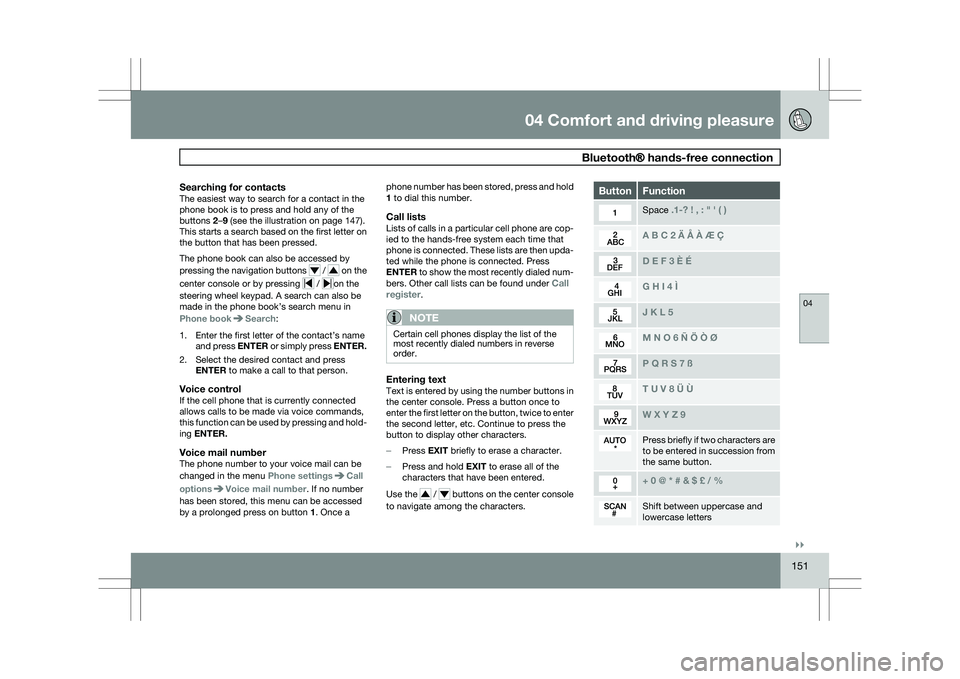
Entering textText is entered by using the number buttons in
the center console. Press a button once to
enter the first letter on the button, twice to enter
the second letter, etc. Continue to press the
button to display other characters.
–
Press EXIT briefly to erase a character.
– Press and hold EXIT to erase all of the
characters that have been entered.
Use the / buttons on the center console
to navigate among the characters. Button Function
Space .1-? ! , : " \f ( )
A B C 2 \b Å À Æ Ç
D E F 3 È É
G H I 4 Ì
J K L 5
M N O 6 Ñ Ö Ò Ø
P Q R S 7 ß
T U V 8 Ü Ù
W X Y Z 9
Press briefly if two characters are
to be entered in succession from
the same button.
+ 0 @ * # & $ £ / %
Shift between uppercase and
lowercase letters
Page 160 of 297
04 Comfort and driving pleasureCruise control 04
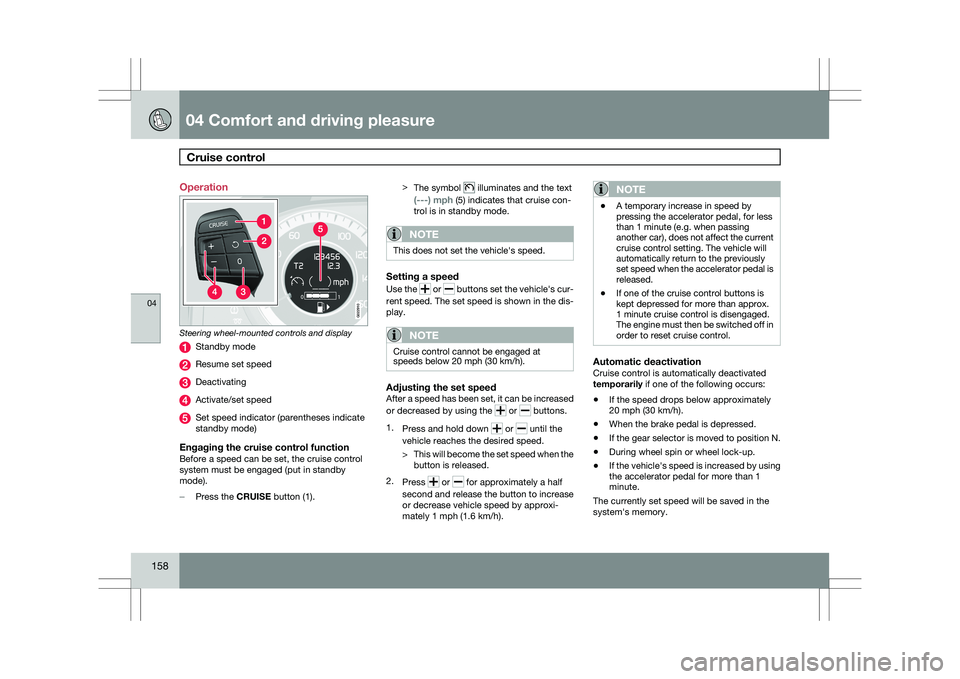
158 Operation
Steering wheel-mounted controls and display
Standby mode
Resume set speed
Deactivating
Activate/set speed
Set speed indicator (parentheses indicate
standby mode)
Engaging the cruise control functionBefore a speed can be set, the cruise control
system must be engaged (put in standby
mode).
–
Press the CRUISE button (1). >
The symbol illuminates and the text
(---) mph (5) indicates that cruise con-
trol is in standby mode.
NOTE This does not set the vehicle\fs speed.
Setting a speed
Use the
or buttons set the vehicle\fs cur-
rent speed. The set speed is shown in the dis-
play.
NOTE Cruise control cannot be engaged at
speeds below 20 mph (30 km/h).
Adjusting the set speedAfter a speed has been set, it can be increased
or decreased by using the
or buttons.
1. Press and hold down or until the
vehicle reaches the desired speed.
> This will become the set speed when the
button is released.
2. Press or for approximately a half
second and release the button to increase
or decrease vehicle speed by approxi-
mately 1 mph (1.6 km/h).
NOTE \b
A temporary increase in speed by
pressing the accelerator pedal, for less
than 1 minute (e.g. when passing
another car), does not affect the current
cruise control setting. The vehicle will
automatically return to the previously
set speed when the accelerator pedal is
released.
\b If one of the cruise control buttons is
kept depressed for more than approx.
1 minute cruise control is disengaged.
The engine must then be switched off in
order to reset cruise control.
Automatic deactivationCruise control is automatically deactivated
temporarily if one of the following occurs:
\b
If the speed drops below approximately
20 mph (30 km/h).
\b When the brake pedal is depressed.
\b If the gear selector is moved to position N.
\b During wheel spin or wheel lock-up.
\b If the vehicle\fs speed is increased by using
the accelerator pedal for more than 1
minute.
The currently set speed will be saved in the
system\fs memory. G022910
Page 164 of 297
04 Comfort and driving pleasureCollision warning with Auto-brake* 04
162
* Option/accessory, for more information, see Introduction.
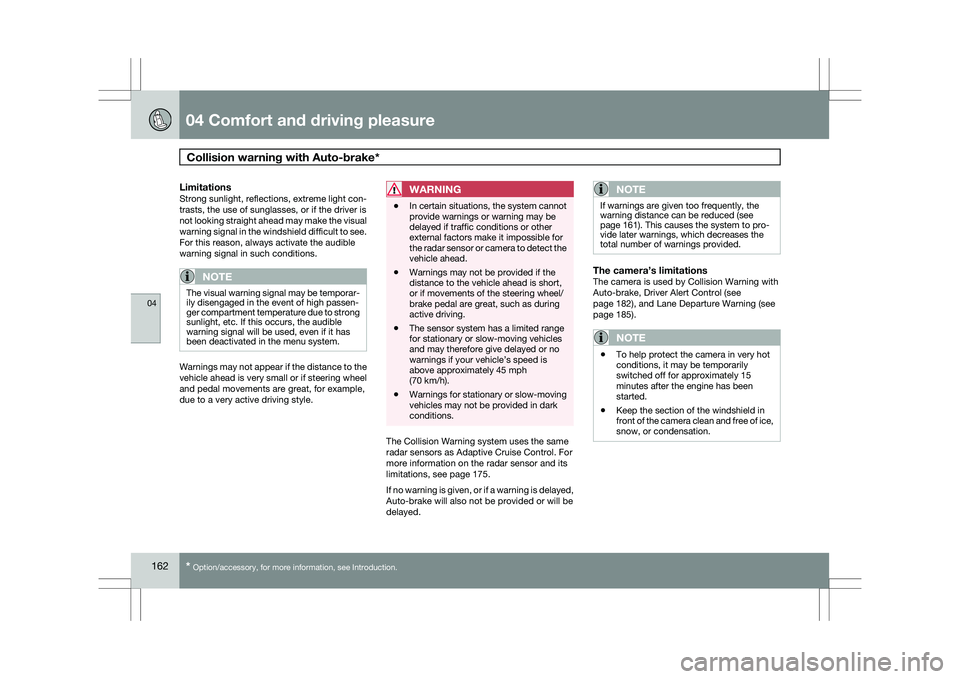
LimitationsStrong sunlight, reflections, extreme light con-
trasts, the use of sunglasses, or if the driver is
not looking straight ahead may make the visual
warning signal in the windshield difficult to see.
For this reason, always activate the audible
warning signal in such conditions.
NOTE The visual warning signal may be temporar-
ily disengaged in the event of high passen-
ger compartment temperature due to strong
sunlight, etc. If this occurs, the audible
warning signal will be used, even if it has
been deactivated in the menu system.
Warnings may not appear if the distance to the
vehicle ahead is very small or if steering wheel
and pedal movements are great, for example,
due to a very active driving style.
WARNING \b
In certain situations, the system cannot
provide warnings or warning may be
delayed if traffic conditions or other
external factors make it impossible for
the radar sensor or camera to detect the
vehicle ahead.
\b Warnings may not be provided if the
distance to the vehicle ahead is short,
or if movements of the steering wheel/
brake pedal are great, such as during
active driving.
\b The sensor system has a limited range
for stationary or slow-moving vehicles
and may therefore give delayed or no
warnings if your vehicle’s speed is
above approximately 45 mph
(70 km/h).
\b Warnings for stationary or slow-moving
vehicles may not be provided in dark
conditions. The Collision Warning system uses the same
radar sensors as Adaptive Cruise Control. For
more information on the radar sensor and its
limitations, see page 175
.
If no warning is given, or if a warning is delayed,
Auto-brake will also not be provided or will be
delayed.
NOTE If warnings are given too frequently, the
warning distance can be reduced (see
page 161). This causes the system to pro-
vide later warnings, which decreases the
total number of warnings provided.
The camera’s limitationsThe camera is used by Collision Warning with
Auto-brake, Driver Alert Control (see
page 182), and Lane Departure Warning (see
page 185).
NOTE
\b
To help protect the camera in very hot
conditions, it may be temporarily
switched off for approximately 15
minutes after the engine has been
started.
\b Keep the section of the windshield in
front of the camera clean and free of ice,
snow, or condensation.
Page 181 of 297
04 Comfort and driving pleasure
Distance alert04
}}
179
Introduction
Distance Alert is part of Adaptive Cruise Con-
trol and is a function that provides information
about the time interval to the vehicle ahead.
Time interval information is only given for a
vehicle that is driving ahead of your vehicle, in
the same lane, and in the same direction. No
information is provided for vehicles driving
toward you, moving very slowly, or at a stand-
still.
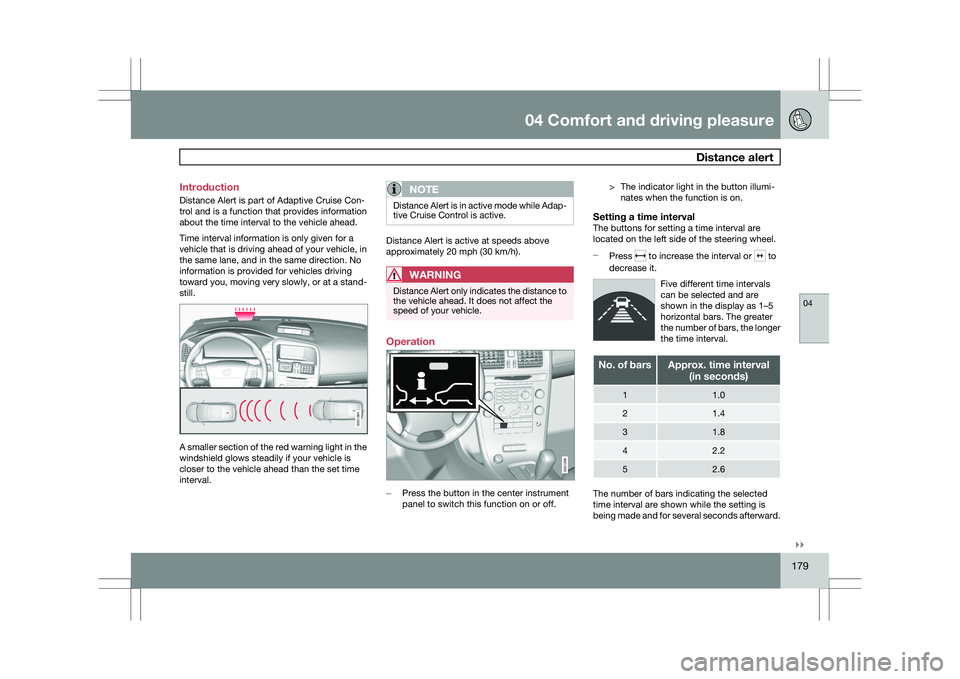
A smaller section of the red warning light in the
windshield glows steadily if your vehicle is
closer to the vehicle ahead than the set time
interval.
NOTE Distance Alert is in active mode while Adap-
tive Cruise Control is active.
Distance Alert is active at speeds above
approximately 20 mph (30 km/h).
WARNING
Distance Alert only indicates the distance to
the vehicle ahead. It does not affect the
speed of your vehicle.
Operation
–
Press the button in the center instrument
panel to switch this function on or off. > The indicator light in the button illumi-
nates when the function is on.
Setting a time intervalThe buttons for setting a time interval are
located on the left side of the steering wheel.
– Press to increase the interval or to
decrease it.
Five different time intervals
can be selected and are
shown in the display as 1–5
horizontal bars. The greater
the number of bars, the longer
the time interval. No. of bars Approx. time interval
(in seconds) 1 1.0
2 1.4
3 1.8
4 2.2
5 2.6
The number of bars indicating the selected
time interval are shown while the setting is
being made and for several seconds afterward. G031394 G031396
Page 184 of 297
04 Comfort and driving pleasureDriver Alert System* 04
182
* Option/accessory, for more information, see Introduction.
Introduction
The Driver Alert System is designed to help a
driver who may be becoming fatigued or who
is inadvertently leaving the lane.
The Driver Alert System consists of two differ-
ent functions that can be switched on together
or separately.
\b
Driver Alert Control (DAC)
\b Lane Departure Warning (LDW)
When one or both of the functions has been
switched on, it is in standby mode and is acti-
vated when the vehicle exceeds a speed of
40 mph (65 km/h).
The function deactivates if speed goes under
37 mph (60 km/h).
Both functions use a camera that is dependent
on the road/lane being clearly marked by pain-
ted lines on each side.
WARNING The Driver Alert system does not function in
all situations and is designed to be a sup-
plementary aid. It is not, however, intended
to replace the driver’s attention and judge-
ment. Driver Alert Control (DAC)–general
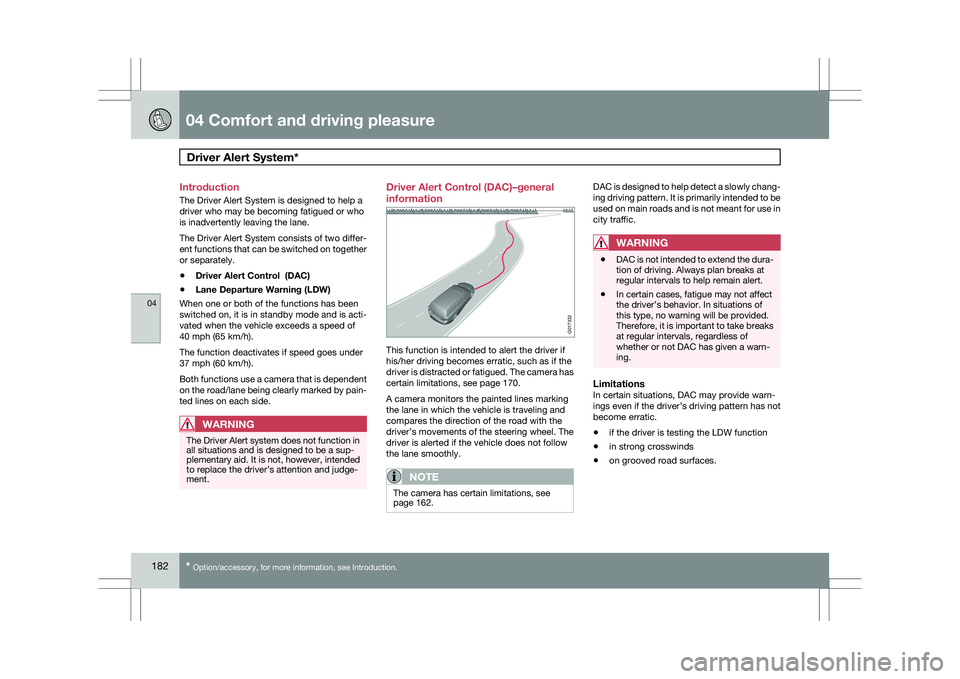
information
This function is intended to alert the driver if
his/her driving becomes erratic, such as if the
driver is distracted or fatigued. The camera has
certain limitations, see page 170.
A camera monitors the painted lines marking
the lane in which the vehicle is traveling and
compares the direction of the road with the
driver’s movements of the steering wheel. The
driver is alerted if the vehicle does not follow
the lane smoothly.
NOTE
The camera has certain limitations, see
page 162. DAC is designed to help detect a slowly chang-
ing driving pattern. It is primarily intended to be
used on main roads and is not meant for use in
city traffic.
WARNING
\b
DAC is not intended to extend the dura-
tion of driving. Always plan breaks at
regular intervals to help remain alert.
\b In certain cases, fatigue may not affect
the driver’s behavior. In situations of
this type, no warning will be provided.
Therefore, it is important to take breaks
at regular intervals, regardless of
whether or not DAC has given a warn-
ing.
LimitationsIn certain situations, DAC may provide warn-
ings even if the driver’s driving pattern has not
become erratic.
\b
if the driver is testing the LDW function
\b in strong crosswinds
\b on grooved road surfaces. G017332
Page 185 of 297
04 Comfort and driving pleasure
Driver Alert System*04
}}
* Option/accessory, for more information, see Introduction. 183
Operating DAC
Certain settings can be made from the menu
system controlled from the center instrument
panel, see page 122 for more information on
the menu system.
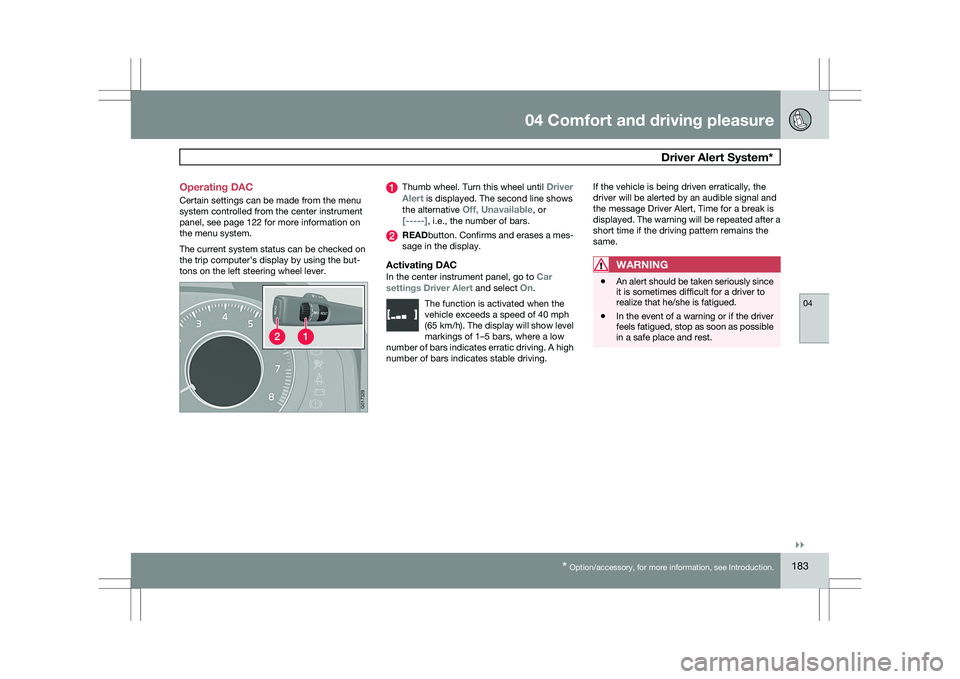
The current system status can be checked on
the trip computer’s display by using the but-
tons on the left steering wheel lever. Thumb wheel. Turn this wheel until
Driver
Alert is displayed. The second line shows
the alternative Off, Unavailable, or
[-----], i.e., the number of bars. READbutton. Confirms and erases a mes-
sage in the display.
Activating DACIn the center instrument panel, go to
Car
settings Driver Alert and select On.
The function is activated when the
vehicle exceeds a speed of 40 mph
(65 km/h). The display will show level
markings of 1–5 bars, where a low
number of bars indicates erratic driving. A high
number of bars indicates stable driving. If the vehicle is being driven erratically, the
driver will be alerted by an audible signal and
the message Driver Alert, Time for a break is
displayed. The warning will be repeated after a
short time if the driving pattern remains the
same.WARNING
\b
An alert should be taken seriously since
it is sometimes difficult for a driver to
realize that he/she is fatigued.
\b In the event of a warning or if the driver
feels fatigued, stop as soon as possible
in a safe place and rest. G01732
9
Page 187 of 297
04 Comfort and driving pleasure
Driver Alert System*04
}}
* Option/accessory, for more information, see Introduction. 185
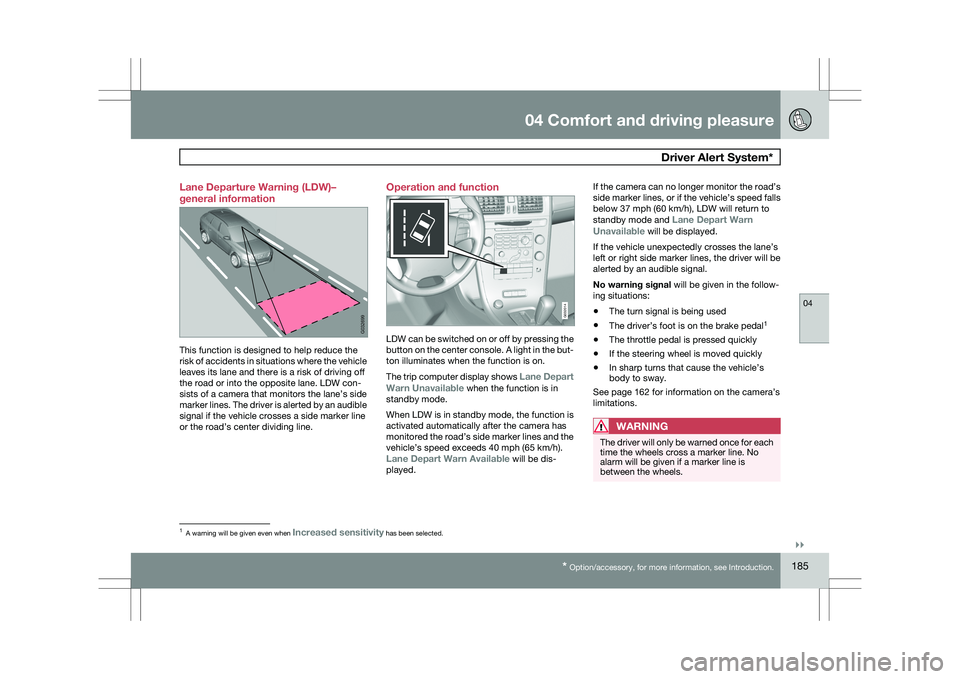
Lane Departure Warning (LDW)–
general information
This function is designed to help reduce the
risk of accidents in situations where the vehicle
leaves its lane and there is a risk of driving off
the road or into the opposite lane. LDW con-
sists of a camera that monitors the lane’s side
marker lines. The driver is alerted by an audible
signal if the vehicle crosses a side marker line
or the road’s center dividing line. Operation and function
LDW can be switched on or off by pressing the
button on the center console. A light in the but-
ton illuminates when the function is on.
The trip computer display shows Lane Depart
Warn Unavailable when the function is in
standby mode.
When LDW is in standby mode, the function is
activated automatically after the camera has
monitored the road’s side marker lines and the
vehicle’s speed exceeds 40 mph (65 km/h).
Lane Depart Warn Available will be dis-
played.If the camera can no longer monitor the road’s
side marker lines, or if the vehicle’s speed falls
below 37 mph (60 km/h), LDW will return to
standby mode and
Lane Depart Warn
Unavailable will be displayed.
If the vehicle unexpectedly crosses the lane’s
left or right side marker lines, the driver will be
alerted by an audible signal.
No warning signal will be given in the follow-
ing situations:
\b The turn signal is being used
\b The driver’s foot is on the brake pedal 1
\b The throttle pedal is pressed quickly
\b If the steering wheel is moved quickly
\b In sharp turns that cause the vehicle’s
body to sway.
See page 162 for information on the camera’s
limitations.
WARNING The driver will only be warned once for each
time the wheels cross a marker line. No
alarm will be given if a marker line is
between the wheels.
1
A warning will be given even when Increased sensitivity has been selected. G032699 G032014
Page 193 of 297
04 Comfort and driving pleasure
Park Assist Camera (PAC)*04
}}
* Option/accessory, for more information, see Introduction. 191
DeactivationMove the gear selector from
R to another posi-
tion. There is a slight delay in the PAC system,
which means that the view from behind the
vehicle will remain on the screen for approxi-
mately 15 seconds after the gear selector has
been moved from the R position or until the
vehicle reaches a forward speed of 6 mph
(10 km/h). The screen will then revert to the
mode that it was in before R was selected and
will, for example, display navigation system
information.
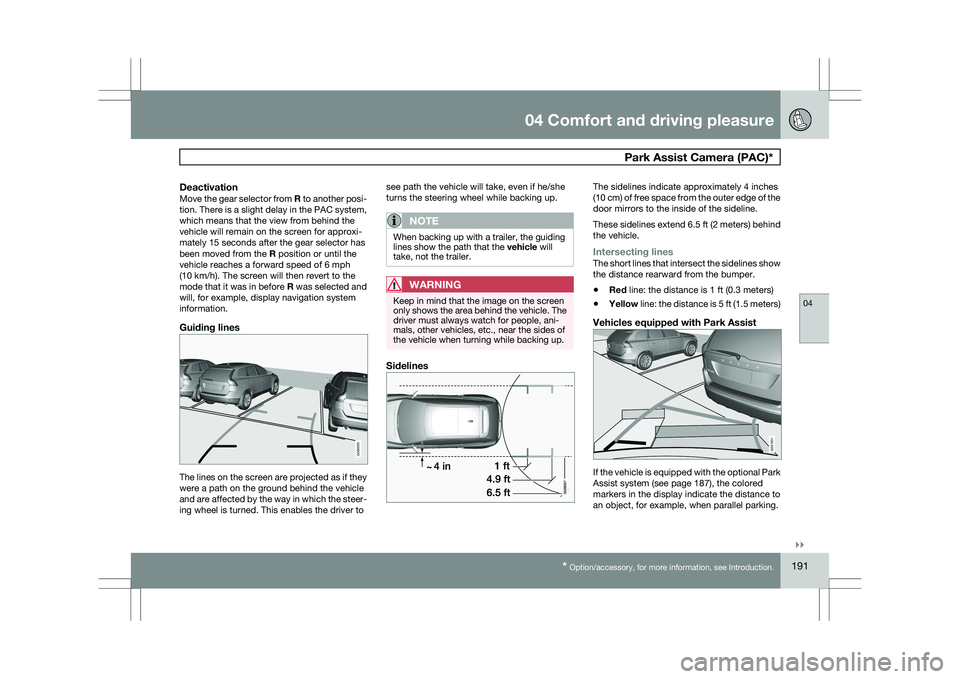
Guiding lines The lines on the screen are projected as if they
were a path on the ground behind the vehicle
and are affected by the way in which the steer-
ing wheel is turned. This enables the driver to see path the vehicle will take, even if he/she
turns the steering wheel while backing up.
NOTE When backing up with a trailer, the guiding
lines show the path that the vehicle will
take, not the trailer.
WARNING
Keep in mind that the image on the screen
only shows the area behind the vehicle. The
driver must always watch for people, ani-
mals, other vehicles, etc., near the sides of
the vehicle when turning while backing up.
Sidelines The sidelines indicate approximately 4 inches
(10 cm) of free space from the outer edge of the
door mirrors to the inside of the sideline.
These sidelines extend 6.5 ft (2 meters) behind
the vehicle.
Intersecting linesThe short lines that intersect the sidelines show
the distance rearward from the bumper.
\b
Red line: the distance is 1 ft (0.3 meters)
\b Yellow line: the distance is 5 ft (1.5 meters)
Vehicles equipped with Park Assist If the vehicle is equipped with the optional Park
Assist system (see page 187), the colored
markers in the display indicate the distance to
an object, for example, when parallel parking. G000000 G031931