warning VOLVO XC60 2013 Owner´s Manual
[x] Cancel search | Manufacturer: VOLVO, Model Year: 2013, Model line: XC60, Model: VOLVO XC60 2013Pages: 382, PDF Size: 7.08 MB
Page 179 of 382
04 Driver support
Park assist*
04
* Option/accessory, for more information, see Introduction.177
with water and a suitable car washing deter-
gent.
Ice and snow covering the sensors may cause
incorrect warning signals.
NOTE
If the sensors are obstructed by e.g., dirt,
snow, or ice, this could result in false warn-
ing signals from the park assist system.
Page 180 of 382
04 Driver support
Rear Park Assist Camera (PAC)*
04
178* Option/accessory, for more information, see Introduction.
Introduction
The Park Assist Camera uses the display in the
center console to show the area behind the car
while you are backing up.
PAC also shows guiding lines in the on-screen
image to indicate the direction that the vehicle
will take as it moves rearward, which helps
simplify parallel parking, backing into a tight
space or when attaching a trailer to the vehicle.
NOTE
A trailer hitch whose wiring is integrated
with the vehicle's electrical system will be
included in the measurement of the availa-
ble space behind the vehicle.
WARNING
•PAC is designed to be a supplementary
aid when parking the vehicle. It is not,
however, intended to replace the
driver’s attention and judgment.
•The camera has blind spots where it
cannot detect objects or people behind
the vehicle.
•Pay particular attention to people or ani-
mals that are close to the vehicle.
Function
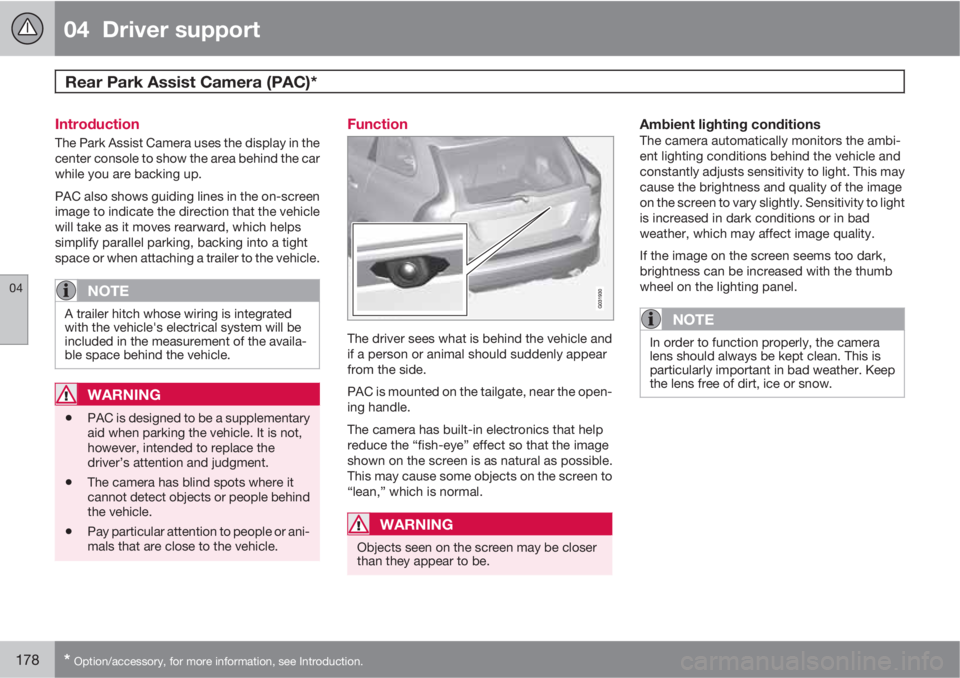
The driver sees what is behind the vehicle and
if a person or animal should suddenly appear
from the side.
PAC is mounted on the tailgate, near the open-
ing handle.
The camera has built-in electronics that help
reduce the “fish-eye” effect so that the image
shown on the screen is as natural as possible.
This may cause some objects on the screen to
“lean,” which is normal.
WARNING
Objects seen on the screen may be closer
than they appear to be.
Ambient lighting conditionsThe camera automatically monitors the ambi-
ent lighting conditions behind the vehicle and
constantly adjusts sensitivity to light. This may
cause the brightness and quality of the image
on the screen to vary slightly. Sensitivity to light
is increased in dark conditions or in bad
weather, which may affect image quality.
If the image on the screen seems too dark,
brightness can be increased with the thumb
wheel on the lighting panel.
NOTE
In order to function properly, the camera
lens should always be kept clean. This is
particularly important in bad weather. Keep
the lens free of dirt, ice or snow.
Page 182 of 382
04 Driver support
Rear Park Assist Camera (PAC)*
04
180* Option/accessory, for more information, see Introduction.
WARNING
Keep in mind that the image on the screen
only shows the area behind the vehicle. The
driver must always watch for people, ani-
mals, other vehicles, etc., near the sides of
the vehicle when turning while backing up.
Marker lines
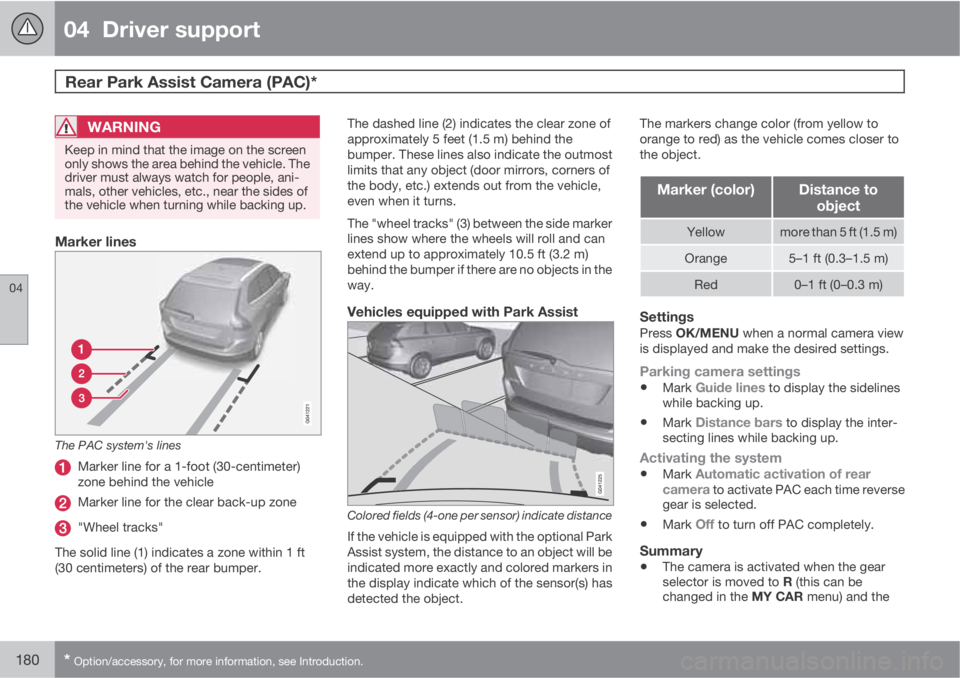
The PAC system's lines
Marker line for a 1-foot (30-centimeter)
zone behind the vehicle
Marker line for the clear back-up zone
"Wheel tracks"
The solid line (1) indicates a zone within 1 ft
(30 centimeters) of the rear bumper.The dashed line (2) indicates the clear zone of
approximately 5 feet (1.5 m) behind the
bumper. These lines also indicate the outmost
limits that any object (door mirrors, corners of
the body, etc.) extends out from the vehicle,
even when it turns.
The "wheel tracks" (3) between the side marker
lines show where the wheels will roll and can
extend up to approximately 10.5 ft (3.2 m)
behind the bumper if there are no objects in the
way.
Vehicles equipped with Park Assist
Colored fields (4-one per sensor) indicate distance
If the vehicle is equipped with the optional Park
Assist system, the distance to an object will be
indicated more exactly and colored markers in
the display indicate which of the sensor(s) has
detected the object.The markers change color (from yellow to
orange to red) as the vehicle comes closer to
the object.
Marker (color)Distance to
object
Yellowmore than 5 ft (1.5 m)
Orange5–1 ft (0.3–1.5 m)
Red0–1 ft (0–0.3 m)
SettingsPress OK/MENU when a normal camera view
is displayed and make the desired settings.
Parking camera settings
•Mark Guide lines to display the sidelines
while backing up.
•Mark Distance bars to display the inter-
secting lines while backing up.
Activating the system
•Mark Automatic activation of rear
camera to activate PAC each time reverse
gear is selected.
•Mark Off to turn off PAC completely.
Summary
•The camera is activated when the gear
selector is moved to R (this can be
changed in the MY CAR menu) and the
Page 184 of 382
04 Driver support
Blind Spot Information System*
04
182* Option/accessory, for more information, see Introduction.
Introduction
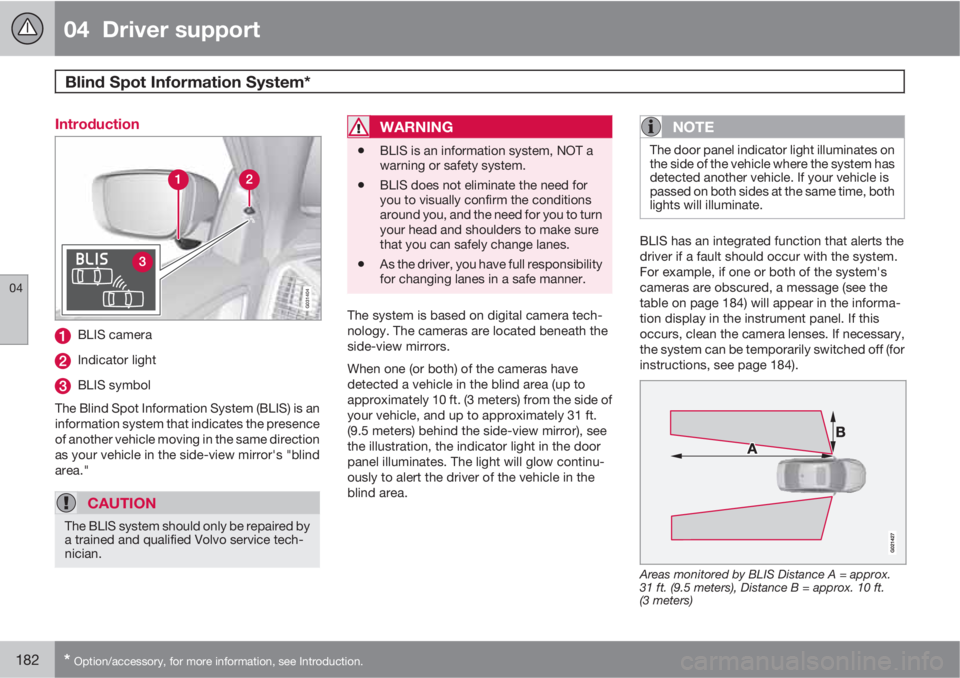
G031404
BLIS camera
Indicator light
BLIS symbol
The Blind Spot Information System (BLIS) is an
information system that indicates the presence
of another vehicle moving in the same direction
as your vehicle in the side-view mirror's "blind
area."
CAUTION
The BLIS system should only be repaired by
a trained and qualified Volvo service tech-
nician.
WARNING
•BLIS is an information system, NOT a
warning or safety system.
•BLIS does not eliminate the need for
you to visually confirm the conditions
around you, and the need for you to turn
your head and shoulders to make sure
that you can safely change lanes.
•As the driver, you have full responsibility
for changing lanes in a safe manner.
The system is based on digital camera tech-
nology. The cameras are located beneath the
side-view mirrors.
When one (or both) of the cameras have
detected a vehicle in the blind area (up to
approximately 10 ft. (3 meters) from the side of
your vehicle, and up to approximately 31 ft.
(9.5 meters) behind the side-view mirror), see
the illustration, the indicator light in the door
panel illuminates. The light will glow continu-
ously to alert the driver of the vehicle in the
blind area.
NOTE
The door panel indicator light illuminates on
the side of the vehicle where the system has
detected another vehicle. If your vehicle is
passed on both sides at the same time, both
lights will illuminate.
BLIS has an integrated function that alerts the
driver if a fault should occur with the system.
For example, if one or both of the system's
cameras are obscured, a message (see the
table on page 184) will appear in the informa-
tion display in the instrument panel. If this
occurs, clean the camera lenses. If necessary,
the system can be temporarily switched off (for
instructions, see page 184).
Areas monitored by BLIS Distance A = approx.
31 ft. (9.5 meters), Distance B = approx. 10 ft.
(3 meters)
Page 185 of 382
04 Driver support
Blind Spot Information System*
04
* Option/accessory, for more information, see Introduction.183 When does BLIS function
The system functions when your vehicle is
moving at speeds above 6 mph (10 km/h).
When you pass another vehicle:The system reacts when you pass another
vehicle at a speed of up to 6 mph (10 km/h)
faster than that vehicle.
When you are passed by another vehicle:The system reacts if your vehicle is passed by
another vehicle at a speed of up to 43 mph
(70 km/h) faster than your vehicle.
WARNING
•BLIS does not function in sharp curves.
•BLIS does not function when your vehi-
cle is backing up.
•If you are towing a wide trailer, this may
prevent the BLIS cameras from detect-
ing other vehicles in adjacent lanes.
How BLIS functions in daylight and
darkness
Daylight
BLIS reacts to the shape of surrounding vehi-
cles. The system is designed to help detect
motor vehicles such as cars, trucks, buses,
motorcycles, etc.
DarknessBLIS reacts to the headlights of surrounding
vehicles. In order to be detected by BLIS, a
vehicle in the blind area must have its head-
lights on. This means, for example, that the
system will not detect a trailer without head-
lights that is being towed behind a car or truck.
WARNING
•BLIS does not react to cyclists or
mopeds.
•BLIS does not react to vehicles that are
standing still.
•The BLIS cameras have the same limi-
tation as the human eye. In other words,
their "vision is impaired" by adverse
weather conditions such as heavy
snowfall, intense light directly into the
camera, dense fog, etc.
LimitationsIn certain situations, the BLIS indicator light(s)
may illuminate even when there are no other
vehicles in the area monitored by the system.
NOTE
If the BLIS indicator lights illuminate occa-
sionally even when there are no other vehi-
cles in the blind area, this does not indicate
a fault in the system.
In the event of a fault,
Blind spot syst.
Service required will be displayed.
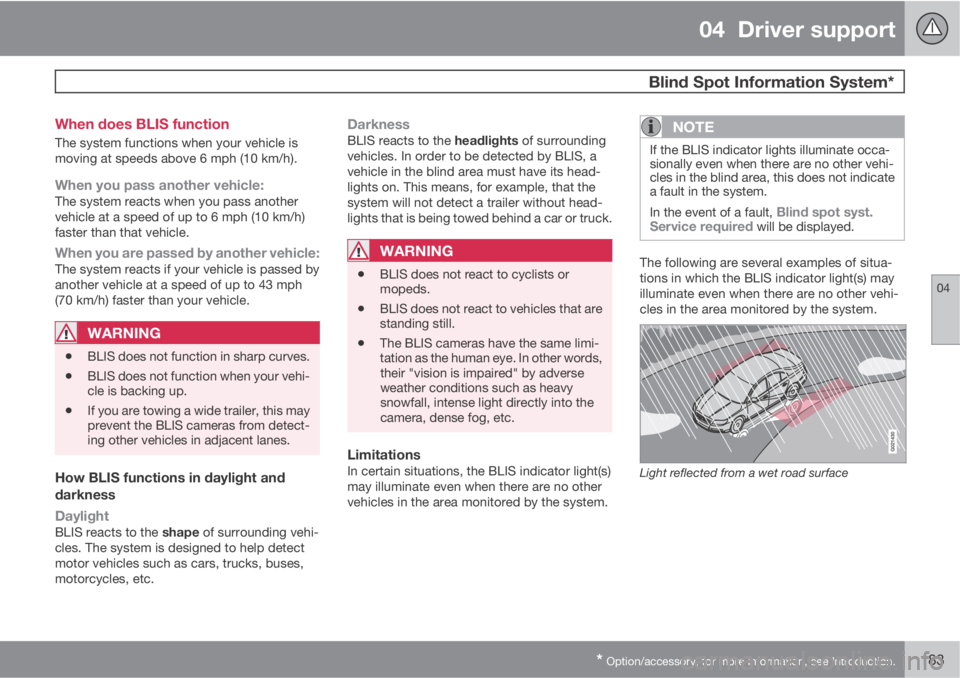
The following are several examples of situa-
tions in which the BLIS indicator light(s) may
illuminate even when there are no other vehi-
cles in the area monitored by the system.
Light reflected from a wet road surface
Page 191 of 382
05 Comfort and driving pleasure
Menus and messages
05
* Option/accessory, for more information, see Introduction.189 Main instrument panel
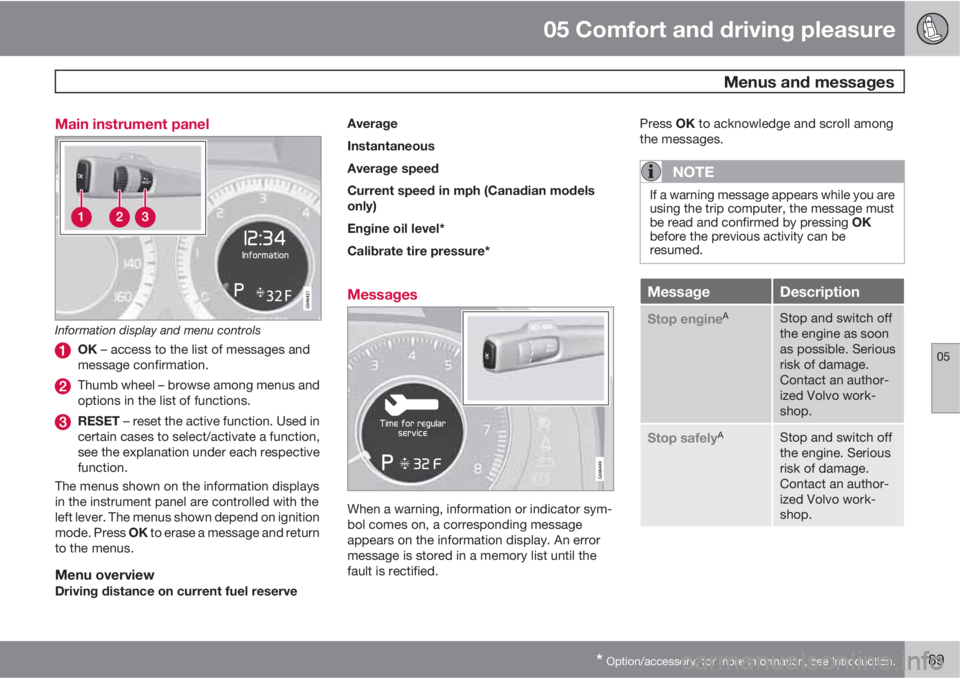
Information display and menu controls
OK – access to the list of messages and
message confirmation.
Thumb wheel – browse among menus and
options in the list of functions.
RESET – reset the active function. Used in
certain cases to select/activate a function,
see the explanation under each respective
function.
The menus shown on the information displays
in the instrument panel are controlled with the
left lever. The menus shown depend on ignition
mode. Press OK to erase a message and return
to the menus.
Menu overviewDriving distance on current fuel reserveAverage
Instantaneous
Average speed
Current speed in mph (Canadian models
only)
Engine oil level*
Calibrate tire pressure*
Messages
When a warning, information or indicator sym-
bol comes on, a corresponding message
appears on the information display. An error
message is stored in a memory list until the
fault is rectified.Press OK to acknowledge and scroll among
the messages.
NOTE
If a warning message appears while you are
using the trip computer, the message must
be read and confirmed by pressing OK
before the previous activity can be
resumed.
MessageDescription
Stop engineAStop and switch off
the engine as soon
as possible. Serious
risk of damage.
Contact an author-
ized Volvo work-
shop.
Stop safelyAStop and switch off
the engine. Serious
risk of damage.
Contact an author-
ized Volvo work-
shop.
Page 196 of 382
05 Comfort and driving pleasure
The MY CAR menus
05
194
Calibrate tire pressure
See page 316 for more information. This sys-
tem is optional in Canada.
Steering wheel force
High
Medium
Low
See page 207 for more information.
Reset car settings
This feature returns the "Car settings" menu to
the original factory settings.
MY CARSettingsDriver support
systems
Collision Warning
Collision Warning
Warning distance
Long
Normal
Short
Warning sound
See page 162 for more information.Lane Departure Warning
Lane Departure Warning
On at start-up
Increased sensitivity
See page 171 for more information.
Road Sign Information
On
Off
Speed alert
On
Off
DSTC
See page 134 for more information.
City Safety
See page 154 for more information.
BLIS
See page 182 for more information.
Distance Alert
See page 151 for more information.
Driver Alert
See page 168 for more information.
MY CARSettingsSystem options
Set/change time
See page 82 for more information.
Time format
12 h
24 h
Screen saver
The contents of the screen are replaced by
another image if this selection is marked. The
contents of the screen will be displayed again
if one of the buttons (1-4) is pressed, see
page 191.
Uncheck the selection to turn the screen saver
off.
Language
Select the language for menu texts.
Show help text
This displays help texts for the current menu.
Distance and fuel units
MPG (UK)
MPG (US)
km/l
l/100km
Page 207 of 382
05 Comfort and driving pleasure
Trip computer
05
205 Introduction
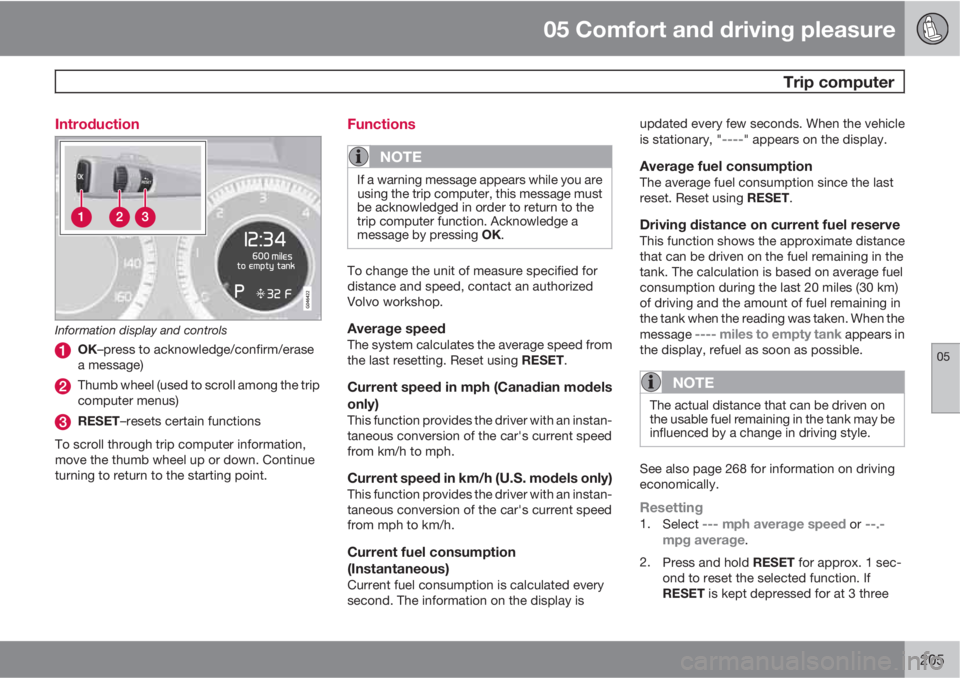
Information display and controls
OK–press to acknowledge/confirm/erase
a message)
Thumb wheel (used to scroll among the trip
computer menus)
RESET–resets certain functions
To scroll through trip computer information,
move the thumb wheel up or down. Continue
turning to return to the starting point.
Functions
NOTE
If a warning message appears while you are
using the trip computer, this message must
be acknowledged in order to return to the
trip computer function. Acknowledge a
message by pressing OK.
To change the unit of measure specified for
distance and speed, contact an authorized
Volvo workshop.
Average speedThe system calculates the average speed from
the last resetting. Reset using RESET.
Current speed in mph (Canadian models
only)
This function provides the driver with an instan-
taneous conversion of the car's current speed
from km/h to mph.
Current speed in km/h (U.S. models only)This function provides the driver with an instan-
taneous conversion of the car's current speed
from mph to km/h.
Current fuel consumption
(Instantaneous)
Current fuel consumption is calculated every
second. The information on the display isupdated every few seconds. When the vehicle
is stationary, "
----" appears on the display.
Average fuel consumptionThe average fuel consumption since the last
reset. Reset using RESET.
Driving distance on current fuel reserveThis function shows the approximate distance
that can be driven on the fuel remaining in the
tank. The calculation is based on average fuel
consumption during the last 20 miles (30 km)
of driving and the amount of fuel remaining in
the tank when the reading was taken. When the
message
---- miles to empty tank appears in
the display, refuel as soon as possible.
NOTE
The actual distance that can be driven on
the usable fuel remaining in the tank may be
influenced by a change in driving style.
See also page 268 for information on driving
economically.
Resetting1.
Select --- mph average speed or --.-
mpg average.
2.
Press and hold RESET for approx. 1 sec-
ond to reset the selected function. If
RESET is kept depressed for at 3 three
Page 212 of 382
05 Comfort and driving pleasure
Passenger compartment convenience
05
210* Option/accessory, for more information, see Introduction.
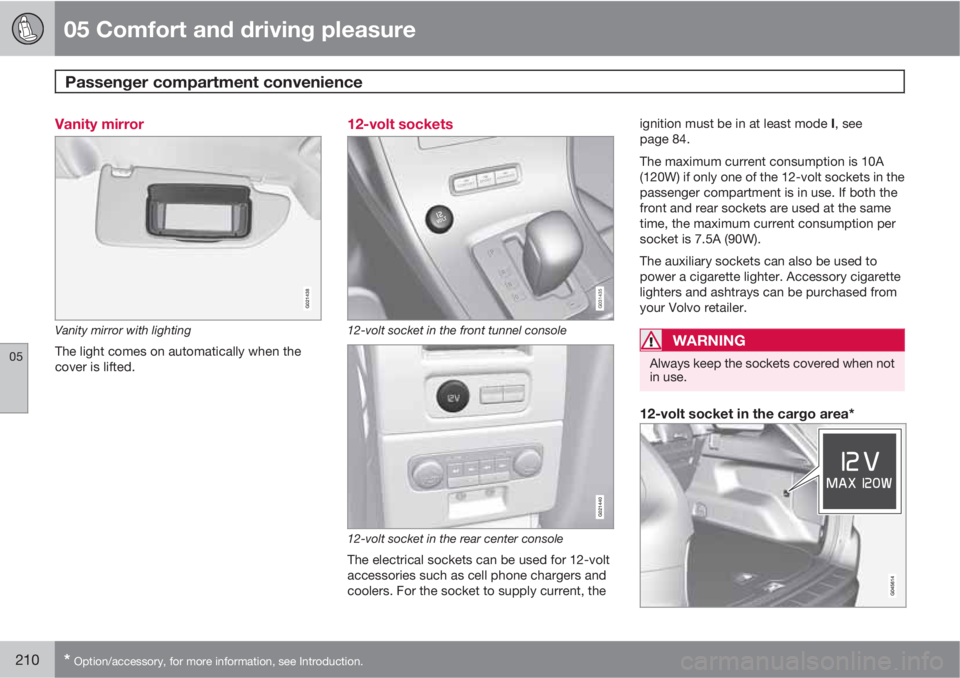
Vanity mirror
G021438
Vanity mirror with lighting
The light comes on automatically when the
cover is lifted.
12-volt sockets
G031435
12-volt socket in the front tunnel console
G021440
12-volt socket in the rear center console
The electrical sockets can be used for 12-volt
accessories such as cell phone chargers and
coolers. For the socket to supply current, theignition must be in at least mode I, see
page 84.
The maximum current consumption is 10A
(120W) if only one of the 12-volt sockets in the
passenger compartment is in use. If both the
front and rear sockets are used at the same
time, the maximum current consumption per
socket is 7.5A (90W).
The auxiliary sockets can also be used to
power a cigarette lighter. Accessory cigarette
lighters and ashtrays can be purchased from
your Volvo retailer.
WARNING
Always keep the sockets covered when not
in use.
12-volt socket in the cargo area*
Page 233 of 382
06 Infotainment
Radio
06
231
page 226 for detailed information on storing
channels.
•A long press on one of the number keys
stores the currently tuned channel on that
key.
•A short press on a number key while the
radio is in SAT1 or SAT2 mode will tune to
the preset satellite channel stored on that
button, regardless of the currently selected
channel category.
Searching for and storing songs
The Song Seek function provides notification
when SiriusXM
E is broadcasting the songs
selected in song memory.
Song memory ena-
bles you to store the name of the song for
future advance notification when that song is
being played.
Song seekWhen a satellite radio channel plays one of the
songs stored in the song memory while the
Song seek feature is activated, the listener will
be alerted by a text message and an audible
signal.
Press OK/MENU to listen to the song or EXIT
to cancel.
To activate/deactivate the song seek function:
1.
Press OK/MENU.2.
Turn TUNE to scroll to
Song memory and
press OK/MENU.
3.
Turn TUNE to scroll to
Song Seek and
press OK/MENU to activate or deactivate
the function.
NOTE
When the song has ended, the radio will
remain tuned to the channel on which the
song was played.
Song memoryUp to ten songs can be saved in the system's
memory.
To add the currently playing song to the list:
1.
Press OK/MENU.
2.
Scroll to
Song memory and press OK/
MENU.
3.
Scroll to
Add current song to song
memory and press OK/MENU.
If a new song is selected when the memory is
full, you will be prompted to delete a song from
the list. To do so:
1.
Press OK/MENU.
2.
Turn TUNE to scroll through the list of
songs. Select a song and press OK/
MENU to delete it from the list.
Radio textThis text provides information about the song
that is currently playing. To turn this feature on
or off, press OK/MENU and scroll to
Show
radio text and press OK/MENU to toggle
between on or off.
Advanced SiriusXM
E settings
This menu function enables you to make set-
tings on certain SiriusXM
E satellite radio func-
tions. To access this menu:
1.
Press OK/MENU.
2.
Scroll to the
Advanced settings menu
and press OK/MENU.
WARNING
Settings should be made when the vehicle
is at a standstill.
The following settings can be made in the sat-
ellite menus:
•Channel skip settings can be made
•Channel lock settings can be made
•The channel access code can be displayed
or changed (see also "Locking a channel"
on page 232)
•Your SiriusXM
E ID can be displayed
•Reset SiriusXM
E settings