buttons VOLVO XC60 2016 Owner´s Manual
[x] Cancel search | Manufacturer: VOLVO, Model Year: 2016, Model line: XC60, Model: VOLVO XC60 2016Pages: 398, PDF Size: 9.98 MB
Page 112 of 398
03 Instruments and controls
03
110* Option/accessory, for more information, see Introduction.
HomeLink ®
Wireless Control System*
– programming
The HomeLink Wireless Control System pro- vides a convenient way to replace up to threehand-held radio-frequency (RF) transmittersused to activate devices such as gate opera-tors, garage door openers, entry door locks,security systems, even home lighting. Addi-tional information can be found on the Inter-net atwww.homelink.com/www.youtube.com/HomeLinkGentex or by phoning the hotline at1–800–355–3515.
NOTE
Some vehicles may require the ignition to be switched on or be in the “accessories”position for programming and/or operationof HomeLink. It is also recommended thata new battery be placed in the hand-heldtransmitter of the device being pro-grammed to HomeLink for quicker trainingand accurate transmission of the radio-fre-quency signal. The HomeLink buttonsmust be reset first. When this has beencompleted, Homelink is in learning modeso that you can perform programming.
1. Position the end of your hand-held trans- mitter 1–3 inches (5–14 cm) away from the HomeLink button you wish to pro-gram while keeping the indicator light inview. 2. Simultaneously press and hold both the
chosen HomeLink and hand-held trans-mitter buttons until the HomeLink indica-tor light changes from a slow to a rapidlyblinking light. Now you may release boththe HomeLink and hand-held transmitterbuttons.
NOTE
Some devices may require you to replace this Programming Step 2 with proceduresnoted in the “Gate Operator / CanadianProgramming” section. If the HomeLinkindicator light does not change to a rapidlyblinking light after performing these steps,contact HomeLink at www.homelink.com/www.youtube.com/HomeLinkGentex or byphoning the hotline at 1–800–355–3515.
3. Firmly press, hold for five seconds and
release the programmed HomeLink but-
ton up to two separate times to activate the door. If the door does not activate,press and hold the just-trained HomeLinkbutton and observe the indicator light.
• If the indicator light
stays on con-
stantly, programming is complete and your device should activate when the HomeLink button is pressed andreleased.
• If the indicator light blinks
rapidly for
two seconds and then turns to aconstant light continue with “Pro- gramming” steps 4-6 to complete the
programming of a rolling code equip- ped device (most commonly a garagedoor opener).
Page 113 of 398
03 Instruments and controls
03
}}
111
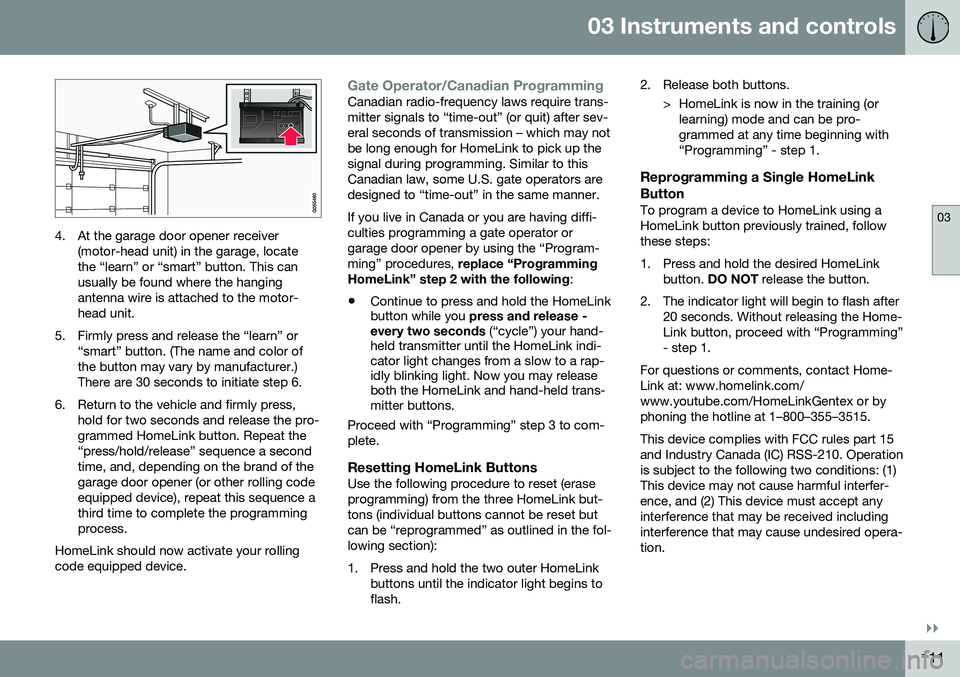
4. At the garage door opener receiver(motor-head unit) in the garage, locate the “learn” or “smart” button. This canusually be found where the hangingantenna wire is attached to the motor-head unit.
5. Firmly press and release the “learn” or “smart” button. (The name and color ofthe button may vary by manufacturer.)There are 30 seconds to initiate step 6.
6. Return to the vehicle and firmly press, hold for two seconds and release the pro-grammed HomeLink button. Repeat the“press/hold/release” sequence a secondtime, and, depending on the brand of thegarage door opener (or other rolling codeequipped device), repeat this sequence athird time to complete the programmingprocess.
HomeLink should now activate your rollingcode equipped device.
Gate Operator/Canadian ProgrammingCanadian radio-frequency laws require trans- mitter signals to “time-out” (or quit) after sev-eral seconds of transmission – which may notbe long enough for HomeLink to pick up thesignal during programming. Similar to thisCanadian law, some U.S. gate operators aredesigned to “time-out” in the same manner. If you live in Canada or you are having diffi- culties programming a gate operator orgarage door opener by using the “Program-ming” procedures, replace “Programming
HomeLink” step 2 with the following :
• Continue to press and hold the HomeLink button while you
press and release -
every two seconds (“cycle”) your hand-
held transmitter until the HomeLink indi-cator light changes from a slow to a rap-idly blinking light. Now you may releaseboth the HomeLink and hand-held trans-mitter buttons.
Proceed with “Programming” step 3 to com- plete.
Resetting HomeLink ButtonsUse the following procedure to reset (eraseprogramming) from the three HomeLink but-tons (individual buttons cannot be reset butcan be “reprogrammed” as outlined in the fol-lowing section):
1. Press and hold the two outer HomeLink buttons until the indicator light begins to flash. 2. Release both buttons.
> HomeLink is now in the training (orlearning) mode and can be pro-grammed at any time beginning with“Programming” - step 1.
Reprogramming a Single HomeLink Button
To program a device to HomeLink using a HomeLink button previously trained, followthese steps:
1. Press and hold the desired HomeLink button. DO NOT release the button.
2. The indicator light will begin to flash after 20 seconds. Without releasing the Home- Link button, proceed with “Programming”- step 1.
For questions or comments, contact Home-Link at: www.homelink.com/www.youtube.com/HomeLinkGentex or byphoning the hotline at 1–800–355–3515. This device complies with FCC rules part 15 and Industry Canada (IC) RSS-210. Operationis subject to the following two conditions: (1)This device may not cause harmful interfer-ence, and (2) This device must accept anyinterference that may be received includinginterference that may cause undesired opera-tion.
Page 114 of 398
03 Instruments and controls
03
112* Option/accessory, for more information, see Introduction.
NOTE
The transmitter has been tested and com- plies with FCC and IC rules. Changes ormodifications not expressly approved bythe party responsible for compliance couldvoid the user’s authority to operate the device. 22
Volvo Sensus
Volvo Sensus is the core of the contact inter- face with your vehicle. Sensus provides infor-mation, entertainment and offers access tofunctions that make owning and operating aVolvo easier.
Volvo Sensus is the operating system in your vehicle and it enables you to interact intui-tively with the vehicle’s various features andfunctions, including accessing the Internet,when it suits you. Volvo Sensus uses the center console screen to display information and menus, and tooffer a user interface that enables you tomake personalized settings for e.g., vehicle,infotainment and climate system functions. The buttons on the center console or the steering wheel keypad are used to activate/deactivate functions and change numeroussettings. Pressing the
MY CAR button on the center
console displays all of the settings related todriving and operating the vehicle, such asCity Safety, lock and alarm functions, auto-matic blower speed, setting the clock, etc. Pressing the source buttons on the center console ( RADIO, MEDIA , TEL ,
, NAV * and
CAM *, etc.) make it possible to select e.g.,
AM or FM radio, play a CD or DVD, use the Bluetooth ®
hands-free feature, the navigation
system* or the park assist camera*. See your on-board owner’s manual or the separate printed supplements for detailedinformation about the functionality offered byVolvo Sensus.
22 The term “IC:” before the certification/registration number only signifies that Industry Canada technical specifications were met.
Page 135 of 398
04 Climate
04
}}
* Option/accessory, for more information, see Introduction.133
NOTE
• Triangular areas at the far sides of the windshield are not heated electricallyand will take slightly longer todefrost/de-ice.
• The heated windshield may affect theperformance/range of e.g., transpond-ers used to automatically pay highwaytolls or other communication equip-ment.
The following occurs when the defroster/ windshield heating functions have been acti-vated: •
Blower speed increases automatically and the air conditioning (p. 132) willswitch on (if not already on and if the pas-senger compartment blower is not turnedoff) to dehumidify the air in the passengercompartment. Air conditioning can beswitched off by pressing the
AC button.
• Recirculation (p. 134) will not functionwhile defrost is engaged.
The climate system will return to its previous
settings when the defroster/windshield heat- ing function is switched off. See also Heated windshield*, rear window and door mirror defrosters (p. 104) for addi-tional information.
Related information
• Climate – general information (p. 125)
• Automatic climate control (p. 131)
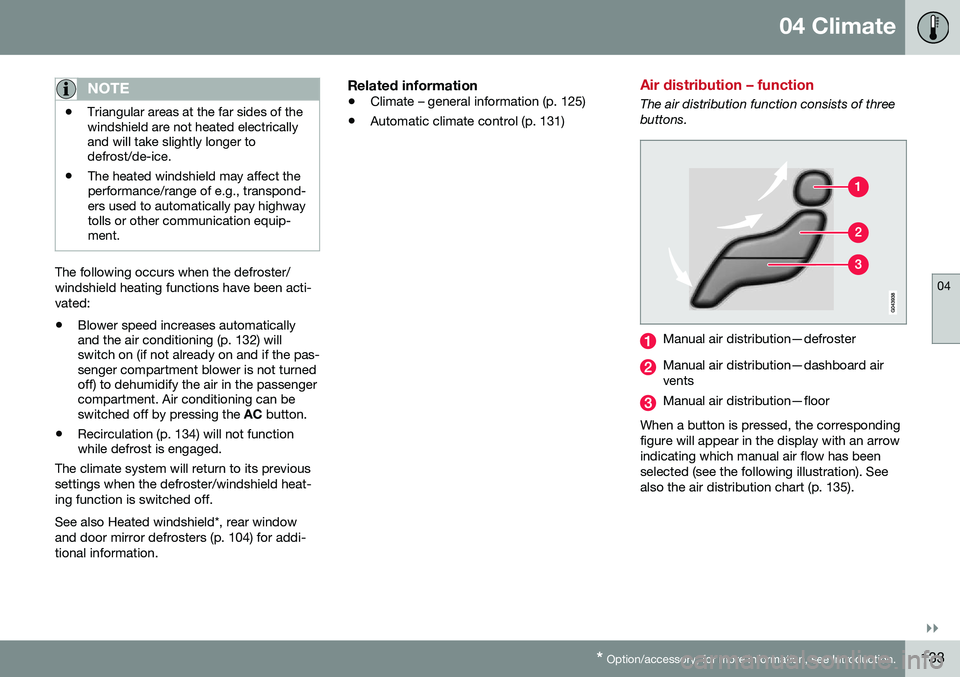
Air distribution – function
The air distribution function consists of three buttons.
Manual air distribution—defroster
Manual air distribution—dashboard air vents
Manual air distribution—floor
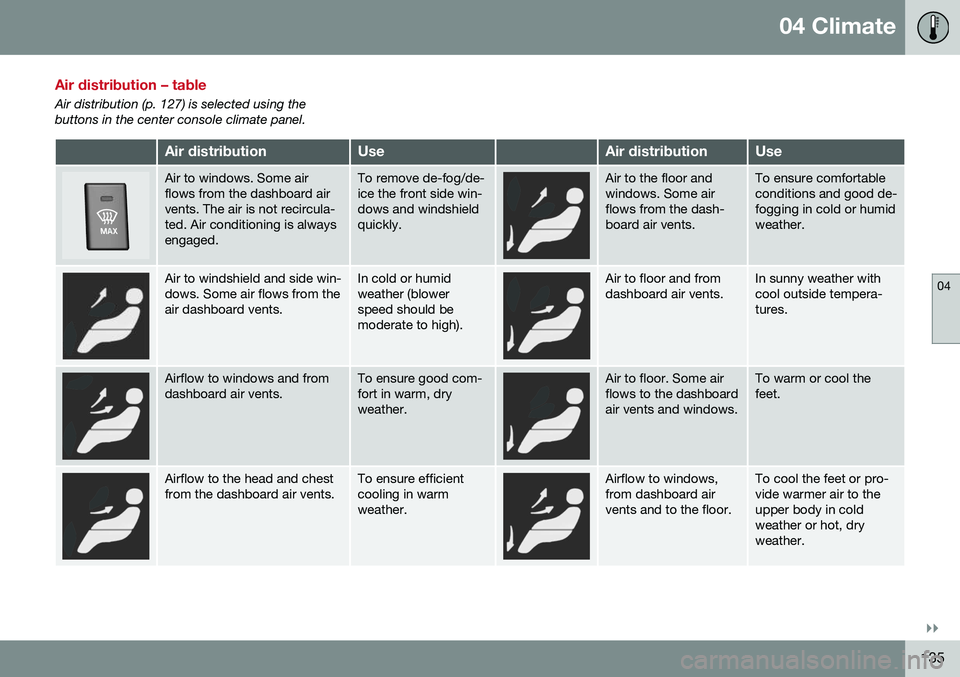
When a button is pressed, the corresponding figure will appear in the display with an arrowindicating which manual air flow has beenselected (see the following illustration). Seealso the air distribution chart (p. 135).
Page 137 of 398
04 Climate
04
}}
135
Air distribution – table
Air distribution (p. 127) is selected using the buttons in the center console climate panel.
Air distributionUseAir distributionUse
Air to windows. Some air flows from the dashboard airvents. The air is not recircula-ted. Air conditioning is alwaysengaged.To remove de-fog/de- ice the front side win-dows and windshieldquickly.Air to the floor and windows. Some airflows from the dash-board air vents.To ensure comfortable conditions and good de-fogging in cold or humidweather.
Air to windshield and side win- dows. Some air flows from theair dashboard vents.In cold or humid weather (blowerspeed should bemoderate to high).Air to floor and from dashboard air vents.In sunny weather with cool outside tempera-tures.
Airflow to windows and from dashboard air vents.To ensure good com- fort in warm, dryweather.Air to floor. Some air flows to the dashboardair vents and windows.To warm or cool the feet.
Airflow to the head and chest from the dashboard air vents.To ensure efficient cooling in warmweather.Airflow to windows, from dashboard airvents and to the floor.To cool the feet or pro- vide warmer air to theupper body in coldweather or hot, dryweather.
Page 148 of 398
||
05 Loading and storage
05
146
3. Insert the net's other attachment into thebracket on the opposite side of the vehi- cle. It is spring-loaded to help makemounting easier. Be sure to press the hooks as far forward into the brackets as possible.
4. Mounting in the rear position: With the
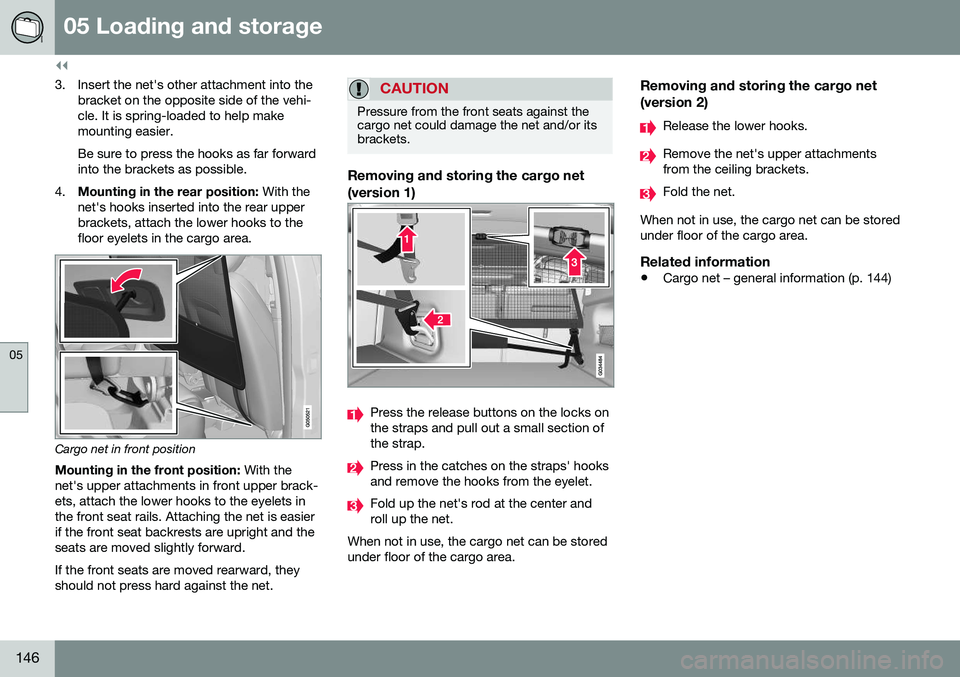
net's hooks inserted into the rear upperbrackets, attach the lower hooks to thefloor eyelets in the cargo area.
Cargo net in front position
Mounting in the front position: With the
net's upper attachments in front upper brack- ets, attach the lower hooks to the eyelets inthe front seat rails. Attaching the net is easierif the front seat backrests are upright and theseats are moved slightly forward. If the front seats are moved rearward, they should not press hard against the net.
CAUTION
Pressure from the front seats against the cargo net could damage the net and/or itsbrackets.
Removing and storing the cargo net (version 1)
Press the release buttons on the locks on the straps and pull out a small section ofthe strap.
Press in the catches on the straps' hooks and remove the hooks from the eyelet.
Fold up the net's rod at the center and roll up the net.
When not in use, the cargo net can be storedunder floor of the cargo area.
Removing and storing the cargo net (version 2)
Release the lower hooks.
Remove the net's upper attachments from the ceiling brackets.
Fold the net.
When not in use, the cargo net can be stored under floor of the cargo area.
Related information
• Cargo net – general information (p. 144)
Page 155 of 398
06 Locks and alarm
06
}}
* Option/accessory, for more information, see Introduction.153
MessageMeaning
Insert car keyRemote key not recognized during start. Try to start thevehicle again.
Car key not foundVehicles with keyless drive* only. Remote key not recog-nized during start. Try tostart the vehicle again. If the problem continues, insert the remote key into theignition slot and try to startthe vehicle again.
Immobil- izer TrystartagainRemote key fault during start. Contact an authorizedVolvo workshop.
CAUTION
Never use force when inserting the remote key in the ignition slot. The vehicle cannotbe started if the transponder is damaged.
USA–FCC ID: LTQWFS 125VO This device complies with part 15 of the FCC rules. Operation is subject to the followingcondition: (1) This device may not causeharmful interference, and (2) this device mustaccept any interference received, including interference that may cause undesired opera-tion. Canada–IC: 3659A-WFS125VOOperation is subject to the following condi- tions: (1) this device may not cause interfer-ence, and (2) this device must accept anyinterference, including interference that maycause undesired operation of the device. For information on starting the vehicle, see Starting the engine (p. 247).
Remote key – functions
The remote key is used e.g., to unlock the doors and start the engine.
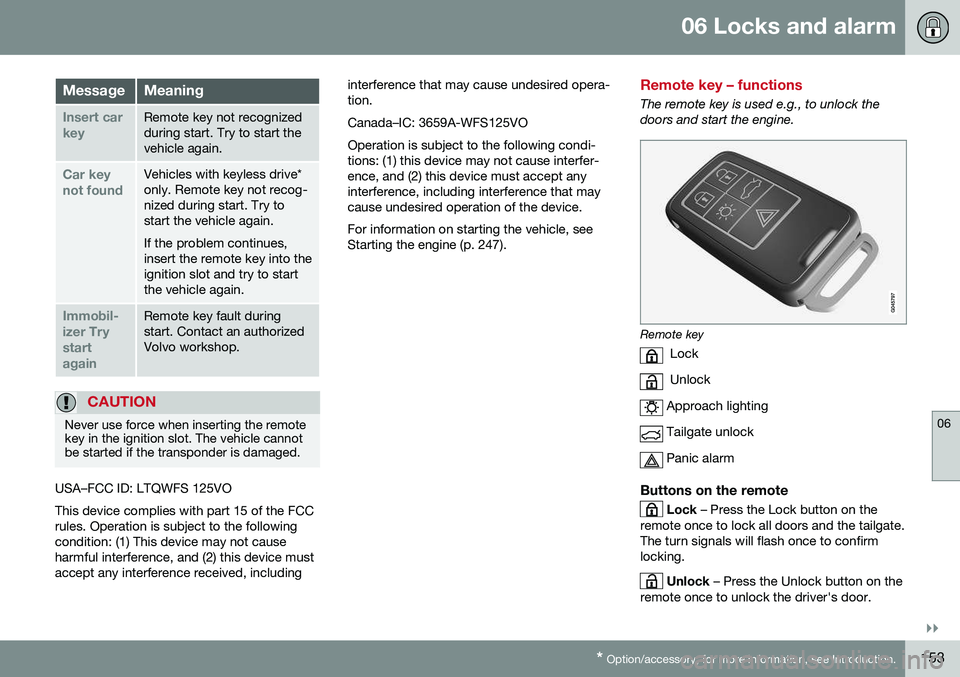
Remote key
Lock
Unlock
Approach lighting
Tailgate unlock
Panic alarm
Buttons on the remote
Lock – Press the Lock button on the
remote once to lock all doors and the tailgate. The turn signals will flash once to confirmlocking.
Unlock – Press the Unlock button on the
remote once to unlock the driver's door.
Page 160 of 398
||
06 Locks and alarm
06
158
Opening the remote key
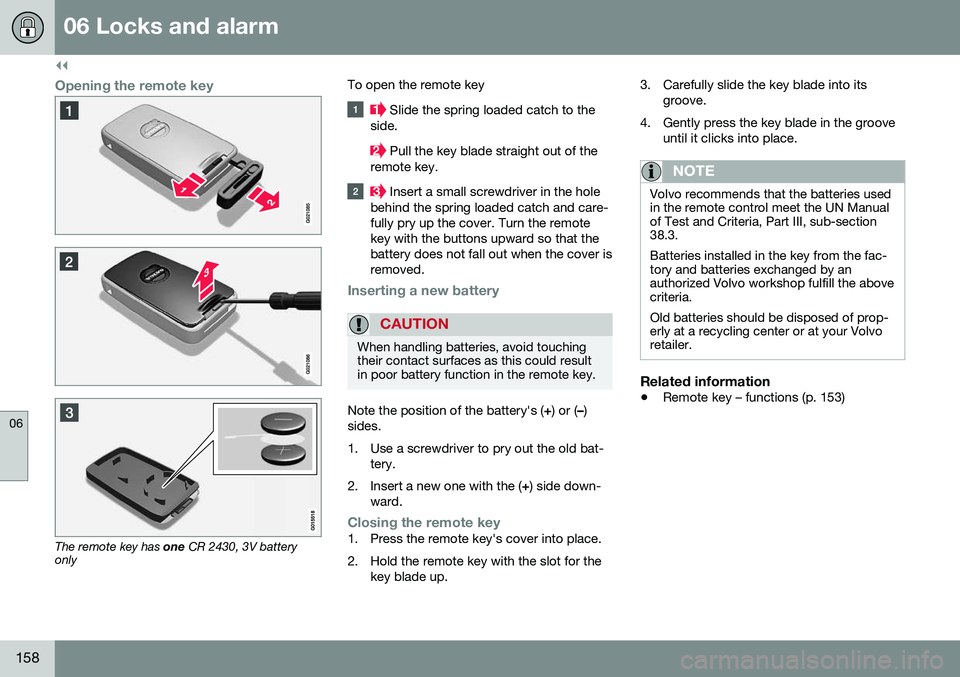
The remote key has one CR 2430, 3V battery
only To open the remote key
Slide the spring loaded catch to the
side.
Pull the key blade straight out of the
remote key.
Insert a small screwdriver in the hole
behind the spring loaded catch and care- fully pry up the cover. Turn the remotekey with the buttons upward so that thebattery does not fall out when the cover isremoved.
Inserting a new battery
CAUTION
When handling batteries, avoid touching their contact surfaces as this could resultin poor battery function in the remote key.
Note the position of the battery's ( +) or ( –)
sides.
1. Use a screwdriver to pry out the old bat- tery.
2. Insert a new one with the ( +) side down-
ward.
Closing the remote key1. Press the remote key's cover into place.
2. Hold the remote key with the slot for the key blade up. 3. Carefully slide the key blade into its
groove.
4. Gently press the key blade in the groove until it clicks into place.
NOTE
Volvo recommends that the batteries used in the remote control meet the UN Manualof Test and Criteria, Part III, sub-section38.3. Batteries installed in the key from the fac- tory and batteries exchanged by anauthorized Volvo workshop fulfill the abovecriteria. Old batteries should be disposed of prop- erly at a recycling center or at your Volvoretailer.
Related information
• Remote key – functions (p. 153)
Page 161 of 398
06 Locks and alarm
06
* Option/accessory, for more information, see Introduction.159
Keyless drive*– locking/unlocking
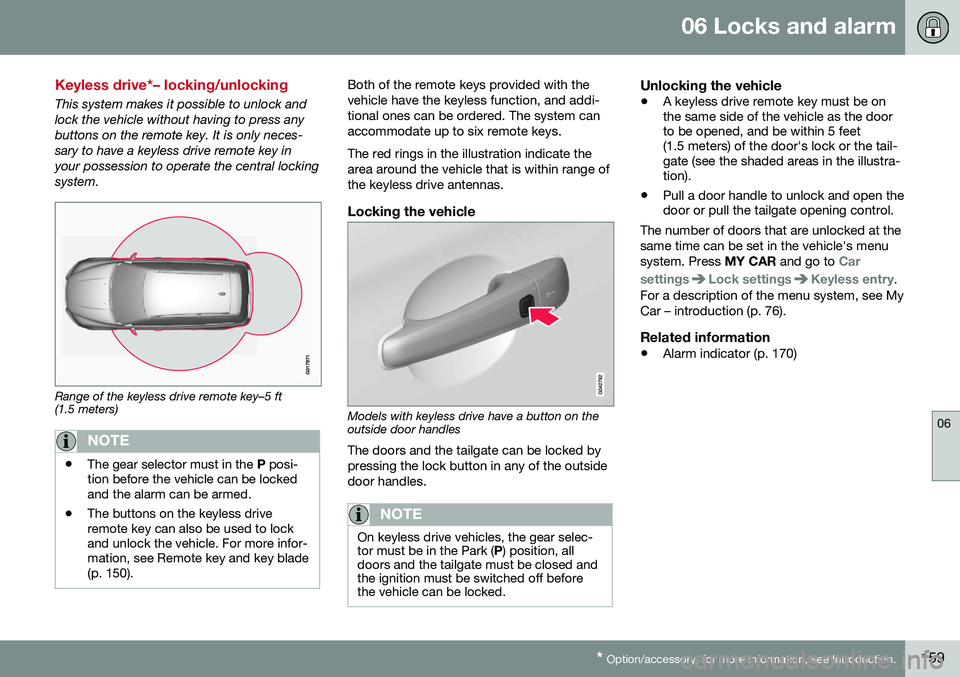
This system makes it possible to unlock and lock the vehicle without having to press anybuttons on the remote key. It is only neces-sary to have a keyless drive remote key inyour possession to operate the central lockingsystem.
Range of the keyless drive remote key–5 ft (1.5 meters)
NOTE
• The gear selector must in the
P posi-
tion before the vehicle can be locked and the alarm can be armed.
• The buttons on the keyless driveremote key can also be used to lockand unlock the vehicle. For more infor-mation, see Remote key and key blade(p. 150).
Both of the remote keys provided with the vehicle have the keyless function, and addi-tional ones can be ordered. The system canaccommodate up to six remote keys. The red rings in the illustration indicate the area around the vehicle that is within range ofthe keyless drive antennas.
Locking the vehicle
Models with keyless drive have a button on the outside door handles
The doors and the tailgate can be locked by pressing the lock button in any of the outsidedoor handles.
NOTE
On keyless drive vehicles, the gear selec- tor must be in the Park ( P) position, all
doors and the tailgate must be closed andthe ignition must be switched off beforethe vehicle can be locked.
Unlocking the vehicle
• A keyless drive remote key must be on the same side of the vehicle as the doorto be opened, and be within 5 feet(1.5 meters) of the door's lock or the tail-gate (see the shaded areas in the illustra-tion).
• Pull a door handle to unlock and open thedoor or pull the tailgate opening control.
The number of doors that are unlocked at the same time can be set in the vehicle's menusystem. Press MY CAR and go to
Car
settings
Lock settingsKeyless entry.
For a description of the menu system, see My Car – introduction (p. 76).
Related information
• Alarm indicator (p. 170)
Page 166 of 398
06 Locks and alarm
06
164
Manual locking
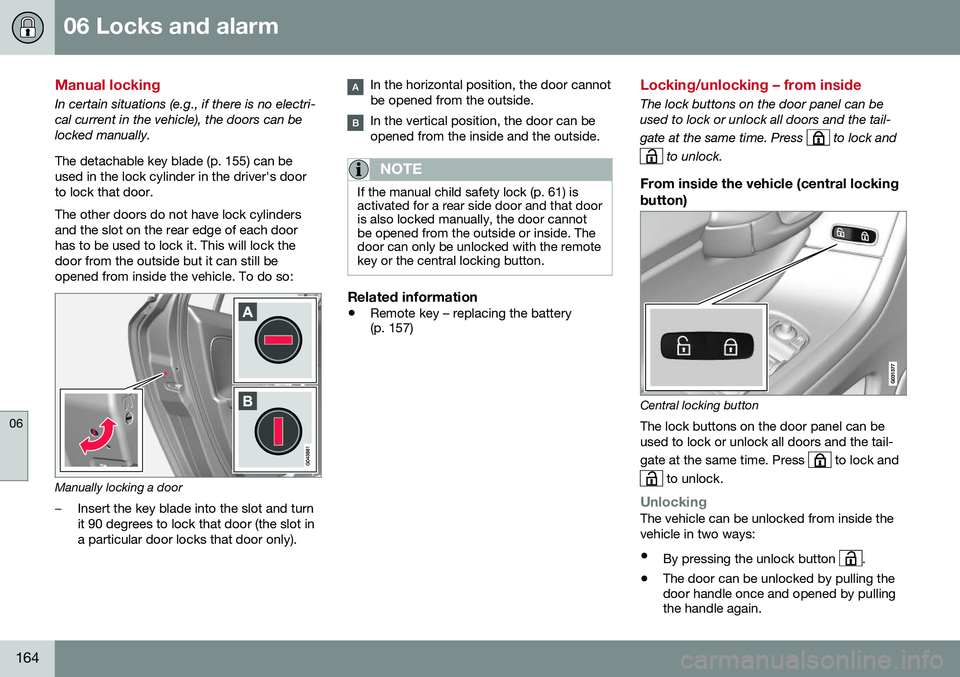
In certain situations (e.g., if there is no electri- cal current in the vehicle), the doors can belocked manually. The detachable key blade (p. 155) can be used in the lock cylinder in the driver's doorto lock that door. The other doors do not have lock cylinders and the slot on the rear edge of each doorhas to be used to lock it. This will lock thedoor from the outside but it can still beopened from inside the vehicle. To do so:
Manually locking a door
–Insert the key blade into the slot and turn it 90 degrees to lock that door (the slot ina particular door locks that door only).
In the horizontal position, the door cannot be opened from the outside.
In the vertical position, the door can be opened from the inside and the outside.
NOTE
If the manual child safety lock (p. 61) is activated for a rear side door and that dooris also locked manually, the door cannotbe opened from the outside or inside. Thedoor can only be unlocked with the remotekey or the central locking button.
Related information
•Remote key – replacing the battery (p. 157)
Locking/unlocking – from inside
The lock buttons on the door panel can be used to lock or unlock all doors and the tail- gate at the same time. Press
to lock and
to unlock.
From inside the vehicle (central locking
button)
Central locking button
The lock buttons on the door panel can be used to lock or unlock all doors and the tail- gate at the same time. Press
to lock and
to unlock.
UnlockingThe vehicle can be unlocked from inside the vehicle in two ways:
• By pressing the unlock button
.
• The door can be unlocked by pulling the door handle once and opened by pullingthe handle again.