tow VOLVO XC60 2016 Owner´s Manual
[x] Cancel search | Manufacturer: VOLVO, Model Year: 2016, Model line: XC60, Model: VOLVO XC60 2016Pages: 398, PDF Size: 9.98 MB
Page 130 of 398
||
04 Climate
04
128* Option/accessory, for more information, see Introduction.
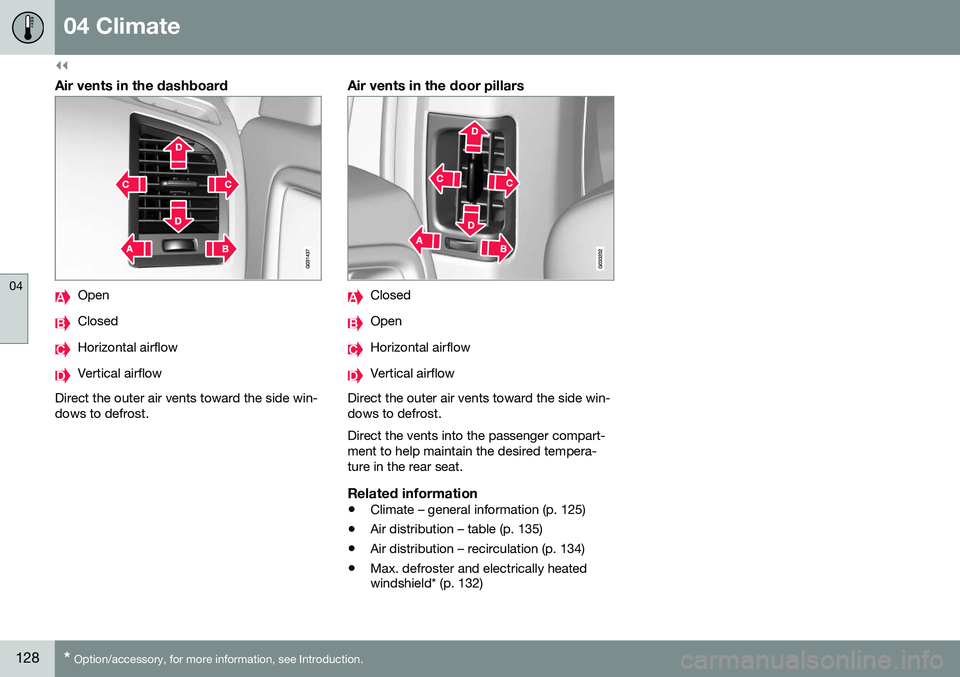
Air vents in the dashboard
Open
Closed
Horizontal airflow
Vertical airflow
Direct the outer air vents toward the side win- dows to defrost.
Air vents in the door pillars
Closed
Open
Horizontal airflow
Vertical airflow
Direct the outer air vents toward the side win- dows to defrost. Direct the vents into the passenger compart- ment to help maintain the desired tempera-ture in the rear seat.
Related information
• Climate – general information (p. 125)
• Air distribution – table (p. 135)
• Air distribution – recirculation (p. 134)
• Max. defroster and electrically heated windshield* (p. 132)
Page 147 of 398
05 Loading and storage
05
}}
145
Cargo net – mounting/removing
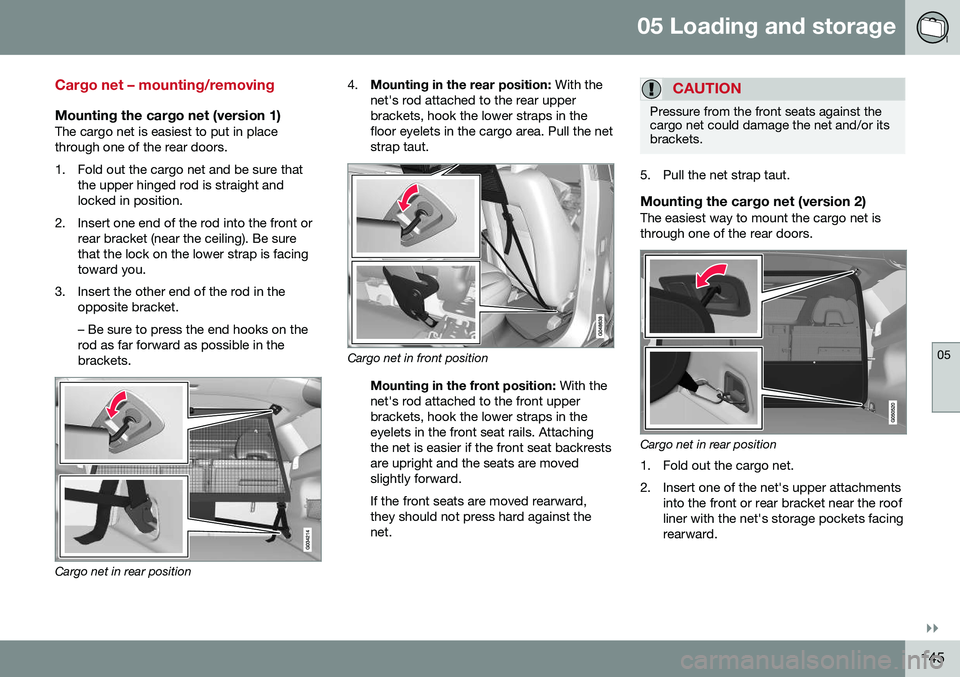
Mounting the cargo net (version 1)The cargo net is easiest to put in place through one of the rear doors.
1. Fold out the cargo net and be sure thatthe upper hinged rod is straight and locked in position.
2. Insert one end of the rod into the front or rear bracket (near the ceiling). Be surethat the lock on the lower strap is facingtoward you.
3. Insert the other end of the rod in the opposite bracket. – Be sure to press the end hooks on the rod as far forward as possible in thebrackets.
Cargo net in rear position 4.
Mounting in the rear position: With the
net's rod attached to the rear upper brackets, hook the lower straps in thefloor eyelets in the cargo area. Pull the netstrap taut.
Cargo net in front position
Mounting in the front position: With the
net's rod attached to the front upper brackets, hook the lower straps in theeyelets in the front seat rails. Attachingthe net is easier if the front seat backrestsare upright and the seats are movedslightly forward. If the front seats are moved rearward, they should not press hard against thenet.
CAUTION
Pressure from the front seats against the cargo net could damage the net and/or itsbrackets.
5. Pull the net strap taut.
Mounting the cargo net (version 2)The easiest way to mount the cargo net is through one of the rear doors.
Cargo net in rear position
1. Fold out the cargo net.
2. Insert one of the net's upper attachments into the front or rear bracket near the roof liner with the net's storage pockets facingrearward.
Page 149 of 398
05 Loading and storage
05
}}
147
Cargo area cover
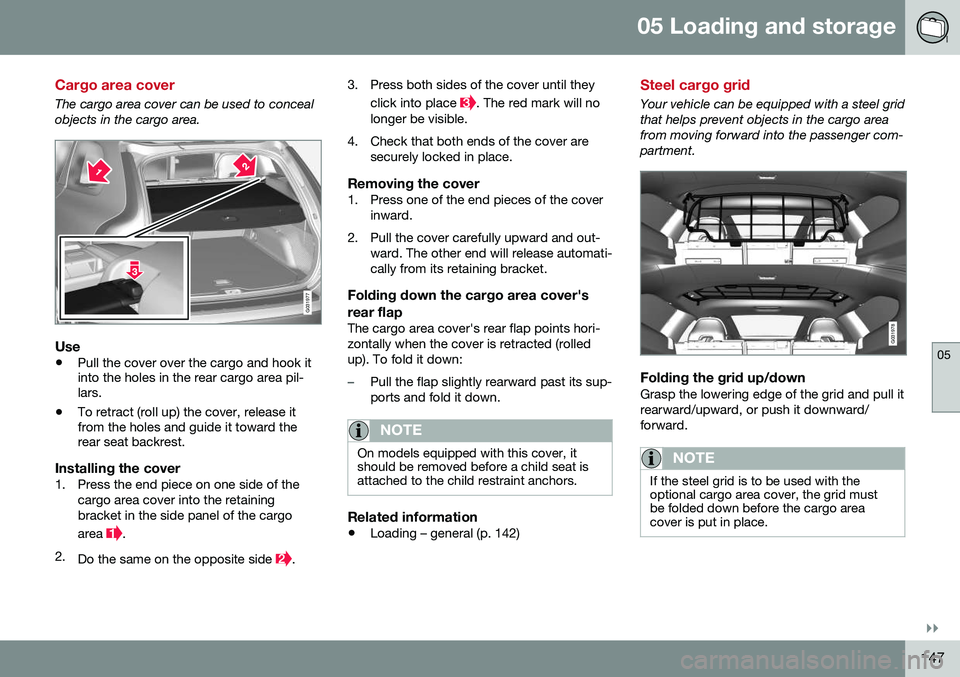
The cargo area cover can be used to conceal objects in the cargo area.
G031977
Use
•Pull the cover over the cargo and hook it into the holes in the rear cargo area pil-lars.
• To retract (roll up) the cover, release itfrom the holes and guide it toward therear seat backrest.
Installing the cover1. Press the end piece on one side of the
cargo area cover into the retaining bracket in the side panel of the cargo area
.
2. Do the same on the opposite side
. 3. Press both sides of the cover until they
click into place
. The red mark will no
longer be visible.
4. Check that both ends of the cover are securely locked in place.
Removing the cover1. Press one of the end pieces of the coverinward.
2. Pull the cover carefully upward and out- ward. The other end will release automati- cally from its retaining bracket.
Folding down the cargo area cover's rear flap
The cargo area cover's rear flap points hori- zontally when the cover is retracted (rolledup). To fold it down:
–Pull the flap slightly rearward past its sup- ports and fold it down.
NOTE
On models equipped with this cover, it should be removed before a child seat isattached to the child restraint anchors.
Related information
• Loading – general (p. 142)
Steel cargo grid
Your vehicle can be equipped with a steel grid that helps prevent objects in the cargo areafrom moving forward into the passenger com-partment.
G031978
Folding the grid up/downGrasp the lowering edge of the grid and pull it rearward/upward, or push it downward/forward.
NOTE
If the steel grid is to be used with the optional cargo area cover, the grid mustbe folded down before the cargo areacover is put in place.
Page 152 of 398
06 Locks and alarm
06
150
Remote key and key blade
Two remote keys are provided with your vehi- cle. They enable you to unlock the doors andtailgate, and also function as ignition keys tostart the vehicle or operate electrical compo-nents. The remote keys contain detachablemetal key blades for manually locking orunlocking the driver's door and the glovecompartment. The visible ends of these keyblades are unique to make it easier to identify"your" remote key. Up to six remotes can beprogrammed for use on the same vehicle.
WARNING
Never leave the remote key in the ignition slot if children are to remain in the vehicle.
For more information on the various ignition modes, see Ignition modes (p. 79).
Related information
•Remote key – functions (p. 153)
• Remote key – functions (p. 153)
• Remote key – range (p. 154)
Remote key – loss
If either of the remote keys (p. 150) is lost, the other should be taken with the vehicle to aVolvo retailer. As an anti-theft measure, thecode of the lost remote key must be erasedfrom the system.
NOTE
Additional or duplicate remote control keys can be obtained from any authorized Volvoretailer. You can also obtain additional or duplicate remote control keys from certain inde-pendent repair facilities and locksmithsthat are qualified to make remote controlkeys. Each key must be programmed towork with your vehicle. California Only: A list of independent repair facilities and/or locksmiths known to Volvo that can cutand code replacement keys can be found:
• on the Volvo website at http://www.volvocars.com/us/keys
• by calling Volvo Customer Care at1-800-458-1552
The number of registered keys for the vehicle can be found by pressing
MY CAR and going
into
SettingsInformationNumber of
keys. For a description of the menu system,
see My Car – introduction (p. 76). USA-5WK49264 FCC ID:KR55WK49264 + Siemens VDO 5WK49236 FCC ID:KR55WK49236, 5WK49266FCC ID:KR55WK49266 + Siemens VDO 5WK49233 FCC ID:KR55WK49233This device complies with part 15 of the FCC rules and RSS-210. Operation is subject tothe following conditions: (1) This device maynot cause harmful interference, and (2) thisdevice must accept any interferencereceived, including interference that maycause undesired operation. Canada-5WK49264IC:267T-5WK49264 + Siemens VDO 5WK49236 IC:267T-5WK49236, 5WK49266IC:267T-5WK49266 + Siemens VDO 5WK49233 IC:267T-5WK49233Operation is subject to the following condi- tions: (1) this device may not cause interfer-ence, and (2) this device must accept anyinterference, including interference that maycause undesired operation of the device.Related information
•
Remote key – functions (p. 153)
Page 177 of 398
07 Driver support
07
}}
175
Traction Control (TC)This function is designed to help reduce wheel spin at low speeds by transferringpower from a drive wheel that begins to losetraction to the wheel on the opposite side ofthe vehicle (on the same axle).
Spin Control (SC)The SC function is designed to help prevent the drive wheels from spinning while the vehi-cle is accelerating.
Active Yaw Control (AYC)This function helps maintain directional stabil- ity, for example when cornering, by brakingone or more of the wheels if the vehicleshows a tendency to skid or slide laterally.
Corner Traction Control (CTC)CTC compensates for understeering and helps provide additional stability when accel-erating through a curve by preventing theinside wheel from spinning. This is particularlyuseful when accelerating on a curving high-way on-ramp. CTC is most effective if the stability system's Sport mode is selected. See the section
about Sport mode.
Engine Drag Control (EDC)EDC helps keep the engine running if the wheels show a tendency to lock, e.g., whenshifting down in the Geartronic manual shift-ing mode or while using the engine's brakingfunction on a slippery surface. If the engine were to stop, power steering would not func-tion, making the vehicle more difficult tosteer.
Trailer Stability Assist (TSA)
1The TSA helps stabilize a vehicle that is tow- ing a trailer when the vehicle and trailer havebegun to sway. See Trailer Stability Assist(TSA) (p. 284) for more information. This system is automatically deactivated if the driver selects
Sport mode.
Related information
•Stability system – operation (p. 175)
• Stability system – symbols and messages (p. 177)
• Trailer Stability Assist (TSA) (p. 284)
Stability system – operation
Operation
Sport modeThe stability system is always activated and cannot be switched off.
However, the driver canselect Sport mode, which
offers more active drivingcharacteristics. Sport mode can be selected
in the MY CAR menus, see
My Car – introduction (p. 76).
In Sport mode, the engine management sys-
tem monitors movement of the accelerator pedal and steering wheel for sportier drivingby allowing more lateral movement of the rearwheels before ESC is activated. Under certain circumstances, such as when driving with snow chains, or driving in deepsnow or loose sand, it may be advisable totemporarily use Sport mode for maximum
tractive force. If the driver releases pressure on the acceler- ator pedal, ETC will also activate to help sta-bilize the vehicle. To switch to Sport mode:
Sport mode remains active until the driver
switches it off in the menu or until the engine
1 Included when a Volvo trailer hitch is installed
Page 182 of 398
07 Driver support
07
180* Option/accessory, for more information, see Introduction.
Road Sign Information (RSI) – operation
Speed limit information
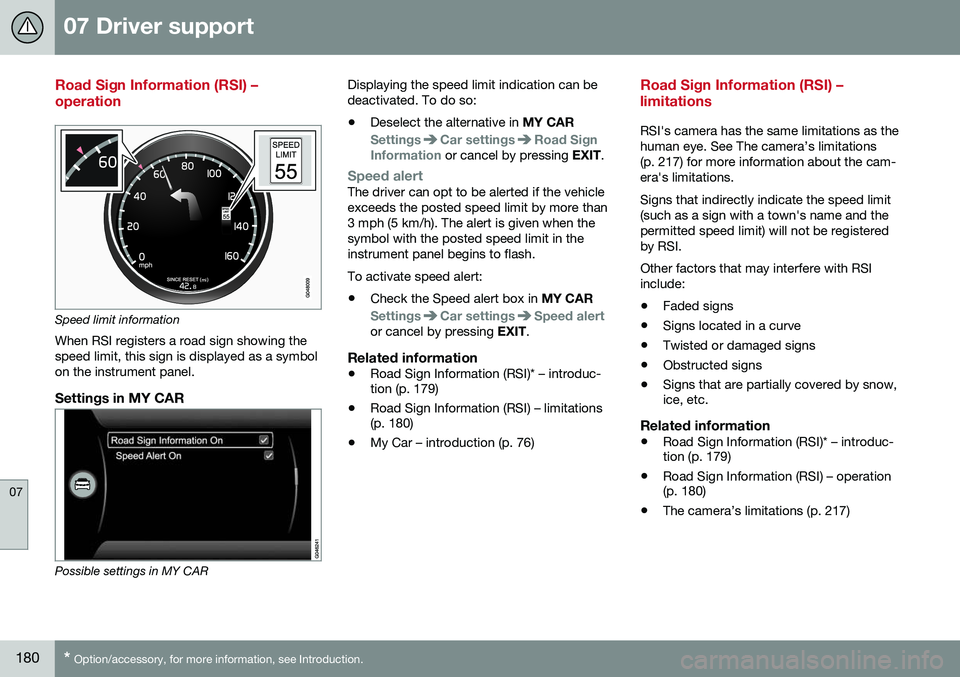
When RSI registers a road sign showing the speed limit, this sign is displayed as a symbolon the instrument panel.
Settings in MY CAR
Possible settings in MY CAR Displaying the speed limit indication can be deactivated. To do so:
• Deselect the alternative in
MY CAR
SettingsCar settingsRoad Sign
Information or cancel by pressing EXIT.
Speed alertThe driver can opt to be alerted if the vehicle exceeds the posted speed limit by more than3 mph (5 km/h). The alert is given when thesymbol with the posted speed limit in theinstrument panel begins to flash. To activate speed alert:
• Check the Speed alert box in
MY CAR
SettingsCar settingsSpeed alertor cancel by pressing EXIT.
Related information
•Road Sign Information (RSI)* – introduc- tion (p. 179)
• Road Sign Information (RSI) – limitations(p. 180)
• My Car – introduction (p. 76)
Road Sign Information (RSI) – limitations
RSI's camera has the same limitations as the human eye. See The camera’s limitations(p. 217) for more information about the cam-era's limitations. Signs that indirectly indicate the speed limit (such as a sign with a town's name and thepermitted speed limit) will not be registeredby RSI. Other factors that may interfere with RSI include:
• Faded signs
• Signs located in a curve
• Twisted or damaged signs
• Obstructed signs
• Signs that are partially covered by snow, ice, etc.
Related information
•Road Sign Information (RSI)* – introduc-tion (p. 179)
• Road Sign Information (RSI) – operation(p. 180)
• The camera’s limitations (p. 217)
Page 189 of 398
07 Driver support
07
187
WARNING
Adaptive Cruise Control only warns of vehicles detected by the radar sensor, seeAdaptive Cruise Control – limitations(p. 193). In some cases there may be nowarning or the warning may be delayed.The driver should always apply the brakeswhen necessary.
Steep inclines and/or heavy loadsACC is primarily intended for use on fairly level roads. The system may have difficultymaintaining the correct distance to a vehicleahead on steep inclines, if the vehicle is car-rying a heavy load or is towing a trailer. Inthese situations, the driver should always beprepared to apply the brakes if necessary.
Related information
•Adaptive Cruise Control – introduction (p. 184)
Adaptive Cruise Control – engaging
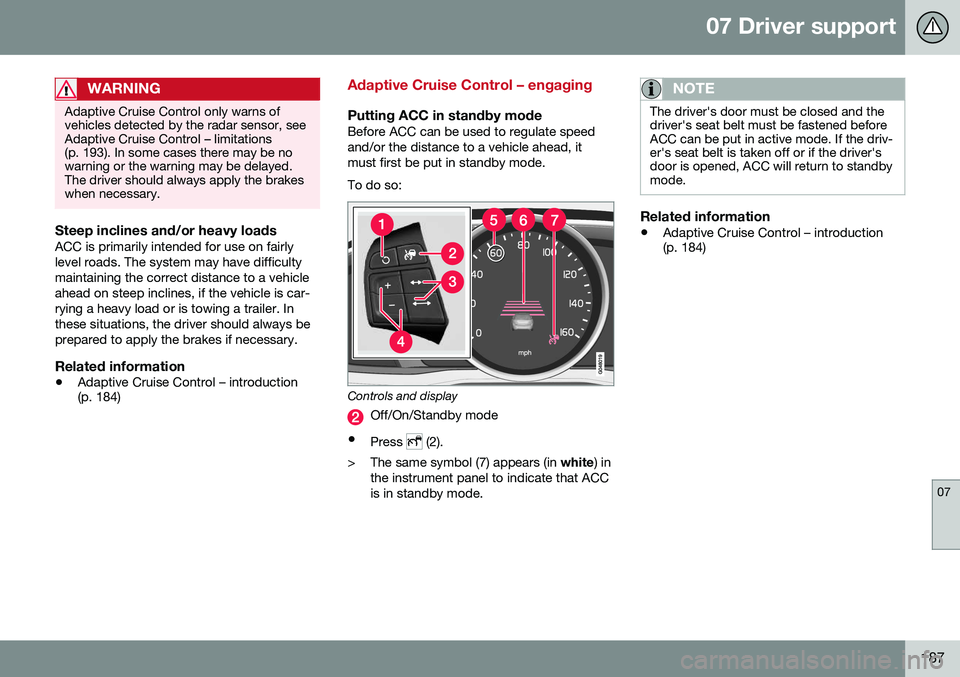
Putting ACC in standby modeBefore ACC can be used to regulate speed and/or the distance to a vehicle ahead, itmust first be put in standby mode. To do so:
Controls and display
Off/On/Standby mode
• Press
(2).
> The same symbol (7) appears (in white) in
the instrument panel to indicate that ACC is in standby mode.
NOTE
The driver's door must be closed and the driver's seat belt must be fastened beforeACC can be put in active mode. If the driv-er's seat belt is taken off or if the driver'sdoor is opened, ACC will return to standbymode.
Related information
• Adaptive Cruise Control – introduction (p. 184)
Page 193 of 398
07 Driver support
07
}}
191
Adaptive Cruise Control – passing another vehicle
Passing another vehicleIf your vehicle’s speed is being regulated by ACC and the driver indicates that he/shewould like to pass the vehicle ahead by usingthe left turn signal, ACC can assist by accel-
erating briefly. This function is active at speeds above approximately 45 mph (70 km/h).
WARNING
Please be aware that this function will also cause the vehicle to accelerate briefly incertain situations other than passinganother vehicle, for example using the leftturn signal to indicate a lane change or aturn toward a highway exit at speedsabove approximately 45 mph (70 km/h).
Related information
• Adaptive Cruise Control – introduction (p. 184)
Adaptive Cruise Control (ACC) – Queue Assist
Queue Assist is an added ACC feature that is linked to your vehicle's automatic transmis-sion.
IntroductionQueue Assist is an added ACC feature that islinked to your vehicle's automatic transmis-sion. Queue Assist consists of the following func- tions: •Enhanced speed interval (including when the vehicle is at a complete stop or ismoving at speed below 18 mph(30 km/h))
• Automatic standby mode when ACCchanges target vehicles
• No automatic braking when at a standstill
• The parking brake is applied automati-cally
Please note that the lowest speed that can be set is 18 mph (30 km/h), although ACC canmaintain a set speed/distance to a vehicleahead down to a standstill. Queue Assistconsists of the following features:
Enhanced speed interval
NOTE
The driver's door must be closed and the driver's seat belt must be fastened beforeACC can be put in active mode. If the driv-er's seat belt is taken off or if the driver'sdoor is opened, ACC will return to standbymode.
Your vehicle can maintain the set time interval to the vehicle ahead at any permissiblespeed, including a complete stop. In order to activate ACC at speeds below 18 mph (30 km/h):
• The vehicle ahead must be within a rea- sonable distance (not farther away thanapprox. 100 ft/30 meters)
• The lowest speed that can be selected is18 mph (30 km/h), although ACC will alsohelp maintain the set time interval to thevehicle ahead at lower speeds, includinga complete stop.
During short stops (less than approximately 3 seconds) in slow-moving traffic, your vehi-cle will begin moving again automatically assoon as the vehicle ahead begins to move. If it takes more than 3 seconds for the vehicle ahead to begin moving, ACC will be automat-ically go into standby mode.
Page 200 of 398
07 Driver support
07
198
Distance Alert – introduction
Distance Alert is part of Adaptive Cruise Con- trol and is a function that provides informationabout the time interval to the vehicle ahead.
IntroductionDistance Alert is active at speeds aboveapproximately 18 mph (30 km/h). Time inter-val information is only given for a vehicle thatis driving ahead of your vehicle in the samedirection. No information is provided for vehi-cles driving toward you, moving very slowly,or at a standstill.
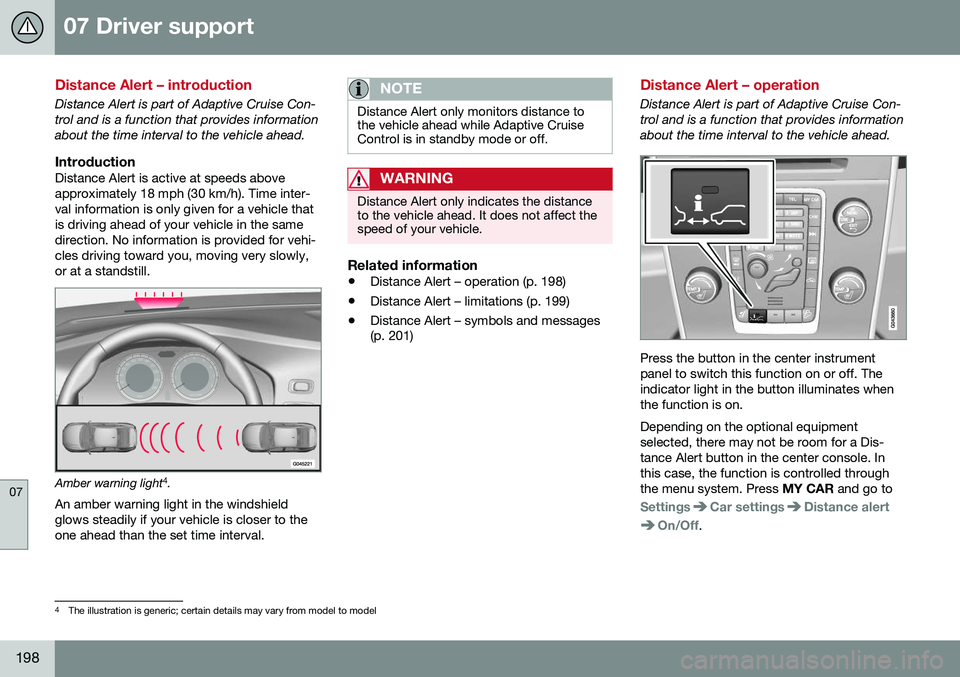
Amber warning light4
.
An amber warning light in the windshield glows steadily if your vehicle is closer to theone ahead than the set time interval.
NOTE
Distance Alert only monitors distance to the vehicle ahead while Adaptive CruiseControl is in standby mode or off.
WARNING
Distance Alert only indicates the distance to the vehicle ahead. It does not affect thespeed of your vehicle.
Related information
• Distance Alert – operation (p. 198)
• Distance Alert – limitations (p. 199)
• Distance Alert – symbols and messages (p. 201)
Distance Alert – operation
Distance Alert is part of Adaptive Cruise Con- trol and is a function that provides informationabout the time interval to the vehicle ahead.
Press the button in the center instrument panel to switch this function on or off. Theindicator light in the button illuminates whenthe function is on. Depending on the optional equipment selected, there may not be room for a Dis-tance Alert button in the center console. Inthis case, the function is controlled throughthe menu system. Press
MY CAR and go to
SettingsCar settingsDistance alert
On/Off.
4
The illustration is generic; certain details may vary from model to model
Page 211 of 398
07 Driver support
07
}}
209
•
City Safety – limitations (p. 204)
• City Safety – troubleshooting (p. 205)
• City Safety – symbols and messages (p. 207)
Collision warning – introduction
Pedestrian and Cyclist Detection with Full Auto Brake is designed to assist the driver ifthere is a risk of a collision with a pedestrian,a cyclist, a vehicle ahead that is at a standstillor one that is moving in the same direction asyour vehicle. This system consists of the following three functions: • Collision Warning
warns the driver of a
potential collision situation.
• Brake Support
helps the driver brake
efficiently in a critical situation.
• Auto-brake
brakes the vehicle automati-
cally if a collision with a pedestrian, a cyclist or another vehicle cannot be avoi-ded and the driver does not apply thebrakes in time or steer around the per-son/vehicle. Auto-brake can help preventa collision or reduce the speed at which acollision occurs.
Since Pedestrian and Cyclist Detection with Full Auto Brake is activated in circumstanceswhere the driver should have begun brakingmuch sooner, the system will not be able toassist the driver in all situations. This system is designed to activate as late as possible to help avoid unnecessary interven-tion. The system should not be used in such a way that the driver changes his/her way of operat- ing the vehicle. If the driver relies entirely onthe system, the chances of an accident even-tually occurring increase considerably. The Pedestrian and Cyclist Detection with Full Auto Brake and City Safety™ systems sup-plement each other. See City Safety – intro-duction (p. 202) for detailed information aboutCity Safety™.
WARNING
No automatic system can be guaranteed to function 100% correctly in all situations.For that reason, never test the Auto-brakesystem by driving toward a person orobject. This could result in serious injury ordeath.