steering VOLVO XC60 2018 Owner´s Manual
[x] Cancel search | Manufacturer: VOLVO, Model Year: 2018, Model line: XC60, Model: VOLVO XC60 2018Pages: 660, PDF Size: 11.77 MB
Page 483 of 660
AUDIO, MEDIA AND INTERNET
}}
* Option/accessory.481
Related information
•Handling the App menu in the instrument panel (p. 101)
• Radio (p. 462)
• Controlling and changing media (p. 481)
• Connecting a device via the USB port(p. 486)
• Connecting a device via Bluetooth ®
(p. 485)
• Download apps (p. 460)
• Internet-connected vehicle
* (p. 501)
• Video (p. 484)
• Apple ®
CarPlay ®
* (p. 487)
• Android Auto
* (p. 490)
• Voice control for radio and media (p. 146)
• Compatible file formats for media (p. 508)
Controlling and changing media
Media playback can be controlled using voice commands, the steering wheel keypad or thecenter display.
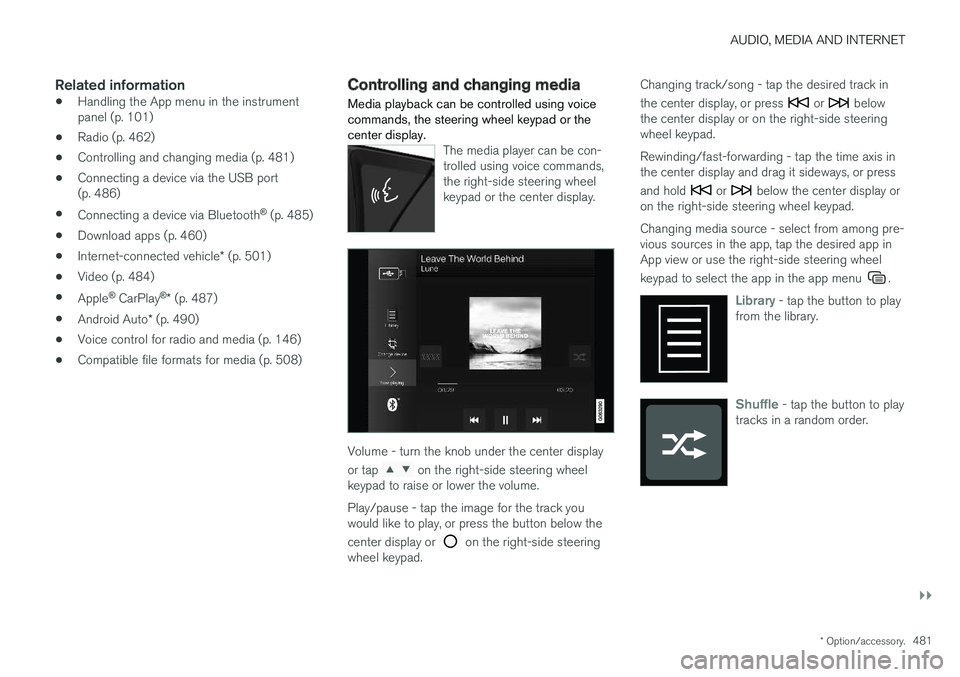
The media player can be con- trolled using voice commands,the right-side steering wheelkeypad or the center display.
Volume - turn the knob under the center display or tap
on the right-side steering wheel
keypad to raise or lower the volume. Play/pause - tap the image for the track you would like to play, or press the button below the center display or
on the right-side steering
wheel keypad. Changing track/song - tap the desired track in the center display, or press
or below
the center display or on the right-side steering wheel keypad. Rewinding/fast-forwarding - tap the time axis in the center display and drag it sideways, or press and hold
or below the center display or
on the right-side steering wheel keypad. Changing media source - select from among pre- vious sources in the app, tap the desired app inApp view or use the right-side steering wheel keypad to select the app in the app menu
.
Library - tap the button to play
from the library.
Shuffle - tap the button to play
tracks in a random order.
Page 489 of 660
AUDIO, MEDIA AND INTERNET
}}
* Option/accessory.487
Apple® CarPlay®
*
With CarPlay, you can listen to music, make phone calls, get driving instructions, send/receive messages and use Siri, all while remain-ing focused on driving.
CarPlay works with select Apple devices. If the car doesnot already support CarPlay,this can be retrofitted. Contacta Volvo retailer to installCarPlay.
Information about supported apps and compati- ble phones is available on the Apple website:www.apple.com/ios/carplay/. Using apps that arenot compatible with CarPlay could cause the con-nection between iPhone and the vehicle to belost. Please note that Volvo is not responsible forthe content of CarPlay. When using map navigation via CarPlay, guidance will only be shown on the center display and notin the instrument panel or head-up display. CarPlay apps can be controlled from the center display, a phone or with the right-side steeringwheel keypad (for certain functions). The appscan also be voice-controlled using Siri. Press and hold the
button on the steering wheel to
start voice control with Siri. Press briefly to acti- vate the vehicle's own voice control system. If Siri cuts off too soon, press and hold the
6
but-
ton on the steering wheel.
By using Apple CarPlay you acknowledge the following: Apple CarPlay is a serviceprovided by Apple Inc. under its terms andconditions. Volvo Cars is thus notresponsible for Apple CarPlay or itsfeatures/applications. When using AppleCarPlay, certain information from your car(including its position) is transferred to youriPhone. In relation to Volvo Cars, you arefully responsible for your and any othersperson
Page 492 of 660
AUDIO, MEDIA AND INTERNET
* Option/accessory.
490
Android Auto *
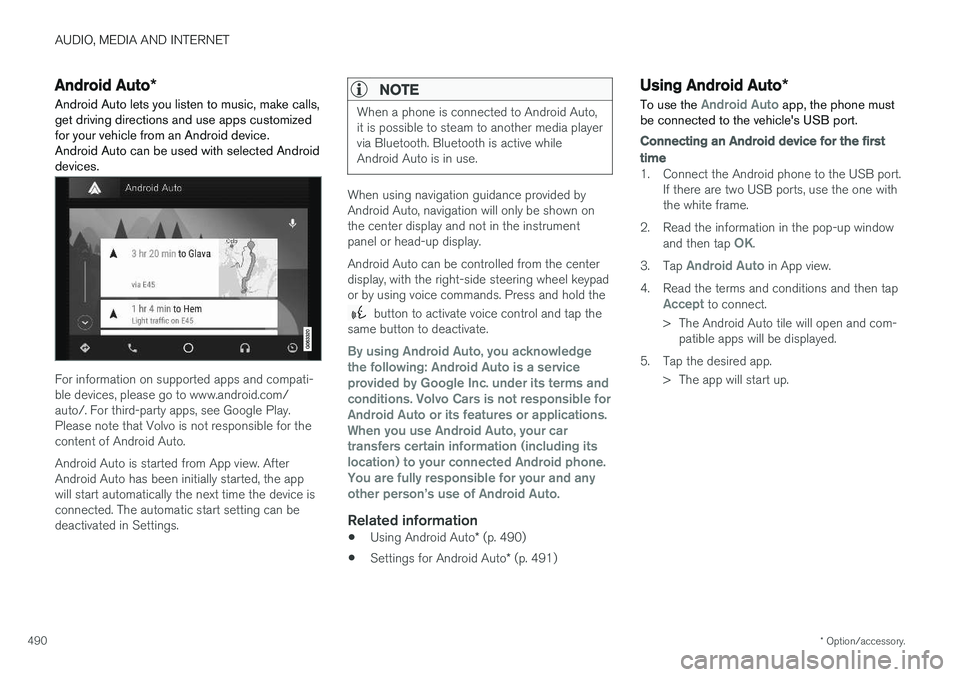
Android Auto lets you listen to music, make calls, get driving directions and use apps customizedfor your vehicle from an Android device.Android Auto can be used with selected Androiddevices.
For information on supported apps and compati- ble devices, please go to www.android.com/auto/. For third-party apps, see Google Play.Please note that Volvo is not responsible for thecontent of Android Auto. Android Auto is started from App view. After Android Auto has been initially started, the appwill start automatically the next time the device isconnected. The automatic start setting can bedeactivated in Settings.
NOTE
When a phone is connected to Android Auto, it is possible to steam to another media playervia Bluetooth. Bluetooth is active whileAndroid Auto is in use.
When using navigation guidance provided by Android Auto, navigation will only be shown onthe center display and not in the instrumentpanel or head-up display. Android Auto can be controlled from the center display, with the right-side steering wheel keypador by using voice commands. Press and hold the
button to activate voice control and tap the
same button to deactivate.
By using Android Auto, you acknowledge the following: Android Auto is a serviceprovided by Google Inc. under its terms andconditions. Volvo Cars is not responsible forAndroid Auto or its features or applications.When you use Android Auto, your cartransfers certain information (including itslocation) to your connected Android phone.You are fully responsible for your and anyother person
Page 494 of 660
AUDIO, MEDIA AND INTERNET
* Option/accessory.
492
Tips for using Android Auto *
Here are some useful tips for when you use Android Auto.
• Ensure that your apps are updated.
• When starting the car, wait until the center display has started, connect the phone andthen open Android Auto from the app view.
• In the event of problems with Android Auto,disconnect your Android phone from theUSB port and then reconnect via USB. Oth-erwise, try closing the app on the phone andthen restarting the app.
• When a phone is connected to Android Autoit is still possible to playback media viaBluetooth to another media player. TheBluetooth function is on when Android Autois used.
Related information
•
Android Auto
* (p. 490)
Phone
A phone equipped with Bluetooth can be wire- lessly connected to the vehicle's integratedhands-free system.
The audio and media system offers hands-free functionality for remotely controlling a number ofthe phone's features. The phone's integratedcontrols can also be used, even when it is con-nected to the vehicle. When the phone has been paired and connected to the vehicle, it can be used as an Internet con-nection or to make or receive calls, send orreceive text messages or wirelessly play music.
The phone is controlled fromthe center display but the Appmenu (accessed using theright-side steering wheel key-pad) and voice commands canalso be used to control certainfunctions.
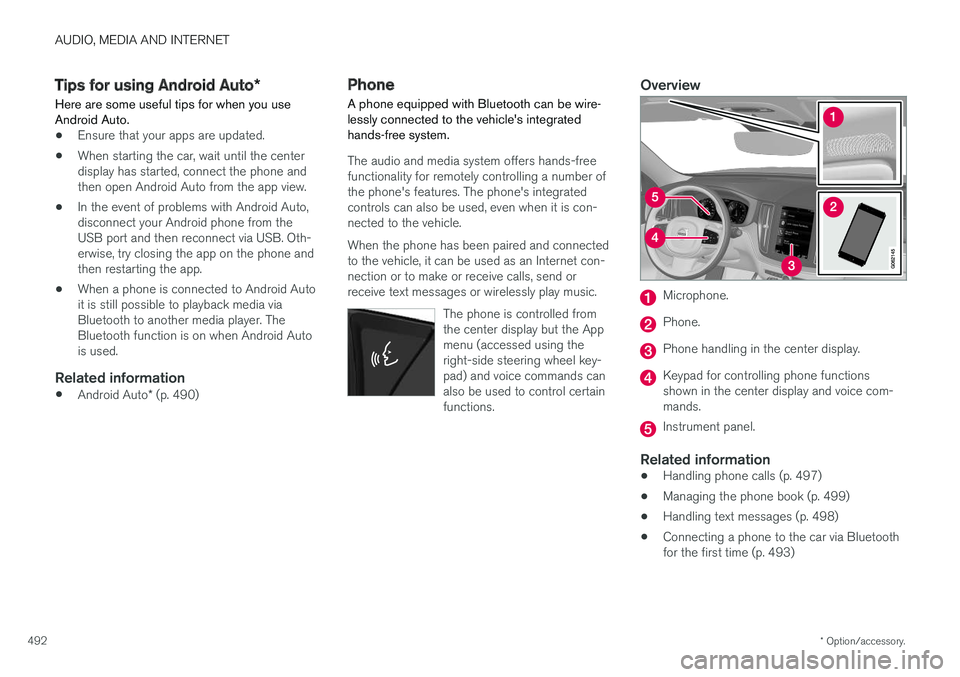
Overview
Microphone.
Phone.
Phone handling in the center display.
Keypad for controlling phone functions shown in the center display and voice com-mands.
Instrument panel.
Related information
•Handling phone calls (p. 497)
• Managing the phone book (p. 499)
• Handling text messages (p. 498)
• Connecting a phone to the car via Bluetooth for the first time (p. 493)
Page 499 of 660
AUDIO, MEDIA AND INTERNET
}}
497
Removing a Bluetooth-connectedphone
Phones in the list of registered Bluetooth devi- ces can be removed.
1. Tap Settings in the Top view.
2. Tap
CommunicationBluetooth
Devices.
> A list of registered Bluetooth devices is displayed.
3. Tap the name of the phone you would like to remove.
4. Tap
Remove device and confirm.
> The phone is no longer registered in the vehicle.
Related information
• Phone (p. 492)
• Connecting a phone to the car via Bluetooth for the first time (p. 493)
• Disconnecting a Bluetooth-connected phone(p. 496)
• Switch between phones connected via Blue-tooth (p. 496)
• Settings for Bluetooth devices (p. 501)
Handling phone calls Handling phone calls in the vehicle for a Bluetooth-connected cellular phone.
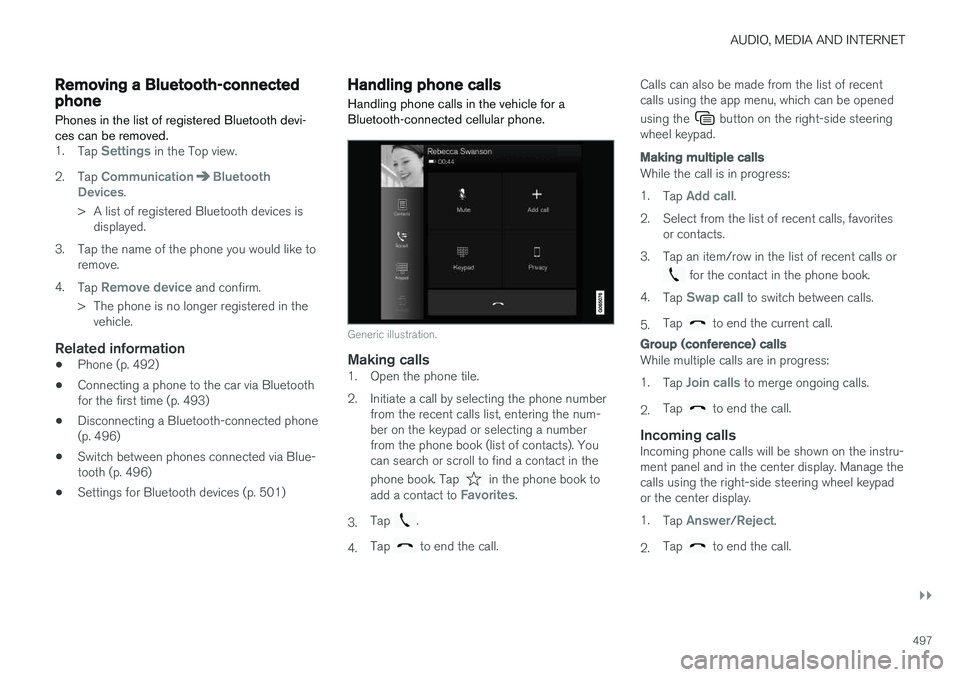
Generic illustration.
Making calls1. Open the phone tile.
2. Initiate a call by selecting the phone number
from the recent calls list, entering the num- ber on the keypad or selecting a numberfrom the phone book (list of contacts). Youcan search or scroll to find a contact in the phone book. Tap
in the phone book to
add a contact to Favorites.
3. Tap
.
4. Tap
to end the call. Calls can also be made from the list of recent calls using the app menu, which can be opened using the
button on the right-side steering
wheel keypad.
Making multiple calls
While the call is in progress: 1. Tap
Add call.
2. Select from the list of recent calls, favorites or contacts.
3. Tap an item/row in the list of recent calls or
for the contact in the phone book.
4. Tap
Swap call to switch between calls.
5. Tap
to end the current call.
Group (conference) calls
While multiple calls are in progress: 1.
Tap
Join calls to merge ongoing calls.
2. Tap
to end the call.
Incoming callsIncoming phone calls will be shown on the instru- ment panel and in the center display. Manage thecalls using the right-side steering wheel keypador the center display. 1.
Tap
Answer/Reject.
2. Tap
to end the call.
Page 500 of 660
||
AUDIO, MEDIA AND INTERNET
498
Incoming calls while another call is in
progress
1.Tap Answer/Reject.
2. Tap
to end the call.
Privacy
–While a call is in progress, tap Privacy and
select setting:
•
Switch to mobile phone - the hands-
free function will be disabled and the call will proceed on the cellular phone.
•
Driver focused - the microphone in the
ceiling liner on the passenger side will be muted and the call will proceed using thevehicle's hands-free function.
Related information
• Phone (p. 492)
• Connecting a phone to the car via Bluetoothfor the first time (p. 493)
• Voice control for cellular phones (p. 145)
• Handling the App menu in the instrumentpanel (p. 101)
• Entering characters, letters and words byhand in the center display (p. 127)
• Managing the phone book (p. 499)
• Handling text messages (p. 498)
• Sound settings (p. 458)
Handling text messages
A Bluetooth-connected cellular phone's text messages can be handled in the vehicle.
Text message functionality needs to be activated in certain phones. Not all phones are fully com-patible and therefore cannot display contacts andmessages in the vehicle. For additional informa-tion on compatibility, see support.volvocars.com.
Handling text messages in the center
display
Text messages are only shown in the center dis-play if the relevant setting is made.
Tap
Messages in App view to
handle text messages in the center display.
NOTE
When the vehicle is moving:
• Only one row of the message will be dis- played. Tap
Read out to have the entire
message read aloud.
• The center display's keyboard cannot be used.
Reading text messages in the center display
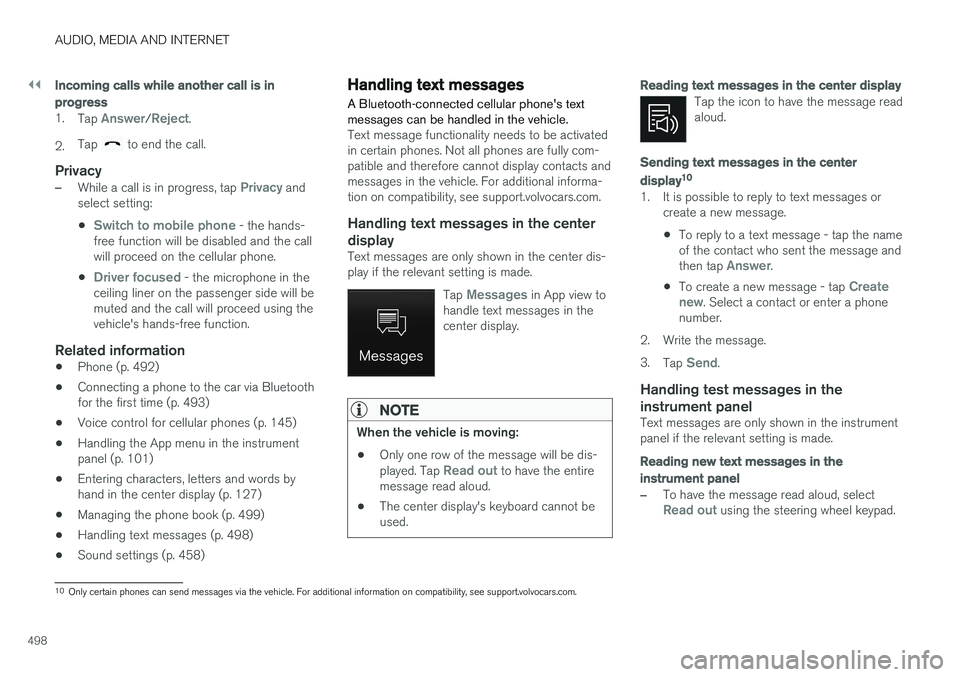
Tap the icon to have the message read aloud.
Sending text messages in the center
display10
1. It is possible to reply to text messages or
create a new message.
• To reply to a text message - tap the name of the contact who sent the message and then tap
Answer.
• To create a new message - tap
Create
new. Select a contact or enter a phone
number.
2. Write the message. 3. Tap
Send.
Handling test messages in the instrument panel
Text messages are only shown in the instrument panel if the relevant setting is made.
Reading new text messages in the
instrument panel
–To have the message read aloud, selectRead out using the steering wheel keypad.
10
Only certain phones can send messages via the vehicle. For additional information on compatibility, see support.volvocars.com.
Page 501 of 660
AUDIO, MEDIA AND INTERNET
}}
* Option/accessory.499
Dictating replies in the instrument panel
After the test message has been read aloud, it is possible to answer briefly with dictation if thevehicle has an Internet connection.
–Tap Answer using the steering wheel key-
pad. A dictation dialog will start.
Message notificationNotifications can be activated and deactivated in the text message settings.
Related information
• Phone (p. 492)
• Text message settings (p. 499)
• Phone settings (p. 500)
• Internet-connected vehicle
* (p. 501)
• Voice control for cellular phones (p. 145)
• Entering characters, letters and words byhand in the center display (p. 127)
• Connecting a phone to the car via Bluetoothfor the first time (p. 493)
Text message settings
Settings for handling text messages received through a connected phone can be personal-ized.
1. Tap Settings in the Top view.
2. Tap
CommunicationText Messagesand select settings: •
Notification in center display - display
text message notifications in the center display's status bar.
•
Notification in driver display - displays
notifications in the driver's display and incoming messages can be managedusing the steering wheel's right-hand key-pad.
•
Text message tone - select tone for
incoming text messages.
Related information
• Phone (p. 492)
• Connecting a phone to the car via Bluetooth for the first time (p. 493)
• Handling text messages (p. 498)
• Phone settings (p. 500)
Managing the phone book
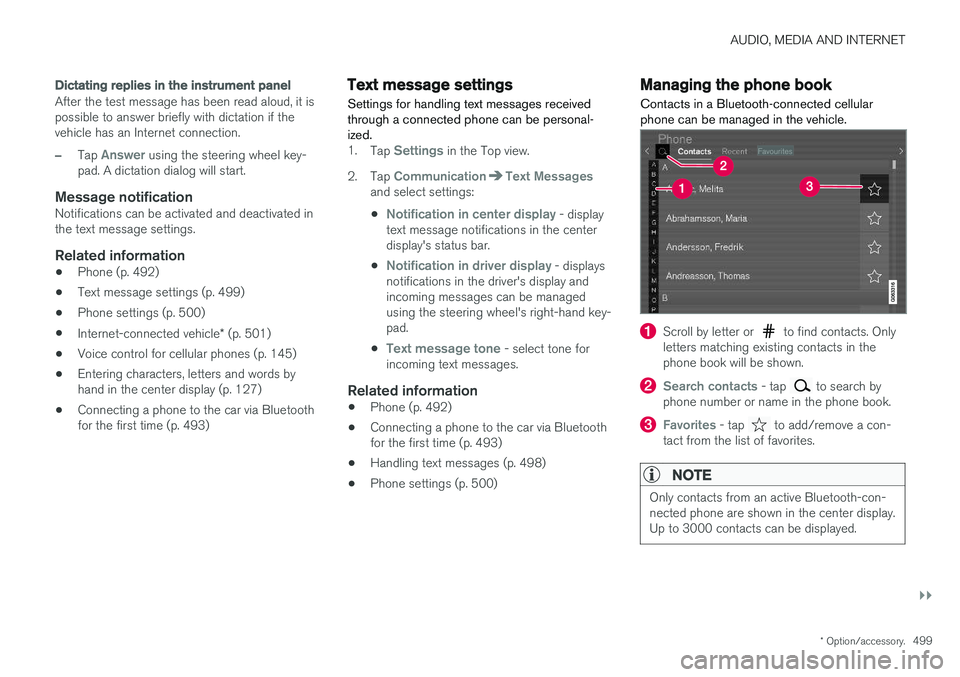
Contacts in a Bluetooth-connected cellular phone can be managed in the vehicle.
Scroll by letter or to find contacts. Only
letters matching existing contacts in the phone book will be shown.
Search contacts - tap to search by
phone number or name in the phone book.
Favorites - tap to add/remove a con-
tact from the list of favorites.
NOTE
Only contacts from an active Bluetooth-con- nected phone are shown in the center display.Up to 3000 contacts can be displayed.
Page 603 of 660
MAINTENANCE AND SERVICE
* Option/accessory.601
FunctionAA
Right-side headlight, some mod- els with LEDB 15
– –
Heated windshield
*, left side Shunt
Heated windshield
*, left side 40
Headlight washers
*25
Windshield washer 25
Transmission control module 15
Horn 20
Alarm siren
* 5
Brake system control module (valves, parking brake) 40
Wipers 30
Rear window washer 25
Heated windshield
*, right side 40
Parking heater
* 20
Brake system control module (ABS pump) 40
FunctionAA
– –
Heated windshield
*, right side Shunt
Fed when ignition is on: engine control module, transmissioncomponents, electrical powersteering, central electrical mod-ule, brake system control mod-ule 5
– –
Right-side headlight 7.5 Right-side headlight, some mod- els with LED
B 15
– –
– –
Battery connection control mod- ule 5
Airbags 5
FunctionAA
Left-side headlight 7.5 Left-side headlight, some mod- els with LED
B 15
Accelerator pedal sensor 5
A
Ampere
B LED (Light Emitting Diode)
Related information
• Fuses and fuseboxes (p. 597)
• Replacing fuses (p. 598)
Page 605 of 660
MAINTENANCE AND SERVICE
}}
* Option/accessory.603
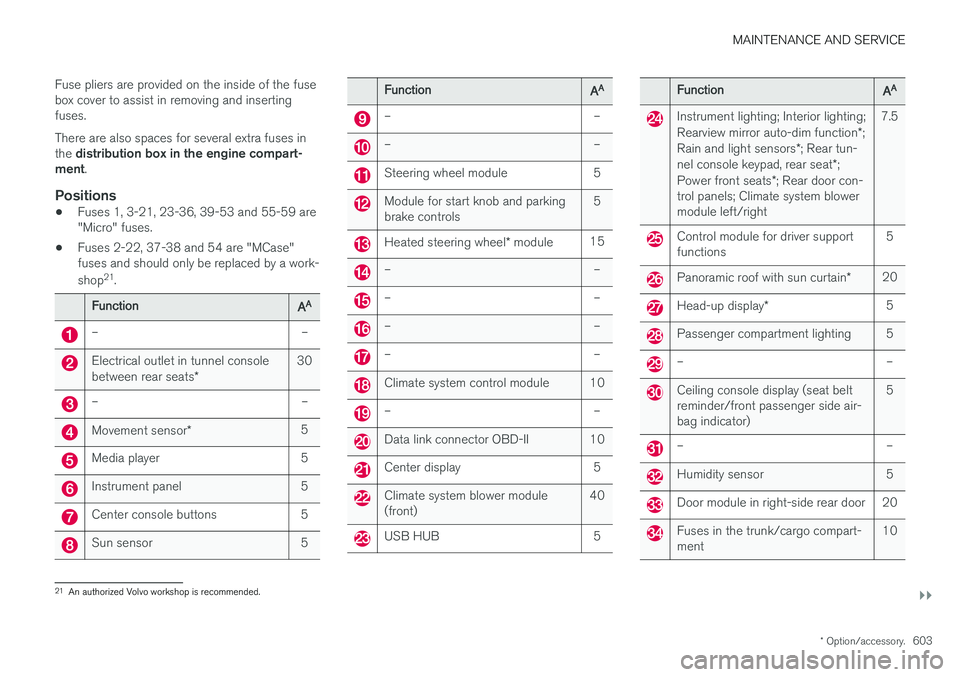
Fuse pliers are provided on the inside of the fuse box cover to assist in removing and insertingfuses. There are also spaces for several extra fuses in the
distribution box in the engine compart-
ment .
Positions
•Fuses 1, 3-21, 23-36, 39-53 and 55-59 are "Micro" fuses.
• Fuses 2-22, 37-38 and 54 are "MCase"fuses and should only be replaced by a work- shop 21
.
FunctionAA
– –
Electrical outlet in tunnel console between rear seats * 30
– –
Movement sensor
* 5
Media player 5
Instrument panel 5
Center console buttons 5
Sun sensor 5
FunctionAA
– –
– –
Steering wheel module 5
Module for start knob and parking brake controls 5
Heated steering wheel
* module 15
– –
– –
– –
– –
Climate system control module 10
– –
Data link connector OBD-II 10
Center display 5
Climate system blower module (front) 40
USB HUB 5
FunctionAA
Instrument lighting; Interior lighting; Rearview mirror auto-dim function
*;
Rain and light sensors *; Rear tun-
nel console keypad, rear seat *;
Power front seats *; Rear door con-
trol panels; Climate system blower module left/right 7.5
Control module for driver support functions
5
Panoramic roof with sun curtain
*20
Head-up display
* 5
Passenger compartment lighting 5
– –
Ceiling console display (seat belt reminder/front passenger side air-bag indicator) 5
– –
Humidity sensor 5
Door module in right-side rear door 20
Fuses in the trunk/cargo compart- ment
10
21
An authorized Volvo workshop is recommended.
Page 611 of 660
MAINTENANCE AND SERVICE
}}
609
Cleaning the interiorOnly use cleaning agents and car care products recommended by Volvo. Clean regularly andtreat stains immediately for best results. It isimportant to vacuum before using a cleaningagent.
CAUTION
• Some colored clothing (for example, dark jeans and suede garments) may stain theupholstery. If this occurs, it is important toclean and treat these parts of the uphols-tery as soon as possible.
• Never use strong solvents such aswasher fluid, gasoline, mineral spirit orconcentrated alcohol to clean the interioras this can damage the upholstery aswell as other interior materials.
• Never spray cleaning agent directly ontocomponents that have electrical buttonsand controls. Wipe instead with a dampcloth with cleaning agent.
• Sharp objects and Velcro can damagethe car's textile upholstery.
Related information
• Cleaning the center display (p. 609)
• Cleaning fabric upholstery and ceiling liner (p. 611)
• Cleaning the seat belt (p. 611) •
Cleaning floor mats and inlay mats (p. 611)
• Cleaning leather upholstery (p. 612)
• Cleaning the leather steering wheel(p. 613)
• Cleaning interior plastic, metal and wood sur-faces (p. 614)
Cleaning the center display
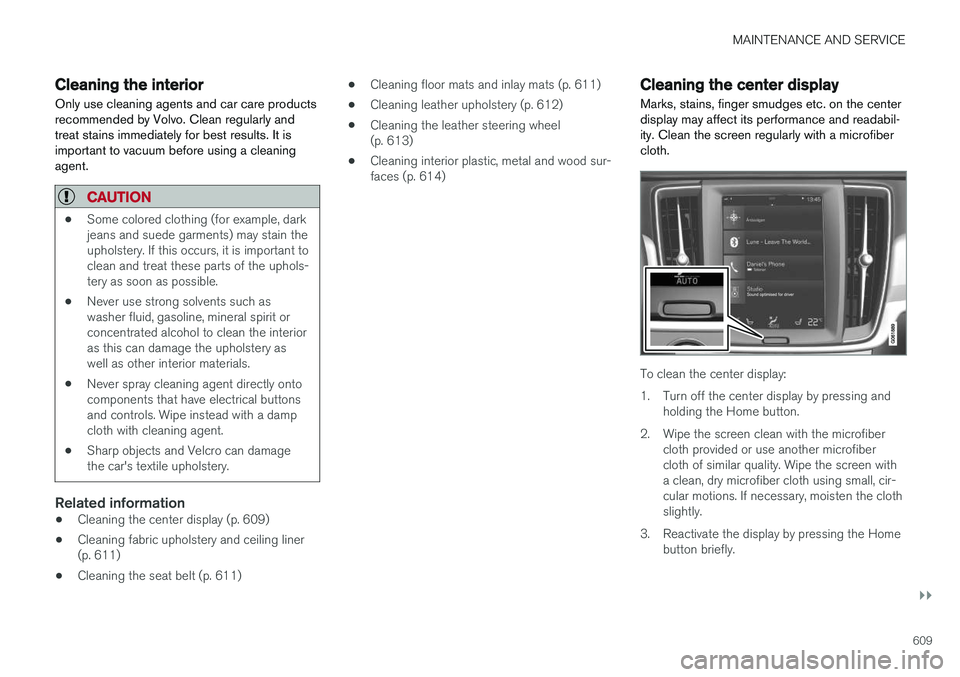
Marks, stains, finger smudges etc. on the center display may affect its performance and readabil-ity. Clean the screen regularly with a microfibercloth.
To clean the center display:
1. Turn off the center display by pressing and holding the Home button.
2. Wipe the screen clean with the microfiber cloth provided or use another microfiber cloth of similar quality. Wipe the screen witha clean, dry microfiber cloth using small, cir-cular motions. If necessary, moisten the clothslightly.
3. Reactivate the display by pressing the Home button briefly.